

The MINIFS function in Excel returns the smallest number from only the rows that meet your conditions. It’s handy for things like the lowest price for one brand, the earliest date for one order status, or the smallest value that isn’t zero.
Think of it as the MIN function with a filter built in. You point it at the numbers, tell it which rows count, and it skips everything else.
The eight examples below start with one simple condition and work up to zeros, dates, OR logic, and a lowest value for every category.
Follow along with the example file
MINIFS Function Examples.xlsx
MINIFS Function Syntax
Here is the syntax of the MINIFS function:
=MINIFS(min_range,criteria_range1,criteria1,[criteria_range2,criteria2],...)
- min_range – the cells you want the smallest value from. Only numbers count here, so empty cells and text in this range are skipped.
- criteria_range1 – the cells you want to check against the first condition.
- criteria1 – the condition itself. It can be a number, text, a cell reference, or an expression like “>0”.
- criteria_range2, criteria2, … – optional extra range and condition pairs. You can add up to 126 pairs.
When you add more than one pair, a row is included only when it meets every condition.
Each criteria_range has to be the same size and shape as min_range. If one of them is even a row shorter, MINIFS returns a #VALUE! error instead of a result.
The MINIFS function works in Excel 2019 and later on Windows and Mac, including Excel 365, 2024, 2021, and Excel for the web. Excel 2016 and earlier versions don’t have it.
When to Use the MINIFS Function
Use this function when you need to:
- Find the lowest value for one person, product, or category
- Get the minimum value when several conditions must all be true
- Find the smallest value while ignoring zeros
- Get the earliest date for a status, customer, or task
- Find the lowest value between two dates
- Build a quick lowest-value-per-category summary
Now let’s look at some practical examples of the MINIFS function.
Example 1: Min If With One Condition
Let’s start with a simple example.
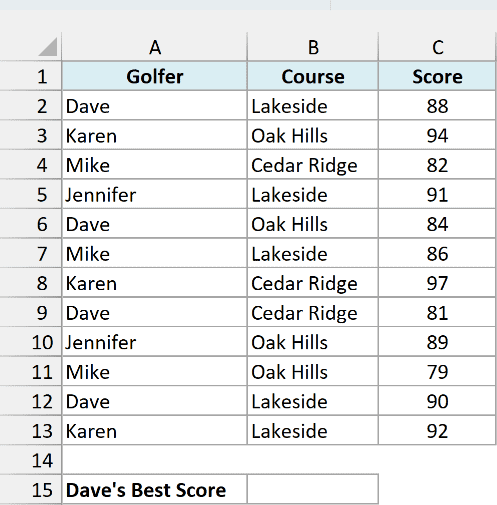
Below is a golf league score sheet with the golfer, course, and score for each round, and I want Dave’s best (lowest) score in cell B15.
Here is the formula:
=MINIFS(C2:C13,A2:A13,"Dave")
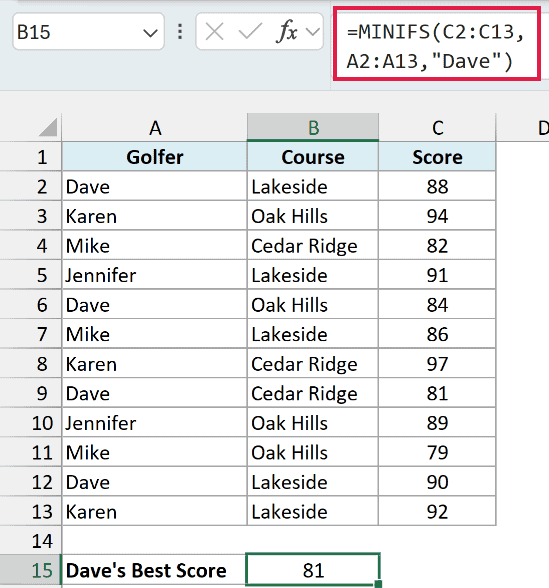
This returns 81.
MINIFS checks the names in A2:A13, keeps only the rows where the name is Dave, and returns the smallest score from those rows in C2:C13. Mike’s 79 is the lowest score on the whole sheet, but it doesn’t count because it isn’t Dave’s.
Text conditions go inside double quotes, which is why Dave is written as “Dave”. The match isn’t case-sensitive, so “dave” or “DAVE” gives you the same 81.
If you are using Excel 2016 or earlier, enter the below formula in cell B15 and press Control + Shift + Enter instead of just Enter:
=MIN(IF(A2:A13="Dave",C2:C13))
The IF part returns Dave’s scores and FALSE for every other row, and the MIN function ignores the FALSE values.
Example 2: MINIFS With Multiple Criteria
Now let’s add a second condition.
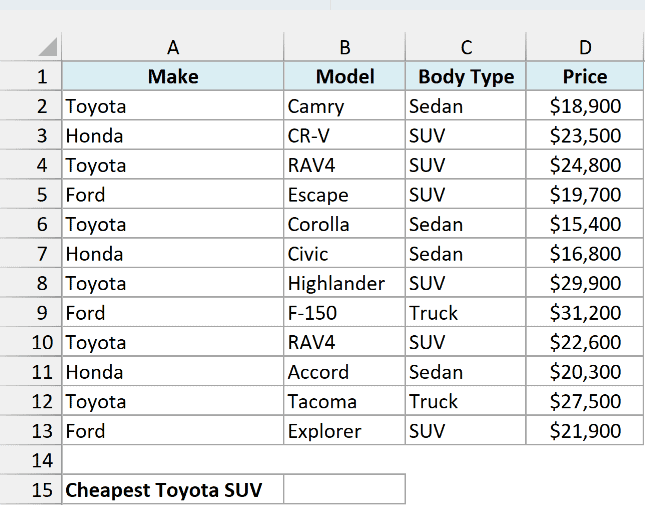
Below is a list of used cars for sale with the make, model, body type, and price of each car, and I want the price of the cheapest Toyota SUV in cell B15.
Here is the formula:
=MINIFS(D2:D13,A2:A13,"Toyota",C2:C13,"SUV")
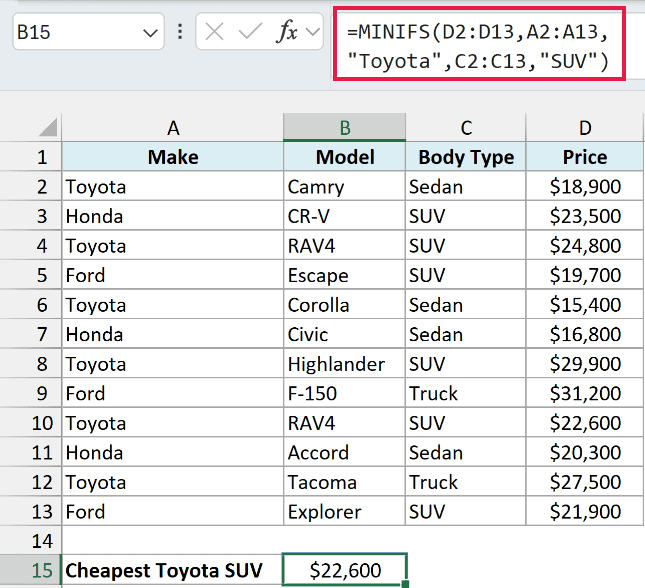
This gives $22,600.
Here, A2:A13 is checked for Toyota and C2:C13 for SUV, and both conditions matter. The cheapest Toyota is the $15,400 Corolla (a sedan) and the cheapest SUV is the $19,700 Ford Escape, but the cheapest Toyota SUV is the RAV4 at $22,600.
If you want “this OR that” instead of “this AND that”, Example 7 shows how to do it.
Example 3: MINIFS to Ignore Zeros
When a column has zeros in it, a plain MIN keeps returning 0, which usually isn’t the answer you want.
Below is the monthly income from a lawn mowing side gig, with $0 in the winter months, and I want the lowest monthly earnings (leaving out the zeros) in cell B15.
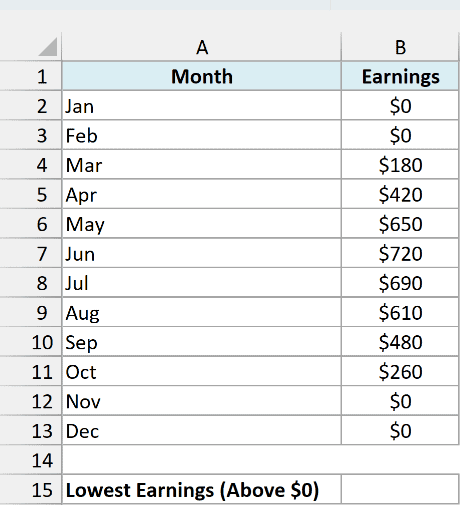
Here is the formula:
=MINIFS(B2:B13,B2:B13,">0")
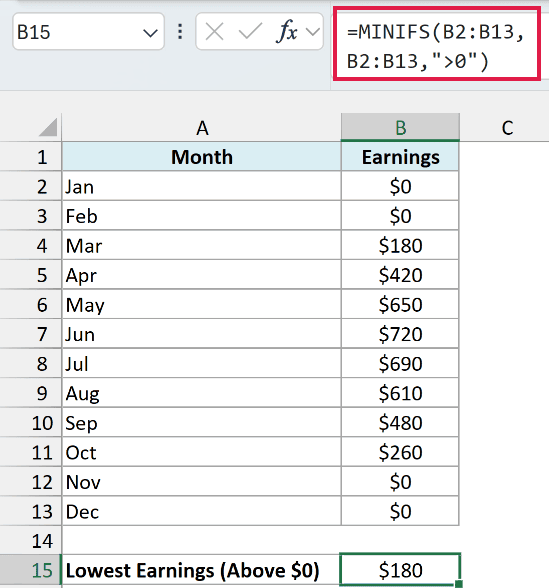
This returns $180, the earnings for March.
Here, column B is used as both min_range and criteria_range, and the “>0” condition keeps only the months that earned something.
Note that the operator and the number go together inside one pair of double quotes. If your data can also have negative numbers that you want to keep (like a refund), use “<>0” instead, which skips only the zeros.
Example 4: MINIFS With Wildcards (Partial Match)
Sometimes you only know part of the text you want to match. That’s where wildcard characters come in.
Below is a price list from a hardware store, and I want the price of the cheapest cordless tool in cell B13.
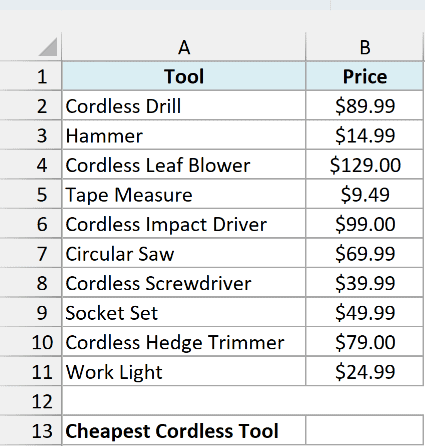
Here is the formula:
=MINIFS(B2:B11,A2:A11,"Cordless*")
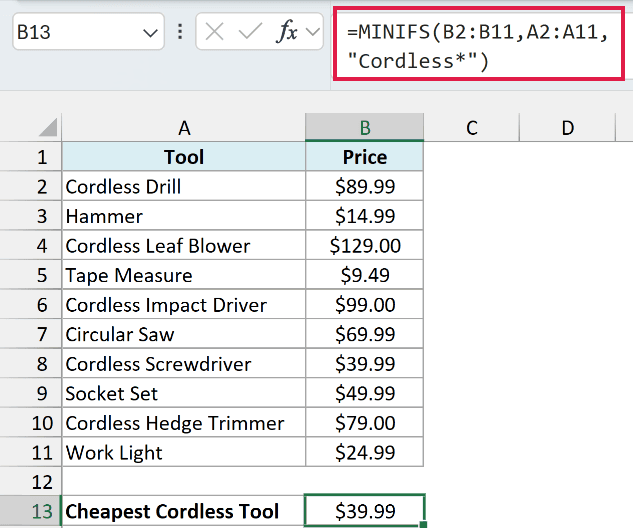
This returns $39.99, the price of the Cordless Screwdriver.
The asterisk (*) stands for any number of characters, so "Cordless*" matches every tool name that starts with Cordless. The $9.49 tape measure is cheaper, but it’s left out because it isn’t cordless.
Example 5: Find the Minimum Value Between Two Dates
Now let’s use dates in the conditions, with the dates coming from cells.
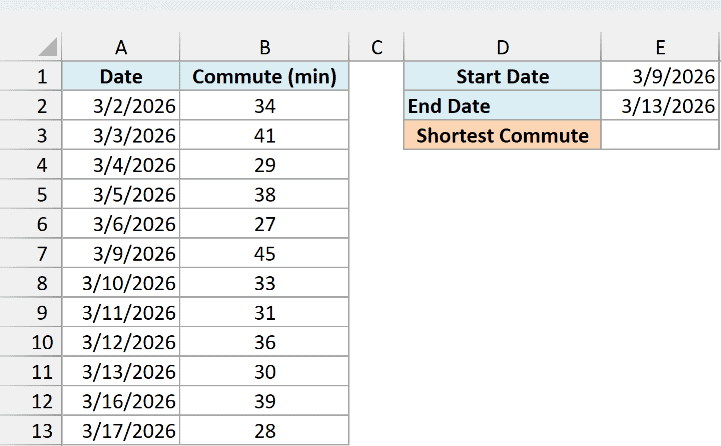
Below is a daily commute log with the minutes it took to get to work each day, and I want the shortest commute between the start date in E1 and the end date in E2, in cell E3.
Here is the formula:
=MINIFS(B2:B13,A2:A13,">="&E1,A2:A13,"<="&E2)
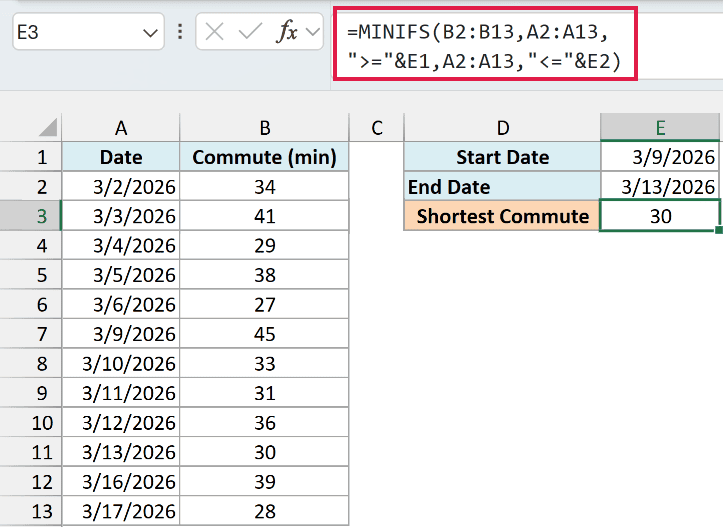
This returns 30, the commute on 3/13/2026.
The date column A2:A13 is used twice here, once for each condition. The first pair keeps the dates on or after 3/9/2026, and the second keeps the dates on or before 3/13/2026, so only that one week is checked.
When a condition takes its value from a cell, the operator stays inside the double quotes and the cell is joined to it with an ampersand (&). If you typed “>=E1” instead, Excel would look for the text E1, and you’d get 0.
The 27-minute commute on 3/6/2026 is the shortest in the whole log, but it falls outside these dates, so it’s ignored. To check a different week, just change the dates in E1 and E2.
Example 6: Get the Earliest Date With MINIFS
Since Excel stores dates as numbers, MINIFS can also find the earliest date that meets a condition.
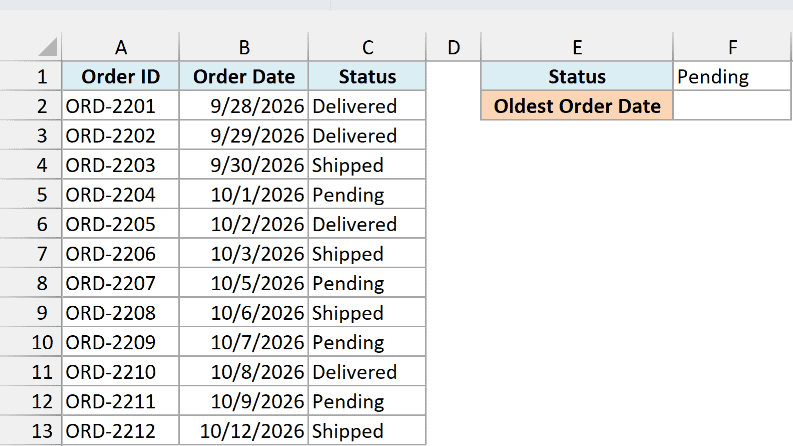
Below is an online store’s order log with the date and status of each order, and I want the date of the oldest order with the status in F1 (Pending) in cell F2.
Here is the formula:
=MINIFS(B2:B13,C2:C13,F1)
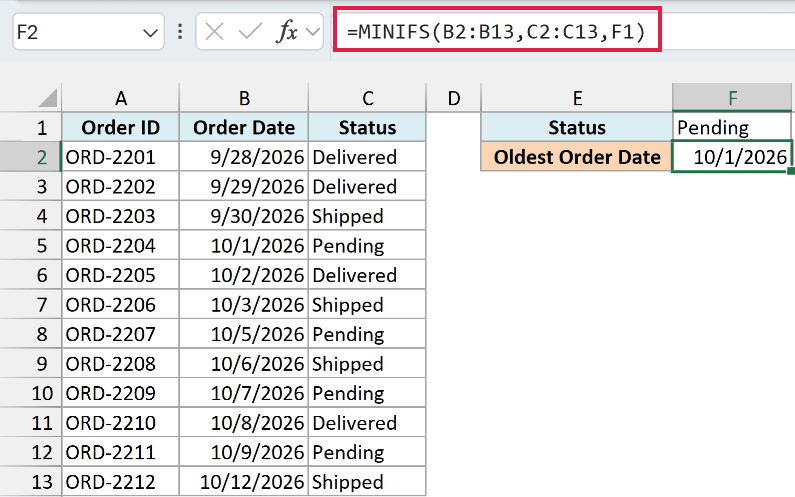
This returns 10/1/2026, the date of the pending order that has been waiting the longest.
MINIFS checks the statuses in C2:C13 against Pending in F1 and returns the smallest date from B2:B13 among those rows. The result is a date serial number, so format the cell as a date if you see a number like 46296.
There’s one catch with MINIFS. When no row meets the conditions, it returns 0 instead of an error.
Here is the same formula in cell F5, now pointing to Cancelled in F4, a status that doesn’t appear in the order log:
=MINIFS(B2:B13,C2:C13,F4)
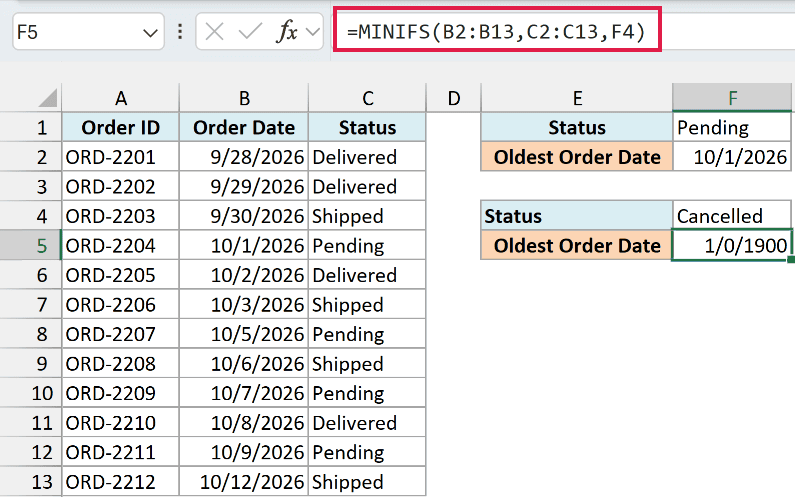
Since there are no cancelled orders, MINIFS returns 0. And because F5 is formatted as a date, Excel shows that 0 as 1/0/1900, which looks like a real (if very odd) date.
To show a clear message instead, check whether any row matches before running MINIFS. Here is the formula in cell F6:
=IF(COUNTIF(C2:C13,F4)=0,"No orders",MINIFS(B2:B13,C2:C13,F4))
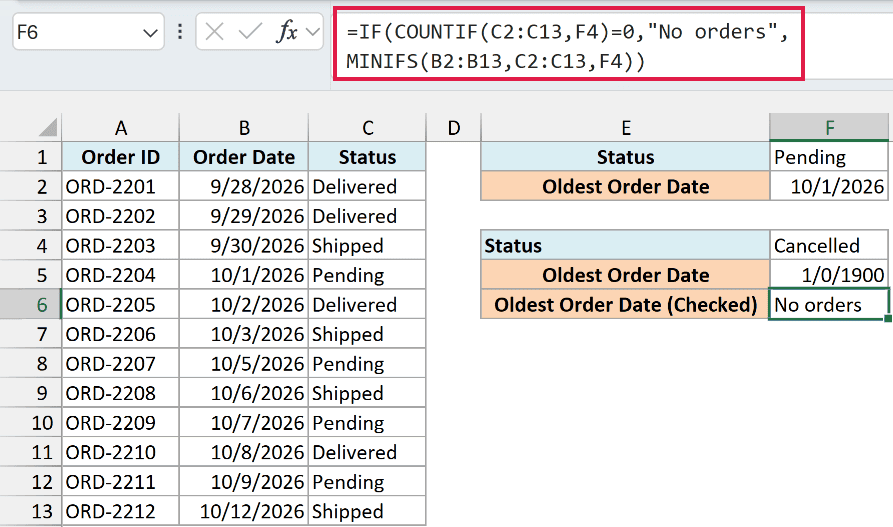
The COUNTIF function counts the orders that have the status in F4. When that count is 0, the formula returns “No orders”, and otherwise it returns the same MINIFS result as before.
Important: With numbers, a no-match 0 is even easier to miss, since it looks like a real result (like a $0 price). When your MINIFS has more than one condition, do this check with COUNTIFS and the same condition pairs.
Example 7: MINIFS With OR Logic
All the conditions in one MINIFS work as AND, so a row has to meet every one of them. To get “this OR that”, you can give a condition a list of values instead.
Below is a list of kids’ summer camps with the type and weekly fee of each camp, and I want the fee of the cheapest camp that’s either Art or Music in cell B13.
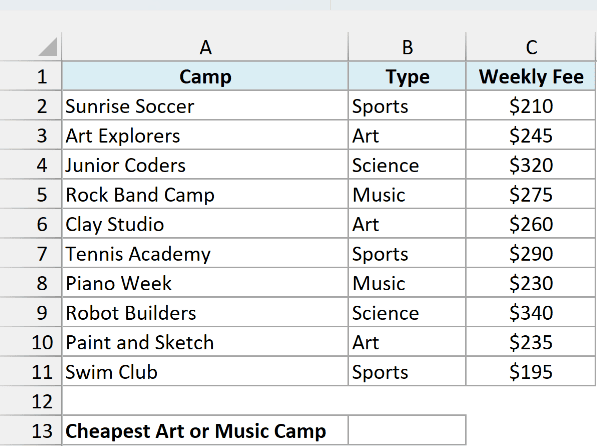
Here is the formula:
=MIN(MINIFS(C2:C11,B2:B11,{"Art","Music"}))
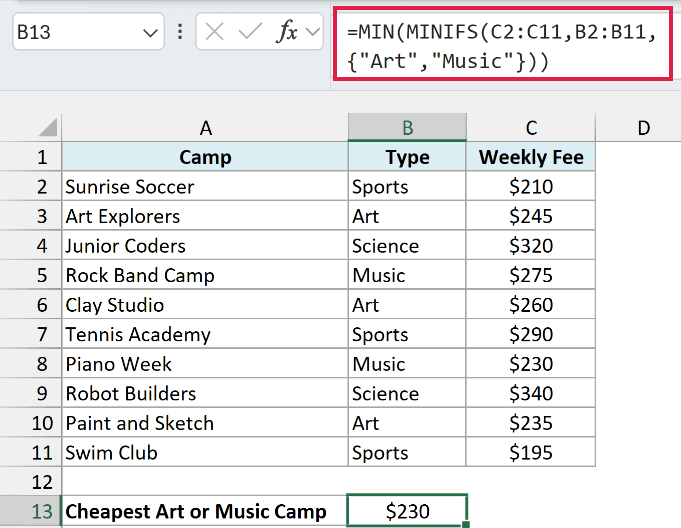
This returns $230.
The curly braces hold a list of two values, so MINIFS runs twice, once for Art and once for Music, and returns two results: $235 and $230. The MIN function around it then picks the smaller one, which is the $230 fee for Piano Week.
You might be tempted to add a second pair instead, with B2:B11 checked for “Art” and again for “Music”. That returns 0, because no camp can be Art and Music at the same time.
Example 8: Lowest Value for Each Category (Dynamic Array)
Let’s finish with a dynamic array example that builds a full summary with just two formulas.
Below are the results of a swim meet with each swimmer’s event and time in seconds, and I want the fastest time for each event in column F, next to a list of the events in column E.
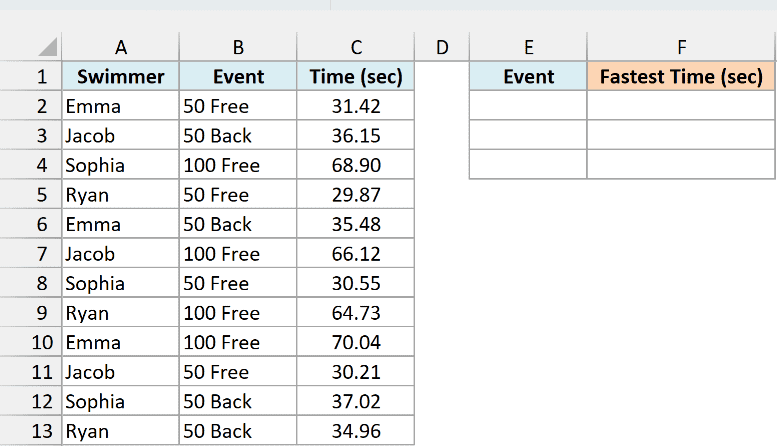
Here is the formula in cell E2 that lists the events:
=UNIQUE(B2:B13)
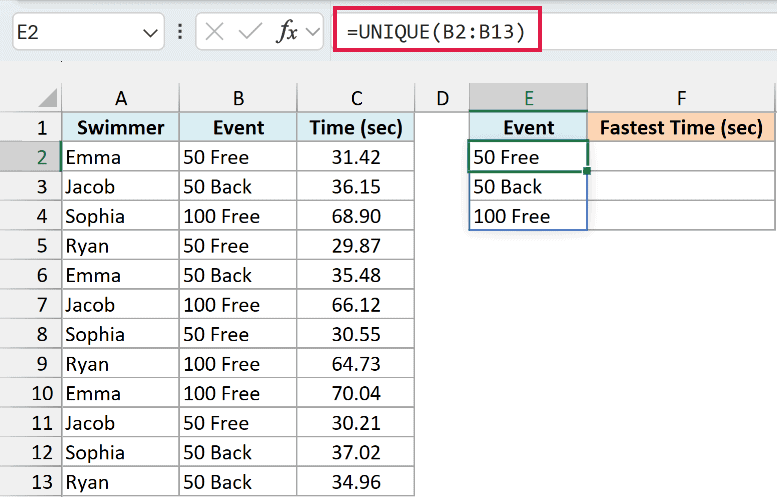
The UNIQUE function returns each event name once, and the list spills down from E2 into E2:E4.
Here is the formula in cell F2 that gets the fastest time for each event:
=MINIFS(C2:C13,B2:B13,E2#)
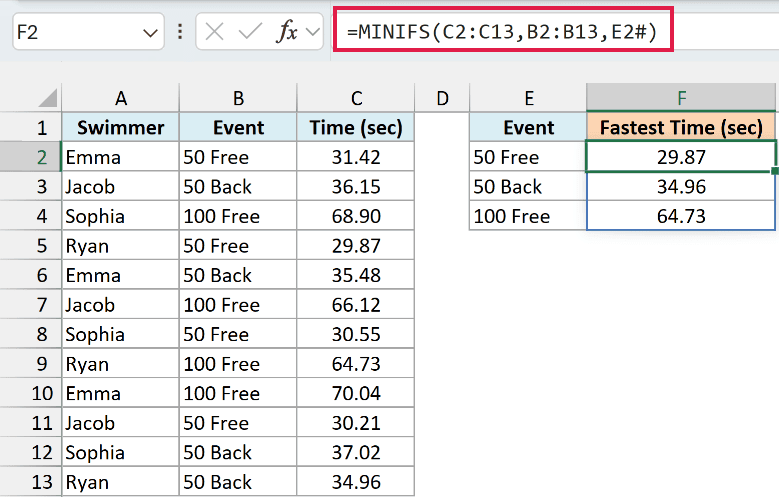
E2# refers to the whole spilled list that starts in E2. MINIFS runs once for each event in that list, and the three results spill down right next to their events: 29.87 for 50 Free, 34.96 for 50 Back, and 64.73 for 100 Free.
Only the criteria can be a list like E2#. The min_range and criteria_range arguments must be actual cell ranges, so you can’t, for example, filter the data with the FILTER function inside MINIFS (Excel won’t even let you enter that formula).
This one needs Excel 2021 or Microsoft 365, because Excel 2019 has neither the UNIQUE function nor the # spill reference.
So that’s how you can use MINIFS to get the smallest value that meets your conditions, whether the condition is a name, a date range, or part of a word.
If you need the largest value instead, the MAXIFS function works exactly the same way, with the same arguments.
I hope you found this tutorial useful.
Other Excel Articles You May Also Like:
