

The MAXIFS function in Excel returns the largest number from a range, but only from the rows that meet the conditions you set. So instead of the highest value in the whole list, you get the highest for one person, product, or date range.
If you’ve used SUMIFS, MAXIFS will feel familiar, since it takes the same kind of conditions. In this article, I’ll show you eight examples, from a single condition to dates, wildcards, OR logic, and a max for every category in one formula.
Follow along with the example file
MAXIFS Function Examples.xlsx
MAXIFS Function Syntax
Here is the syntax of the MAXIFS function:
=MAXIFS(max_range,criteria_range1,criteria1,[criteria_range2,criteria2],...)
- max_range – the cells you want the largest value from. Only numbers count here, so text and empty cells in this range are ignored.
- criteria_range1 – the cells you want to check against the first condition.
- criteria1 – the condition itself. It can be a number, text, a cell reference, or an expression like “>=100”.
- criteria_range2, criteria2, … – optional extra range and condition pairs. You can add up to 126 pairs.
When you add more than one pair, a row is included only when it meets every condition.
Every criteria_range has to be the same size and shape as max_range. If one of them is even a row shorter, MAXIFS returns a #VALUE! error instead of a result.
The MAXIFS function works in Excel 2019 and later on Windows and Mac, including Excel 365, 2024, 2021, and Excel for the web. It’s not available in Excel 2016 or earlier.
When to Use the MAXIFS Function
Use this function when you need to:
- Find the highest value for one person, product, or category
- Get the maximum value when several conditions must all be true
- Find the peak value between two dates
- Get the latest date for a customer, task, or item
- Build a quick max-per-category summary
Let me show you eight practical examples of how to use the MAXIFS function.
Example 1: MAXIFS With One Condition (Max If)
Let’s start with a simple example.
Below is a bowling league score sheet with each bowler’s score for three weeks, and I want Kevin’s best score in cell B15.
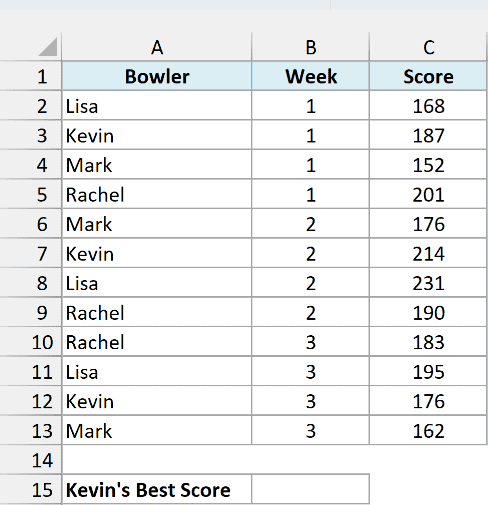
Here is the formula:
=MAXIFS(C2:C13,A2:A13,"Kevin")
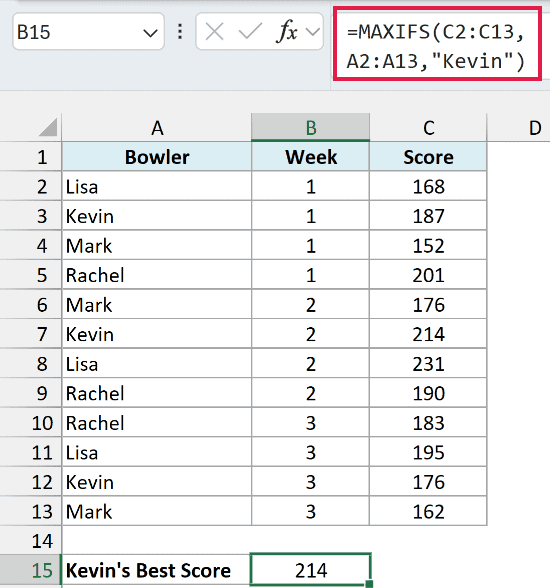
This returns 214.
MAXIFS checks the names in A2:A13, keeps only the rows where the name is Kevin, and returns the largest score from those rows in C2:C13. Lisa’s 231 is the highest score on the sheet, but it doesn’t count because it isn’t Kevin’s.
Text criteria go inside double quotes. The match also isn’t case-sensitive, so “kevin” or “KEVIN” gives you the same 214.
If you are using Excel 2016 or earlier, enter the below formula in cell B15 and press Control + Shift + Enter instead of just Enter:
=MAX(IF(A2:A13="Kevin",C2:C13))
The IF part returns Kevin’s scores and FALSE for everyone else, and the MAX function ignores the FALSE values.
Example 2: MAXIFS With Multiple Criteria
Now let’s add a second condition.
Below is a pizza delivery log with the driver, the neighborhood, and the tip for each order, and I want Jason’s biggest tip in Oak Park in cell B15.
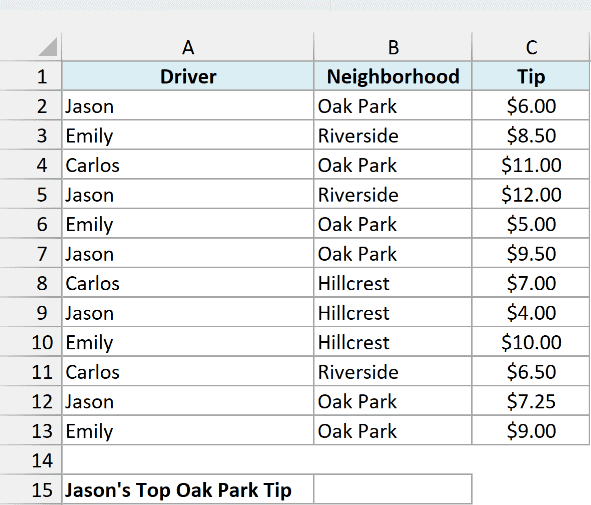
Here is the formula:
=MAXIFS(C2:C13,A2:A13,"Jason",B2:B13,"Oak Park")
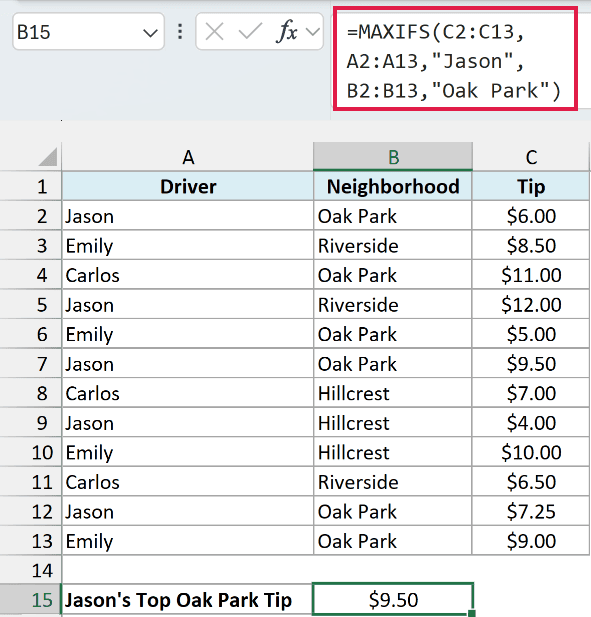
This gives $9.50.
Each condition comes as a pair: a range to check, then what to look for in it. Here A2:A13 has to be Jason and B2:B13 has to be Oak Park, and a row counts only when both are true (this is called AND logic).
You can see why both conditions matter here. Jason’s biggest tip overall is $12.00 (in Riverside), and the biggest Oak Park tip is Carlos’s $11.00, but the best tip that matches both is $9.50.
If you need “this OR that” instead, Example 7 shows how to do it.
Example 3: Use Comparison Operators in the Criteria
Conditions don’t have to be exact matches. You can also use operators like greater than, less than, or not equal to.
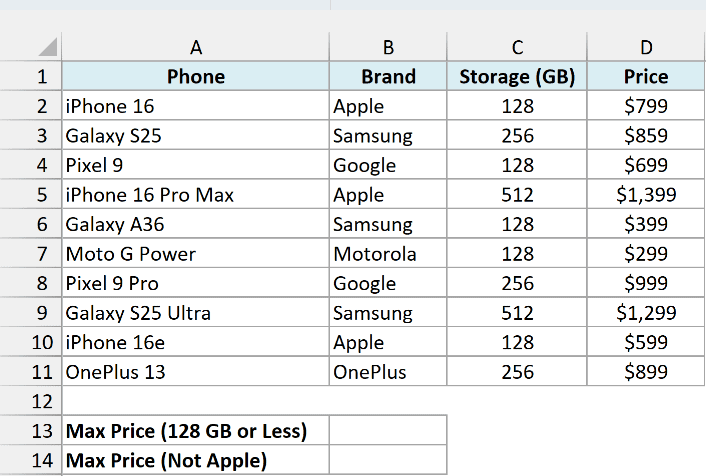
Below is a phone store price list with the brand, storage, and price of each phone, and I want the price of the most expensive phone with 128 GB of storage or less in cell B13.
Here is the formula:
=MAXIFS(D2:D11,C2:C11,"<=128")
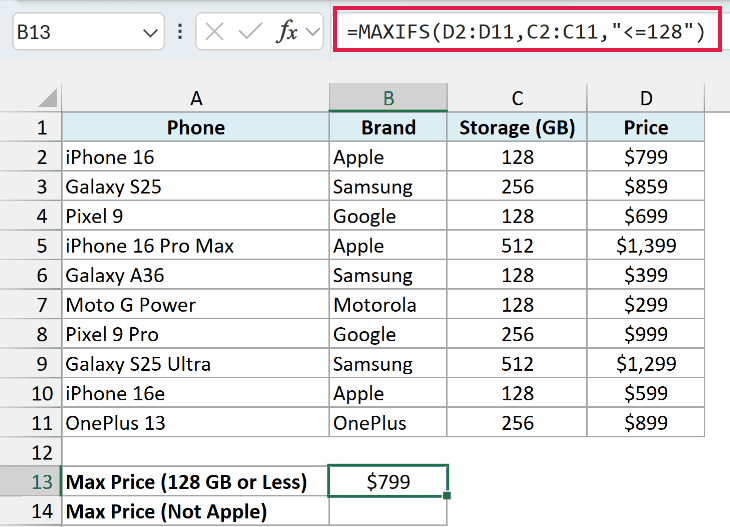
The condition “<=128” keeps only the phones with 128 GB or less in column C, and MAXIFS returns the highest price among them, which is $799 for the iPhone 16. Note that the operator and the number go together inside one pair of double quotes.
The not equal to operator (<>) works the same way. Here is the formula in cell B14 that gets the most expensive phone that isn’t an Apple:
=MAXIFS(D2:D11,B2:B11,"<>Apple")
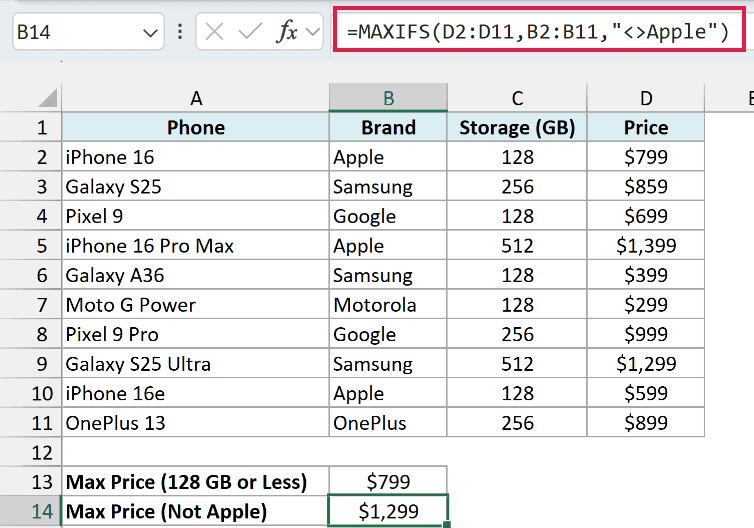
This skips every row where the brand is Apple, so the $1,399 iPhone 16 Pro Max is left out and the Galaxy S25 Ultra at $1,299 is the answer.
Example 4: MAXIFS With Wildcards (Partial Match)
Sometimes you only know part of the text you’re looking for. That’s where wildcards come in.
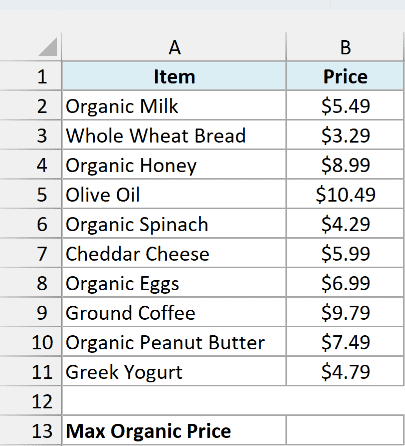
Below is a grocery price list, and I want the price of the most expensive organic item in cell B13.
Here is the formula:
=MAXIFS(B2:B11,A2:A11,"Organic*")
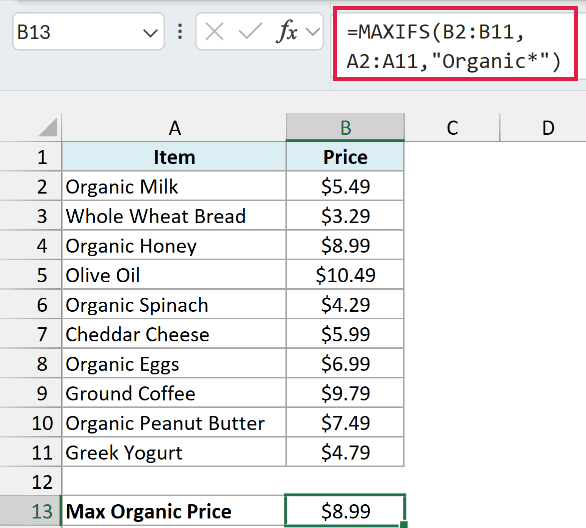
The asterisk (*) stands for any number of characters, so "Organic*" matches every item that starts with Organic. The most expensive of those is Organic Honey at $8.99, while the $10.49 Olive Oil is skipped.
If the word could appear anywhere in the name (like “Milk (Organic)”), use "*Organic*" instead.
You can also use a question mark (?), which stands for exactly one character. For example, "Organic Egg?" matches Organic Eggs and returns $6.99.
Pro Tip: To match an actual asterisk or question mark in your data, put a tilde (~) before it. For example, "~*" looks for a real * character instead of treating it as a wildcard.
Example 5: Find the Max Value Between Two Dates
Here’s one you’ll use a lot. You want the highest value within a date range, and you want to change the range without editing the formula.
Below are the daily high temperatures for the first 12 days of July, and I want the highest temperature between the start date in E1 and the end date in E2, in cell E3.
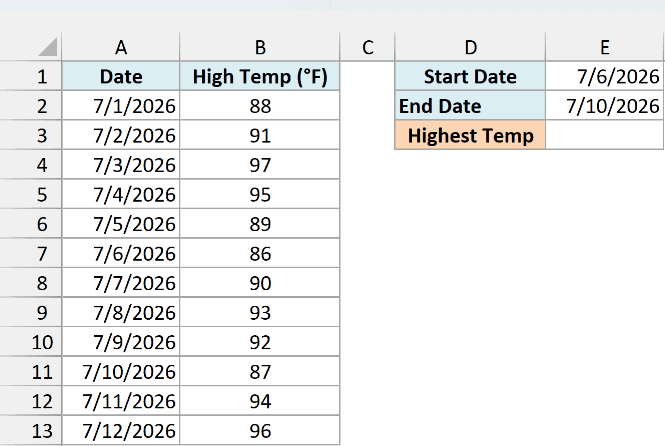
Here is the formula:
=MAXIFS(B2:B13,A2:A13,">="&E1,A2:A13,"<="&E2)
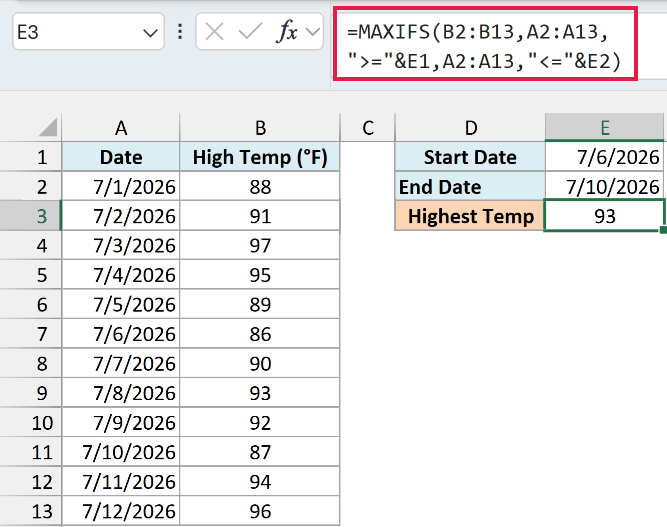
How this formula works:
- “>=”&E1 joins the operator with the start date in E1, so the first condition keeps dates on or after July 6.
- “<=”&E2 does the same with the end date in E2, keeping dates on or before July 10.
- Both conditions check the same date column (A2:A13), so only July 6 to July 10 is left, and the highest temperature in those five days is 93.
The hottest day on the sheet is July 3 at 97, but it falls outside the range, so it’s not included.
Since the dates sit in cells, you can change E1 or E2 and the result updates on its own.
Example 6: Find the Latest Date That Matches a Condition
Dates in Excel are stored as numbers, so MAXIFS can also find the latest date that matches a condition, like the last time someone did something.
Below is a hair salon’s visit log, and I want the last visit date for the client named in F1, in cell F2.
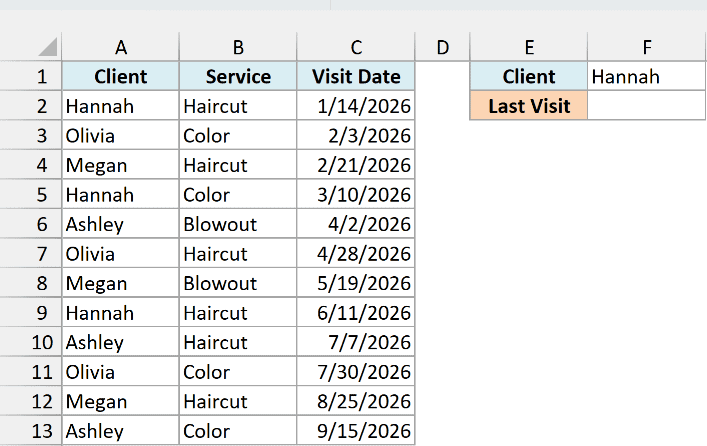
Here is the formula:
=MAXIFS(C2:C13,A2:A13,F1)
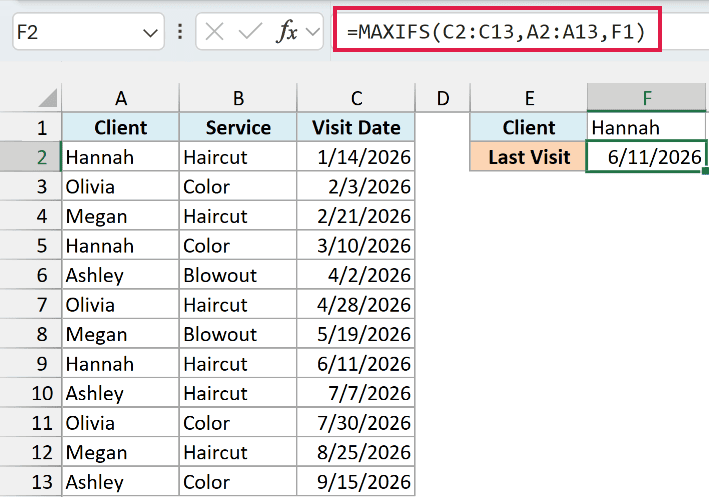
MAXIFS looks at Hannah’s three visits and returns the largest date, which is the most recent one, 6/11/2026. The log doesn’t need to be sorted for this to work.
Make sure the result cell is formatted as a date. Otherwise you’ll see a number like 46184 instead of 6/11/2026.
There’s one thing to watch out for here. If you change F1 to a client who isn’t in the list, like Tyler, MAXIFS doesn’t give you an error.
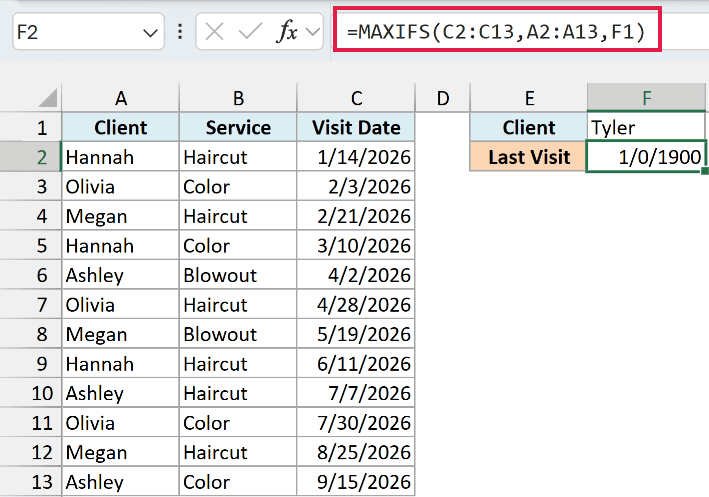
Important: When no row matches, MAXIFS returns 0 instead of an error. In a date cell, that 0 shows up as 1/0/1900, and in a number column it can easily pass for a real result.
To show a message instead, check whether there’s a match first. Here is the formula in cell F5, which checks the client in F4 (Tyler again):
=IF(COUNTIF(A2:A13,F4),MAXIFS(C2:C13,A2:A13,F4),"No visits")
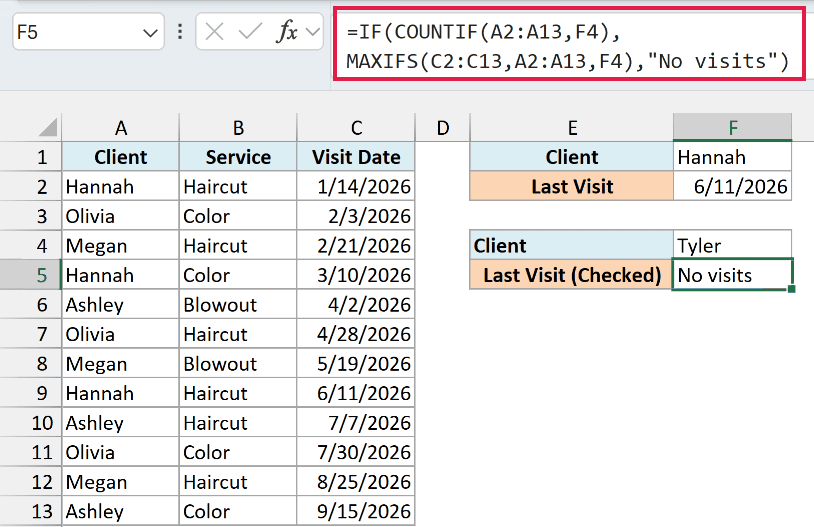
COUNTIF counts how many times Tyler appears in the client column. That’s 0 here, which IF treats as FALSE, so the formula shows “No visits” instead of running MAXIFS.
If your MAXIFS has more than one condition, use COUNTIFS with the same conditions, so the check looks for exactly what MAXIFS is looking for.
Example 7: MAXIFS With OR Logic
MAXIFS only does AND logic on its own, but with a small trick, you can also get the max for this OR that.
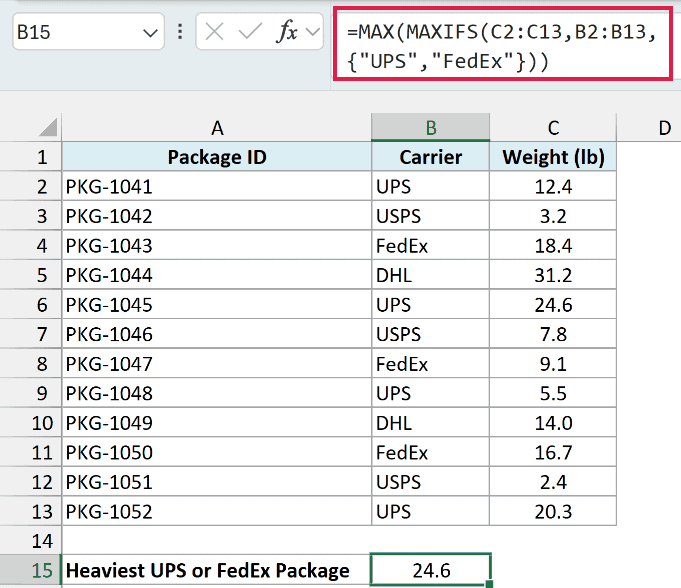
Below is a mailroom log with the carrier and weight of each package, and I want the weight of the heaviest package shipped by either UPS or FedEx in cell B15.
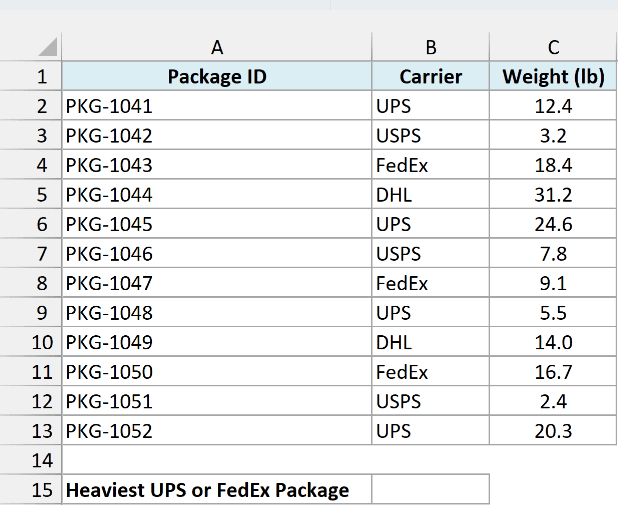
Here is the formula:
=MAX(MAXIFS(C2:C13,B2:B13,{"UPS","FedEx"}))
How this formula works:
- {“UPS”,”FedEx”} is an array constant that holds both carriers, and it goes in as the criteria.
- MAXIFS runs once for each carrier and returns two results, 24.6 for UPS and 18.4 for FedEx.
- MAX then picks the larger of the two, which is 24.6.
The DHL package at 31.2 is the heaviest one on the sheet, but it isn’t UPS or FedEx, so it’s left out. To include a third carrier, just add it inside the curly braces.
Example 8: Get the Max for Each Category in One Formula
Everything so far returns a single number. But with a little help from the UNIQUE function, you can get the max for every category at once.
Below is a fishing derby log with the angler, the species, and the length of each catch, and I want the longest catch for each species in columns E and F.
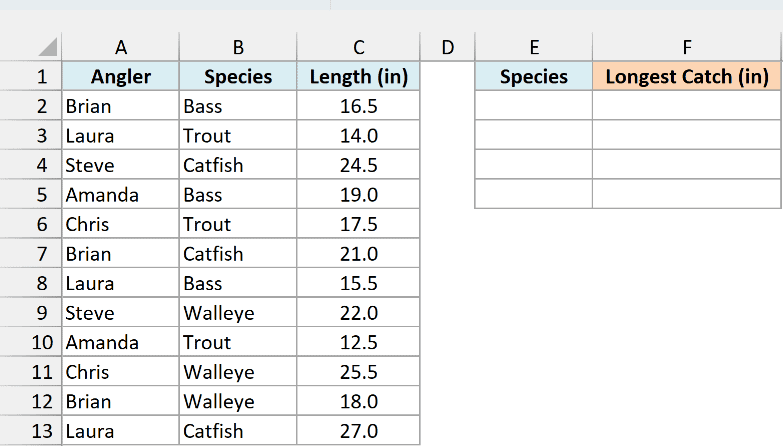
First, here is the formula in cell E2 that lists each species once:
=UNIQUE(B2:B13)
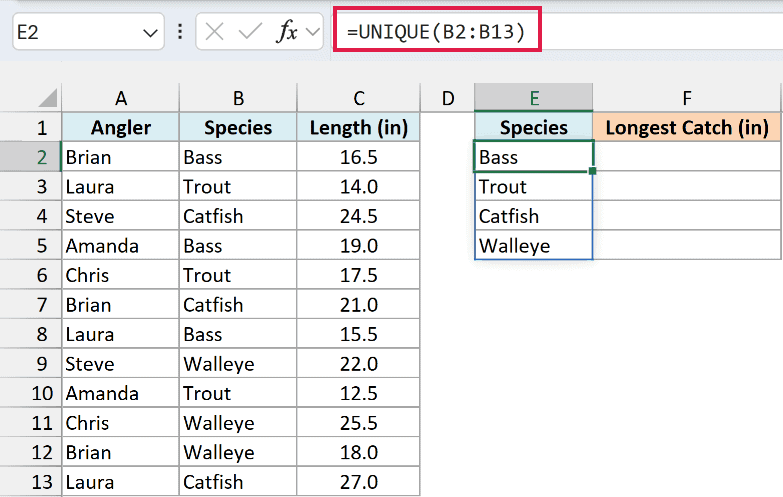
The UNIQUE function returns each species from column B once, in the order they first appear, and the list spills down to E5.
Now here is the MAXIFS formula in cell F2:
=MAXIFS(C2:C13,B2:B13,E2#)
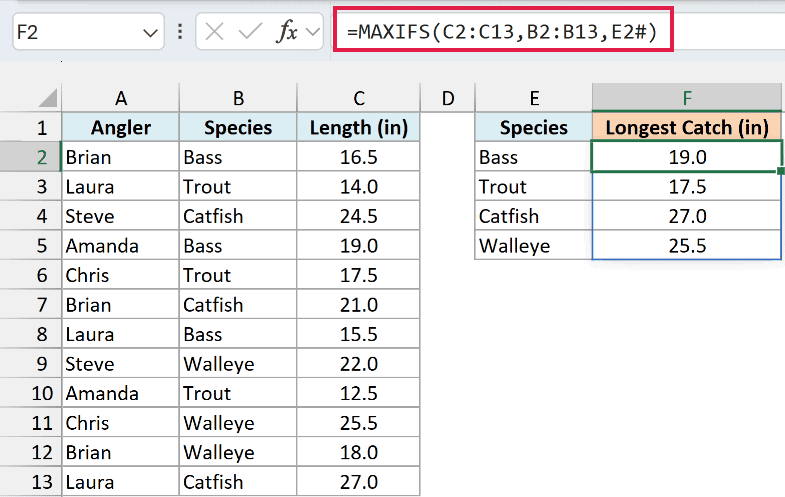
E2# refers to the whole spilled list in E2:E5. MAXIFS runs once for each species in that list and returns four results, which spill down right next to their species.
So Bass gets 19.0, Trout 17.5, Catfish 27.0, and Walleye 25.5. If a new species is logged anywhere in rows 2 to 13, both lists update on their own.
This one needs Excel 2021 or Microsoft 365, because the UNIQUE function and the # spill reference aren’t in Excel 2019.
One thing that won’t work is filtering the data inside MAXIFS first. Only the criteria can be an array like E2#, while max_range and criteria_range must be actual cell ranges, so Excel rejects a formula like =MAXIFS(FILTER(...),...).
So that’s how you can use MAXIFS to get the largest value that meets your conditions, whether that condition is a name, a date range, or part of a word.
If you need the smallest value instead, the MINIFS function works exactly the same way, with the same arguments.
I hope you found this tutorial useful.
Other Excel Articles You May Also Like:
