

If you want to find the largest value in a list in Power Query, the List.Max function is the quickest way to do it. It takes a list of values and hands you back the single biggest one.
In this article, I’ll walk you through List.Max with practical examples, from finding the highest number and the latest date to pulling the top record by a key and adding a peak-value column to a table.
List.Max Function Syntax
List.Max(list as list, optional default as any, optional comparisonCriteria as any, optional includeNulls as nullable logical) as any
- list – The list of values you want the maximum from
- default (optional) – The value to return when the list is empty. If you leave this out, an empty list returns null
- comparisonCriteria (optional) – How to compare the items, so you can find the max by a key instead of by the whole value
- includeNulls (optional) – Whether to keep null values in the comparison. Leave it out (or false) to ignore nulls
What it returns: A single value, the largest one in the list. The type matches whatever is in the list, so a list of numbers returns a number, a list of dates returns a date, and a list of text returns text.
When to Use List.Max
Use this function when you need to:
- Find the highest number in a column or list
- Get the latest date from a set of dates
- Pull the top record by a specific field (like the highest-revenue rep)
- Add a column that shows the peak value across several columns in each row
- Return a fallback value when the list you’re checking might be empty
Example 1: Find the Largest Number in a List
Let’s start with the basics. The simplest way to see List.Max in action is to hand it a list of numbers directly.
Create a new blank query (Home > New Source > Blank Query) and type this into the formula bar:
= List.Max({58,92,47,103,76})
Result: 103

Here, the curly braces { } build a list of five numbers, and List.Max scans through them and returns the biggest one, which is 103.
Example 2: Find the Highest Value in a Column
Here’s the most common use. You have a table and you want the largest value from one of its columns.
Suppose you have a TestScores table with a Student and a Score column, and you want the top score.
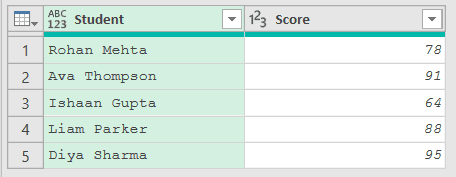
When you load this table into Power Query, add a step that sets the Score column to a number type first. Then add another step (by clicking on the fx icon next to the formula bar) with this formula:
= List.Max(#"Changed Type"[Score])
Result: 95

In this query, #"Changed Type"[Score] grabs the whole Score column as a list. List.Max then runs through it and returns the highest score, 95.
Example 3: Find the Latest Date
This one comes up all the time. You have a column of dates and you want the most recent one.
Suppose you have a Deliveries table with an Order ID and a Delivery Date column, and you want the latest delivery date.
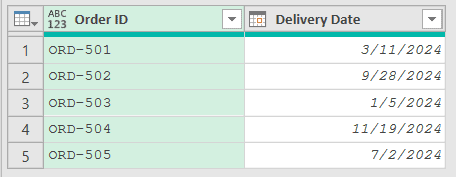
After loading the table, set the Delivery Date column to a date type. Then add another step (by clicking on the fx icon next to the formula bar) with this formula:
= List.Max(#"Changed Type"[Delivery Date])
Result: 11/19/2024

List.Max works on dates the same way it works on numbers, so the latest date is treated as the “largest” and comes back as the result.
One quick note on formatting. The date shows in your regional format (11/19/2024 in the US, 19/11/2024 in the UK), but it’s the same underlying date on any machine.
Example 4: Return a Default for an Empty List
Here’s a handy one. If you run List.Max on an empty list, it returns null by default, which can break later steps. The optional second argument lets you supply a fallback value instead.
Create a new blank query (Home > New Source > Blank Query) and type this into the formula bar:
= List.Max({},0)
Result: 0
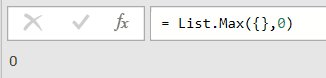
Here, {} is an empty list, so there’s no maximum to find. Instead of returning null, List.Max returns the default value you passed as the second argument, which is 0.
Example 5: Find the Top Record by a Key
Now let’s tackle something more advanced. Sometimes you don’t want the max value itself, you want the row that holds it, like the name of the top performer.
Suppose you have a SalesReps table with a Rep Name and a Revenue column, and you want the name of the rep with the highest revenue.
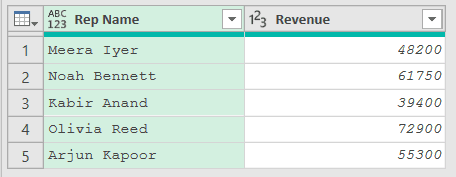
Set the Revenue column to a number type, then add a step (by clicking on the fx icon next to the formula bar) that turns the table into a list of records:
= Table.ToRecords(#"Changed Type")
Then add another step and use this formula:
= List.Max(Records,null,each [Revenue])[Rep Name]
Result: Olivia Reed

Here, each [Revenue] tells List.Max to compare the records by their Revenue field instead of by the whole record. That returns the full record for the top rep, and [Rep Name] pulls the name out of it.
If you need the top record within each category rather than across the whole table, do this inside a Table.Group step instead, so each group gets its own maximum.
Example 6: Watch Out for Text Columns
This next one trips people up. If your “numbers” are actually stored as text, List.Max sorts them like words, not values.
Suppose you have a PartCodes table with a Part and a Code column, where the codes were left as text.
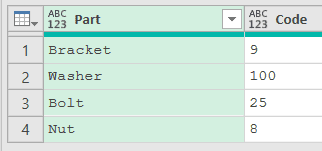
Run List.Max straight on the text column, without converting it, and see what comes back. Add a step (by clicking on the fx icon next to the formula bar) with this formula:
= List.Max(Source[Code])
Result: 9

You might expect 100, but List.Max returns “9” instead. Because the column is text, it compares character by character, and as text “9” sorts higher than “100” (the first character 9 beats 1). To get the real numeric maximum, add a Changed Type step to convert the column to numbers first.
Example 7: Ignore Nulls in a Column
Real-world columns often have blanks in them. List.Max includes nulls in its comparison by default, and a null can come back as the result. The fourth argument lets you tell it to skip them.
Suppose you have a ReadingsRaw table with a Sensor and a Value column, where a couple of readings are blank.
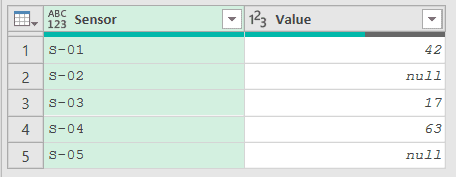
Set the Value column to a number type. Then add another step (by clicking on the fx icon next to the formula bar) that calls List.Max with includeNulls set to false:
= List.Max(#"Changed Type"[Value],null,null,false)
Result: 63

Here, the second and third arguments are set to null (no default, no custom comparison), and the fourth argument, false, tells List.Max to leave the nulls out. So it compares only the real numbers and returns 63.
Example 8: Add a Peak-Value Column
Let’s finish with a table transformation. A common need is a column that shows the highest value across several columns in each row.
Suppose you have a QuarterSales table with a Region column and quarterly figures in Q1, Q2, Q3, and Q4, and you want a Peak Quarter column with each region’s best quarter.

Set the four quarter columns to a number type. Then add another step (by clicking on the fx icon next to the formula bar) that runs List.Max on the four values in each row:
= Table.AddColumn(#"Changed Type","Peak Quarter",each List.Max({[Q1],[Q2],[Q3],[Q4]}))
Result: a new Peak Quarter column showing 185, 230, and 130

Here, {[Q1],[Q2],[Q3],[Q4]} builds a small list from the four quarter values in each row, and List.Max returns the biggest one. Table.AddColumn writes that result into the new Peak Quarter column for every row.
Tips & Common Mistakes
- Convert text to numbers first: If a column looks numeric but is stored as text, List.Max sorts it lexicographically, so “9” beats “100” because it compares character by character. Add a Changed Type step before running List.Max so it compares actual values.
- Empty lists return null unless you set a default: With no second argument, List.Max on an empty list gives you null, which can quietly break the next step. Pass a default (like 0) as the second argument when the list might be empty.
- Use comparisonCriteria to find the max by a key: The third argument lets you compare records by one field, so you can grab the top row by a value (highest revenue, latest date) and then read any other field off that record.
- List.Max keeps nulls by default: It includes null values in the comparison unless you tell it not to, unlike some aggregation functions. Set the fourth argument to false to skip nulls, or use List.Min when you need the smallest value instead of the largest.
- Pairs well with other list functions: List.Max is one of a family that works on a column-as-list. Reach for List.Count to count the items or List.Contains to check whether a value is present, using the same
#"Changed Type"[Column]pattern you saw above.
Related Power Query Functions / Articles:
- List.IsDistinct – Checks if every value in a list is unique, returning true or false
- List.Dates – Generates a list of dates from a start date, count, and step size
- How to use MAXIFS in Excel
