

The STDEVPA function calculates the standard deviation of an entire population, and it counts TRUE/FALSE values and text in your cells instead of skipping them. Standard deviation tells you how far your values typically sit from their average.
Population means your data covers every member of the group you care about, like every player on a team or every order shipped this week.
The catch is that STDEVPA treats any text in your cells as zero, so it only gives the right answer when the words in your data really mean zero.
In this article, I’ll show you how STDEVPA handles numbers, TRUE/FALSE values, text, and blank cells, and how to get a separate result for every row with one formula.
Follow along with the example file
STDEVPA Function Examples.xlsx
STDEVPA Function Syntax
Here is the syntax of the STDEVPA function:
=STDEVPA(value1, [value2], ...)
- value1 – The first value, cell reference, or range in your population. This argument is required.
- value2, … – Optional additional values, cell references, or ranges. You can use up to 255 arguments in total.
Most of the time, one range holds the whole population, so value1 is all you need. Extra arguments are useful when your data sits in separate ranges and you want one result for all of it.
Values you type straight into the formula follow different rules from values in cells. A number stored as text in a cell counts as 0, but a number typed in quotes, such as “9”, counts as 9.
Words behave differently too. “Off” in a cell counts as 0, but “Off” typed into the formula returns a #VALUE! error, so keep text in cells and point the formula at them.
If the range you point to has only one number, STDEVPA returns 0, because a single value has no spread. If every cell in it is empty, there’s nothing to count, so you get a #DIV/0! error.
The STDEVPA function works in Excel for Microsoft 365, Excel 2024, 2021, 2019, and 2016, on both Windows and Mac. Example 4 also uses the BYROW function, which needs Excel for Microsoft 365 or Excel 2024.
When to Use the STDEVPA Function
Use this function when you need to:
- Find the spread of a whole group (not a sample) when your cells include TRUE/FALSE values.
- Count text entries such as “Off” or “No Work” as zero instead of skipping them.
- Include text and TRUE/FALSE entries that the STDEV.P function would skip.
Let me show you a few practical examples of how the STDEVPA function works.
Example 1: Calculate Population Standard Deviation in Excel
Let’s start with a simple example.
Below are the goals scored this season by every player on a 10-player soccer team, and I want the standard deviation of those goals in cell B14.
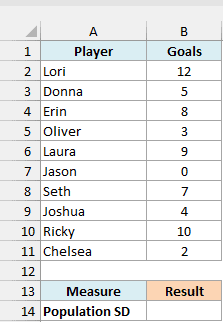
Here is the formula:
=STDEVPA(B2:B11)
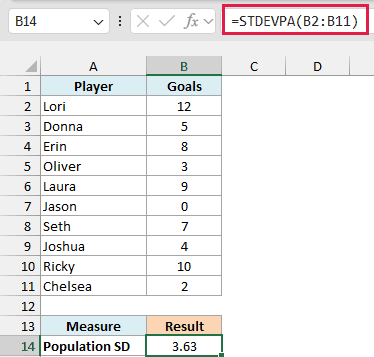
The formula returns 3.63. The team averages 6 goals per player, and a typical player’s total sits about 3.6 goals away from that average.
I used a population function because these 10 players are the whole team, not a sample from a bigger league. If you’re not sure which type fits your data, here’s how to calculate standard deviation in Excel for both cases.
STDEVPA divides by the number of values (10 here), while a sample function divides by one less. That’s why a sample result on the same data would come out a little higher.
This range holds only numbers, so the STDEV.P function returns the same 3.63.
For plain numbers, STDEV.P is the usual choice. STDEVPA is the one to use when your cells also contain TRUE/FALSE values or text.
Example 2: Include TRUE and FALSE Values
Next, let’s see what STDEVPA does with TRUE and FALSE values.
Below is the on-time status of all 12 orders a small online store shipped this week, and I want the standard deviation of that status in cell B16.
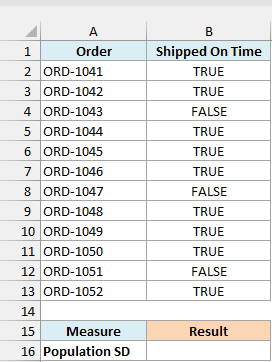
Here is the formula:
=STDEVPA(B2:B13)
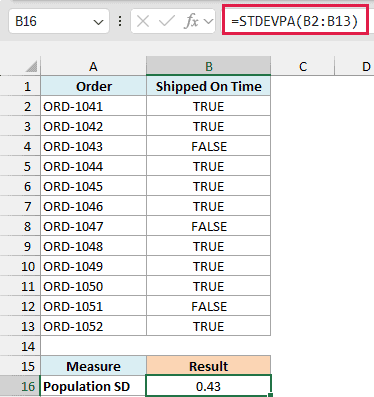
The formula returns 0.43. STDEVPA reads each TRUE as 1 and each FALSE as 0, so it calculates the spread of nine 1s and three 0s.
For a TRUE/FALSE column, the population standard deviation follows straight from the share of TRUE and FALSE values. Here 75% of the orders were on time and 25% were late.
The square root of 0.75 × 0.25 is 0.43, the same as the formula result, so you can use this as a quick sanity check on your own TRUE/FALSE data.
The closer that share gets to 50%, the bigger the result. A column that is all TRUE or all FALSE returns 0, because there is no variation at all.
Important: Make sure the cells hold real TRUE/FALSE values. If they hold the words Yes and No, STDEVPA counts every one of them as 0 and returns 0, no matter how many orders were on time.
Example 3: STDEVPA vs STDEV.P When Text Means Zero
Here’s where STDEVPA and the STDEV.P function start giving different answers.
Below is a freelancer’s 2026 income tracker, where “No Work” marks months with no paid projects, and I want the standard deviation of the monthly income in cell B16, with those months counted as $0.
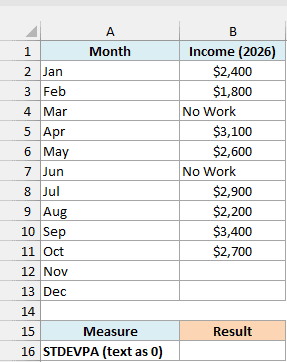
Here is the formula:
=STDEVPA(B2:B13)
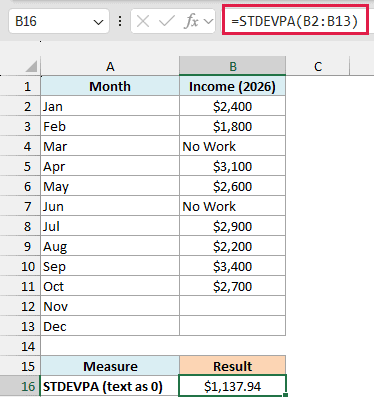
The formula returns $1,137.94. STDEVPA counts the two “No Work” cells as $0 and skips the empty cells for November and December, so it uses 10 months.
That matches what the data means. March and June happened and brought in no income, so they belong in the calculation, while November and December haven’t happened yet.
To see what happens when the text is ignored instead, enter this formula in cell B17:
=STDEV.P(B2:B13)
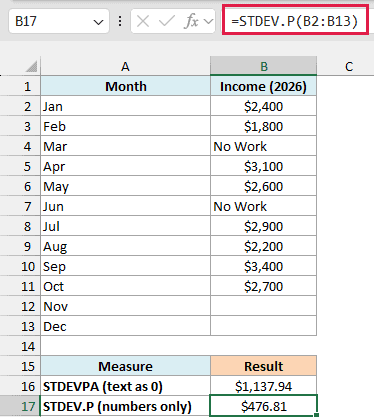
The STDEV.P function returns $476.81, because it skips text and only looks at the 8 months with a number. It measures how much income varied in the months that had paid work, which is a different question.
Which one is right depends on what the text means. Use STDEVPA when it stands for zero, and STDEV.P when it means the value is missing.
Important: STDEVPA counts any text as 0, including numbers stored as text and formulas that return empty text (“”) and look blank. Check that every text cell really means zero before you trust the result.
Example 4: Get the Standard Deviation for Each Row
Let’s step it up with a more advanced use case.
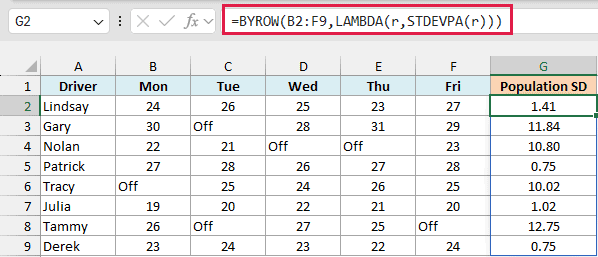
Below is the number of deliveries each driver completed from Monday to Friday, with “Off” on their days off, and I want each driver’s standard deviation in column G.
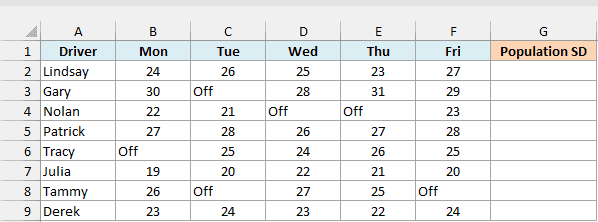
Here is the formula:
=BYROW(B2:F9,LAMBDA(r,STDEVPA(r)))
How this formula works:
BYROW(B2:F9, ...)goes through the table one row at a time, so each driver’s week is handled separately.LAMBDA(r,STDEVPA(r))names the current rowrand runs STDEVPA on it, so each “Off” counts as 0 deliveries.- BYROW returns one result per driver, and the eight results spill into G2:G9 from a single formula.
Patrick, Derek, Julia, and Lindsay worked all five days and score below 1.5, because their daily counts barely change. Gary, Nolan, Tracy, and Tammy had at least one day off and jump above 10.
That jump is intended. The question here is how uneven each driver’s week was, and a day off really is a day with zero deliveries.
Important: This works because BYROW hands each row to STDEVPA as a cell reference. If you feed STDEVPA an array returned by another function, such as the FILTER function, it ignores text and TRUE/FALSE values, just like STDEV.P.
If you are using Excel 2021 or earlier, enter the below formula in cell G2 and then copy it down the range:
=STDEVPA(B2:F2)
In this article, I showed you how the STDEVPA function handles numbers, TRUE/FALSE values, text, and blank cells. I also covered how to get one result per row with the BYROW function.
I hope you found this Excel tutorial useful.
Other Excel Articles You May Also Like:
