

AVERAGEA gives you the average of a range just like AVERAGE does, except it doesn’t skip text or TRUE/FALSE values. Any text counts as 0, TRUE counts as 1, and FALSE counts as 0.
That makes it handy when a word in your data really means zero, like “Closed” on a day with no sales or “Absent” for a week someone didn’t show up. It’s also a quick way to turn a column of TRUE/FALSE values into a percentage.
In this article, I’ll show you how AVERAGEA works and when to use it instead of the regular AVERAGE function, with five practical examples.
Follow along with the example file
AVERAGEA Function Examples.xlsx
AVERAGEA Function Syntax
Here is the syntax of the AVERAGEA function:
=AVERAGEA(value1, [value2], ...)
- value1 – The first value, cell reference, or range you want to average. This one is required.
- value2, … – Optional extra values, references, or ranges. You can use up to 255 arguments in total.
When you give AVERAGEA a range, it uses every cell that has something in it, including the text and TRUE/FALSE values that the regular AVERAGE function skips. Empty cells are the only ones it leaves out, so they don’t change the result.
Values typed straight into the formula work a little differently. A number in quotes is read as that number and TRUE as 1, so =AVERAGEA(10,"5",TRUE) returns 5.33, but typed text that isn’t a number, like “abc”, returns the #VALUE! error.
If any cell in the range holds an error such as #N/A, AVERAGEA returns that error as well.
The AVERAGEA function works in all Excel versions, including Excel for Microsoft 365, 2024, 2021, 2019, 2016, and Excel for Mac.
When to Use the AVERAGEA Function
Use this function when you need to:
- Average a list of numbers where an entry like “Closed” or “Absent” should count as zero
- Turn a column of TRUE/FALSE values into a percentage, like an on-time rate
- Average a list that has some empty cells you want left out, while text entries still count as zero
- Get an average for one category, or for every row, while still counting text as zero
Let me show you a few practical examples of how to use the AVERAGEA function.
Example 1: AVERAGEA vs AVERAGE on Daily Sales
Let’s start with a simple example that also shows how AVERAGEA differs from AVERAGE.
Below are a bakery’s daily sales for 12 days, where the bakery is closed on Mondays, and I want the average sales per day in cell E2.
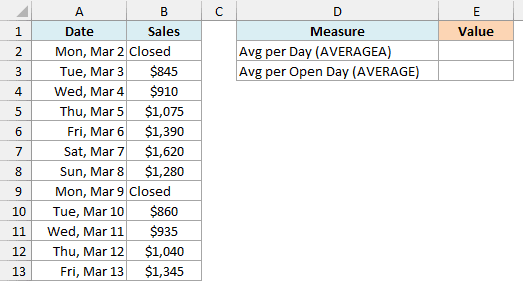
Here is the formula:
=AVERAGEA(B2:B13)
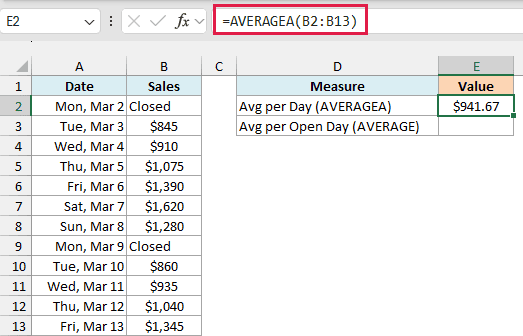
This returns $941.67.
The two “Closed” days are text, so AVERAGEA counts each of them as 0. It adds up the $11,300 in sales and divides it by all 12 days.
Now here is the regular AVERAGE formula in cell E3, for comparison:
=AVERAGE(B2:B13)
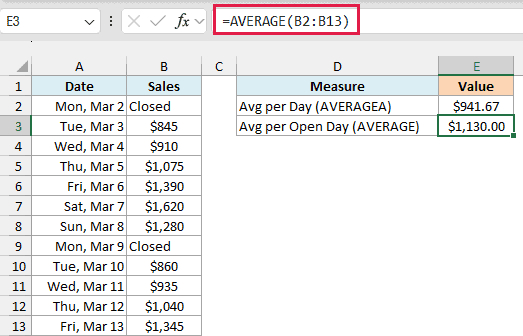
This returns $1,130.00.
AVERAGE skips the text completely, so it divides the same $11,300 by only the 10 days the bakery was open.
Neither answer is wrong. They just answer different questions.
Use AVERAGE when you want what a typical open day brings in, and AVERAGEA when you want the average across every day, closed days included.
Important: AVERAGEA also counts a number stored as text as 0, so sales figures pasted in from another system as text pull the average down. Convert them to real numbers before you use AVERAGEA on them.
Example 2: Calculate a Percentage from TRUE/FALSE Values
Here’s another practical scenario, and this is where AVERAGEA really comes in handy.
Below is a list of 12 online orders with TRUE or FALSE showing whether each one was delivered on time, and I want the on-time rate in cell F2.
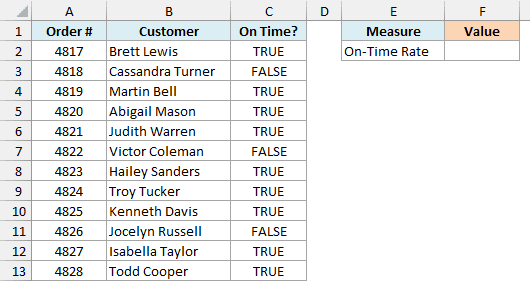
Here is the formula:
=AVERAGEA(C2:C13)
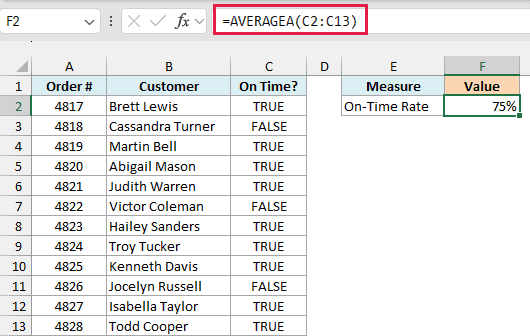
This returns 75% (I’ve formatted the result cell as a percentage).
AVERAGEA counts every TRUE as 1 and every FALSE as 0. Nine of the 12 orders are TRUE, so the average is 9 divided by 12, which is 0.75, or 75%.
The regular AVERAGE function ignores TRUE and FALSE when they’re in cells, so =AVERAGE(C2:C13) has nothing to average and returns the #DIV/0! error.
Be careful with whole-column references here. With =AVERAGEA(C:C), the “On Time?” header is text, so it counts as one more 0 and the result drops to 69%, which is why the formula uses the exact range C2:C13.
Pro Tip: Checkboxes you add in Excel for Microsoft 365 (Insert > Checkbox) store TRUE when checked and FALSE when unchecked. So AVERAGEA on a column of checkboxes gives you the percentage of boxes that are checked.
Example 3: Count Skipped Entries as Zero but Ignore Empty Cells
Now let’s look at what happens when a list has both text and empty cells.
Below is one employee’s training record, where one module was skipped and the last three modules aren’t due yet, and I want the progress score in cell E2.
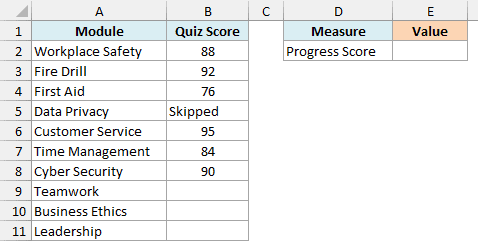
Here is the formula:
=AVERAGEA(B2:B11)
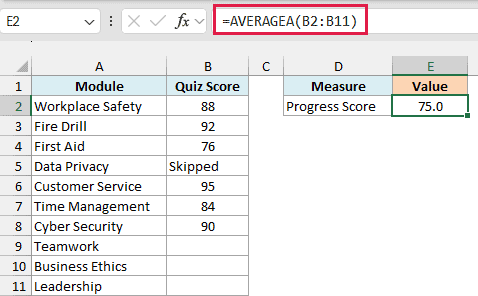
This returns 75.0.
The “Skipped” module is text, so it counts as 0. The three empty cells for Teamwork, Business Ethics, and Leadership are left out completely, so AVERAGEA adds up 525 and divides it by 7, not 10.
That’s the behavior you want here, since a skipped module should hurt the score but a module that isn’t due yet shouldn’t.
For comparison, the AVERAGE function skips both the “Skipped” text and the empty cells, so it divides 525 by 6 and returns 87.5.
Important: A cell that only looks empty because a formula returned “” holds empty text, and AVERAGEA counts it as 0. If your scores come from such formulas, use =AVERAGEA(FILTER(B2:B11,B2:B11<>"")) to leave those cells out (FILTER needs Excel for Microsoft 365 or Excel 2021 and later).
Example 4: Average One Category with AVERAGEA and FILTER
Let’s step it up with a more advanced use case.
Below is a fitness studio’s class log for two weeks, where some classes were cancelled, and I want the average attendance for one class in cell F2, with cancelled classes counted as 0. The class to average (Yoga) is in cell F1.
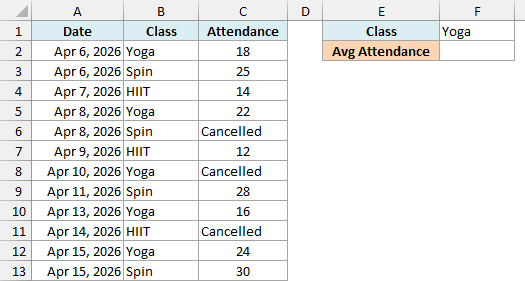
Here is the formula:
=AVERAGEA(FILTER(C2:C13,B2:B13=F1))
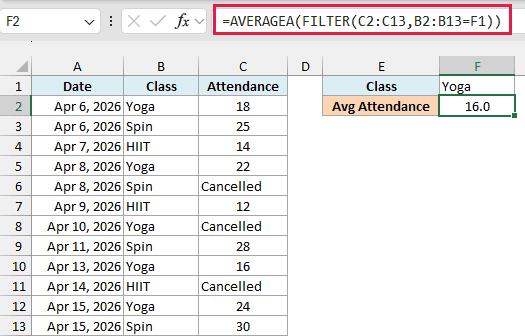
This returns 16.0.
How this formula works:
- FILTER(C2:C13,B2:B13=F1) returns the attendance for every row where the class is Yoga. That’s 18, 22, “Cancelled”, 16, and 24.
- AVERAGEA then averages those five values. “Cancelled” counts as 0, so the result is 80 divided by 5, which is 16.
Since the class comes from cell F1, you can change it to Spin and the result updates to 20.8.
You may wonder why not just use the AVERAGEIF function here. It skips text, so it leaves out the cancelled class and returns 20 for Yoga.
So if cancelled classes should count as 0, AVERAGEA with FILTER is the way to go.
Important: AVERAGEA ignores TRUE and FALSE inside an array that a function like FILTER returns, so filtering a TRUE/FALSE column like the one in Example 2 returns #DIV/0!. Use =AVERAGE(--FILTER(...)) there instead, where the double minus turns TRUE and FALSE into 1 and 0.
The FILTER function is available in Excel for Microsoft 365 and Excel 2021 or later. If you are using Excel 2019 or earlier, enter the below formula in cell F2 instead:
=SUMIF(B2:B13,F1,C2:C13)/COUNTIFS(B2:B13,F1,C2:C13,"<>")
SUMIF adds up the Yoga attendance (text adds nothing), and COUNTIFS counts the Yoga rows where the Attendance cell isn’t empty, including the cancelled one. That’s exactly what AVERAGEA divides by, so you get the same 16.
Example 5: Average Each Row in One Formula (BYROW)
So far, each formula has returned one average. If you’re on Microsoft 365 or Excel 2024, you can get an average for every row with a single formula using the BYROW function.
Below are the weekly hours of eight volunteers over four weeks, where “Absent” marks a week they didn’t show up, and I want each volunteer’s average weekly hours in column F.
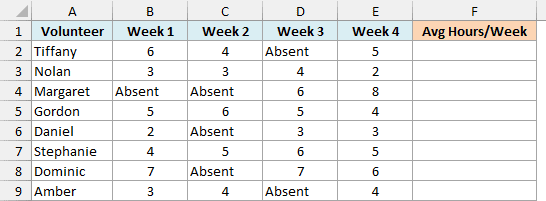
Here is the formula:
=BYROW(B2:E9,LAMBDA(r,AVERAGEA(r)))
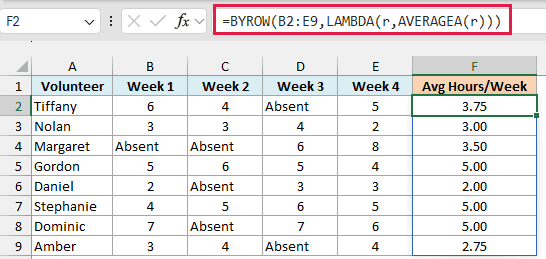
This returns one average per volunteer, spilling from F2 down to F9.
How this formula works:
- BYROW(B2:E9, …) takes the range one row at a time, so each volunteer’s four weeks are handled separately.
- LAMBDA(r,AVERAGEA(r)) runs AVERAGEA on each row, where r is that row’s four cells. “Absent” counts as 0, so Tiffany’s average is (6 + 4 + 0 + 5) / 4 = 3.75.
Because it’s one formula, there’s nothing to copy down, and if you ever need to change the calculation, there’s only one formula to edit.
Just make sure the cells below F2 are empty. If anything is in the way, the formula can’t spill and shows a #SPILL! error.
Pro Tip: In newer builds of Excel for Microsoft 365, you can shorten this to =BYROW(B2:E9,AVERAGEA). Passing just the function name tells BYROW to run AVERAGEA on each row.
If you are using Excel 2021 or earlier, enter the below formula in cell F2 and then copy it down to F9:
=AVERAGEA(B2:E2)
AVERAGEA vs AVERAGE: What’s the Difference?
Both functions add up the values and divide by how many there are. The difference is which cells they count.
Here’s how each one treats the different things a cell in your range can hold:
| Cell in the range contains | AVERAGE | AVERAGEA |
|---|---|---|
| Number (845) | ✅ Counted | ✅ Counted |
| Text ("Closed") | ❌ Skipped | ✅ Counted as 0 |
| Number stored as text (‘5) | ❌ Skipped | ✅ Counted as 0 |
| TRUE / FALSE | ❌ Skipped | ✅ Counted as 1 / 0 |
| Empty text from a formula (="") | ❌ Skipped | ✅ Counted as 0 |
| Empty cell | ❌ Skipped | ❌ Skipped |
| Error value (#N/A) | ⚠️ Returns the error | ⚠️ Returns the error |
So the choice comes down to what the text in your data means. If a word like “Pending” means there’s no data for that entry, use AVERAGE so it’s left out, and if it means zero, use AVERAGEA.
The same goes for TRUE and FALSE. AVERAGE can’t do anything with them in cells, while AVERAGEA turns them into a percentage.
So these are five ways you can use the AVERAGEA function in Excel, from averaging sales with closed days counted as zero to getting a percentage from TRUE/FALSE values and an average for every row in one formula.
I hope you found this Excel tutorial useful.
Other Excel Articles You May Also Like:
