

The TRIMMEAN function in Excel calculates the average of a list after leaving out a percentage of its smallest and largest values. It’s useful when a few extreme numbers would pull a regular average too far up or down.
In this article, I’ll show you how the TRIMMEAN function works with six practical examples, including how it decides how many values to drop (the part that’s easiest to get wrong).
Follow along with the example file
TRIMMEAN Function Examples.xlsx
TRIMMEAN Function Syntax
Here is the syntax of the TRIMMEAN function:
=TRIMMEAN(array, percent)
- array – The range of numbers you want to average after trimming.
- percent – The share of values to leave out, as a decimal or a percentage. For example, 0.2 or 20% leaves out 20% of the values in total.
Both arguments are required.
The percent is the total for both ends, not for each end. So 20% doesn’t drop 20% from the top and another 20% from the bottom.
Instead, it drops 20% of the values overall, half from the top and half from the bottom.
TRIMMEAN works out how many values to drop by multiplying the count of numbers by the percent, and then rounding that down to an even number. Example 2 shows why this rounding matters.
The percent has to be at least 0 and less than 1 (100%). A percent of 0 gives you the same result as the AVERAGE function, while 1 or more, or a negative number, returns the #NUM! error.
This also means typing 20 when you meant 20% gives you a #NUM! error. So always use 20% or 0.2.
Your numbers don’t need to be sorted. TRIMMEAN finds the smallest and largest values on its own.
If the array has text, TRUE/FALSE values, or empty cells, TRIMMEAN skips them and uses only the numbers. But if any cell in the array has an error (like #DIV/0!), the formula returns that same error.
The TRIMMEAN function works in all Excel versions, including 365, 2024, 2021, 2019, 2016, Mac, and the web.
When to Use the TRIMMEAN Function
Use this function when you need to:
- Get an average that isn’t thrown off by a few unusually high or low values
- Drop the highest and lowest score before averaging, like judges’ scores in a contest
- Find a typical price or amount when your list has a few extreme quotes or sales
- Calculate a trimmed mean for one category, or for every category in a list
Let me show you a few practical examples of how to use the TRIMMEAN function in Excel.
Example 1: TRIMMEAN vs AVERAGE (Average Without Outliers)
Let’s start with a simple example.
Below I have a log of commute times to work for 12 days, and I want both the regular average and a trimmed average (that ignores the extreme days) in column E.
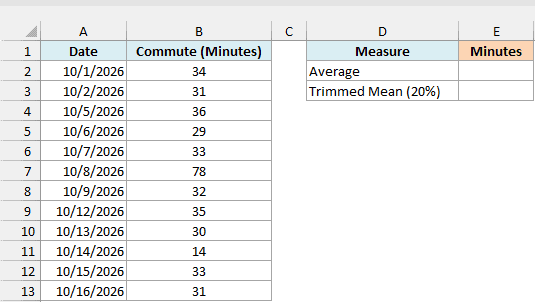
First, here is the regular AVERAGE formula, so we have something to compare against:
=AVERAGE(B2:B13)
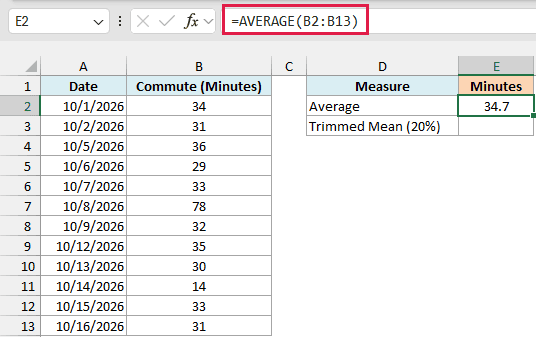
This gives 34.7 minutes. But most of the commutes took between 29 and 36 minutes, so 34.7 feels a bit high.
The reason is the 78-minute day. That one value pulls the average up, even though the 14-minute day pulls it down a little.
And here is the TRIMMEAN formula:
=TRIMMEAN(B2:B13,20%)
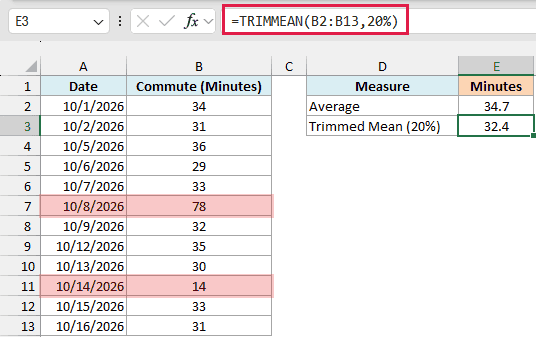
This gives 32.4 minutes, which is a much better picture of a normal day.
Here, TRIMMEAN takes 20% of the 12 values, which is 2.4, and rounds that down to 2.
It then drops one value from each end, the 78-minute day at the top and the 14-minute day at the bottom. The remaining 10 values average out to 32.4.
Example 2: How TRIMMEAN Decides How Many Values to Drop
Now let’s look at the rounding, because this is where TRIMMEAN often gives a result people don’t expect.
Below I have the price of the same pair of headphones at 10 stores, and I want the trimmed mean for six different percents in column E.
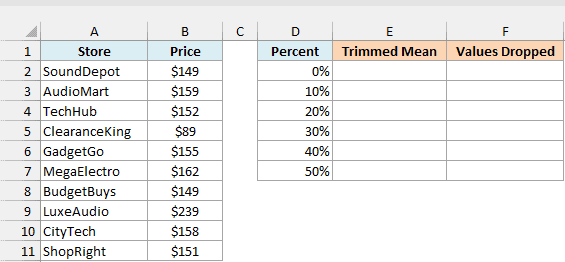
Here is the formula:
=TRIMMEAN(B2:B11,D2:D7)
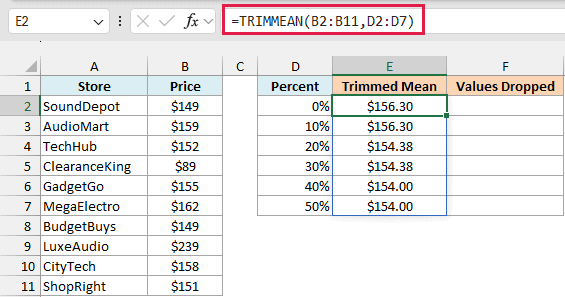
Instead of one percent, I’ve given the formula the range D2:D7, which has all six percents. TRIMMEAN calculates a result for each one, and the results spill into E2:E7.
Notice that the results come in pairs. 0% and 10% both give $156.30, 20% and 30% both give $154.38, and 40% and 50% both give $154.00.
This happens because TRIMMEAN only ever drops an even number of values, so it can take the same number from each end.
With 10 prices, 10% works out to 1 value. Since 1 can’t be split between the top and the bottom, it rounds down to 0 and nothing gets dropped.
The same thing happens with 30%. That’s 3 values, which rounds down to 2, so you get the same result as 20%.
To see exactly how many values TRIMMEAN drops for each percent, you can use this formula in column F:
=FLOOR.MATH(COUNT(B2:B11)*D2:D7,2)
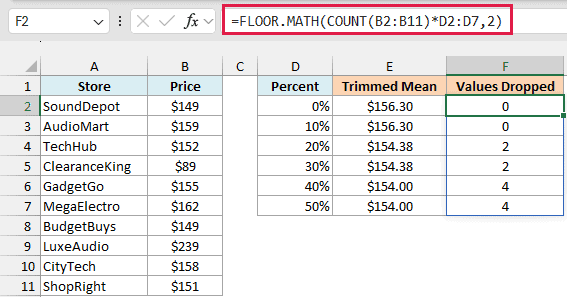
Here, COUNT(B2:B11) gives the number of prices (10), which gets multiplied by each percent. The FLOOR.MATH function then rounds each result down to the nearest multiple of 2, which is exactly what TRIMMEAN does in the background.
Important: On a short list, a small percent may not trim anything at all. With fewer than 20 values, 10% drops nothing, so TRIMMEAN quietly returns the plain average. Make sure that the count of values times the percent is at least 2.
Getting all six results from one formula relies on dynamic arrays, which need Excel 2021, 2024, or Microsoft 365. If you are using Excel 2019 or earlier, enter the below formula in cell E2 and then copy it down the range:
=TRIMMEAN($B$2:$B$11,D2)
And enter the below formula in cell F2 to get the number of values dropped, and copy it down the same way:
=FLOOR.MATH(COUNT($B$2:$B$11)*D2,2)
Example 3: Average Without the Highest and Lowest Value
Quite often, you just want to drop one value from the top and one from the bottom, no matter how long the list is.
Below I have quotes from 9 moving companies, and I want the average quote without the most expensive and the cheapest one in cell E2.
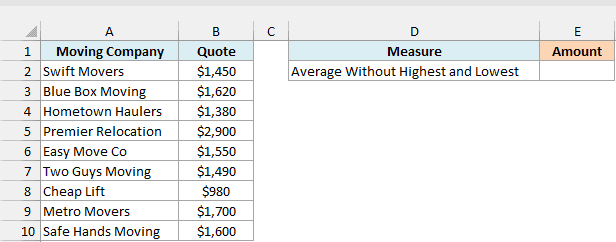
Here is the formula:
=TRIMMEAN(B2:B10,2.5/COUNT(B2:B10))
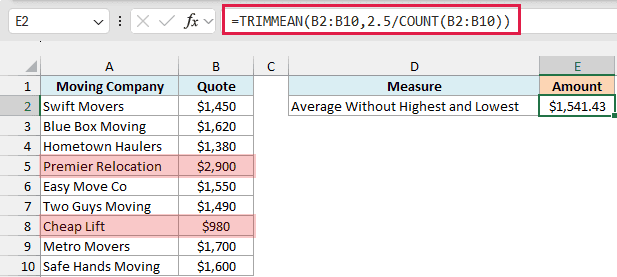
This gives $1,541.43, which is the average of the 7 quotes left after dropping $2,900 (the highest) and $980 (the lowest).
How this formula works:
COUNT(B2:B10)gives the number of quotes, which is 9.2.5/COUNT(B2:B10)turns that into a percent. When TRIMMEAN multiplies the 9 quotes by this percent, it gets 2.5.- TRIMMEAN rounds 2.5 down to 2 and drops one value from each end.
Since the percent is worked out from the count, the formula keeps dropping just the highest and lowest value when you add or remove quotes.
You might wonder why I used 2.5 and not 2, since we want to drop 2 values. With 2/COUNT, the count times the percent should be exactly 2, but Excel’s decimal math sometimes lands a tiny bit below 2, like 1.9999999.
TRIMMEAN then rounds that down to 0 and drops nothing.
Important: Avoid 2/COUNT for this, since it fails on some list sizes, such as 49 or 98 values. With 2.5, anything from 2 up to just under 4 gets rounded down to 2, so it always drops one value from each end.
The same idea works if you want to drop the two highest and two lowest values. Just use 4.5/COUNT(B2:B10) as the percent instead.
Example 4: Trimmed Mean for Each Row (Using BYROW)
Here’s another practical scenario, where you need a trimmed average for every row instead of one for the whole list.
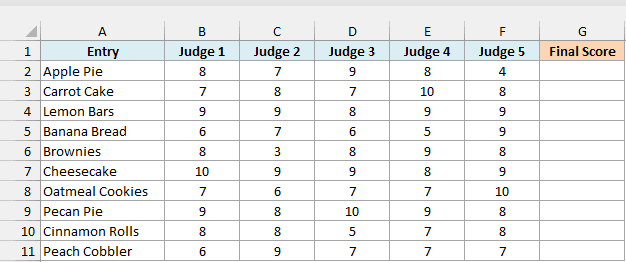
Below I have the scores five judges gave each entry in a baking contest, and I want a final score for each entry that leaves out its highest and lowest judge score in column G.
Here is the formula:
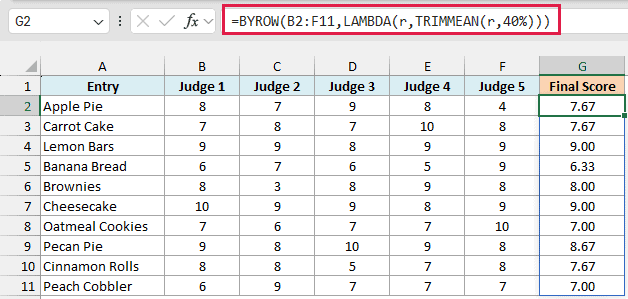
=BYROW(B2:F11,LAMBDA(r,TRIMMEAN(r,40%)))
How this formula works:
- If you use TRIMMEAN on B2:F11 directly, it treats all 50 scores as one list and returns a single number. So we need a way to run it on each row separately.
- The BYROW function does exactly that. It passes one row at a time to the LAMBDA, where
ris that row’s five scores. TRIMMEAN(r,40%)then works on those five scores. 40% of 5 is 2, so it drops the highest and the lowest score and averages the middle three.
The results spill into G2:G11. For example, Apple Pie got 8, 7, 9, 8, and 4, so the formula drops the 9 and the 4, and averages 8, 7, and 8 to get 7.67.
Without the trim, that one low score of 4 would have pulled Apple Pie down to a plain average of 7.20.
BYROW is available in Excel 365 and Excel 2024. If you are using an older version, enter the below formula in cell G2 and then copy it down the range:
=TRIMMEAN(B2:F2,40%)
Example 5: TRIMMEAN With a Condition (Using FILTER)
Let’s step it up with a trimmed mean for only part of the data.
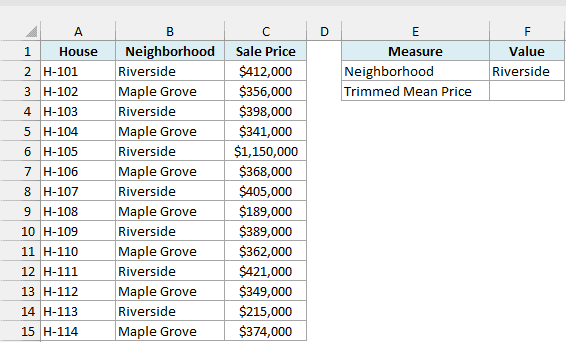
Below I have the sale prices of 14 houses in two neighborhoods, and I want the trimmed mean price for one neighborhood in cell F3. The neighborhood name (Riverside) is in cell F2.
Here is the formula:
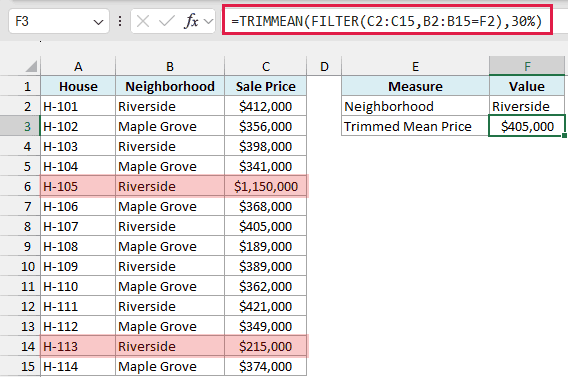
=TRIMMEAN(FILTER(C2:C15,B2:B15=F2),30%)
How this formula works:
FILTER(C2:C15,B2:B15=F2)goes through the list and returns only the sale prices where the neighborhood is Riverside. That’s 7 houses.- TRIMMEAN then works on just those 7 prices. 30% of 7 is 2.1, which rounds down to 2, so it drops the $1,150,000 house and the $215,000 house and returns $405,000.
The percent is applied to the filtered list, not the full one. That’s why I used 30% here, since 20% of 7 houses is 1.4, which would round down to 0 and trim nothing.
Since the neighborhood comes from F2, you can type Maple Grove in that cell, and the formula gives you the trimmed mean for that neighborhood instead.
If the name in F2 doesn’t match any house, FILTER has nothing to return and the formula gives a #CALC! error. So check the spelling if you see it.
The FILTER function is available in Excel 2021, 2024, and Microsoft 365. If you are using Excel 2019 or earlier, enter the below formula in cell F3 and press Ctrl + Shift + Enter (instead of just Enter):
=TRIMMEAN(IF(B2:B15=F2,C2:C15),30%)
Here, the IF function keeps the Riverside prices and turns the rest into FALSE, which TRIMMEAN skips.
If you press just Enter in an older version, Excel checks only one row instead of the whole list, so you get a wrong result. That’s why the Ctrl + Shift + Enter part matters.
Example 6: Trimmed Mean for Every Group (Using GROUPBY)
In the previous example, we got the trimmed mean for one neighborhood at a time. Now let’s get it for every group in one go.
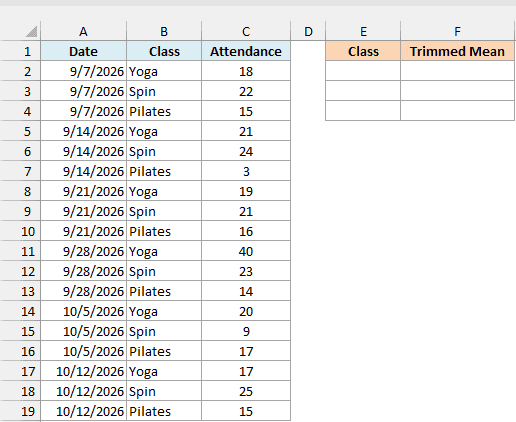
Below I have the attendance for three gym classes over six weeks, and I want the trimmed mean attendance for each class in columns E and F.
Here is the formula:
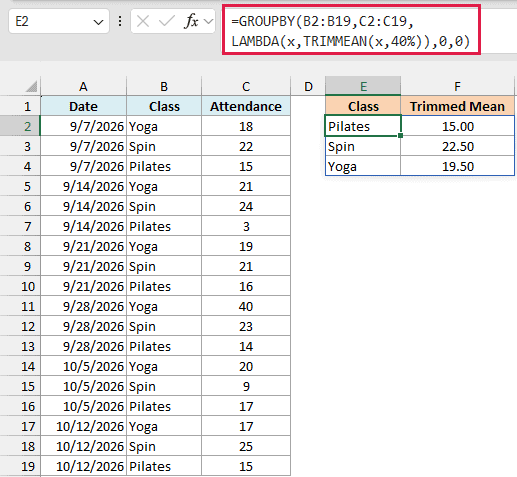
=GROUPBY(B2:B19,C2:C19,LAMBDA(x,TRIMMEAN(x,40%)),0,0)
How this formula works:
B2:B19is what to group by (the class names), andC2:C19is what to calculate (the attendance).- Instead of a built-in calculation like SUM, the third argument is a LAMBDA. GROUPBY passes each class’s attendance numbers to it as
x, andTRIMMEAN(x,40%)works out the trimmed mean for that class. - The two zeros at the end tell GROUPBY not to add a header row or a grand total, since the headers are already typed in E1 and F1.
Each class has 6 sessions, and 40% of 6 is 2.4, which rounds down to 2. So the formula drops one low and one high session for each class.
For example, Pilates drops its 3-person session and a 17, Spin drops its 9 and a 25, and Yoga drops a 17 and its packed 40-person session. So the results (15.00, 22.50, and 19.50) show what a normal week looks like for each class.
GROUPBY also sorts the classes alphabetically, which is why Pilates comes first.
The GROUPBY function is only available in Microsoft 365. If you are using an older version, type the class names in E2:E4, then enter the below formula in cell F2, press Ctrl + Shift + Enter, and copy it down:
=TRIMMEAN(IF($B$2:$B$19=E2,$C$2:$C$19),40%)
So these are six ways you can use the TRIMMEAN function in Excel, from a quick average without outliers to a trimmed mean for every group in a list.
Just remember that on a short list, TRIMMEAN may not drop anything at all. So make sure your percent is big enough to actually trim a value from each end.
And if you only want the middle value of a list, the MEDIAN function is another way to get a typical value that ignores extreme numbers.
Other Excel Articles You May Also Like:
