

The PERCENTILE.INC function finds the value at a given percentile in a list of numbers, such as the 90th percentile of test scores or the 25th percentile of prices.
In most cases, this is the percentile function you’ll want. The “INC” in its name stands for inclusive, and you’ll see what that means in the examples below.
In this article, I’ll show you how PERCENTILE.INC calculates its result, and then walk you through six practical examples, from a single 90th percentile to a percentile for every group in one formula.
Follow along with the example file
PERCENTILE.INC Function Examples.xlsx
PERCENTILE.INC Function Syntax
Here is the syntax of the PERCENTILE.INC function:
=PERCENTILE.INC(array, k)
- array – The range of numbers you want the percentile from.
- k – The percentile you want, as a decimal from 0 to 1 or as a percentage. For example, 0.9 or 90% for the 90th percentile.
Your numbers don’t need to be sorted. PERCENTILE.INC sorts them behind the scenes before it works out the result.
If k is below 0 or above 1, you get the #NUM! error. The most common way this happens is typing 90 when you meant 90% (or 0.9).
If k is text that isn’t a number, like “high”, you get the #VALUE! error.
The PERCENTILE.INC function works in Excel 2010 and later versions, including 365, 2024, 2021, 2019, 2016, Mac, and the web.
When to Use the PERCENTILE.INC Function
Use this function when you need to:
- Find the value that most of your data stays under, like the 90th percentile
- Get the smallest value, the quartiles, the median, and the largest value of a list in one go
- Work out a percentile for only the rows that meet one or more conditions
- Split values into groups such as top 25%, middle 50%, and bottom 25%
- Compare the same percentile across several categories
Let me show you some practical examples of using PERCENTILE.INC in Excel.
Example 1: Find the 90th Percentile in Excel
Let’s start with the most common use.
Below is the mobile data used on a phone plan over 12 months, and I want to find the 90th percentile in cell E2.
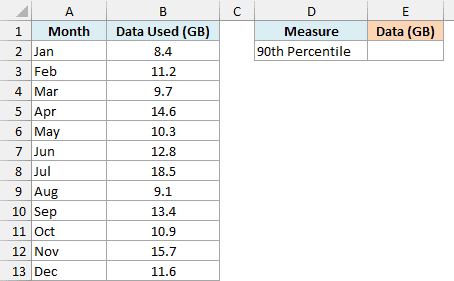
Here is the formula:
=PERCENTILE.INC(B2:B13,0.9)
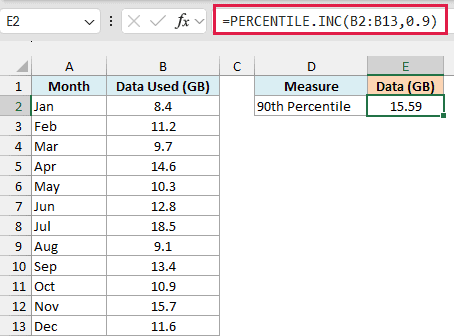
The formula returns 15.59, so the 90th percentile of these 12 months is 15.59 GB.
That’s handy when you’re picking a data plan. A 16 GB plan would have covered 11 of these 12 months, and only July (18.5 GB) would have gone over.
PERCENTILE.INC treats the smallest value in the list as the 0% point and the largest as the 100% point. So 15.59 GB sits 90% of the way up the sorted list.
Here is how PERCENTILE.INC gets to 15.59. It first finds a position in the sorted list using k × (n – 1) + 1, where n is the number of values, so 0.9 × (12 – 1) + 1 = 10.9.
Position 10.9 sits between the 10th smallest value (14.6) and the 11th (15.7). So PERCENTILE.INC goes 0.9 of the way from 14.6 to 15.7, which gives 15.59.
This is also why a percentile is often a number that doesn’t appear anywhere in your data.
Example 2: Get Several Percentiles at Once (Min, Quartiles, and Max)
Now let’s get more than one percentile from a single formula.
Below is a list of nightly rates at 11 hotels in a city, and I want the 0th, 25th, 50th, 75th, and 100th percentile rates in column E.
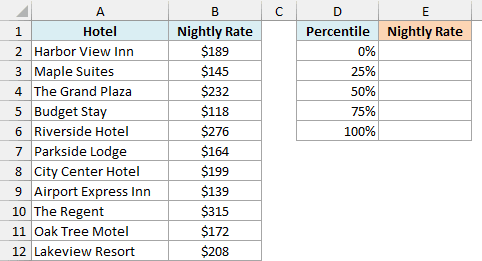
Here is the formula:
=PERCENTILE.INC(B2:B12,D2:D6)
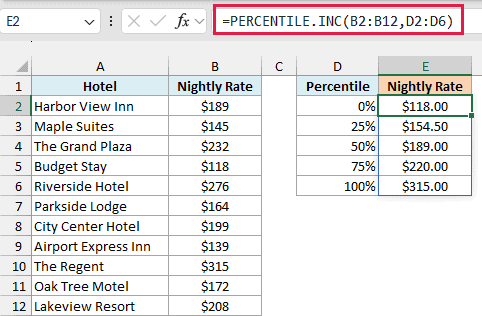
Instead of one k value, I’ve given the formula the range D2:D6. PERCENTILE.INC works out each of the five percentiles, and the results spill into E2:E6.
Look at the first and last results. The 0th percentile is $118.00, the cheapest hotel, and the 100th percentile is $315.00, the most expensive one.
That’s what “inclusive” means here. Since k can go all the way to 0 and 1, PERCENTILE.INC can return the smallest and the largest value in the list.
The 50th percentile ($189.00) is the middle rate, the same value the MEDIAN function would give you. And the 25th and 75th percentiles are the first and third quartiles, which you could also get with the QUARTILE.INC function.
If you try the 0th or 100th percentile with the PERCENTILE.EXC function, you get a #NUM! error instead. That function calculates percentiles a little differently and doesn’t allow k to reach 0 or 1.
If you are using Excel 2019 or earlier, enter the below formula in cell E2 and then copy it down the range:
=PERCENTILE.INC($B$2:$B$12,D2)
Example 3: How PERCENTILE.INC Handles Text, Blanks, and Zeros
Real data is rarely this tidy, so let’s see what happens when the list has gaps in it.
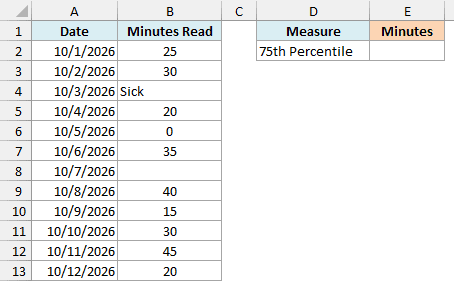
Below is a reading log for a student named Emma with the minutes she read each day, and I want the 75th percentile in cell E2.
Here is the formula:
=PERCENTILE.INC(B2:B13,0.75)
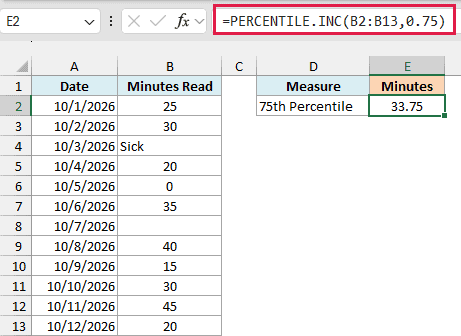
The formula returns 33.75. The range B2:B13 has 12 cells, but PERCENTILE.INC uses only 10 of them.
It skips the text “Sick” in B4 and the empty cell in B8, because neither of them is a number.
The 0 in B6, on the other hand, is a number, so it counts. Emma didn’t read at all that day, and that 0 pulls the result down a little.
Important: If a 0 in your data actually means “no data” (like a day that wasn’t recorded), leave that cell empty or type a word such as Skipped. Otherwise, PERCENTILE.INC counts it as a real zero and you get a lower percentile than you should.
One thing PERCENTILE.INC won’t skip is an error. If any cell in the range has an error such as #N/A, the formula returns that same error, so fix or remove the error first.
Example 4: Percentile With Multiple Conditions (Using FILTER)
Let’s step it up with a percentile for only some of the rows.
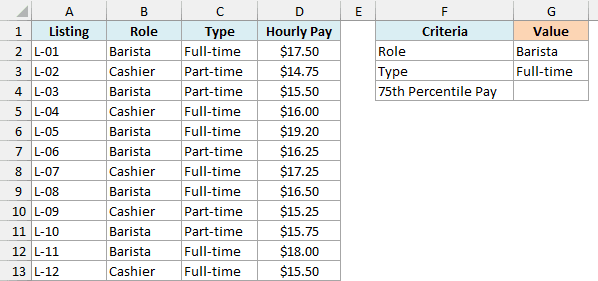
Below is a list of job listings with the role, the job type, and the hourly pay, and I want the 75th percentile pay for full-time barista jobs in cell G4. The role (Barista) is in G2, and the type (Full-time) is in G3.
Here is the formula:
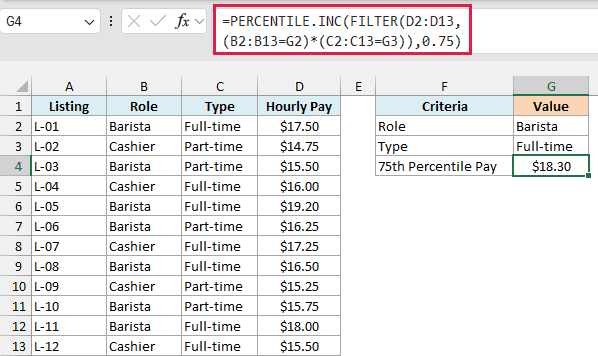
=PERCENTILE.INC(FILTER(D2:D13,(B2:B13=G2)*(C2:C13=G3)),0.75)
How this formula works:
(B2:B13=G2)*(C2:C13=G3)checks both conditions for each row. Multiplying the two checks gives 1 only for the rows where the role is Barista and the type is Full-time.FILTER(D2:D13, ...)returns the hourly pay for just those rows, which are 4 listings.- PERCENTILE.INC then finds the 75th percentile of those 4 values, which is $18.30.
Since the conditions come from G2 and G3, you can change them to something like Cashier and Part-time, and the result updates on its own. If you only need one condition, keep just one of the two checks inside FILTER.
If no row matches both conditions, FILTER has nothing to return, and the formula gives a #CALC! error. So check the spelling in G2 and G3 if you see it.
The FILTER function is available in Excel 2021, 2024, and Microsoft 365. If you are using Excel 2019 or earlier, enter the below formula in cell G4 and press Ctrl + Shift + Enter (instead of just Enter):
=PERCENTILE.INC(IF((B2:B13=G2)*(C2:C13=G3),D2:D13),0.75)
Here, the IF function returns the hourly pay for the matching rows and FALSE for the rest, and PERCENTILE.INC skips the FALSE values.
Example 5: Group Values Into Tiers Using Percentiles
Here’s another practical use, where the percentiles become cut-off points.
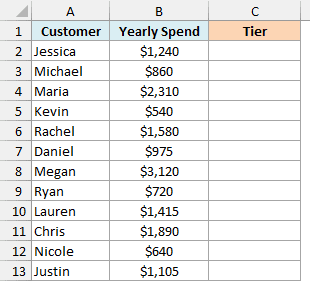
Below is a list of customers with how much each one spent this year, and I want to label each customer as Top 25%, Middle 50%, or Bottom 25% in column C.
Here is the formula:
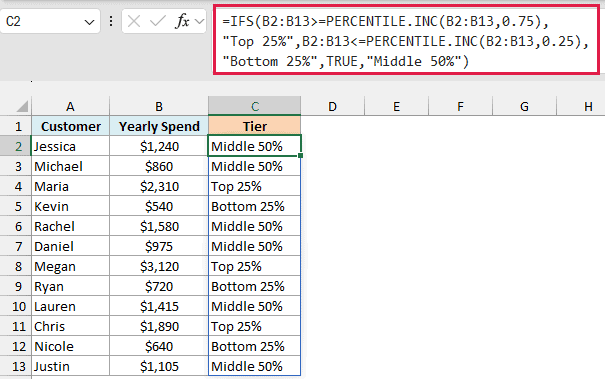
=IFS(B2:B13>=PERCENTILE.INC(B2:B13,0.75),"Top 25%",B2:B13<=PERCENTILE.INC(B2:B13,0.25),"Bottom 25%",TRUE,"Middle 50%")
How this formula works:
PERCENTILE.INC(B2:B13,0.75)gives the 75th percentile spend, which is $1,657.50. Any customer at or above it goes in the top 25%.PERCENTILE.INC(B2:B13,0.25)gives the 25th percentile spend, which is $825. Any customer at or below it goes in the bottom 25%.- The IFS function checks each customer’s spend against these two cut-offs, and the TRUE at the end catches everyone in between as Middle 50%.
The results spill into C2:C13. Maria, Megan, and Chris land in the top tier, while Kevin, Ryan, and Nicole land in the bottom one.
Since the cut-offs are calculated from the data, the tiers update by themselves when the spending numbers change. You don’t have to work out the cut-offs and type them in.
If you are using Excel 2019 or earlier, enter the below formula in cell C2 and then copy it down the range:
=IF(B2>=PERCENTILE.INC($B$2:$B$13,0.75),"Top 25%",IF(B2<=PERCENTILE.INC($B$2:$B$13,0.25),"Bottom 25%","Middle 50%"))
I’ve used nested IF functions in this version because Excel 2016 and older versions don’t have IFS.
Example 6: Find the 90th Percentile for Each Group (With GROUPBY)
Finally, let’s get a percentile for every group with a single formula.
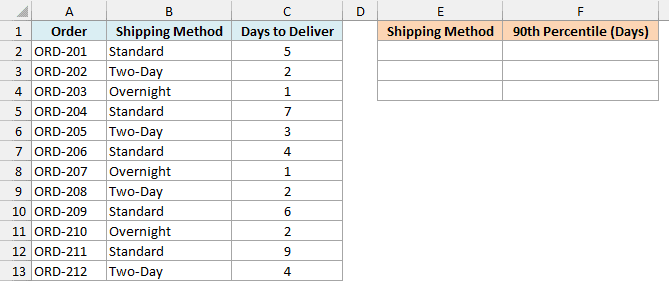
Below is a list of online orders with the shipping method and the number of days each one took to arrive, and I want the 90th percentile delivery time for each shipping method in columns E and F.
Here is the formula:
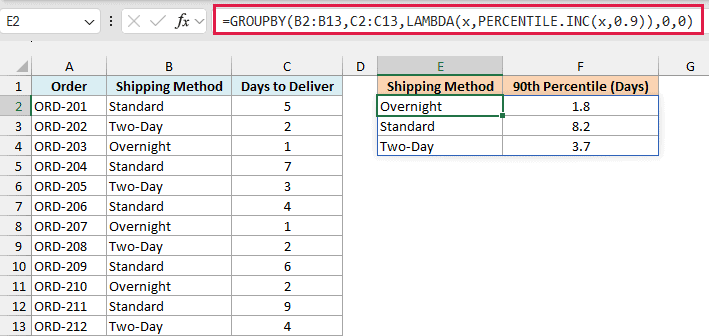
=GROUPBY(B2:B13,C2:C13,LAMBDA(x,PERCENTILE.INC(x,0.9)),0,0)
How this formula works:
B2:B13is what to group by (the shipping method), andC2:C13holds the values to calculate for each group (the delivery days).LAMBDA(x,PERCENTILE.INC(x,0.9))tells GROUPBY what to calculate. GROUPBY passes each shipping method’s delivery days in as x, and PERCENTILE.INC returns their 90th percentile.- The two zeros at the end tell GROUPBY that the ranges don’t include headers and that you don’t want a total row.
The results spill into E2:F4, with one row per shipping method, sorted A to Z. The 90th percentile for Standard shipping is 8.2 days, compared to 3.7 days for Two-Day and 1.8 days for Overnight.
If you change the delivery days or the shipping methods in the data, the summary updates on its own. A new shipping method gets its own row, and you don’t have to change the formula.
The GROUPBY function is only available in Microsoft 365. If your version doesn’t have it, type the three shipping methods in E2:E4, then enter the below formula in cell F2 and copy it down:
=PERCENTILE.INC(IF($B$2:$B$13=E2,$C$2:$C$13),0.9)
In Excel 2019 or earlier, press Ctrl + Shift + Enter (instead of just Enter) when you enter this formula.
If you open an older workbook, you might also see the PERCENTILE function. It gives the same results as PERCENTILE.INC and is kept so files made in Excel 2007 and earlier still work.
And if you need it the other way round, where you have a value and want to know its percentile, use the PERCENTRANK.INC function.
So these are six ways you can use the PERCENTILE.INC function in Excel, from finding a single 90th percentile to getting a percentile for every group with one formula.
Other Excel Articles You May Also Like:
