

The QUARTILE.EXC function in Excel returns the first quartile, the median, or the third quartile of a list of numbers. These are the three points that split your sorted data into four equal parts.
It’s one of two current quartile functions in Excel, along with QUARTILE.INC. The “EXC” stands for exclusive, and in practice it means Q1 and Q3 sit a little further toward the ends of your data than they do with QUARTILE.INC.
In this tutorial, I’ll show you how QUARTILE.EXC works, how it’s different from QUARTILE.INC, and a few practical ways to use it.
Follow along with the example file
QUARTILE.EXC Function Examples.xlsx
QUARTILE.EXC Function Syntax
Here is the syntax of the QUARTILE.EXC function:
=QUARTILE.EXC(array,quart)
- array – the range of numbers you want the quartile of.
- quart – which value to return: 1 for the first quartile (the 25th percentile), 2 for the median, or 3 for the third quartile (the 75th percentile).
The quart argument only accepts 1, 2, or 3. Any other whole number, including 0 and 4, returns the #NUM! error.
If quart has decimals, Excel drops them. So a quart of 2.9 is treated as 2, and you get the median.
Only numbers in the array are used. Text, empty cells, and TRUE/FALSE values in the range are skipped, but an error value in the range (like #DIV/0!) makes the formula return that error.
The QUARTILE.EXC function works in Excel 2010 and later versions, including Excel 365, 2024, 2021, 2019, 2016, Excel for Mac, and Excel for the web.
When to Use the QUARTILE.EXC Function
Use this function when you need to:
- Find the first quartile, median, or third quartile of a list of numbers
- Use the exclusive quartile method instead of the inclusive one
- Build a five-number summary (minimum, Q1, median, Q3, maximum)
- Flag outliers using the interquartile range
- Compare quartiles across groups, like classes, teams, or stores
Let me show you a few practical examples of how to use the QUARTILE.EXC function.
Example 1: Find the First and Third Quartile With QUARTILE.EXC
Let’s start with a simple example.
Below is a list of pizza orders with the delivery time of each one in minutes, and I want to find the first and third quartile of these times in column E.
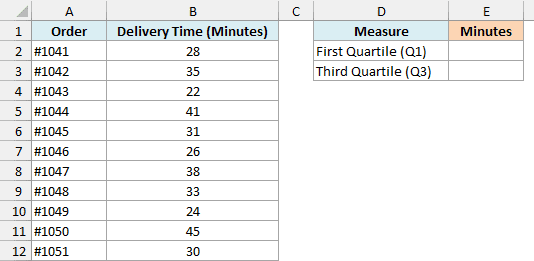
Here is the formula for the first quartile:
=QUARTILE.EXC(B2:B12,1)
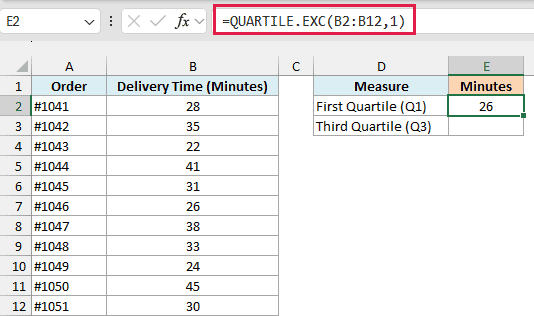
This returns 26, which means about a quarter of these pizzas were delivered in 26 minutes or less.
To get there, QUARTILE.EXC lines up the 11 delivery times from smallest to largest and works out where Q1 sits in that list. The position is (11 + 1) × 0.25 = 3, and the 3rd shortest time is 26.
Here is the formula for the third quartile:
=QUARTILE.EXC(B2:B12,3)
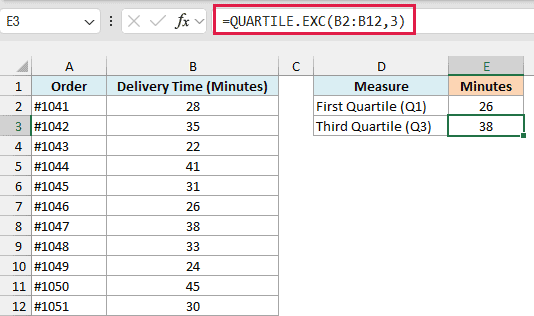
This returns 38. The position for Q3 is (11 + 1) × 0.75 = 9, and the 9th shortest time is 38, so about three quarters of the orders arrived in 38 minutes or less.
Here both positions came out as whole numbers, so the answers are actual delivery times from the list. When a position has decimals, Excel picks a value part of the way between the two neighbors, which you’ll see in the next example.
Example 2: Get Q1, Median, and Q3 With One Formula
Now let’s get all three quartile values in one go.
Below is a list of podcast episodes with the length of each one in minutes, and I want the first quartile, median, and third quartile in column E.
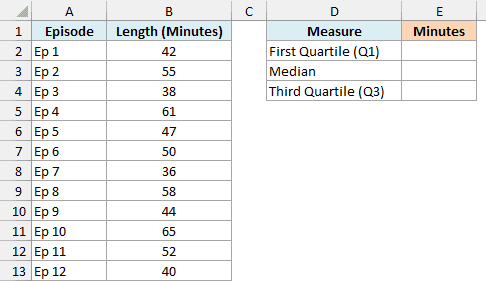
Here is the formula:
=QUARTILE.EXC(B2:B13,{1;2;3})
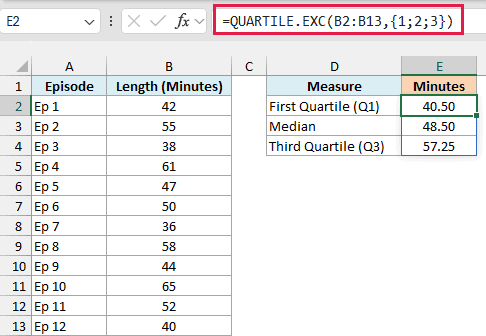
This one formula in E2 returns 40.50, 48.50, and 57.25.
Instead of a single quart number, I’ve given QUARTILE.EXC the list {1;2;3}. Excel works out one quartile for each number in the list and spills the three results into E2:E4.
The semicolons in {1;2;3} put the results in a column. If you want them in a row instead, use commas, like {1,2,3}.
With 12 episodes, the position for Q1 is (12 + 1) × 0.25 = 3.25. The 3rd and 4th shortest episodes are 40 and 42 minutes, so Q1 sits a quarter of the way from 40 to 42, which is 40.5.
Pro Tip: QUARTILE.EXC with 1, 2, and 3 gives the same results as PERCENTILE.EXC with 0.25, 0.5, and 0.75. So if you need a cut point that isn’t a quartile, like the 90th percentile, use PERCENTILE.EXC with 0.9.
If you are using Excel 2019 or earlier, the formula won’t spill on its own. Select E2:E4 first, enter the below formula, and press Control + Shift + Enter so it fills all three cells:
=QUARTILE.EXC(B2:B13,{1;2;3})
Example 3: Get the Five-Number Summary (Min, Q1, Median, Q3, Max)
A five-number summary is the minimum, Q1, median, Q3, and maximum of your data. It’s what a box plot is built on, and it’s a quick way to see how spread out your numbers are.
Below is a list of used bikes with their listing prices, and I want the five-number summary of these prices in column E.
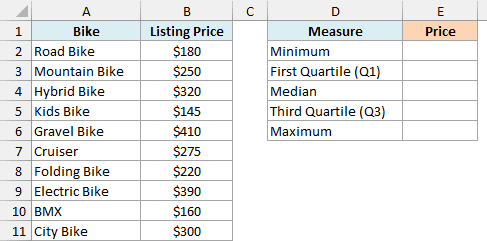
You might think you can just use {0;1;2;3;4} as the quart, like you can with QUARTILE.INC. But QUARTILE.EXC doesn’t accept 0 or 4, so the minimum and maximum would both show as #NUM! errors.
Microsoft’s help page for this function says MIN and MAX give the same values as a quart of 0 and 4, which isn’t what happens in Excel. So get the minimum and maximum from the MIN and MAX functions directly, and stack them around QUARTILE.EXC.
Here is the formula:
=VSTACK(MIN(B2:B11),QUARTILE.EXC(B2:B11,{1;2;3}),MAX(B2:B11))
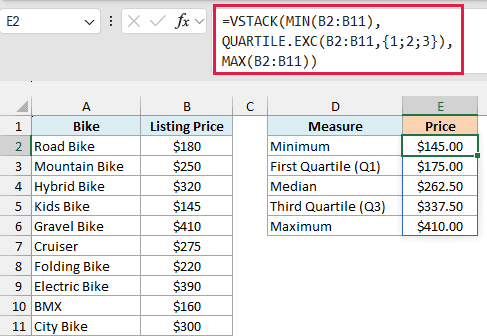
This returns $145.00, $175.00, $262.50, $337.50, and $410.00 in E2:E6.
How this formula works:
- MIN(B2:B11) returns the lowest price, which is $145.
- QUARTILE.EXC(B2:B11,{1;2;3}) returns Q1, the median, and Q3, which are $175, $262.50, and $337.50.
- MAX(B2:B11) returns the highest price, which is $410.
- The VSTACK function stacks these three pieces on top of each other, so all five values spill down into one column.
This formula needs the VSTACK function, which is only available in Excel 365 and Excel 2024. If you are using Excel 2021 or earlier, use three separate formulas instead, starting with the below formula in cell E2 for the minimum:
=MIN(B2:B11)
Then enter the below formula in cell E3 for the three quartiles. In Excel 2021 it spills into E3:E5 on its own, while in Excel 2019 or earlier you need to select E3:E5 first and press Control + Shift + Enter:
=QUARTILE.EXC(B2:B11,{1;2;3})
And finally, enter the below formula in cell E6 for the maximum:
=MAX(B2:B11)
Example 4: QUARTILE.EXC vs QUARTILE.INC (What’s the Difference?)
Now let’s see how QUARTILE.EXC compares with QUARTILE.INC on the same data.
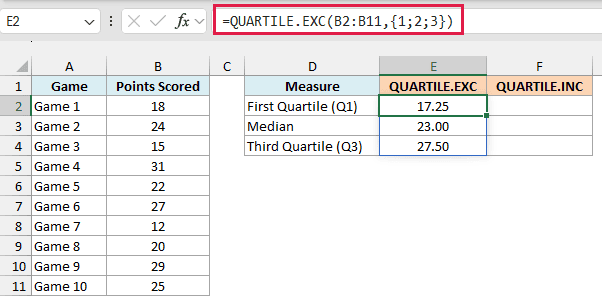
Below is a list of the points a basketball player scored in 10 games, and I want to compare the quartiles from QUARTILE.EXC in column E with the ones from QUARTILE.INC in column F.
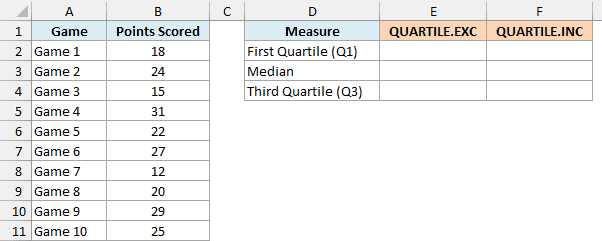
Here is the QUARTILE.EXC formula:
=QUARTILE.EXC(B2:B11,{1;2;3})
And here is the QUARTILE.INC formula for the same scores:
=QUARTILE.INC(B2:B11,{1;2;3})
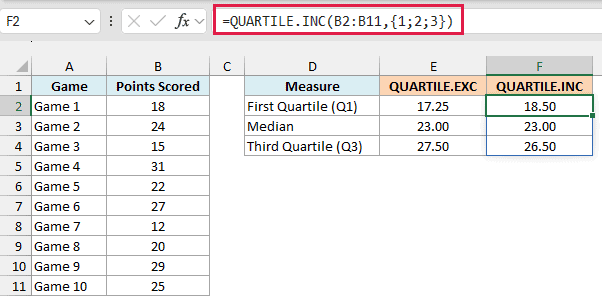
The median is 23 both ways, but Q1 and Q3 are different. QUARTILE.EXC gives 17.25 and 27.50, while QUARTILE.INC gives 18.50 and 26.50.
The difference comes from how each function works out the position in the sorted list. With 10 scores, QUARTILE.EXC puts Q1 at (10 + 1) × 0.25 = 2.75, which is between the 2nd and 3rd lowest scores (15 and 18).
QUARTILE.INC uses (10 – 1) × 0.25 + 1 = 3.25 instead, which is between the 3rd and 4th lowest scores (18 and 20). That’s why its Q1 is higher.
So QUARTILE.EXC pushes Q1 and Q3 a little further out toward the smallest and largest values. The gap between Q1 and Q3 is 10.25 points with QUARTILE.EXC and 8 points with QUARTILE.INC.
The Q1 and Q3 positions are always half a place apart (the median position is the same in both). With a short list like this one, that’s a visible gap, but with hundreds of values the two functions give almost the same answer.
Neither one is wrong. They’re two common ways to define a quartile, so pick the one that matches what you need:
- Use QUARTILE.EXC when you need to match a textbook, a class, or another tool that uses the exclusive (n + 1) method.
- Use QUARTILE.INC when you want quart 0 and 4 to return the minimum and maximum, or when you need to match the older QUARTILE function, which gives the same results as QUARTILE.INC.
Example 5: Flag Outliers Using QUARTILE.EXC and the IQR
Quartiles are also a common way to spot outliers in a list.
A common rule says a value is an outlier when it’s more than 1.5 times the interquartile range (IQR) below Q1 or above Q3. The IQR is simply Q3 minus Q1.
Below is a list of taxi fares over 12 days, and I want to mark any fare that is an outlier by this rule in column C.
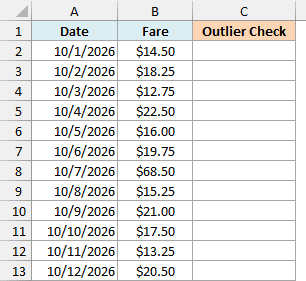
Here is the formula:
=LET(fares,B2:B13,low_q,QUARTILE.EXC(fares,1),high_q,QUARTILE.EXC(fares,3),iqr,high_q-low_q,IF((fares<low_q-1.5*iqr)+(fares>high_q+1.5*iqr),"Outlier",""))
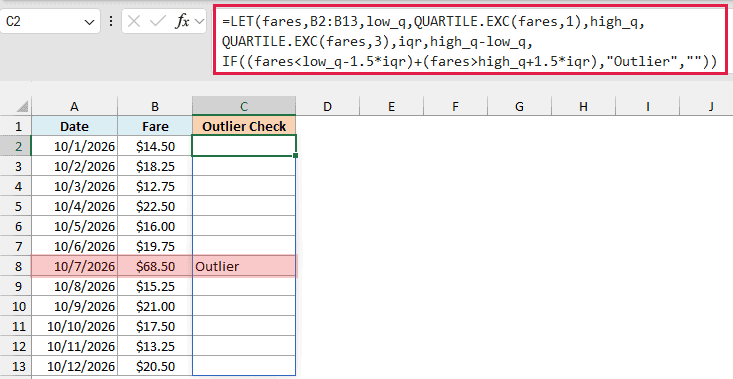
Only the $68.50 fare on 10/7/2026 gets the Outlier label. All the other cells in column C stay blank.
How this formula works:
- The LET function gives a name to each part, so the formula can reuse it. Here fares is B2:B13, low_q is the first quartile (about $14.69), and high_q is the third quartile (about $20.88).
- iqr is high_q minus low_q, which is about $6.19.
- Q1 minus 1.5 times the IQR is about $5.41, and Q3 plus 1.5 times the IQR is about $30.16. So any fare outside that range is an outlier.
- The + between the two checks works like OR for each fare, and IF returns “Outlier” when either check is true. Since fares is the whole range, the results spill down to C13.
I named the quartiles low_q and high_q on purpose. Names like q1 and q3 look like cell references to Excel, and the formula returns a #NAME? error.
If you are using Excel 2019 or earlier (which doesn’t have the LET function), enter the below formula in cell C2 and then copy it down the range:
=IF(OR(B2<QUARTILE.EXC($B$2:$B$13,1)-1.5*(QUARTILE.EXC($B$2:$B$13,3)-QUARTILE.EXC($B$2:$B$13,1)),B2>QUARTILE.EXC($B$2:$B$13,3)+1.5*(QUARTILE.EXC($B$2:$B$13,3)-QUARTILE.EXC($B$2:$B$13,1))),"Outlier","")
For more ways to spot unusual values, see this guide on how to find outliers in Excel.
Example 6: Find Quartiles for Each Group (and Fix the #NUM! Error)
Let’s finish with a problem you’re likely to run into when you work out quartiles for each group.
Below is a log of fitness class sessions with the number of attendees in each one, and I want the first quartile, median, and third quartile of attendance for each class in columns F to H.
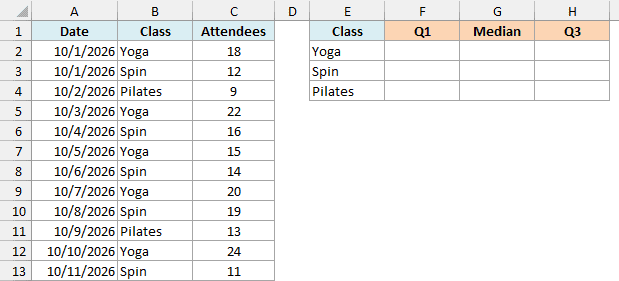
Here is the formula for cell F2, which I then copied down to F4:
=QUARTILE.EXC(FILTER($C$2:$C$13,$B$2:$B$13=E2),{1,2,3})
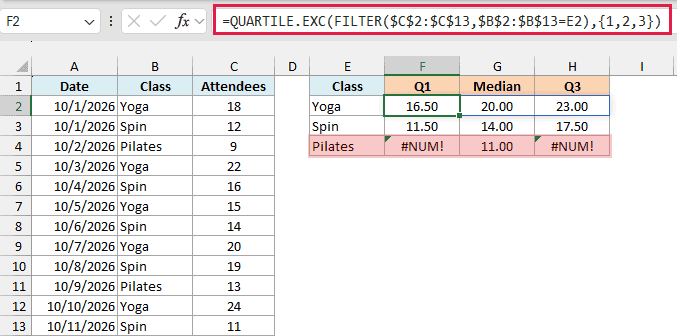
The FILTER function keeps only the attendee numbers for the class in E2, and QUARTILE.EXC returns Q1, the median, and Q3 of those numbers across F2:H2.
This works for Yoga and Spin, but Pilates shows #NUM! for Q1 and Q3.
That’s because there are only two Pilates sessions. With two values, the Q1 position is (2 + 1) × 0.25 = 0.75, which falls before the first value in the list.
Important: QUARTILE.EXC needs at least three numbers to return Q1 and Q3. With fewer, you get the #NUM! error, even though the median still works (which is why G4 shows 11.00).
So it’s a good idea to check how many values each group has before you calculate its quartiles. Here is the formula I used in the Ex 6 Classes (Fix) sheet, again entered in F2 and copied down to F4:
=LET(att,FILTER($C$2:$C$13,$B$2:$B$13=E2),IF(COUNT(att)<3,"Too few values",QUARTILE.EXC(att,{1,2,3})))
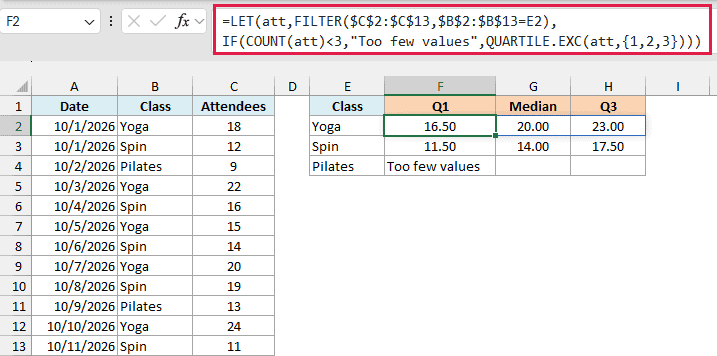
Now Pilates shows “Too few values” instead of the errors, and Yoga and Spin are unchanged.
How this formula works:
- FILTER returns the attendee numbers for the class in E2, and LET names that list att.
- The COUNT function counts how many numbers are in att. When it’s less than 3, the formula returns “Too few values”.
- Otherwise, QUARTILE.EXC returns Q1, the median, and Q3, which spill across columns F to H.
The message fills only the Q1 cell, because IF returns a single text value here, and a single value doesn’t spill across the row.
The count check also skips the median on purpose, since a median from just two sessions doesn’t tell you much about the class.
You could wrap the formula in IFERROR instead, but that would hide any error, not just this one. So a real problem in the data, like a #N/A in the Attendees column, could slip by without you noticing.
The FILTER function is available in Excel 2021, 2024, and Excel 365. If you are using Excel 2019 or earlier, enter the below formula in cell F2, press Control + Shift + Enter, and then copy it down to F4:
=QUARTILE.EXC(IF($B$2:$B$13=$E2,$C$2:$C$13),1)
This returns the first quartile only. For the median and Q3, use the same formula in columns G and H with 2 and 3 as the last argument.
This older version has no count check, so Pilates still shows #NUM! for Q1 and Q3.
So these are some practical ways to use the QUARTILE.EXC function in Excel. The two things to remember are that it only takes 1, 2, or 3 as the quart, and that it needs at least three numbers to return Q1 and Q3.
I hope you found this tutorial helpful.
Other Excel Articles You May Also Like:
