

QUARTILE.INC gives you the values that split a list of numbers into four equal parts. You tell it which point you want, and it returns the minimum, the first quartile, the median, the third quartile, or the maximum.
It’s a quick way to see where the typical values in your data sit. For example, you can find the range that the middle half of your monthly bills falls in, without sorting and eyeballing the whole list.
In this tutorial, I’ll show you how QUARTILE.INC works, and what to do when your data has zeros or error values in it. Zeros can give you a misleading result, and errors make the formula return an error.
Follow along with the example file
QUARTILE.INC Function Examples.xlsx
QUARTILE.INC Function Syntax
Here is the syntax of the QUARTILE.INC function:
=QUARTILE.INC(array,quart)
- array – the range of numbers you want the quartile of.
- quart – a number from 0 to 4 that tells Excel which value to return: 0 for the minimum, 1 for the first quartile (25th percentile), 2 for the median, 3 for the third quartile (75th percentile), and 4 for the maximum.
The INC in the name stands for inclusive. It means the very first and very last points of your data are included, so a quart of 0 gives you the smallest value and a quart of 4 gives you the largest.
If quart has decimals, Excel drops them. So a quart of 2.9 is treated as 2, and you get the median.
A quart below 0 or above 4 returns the #NUM! error. You also get #NUM! when the array has no numbers in it at all.
Only numbers in the array are used. Text, empty cells, and TRUE/FALSE values in the range are skipped, so a label like “n/a” sitting in your list won’t break the formula.
The QUARTILE.INC function works in Excel 2010 and later versions, including Excel 365, 2024, 2021, 2019, 2016, Excel for Mac, and Excel for the web. The older QUARTILE function gives exactly the same results.
When to Use the QUARTILE.INC Function
Use this function when you need to:
- Find the first or third quartile of a list of numbers
- Get the minimum, Q1, median, Q3, and maximum (the five-number summary) in one go
- Compare how values are spread across several columns, like different years
- Work out quartiles of durations or times
- Calculate quartiles while leaving out zeros or error values
- Get quartiles for each group in your data, like each region or category
Let me show you a few practical examples of how to use the QUARTILE.INC function.
Example 1: Find the First and Third Quartile With QUARTILE.INC
Let’s start with a simple example.
Below is a list of weekly grocery bills for 12 weeks, and I want to find the first and third quartile of these bills in column E.
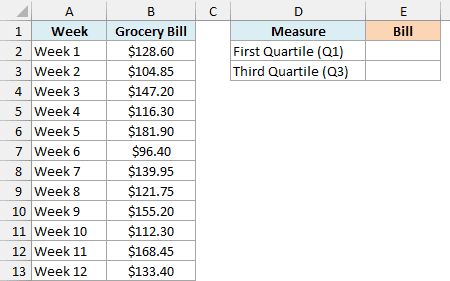
Here is the formula for the first quartile:
=QUARTILE.INC(B2:B13,1)
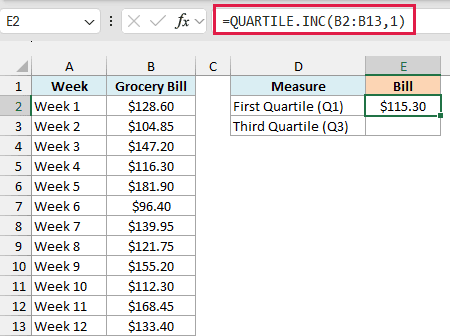
This returns $115.30, which means about a quarter of these weeks had a grocery bill of $115.30 or less.
None of the weeks has a bill of exactly $115.30. To get it, QUARTILE.INC lines up the 12 bills from smallest to largest and works out a position for Q1, which is (12 – 1) × 0.25 + 1 = 3.75.
A position of 3.75 means Q1 sits three quarters of the way between the 3rd smallest bill ($112.30) and the 4th smallest bill ($116.30). The gap between them is $4, three quarters of that is $3, and $112.30 plus $3 gives $115.30.
Here is the formula for the third quartile:
=QUARTILE.INC(B2:B13,3)
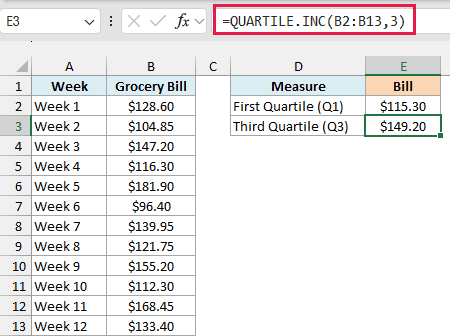
This returns $149.20. The position for Q3 is (12 – 1) × 0.75 + 1 = 9.25, so it sits a quarter of the way from the 9th smallest bill ($147.20) to the 10th ($155.20).
So the middle half of these weekly bills falls between $115.30 and $149.20. The gap between the two ($33.90) is called the interquartile range.
If you’ve seen different quartile values for the same data somewhere else, it’s probably because of the method used.
The QUARTILE.EXC function uses a slightly different position formula and gives $113.30 and $153.20 for these same bills. It also doesn’t accept 0 or 4 as the quart.
Pro Tip: QUARTILE.INC with 1 and 3 gives the same results as PERCENTILE.INC with 0.25 and 0.75. So when you need a cut point that isn’t a quartile, like the 90th percentile, use PERCENTILE.INC with 0.9.
Example 2: Get the Five-Number Summary (Min to Max) for Each Year
Now let’s get all five values, from the minimum to the maximum, with a single formula.
Below is a list of monthly electricity bills for 2023, 2024, and 2025, and I want the minimum, Q1, median, Q3, and maximum bill for each year in columns G to I.
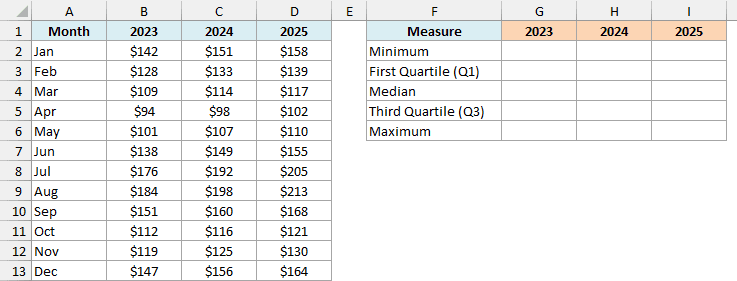
Here is the formula for cell G2, which I then copied to H2 and I2:
=QUARTILE.INC(B2:B13,{0;1;2;3;4})
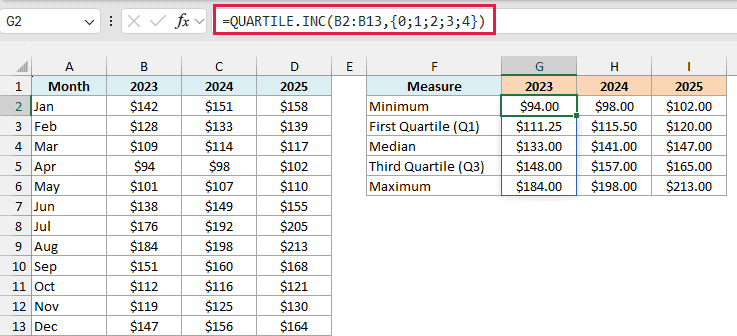
For 2023, this one formula returns $94.00, $111.25, $133.00, $148.00, and $184.00 in G2:G6.
How this formula works:
- Instead of one quart number, I’ve given QUARTILE.INC the list {0;1;2;3;4}. It works out one result for each number in the list and spills all five into the cells below.
- A quart of 0 returns the smallest bill ($94) and a quart of 4 returns the largest ($184), the same values the MIN and MAX functions would give you.
- The semicolons in {0;1;2;3;4} put the results in a column. Commas, like {0,1,2,3,4}, would put them in a row instead.
- B2:B13 is a relative reference, so when the formula is copied to H2 and I2, it changes to C2:C13 and D2:D13 and gives the summary for 2024 and 2025.
With all three years side by side, it’s easy to see that the bills went up every year. The median bill went from $133 in 2023 to $147 in 2025, and the highest bill went from $184 to $213.
If you are using Excel 2019 or earlier, select G2:G6, enter the below formula, and press Control + Shift + Enter so it fills all five cells. Then copy G2:G6 and paste it in H2 and I2:
=QUARTILE.INC(B2:B13,{0;1;2;3;4})
Example 3: Find Quartiles of Time Values
QUARTILE.INC also works with times, which is handy for things like call durations, race times, or song lengths.
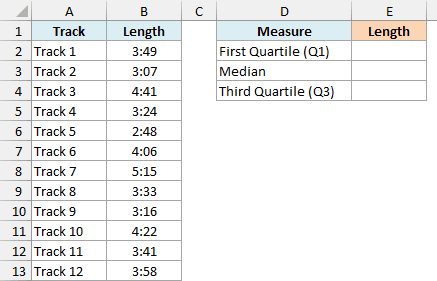
Below is a list of tracks in a playlist with the length of each song, and I want the first quartile, median, and third quartile of these lengths in column E.
Here is the formula:
=QUARTILE.INC(B2:B13,{1;2;3})
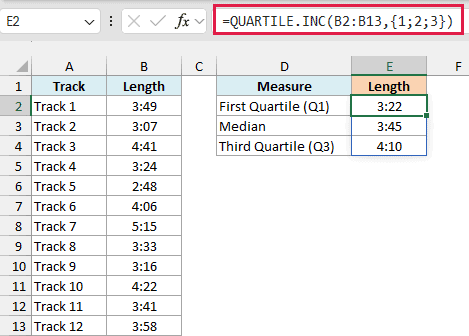
This returns 3:22, 3:45, and 4:10 in E2:E4. So the middle half of the songs in this playlist are between 3 minutes 22 seconds and 4 minutes 10 seconds long.
This works because Excel stores a time as a fraction of a day. A song length of 3:22 is really the number 0.002338 in the cell, so QUARTILE.INC treats the lengths like any other numbers.
That’s also why the results can show up as small decimals like 0.002338 when you first enter the formula. To fix that, select the result cells, press Control + 1, and use the m:ss custom format so they show as minutes and seconds.
If you are using Excel 2019 or earlier, select E2:E4, enter the below formula, and press Control + Shift + Enter so it fills all three cells:
=QUARTILE.INC(B2:B13,{1;2;3})
Example 4: Calculate Quartiles Without Zeros
Here’s a problem that can quietly give you a wrong answer.
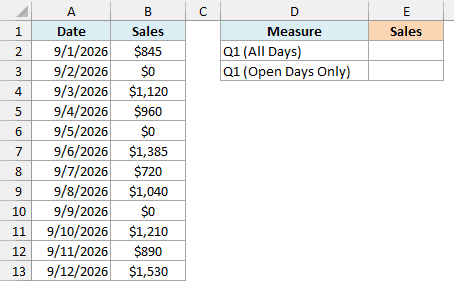
Below is a list of daily sales for a food truck, where $0 was entered on the three days it didn’t open, and I want the first quartile of the sales in column E.
Here is the formula for the first quartile of all the days:
=QUARTILE.INC(B2:B13,1)
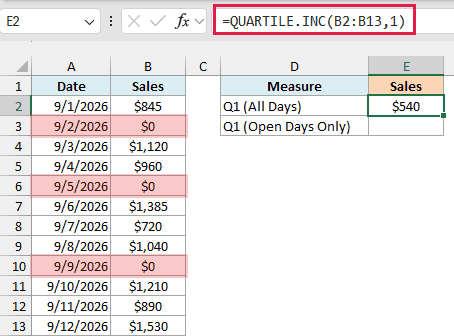
This returns $540, which is lower than every single day the truck was actually open.
The three $0 days are real numbers, so QUARTILE.INC counts them. They take up the three lowest spots in the sorted list, and Q1 ends up between $0 and the lowest real sale of $720.
Important: If a 0 in your data really means “no data” (like a day the shop was closed), don’t let QUARTILE.INC count it. Filter the zeros out or leave those cells blank, as shown below.
Here is the formula that only uses the days with sales:
=QUARTILE.INC(FILTER(B2:B13,B2:B13>0),1)
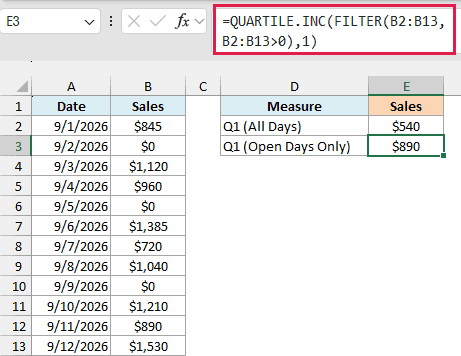
This returns $890, which is a much better picture of a slow day for this food truck.
The FILTER function keeps only the sales that are greater than 0, and QUARTILE.INC then works out Q1 from those nine days.
Another way around this is to leave the cell blank on days with no sales, instead of typing a 0. Since QUARTILE.INC skips empty cells, the plain formula would then return $890 too.
FILTER is available in Excel 2021, 2024, and Excel 365. If you are using Excel 2019 or earlier, enter the below formula in cell E3 and press Control + Shift + Enter:
=QUARTILE.INC(IF(B2:B13>0,B2:B13),1)
Example 5: Get Quartiles When the Data Has Errors (Using AGGREGATE)
Now let’s look at what happens when there’s an error value in your data.
Below is a fuel log with the miles driven and gallons filled for each fill-up, where two MPG cells show #DIV/0! because the gallons weren’t recorded, and I want the first quartile, median, and third quartile of the MPG in column G.
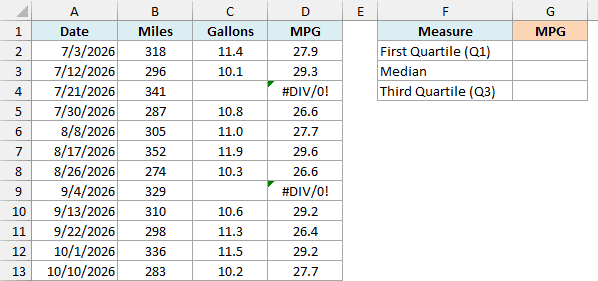
If you use QUARTILE.INC on this MPG column, you get the #DIV/0! error. That’s because an error anywhere in the range makes QUARTILE.INC return that same error.
So instead, I’ve used the AGGREGATE function, which can do the same calculation while skipping the errors.
Here is the formula:
=AGGREGATE(17,6,D2:D13,{1;2;3})
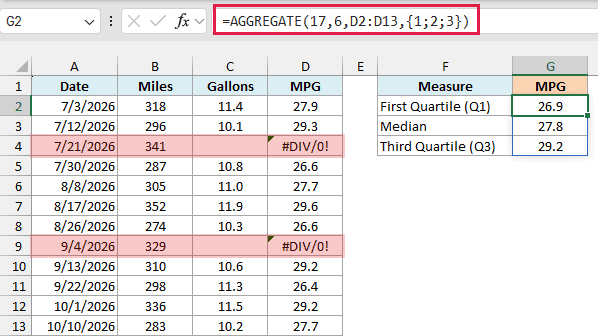
This returns 26.9, 27.8, and 29.2 in G2:G4, using only the 10 fill-ups that have an MPG value.
How this formula works:
- 17 tells AGGREGATE to use QUARTILE.INC.
- 6 tells it to ignore error values in the range.
- D2:D13 is the MPG column, including the two #DIV/0! cells.
- {1;2;3} works just like the quart argument in QUARTILE.INC, so you get Q1, the median, and Q3, which spill down into G2:G4.
AGGREGATE itself has been around since Excel 2010, but the {1;2;3} list only spills on its own in Excel 2021, 2024, and 365.
If you are using Excel 2019 or earlier, select G2:G4, enter the below formula, and press Control + Shift + Enter so it fills all three cells:
=AGGREGATE(17,6,D2:D13,{1;2;3})
Of course, if you can fix the source of the errors (here, by filling in the missing gallons), that’s even better, since you’d also get the MPG for those two fill-ups.
Example 6: Find Quartiles for Each Group With GROUPBY
Let’s finish with something a bit more advanced.
Below is a list of apartments with their neighborhood and monthly rent, and I want the first and third quartile of rent for each neighborhood in columns E to G.
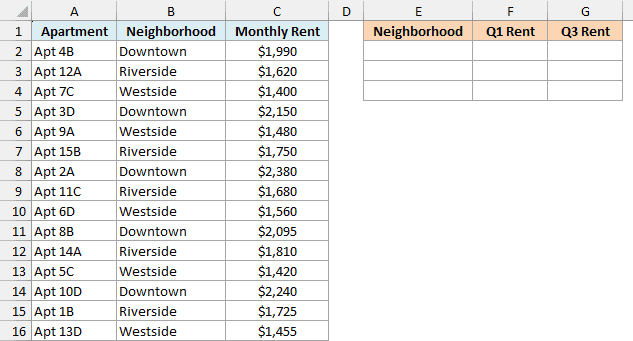
Here is the formula for cell E2:
=DROP(GROUPBY(B2:B16,C2:C16,HSTACK(LAMBDA(x,QUARTILE.INC(x,1)),LAMBDA(x,QUARTILE.INC(x,3))),0,0),1)
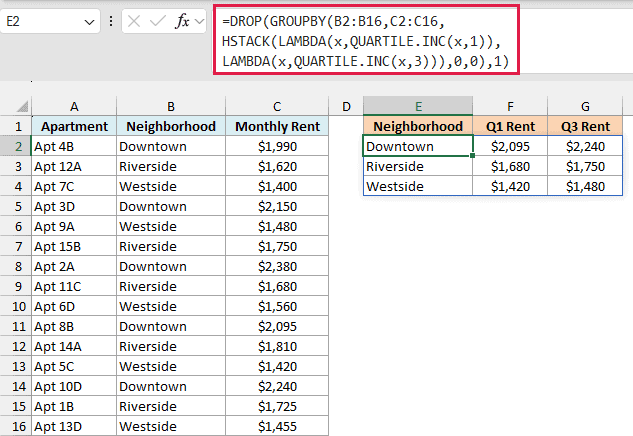
This one formula lists each neighborhood with its Q1 and Q3 rent. For example, the middle half of Downtown rents is between $2,095 and $2,240, while Westside is between $1,420 and $1,480.
How this formula works:
- The GROUPBY function groups the rents in C2:C16 by the neighborhoods in B2:B16, and lists the neighborhoods in A to Z order.
- LAMBDA(x,QUARTILE.INC(x,1)) works out Q1 of the rents in each group, and LAMBDA(x,QUARTILE.INC(x,3)) works out Q3. HSTACK puts the two side by side, so GROUPBY returns one column for each.
- The 0,0 at the end of GROUPBY means no headers and no grand total.
- When you give GROUPBY more than one calculation, it still adds a header row on top (with labels like CUSTOM1 and CUSTOM2). DROP(…,1) removes that row, so the results sit right under the headers I’ve typed in E1:G1.
Since GROUPBY builds the list of neighborhoods by itself, you don’t have to type the neighborhood names anywhere.
GROUPBY is only available in Excel 365. If you are using Excel 2021 or 2024, type the neighborhood names in E2:E4, enter the below formula in cell F2, and then copy it down to F4:
=QUARTILE.INC(FILTER($C$2:$C$16,$B$2:$B$16=E2),{1,3})
So these are some practical ways to use the QUARTILE.INC function in Excel. You can use it to find a single quartile, get the full five-number summary, and work out quartiles for times, for data with zeros or errors, and for each group.
I hope you found this tutorial helpful.
Other Excel Articles You May Also Like:
