

The NA function returns the #N/A error, on purpose. Excel uses #N/A to mean “no value is available”, and NA lets you put that signal in a cell yourself.
That’s handy whenever a value is missing. A blank or a zero can pass for real data, but a #N/A makes it obvious that something isn’t there yet, both to you and to every formula that uses the cell.
In this article, I’ll show you how NA works, how to use it with IF, how to calculate around #N/A values, and how it keeps missing data from showing up as zeros in a chart.
Follow along with the example file
NA Function Examples.xlsx
NA Function Syntax
Here is the syntax of the NA function:
=NA()
It has no arguments and always returns the same thing, the #N/A error.
You still need to type the empty parentheses, though. Without them, Excel doesn’t run the function, so =NA gives you a #CALC! error in Excel 365 instead of #N/A.
The NA function works in all Excel versions, including 365, 2024, 2021, 2019, 2016, Mac, and the web.
When to Use the NA Function
Use this function when you need to:
- Mark a value as missing so it can’t be mistaken for a zero or a blank.
- Make a total show #N/A until all its inputs are in.
- Return #N/A from an IF formula when an input cell is empty.
- Leave gaps in a line chart instead of plotting missing values as zero.
- Plot or highlight a single point in a chart, such as the highest month.
Let me show you a few practical examples of how to use NA.
Example 1: Mark a Missing Value With the NA Function
Let’s start with a simple example.
Below is a list of trip expenses where the car rental bill hasn’t arrived yet, and I want to mark that amount as missing in cell B4 and get the total in cell B11.
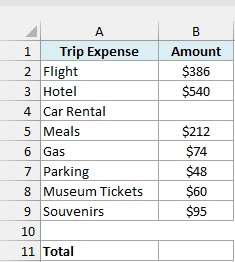
Here is the formula I’ll enter in cell B4:
=NA()
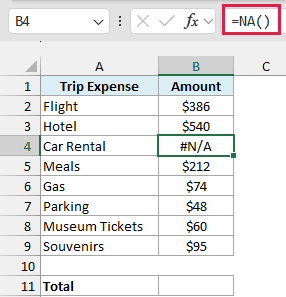
Cell B4 now shows #N/A, which makes it clear that the car rental amount isn’t available yet.
Now here is the formula for the total in cell B11:
=SUM(B2:B9)
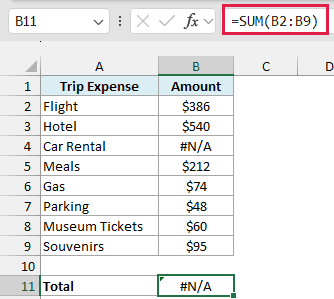
The SUM function returns #N/A, because one of the cells it adds is #N/A. That’s exactly what we want here, since the total refuses to show a number until the car rental amount comes in.
If I had left B4 blank instead, SUM would quietly return $1,415. Anyone looking at the sheet would assume that’s the full cost of the trip, when it’s missing the car rental.
The #N/A spreads to any formula that uses B4, not just SUM. Even =OR(TRUE,B4) returns #N/A instead of TRUE, so when a result shows #N/A, trace it back to a missing input.
You can also type #N/A directly into the cell and get the exact same error, so either way works here.
Example 2: Use NA With IF to Flag Missing Inputs
Here’s another practical scenario.
Below is a grocery price check with last month’s and this month’s price for each item (a few items haven’t been checked yet this month), and I want the price change in column D.
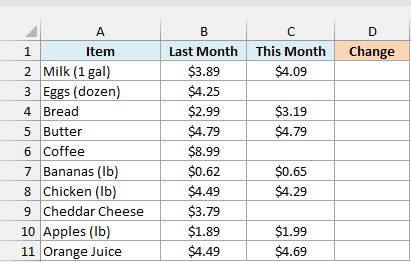
If you just subtract last month’s price from this month’s, the empty cells count as 0. Eggs would show a change of -$4.25, which looks like the price dropped to nothing, when nobody has checked it yet.
Here is a formula that returns #N/A for those items instead:
=IF(C2:C11="",NA(),C2:C11-B2:B11)
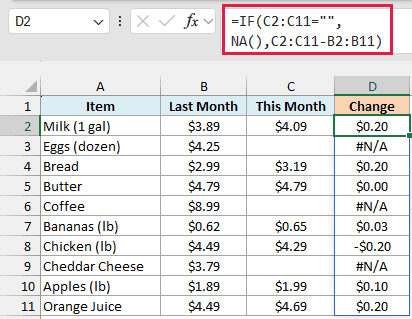
The IF function checks each cell in C2:C11. When this month’s price is empty, it returns NA(), and otherwise it subtracts last month’s price from this month’s price.
Since the formula works on whole ranges, the results spill into D2:D11 on their own.
With NA(), Eggs, Coffee, and Cheddar Cheese show #N/A instead. The missing prices are easy to spot, and they can’t sneak into an average price change later.
Checking for "" also works if this month’s prices come from another formula that returns empty text for unchecked items. The ISBLANK function wouldn’t, because Excel doesn’t treat a cell holding “” as blank, and the subtraction would give a #VALUE! error.
If you are using Excel 2019 or earlier, enter the below formula in cell D2 and then copy it down the range:
=IF(C2="",NA(),C2-B2)
Example 3: Average and Count Values That Include #N/A
Now let’s see how to calculate around #N/A values.
Below is a sleep log where the nights the sleep tracker wasn’t worn are marked with =NA(), and I want the average hours slept in cell B13 and the number of untracked nights in cell B14.
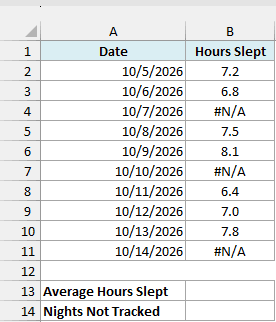
A plain =AVERAGE(B2:B11) returns #N/A here, for the same reason the total did in Example 1. So we need a formula that skips the #N/A cells.
Here is the formula for the average:
=AVERAGEIF(B2:B11,"<>#N/A")
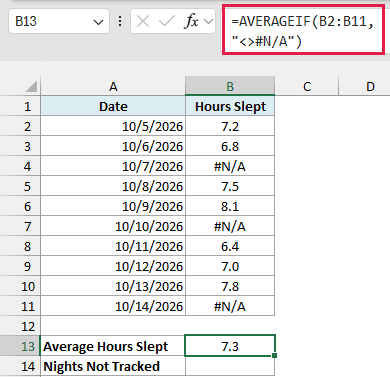
This returns 7.3 hours. The criteria “<>#N/A” tells the AVERAGEIF function to include only the cells that aren’t the #N/A error, so it averages the seven tracked nights.
That’s much better than typing 0 for the untracked nights. A 0 would count as a real night with no sleep and drag the average down to 5.1 hours.
And here is the formula to count the untracked nights:
=COUNTIF(B2:B11,"#N/A")
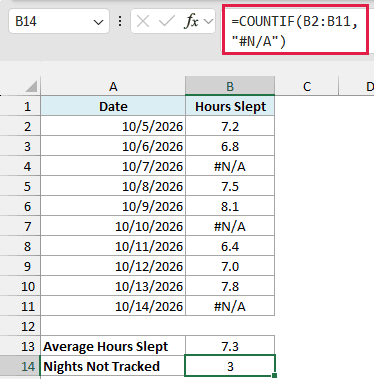
This returns 3. The COUNTIF function can match the #N/A error when you put it in double quotes as the criteria.
Pro Tip: AVERAGEIF skips only #N/A, so a real error like #DIV/0! in the range still shows up in the result. To skip every error type, use the AGGREGATE function instead.
Example 4: Use NA() to Leave Gaps in a Line Chart
Now let’s use NA to fix a common chart problem.
Below is a student’s quiz log with the points scored out of 50 (Quiz 3 was missed, and Quizzes 8 to 10 haven’t happened yet), and I want the score percentage in column C so I can plot it in a line chart.
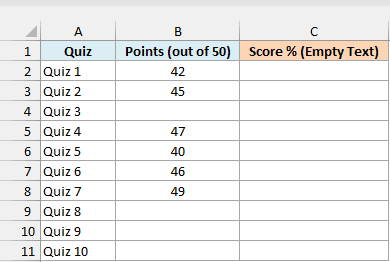
A common way to handle the missing quizzes is to return empty text (“”), so let’s try that first. Here is the formula:
=IF(B2:B11="","",B2:B11/50)
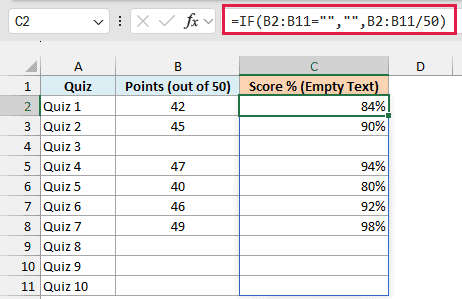
The cells for the missing quizzes look empty. But here is what a line chart created from column C looks like:
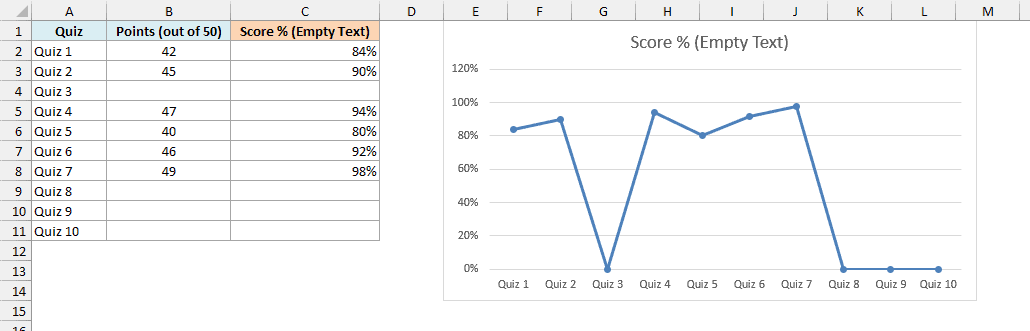
The line drops to 0% at Quiz 3 and stays at 0% for Quizzes 8 to 10. A chart treats empty text from a formula as zero, so it looks like the student scored nothing on those quizzes.
Now here is the same calculation with NA() in column D:
=IF(B2:B11="",NA(),B2:B11/50)
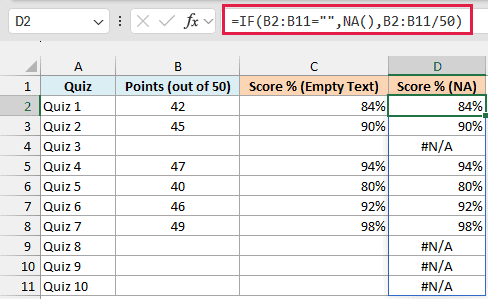
And here is the line chart created from column D:
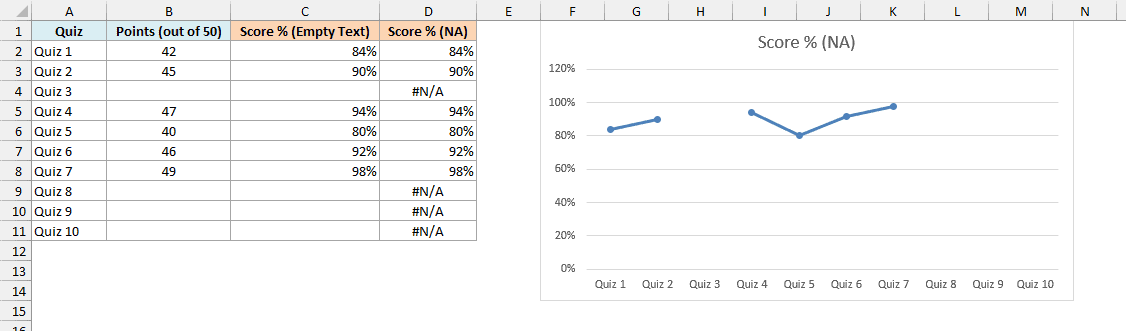
This time, the line leaves a gap at Quiz 3 and stops after Quiz 7. Excel doesn’t plot the #N/A points at all, so the chart shows only the quizzes that actually happened.
Pro Tip: If you’d rather have the line connect across the missed quiz, right-click the chart, choose Select Data, click Hidden and Empty Cells, and uncheck “Show #N/A as an empty cell”. The quizzes after Quiz 7 still won’t be plotted.
If you are using Excel 2019 or earlier, enter the below formula in cell D2 and then copy it down the range:
=IF(B2="",NA(),B2/50)
Example 5: Highlight the Highest Point in a Chart Using NA
Here’s one more chart trick that uses NA.
Below is a movie theater’s ticket sales for each month, and I want to keep only the best month’s number in column C so I can highlight it in a line chart.
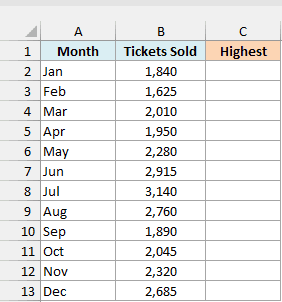
Here is the formula:
=IF(B2:B13=MAX(B2:B13),B2:B13,NA())
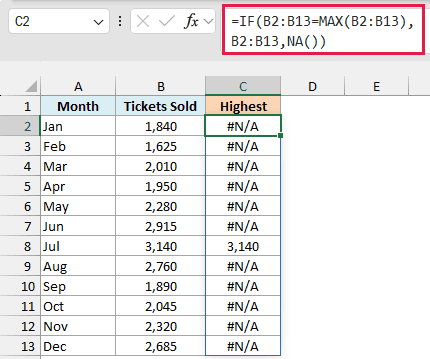
The formula compares each month’s sales with the highest value in B2:B13. July has the highest sales (3,140), so it keeps that number, and every other month gets #N/A.
Now when you create a Line with Markers chart from A1:C13, the Highest column becomes a second series in the chart:
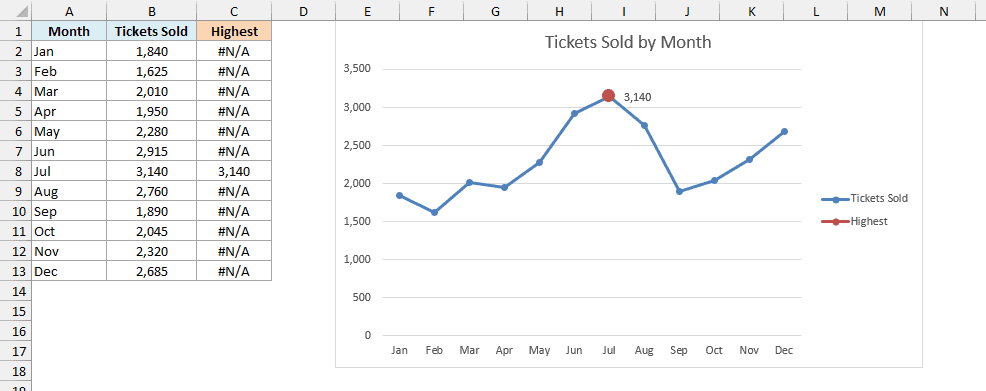
Since every other value in the Highest column is #N/A, that series has just one marker, right on July. I’ve made that marker bigger and added a data label, so July stands out.
To do the same, right-click the July marker and choose Add Data Labels. Then right-click it again, choose Format Data Series, and increase the Size under Fill & Line > Marker > Marker Options.
If two months tie for the highest sales, both keep their values, so both get highlighted.
If you are using Excel 2019 or earlier, enter the below formula in cell C2 and then copy it down the range:
=IF(B2=MAX($B$2:$B$13),B2,NA())
Pro Tip: To highlight the lowest month instead, change MAX to MIN in the formula.
So that’s how the NA function works. It gives you a deliberate #N/A, which keeps missing values from passing as zeros in your totals, averages, and charts.
When it’s time to deal with those #N/A values, the IFNA function can replace them with your own text, and the ISNA function can check whether a cell holds one.
I hope you found this Excel tutorial useful.
Other Excel Articles You May Also Like:
