

The IMREAL function returns the real part of a complex number, which is the part that doesn’t have an i or j next to it. Give it 4+9i and you get 4.
Excel stores complex numbers as text, so you can’t sort them, add them, or compare them like regular numbers. IMREAL turns the real part into an actual number you can work with.
In this article, I’ll show you five examples of IMREAL, from getting the real part of a single value to sorting a list by it. You’ll also see the one trick IMREAL needs to work on a whole column at once.
Follow along with the example file
IMREAL Function Examples.xlsx
IMREAL Function Syntax
Here is the syntax of the IMREAL function:
=IMREAL(inumber)
- inumber – The complex number whose real part you want. It can be a complex number written as text, such as “4+9i” or “-3-2j”, or a reference to a cell that holds one. It can also be the result of another formula, such as the COMPLEX function, which builds a complex number from its two parts.
When you type the complex number straight into the formula, put it in double quotes. For example, =IMREAL("6-9i") returns 6.
The letter at the end has to be a lowercase i or j. An uppercase I or J gives you the #NUM! error, and so does any text Excel can’t read as a complex number.
Spaces next to a number are fine, so “3 + 4i” returns 3. But “2 – i” returns #NUM!, because when there’s no number in front of the i, Excel needs the sign right next to it.
If inumber points to a blank cell, IMREAL returns 0 instead of an error.
The IMREAL function works in Excel for Microsoft 365, Excel 2024, 2021, 2019, 2016, and Excel for Mac. The single formulas that fill a whole column need Excel 365 or Excel 2021 and later.
When to Use the IMREAL Function
Use this function when you need to:
- Get the real part of complex numbers stored as text
- Pull the real power (in watts) out of complex power readings
- Sort a list of complex numbers by their real part
- Get the total resistance of parts connected in a series circuit
- Clean up tiny rounding leftovers in results from other complex number functions
Let me show you a few practical examples of how to use the IMREAL function.
Example 1: Get the Real Part of a Complex Number
Let’s start with a simple example.
Below I have a list of complex numbers, some written with i and some with j, and I want the real part of each one in column B.
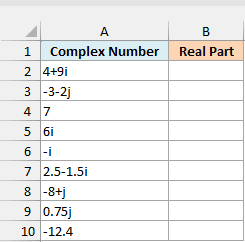
Here is the formula to enter in cell B2 and copy down:
=IMREAL(A2)
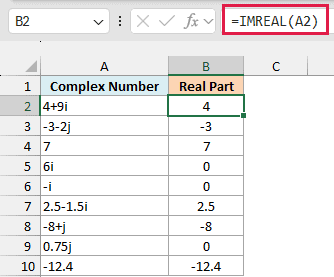
IMREAL returns the part of the number without the i or j, along with its sign. So 4+9i gives 4, and -3-2j gives -3.
When a number is purely imaginary, like 6i, -i, or 0.75j, there’s no real part, so IMREAL returns 0.
And when the value is a regular number, like 7 or -12.4, the whole thing is the real part, so IMREAL returns the number as it is.
Here I’ve used one formula per row, so it’s easy to match each result with its value. In the next example, I’ll show you how to do a whole column with a single formula.
Example 2: Get the Real Part of a Whole Column with One Formula
In Excel 365 (and Excel 2021 or later), a single formula can return the real parts for a whole column. But IMREAL needs a small trick to do it.
When an appliance runs on AC power, its power use can be written as a complex number called complex power. The real part is the real power in watts.
Real power is the power that actually does the work, and it’s what your electricity meter charges you for.
Below are the complex power readings of some home appliances, and I want the real power of each one in column C.
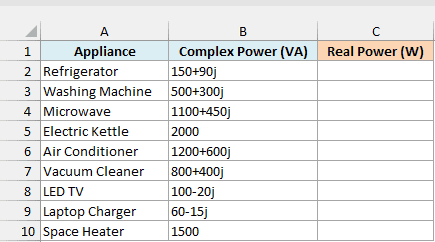
Here is the formula to enter in cell C2:
=IMREAL(+B2:B10)
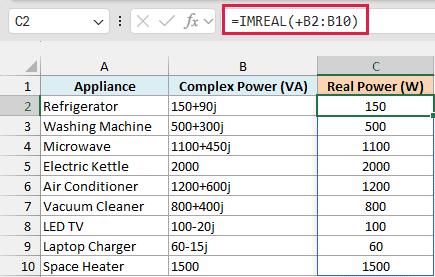
This spills the real power for all nine appliances down to C10. The Refrigerator’s complex power is 150+90j, so its real power is 150 watts.
The Electric Kettle and the Space Heater have no j part at all, so their real power is the full 2000 and 1500 watts.
The plus sign in front of the range is the important part. Without it, IMREAL returns a single #VALUE! error instead of nine results.
Here’s what that looks like. I’ve entered the same formula without the plus sign in cell E2:
=IMREAL(B2:B10)
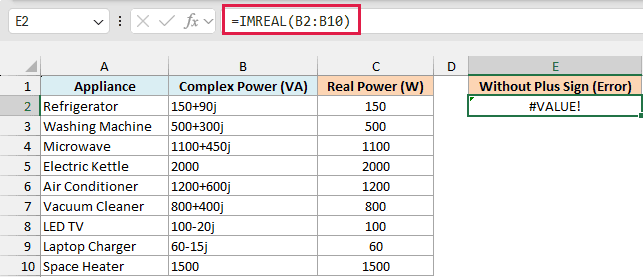
This happens because IMREAL can’t take a multi-cell range reference like B2:B10. It only works with single values, or with a list of values held in memory (called an array).
Putting a plus sign in front of the range makes Excel hand IMREAL the values as an array, so it returns one result for each row.
If you are using Excel 2019 or earlier, enter the below formula in cell C2 and then copy it down the range:
=IMREAL(B2)
Example 3: Sort a List by the Real Part
Since IMREAL returns a regular number, you can use it inside other functions. Here, it tells the SORTBY function what to sort on (SORTBY is available in Excel 365 and Excel 2021 or later).
Below is a list of office equipment with the complex power of each item, and I want to sort the list from the highest real power to the lowest, starting in column D.
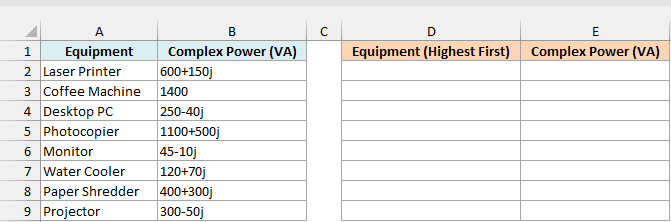
You can’t just sort column B for this, because Excel treats those values as text. A regular sort from largest to smallest puts 45-10j second, right after 600+150j.
That’s because text is compared one character at a time. Both 45-10j and 400+300j start with a 4, and then the 5 beats the 0.
Here is the formula to enter in cell D2:
=SORTBY(A2:B9,IMREAL(+B2:B9),-1)
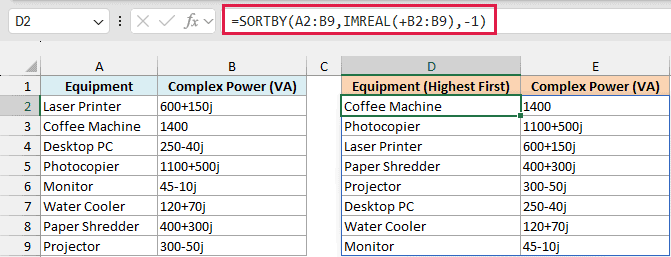
How this formula works:
IMREAL(+B2:B9)returns the real power of each item: 600, 1400, 250, 1100, 45, 120, 400, and 300.- SORTBY sorts the rows of A2:B9 by those numbers, and the -1 makes it go from largest to smallest.
The Coffee Machine comes out on top with 1400 watts, followed by the Photocopier at 1100. The Monitor, at just 45 watts, ends up at the bottom.
The plus sign is needed here too. With a plain B2:B9 inside IMREAL, the whole formula returns #VALUE!.
To sort from the lowest real power to the highest, change the -1 to 1.
Example 4: Add Complex Numbers and Get the Real Part
Now let’s use IMREAL together with another complex number function.
Impedance is how much a part of a circuit resists AC current, and it’s written as a complex number in ohms. Its real part is the resistance, and the j part comes from coils and capacitors.
When parts are connected one after another (in series), their impedances add up. So the real part of that total is the total resistance of the circuit.
Below are the parts of a series circuit with the impedance of each one, and I want the total resistance in cell D2.
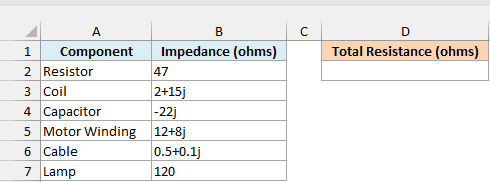
Here is the formula:
=IMREAL(IMSUM(B2:B7))
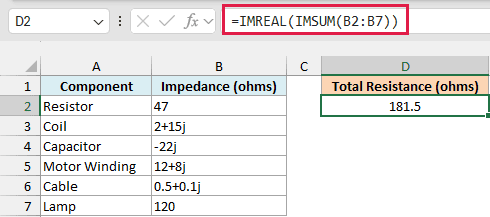
This returns 181.5, so the total resistance of the circuit is 181.5 ohms.
The IMSUM function adds all six impedances and returns 181.5+1.1j. IMREAL then takes the real part of that total, which is 181.5.
This formula doesn’t need a plus sign. IMSUM accepts a range directly, and IMREAL only gets one value (the total) to work with.
Just make sure all the values use the same letter. If some use i and others use j, IMSUM returns #VALUE!.
Example 5: Fix Tiny Leftover Values in the Real Part
Here’s one that can trip you up.
Below is a list of numbers with their square roots, calculated with the IMSQRT function, and I want the real part of each square root in column C.
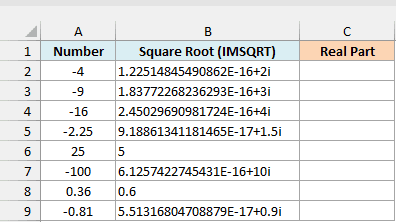
The square root of -4 is 2i, so its real part should be 0. But cell B2 shows 1.22514845490862E-16+2i.
That’s because IMSQRT calculates square roots using angles (based on the number pi), and Excel can’t store pi exactly. That tiny error shows up as a real part very close to 0 instead of exactly 0.
Here is the formula to enter in cell C2:
=IMREAL(+B2:B9)
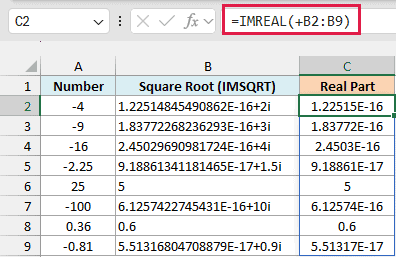
For -4, IMREAL returns 1.22515E-16, which is 0.000000000000000122515. It’s practically 0, but it isn’t 0, and the same thing happens with every negative number in the list.
Important: Don’t check for a real part of 0 by comparing IMREAL with 0 directly. For the square root of -4, =IMREAL(B2)=0 returns FALSE, even though the answer is 2i.
To fix this, round the real part. Here is the formula to enter in cell D2:
=ROUND(IMREAL(+B2:B9),9)
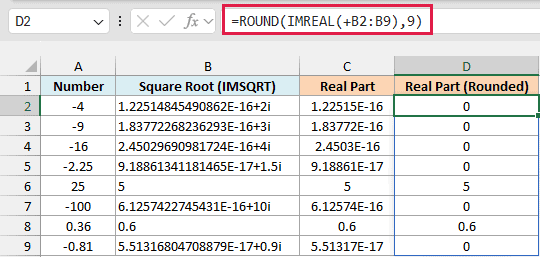
The ROUND function rounds each real part to 9 decimal places. That turns the tiny leftovers into 0 but keeps real values like 5 (the square root of 25) and 0.6 (the square root of 0.36) as they are.
If you are using Excel 2019 or earlier, enter the below formula in cell D2 and then copy it down the range:
=ROUND(IMREAL(B2),9)
So these are some practical ways to use the IMREAL function in Excel to get the real part of a complex number.
Just remember to put a plus sign in front of the range when you want one formula for a whole column, and round the result when it comes from functions like IMSQRT. I hope you found this article helpful.
Other Excel Articles You May Also Like:
