

The RANDARRAY function fills a whole block of cells with random numbers from a single formula. You tell it how many rows and columns you want, the lowest and highest value, and whether you want decimals or whole numbers.
That makes it handy for quick test data, practice sheets, shuffling a list, or picking random winners. The catch is that the numbers keep changing, because RANDARRAY recalculates every time anything on the sheet changes.
In this article, I’ll show you how RANDARRAY works, how to control the size and range of the numbers, and how to use it to shuffle lists, pick winners, and split people into random teams.
Follow along with the example file
RANDARRAY Function Examples.xlsx
RANDARRAY Function Syntax
Here is the syntax of the RANDARRAY function:
=RANDARRAY([rows],[columns],[min],[max],[whole_number])
- rows – how many rows of random numbers you want. If you leave it out, you get 1 row.
- columns – how many columns of random numbers you want. If you leave it out, you get 1 column.
- min – the smallest number that can be returned. The default is 0.
- max – the largest number that can be returned. The default is 1.
- whole_number – TRUE returns whole numbers, and FALSE returns decimals. If you leave it out, you get decimals.
Every argument is optional, so =RANDARRAY() on its own returns one random decimal between 0 and 1, just like the RAND function. You can also skip an argument and keep the comma, so =RANDARRAY(,5) gives you a single row of five numbers.
When whole_number is TRUE, both min and max can show up in the results. But if you set it to TRUE and leave out min and max, you only get 0s and 1s, because the default range is 0 to 1.
The min value can’t be bigger than the max value. If it is, for example =RANDARRAY(5,1,10,1), RANDARRAY returns a #VALUE! error instead of any numbers.
The RANDARRAY function works in Excel for Microsoft 365, Excel 2024, Excel 2021 (Windows and Mac), and Excel on the web. It isn’t available in Excel 2019 or earlier versions.
When to Use the RANDARRAY Function
Use this function when you need to:
- Fill a table with placeholder or test data
- Generate random whole numbers or decimals between two values
- Shuffle a list or a table into a random order
- Pick random winners from a list without any repeats
- Split a group of people into random teams
Let me show you some practical examples of how to use the RANDARRAY function.
Example 1: Fill a Grid With Random Numbers
Let’s start with the simplest use, a block of random numbers with just the rows and columns set.
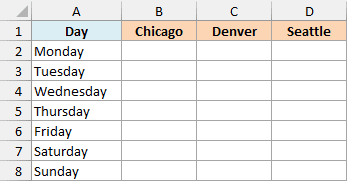
Below is a weekly rain forecast template with the days in column A and three cities, and I want placeholder chance-of-rain values in columns B to D so I can test the layout.
Here is the formula:
=RANDARRAY(7,3)
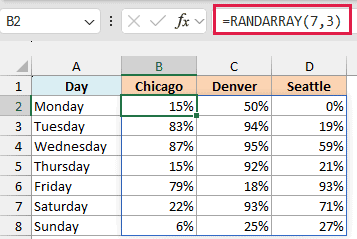
This formula goes only in cell B2, and it returns a grid of 7 rows and 3 columns, one value for each day and city. Since I didn’t give it a min or max, every value is a decimal between 0 and 1.
The results spill into B2:D8, so those cells need to be empty. If anything is already sitting in that range, you get a #SPILL! error instead of the numbers.
To show the decimals as chance-of-rain values, format B2:D8 as Percentage, and a value like 0.37 shows up as 37%.
Your numbers won’t match my screenshot, and that’s expected. Every time you edit a cell or press F9, RANDARRAY recalculates and the whole grid changes.
Example 2: Random Whole Numbers Between Two Values
Now let’s set a range and ask for whole numbers instead of decimals.
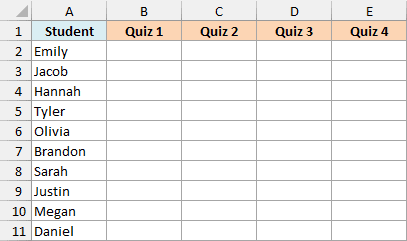
Below is a list of ten students, and I want random practice quiz scores between 50 and 100 for four quizzes in columns B to E.
Here is the formula:
=RANDARRAY(10,4,50,100,TRUE)
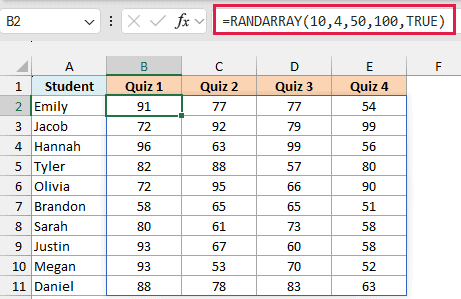
The first two arguments make a block of 10 rows (one per student) and 4 columns (one per quiz). Then 50 and 100 set the range, and TRUE tells RANDARRAY to return whole numbers only, with 50 and 100 both possible.
If you are using Excel 2019 or earlier, enter the below formula in cell B2 and then copy it across and down to E11:
=RANDBETWEEN(50,100)
The RANDBETWEEN function returns one random whole number per cell, so you need a copy of it in each of the 40 cells.
Pro Tip: To stop the numbers from changing, select B2:E11, copy it, and then right-click and choose Paste Values. This replaces the formula with the numbers it returned, so they stay fixed.
Example 3: Generate Random Decimal Numbers in a Range
This time let’s get decimals between two values and keep just one decimal place.
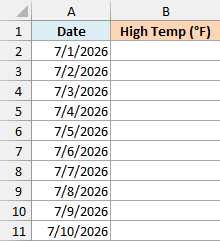
Below is a list of ten dates in July, and I want a random high temperature between 60 and 85 degrees for each day in column B, with one decimal place.
Here is the formula:
=ROUND(RANDARRAY(10,1,60,85),1)
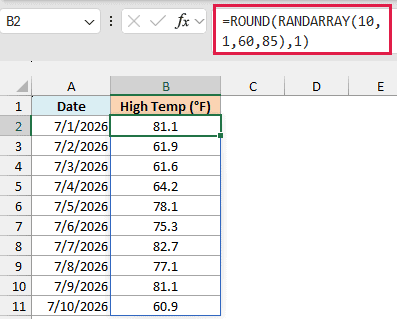
Here, RANDARRAY returns 10 rows and 1 column of decimals between 60 and 85. I left out the whole_number argument, so each value comes with a long tail of decimal places.
The ROUND function then cuts each value down to one decimal place. I use ROUND instead of just formatting the cells, because formatting only hides the extra digits while the cell still holds the long number.
Important: If you want whole-number temperatures instead, adding TRUE works only when min and max are whole numbers too. A formula like =RANDARRAY(10,1,60.5,85,TRUE) returns a #VALUE! error.
Example 4: Match the Array Size to Your List
So far I’ve typed the number of rows into the formula. Here, I’ll let the formula count them for me, and I’ll generate random times while I’m at it.
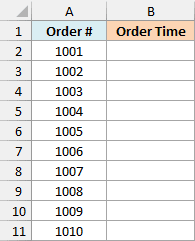
Below is a list of ten coffee shop order numbers, and I want a random order time between 7 AM and 11 AM for each one in column B.
Here is the formula:
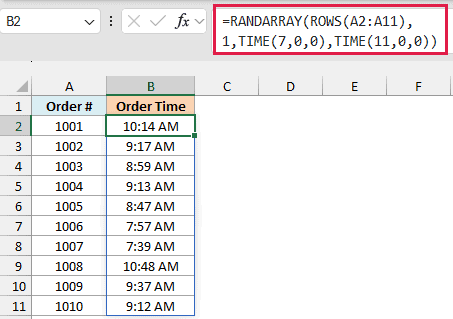
=RANDARRAY(ROWS(A2:A11),1,TIME(7,0,0),TIME(11,0,0))
How this formula works:
- ROWS(A2:A11) counts the rows in the order list, which is 10. So RANDARRAY returns exactly one value per order, and you don’t have to count the rows yourself.
- TIME(7,0,0) and TIME(11,0,0) set the range from 7 AM to 11 AM. Excel stores a time as a fraction of a day, so 7 AM is really 0.2917 and 11 AM is 0.4583.
- RANDARRAY returns decimals between those two fractions. Format B2:B11 with the h:mm AM/PM time format, and those decimals show up as times.
If your list grows, change A2:A11 to the new range and the number of times grows with it. The ROWS function works the same way in the next few examples.
Example 5: Shuffle a List in Random Order
Now let’s use RANDARRAY to put a list in random order.
Below is a trivia quiz with the questions in column A and the answers in column B, and I want the same questions in a random order in columns D and E, with each answer staying next to its question.
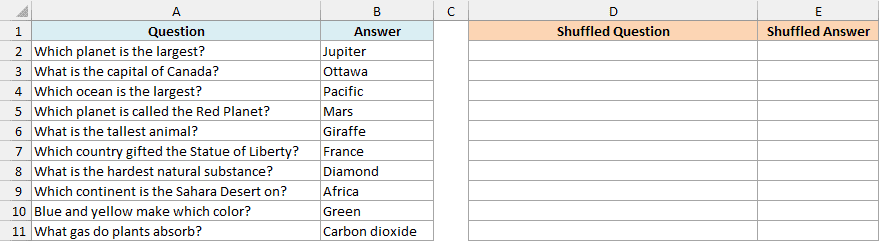
Here is the formula:
=SORTBY(A2:B11,RANDARRAY(ROWS(A2:B11)))
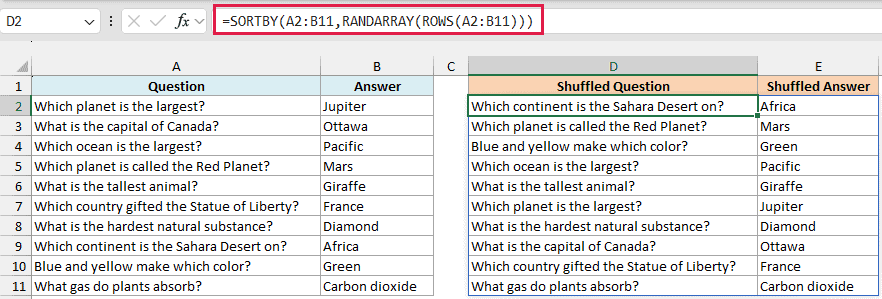
How this formula works:
- RANDARRAY(ROWS(A2:B11)) creates a column of 10 random decimals, one for each question.
- SORTBY sorts the quiz table by those random numbers. Since the numbers are in a random order, so is the sorted table.
- Because SORTBY sorts the whole range A2:B11, each row moves as one unit. The answer always stays next to its question.
Press F9 and you get a brand new order, which is a quick way to make a few different versions of the same quiz.
If you are using Excel 2019 or earlier, here is how to shuffle a list in Excel with a RAND helper column and the Sort feature.
Example 6: Pick Random Winners Without Repeats
Let’s take the shuffle one step further and use it to pick winners.
Below is a list of twelve raffle ticket holders, and I want to pick three winners in column C, with no person winning twice.
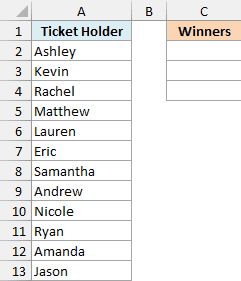
Here is the formula:
=TAKE(SORTBY(A2:A13,RANDARRAY(ROWS(A2:A13))),3)
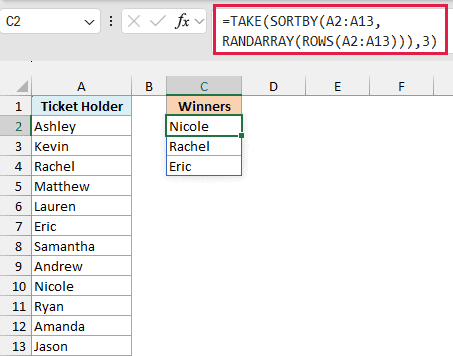
How this formula works:
- SORTBY(A2:A13,RANDARRAY(ROWS(A2:A13))) shuffles all twelve names, just like in the previous example.
- TAKE(…,3) keeps only the first three names from that shuffled list. Change the 3 if you need more or fewer winners.
Since the shuffled list holds each name exactly once, the same person can’t show up twice among the winners.
You might be tempted to pick random positions instead, using RANDARRAY’s whole-number option inside the INDEX function. That can return the same position twice, so the same person could win two prizes.
The TAKE function is available in Excel for Microsoft 365 and Excel 2024, but not in Excel 2021. If you are using Excel 2021, enter the below formula in cell C2 instead, and it spills three random winners:
=INDEX(SORTBY(A2:A13,RANDARRAY(ROWS(A2:A13))),SEQUENCE(3))
Example 7: Split a List Into Random Teams
This next one uses the same shuffle to put people into random groups of equal size.
Below is a list of twelve players, and I want to split them into three random teams of four in columns C to E.
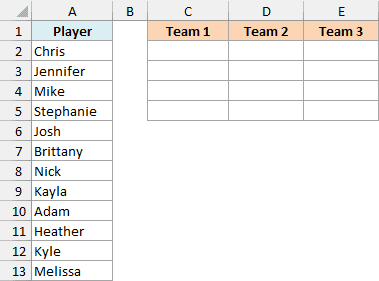
Here is the formula:
=WRAPCOLS(SORTBY(A2:A13,RANDARRAY(ROWS(A2:A13))),4)
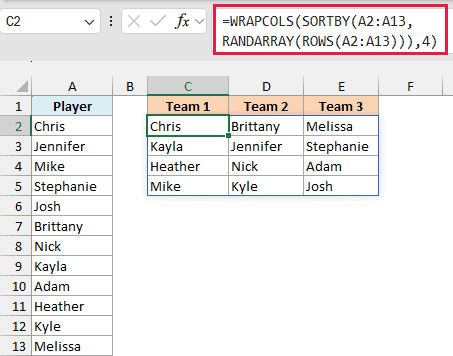
How this formula works:
- SORTBY(A2:A13,RANDARRAY(ROWS(A2:A13))) shuffles the twelve players into a random order.
- WRAPCOLS(…,4) takes that shuffled list and fills it into columns of four, so you get three teams of four players each.
The shuffle doesn’t repeat or drop anyone, so every player ends up on exactly one team. The 4 is the team size, and changing it to 3 gives you four teams of three.
Now say you change the team size to 5. Twelve players don’t split evenly into teams of five, so the last team has only two players and WRAPCOLS fills its three empty spots with #N/A.
To leave those spots blank instead, add “” as the third argument of WRAPCOLS, right after the team size.
The WRAPCOLS function works in Excel for Microsoft 365 and Excel 2024. If you are using Excel 2021, enter the below formula in cell C2 instead, and it spills three random teams of four:
=INDEX(SORTBY(A2:A13,RANDARRAY(ROWS(A2:A13))),SEQUENCE(4,3))
For a ready-made version of this idea, check out this random group generator template.
Example 8: Generate Random Letter Codes
Let’s finish with a slightly more advanced one, where RANDARRAY creates random text instead of numbers.
Below is a list of ten customers, and I want a random six-letter discount code for each one in column B.
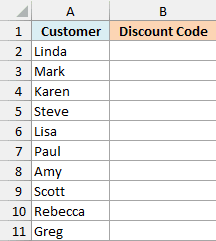
Here is the formula:
=BYROW(RANDARRAY(ROWS(A2:A11),6,65,90,TRUE),LAMBDA(r,CONCAT(CHAR(r))))
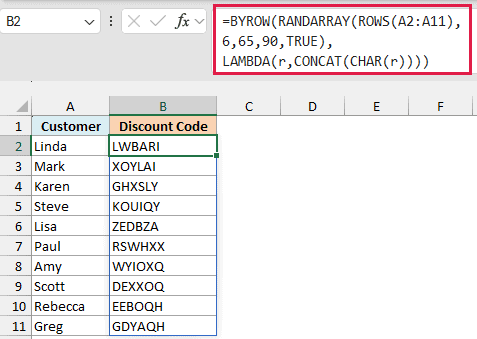
How this formula works:
- RANDARRAY(ROWS(A2:A11),6,65,90,TRUE) creates a grid with one row per customer and six columns, filled with whole numbers from 65 to 90.
- BYROW hands the grid to LAMBDA one row at a time, and r is the name LAMBDA gives that row.
- CHAR(r) turns each of the row’s six numbers into a letter, because 65 to 90 are the character codes for the capital letters A to Z. CONCAT then joins those six letters into one code.
Since there are over 300 million possible six-letter codes, two customers getting the same code is very unlikely, but it isn’t impossible.
BYROW and LAMBDA work in Excel for Microsoft 365 and Excel 2024. If you are using Excel 2021, enter the below formula in cell B2 and then copy it down to B11:
=CONCAT(CHAR(RANDARRAY(1,6,65,90,TRUE)))
The codes change on every recalculation, just like the numbers in the earlier examples. So before you send them out, freeze them with Paste Values, as in Example 2.
So these are some of the ways you can use the RANDARRAY function in Excel. On its own it gives you quick test data, and paired with SORTBY it handles anything that needs a random order.
I hope you found this article helpful.
Other Excel Articles You May Also Like:
