

With the WRAPCOLS function, you can break one long list of values into several columns, each holding as many values as you choose. Excel fills the first column from top to bottom, then moves on to the next one.
This comes in handy when a single column is too long to read or print comfortably, or when you want to split a list into equal groups that sit side by side.
When a list doesn’t divide evenly, WRAPCOLS fills the gaps in the last column with #N/A errors. The examples below show how to fix that, and how to use WRAPCOLS together with functions like SORT, UNIQUE, and VSTACK.
Follow along with the example file
WRAPCOLS Function Examples.xlsx
WRAPCOLS Function Syntax
Here is the syntax of the WRAPCOLS function:
=WRAPCOLS(vector, wrap_count, [pad_with])
- vector – the single row or single column of values you want to wrap. It can be a range or an array returned by another formula.
- wrap_count – the maximum number of values you want in each column.
- [pad_with] – (optional) the value used to fill the empty spots in the last column. If you leave it out, Excel fills them with #N/A.
The wrap_count sets how tall each column is, not how many columns you get. Excel works out the number of columns on its own, so 10 values with a wrap_count of 4 give you three columns (4 + 4 + 2).
If wrap_count is equal to or larger than the number of values, you simply get the whole list back as one column, with no padding.
A decimal wrap_count is cut down to a whole number, so 4.9 works like 4. And a wrap_count below 1 (such as 0 or a negative number) returns a #NUM! error.
The WRAPCOLS function is available in Excel for Microsoft 365 and Excel 2024, on Windows and Mac, and in Excel for the web. It isn’t available in Excel 2021, 2019, or older versions, where the formula returns a #NAME? error.
When to Use the WRAPCOLS Function
Use this function when you need to:
- Split a long list into several shorter columns so it fits on the screen or on one printed page
- Divide a list into equal groups, such as teams, shifts, or shoppers
- Turn a single row of values (like daily numbers) into weekly or monthly columns
- Lay out the result of another formula, such as a sorted list of unique values, in a compact grid
- Combine two or more lists and arrange them into groups, together with VSTACK
Let me show you a few practical examples of how WRAPCOLS works.
Example 1: Wrap a List into Columns of Four
Let’s start with a simple example.
Below is a grocery list of 12 items, and I want to split it between three shoppers, with four items for each shopper in columns C to E.
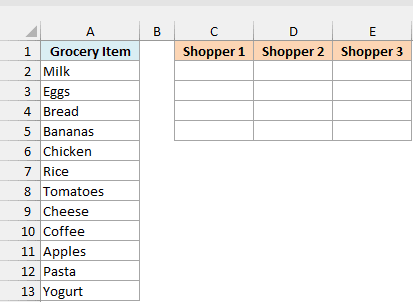
Here is the formula:
=WRAPCOLS(A2:A13,4)
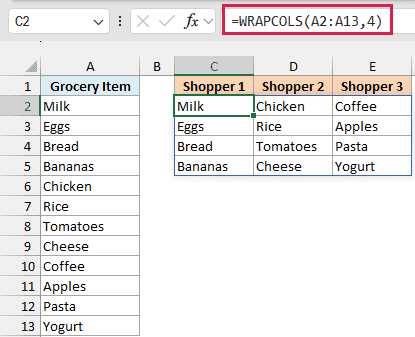
The formula takes the 12 items in A2:A13 and fills them down four at a time. Milk, Eggs, Bread, and Bananas go into column C (Shopper 1), the next four go into column D, and the last four go into column E.
Since 12 divides evenly by 4, every column is full, with no gaps at the end.
The whole result spills into C2:E5 from the one formula in C2, so there’s nothing to copy down or across.
If any cell in C2:E5 already has something in it, the formula can’t spill and you get a #SPILL! error instead. Clear the cells in the way, and the result shows up.
If you are using Excel 2021 or earlier, enter the below formula in cell C2, copy it down to C5, and then copy those four cells across to column E:
=INDEX($A$2:$A$13,(COLUMNS($C$2:C2)-1)*4+ROWS($C$2:C2))
This formula uses the INDEX function to pick an item by its position in the list. The COLUMNS part tells each cell which column it’s in, and the ROWS part tells it which row it’s in.
Those two numbers become a position with (column – 1) x 4 + row, so the second cell in the second column picks item number 6 (Rice). To use a different column height, change the 4 to that number.
Example 2: Replace the #N/A With the pad_with Argument
Now let’s see what happens when the list doesn’t divide evenly.
Below is a summer reading list of 10 books, and I want to show it in columns of four, starting in column C.
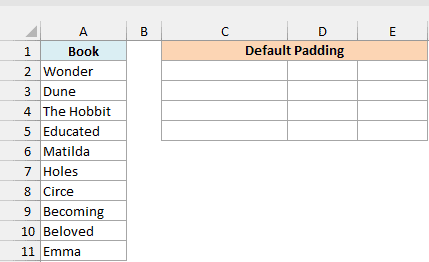
Here is the formula:
=WRAPCOLS(A2:A11,4)
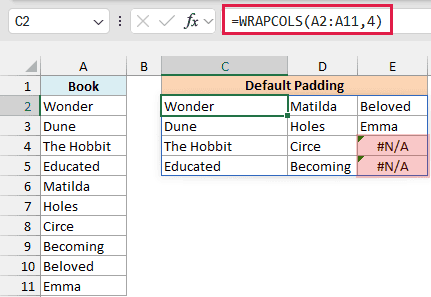
Ten books in columns of four gives two full columns and a third column with just Beloved and Emma. There’s nothing left to fill the last two spots in that column, so Excel puts #N/A in E4 and E5.
That #N/A doesn’t mean anything is wrong with your list. It’s just the default padding, but it looks messy in a list you want to share or print.
To fix this, use the third argument. Here is the formula in cell C8 that fills the empty spots with blanks instead:
=WRAPCOLS(A2:A11,4,"")
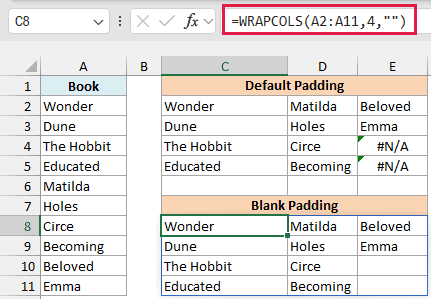
The “” tells WRAPCOLS to pad with an empty text string, so E10 and E11 now look blank. You can use any other value here too, such as “-” or 0.
Note that those blank-looking cells aren’t truly empty, since they hold empty text. So a COUNTA formula on the result counts all 12 cells, not just the 10 books.
Pro Tip: Use pad_with instead of wrapping the formula in IFNA or IFERROR. Those would also hide a real #N/A coming from your data, while pad_with only fills the empty spots at the end.
Example 3: Wrap a Horizontal Row into Weekly Columns
WRAPCOLS works the same way when your values are in a row instead of a column.
Below is a piano practice log with the minutes practiced each day for two weeks in a single row, and I want to show each week as its own column, starting in cell B5.
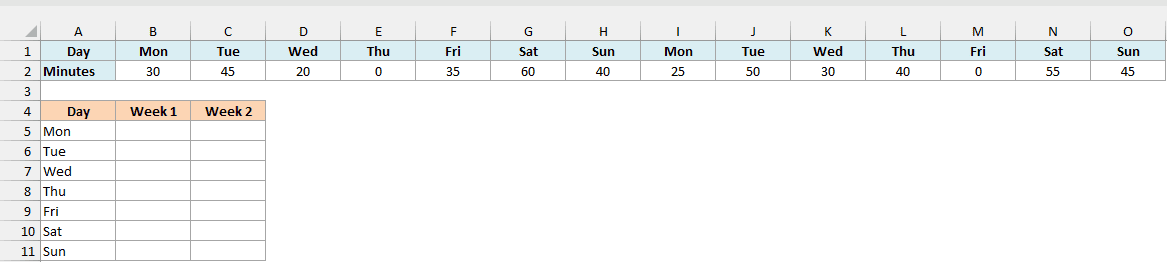
Here is the formula:
=WRAPCOLS(B2:O2,7)
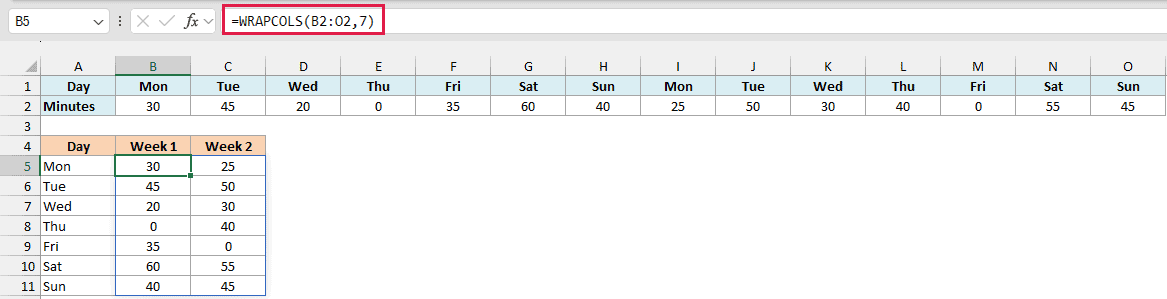
The formula in B5 takes the 14 values in B2:O2 and fills them down seven at a time. So the first Monday to Sunday land in column B (Week 1), and the second Monday to Sunday land in column C (Week 2).
The day names in A5:A11 and the Week 1 and Week 2 headers are typed in, because WRAPCOLS only returns the values themselves.
With each week in its own column, the two weeks are easy to compare day by day. For example, you can see right away that Thursday was the rest day in Week 1, while Friday was the rest day in Week 2.
Example 4: Wrap a Long List into a Set Number of Columns
Sometimes you know how many columns you want rather than how tall each one should be, for example when a long list needs to print on one page.
Below is a list of 20 people who signed up for a charity 5K run, and I want to fit them into the 3 columns set in cell D2, starting in column F.
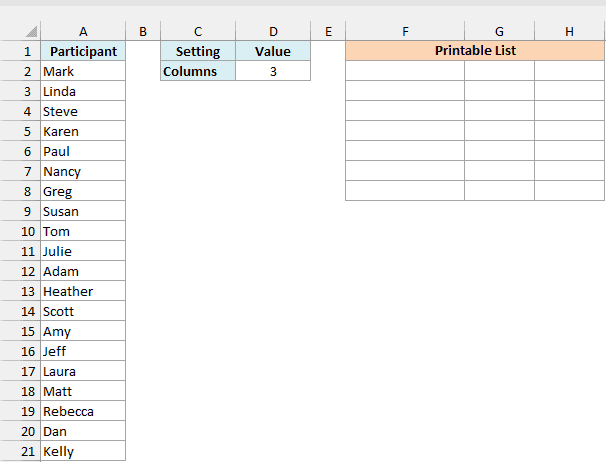
Here is the formula:
=WRAPCOLS(A2:A21,ROUNDUP(ROWS(A2:A21)/D2,0),"")
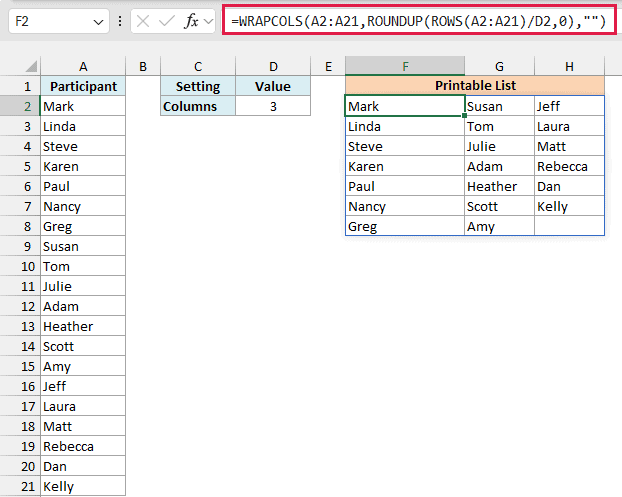
How this formula works:
- ROWS(A2:A21) counts the cells in the list, which is 20.
- ROWS(A2:A21)/D2 divides those 20 names by the 3 columns in D2, which gives 6.67.
- ROUNDUP(…,0) rounds that up to 7, the number of names each column needs to hold.
- WRAPCOLS then wraps the list into columns of 7, which gives exactly three columns, and “” keeps the one leftover spot in H8 blank.
Since the number comes from D2, you can change the layout without touching the formula. Type 4 in D2, and the names redraw into four columns of five, spilling into column I, so keep that column empty.
Note that D2 is the most columns you’ll get, not always the exact number. For example, 20 names in 6 columns needs 4 names per column (after rounding up), and that fills only 5 columns.
D2 also needs a number above 0. If it’s blank or 0, the formula ends up dividing by zero and returns a #DIV/0! error.
Example 5: Use WRAPCOLS With SORT and UNIQUE
Now let’s look at something more interesting, where WRAPCOLS works on a list returned by the UNIQUE function.
Below is a list of ice cream flavor votes from a kids’ party, with some flavors voted for more than once, and I want each flavor listed once, sorted A to Z in columns of three, starting in column C.
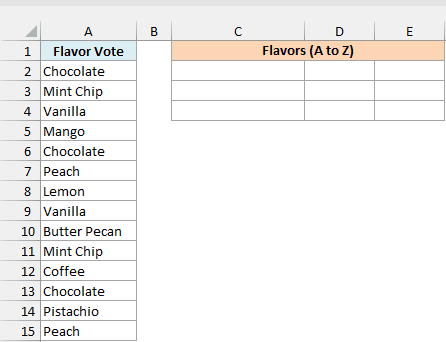
Here is the formula:
=WRAPCOLS(SORT(UNIQUE(A2:A15)),3)
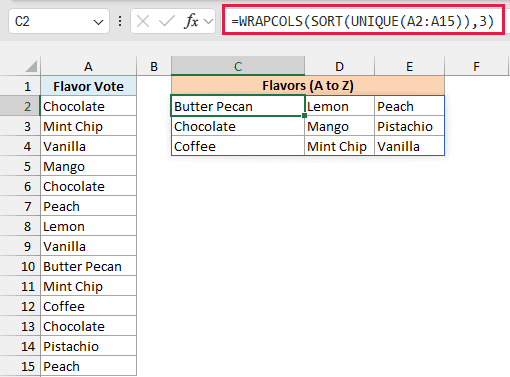
How this formula works:
- UNIQUE(A2:A15) removes the repeated votes and returns each flavor only once. That’s 9 flavors from the 14 votes.
- SORT(…) puts those 9 flavors in alphabetical order.
- WRAPCOLS(…,3) then fills them down three at a time, so the list reads A to Z down the first column, then the second, then the third.
Reading down each column is what makes WRAPCOLS a good fit for sorted lists. It’s the same way a phone book or a book index is laid out, so people scan it the way they expect to.
Since 9 divides evenly by 3, there’s no padding here. But if someone votes for a new flavor, you get 10 flavors and a fourth column with #N/A, so add “” as the third argument if your list can change.
Example 6: Combine Two Lists With VSTACK and Then Wrap Them
Let’s step it up with one more combination, this time with the VSTACK function.
Below are the students in two class sections, and I want to combine both sections and split all the students into project groups of four, with one group in each column starting in column D.
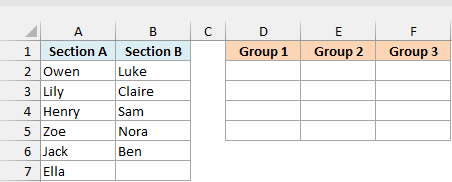
Here is the formula:
=WRAPCOLS(VSTACK(A2:A7,B2:B6),4,"")
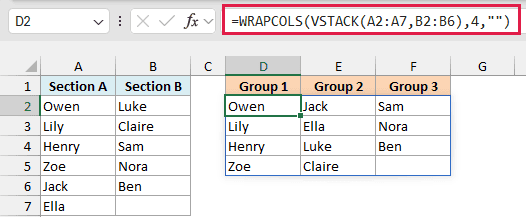
How this formula works:
- VSTACK(A2:A7,B2:B6) stacks the 5 Section B names under the 6 Section A names, which gives one list of 11 students.
- WRAPCOLS wraps that list into columns of four, so Group 1 and Group 2 get four students each, and Group 3 gets three.
- “” keeps the empty spot at the bottom of Group 3 blank instead of showing #N/A.
The two ranges don’t need to be the same size. VSTACK simply puts one under the other, so it doesn’t matter that Section B has one student fewer than Section A.
Important: WRAPCOLS only accepts a single row or a single column. If you point it at a range that is more than one column wide, like A2:B7, it returns a #VALUE! error, so stack the columns into one list first.
So these are a few ways you can use the WRAPCOLS function in Excel to turn one long list into neat columns, on its own or together with other functions.
If you want the values to fill across each row first instead of down each column, the WRAPROWS function works the same way with the direction flipped.
I hope you found this article helpful.
Other Excel Articles You May Also Like:
