

If you want Excel to hand you a random whole number between two values you pick, the RANDBETWEEN function is what you’re looking for. Give it a low number and a high number and it returns a random integer somewhere in between.
One thing to know up front. RANDBETWEEN is volatile, so it generates a fresh number every time the sheet recalculates. Type into any cell or press F9 and all your RANDBETWEEN values change.
With single bottom and top values, RANDBETWEEN returns one random integer. Array inputs can spill in dynamic-array Excel. For example, =RANDBETWEEN(B2:B7,100) returns #VALUE!, but =RANDBETWEEN(+B2:B7,100) spills with the plus sign fix.
To fill a whole grid of random numbers with a single formula, use RANDARRAY with its whole_number argument set to TRUE.
In this article I’ll show you how to use RANDBETWEEN in Excel to generate a random number in a range, create random dates and sample data, produce decimals, and pick a random name from a list.
Follow along with the example file
RANDBETWEEN Function Examples.xlsx
RANDBETWEEN Function Syntax
Here is the syntax of the RANDBETWEEN function:
=RANDBETWEEN(bottom, top)
- bottom – the smallest integer the function is allowed to return. This value is included in the range.
- top – the largest integer the function is allowed to return. This value is also included in the range.
So =RANDBETWEEN(1, 6) can return any whole number from 1 to 6, including both 1 and 6.
RANDBETWEEN returns whole numbers only. Both arguments should be integers, and bottom must be less than or equal to top, otherwise you get a #NUM! error.
This is the main difference from the RAND function, which returns a random decimal between 0 and 1. RANDBETWEEN gives you whole numbers in a range you choose.
RANDBETWEEN works in Excel for Microsoft 365, Excel 2024, 2021, 2019, 2016, and earlier versions, plus Excel on the web.
When to Use RANDBETWEEN
Use the RANDBETWEEN function when you need to:
- Generate a random whole number inside a set range
- Build quick sample or test data such as IDs, ages, quantities, or prices
- Create random dates or simulate dice and game rolls
- Randomly pick an item from a list (paired with INDEX)
Let me show you a few practical examples of how this works.
Example 1: Random Integer Between Two Numbers
Let’s start with the most basic case, a single random number in a range.
Below I have a small setup with a Random Number column in column B, ready to be filled in cells B2:B11. Nothing is generated yet.
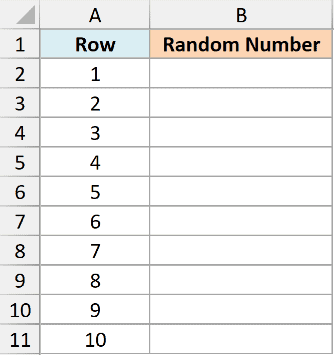
I want each cell in column B to show a random whole number between 1 and 100.
Here is the formula:
=RANDBETWEEN(1,100)
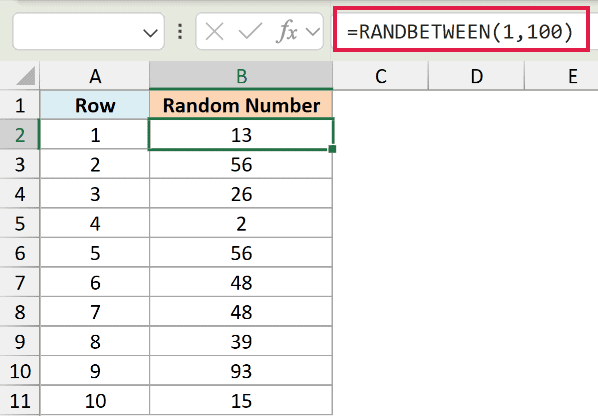
Enter it in the first cell and copy it down the column. Every cell returns its own random integer from 1 to 100, and both 1 and 100 are possible results.
Because RANDBETWEEN recalculates constantly, your numbers will look different from the screenshot above. That’s expected. The values reshuffle every time the sheet recalculates.
Pro Tip: RANDBETWEEN works with negative numbers too. =RANDBETWEEN(-50,50) returns a random integer anywhere from -50 to 50.
Example 2: Simulate Rolling Two Dice
Here’s a fun one that shows how you can combine RANDBETWEEN calls.
Below I have a Roll column listing rolls 1 through 10, with an empty Total column next to it. I want to simulate rolling two six-sided dice and record the combined total for each roll.
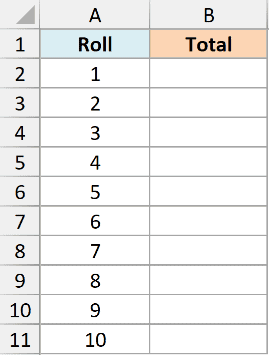
A single die is just a random number from 1 to 6, so two dice added together is two RANDBETWEEN calls.
Here is the formula:
=RANDBETWEEN(1,6)+RANDBETWEEN(1,6)
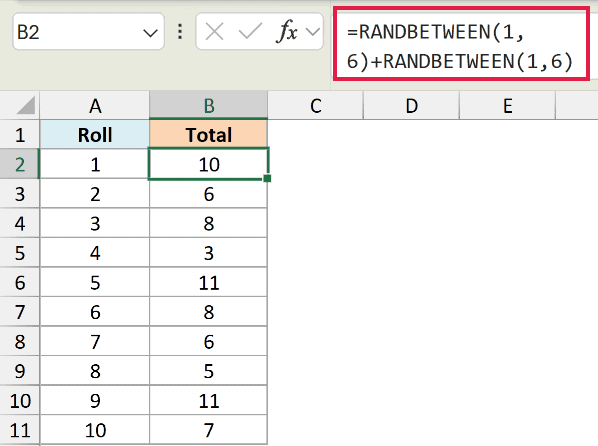
Each RANDBETWEEN(1,6) stands in for one die, returning a value from 1 to 6. Adding them gives a total between 2 and 12, exactly like rolling a real pair of dice.
Copy the formula down and you get a full set of simulated rolls. Press F9 to roll again and every total updates at once.
Example 3: Generate Random Dates in a Range
Now let’s use RANDBETWEEN to create random dates, which is handy for test data.
Below I have a list of order IDs in column A and an empty Order Date column in B. I want to assign each order a random date in the 2024 calendar year.
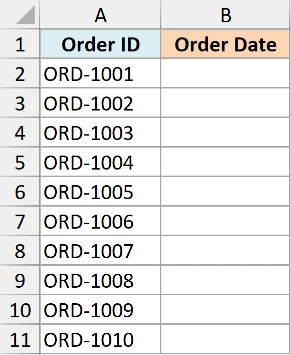
Excel stores dates as serial numbers, so I wrap the start and end dates in the DATE function and let RANDBETWEEN pick a serial number in between.
Here is the formula:
=RANDBETWEEN(DATE(2024,1,1),DATE(2024,12,31))
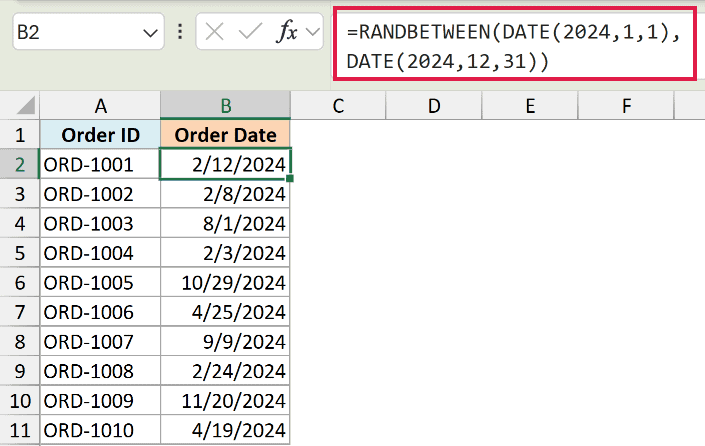
RANDBETWEEN returns a random serial number between the two dates. At first the cell shows a plain number, so format the column as Date and it displays as a proper date.
Pro Tip: To generate a random time instead, use =RANDBETWEEN(0,1439)/1440 and format the cell as Time. There are 1440 minutes in a day, so this gives a random time down to the minute.
Example 4: Create Sample Data Quickly
RANDBETWEEN is one of the fastest ways to fill a table with realistic test data.
Below I have a list of employee names in column A and an empty Age column in B. I want to populate the ages with believable random values so I have something to test formulas against.
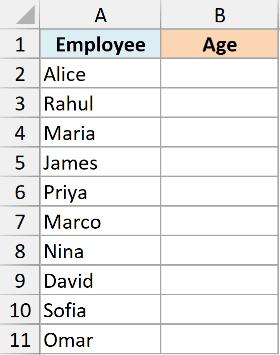
I’ll generate an age between 22 and 60 for each person in the list.
Here is the formula:
=RANDBETWEEN(22,60)
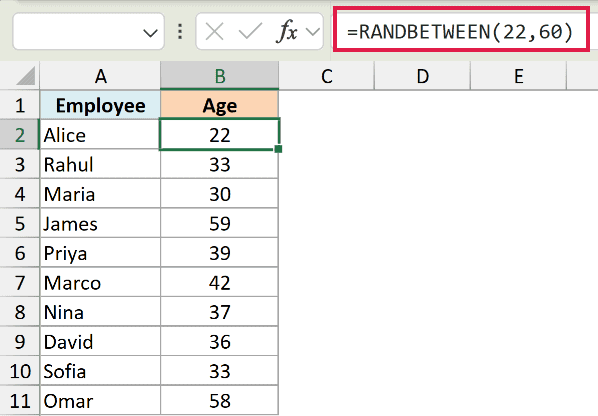
Copy it down the Age column and every row gets a random whole number from 22 to 60. You can reuse the same idea for quantities, scores, or employee IDs by changing the bottom and top values.
Once the numbers look right, freeze them so they stop changing. Copy the column, then paste it back as values (covered in the Tips section below).
Example 5: Generate Random Decimal Numbers
RANDBETWEEN only returns whole numbers, but a small divide trick lets you generate decimals.
Below I have a list of products in column A and an empty Price column in B. I want a random price for each product with two decimal places, somewhere between 1.00 and 50.00.
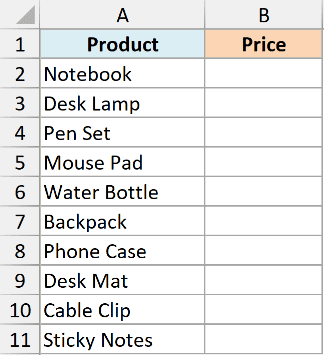
The trick is to generate a larger whole number and then divide it down to the decimal range you want.
Here is the formula:
=RANDBETWEEN(100,5000)/100
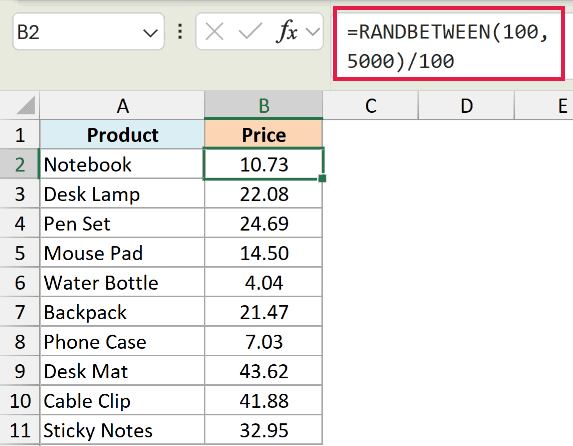
RANDBETWEEN returns a whole number from 100 to 5000, and dividing by 100 shifts it to a value from 1.00 to 50.00 with two decimals. For one decimal place, use a range like =RANDBETWEEN(10,500)/10 instead.
Example 6: Pick a Random Name From a List
Let’s finish with a genuinely useful combination, using RANDBETWEEN to pull a random item out of a list.
Below I have a list of 10 names in the range A2:A11. I want to pick one of them completely at random, which is perfect for a giveaway or drawing a name.
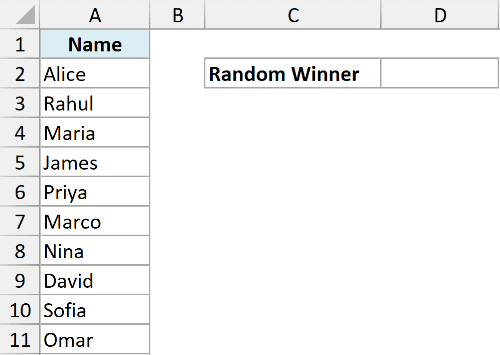
RANDBETWEEN gives me a random row number, and INDEX returns the name sitting in that position.
Here is the formula:
=INDEX(A2:A11,RANDBETWEEN(1,COUNTA(A2:A11)))
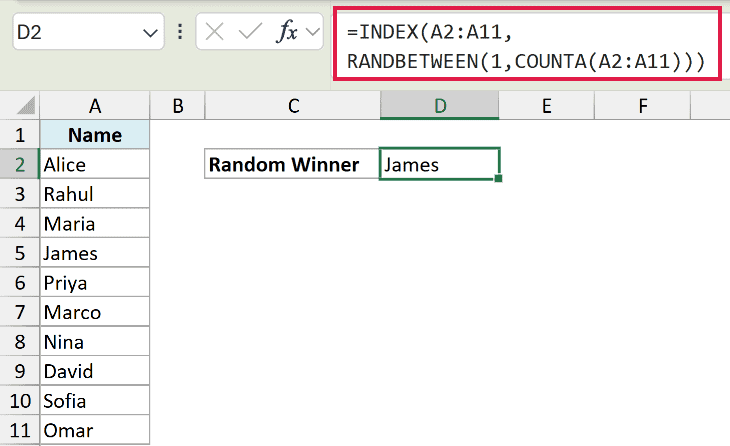
Here, COUNTA counts how many names are in the list (10), RANDBETWEEN picks a random position from 1 to 10, and INDEX returns the name at that position.
Keep the names together from A2 with no gaps, spaces-only cells, or formulas returning "". If the list grows below A11, extend both A2:A11 references.
Press F9 and it draws a new random name each time.
Tips & Common Mistakes
- RANDBETWEEN is volatile, so the numbers keep changing. Every edit anywhere in the workbook, and every press of F9, makes RANDBETWEEN recalculate. This is why your results won’t match the screenshots above and why a value never stays put on its own.
- Freeze the results with Paste Values. Once you’re happy with a set of random numbers, select them, copy with Ctrl+C, then right-click and choose Paste Special and select Values (or press Ctrl+Alt+V, then V). This replaces the formulas with static numbers that stop changing.
- RANDBETWEEN can repeat values. It doesn’t avoid duplicates, so a small range across many cells will produce repeats. If you need distinct values with no repeats, see this guide on generating unique random numbers in Excel.
- For a whole grid in one formula, use RANDARRAY. With single bottom and top values, you copy RANDBETWEEN into each cell. In Microsoft 365, Excel 2024, Excel 2021, and Excel for the web,
=RANDARRAY(5,3,1,100,TRUE)spills a 5-row by 3-column block of random integers from 1 to 100 in a single formula, with the last argument (TRUE) forcing whole numbers. - A #NUM! error means bottom is bigger than top. RANDBETWEEN needs the bottom value to be less than or equal to the top value. Swap them if you see the error.
That covers the main ways to put RANDBETWEEN to work. You’ve seen how to generate a random number in a range, simulate dice, create random dates and sample data, produce decimals with a divide trick, and pick a random name from a list.
The big thing to remember is that RANDBETWEEN keeps recalculating, so paste the results as values whenever you need them to stay put.
Other Excel Articles You May Also Like:
