

The MODE function in Excel gives you the number that shows up most often in a list. Unlike an average, which a few extreme numbers can pull up or down, the mode is always a value that’s actually in your data.
It works only with numbers, and when two values tie, it gives you just one of them. In this tutorial, I’ll show you how MODE handles ties and messy data, and how to use it to find the most common text value or the mode for one group.
Follow along with the example file
MODE Function Examples.xlsx
MODE Function Syntax
Here is the syntax of the MODE function:
=MODE(number1, [number2], ...)
- number1 – The first number, cell reference, or range you want the mode of. This is the only required argument.
- [number2], … – Optional additional numbers, cell references, or ranges. You can add up to 255 arguments in total.
Most of the time you’ll give MODE a single range, like =MODE(B2:B13). When you add more arguments, MODE treats them all as one combined list, so a value that appears once in each of two ranges counts as appearing twice.
The MODE function works in all Excel versions, including Microsoft 365, 2024, 2021, 2019, 2016, Mac, and the web. Microsoft lists it as a compatibility function, and MODE.SNGL (available since Excel 2010) gives the same result.
When to Use the MODE Function
Use this function when you need to:
- Find the most common value in a list, such as the shoe size that sells the most
- See the typical value when a few very large or very small numbers would throw off the average
- Check which number repeats the most in survey answers or ratings
- Find the most common value for one group, like one store or one location
- Pick out the most frequent text entry, when combined with INDEX and MATCH
Let me show you a few practical examples of how to use the MODE function.
Example 1: Find the Mode of a List of Numbers
Let’s start with a simple example.
Below is a list of customers and the shoe size each one bought, and I want to find the most common size in cell E1.
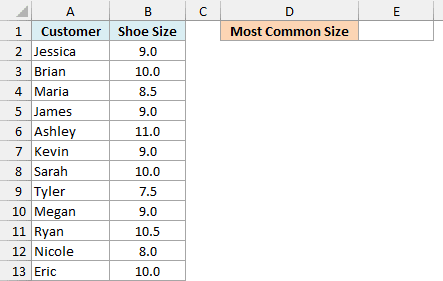
Here is the formula:
=MODE(B2:B13)
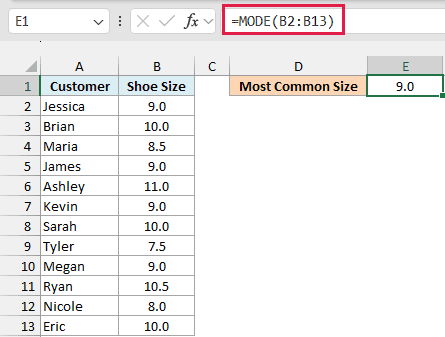
The formula returns 9, because size 9 appears four times in B2:B13, more than any other size. Size 10 comes close with three sales, but MODE only cares about the single value that repeats the most.
For a store, that’s a useful number to have. Knowing that size 9 sells the most tells you which size to keep more of in stock.
Example 2: Find the Mean, Median, and Mode in Excel
Here’s a scenario that shows why the mode is useful even when you already have an average.
Below is a list of online orders with the number of items in each cart, and I want the average, the median, and the mode in cells E2, E3, and E4.
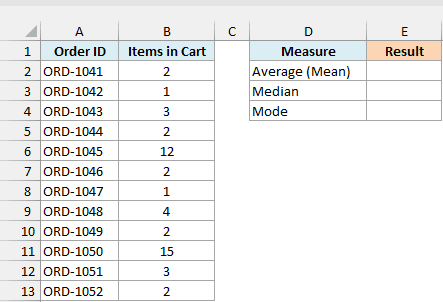
Here is the formula for the average (mean):
=AVERAGE(B2:B13)
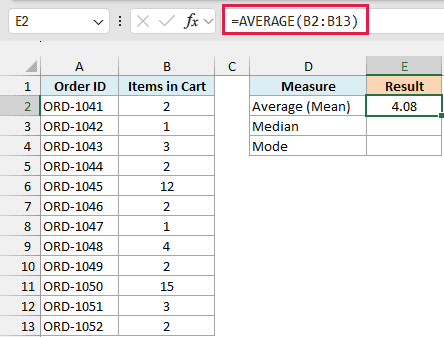
The AVERAGE function gives 4.08 items per order. But look at the data, and you’ll see that most orders have only 1 to 3 items.
Here is the formula for the median:
=MEDIAN(B2:B13)
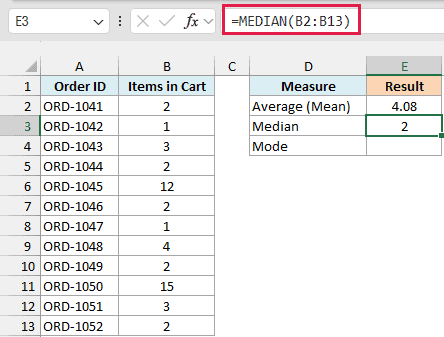
The median is 2, which is the middle value when you sort the order sizes from smallest to largest.
And here is the formula for the mode:
=MODE(B2:B13)
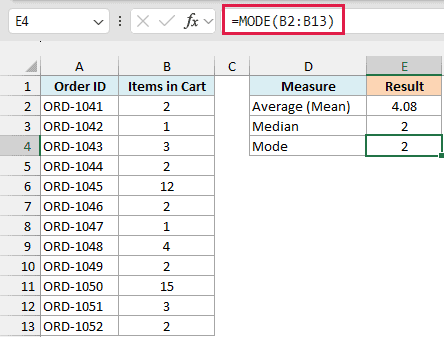
The mode is also 2, because five of the twelve orders have exactly 2 items.
The average is higher because the two big orders (12 items and 15 items) pull it up.
The median and the mode don’t care how big those two orders are, so they give you a much better picture of a typical order here.
Example 3: MODE Ignores Text and Blank Cells
Now let’s see what happens when the data isn’t perfectly clean.
Below is a quick survey where people said how many cups of coffee they drink each day, and some skipped the question. I want the most common answer in cell E1.
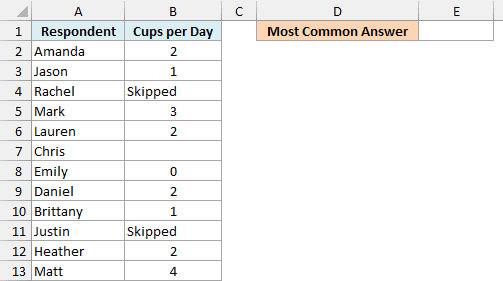
Here is the formula:
=MODE(B2:B13)
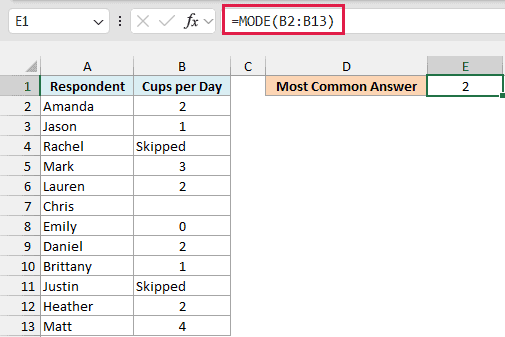
The formula returns 2, and it doesn’t trip over the two “Skipped” entries or the blank cell for Chris. When you give MODE a range, it simply skips text and empty cells (and TRUE/FALSE values too, if your data has any).
Zero is different. Emily’s 0 is a real number, so MODE counts it like any other answer.
Important: Numbers stored as text are skipped too, just like the word “Skipped”. If your data came from another system and MODE gives an odd answer or #N/A, check for text numbers and convert them to real numbers first.
Example 4: When Two Values Tie for the Mode
This next one trips up a lot of people, because two numbers in the data appear the same number of times.
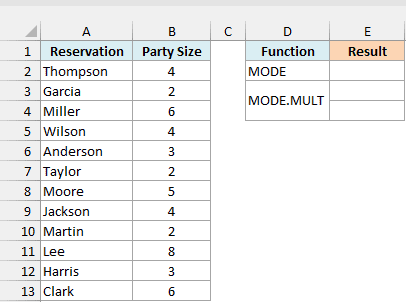
Below is a list of restaurant reservations with the party size for each booking, and I want the most common party size in cell E2.
Here is the formula:
=MODE(B2:B13)
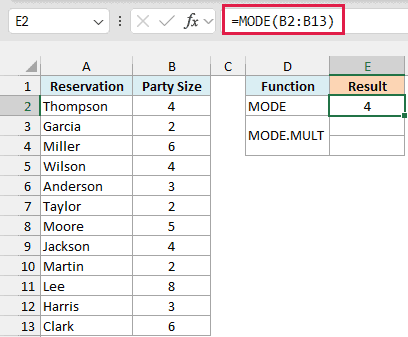
The formula returns 4. But if you count the party sizes, both 4 and 2 appear three times, so there are actually two modes here.
When there’s a tie, MODE returns whichever tied value appears first in the data. The smaller number doesn’t get any priority.
Here, the Thompson booking in row 2 is a party of 4, and it comes before the first party of 2, so MODE returns 4.
If you want to see every tied value, use the MODE.MULT function instead. I want the full list of tied party sizes starting in cell E3.
Here is the formula:
=MODE.MULT(B2:B13)
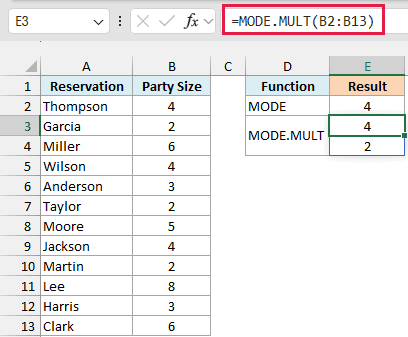
MODE.MULT returns both 4 and 2, and the results spill into E3 and E4 automatically. Keep the cells below the formula empty, because anything in the way gives you a #SPILL! error instead of the list.
MODE.MULT doesn’t spill in older versions. If you are using Excel 2010 to 2019, select E3:E4, enter the below formula, and press Control + Shift + Enter:
=MODE.MULT(B2:B13)
Example 5: Handle the #N/A Error When Nothing Repeats
Let’s look at what happens when no value repeats at all.
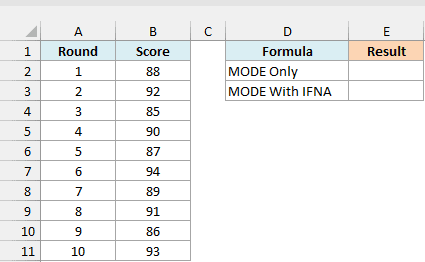
Below are the scores from ten rounds of golf, and I want the most common score in cell E2.
Here is the formula:
=MODE(B2:B11)
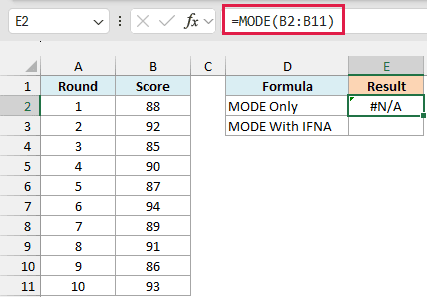
The formula returns #N/A. Every score in this list is different, so there is no most common value, and MODE tells you that with the #N/A error.
The #N/A is correct, but it looks like something broke. You can show a friendly message instead by wrapping MODE in the IFNA function, which I’ll do in cell E3.
Here is the formula:
=IFNA(MODE(B2:B11),"No repeats")
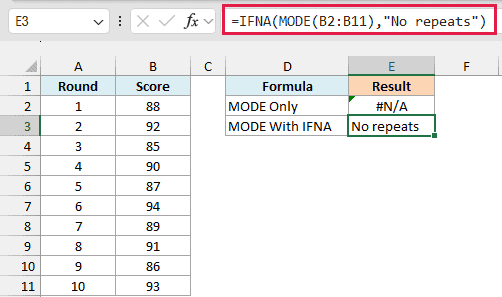
Now the cell shows “No repeats” instead of the error. The IFNA function only steps in when MODE returns #N/A, and passes every other result through unchanged.
IFNA is a better fit here than IFERROR. If one of the scores were an error such as #DIV/0!, MODE would return that error, and IFNA would let you see it.
IFERROR, on the other hand, would quietly hide that error behind “No repeats”, so you’d never know the data had a problem.
Example 6: Find the Mode With a Condition
Now let’s step it up and find the mode for just one group in the data.
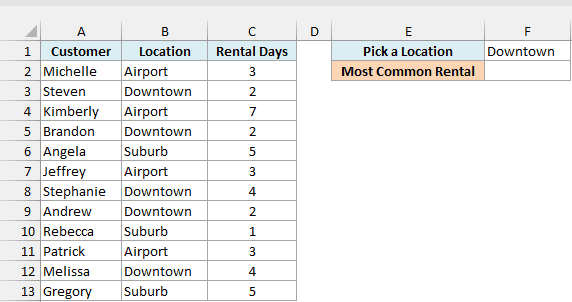
Below is a list of car rentals with the pickup location and the number of rental days, and I want the most common rental length for the location in cell F1 (Downtown), with the result in cell F2.
Here is the formula:
=MODE(FILTER(C2:C13,B2:B13=F1))
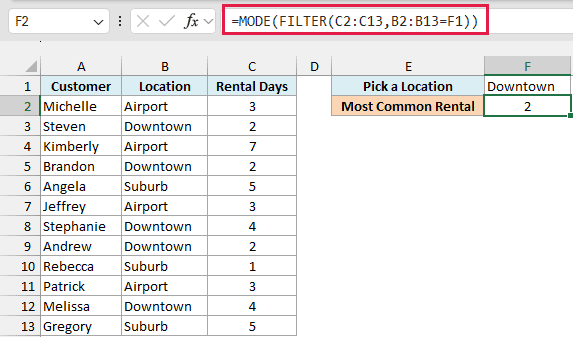
The formula returns 2, so the most common Downtown rental is 2 days.
How this formula works:
- FILTER(C2:C13,B2:B13=F1) keeps only the rental days where the location in column B matches F1. For Downtown, that’s 2, 2, 4, 2, and 4.
- MODE then finds the most common value in that shorter list, which is 2.
The condition changes the answer here. A plain =MODE(C2:C13) on all the rentals would return 3, because 3 and 2 each appear three times and 3 shows up first (the tie rule from Example 4).
Since the formula reads the location from F1, you can type another location there and the result updates right away. Airport gives 3, and Suburb gives 5.
The FILTER function needs Excel 2021 or Microsoft 365. If you are using Excel 2019 or earlier, enter the below formula in cell F2 and press Control + Shift + Enter instead of just Enter:
=MODE(IF(B2:B13=F1,C2:C13))
Example 7: Find the Most Frequent Text Value
The last limitation to get around is that MODE only works with numbers. But with a little help from INDEX and MATCH, you can use it to find the most common text value too.
Below is a list of ice cream orders with the flavor of each one, and I want the most popular flavor in cell E1.
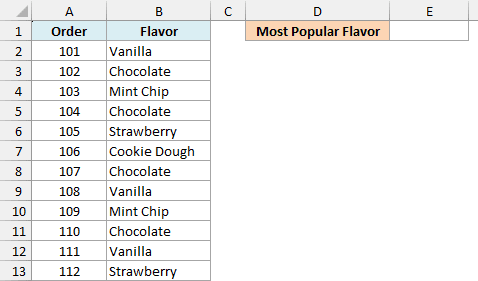
Here is the formula:
=INDEX(B2:B13,MODE(MATCH(B2:B13,B2:B13,0)))
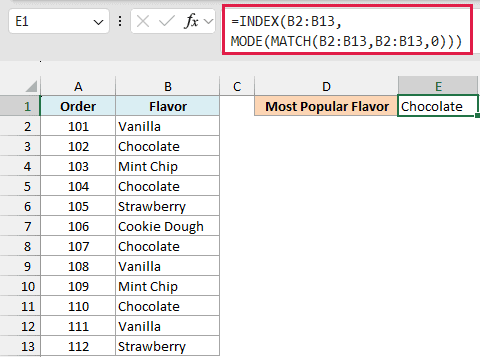
The formula returns Chocolate, which was ordered four times.
How this formula works:
- MATCH(B2:B13,B2:B13,0) turns each flavor into a number: the position where that flavor first appears in the list. Every Chocolate becomes 2, every Vanilla becomes 1, and so on.
- MODE finds the most common of those position numbers. Chocolate shows up most, so the most common position is 2.
- INDEX(B2:B13,…) returns the flavor at position 2 of the list, which is Chocolate.
If two flavors tie, this formula returns the one that appears first in the list, the same tie rule from Example 4.
In Microsoft 365 and Excel 2021, the formula works with a regular Enter. If you are using Excel 2019 or earlier, enter the below formula in cell E1 and press Control + Shift + Enter:
=INDEX(B2:B13,MODE(MATCH(B2:B13,B2:B13,0)))
So these are seven practical ways to use the MODE function in Excel, covering ties, lists with no repeats, conditions, and text values. And whenever you need every tied value instead of just the first one, reach for MODE.MULT.
Other Excel Articles You May Also Like:
