

The MODE.MULT function in Excel finds the number that shows up most often in a list. And when two or more numbers tie for that spot, it gives you all of them instead of just one.
That’s the big difference from the regular MODE function, which returns only one of the tied numbers. In this tutorial, I’ll show you how MODE.MULT works, how to show its results in a row, and how to use it with conditions and text.
Follow along with the example file
MODE.MULT Function Examples.xlsx
MODE.MULT Function Syntax
Here is the syntax of the MODE.MULT function:
=MODE.MULT(number1, [number2], ...)
- number1 – the first number, cell reference, or range you want the modes of. This is the only required argument.
- [number2], … – optional. More numbers, cell references, or ranges, up to 254 arguments in total.
Most of the time, you’ll give MODE.MULT a single range, like =MODE.MULT(B2:B13). If you add more ranges, it treats them as one combined list and finds the modes across all of them together.
Inside a range, only real numbers count. Text, blank cells, TRUE/FALSE values, and numbers stored as text are skipped, while a 0 counts like any other number.
If any cell in the range has an error, such as #DIV/0!, MODE.MULT returns that error instead of the modes. So fix or remove error cells before you look for the most common values.
The MODE.MULT function works in Excel 2010 and later, including Excel 365, 2024, 2021, 2019, and 2016, Excel for the web, and the Mac versions of Excel 365, 2024, and 2021.
When to Use the MODE.MULT Function
Use this function when you need to:
- See every tied value when two or more numbers are equally common, like quiz scores or order sizes
- Check whether a list has one most common value or several
- Count how many times each of the most common values appears
- Find the most common values for just one group, like one shipping method
- List the most popular text entries, such as survey answers, when combined with INDEX and MATCH
Let me show you a few practical examples of how to use the MODE.MULT function.
Example 1: Find All the Most Common Values in a List
Let’s start with a simple example.
Below is a list of students and their scores on a quiz out of 10, and I want to get every most common score in column D.
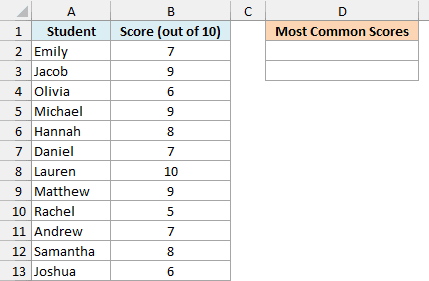
Here is the formula:
=MODE.MULT(B2:B13)
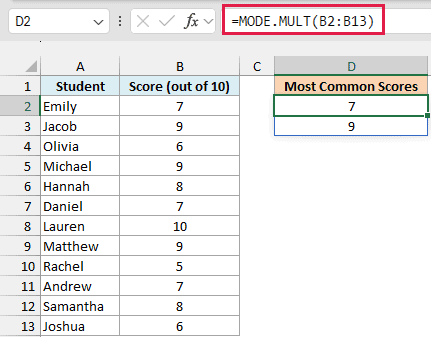
The formula returns 7 and 9, because both scores appear three times in B2:B13, more than any other score.
You enter the formula only in D2, and the second result spills into D3 on its own. If the data had three tied scores, the list would simply grow to three cells.
Important: Keep the cells below the formula empty. If anything is in the way of the results, you get a #SPILL! error instead of the list.
MODE.MULT doesn’t spill in older versions. If you are using Excel 2019 or earlier, select D2:D3, enter the below formula, and then press Control + Shift + Enter:
=MODE.MULT(B2:B13)
In these older versions, if you select more cells than there are modes, the extra cells show #N/A. And if you enter the formula in just one cell, you only get the first mode.
Example 2: MODE.MULT vs MODE.SNGL When Values Tie
Now let’s look at a three-way tie and see what the MODE.SNGL function does with it. MODE.SNGL is the newer name for the MODE function, and it always returns just one value.
Below is a list of gym members and how many times each one worked out last week, and I want the most common workout counts in column E.
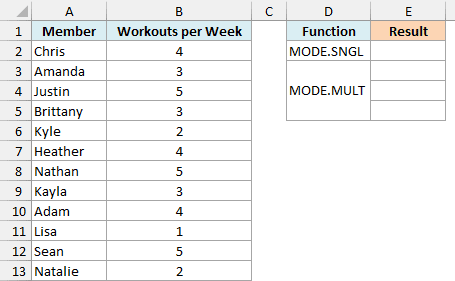
Here is the MODE.SNGL formula for cell E2:
=MODE.SNGL(B2:B13)
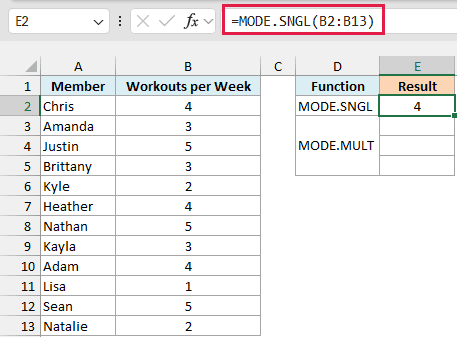
MODE.SNGL returns 4. That looks like a clear answer, but 4, 3, and 5 each appear three times, so 4 is only one of three equally common values.
On a tie, MODE.SNGL gives you the tied value that appears first in the list. Chris in row 2 worked out 4 times, so 4 wins.
And here is the MODE.MULT formula for cell E3:
=MODE.MULT(B2:B13)
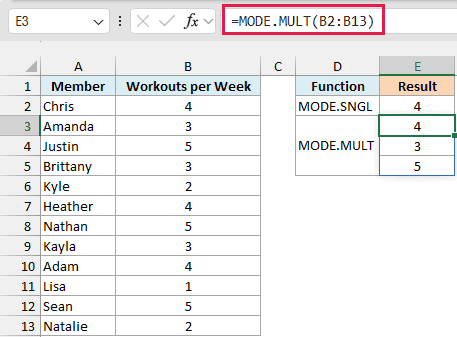
MODE.MULT returns all three values, 4, 3, and 5, in E3:E5. Now you can see that the members are split evenly between three workout counts.
Notice the order of the results. MODE.MULT lists the modes in the order they first appear in the data, not from smallest to largest, which is why 4 comes before 3.
Pro Tip: If you’re on Excel 365, Excel 2021 or later, or Excel for the web, you can sort the modes by wrapping the formula in the SORT function, like =SORT(MODE.MULT(B2:B13)). Here it gives you 3, 4, and 5.
Example 3: Show the Modes in a Row With TRANSPOSE
MODE.MULT always lists its results down a column. But sometimes you want them going across a row instead, like in a summary line.
Below is a soccer team’s goals in each of its last 12 matches, and I want to list the most common goal counts across row 2, starting in cell D2.
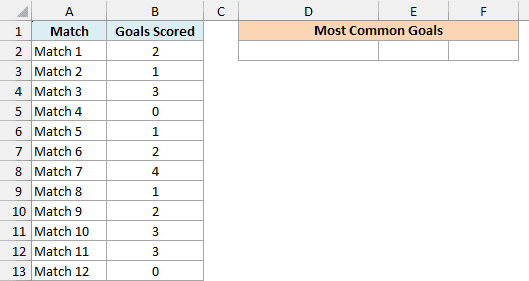
Here is the formula:
=TRANSPOSE(MODE.MULT(B2:B13))
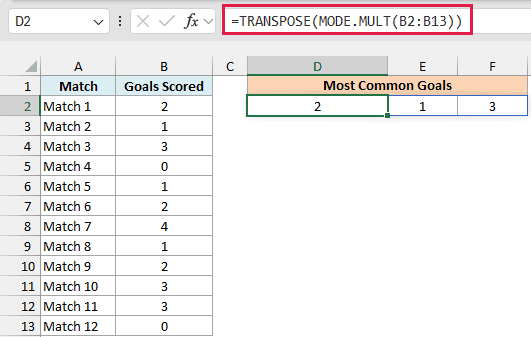
The formula returns 2, 1, and 3, side by side in D2:F2. The team scored each of these goal counts in three matches.
Here, the TRANSPOSE function takes the vertical list that MODE.MULT returns and flips it on its side, so the results spill to the right instead of down.
If you are using Excel 2019 or earlier, select D2:F2, enter the below formula, and then press Control + Shift + Enter:
=TRANSPOSE(MODE.MULT(B2:B13))
Example 4: Count How Many Times Each Mode Appears
Knowing the most common values is useful, but it often helps to also know how common they are.
Below is a book club list with how many books each member read this year, and I want the most common counts in column D and how many members read each count in column E.
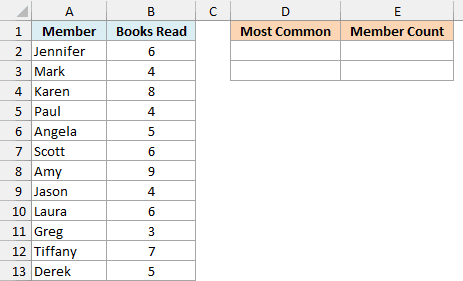
Here is the formula for the modes:
=MODE.MULT(B2:B13)
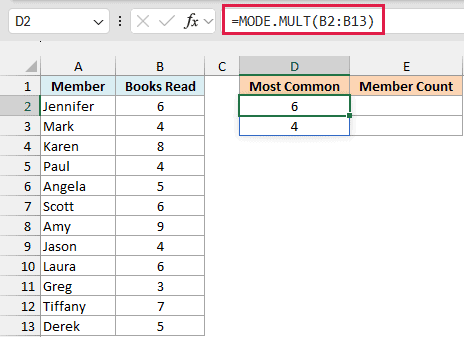
This returns 6 and 4 in D2:D3, the two most common numbers of books read.
And here is the formula that counts them:
=COUNTIF(B2:B13,D2#)
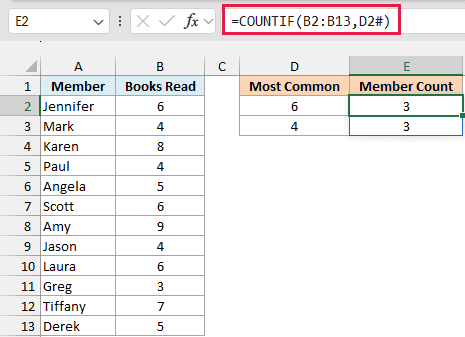
It returns 3 for both, so three members read 6 books and three members read 4 books.
The D2# part is a spill reference, which means the whole list that spills from D2. So the COUNTIF function counts each mode in B2:B13, and its results spill down right next to them.
Because it points to the spill, the count column grows or shrinks with the list of modes. If you change the data and a third mode appears, its count shows up automatically.
Spill references like D2# only work in Excel 365, Excel 2021 or later, or Excel for the web, because older versions don’t spill results.
If you are using Excel 2019 or earlier, get the modes with Control + Shift + Enter as shown in Example 1. Then enter the below formula in cell E2 and copy it down to E3:
=COUNTIF($B$2:$B$13,D2)
Example 5: Show a Message When Nothing Repeats
Let’s look at what happens when every value in the list is different.
Below are the ticket sales for ten shows at a small theater, and I want to find the most common ticket count in column E.
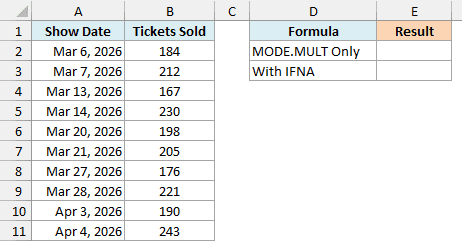
Here is the formula for cell E2:
=MODE.MULT(B2:B11)
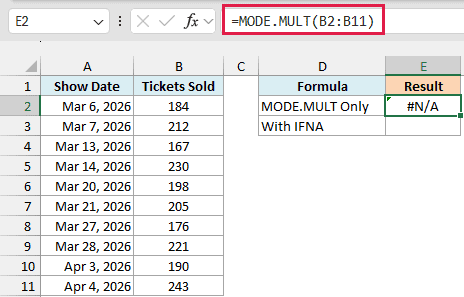
The formula returns #N/A. No two shows sold the same number of tickets, so there’s no most common value, and MODE.MULT tells you that with the #N/A error.
That’s the correct answer, but it looks like something broke. You can show a clear message instead by wrapping the formula in the IFNA function, which I’ll do in cell E3.
Here is the formula:
=IFNA(MODE.MULT(B2:B11),"No repeats")
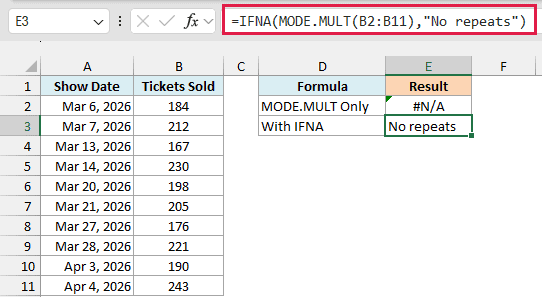
Now the cell shows “No repeats” instead of the error. When the data does have repeats, the IFNA function steps aside, and all the modes still spill as usual.
I’m using IFNA rather than IFERROR on purpose. If one of the cells had a different error, like #DIV/0!, IFERROR would hide it behind “No repeats”, while IFNA lets you see it.
Example 6: Find the Modes With a Condition Using FILTER
Now let’s step it up and find the modes for just one group in the data.
Below is a list of online orders with the shipping method and how many days each delivery took, and I want the most common delivery times for the method in cell F1 (Standard), starting in cell F2.
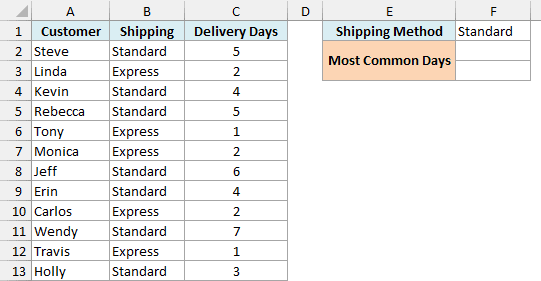
Here is the formula:
=MODE.MULT(FILTER(C2:C13,B2:B13=F1))
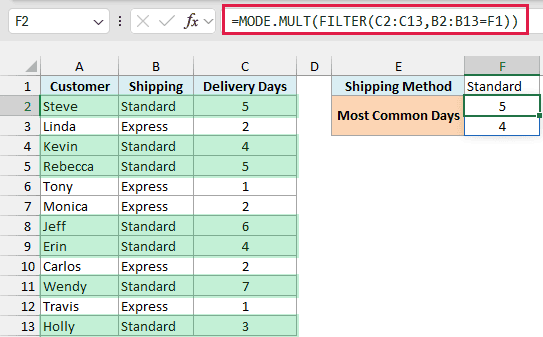
The formula returns 5 and 4, so Standard orders most often took either 5 or 4 days to arrive.
How this formula works:
- FILTER(C2:C13,B2:B13=F1) keeps only the delivery days where the shipping method in column B matches F1. For Standard, that’s 5, 4, 5, 6, 4, 7, and 3.
- MODE.MULT then finds every most common value in that shorter list. Both 5 and 4 appear twice, so it returns both.
The condition changes the answer here. Across all the orders, the most common delivery time is 2 days, because three of the Express orders took 2 days.
Since the formula reads the method from F1, you can type Express there instead, and you’ll get a single result of 2. If F1 has a method that isn’t in the list, there’s nothing to filter, and you get a #CALC! error.
The FILTER function only works in Excel 365, Excel 2021 or later, or Excel for the web. In older versions, the IF function does the filtering instead, because it returns FALSE for every order that doesn’t match F1, and MODE.MULT ignores FALSE values.
If you are using Excel 2019 or earlier, select F2:F3, enter the below formula, and then press Control + Shift + Enter:
=MODE.MULT(IF(B2:B13=F1,C2:C13))
Example 7: Find the Most Frequent Text Values (Including Ties)
MODE.MULT only works with numbers. But with a little help from INDEX and MATCH, you can use it to find the most common text values too.
Below is a quick survey of favorite pizza toppings, and I want every most popular topping in column D.
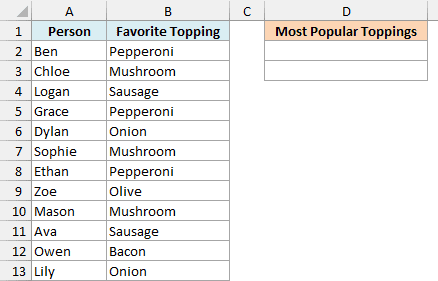
Here is the formula:
=INDEX(B2:B13,MODE.MULT(MATCH(B2:B13,B2:B13,0)))
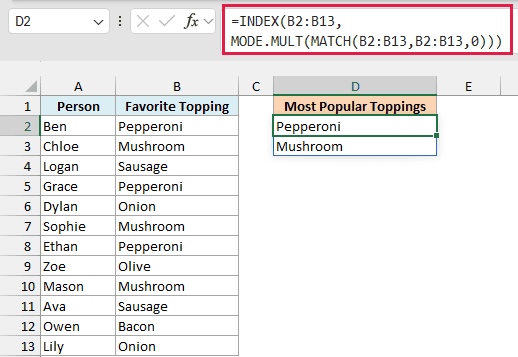
The formula returns Pepperoni and Mushroom, which were each picked three times.
How this formula works:
- MATCH(B2:B13,B2:B13,0) turns each topping into a number: the position where that topping first appears in the list. Every Pepperoni becomes 1, every Mushroom becomes 2, every Sausage becomes 3, and so on.
- MODE.MULT finds the most common of those position numbers. Positions 1 and 2 each appear three times, so it returns 1 and 2.
- INDEX(B2:B13,…) returns the toppings at positions 1 and 2 of the list, which are Pepperoni and Mushroom.
This is where MODE.MULT beats MODE. The same formula with MODE would give you only Pepperoni, the tied topping that appears first.
Important: Make sure the range has no blank cells. MATCH returns #N/A for a blank cell, and that one error makes the whole formula return #N/A.
If you are using Excel 2019 or earlier, select D2:D3, enter the below formula, and then press Control + Shift + Enter:
=INDEX(B2:B13,MODE.MULT(MATCH(B2:B13,B2:B13,0)))
So these are seven practical ways to use the MODE.MULT function in Excel. Whenever two or more values could tie for the most common spot, MODE.MULT shows you every one of them, while MODE and MODE.SNGL show only the first.
Other Excel Articles You May Also Like:
