

The MODE.SNGL function looks at a list of numbers and tells you which one appears most often. Give it a column of ratings, ages, or wait times, and it hands back the single most common value.
If you’ve used the MODE function before, this will feel familiar. MODE.SNGL is its newer name, and the two return the same answer.
The “SNGL” stands for single, so even when two numbers tie, you only get one of them. In this tutorial, I’ll show you which one it picks, and how to use MODE.SNGL on times, rows, and groups of data.
Follow along with the example file
MODE.SNGL Function Examples.xlsx
MODE.SNGL Function Syntax
Here is the syntax of the MODE.SNGL function:
=MODE.SNGL(number1, [number2], ...)
- number1 – the first number, cell reference, or range you want the most common value of. This is the only required argument.
- [number2], … – optional. More numbers, cell references, or ranges, up to 254 arguments in total.
Most of the time, you’ll give MODE.SNGL a single range, like =MODE.SNGL(B2:B13). When you add more ranges, it treats them all as one combined list.
Inside a range, only real numbers count. Text, blank cells, TRUE/FALSE values, and numbers stored as text are skipped, while a 0 counts like any other number.
If any cell in the range has an error, such as #DIV/0!, MODE.SNGL returns that error instead of a result. So fix or remove error cells before you look for the most common value.
And if no number in your data repeats, MODE.SNGL returns #N/A, because there’s no most common value to give you.
The MODE.SNGL function works in Excel 2010 and later, including Excel 365, 2024, 2021, 2019, and 2016, and the Mac versions of Excel 365, 2024, and 2021.
When to Use the MODE.SNGL Function
Use this function when you need to:
- Find the most common rating, age, or size in a list
- Get one most common value from numbers spread across separate ranges
- Find the busiest hour from a list of times
- Find the most common value while leaving out placeholder zeros
- Get the usual value for each row or each group with one formula
Let me show you a few practical examples of how to use the MODE.SNGL function.
Example 1: Find the Most Common Rating With MODE.SNGL
Let’s start with a simple example.
Below is a list of star ratings that customers gave a product, and I want to get the most common rating in cell D2.
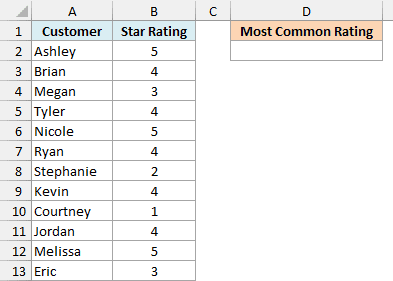
Here is the formula:
=MODE.SNGL(B2:B13)
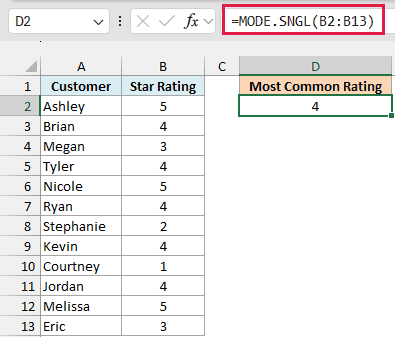
The formula returns 4, because a 4-star rating shows up five times in B2:B13, more than any other rating.
Example 2: Find the Mode Across Two Separate Ranges
Now let’s see what to do when your numbers aren’t all in one column.
Below are two lists of kids at a summer camp, one for each week, and I want to get the most common age across both weeks in cell G2.
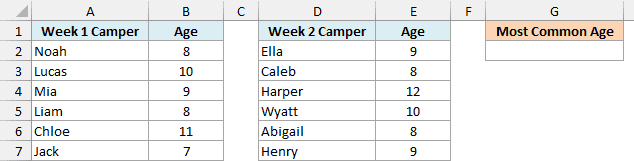
Here is the formula:
=MODE.SNGL(B2:B7,E2:E7)
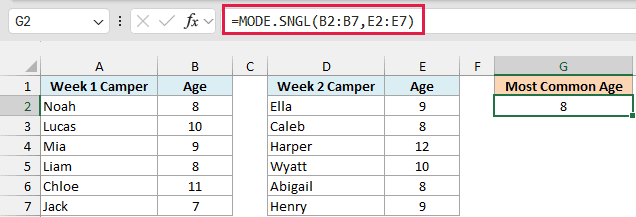
The formula returns 8. Four campers are 8 years old, two in each week, which beats the three campers who are 9.
Here, MODE.SNGL counts all 12 ages from B2:B7 and E2:E7 together, even though the two lists don’t sit next to each other. If you looked at Week 2 on its own, you’d get 9 instead, so leaving out a range can change the answer.
Example 3: What MODE.SNGL Returns When Values Tie
This next example explains the “SNGL” in the name.
Below is a list of hotel guests with the number of nights each one booked, and I want to get the most common number of nights in column E.
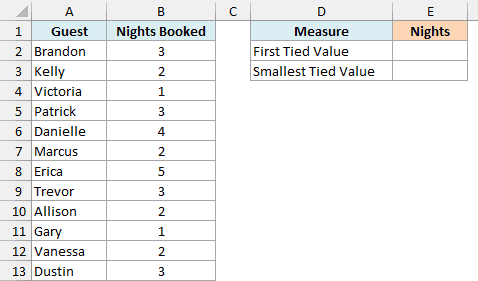
Here is the formula for cell E2:
=MODE.SNGL(B2:B13)
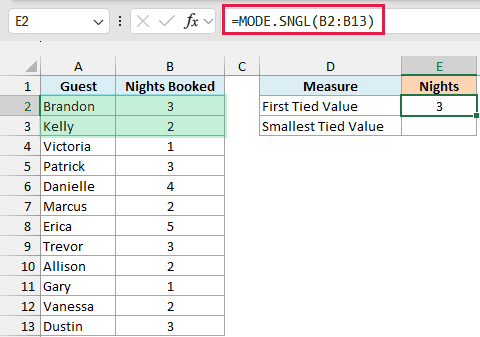
The formula returns 3, because 3 nights appears four times in the list. But 2 nights appears four times as well, so 3 isn’t the only most common value.
On a tie, MODE.SNGL returns the tied value that appears first in the list. Brandon in row 2 booked 3 nights, which comes before Kelly’s 2 nights in row 3, so 3 wins.
Important: MODE.SNGL does not return the smallest tied value, even though some guides say it does. If you sort the same data differently, the result can change.
If you want the smallest of the tied values instead, here is the formula for cell E3:
=MIN(MODE.MULT(B2:B13))
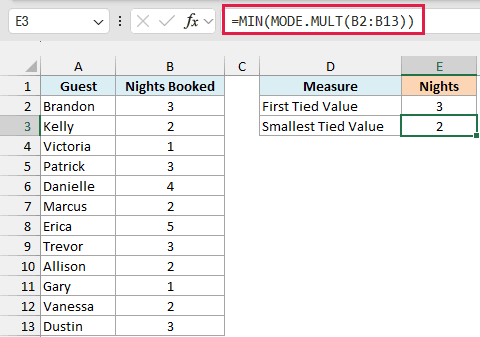
This returns 2. The MODE.MULT function returns every tied value (here 3 and 2), and MIN picks the smallest of them.
If you’d rather have the largest tied value, use MAX instead of MIN.
Example 4: Find the Busiest Hour From Order Times
Now let’s step it up a bit, because MODE.SNGL doesn’t have to work on the exact values you see in the cells.
Below is a list of orders at a food truck with the time each one came in, and I want to find the busiest hour of the day in cell D2.
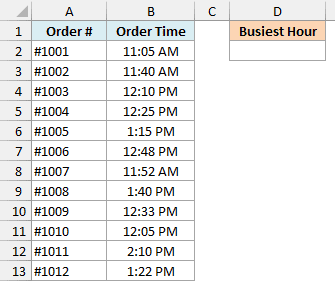
Here is the formula:
=MODE.SNGL(HOUR(B2:B13))
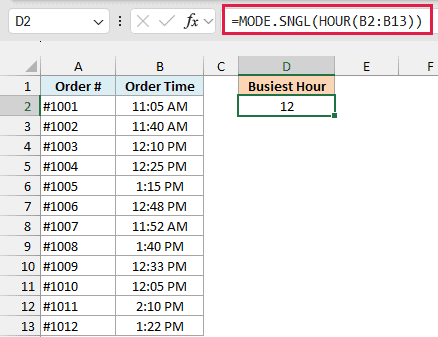
The formula returns 12, which means more orders came in between 12:00 PM and 12:59 PM than in any other hour.
How this formula works:
- HOUR(B2:B13) pulls the hour out of every order time, as a number from 0 to 23. So 11:40 AM becomes 11, and 1:15 PM becomes 13.
- MODE.SNGL then finds the most common of those 12 hour numbers. Five orders have an hour of 12, more than any other hour.
This means you don’t need a helper column with the hours. The HOUR function works on the whole range at once, and MODE.SNGL uses its results directly.
If you are using Excel 2019 or earlier, confirm this formula with Control + Shift + Enter instead of just Enter, so Excel treats it as an array formula.
Pro Tip: The same trick works with other date and time functions. For example, use MONTH instead of HOUR on a column of dates to find the month that shows up most often.
Example 5: Find the Most Common Value While Ignoring Zeros
Here’s another practical scenario, where one value in the data gets in the way.
Below is a log of how many minutes late a bus was each day, where 0 means it was on time, and I want to find the most common delay in column E.
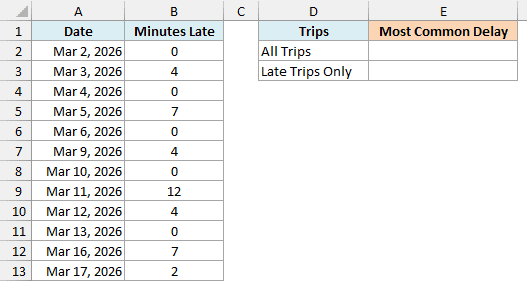
Here is the formula for all trips, in cell E2:
=MODE.SNGL(B2:B13)
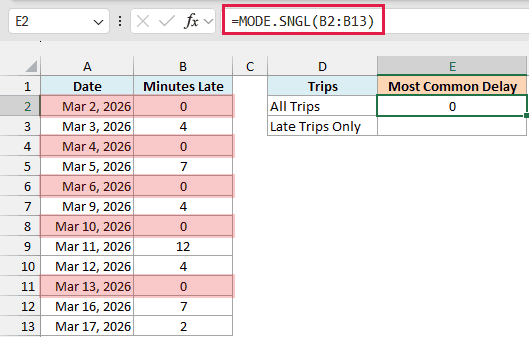
This returns 0, because the bus was on time on 5 of the 12 days. That’s correct, but it doesn’t tell you how late the bus usually is when it is late.
Here is the formula for late trips only, in cell E3:
=MODE.SNGL(FILTER(B2:B13,B2:B13>0))
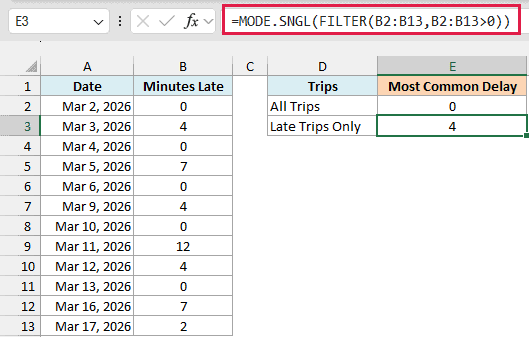
This returns 4. On the 7 days the bus was late, 4 minutes was the most common delay, showing up three times.
The FILTER function keeps only the delays greater than 0, and MODE.SNGL finds the most common value in what’s left. You can use any condition here, such as only the delays longer than 5 minutes.
If no delay matches your condition, FILTER returns a #CALC! error, and MODE.SNGL shows that error too. So if you see #CALC!, check whether any value in your data meets the condition.
FILTER works in Excel 365, 2024, 2021, and Excel for the web. If you are using Excel 2019 or earlier, enter the below formula in cell E3 and press Control + Shift + Enter:
=MODE.SNGL(IF(B2:B13>0,B2:B13))
Here, the IF function turns every 0 into FALSE, and MODE.SNGL skips the FALSE values.
Example 6: Get the Most Common Value in Each Row With BYROW
So far, each formula has returned one answer for the whole list. Now let’s get one answer for every row, instead of one number for the whole table.
Below is a table of the hours eight employees worked each day last week, and I want to get each person’s usual daily hours in column H.
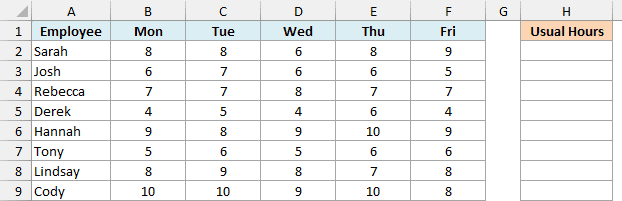
Here is the formula:
=BYROW(B2:F9,LAMBDA(r,MODE.SNGL(r)))
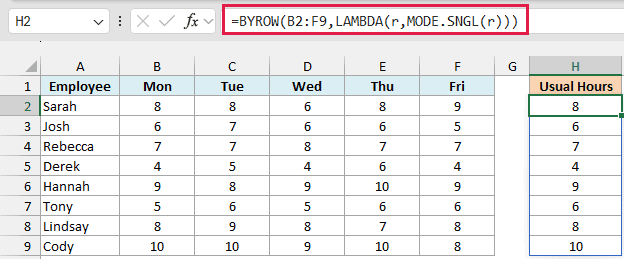
The formula spills down H2:H9 and returns one value for each employee. For example, Sarah worked 8 hours on three of her five days, so her usual hours are 8.
How this formula works:
- BYROW(B2:F9, …) goes through the table one row at a time, so each employee gets their own result.
- LAMBDA(r,MODE.SNGL(r)) is the calculation BYROW runs on each row. The r stands for the current row, and MODE.SNGL finds the most common number in it.
If someone worked a different number of hours every day, their row would show #N/A, because nothing repeats. When that can happen, wrap MODE.SNGL in the IFNA function inside the LAMBDA.
BYROW and the LAMBDA function work in Excel 365 and Excel 2024. If you are using an older version, enter the below formula in cell H2 and then copy it down to H9:
=MODE.SNGL(B2:F2)
Example 7: Find the Most Common Value for Each Group With GROUPBY
Finally, let’s get the most common value for each category with a single formula.
Below is a list of smoothie orders with the flavor and size of each, and I want to get the most common size for every flavor in columns D and E.
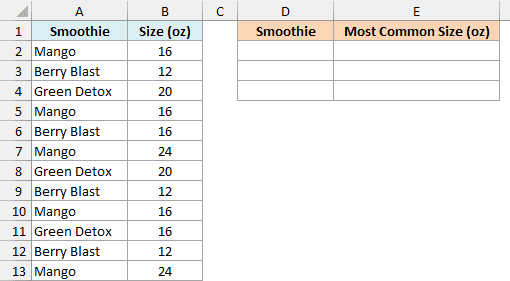
Here is the formula:
=GROUPBY(A2:A13,B2:B13,LAMBDA(x,MODE.SNGL(x)),0,0)
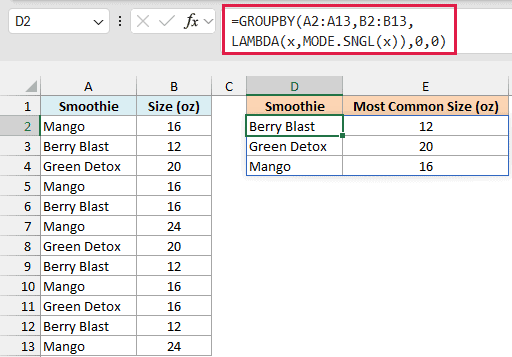
The formula returns each flavor with its most common size: Berry Blast 12 oz, Green Detox 20 oz, and Mango 16 oz.
How this formula works:
- A2:A13 is the column to group by, so each flavor appears once in the result, sorted from A to Z.
- B2:B13 holds the values to summarize, which are the sizes.
- LAMBDA(x,MODE.SNGL(x)) tells GROUPBY to run MODE.SNGL on each flavor’s sizes, where x is the list of sizes for one flavor.
- The two 0s at the end turn off the header row and the total row. The ranges start in row 2, so there are no headers to include, and a total wouldn’t mean anything here.
The GROUPBY function is available only in Excel for Microsoft 365. If you’re using another version, type the flavor names in D2:D4, enter the below formula in cell E2 with Control + Shift + Enter, and then copy it down to E4:
=MODE.SNGL(IF($A$2:$A$13=D2,$B$2:$B$13))
So these are seven ways to use the MODE.SNGL function in Excel. It gives you one most common value, so when your data could have a tie, check it with MODE.MULT before you rely on that single answer.
Other Excel Articles You May Also Like:
