

The FLOOR function in Excel rounds a number down to a multiple you pick, such as the nearest 5, 0.5, or 500. Give it 47 with a multiple of 5, and it returns 45, never 50.
That “never up” part is what makes it useful. Whenever going over would be wrong, like counting full packs or the points someone can redeem, FLOOR keeps you on the safe side.
The six examples below start with a basic round-down and work up to time slots and age groups. I’ve also covered negative numbers, because that’s where FLOOR gives results people don’t expect.
Follow along with the example file
FLOOR Function Examples.xlsx
FLOOR Function Syntax
Here is the syntax of the FLOOR function:
=FLOOR(number,significance)
- number – The value you want to round down. It can be a typed number, a cell reference, or a range of cells.
- significance – The multiple you want to round down to, such as 5, 0.5, or 500.
Both arguments are required. FLOOR has no default multiple, so you always have to tell it what to round down to.
The significance can’t be 0. If it’s 0, or it points to an empty cell, FLOOR returns a #DIV/0! error.
When the number is positive, the significance has to be positive too. A positive number with a negative significance (say 2.5 and -2) returns a #NUM! error.
The FLOOR function works in all Excel versions, including 365, 2024, 2021, 2019, 2016, Mac, and the web.
When to Use the FLOOR Function
Use this function when you need to:
- Round a number down to a step like 5, 10, or 500.
- Count only complete units, like full packs or finished half-miles.
- Drop times back to the start of a 15-minute or 30-minute slot.
- Group numbers into ranges, like ages 30-39.
Let me show you a few practical examples of how this works.
Example 1: Round Down to the Nearest 500
Let’s start with a simple example.
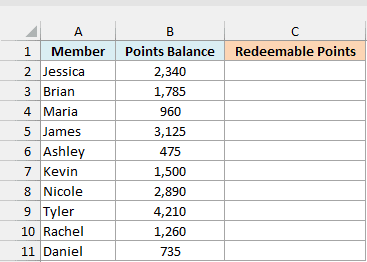
Below is a list of rewards members with their points balance, and since points can only be redeemed in blocks of 500, I want the redeemable points in column C.
Here is the formula:
=FLOOR(B2:B11,500)
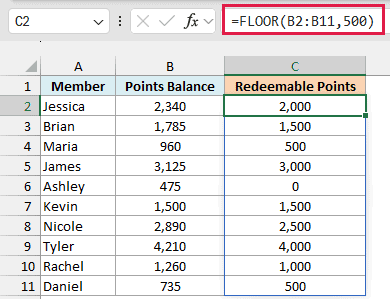
In the above formula, a significance of 500 tells FLOOR to go down to the nearest multiple of 500. So Jessica’s 2,340 points become 2,000, and Tyler’s 4,210 points become 4,000.
Ashley has only 475 points, which isn’t enough for even one block, so she gets 0. Kevin’s 1,500 is already a multiple of 500, so FLOOR leaves it as it is.
Regular rounding would get this wrong. The MROUND function rounds to the nearest multiple, so it would turn Brian’s 1,785 into 2,000 and promise him points he doesn’t have.
FLOOR only goes down, so Brian gets 1,500.
You enter this formula once in cell C2, and in Excel 365 and Excel 2021 or later it spills the results down to C11.
If any cell in C3:C11 already has something in it, the formula can’t spill and shows a #SPILL! error. Clear those cells and the results appear.
If you are using Excel 2019 or earlier, enter the below formula in cell C2 and then copy it down the range:
=FLOOR(B2,500)
The same goes for the other examples in this article. Replace each range with its first cell (so B2:B11 becomes B2), enter the formula in the first result cell, and copy it down.
Example 2: Round Down to the Nearest 0.5
The multiple doesn’t have to be a whole number. Here’s one with decimals.
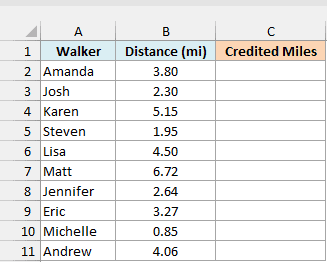
Below is a walking challenge log with the distance each person walked, and since the challenge only credits completed half-miles, I want the credited miles in column C.
Here is the formula:
=FLOOR(B2:B11,0.5)
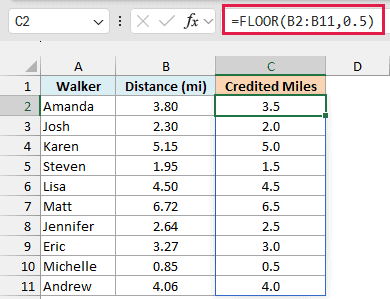
With 0.5 as the significance, FLOOR goes down to the nearest half mile. Amanda walked 3.80 miles and gets credit for 3.5, and Matt’s 6.72 miles become 6.5.
Lisa walked exactly 4.50 miles, so she gets credit for all of it.
If you want to cut a number down to a set number of decimal places instead (like 3.87 to 3.8), the ROUNDDOWN function is the better fit.
Example 3: Round Down to Full Packs of Different Sizes
So far, every row has used the same multiple. But the significance can also be a range, so each row can have its own.
Below is a school supply store’s stock list with the units in stock and the pack size for each item, and I want the number of units that fill complete packs in column D.
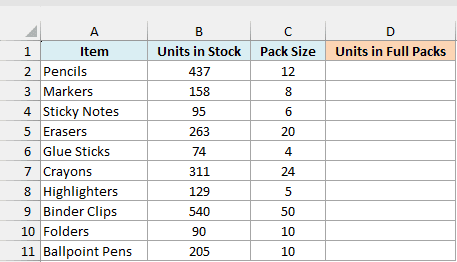
Here is the formula:
=FLOOR(B2:B11,C2:C11)
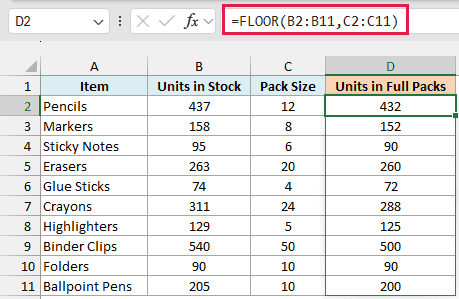
Here, FLOOR pairs each stock count with the pack size in the same row. The store has 437 pencils that come in packs of 12, so 432 of them fill 36 full packs, and the other 5 are left over.
Folders show what happens when the numbers divide evenly. 90 folders in packs of 10 make exactly 9 packs, so FLOOR returns 90 and nothing is left over.
If any pack size is missing or 0, that row returns #DIV/0!, so fill in every pack size before you use the results.
Example 4: Round Time Down to the Nearest 30 Minutes
FLOOR works with time too, because Excel stores a time as a fraction of a day.
Below is a coffee shop’s order log with the time each order came in, and I want the 30-minute time slot each order falls into in column C.
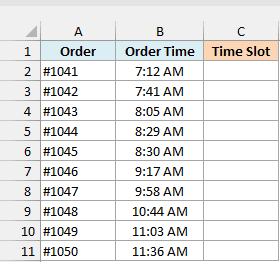
Here is the formula:
=FLOOR(B2:B11,TIME(0,30,0))
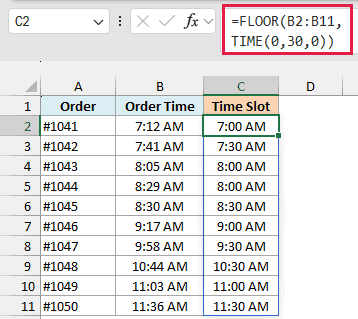
TIME(0,30,0) is 30 minutes, so FLOOR drops each order time back to the start of its half hour. An order at 7:41 AM goes in the 7:30 AM slot, and one at 9:58 AM goes in the 9:30 AM slot.
Order #1045 came in at exactly 8:30 AM, so it stays in the 8:30 AM slot instead of falling back to 8:00 AM.
If your results show up as decimals like 0.3125, format the column as time (for example, h:mm AM/PM) and they’ll read as times again.
You’ll also see this formula written with “0:30” in double quotes as the significance. It gives the same results, but TIME(0,30,0) makes the 30 minutes obvious, and it’s easy to change to TIME(0,15,0) if you want 15-minute slots.
Once every order has a slot, a COUNTIF on column C tells you how many orders came in during each half hour. That shows you when the shop gets busy and needs more staff.
Example 5: How FLOOR Handles Negative Numbers
Negative numbers are where FLOOR catches people out, so let’s see what it does with them.
Below is a list of cities with a winter day’s low temperature in °F, some of them below zero, and I want each temperature rounded down to the nearest 5 degrees in column C.
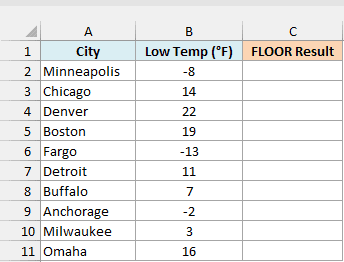
Here is the formula:
=FLOOR(B2:B11,5)
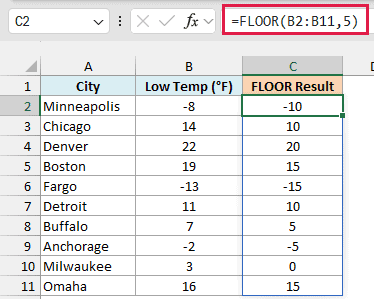
For positive temperatures, this works the way you’d expect. Boston’s 19 becomes 15, and Milwaukee’s 3 becomes 0.
But Minneapolis at -8 becomes -10, not -5, and Anchorage at -2 becomes -5. FLOOR always rounds toward the more negative number, and -10 sits below -8 on a number line.
Important: With negative numbers, FLOOR moves the result away from zero. If you expect -8 to become -5, which is common with temperatures or money owed, use the FLOOR.MATH formula below instead.
FLOOR.MATH works in Excel 2013 and later. Here is the formula:
=FLOOR.MATH(B2:B11,5,1)
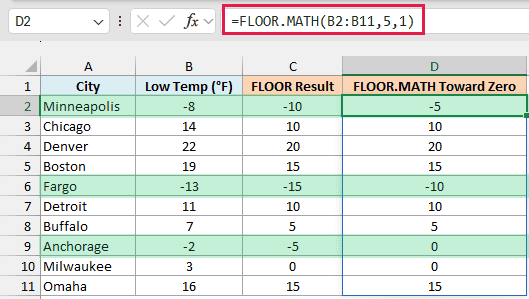
The third argument in FLOOR.MATH is the mode, and 1 tells it to round negative numbers toward zero. So Minneapolis now shows -5, Fargo’s -13 shows -10, and Anchorage’s -2 shows 0.
Positive numbers aren’t affected by the mode, which is why both columns match for every city above zero.
Example 6: Group Ages Into 10-Year Bands
Let’s finish with something a bit more advanced, where FLOOR helps you group numbers into ranges.
Below is a list of gym members with their ages, and I want to put each member into a 10-year age group, like 30-39, in column C.
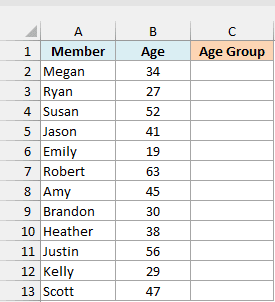
Here is the formula:
=FLOOR(B2:B13,10)&"-"&(FLOOR(B2:B13,10)+9)
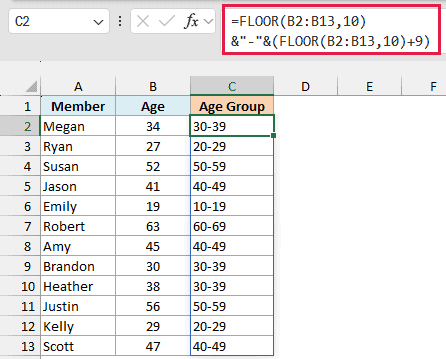
How this formula works:
- FLOOR(B2:B13,10) rounds each age down to the start of its group. Megan’s 34 becomes 30.
- FLOOR(B2:B13,10)+9 gives the end of the group, so 30 becomes 39.
- The & operator joins the two with a hyphen in between, which gives you 30-39.
Brandon is exactly 30, and he lands in the 30-39 group. That’s because FLOOR keeps a number that’s already a multiple of 10 as it is.
The same idea works for 5-year groups, with 5 in place of each 10 and 4 in place of the 9.
The results are text labels, so you can use them with COUNTIF or a Pivot Table to count how many members fall in each age group.
So this is how you can use the FLOOR function in Excel to round numbers down to a multiple you choose. Just keep in mind how it treats negative numbers, and switch to FLOOR.MATH when you want those rounded toward zero.
I hope you found this article helpful.
Other Excel Articles You May Also Like:
