

Making a chart in Excel takes a few clicks. You select your data, pick a chart, and Excel turns a table of numbers into something people can understand at a glance.
In this tutorial, I’ll show you how to make a chart in Excel, set up your data so the chart comes out right, pick the right chart type, and then edit, format, and share it.
Follow along with the example file
Excel Charts Examples.xlsx
How to Make a Chart in Excel (Quick Steps)
Let’s start with the easiest way, which is to let Excel suggest a chart for you.
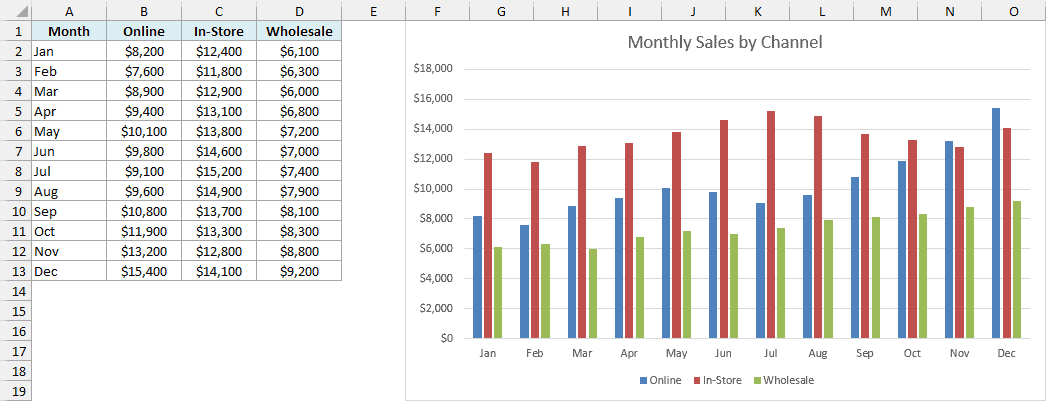
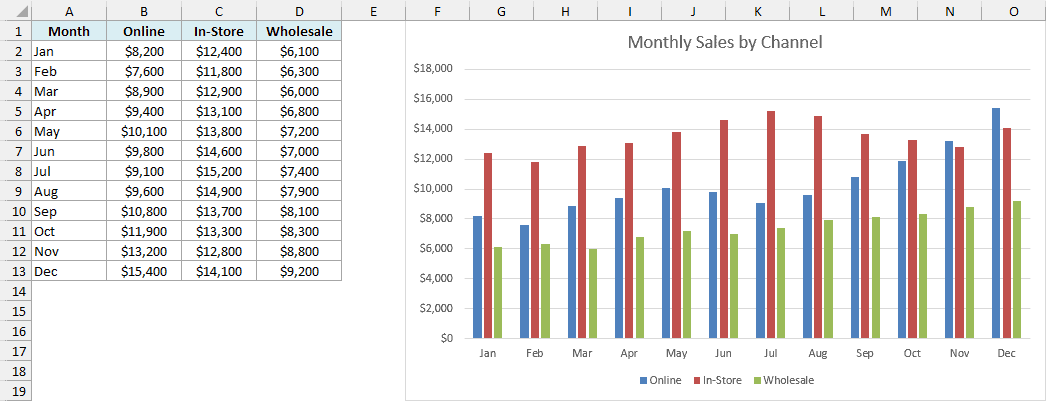
Below I have a dataset with the monthly sales of a small coffee roaster across three channels (Online, In-Store, and Wholesale), and I want to make a chart from it.
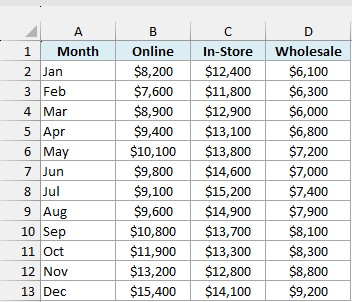
Here are the steps to make a chart using Recommended Charts:
- Select the data, including the headers (A1:D13 in this example).
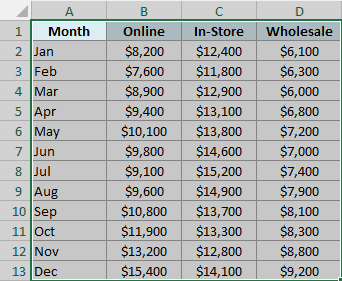
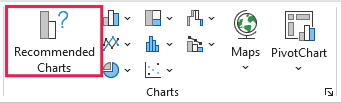
- Click the Insert tab, and in the Charts group, click Recommended Charts.
- In the Insert Chart dialog box, click Clustered Column in the list on the left, and then click OK.
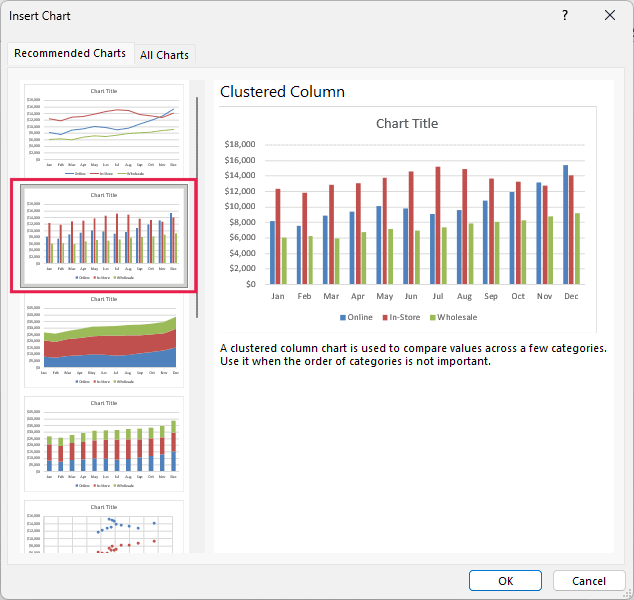
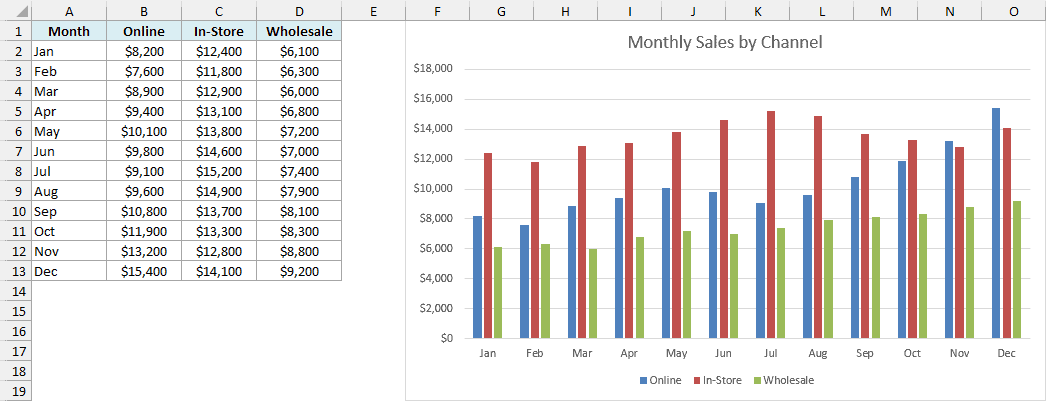
The above steps insert a clustered column chart on the same sheet, with the months on the horizontal axis and one colored column for each channel.
Recommended Charts shows a preview of each suggestion, so you can see what your data looks like before you commit. If you don’t like any of the suggestions, the All Charts tab in the same dialog box lists every chart type Excel has.
Pick a Chart Type Yourself From the Insert Tab
If you already know the chart you want, you can skip the suggestions and pick it straight from the ribbon.
Here are the steps:
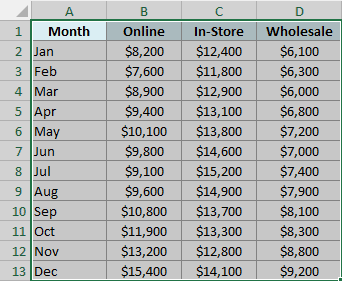
- Select the data (A1:D13).
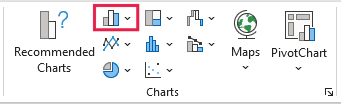
- Click the Insert tab, and in the Charts group, click the Insert Column or Bar Chart icon.
- Click Clustered Column.
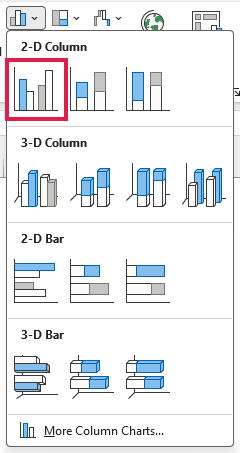
Every chart icon in the Charts group opens a gallery of related chart types. Hover over any option and Excel previews it on your sheet before you click.
Faster Ways to Insert a Chart in Excel
When you make charts often, these shortcuts save a few clicks every time. They’re for Excel on Windows, and on a Mac, F11 is the one that works the same way.
Below is the same monthly sales data, and I want to create a chart from it as quickly as possible.
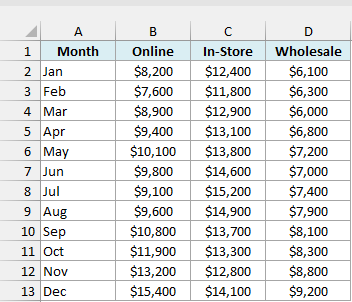
Alt + F1: Insert a Chart on the Same Sheet
Select any cell in the data and press Alt + F1. Excel creates a chart of the whole data range and places it on the same sheet.
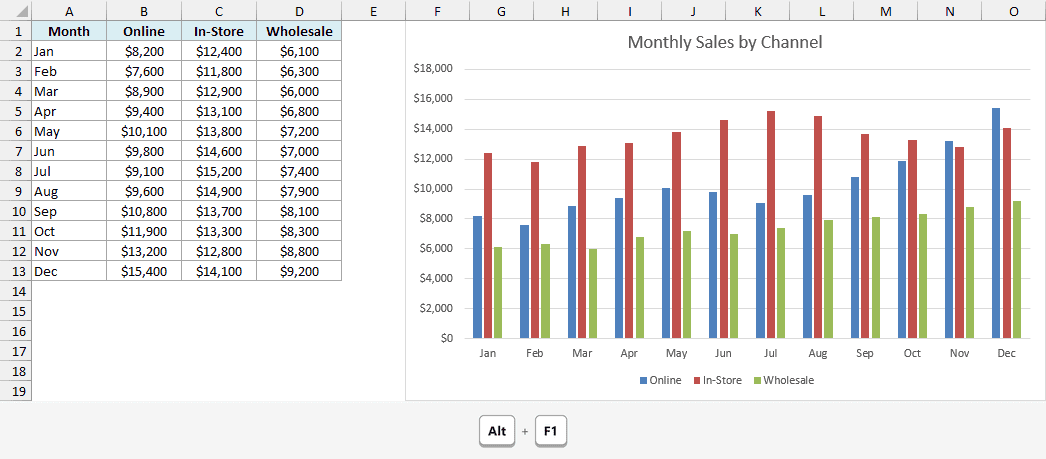
Alt + F1 uses your default chart type, which is a clustered column chart unless you’ve changed it.
F11: Insert a Chart on a New Chart Sheet
Select any cell in the data and press F11. Excel creates the chart on a separate chart sheet, which is a sheet that holds only the chart.
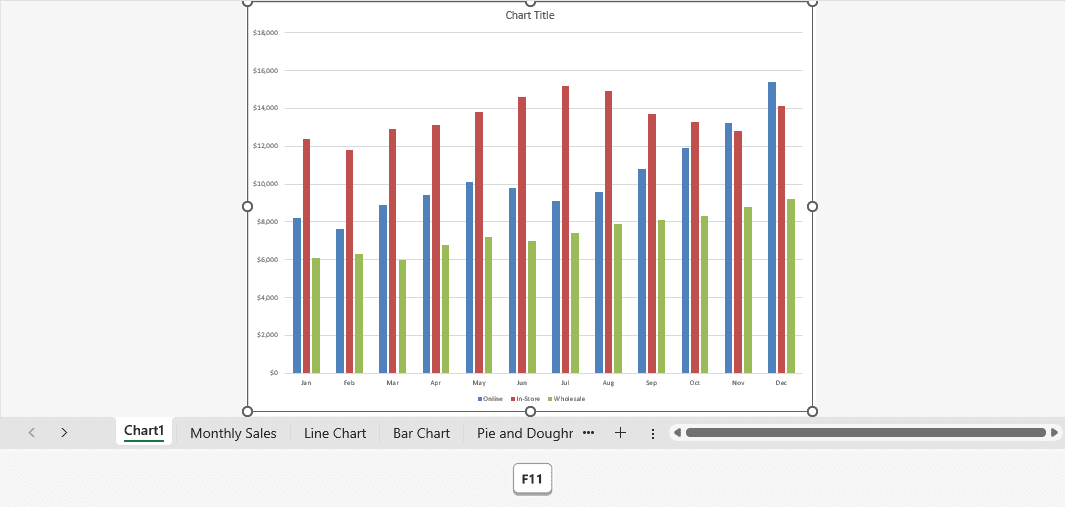
A chart sheet is handy when you want the chart full-screen for a meeting. You can also move an existing chart to a new sheet at any time.
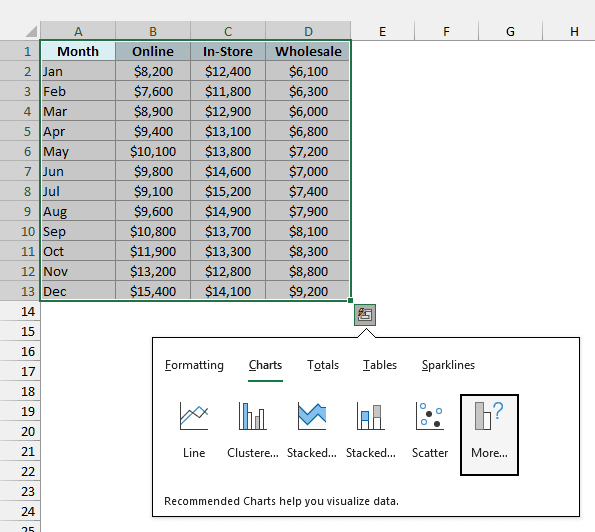
Ctrl + Q: Use Quick Analysis
Here are the steps to insert a chart using Quick Analysis:
- Select the data (A1:D13) and press Ctrl + Q (or click the Quick Analysis icon that shows up at the bottom-right of the selection).
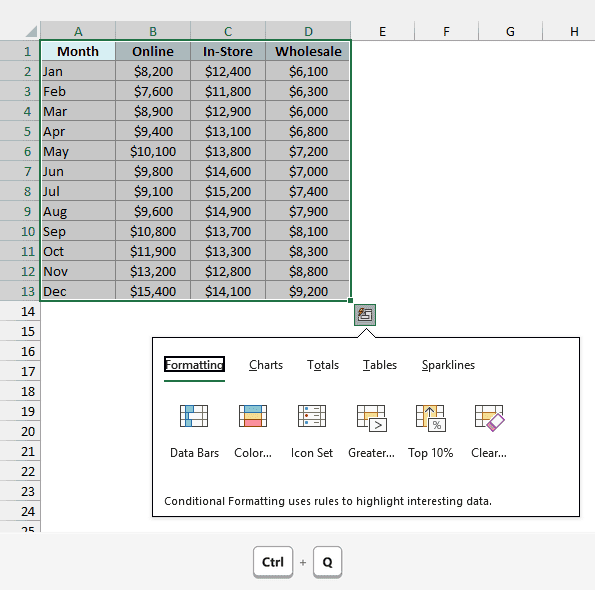
- Click the Charts tab and click the chart you want.
How to Set Up Your Data So the Chart Comes Out Right
A lot of chart problems come from how the data is laid out. When your data is in the shape Excel expects, the chart comes out right the first time.
Below is the monthly sales dataset, which is laid out in the shape Excel reads best.
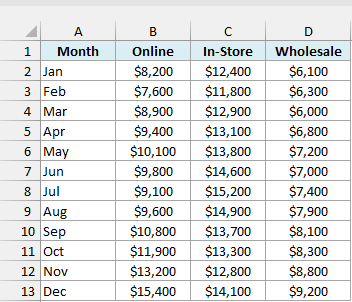
Here is what makes this layout work:
- The headers are in the first row, and Excel uses them as the series names in the legend (Online, In-Store, Wholesale).
- The categories are in the first column, so the months in column A become the labels on the horizontal axis.
- The numbers are in the columns to the right, and each column of numbers becomes one data series.
- There are no blank rows or columns inside the data. When you select a single cell and insert a chart, Excel picks up the data around it and stops at the first fully blank row or column.
One thing to watch out for is a first column with numbers in it, like years (2023, 2024, 2025). Excel sees numbers and plots them as another series instead of using them as axis labels.
To fix it, either delete the header text above the years (leave the top-left cell blank) or enter the years as text.
Pro Tip: If you’ll keep adding new months to the data, convert it into an Excel Table (select it and press Ctrl + T) before making the chart. The chart then picks up every new row automatically (dynamic chart range has more ways).
How to Make a Chart With Multiple Data Sets
You don’t need to do anything special to chart more than one set of numbers. Every column you select becomes its own series, which is why the monthly sales chart shows three columns for each month.
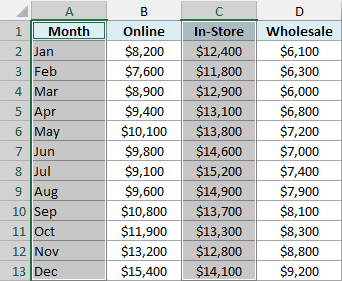
If you only want some of the columns, select the first column, hold the Ctrl key, and select the other columns you want. For example, A1:A13 with C1:C13 makes a chart of just the In-Store sales.
What Happens With Blank Cells
When a cell in your data is empty, Excel leaves a gap in a line chart by default. You can change this to show the blank as zero or to connect the line across the gap.
I cover all of these options in how to handle data gaps in Excel charts.
Parts of an Excel Chart
Before we start editing charts, it helps to know what Excel calls each part, because the menus use these names.
Below is the monthly sales chart with all its main parts labeled.
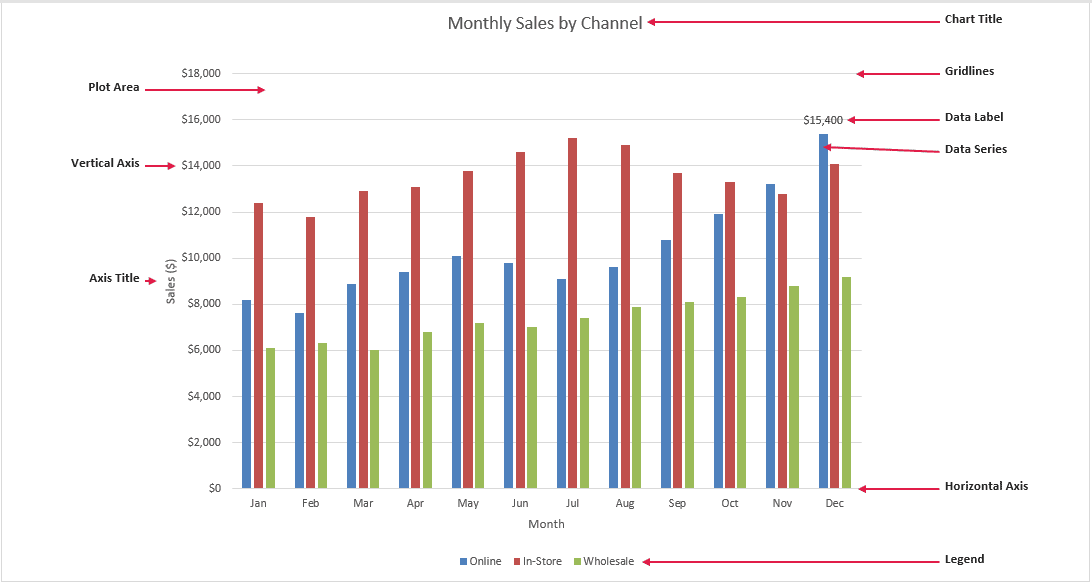
- Chart area: the whole chart, including everything inside its border.
- Plot area: the area inside the axes where the columns, lines, or points are drawn.
- Chart title: the text at the top that says what the chart shows.
- Axes: the horizontal (category) axis with the months, and the vertical (value) axis with the dollar amounts.
- Axis titles: optional labels that say what each axis measures.
- Legend: the key that tells you which color is which series.
- Data series: one set of values plotted together, like all the Online columns.
- Data labels: optional numbers shown on the columns or points.
- Gridlines: the light lines across the plot area that make values easier to read.
Which Chart Should You Use? (Excel Chart Types)
The right chart depends on what you want people to see. Here is a quick way to pick one:
| What you want to show | Chart to use |
|---|---|
| Compare values across categories | Column or Bar chart |
| A trend over time | Line or Area chart |
| Parts of a whole | Pie, Doughnut, Treemap, or Sunburst chart |
| The relationship between two sets of numbers | Scatter or Bubble chart |
| How values are spread out | Histogram or Box and Whisker chart |
| How a starting value turns into an ending value | Waterfall chart |
| Drop-off from one stage to the next | Funnel chart |
| Two measures on different scales | Combo chart |
| Which few causes matter most | Pareto chart |
| Several attributes compared at once | Radar chart |
Here is a short tour of the chart types you can make in Excel. Every chart below except the map chart is in the example file next to its data (the column chart is on the Monthly Sales sheet).
Column, line, bar, pie, doughnut, area, scatter, bubble, combo, radar, stock, and surface charts are in every current version of Excel. Histogram, Pareto, waterfall, treemap, sunburst, and box and whisker charts need Excel 2016 or later.
Column Chart
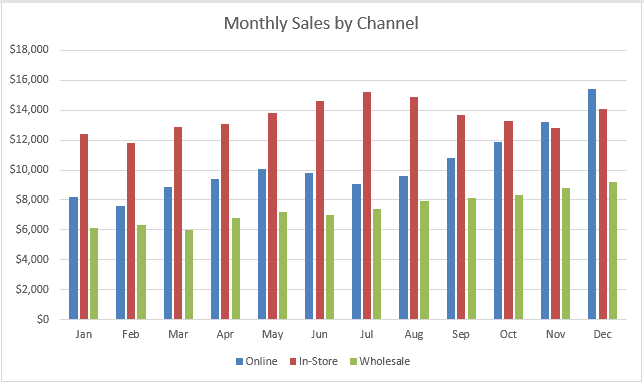
A column chart compares values with vertical bars, and it’s the chart most people start with. The monthly sales chart above is a clustered column chart, and you can also stack the columns to show a total.
Line Chart
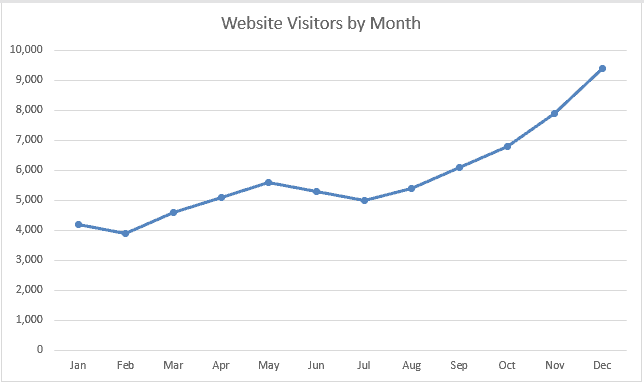
A line chart shows how a value changes over time. Here it shows the monthly visitors to the roaster’s website climbing toward the end of the year.
Bar Chart
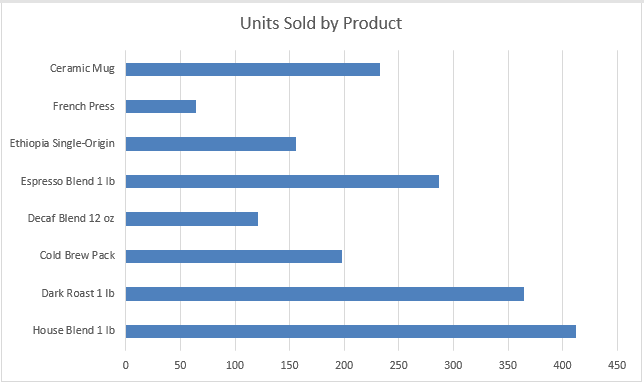
A bar chart is a column chart turned on its side. It works better when your category names are long, like these product names, because there’s room for the labels.
You can also make a stacked bar chart to show how each bar is split.
Pie and Doughnut Chart
A pie chart shows how a total is split into parts, like each coffee’s share of revenue. A doughnut chart does the same with a hole in the middle, and you’ll find it under the pie chart options.
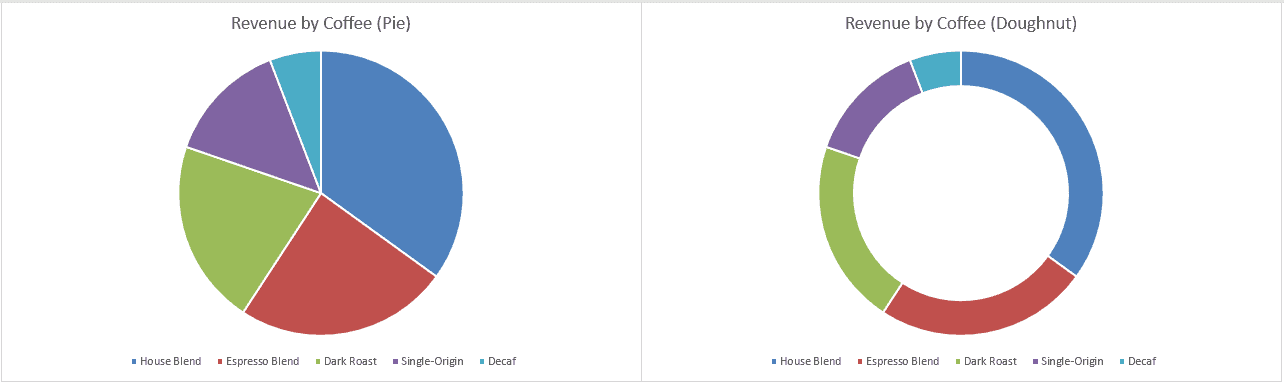
Pie charts read best with a handful of slices. With more than five or six, a bar chart is usually easier to read.
Area Chart
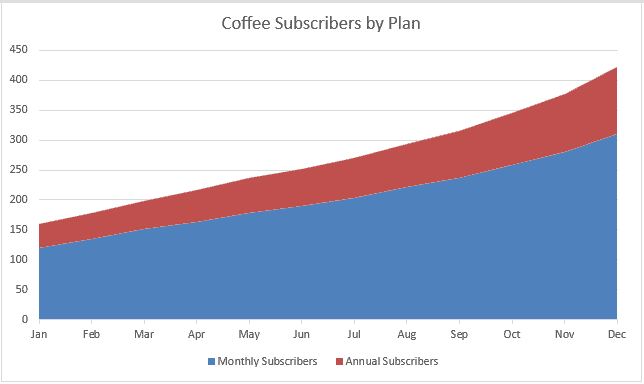
An area chart is a line chart with the space below the line filled in. The stacked version here shows monthly and annual subscribers adding up to the total.
Scatter and Bubble Chart
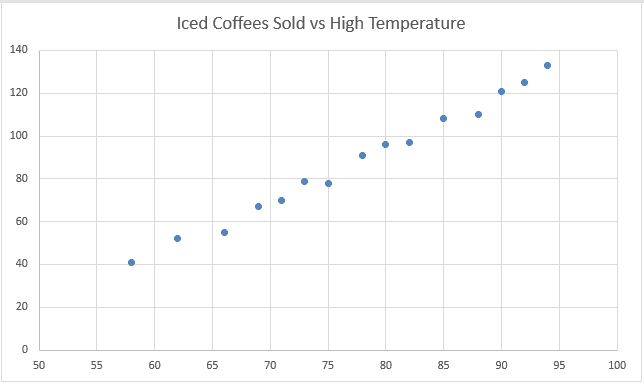
A scatter chart (also called an XY chart) shows whether two sets of numbers move together. Here, the hotter the day, the more iced coffees the roaster sells.
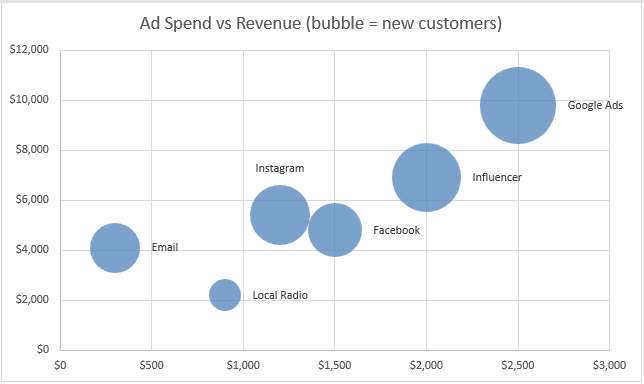
A bubble chart adds a third number as the size of each bubble. Here it plots ad spend against revenue, and the bubble size is the number of new customers each campaign brought in.
Combo Chart
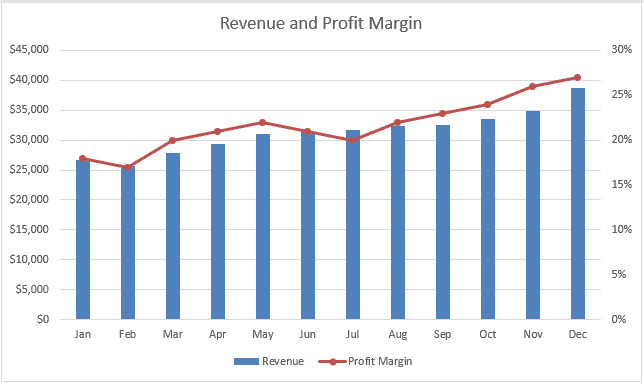
A combination chart puts two chart types together, like revenue as columns and profit margin as a line. It’s the chart to use when two measures have very different scales.
Histogram and Pareto Chart
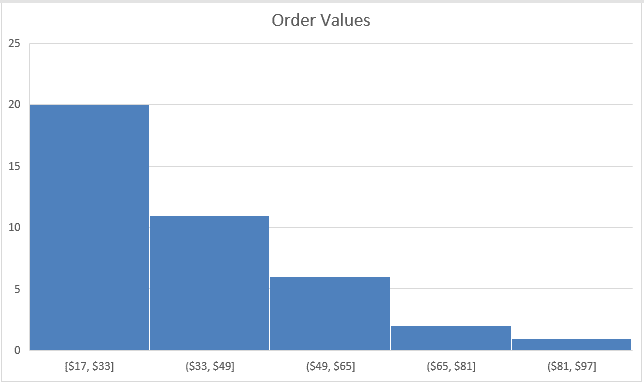
A histogram groups numbers into ranges (called bins) and shows how many values fall into each one. Here it shows that most orders are on the smaller side.
For a smooth, symmetrical distribution, you can also make a bell curve.
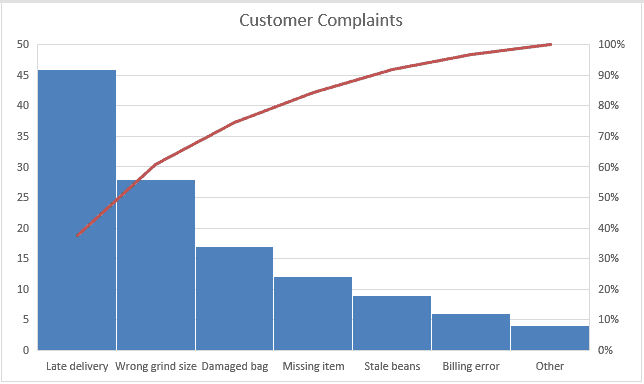
A Pareto chart sorts categories from biggest to smallest and adds a running total line. It shows which few problems cause most of the trouble, like late deliveries in these customer complaints.
Waterfall Chart
A waterfall chart shows how a starting value gets to an ending value, step by step. Here it starts with June revenue, subtracts each cost, and ends with the profit.
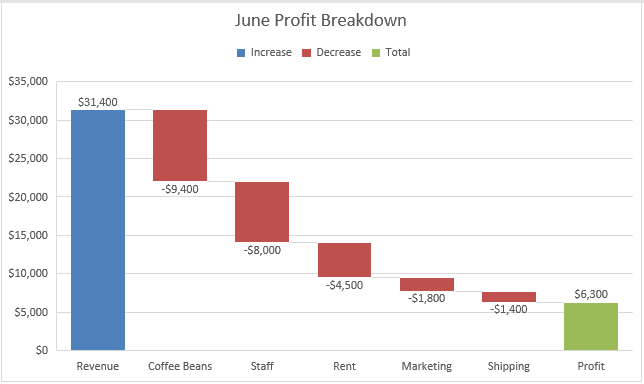
When you make this chart yourself, the Profit bar first shows up as one more increase, because Excel treats every row as a change. To fix it, click the Profit bar twice so only that bar is selected, right-click it, and choose Set as Total.
Funnel Chart
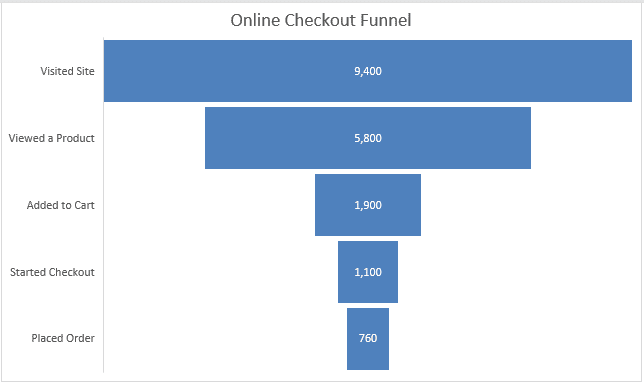
A funnel chart shows how many people make it through each stage of a process. Here it shows website visitors dropping off on the way to placing an order.
Funnel charts are newer, so you need a recent version like Microsoft 365 to make one.
If you need more control over the look, here’s how to make a sales funnel chart yourself.
Treemap and Sunburst Chart
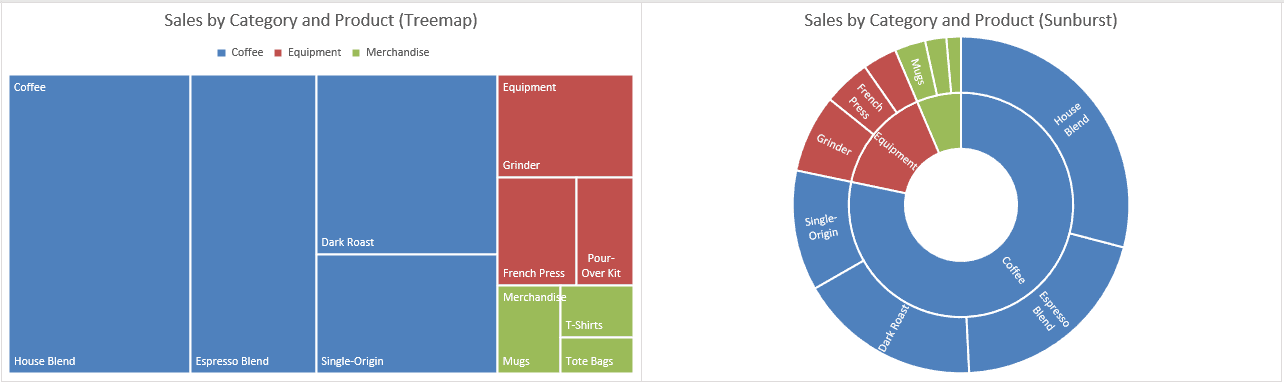
Both of these charts are for data with levels. In the example, the sales have two levels: categories (Coffee, Equipment, and Merchandise) and the products under each one.
A treemap shows each product as a rectangle sized by its sales, with the products grouped by category. A sunburst shows the same two levels as rings, with categories in the inner ring and products in the outer ring.
Box and Whisker Chart
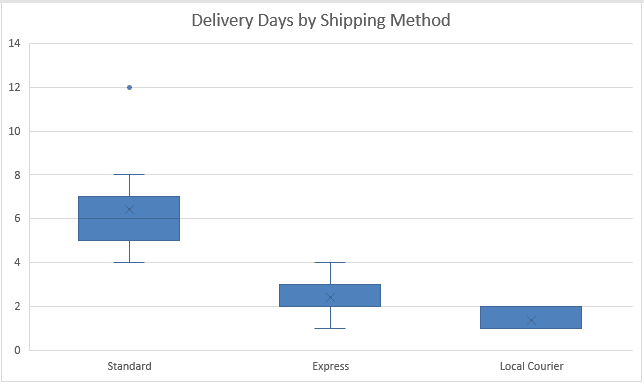
A box and whisker chart shows how spread out the values are, including the middle, the range, and any outliers. Here it compares delivery days for three shipping methods, and that one 12-day Standard delivery shows up as a dot.
Radar Chart
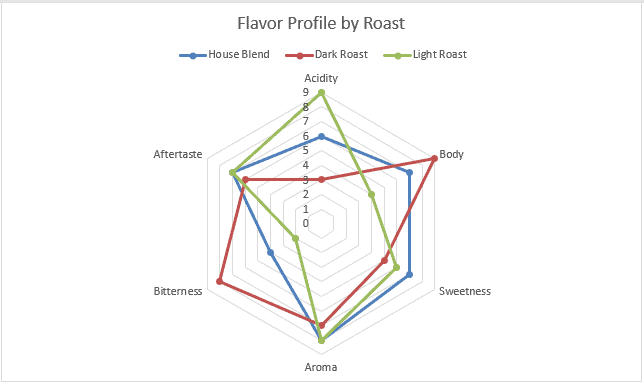
A radar chart compares several attributes at once, with one spoke for each attribute. Here it shows the flavor profile of three roasts, scored from 1 to 10.
Stock Chart
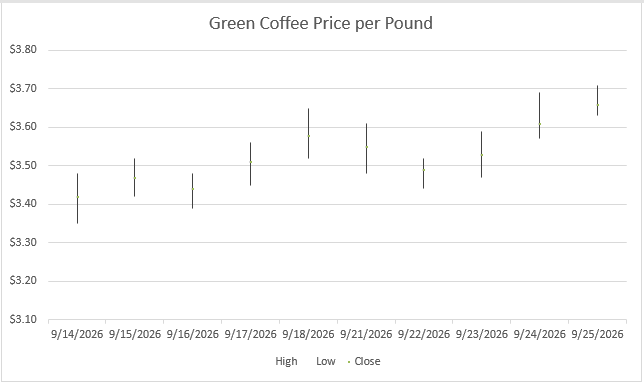
A stock chart shows the high, low, and closing price for each day. Your columns need to be in the order the chart expects (here Date, High, Low, Close), or Excel won’t create it.
Surface Chart
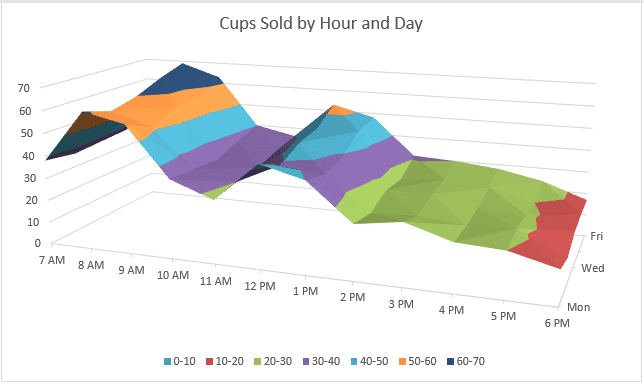
A surface chart shows how a value changes across two dimensions at once, like coffee sales by hour and by day of the week.
Map Chart
A map chart colors countries, states, or postal codes based on their values. It needs a Microsoft 365 subscription, and since Excel gets the map from the Bing Map service, you need to be online when you create it.
If you need something beyond these built-in charts, like a Gantt chart, a bullet chart, or an actual vs target chart, check out these advanced Excel charts.
How to Change the Chart Data in Excel
Once the chart is made, you don’t need to start over to change what it shows. You can add or remove series, change the range, or flip the way the data is plotted.
Below is the monthly sales data with its clustered column chart, and I want to remove the Wholesale series from the chart.
Add or Remove a Series With Select Data
Here are the steps to remove a series from the chart:
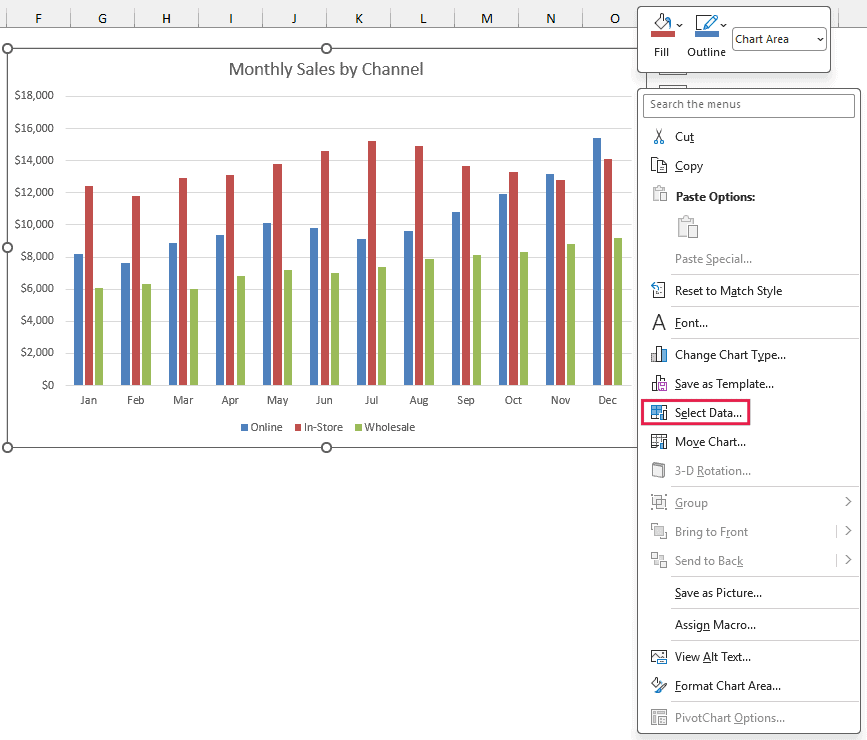
- Right-click the chart and click Select Data (or click the chart, go to the Chart Design tab, and click Select Data).
- In the Select Data Source dialog box, select Wholesale under Legend Entries (Series) and click Remove.
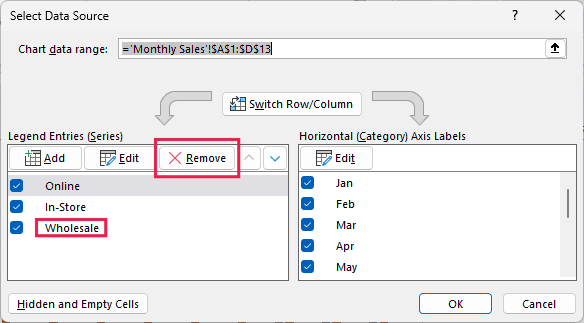
- Click OK.
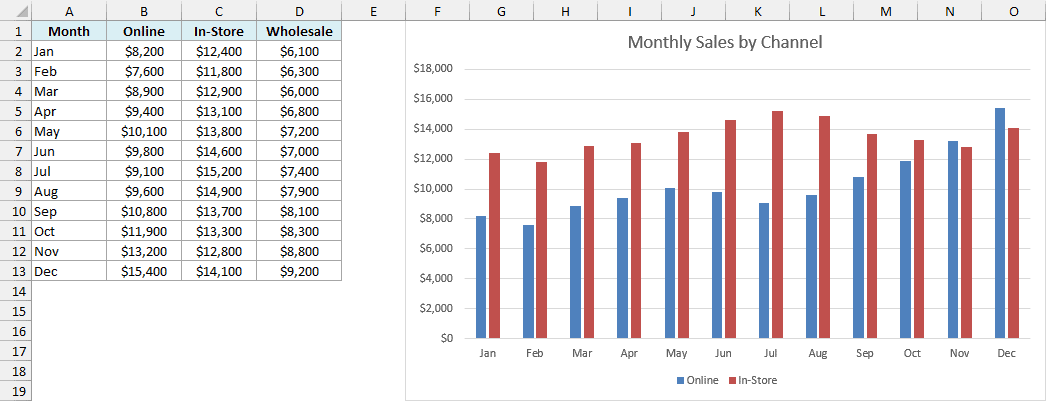
The chart now shows only the Online and In-Store columns.
To add a series, click Add in the same dialog box, select the cell with the series name, and then select the range of values.
Change the Range by Dragging on the Sheet
When you click a chart, Excel outlines its source data on the sheet in color. Drag the corner handle of the outline to include more or fewer rows, and the chart updates as you drag.
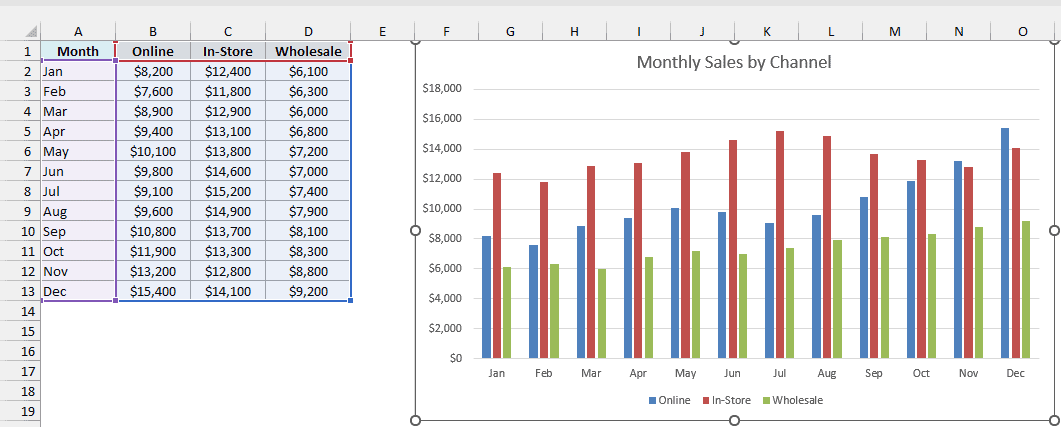
For example, dragging the outline up so it ends at row 7 makes the chart show only January to June.
Switch Row/Column
By default, Excel puts the months on the horizontal axis and the channels in the legend. If you want it the other way round, click the chart, go to the Chart Design tab, and click Switch Row/Column.
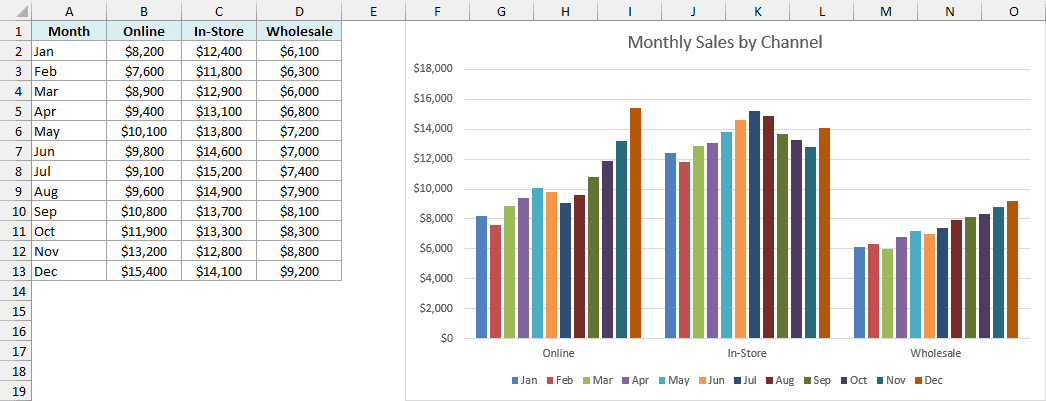
Now the three channels sit on the horizontal axis, and each month is its own series. Click the button again to switch back.
How to Switch the X and Y Axis in Excel
In a column, bar, or line chart, Switch Row/Column is how you swap what sits on the horizontal axis. A scatter chart is different, because both axes hold numbers.
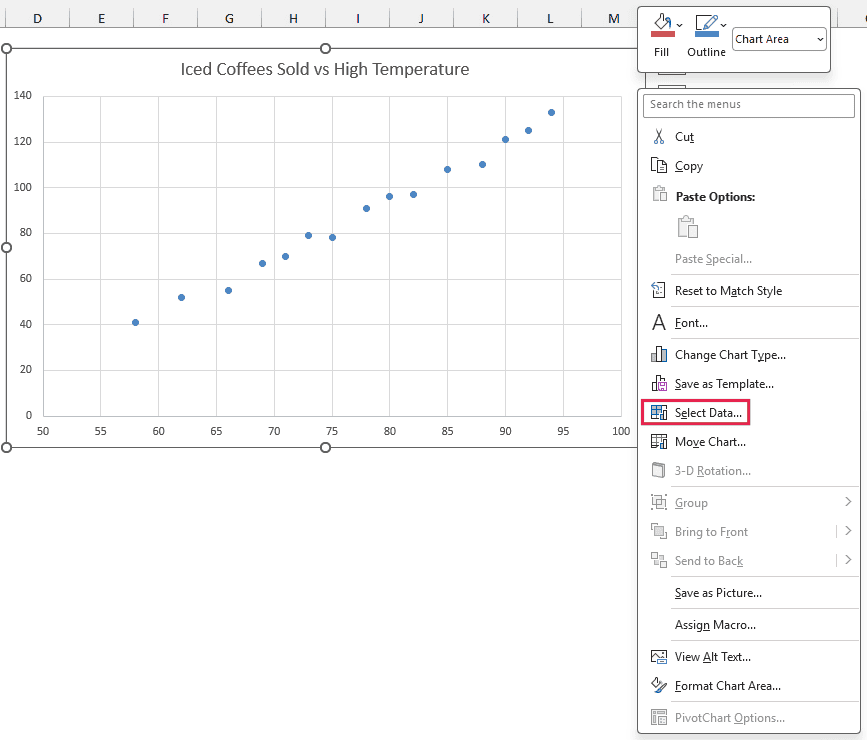
Below is the scatter chart from the example file, with the high temperature on the X axis and the iced coffees sold on the Y axis. I want to swap the two axes.
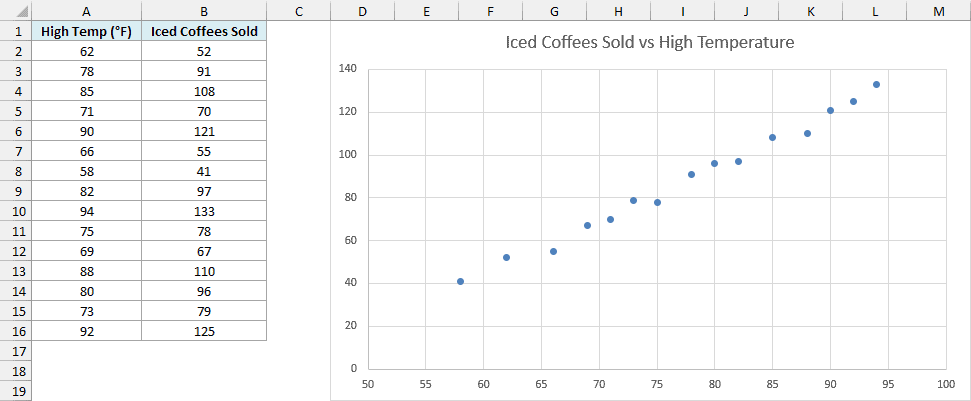
If you click Switch Row/Column on a scatter chart, Excel doesn’t swap the axes. It splits the data into a separate series for every row, which isn’t what you want.
Here are the steps to swap the X and Y values instead:
- Right-click the chart and click Select Data.
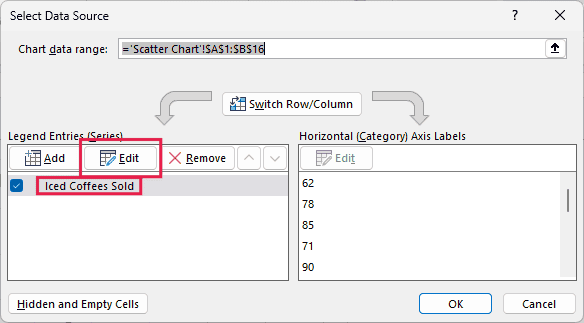
- Select the series under Legend Entries (Series) and click Edit.
- In the Edit Series dialog box, change Series X values to
='Scatter Chart'!$B$2:$B$16and Series Y values to='Scatter Chart'!$A$2:$A$16, and then click OK twice.
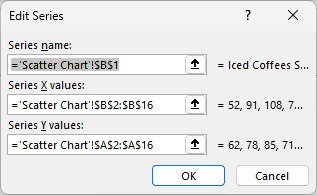
Now the iced coffees sold are on the X axis and the temperature is on the Y axis.
How to Change the Chart Type in Excel
You can change a chart to a different type at any time, and your data, title, and most of your formatting carry over.
Below is the monthly sales chart, and I want to change it from a column chart to a line chart.
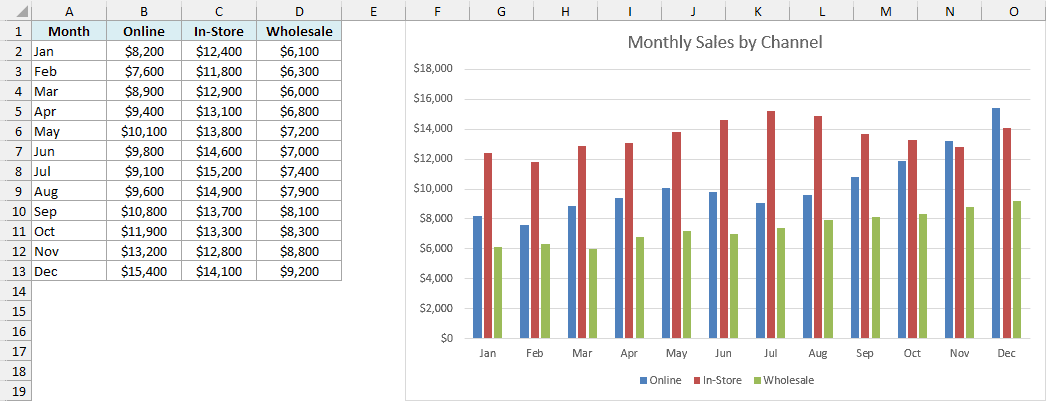
Here are the steps:
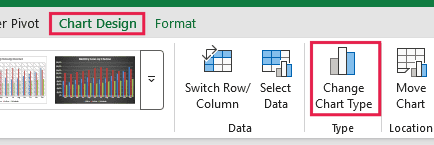
- Click the chart, go to the Chart Design tab, and click Change Chart Type.
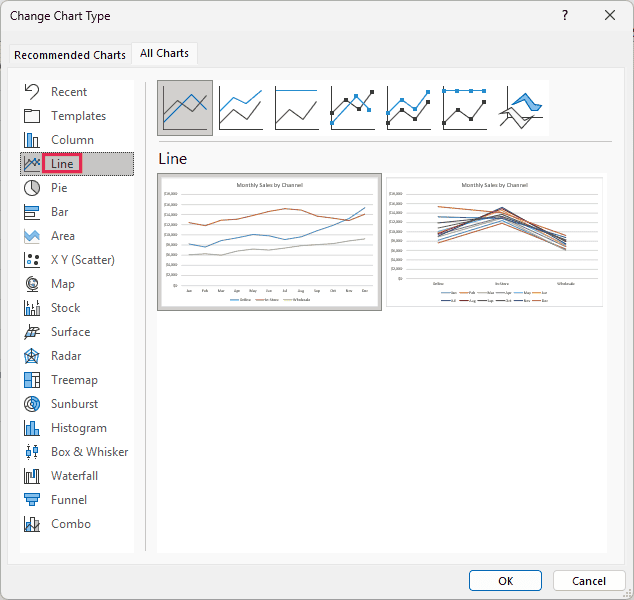
- In the All Charts tab, click Line, pick the line chart you want, and click OK.
Change the Chart Type of One Series (Make a Combo Chart)
You can also change the type of just one series. This is how you make a combo chart, where one series shows as columns and another as a line.
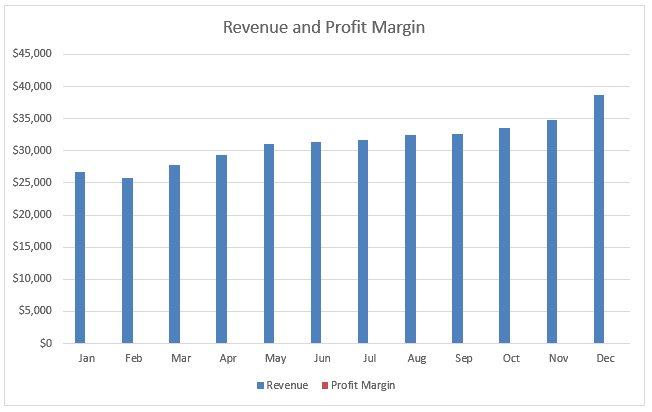
Below is the revenue and profit margin data from the Combo Chart sheet, and I want to show the profit margin as a line. The chart on that sheet is the finished result, so to follow along, first insert a clustered column chart from A1:C13.
In that column chart, the margin is a percentage, so its columns are too small to see next to the revenue.
Here are the steps to show the profit margin as a line on its own axis:
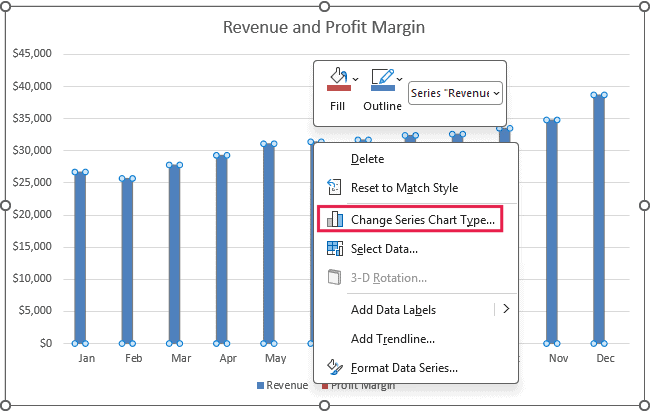
- Right-click any column in the chart and click Change Series Chart Type.
- For the Profit Margin series, choose Line with Markers from the drop-down, check the Secondary Axis box, and click OK.
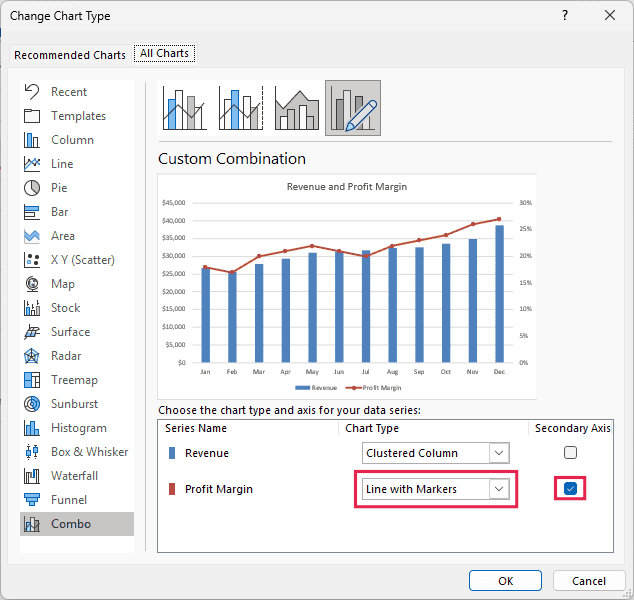
The profit margin now has its own percentage axis on the right. For more on this, see how to make a combination chart and how to add a secondary axis in Excel charts.
How to Add and Edit Chart Elements
Chart elements are the parts you can turn on or off, like the title, axis titles, data labels, and legend. Excel gives you two ways to manage them.
Below is the monthly sales chart, and I want to add axis titles and data labels to it.
The quickest way is the Chart Elements button, the plus sign that shows up at the top-right of a chart when you click it. Check a box to add that element, or uncheck it to remove it.
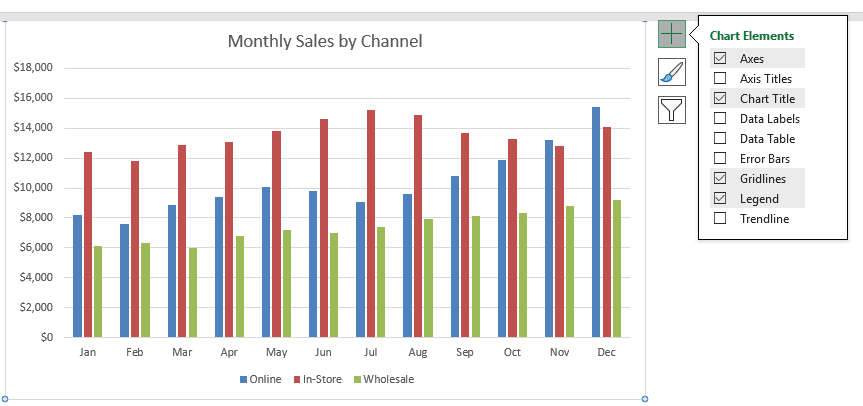
Hover over any element in that list and click the small arrow next to it to see more options, like where to place the legend.
The second way is the Add Chart Element drop-down on the Chart Design tab. It has the same elements, with all their options in one menu.
Add or Change the Chart Title
Here are the steps to change the chart title:
- Click the chart title to select it.
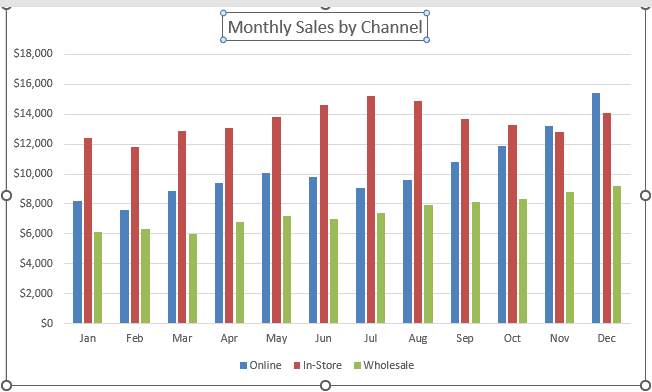
- Select the title text, type your new title, and click anywhere outside the title.
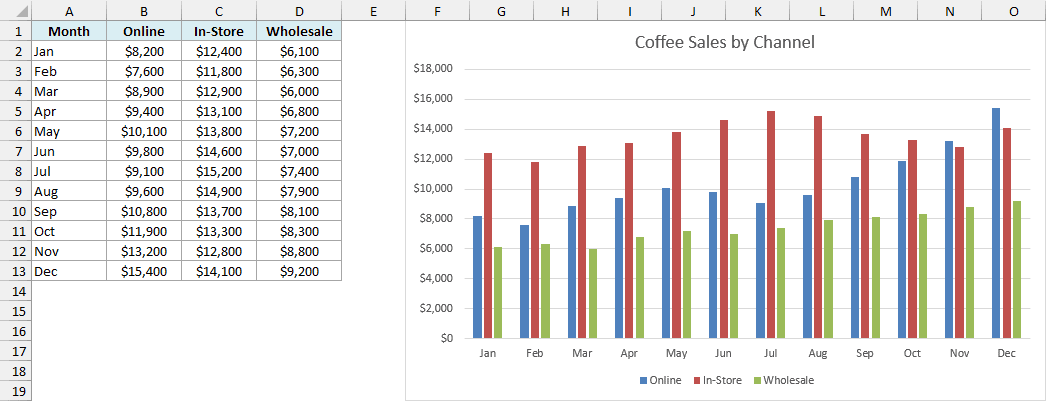
If you want the title to change automatically with a cell (like a selected month), you can link it to that cell. I show how in dynamic chart titles in Excel.
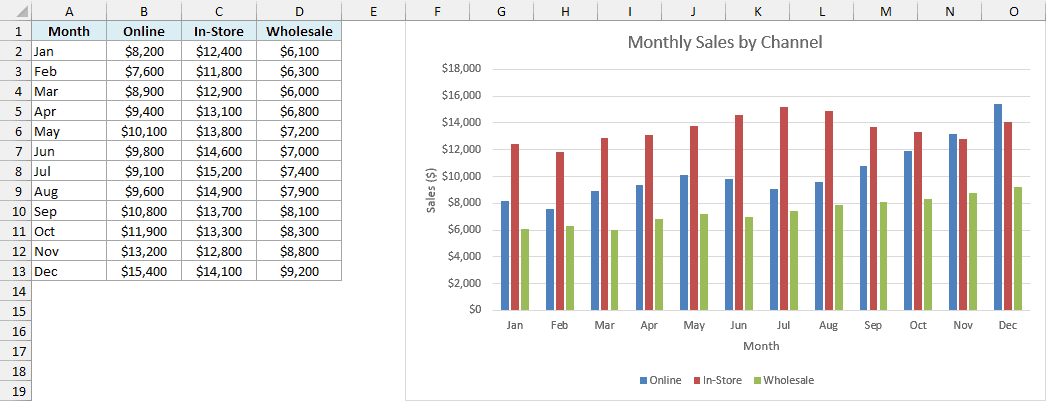
Add Axis Titles
Click the chart, click the Chart Elements button, and check Axis Titles. Then click each axis title and type what it measures, like “Sales ($)”.
More options are in how to add axis titles in Excel.
Add Data Labels
Check Data Labels in the Chart Elements list to show the value on every column or point. Click the arrow next to it to choose where the labels go.
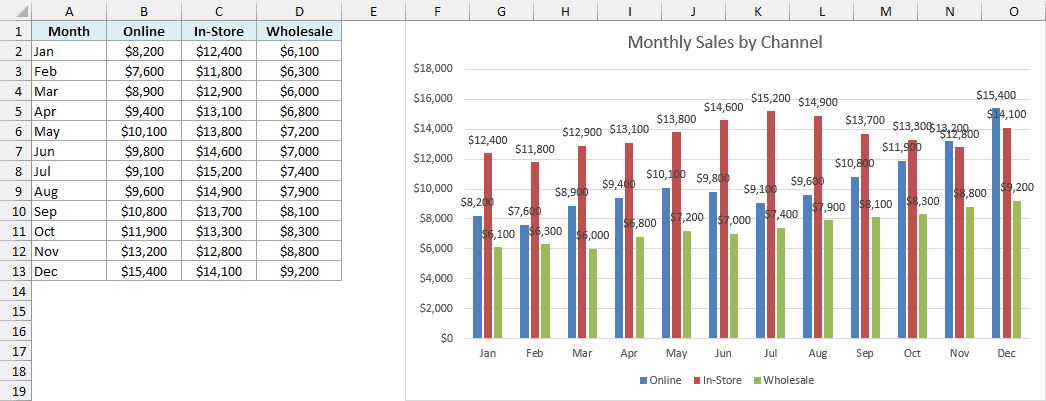
With 36 columns, labels on every one get crowded. In a chart like this, you may want labels on one series only, which you can do by selecting that series first.
You can do more with labels, like showing negative data labels in red or adding trend arrows to data labels.
Legend, Gridlines, Trendline, and Error Bars
Here’s what the other elements in the list do:
- Legend: check or uncheck it, and use its arrow to move it to the top, bottom, left, or right of the chart.
- Gridlines: turn the horizontal and vertical lines in the plot area on or off.
- Trendline: adds a line that shows the overall direction of a series. See how to add a trendline in Excel charts.
- Error Bars: show the margin of error around each value. See how to add error bars in Excel.
How to Format a Chart in Excel
You can change the look of a chart with a ready-made style in one click, or format each part of it on its own.
Below is the monthly sales chart with Excel’s default look, and I want to change its style and colors.
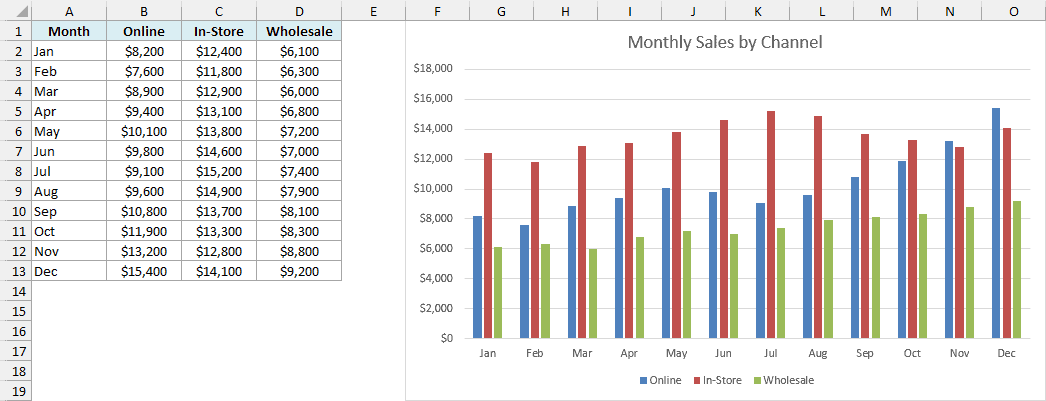
Chart Styles and Colors
Here are the steps to apply a chart style:
- Click the chart and click the Chart Styles button (the paintbrush icon below the plus sign).
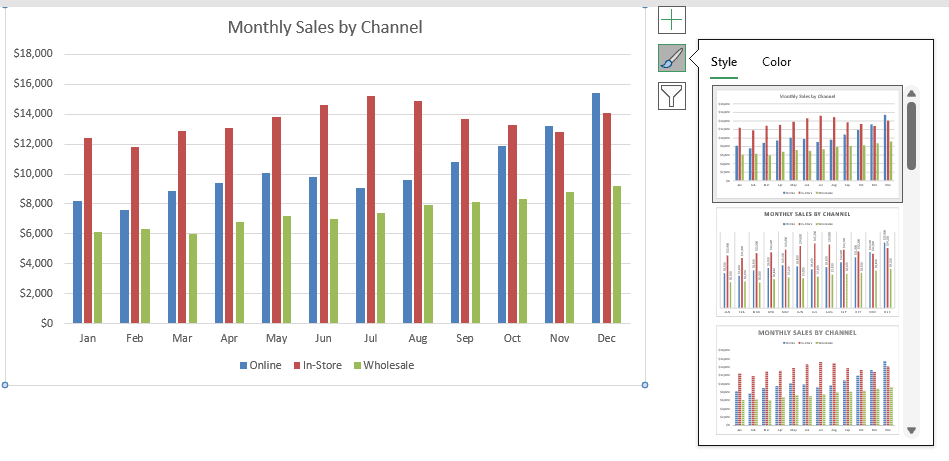
- On the Style tab, click the style you want.
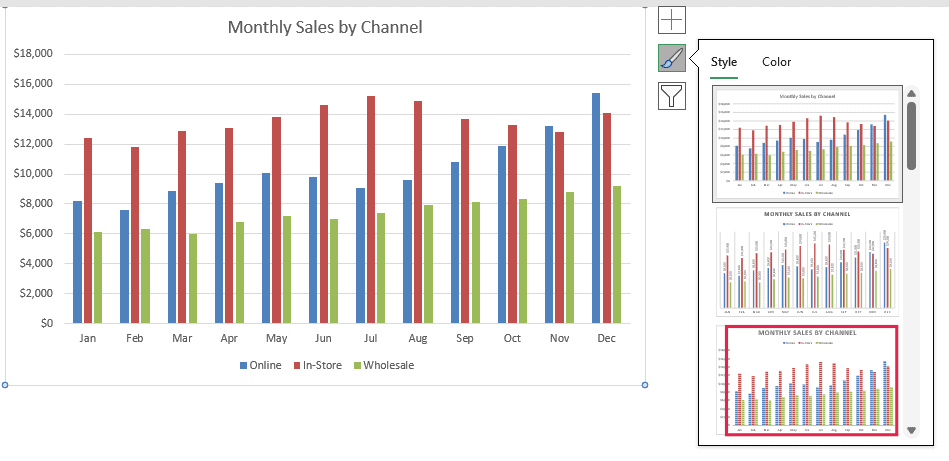
To change the color scheme, click the Color tab in the same menu, or go to the Chart Design tab and click Change Colors.
Quick Layout
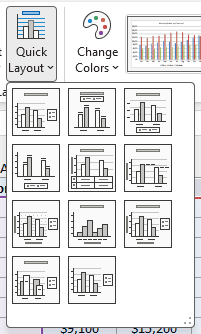
Quick Layout changes which elements show and where they sit, all at once. Click the chart, go to the Chart Design tab, click Quick Layout, and pick a layout.
The Format Pane
For full control, double-click any part of the chart (or select it and press Ctrl + 1). The Format pane opens on the right with every option for that part, like fill color, borders, and number format.
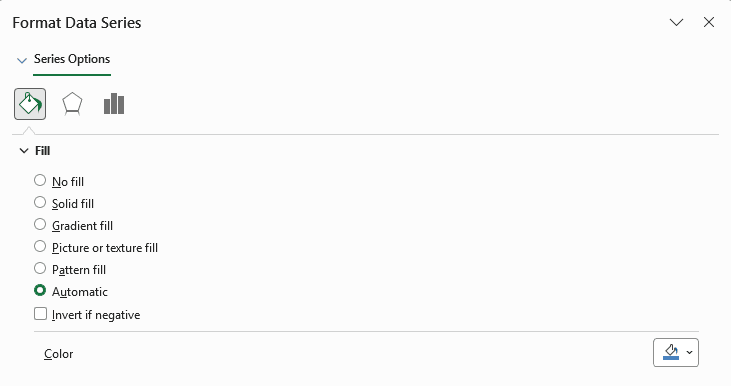
For example, to change the color of the Online columns, double-click one of them and change the color under Fill.
Copy Formatting From One Chart to Another
Once one chart looks right, you don’t need to repeat the work on the next one. Copy the formatted chart, select the other chart, and use Paste Special with the Formats option.
The steps are in how to copy chart format in Excel.
Save a Chart as a Template
If you make the same kind of chart again and again, save it as a template.
Here are the steps:
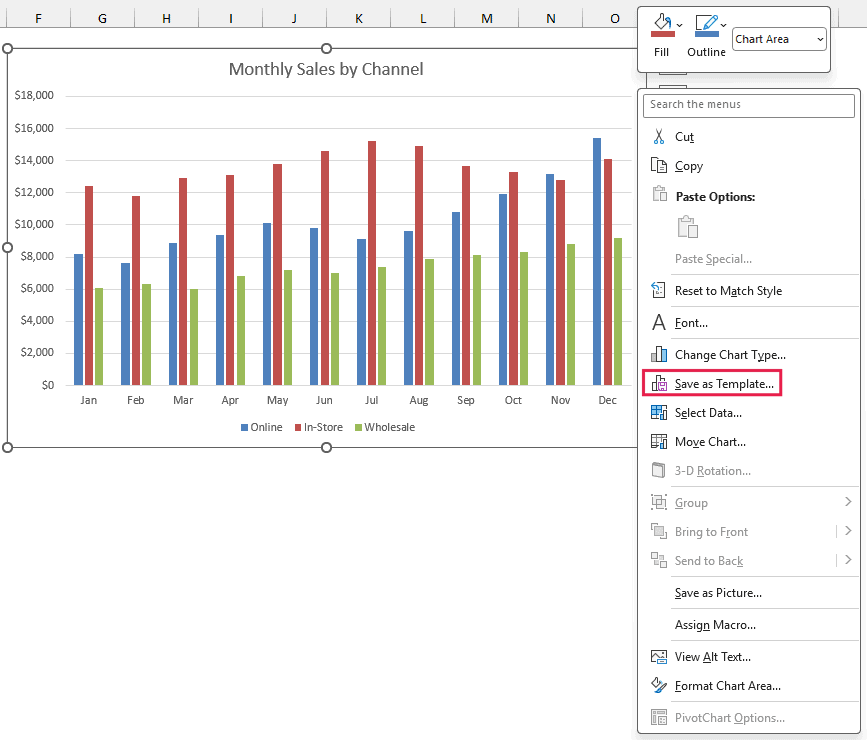
- Right-click the formatted chart and click Save as Template.
- Give the template a name and click Save (keep the default Charts folder so Excel can find it).
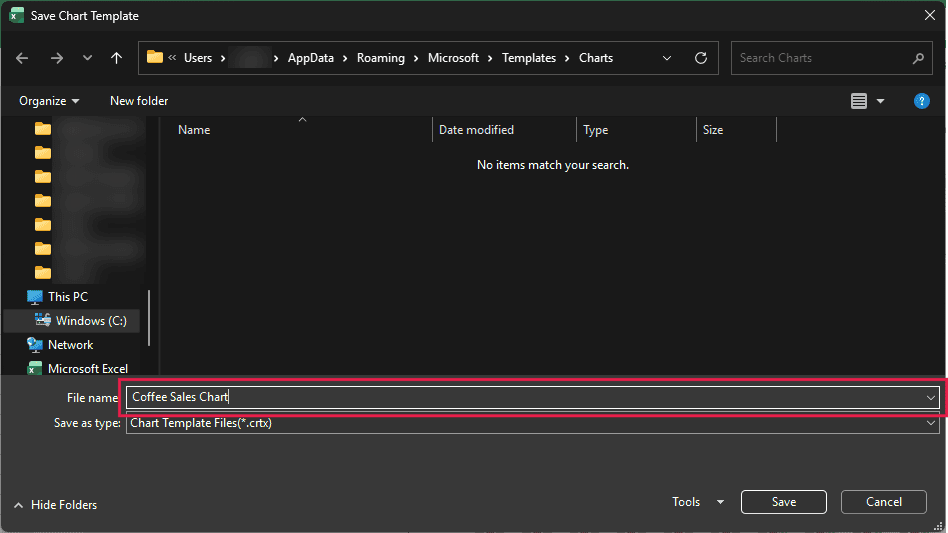
To use it on a new chart, go to Insert > Recommended Charts > All Charts and click Templates. Your saved template is listed there.
How to Make a PivotChart in Excel
A PivotChart is a chart built on top of a PivotTable. It can summarize thousands of rows, you can filter it right from the buttons on the chart, and you don’t need any formulas.
Below I have a list of coffee orders with the date, sales channel, coffee, and amount, and I want a chart of the total sales for each channel.
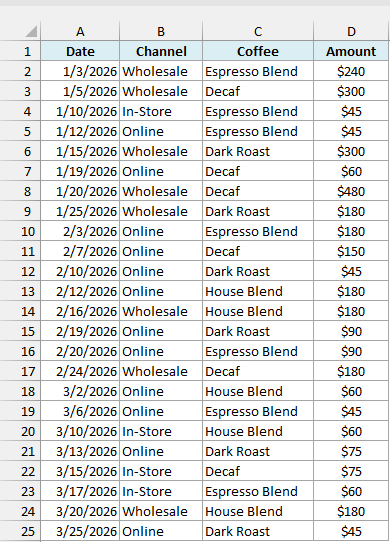
Here are the steps to make a PivotChart:
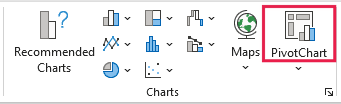
- Select any cell in the data, go to the Insert tab, and click PivotChart in the Charts group.
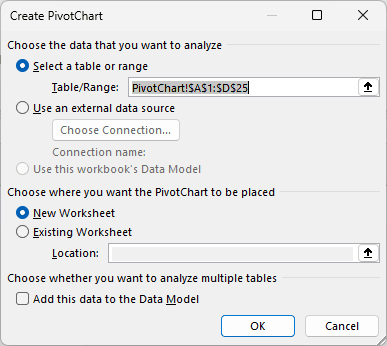
- In the Create PivotChart dialog box, choose where you want it (a New Worksheet or a cell in the Existing Worksheet) and click OK.
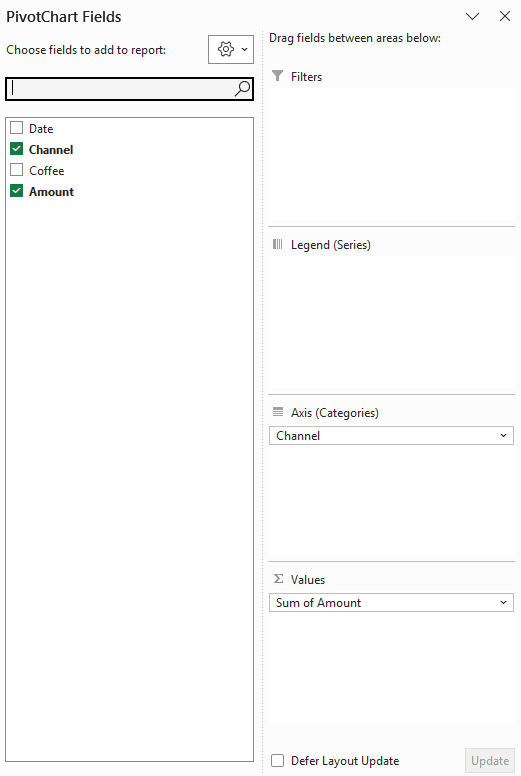
- In the PivotChart Fields pane, drag Channel to the Axis (Categories) area and Amount to the Values area.
Excel creates a PivotTable with the total for each channel and a column chart linked to it.
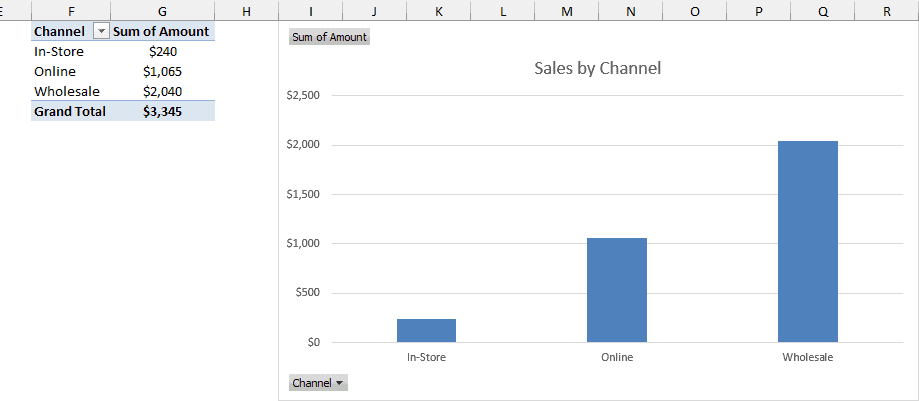
Click the Channel button at the bottom-left of the chart to filter it, and the PivotTable filters along with it. If you’re new to PivotTables, start with how to create a Pivot Table in Excel.
How to Move, Resize, Copy, and Delete a Chart
Charts float on top of the sheet, so you can put them wherever they fit best.
Below is the monthly sales chart sitting next to its data.
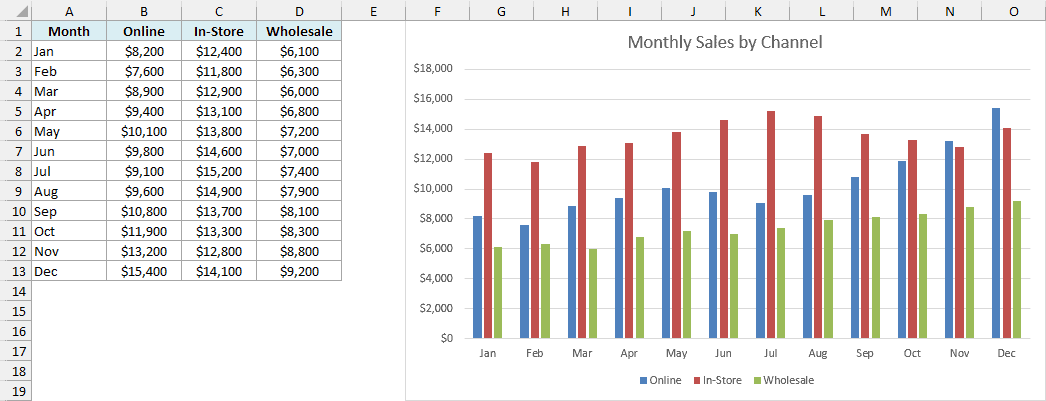
- Move it on the sheet: hover over the chart border until the cursor shows a four-way arrow, then drag.
- Resize it: drag any of the handles on the corners or sides. Hold Shift while you drag a corner to keep the proportions, or hold Alt to snap the edges to the cell gridlines.
- Move it to another sheet: go to the Chart Design tab, click Move Chart, and pick New sheet or another sheet under Object in. See how to move a chart to a new sheet.
- Copy it into Word or PowerPoint: select the chart, press Ctrl + C, and paste it with Ctrl + V. The paste options let you keep it linked to your Excel data or paste it as a picture.
- Delete it: click the chart border to select the whole chart and press Delete.
Save a Chart as an Image
In Microsoft 365, right-click the chart and click Save as Picture, then pick a format like PNG.
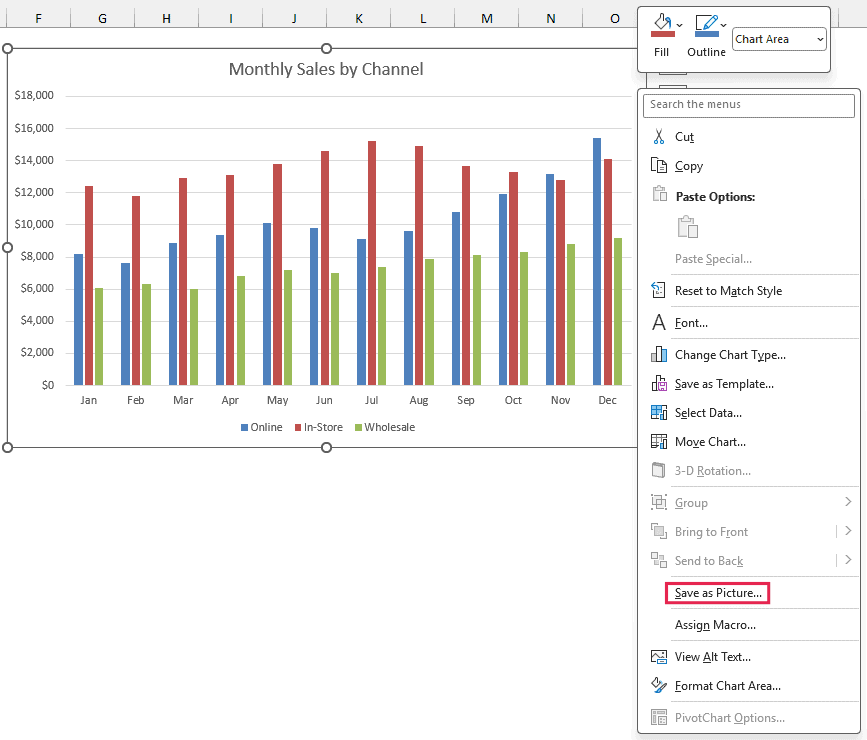
That’s not the only way, and the others (including ones that work in older versions) are in how to save an Excel chart as an image.
Take Your Excel Charts Further
Once you’re comfortable with the basics, you can make charts that update and react on their own:
- Make a dynamic chart range so new data shows up in the chart automatically.
- Add a dynamic target line that moves when you change the target.
- Build an interactive chart with checkboxes so readers can choose what to show.
- Highlight data points to draw attention to the values that matter.
- Spot a data point in a scatter chart when there are too many points to read.
And when the built-in types aren’t enough, these 10 advanced Excel charts cover Gantt, bullet, milestone, and more.
Frequently Asked Questions About Excel Charts
What is the difference between a chart and a graph in Excel?
In Excel, there’s no real difference. Excel calls everything a chart, so you’ll find column charts, line charts, and scatter charts under Insert > Charts.
Most people say “graph” for the same thing, so a line graph and a line chart in Excel are the same.
How do I make a graph in Excel with multiple data sets?
Put each data set in its own column next to the categories, with a header on top, and select all of it before you insert the chart. Each column becomes a separate series, as in the monthly sales chart with Online, In-Store, and Wholesale.
Why doesn’t my chart update when I add new data?
A chart uses a fixed range, so a new row added below that range isn’t part of the chart.
Either extend the range with Select Data, or turn the data into an Excel Table so the chart grows with it, as covered in dynamic chart range in Excel.
How do I make a graph with two y-axes in Excel?
Change the chart type of the second series, put it on the Secondary Axis, and Excel adds a second y-axis on the right. The steps are in the combo chart section above, and in more detail in how to add a secondary axis in Excel.
So these are the steps to make a chart in Excel, set it up, and get it looking the way you want. Pick a chart type from the tour above, or go deeper with any of the chart tutorials listed in the directory below.
I hope you found this Excel tutorial useful.
All Excel Chart Tutorials
The chart tutorials on TrumpExcel, all in one place. Pick a chart and I’ll show you how to build it in Excel, step by step.
Chart Types
20 tutorialsHow to build each chart, step by step, and when it makes sense to use it.

Pie Chart
How to make a pie chart, format it, and when a pie chart is (and isn't) the right pick.
Read tutorial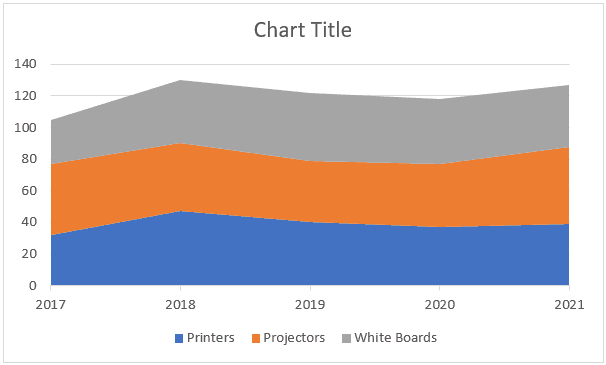
Area Chart
Regular, stacked, and 100% stacked area charts, plus how to use transparent colors so no series gets hidden.
Read tutorial
Scatter Plot
Plot two sets of numbers against each other, add a trendline, and spot clusters in your data.
Read tutorial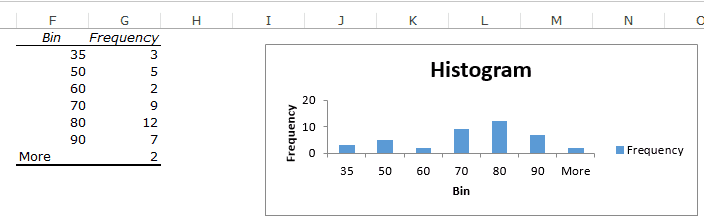
Histogram
Three ways to make a histogram: the built-in chart, the Analysis ToolPak, and the FREQUENCY function.
Read tutorial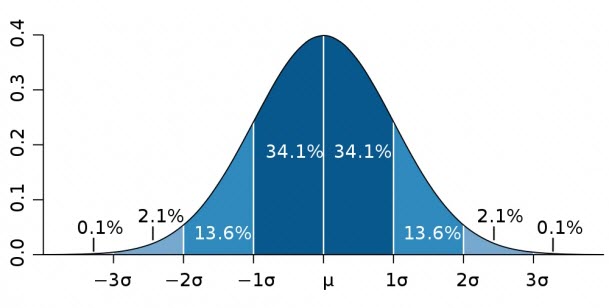
Bell Curve
Build a bell curve (normal distribution chart), the kind used in performance appraisals and grading.
Read tutorial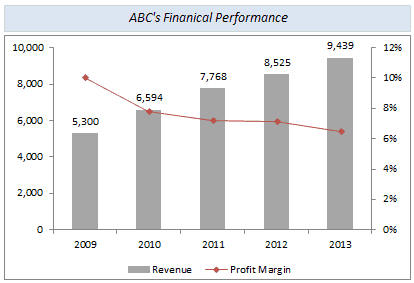
Combination Chart
Put two chart types in one chart, like columns with a line, when a single chart type can't show everything.
Read tutorial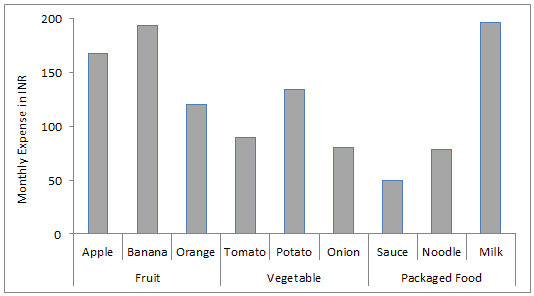
Multi-Category Chart
Group items under their categories in one chart. Handy when you have many items in each category.
Read tutorial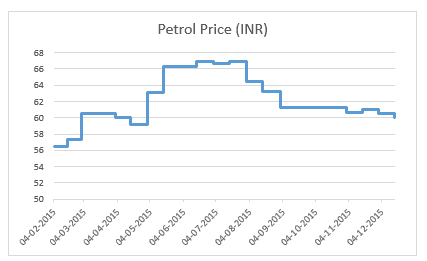
Step Chart
Show data that changes at irregular intervals and stays flat in between, where a line chart would mislead.
Read tutorial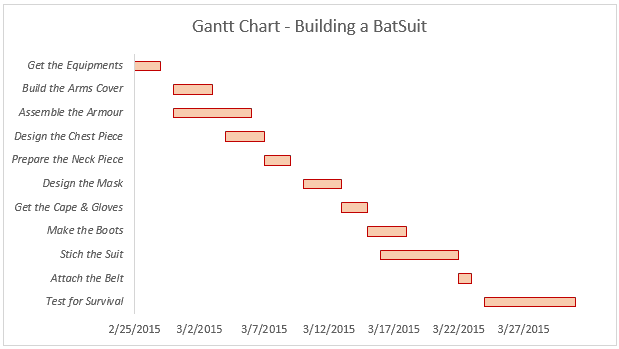
Gantt Chart
Build a Gantt chart to plan a project schedule and track progress (with a Batman-themed example).
Read tutorial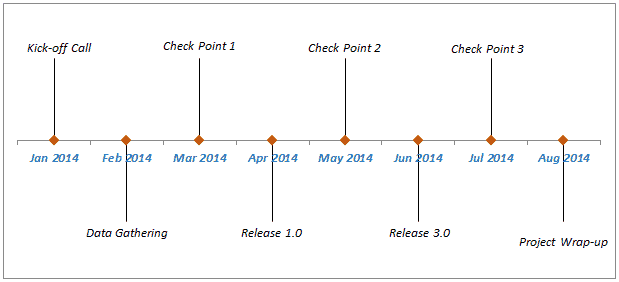
Milestone / Timeline Chart
Create a timeline / milestone chart for project planning, with a free template you can download.
Read tutorial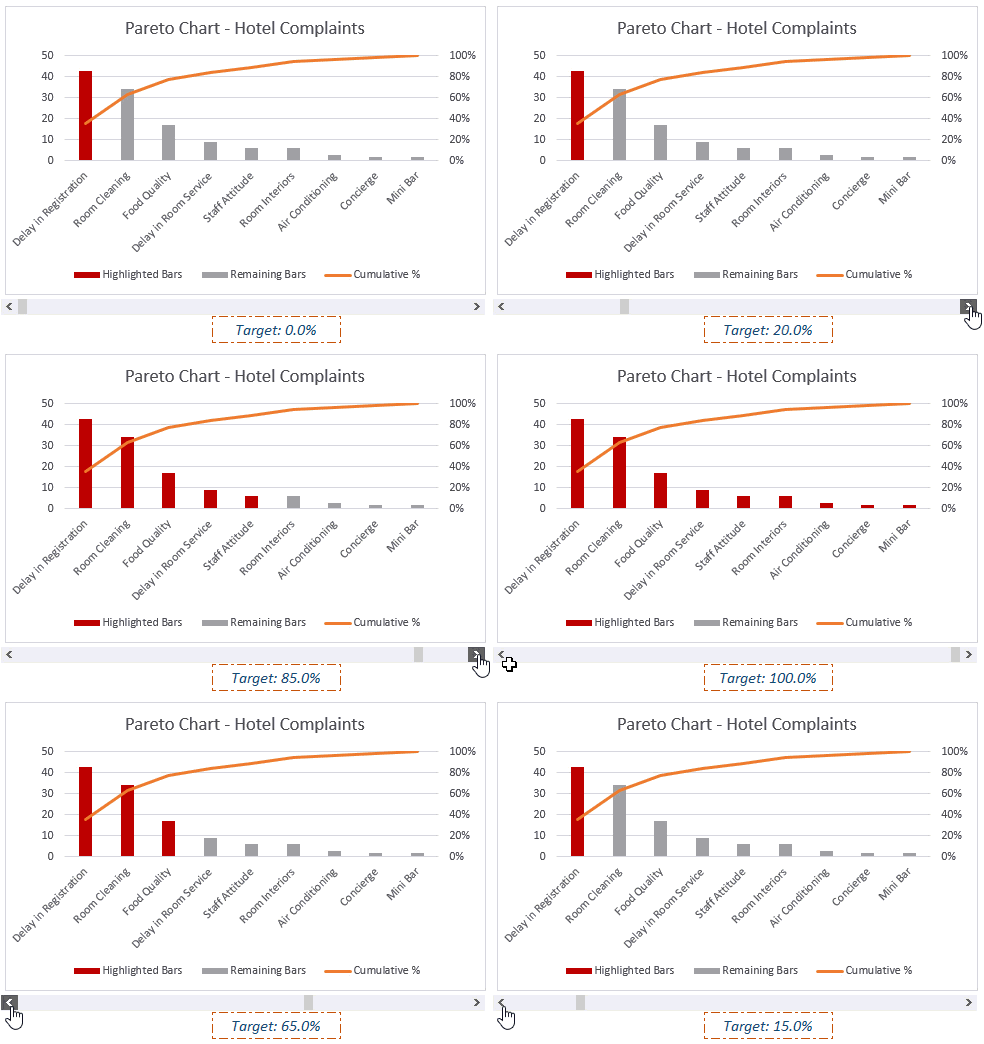
Pareto Chart
Make a Pareto chart (the 80/20 rule chart), both a static version and a dynamic one.
Read tutorial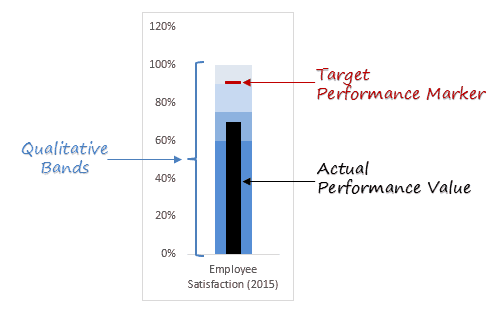
Bullet Chart
Show performance against a target in a compact chart, based on Stephen Few's bullet graph.
Read tutorial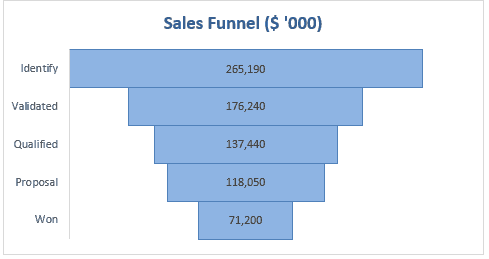
Sales Funnel Chart
Show how deals move through each stage of your sales process, from identified to closed.
Read tutorial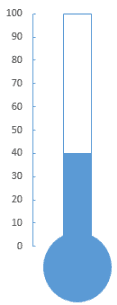
Thermometer Chart
Show an actual value against a target with a chart that fills up like a thermometer.
Read tutorial
Waffle Chart
Show a percentage as a 10×10 grid of colored squares, built with conditional formatting.
Read tutorial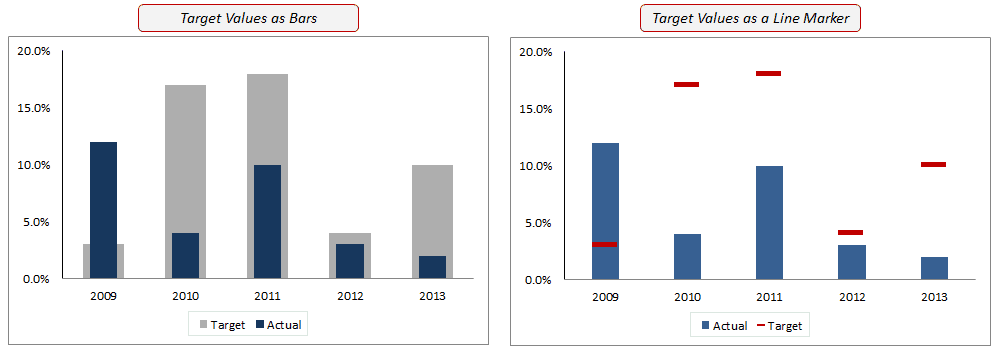
Actual vs Target Chart
Two ways to chart actual values against targets, so it's easy to see where you hit or missed.
Read tutorial
100% Stacked Bar Chart
Build a 100% stacked bar right in the cells using conditional formatting, without inserting a chart.
Read tutorial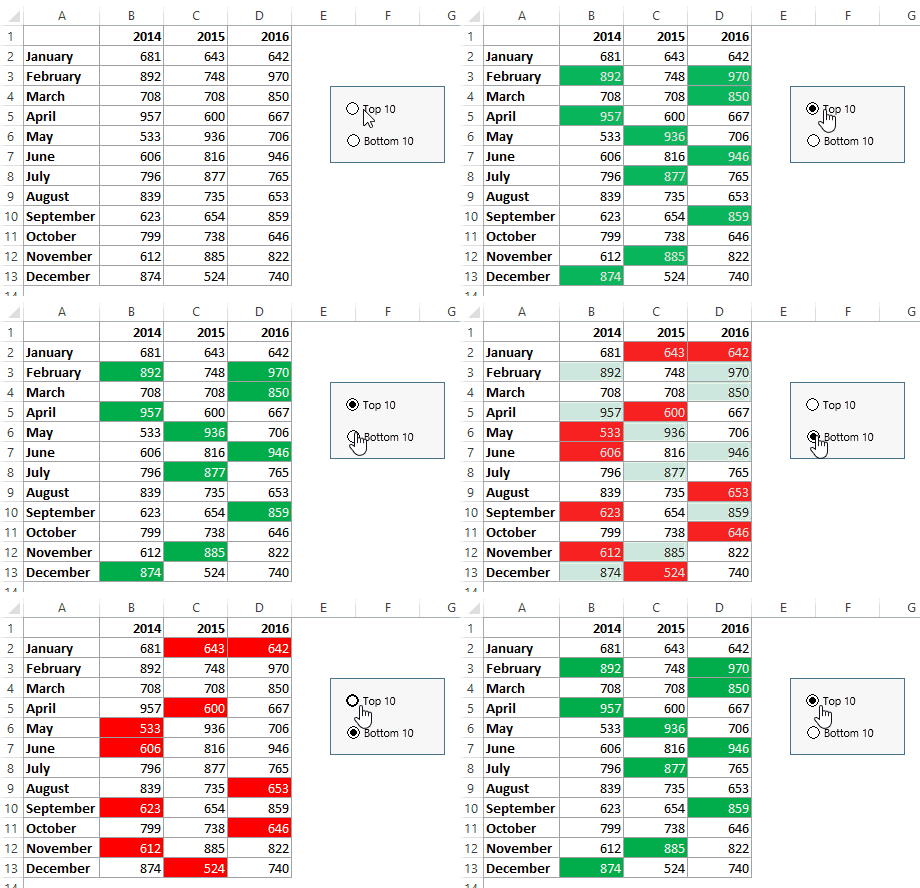
Heat Map
Color-code your numbers with conditional formatting so the highs and lows stand out at a glance.
Read tutorial
10 Advanced Excel Charts
Ten advanced charts for your reports and dashboards, each with a video and a download file.
Read tutorial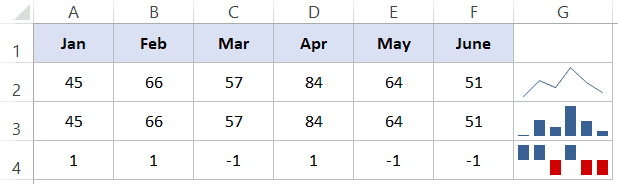
Sparklines
Tiny charts that fit inside a cell. Covers all three types: line, column, and win-loss.
Read tutorialChart Elements & Formatting
11 tutorialsAxes, trendlines, labels, and the small fixes that make a chart easier to read.
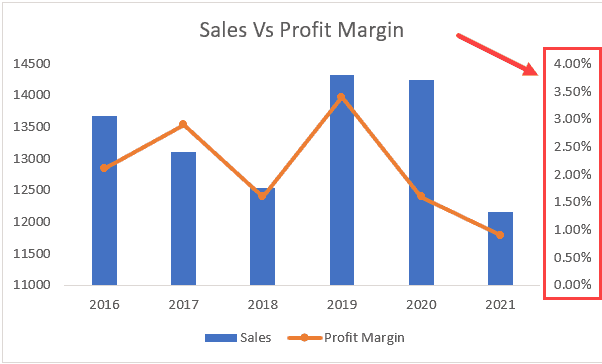
Add a Secondary Axis
Plot two data series with very different scales in one chart by adding a second axis.
Read tutorial
Add Axis Titles
Four ways to add axis titles, including linking an axis title to a cell so it updates on its own.
Read tutorial
Add a Trendline
Add a trendline to a chart and learn the different trendline types Excel offers.
Read tutorial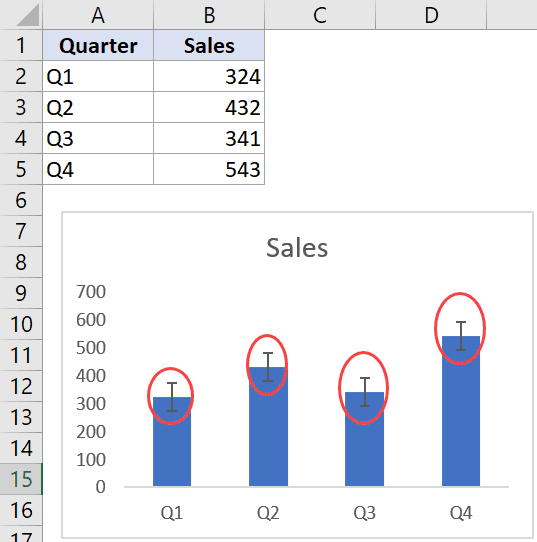
Add Error Bars
Add horizontal, vertical, and custom error bars, and see what each type shows.
Read tutorial
Handle Data Gaps in Charts
Decide how a chart handles empty cells: leave a gap, plot them as zero, or connect the points.
Read tutorial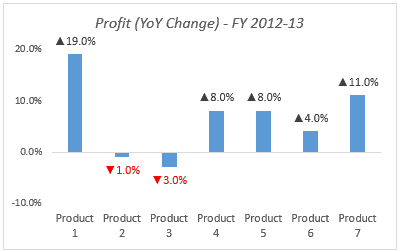
Negative Data Labels in Red
Format data labels so negative values show up in red with a downward arrow.
Read tutorial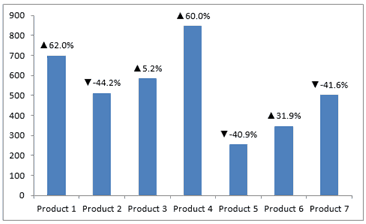
Trend Arrows in Data Labels
Add up and down arrows to data labels so the chart shows the change, not just the value.
Read tutorial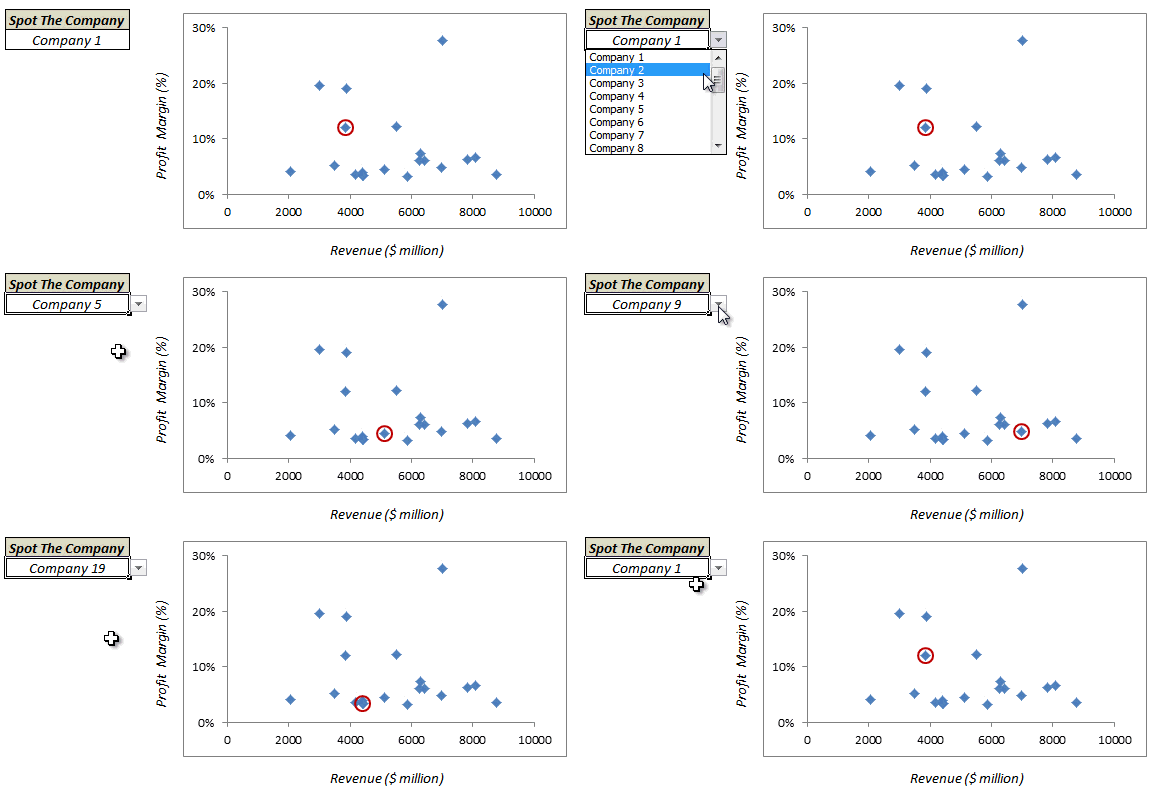
Spot a Data Point in a Scatter Chart
A trick to find out which data point is which in a scatter chart, since Excel doesn't label them for you.
Read tutorial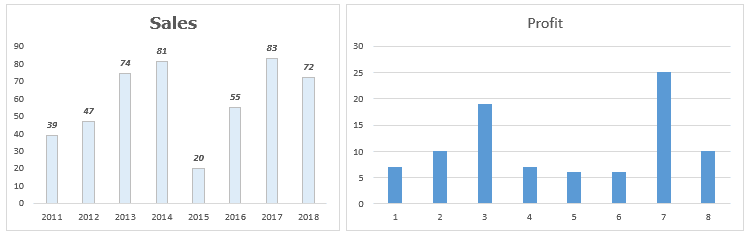
Copy Chart Format
Copy the formatting from one chart and paste it onto another with Paste Special.
Read tutorial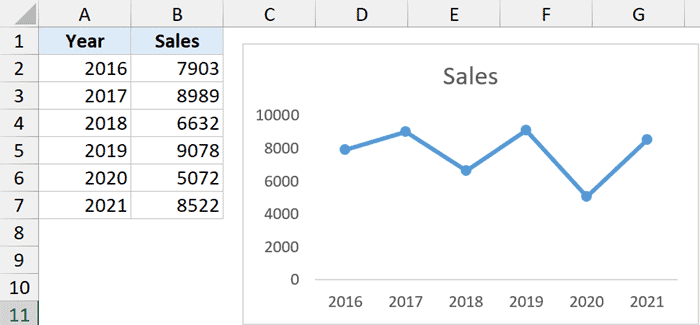
Move a Chart to a New Sheet
Two ways to move a chart: to another worksheet, or onto its own chart sheet.
Read tutorial
Save a Chart as an Image
Save a chart as a PNG, JPG, or BMP image so you can use it outside Excel.
Read tutorialDynamic & Interactive Charts
5 tutorialsCharts that update on their own or change with a click, a checkbox, or a scroll bar.
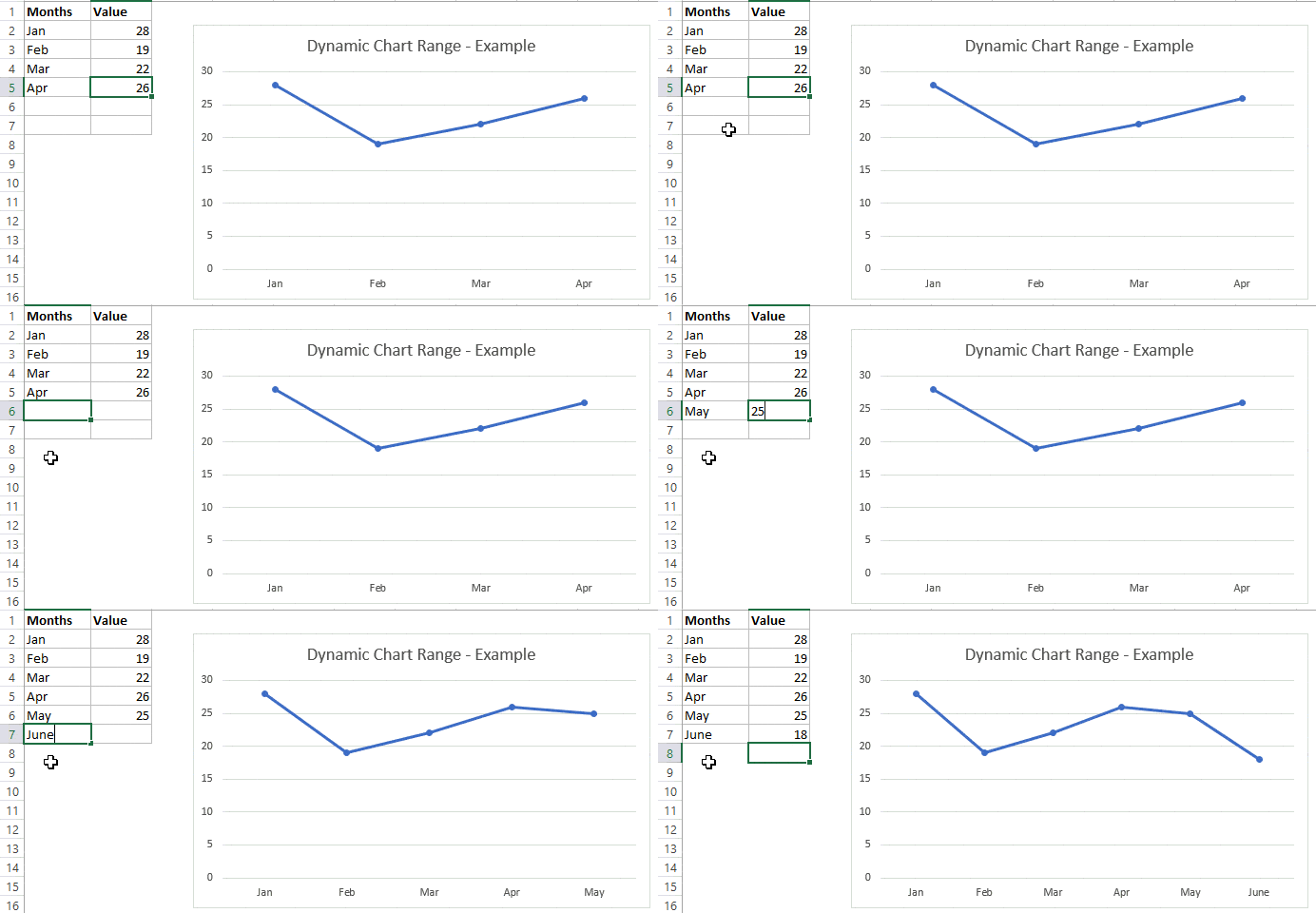
Dynamic Chart Range
Make a chart update on its own when you add new data, using OFFSET and INDEX.
Read tutorial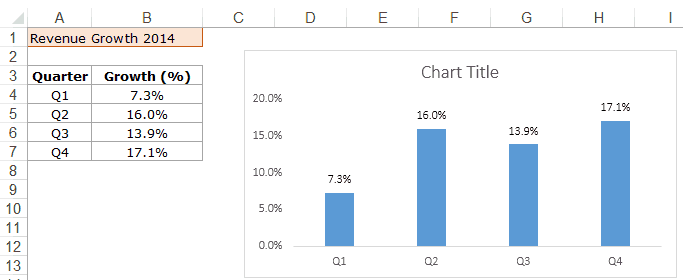
Dynamic Chart Titles
Link the chart title to a cell so the title changes when your data changes.
Read tutorial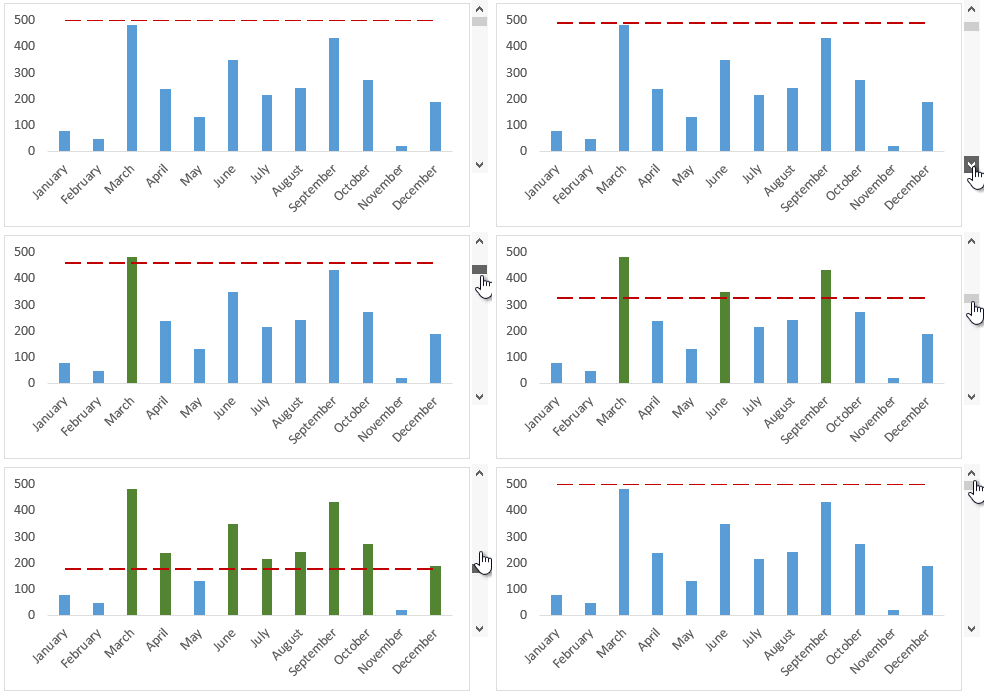
Dynamic Target Line
Add a target line to a bar chart and move it with a scroll bar to see which bars cross it.
Read tutorial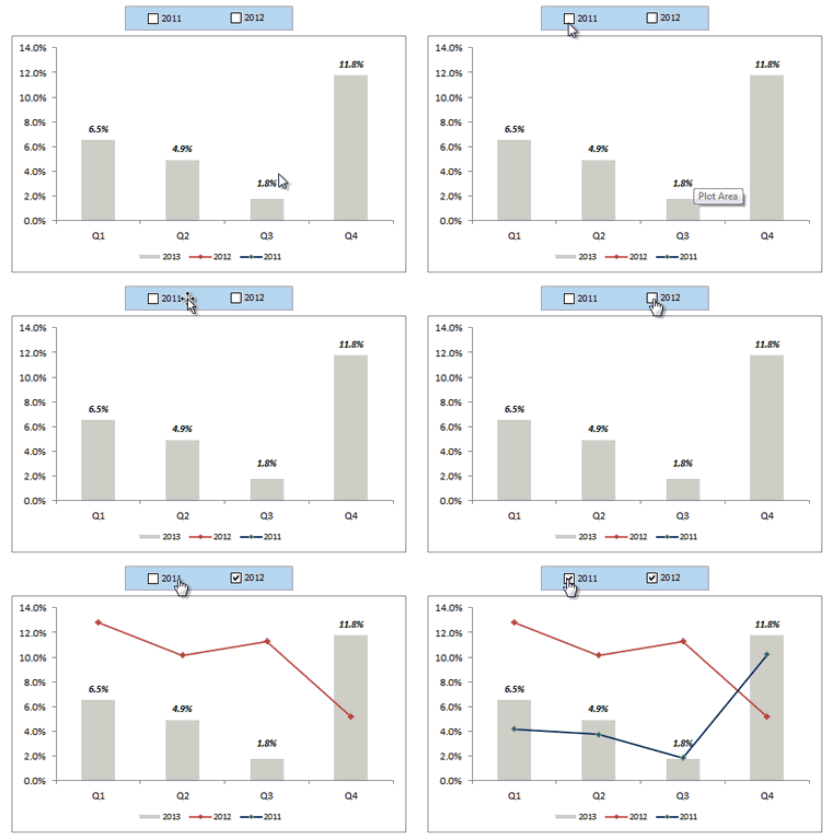
Chart with Series Checkboxes
Let the user pick which data series show up in the chart by ticking checkboxes.
Read tutorial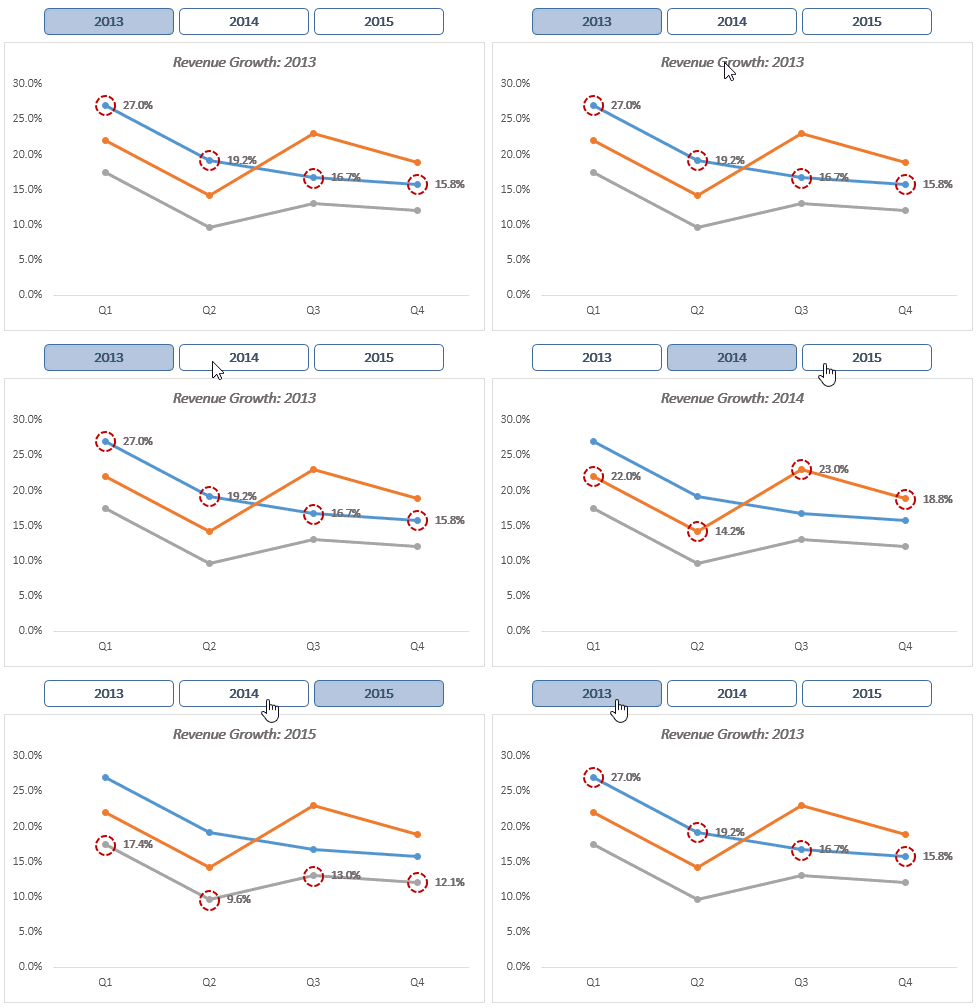
Highlight Data Points with a Button
Click a button to highlight one year's data in a line chart.
Read tutorialNo chart matches that search. Try a different word.
Other Useful Excel Resources:
