

The BETA.INV function in Excel finds the value below which a given percentage of a beta distribution falls. For example, you can give it 90% and get the distribution’s 90th-percentile cutoff.
A beta distribution models values within a fixed range, such as a proportion between 0 and 1 or a duration between two limits. You supply its shape and limits; BETA.INV calculates the cutoff from that model.
In this tutorial, I’ll show you how to calculate several percentiles, use your own limits, check the results, and identify inputs that return errors.
Follow along with the example file
BETA.INV Function Examples.xlsx
BETA.INV Function Syntax
Here is the syntax of the BETA.INV function:
=BETA.INV(probability,alpha,beta,[A],[B])
- probability is the cumulative probability for the cutoff you want. Use 0.9 or 90% for the 90th percentile, rather than 90.
- alpha is the first shape parameter. It must be a positive number.
- beta is the second shape parameter. It must also be positive.
- A is the optional lower limit of the values being modeled. It defaults to 0.
- B is the optional upper limit. It defaults to 1 and must be greater than A.
The two shape parameters control how values are distributed between the limits. They are model inputs, not the minimum and maximum, and BETA.INV doesn’t estimate them from your data.
When you omit A and B, the result uses a 0-to-1 scale. Supplying both limits changes the result to your chosen scale, such as hours.
For the examples below, use probabilities strictly between 0 and 1. Example 4 shows the endpoint behavior observed in the tested Excel version.
BETA.INV is available in Excel 2016 and later, including Microsoft 365, Excel 2024, and Excel 2021. The spilling formulas below need dynamic-array Excel, such as Microsoft 365, Excel 2024, or Excel 2021.
When to Use the BETA.INV Function
Use this function when you need to:
- Find percentiles from a beta distribution with known shape parameters.
- Calculate a cutoff for a quantity with specified lower and upper limits.
- Recover a value from its cumulative beta probability.
If you have a list of observed values and want to calculate a percentile from that data, use a percentile function. BETA.INV works from distribution parameters instead of a list of observations.
Let’s work through the examples in the downloadable workbook.
Example 1: Calculate Beta Distribution Percentiles
Let’s start with the default 0-to-1 scale.
Below is a list of probabilities for a beta distribution with alpha 2 and beta 4, and I want the matching cutoffs in column B.
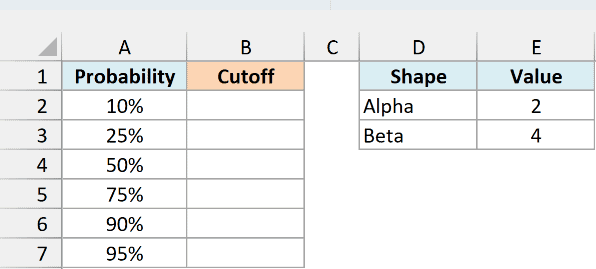
On the Example 1 sheet, enter this formula in cell B2:
=BETA.INV(A2:A7,$E$2,$E$3)
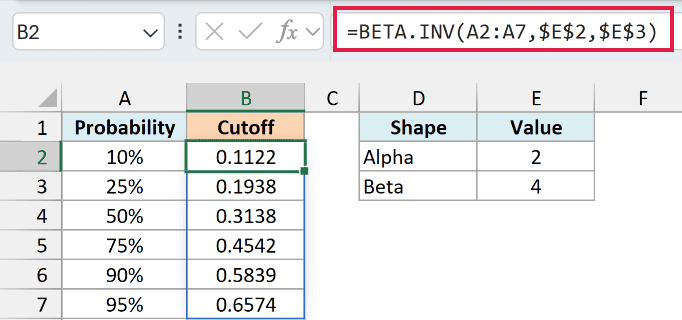
The formula uses each probability in A2:A7 and returns six results in B2:B7. Alpha and beta come from E2 and E3, so every row uses the same distribution.
The 50% row returns approximately 0.3138. This means half of the modeled distribution lies at or below 0.3138, making it the median of this distribution.
At 90%, the cutoff is approximately 0.5839. The 90% is the probability of being at or below that cutoff; it doesn’t mean the answer must be 0.9.
The dollar signs make E2 and E3 absolute cell references. They keep the shape inputs fixed if you copy the formula elsewhere.
If you enter the formula in a fresh worksheet, keep B3:B7 empty so the results can spill into those cells. Existing content there causes a #SPILL! error, so move that content before entering the formula again.
The download already contains the completed formula. To try it again, select B2, delete that formula, and then re-enter it in B2.
If you are using Excel 2019 or Excel 2016, enter the following formula in B2 and copy it down to B7:
=BETA.INV(A2,$E$2,$E$3)
Example 2: Use Your Own Lower and Upper Limits
Now let’s put the result on a scale you can use directly.
Suppose a craft coating’s drying time follows an assumed beta model between 12 and 36 hours, with alpha 3 and beta 2. These are illustrative inputs chosen for the example, not measurements or drying instructions.
Below are the probabilities and assumed drying-time inputs, and I want the corresponding drying times in column B.
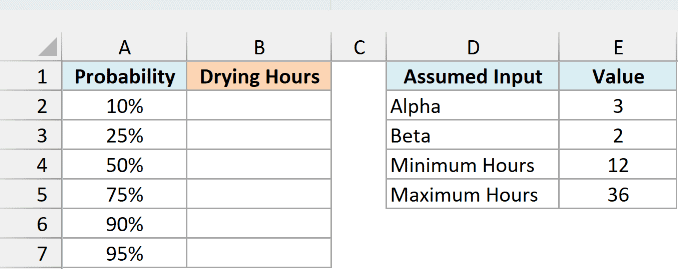
On the Example 2 sheet, enter this formula in B2:
=BETA.INV(A2:A7,$E$2,$E$3,$E$4,$E$5)
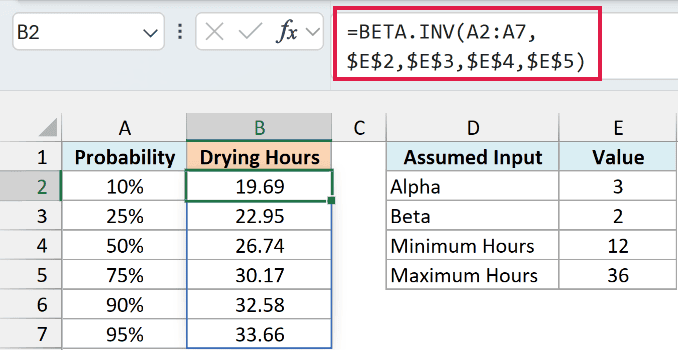
The last two arguments use the minimum of 12 hours in E4 and the maximum of 36 hours in E5. The result is already in hours, so you don’t need to multiply it by 24 as you would with an Excel time serial.
The 90% row returns 32.58 hours when displayed to two decimal places. Under this assumed model, 90% of drying times are at or below approximately 32.58 hours.
The 95% cutoff is higher, at 33.66 hours. Choosing a higher cumulative probability gives a later cutoff within the same 12-to-36-hour range.
Important: These cutoffs depend on the model you supply. BETA.INV does not confirm that the shape parameters or limits describe the real process, and a 95% cutoff is not a guarantee.
Keep the lower limit smaller than the upper limit. Equal or reversed limits returned #NUM! in the Excel tests for this example.
For Excel 2019 or Excel 2016, enter this formula in B2 and copy it down to B7:
=BETA.INV(A2,$E$2,$E$3,$E$4,$E$5)
Example 3: Check BETA.INV with BETA.DIST
You can check the inverse calculation by putting its result back into the cumulative distribution.
Below is the same probability list with alpha 2 and beta 4, and I want the cutoffs in column B followed by a probability check in column C.
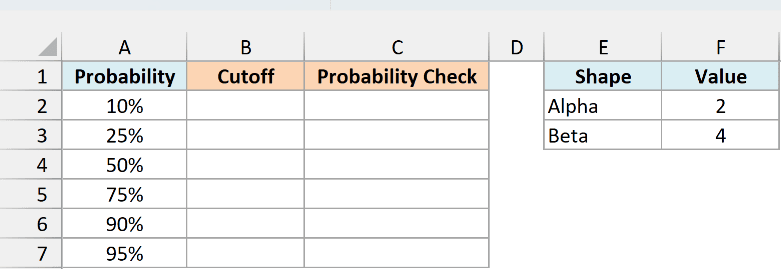
On the Example 3 sheet, first calculate the cutoffs in B2:
=BETA.INV(A2:A7,$F$2,$F$3)
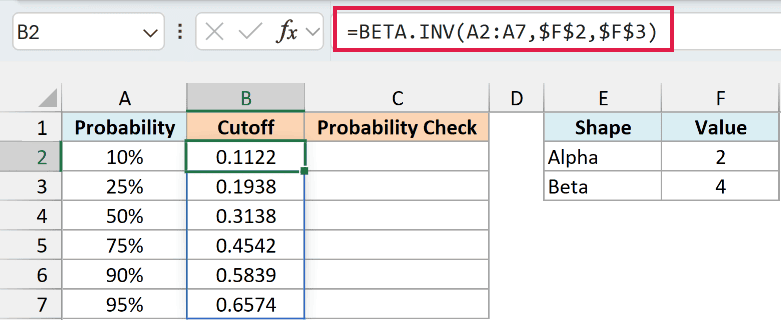
These are the same cutoffs as Example 1. This sheet has its shape inputs in F2 and F3, so the references match that sheet’s layout.
Now enter the following formula in C2 to convert those cutoffs back to cumulative probabilities:
=BETA.DIST(B2:B7,$F$2,$F$3,TRUE)
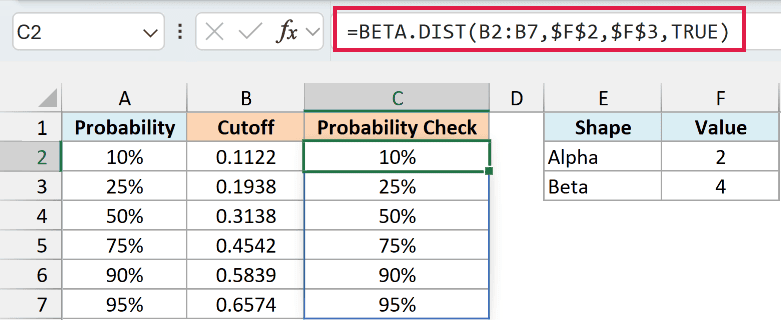
The BETA.DIST function returns 10%, 25%, 50%, 75%, 90%, and 95%, matching column A. Its TRUE argument requests cumulative probability, which is the probability at or below each cutoff.
Using FALSE would calculate probability density instead, so it wouldn’t check the original probabilities. The check also needs the same shape parameters and, when supplied, the same lower and upper limits.
Column B displays four decimal places, but the formula in C2 reads the underlying values at Excel’s stored precision. If you type the rounded cutoffs into a different worksheet, the probabilities may differ slightly from the original inputs.
For Excel 2019 or Excel 2016, enter this cutoff formula in B2 and copy it down to B7:
=BETA.INV(A2,$F$2,$F$3)
Then enter this check formula in C2 and copy it down to C7:
=BETA.DIST(B2,$F$2,$F$3,TRUE)
Example 4: Identify BETA.INV Probability Errors
Let’s finish with inputs that can make this function return an error.
Below are valid probabilities alongside endpoint and out-of-range test cases, and I want to see their results in column B.
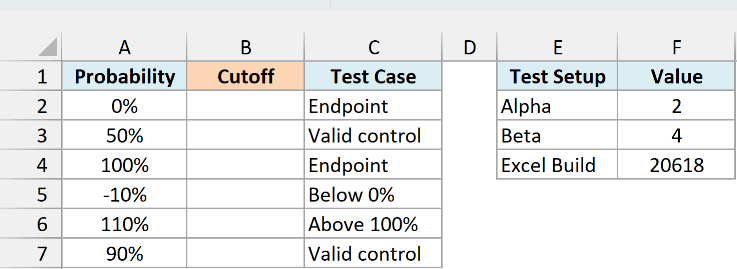
On the Example 4 sheet, enter this formula in B2:
=BETA.INV(A2:A7,$F$2,$F$3)
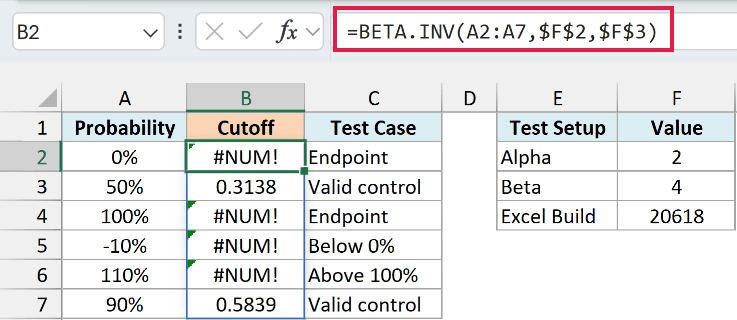
The 50% and 90% inputs return approximately 0.3138 and 0.5839. The -10% and 110% inputs return #NUM! because they fall outside the probability range.
The endpoint rows also return #NUM! in the tested Microsoft 365 for Windows build 20618. The workbook identifies that build because documentation and spreadsheet applications don’t all describe the endpoints the same way.
Microsoft’s BETA.INV documentation lists probabilities less than or equal to 0, or greater than 1, as errors. However, the test here also returned an error at exactly 1, so use probabilities strictly between the endpoints for these calculations.
If your probability cell contains 90 when you mean 90%, change it to 90% or 0.9. Formatting the number 90 as a percentage displays 9000%, which still leaves an invalid probability.
If a valid probability still produces #NUM!, check that alpha and beta are positive and that the lower limit is smaller than the upper limit. Nonnumeric text, such as a word in a shape input, produces #VALUE! instead.
For Excel 2019 or Excel 2016, enter the following formula in B2 and copy it down to B7 to test each input separately:
=BETA.INV(A2,$F$2,$F$3)
I’ve covered how to get beta-distribution cutoffs, change their scale, and check both results and invalid inputs. I hope you found this tutorial useful.
Other Excel Articles You May Also Like:
