

The CUBESETCOUNT function counts the items in a list that you pull from your data, such as the products in an order list. That list is called a set, and the CUBESET function is what builds it.
It works with the Data Model in your workbook, which is where Excel keeps your tables for analysis. So you can count how many products beat a sales target without building a PivotTable first.
In this tutorial, I’ll show you how to count a full set, a hand-picked set, and a filtered set, and how to use the count to list the items.
The example file has a working Data Model, so you can follow along without connecting to a server.
Follow along with the example file
CUBESETCOUNT Function Examples.xlsx
CUBESETCOUNT Function Syntax
Here is the syntax of the CUBESETCOUNT function:
=CUBESETCOUNT(set)
- set is the set whose items you want to count. It is either a cell that holds a CUBESET formula, or a CUBESET formula placed directly inside CUBESETCOUNT.
CUBESETCOUNT doesn’t define a set, it only counts one. The CUBESET function chooses which items go in the set, and CUBESETCOUNT returns how many of them there are.
These examples were tested in Excel for Microsoft 365 on Windows (build 20618), using the Data Model in the example file. Mac, Excel on the web, and server cubes were not tested.
When to Use the CUBESETCOUNT Function
Use this function when you need to:
- Count how many items a field in your model contains, such as products or cities.
- Count only the items that pass a condition, such as products above a sales target.
- Show how many items each category has in a report.
- Size a list, or check that a set isn’t empty, before you use it.
Let’s go through the examples using the model that comes with the download.
Example 1: Count All the Items in a Set
Let’s start by counting every item in one field.
Below is a list of shop orders with the city, the product, and the sales amount, and I want to know how many different products there are in cell F3.
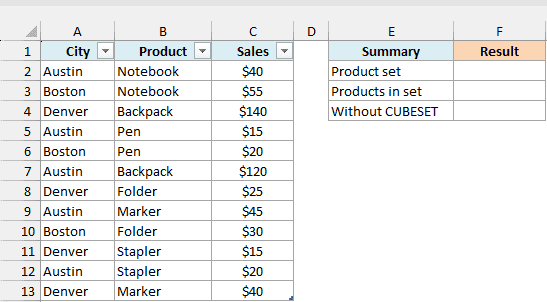
The order list is stored as a table named Orders, which has already been added to the workbook’s Data Model. The model also has a measure named Total Sales that adds up the Sales column.
CUBESETCOUNT counts a set, so we need a set first. Enter this CUBESET formula in F2:
=CUBESET("ThisWorkbookDataModel","[Orders].[Product].[Product].Members","All products")
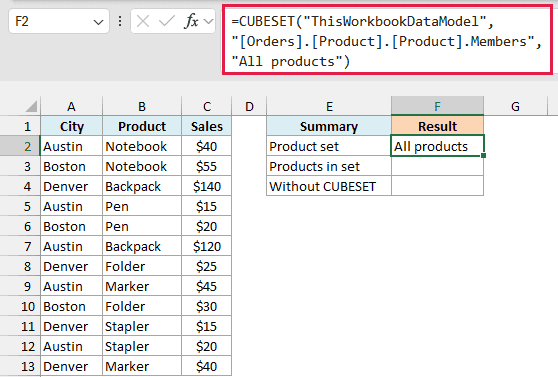
The first argument is the connection, the name that points to your Data Model. Every workbook with a Data Model uses ThisWorkbookDataModel, so type it exactly as shown.
The second argument, [Orders].[Product].[Product].Members, asks for every member of the Product field, each product once. The third is a caption, so the cell shows All products while the set itself is stored behind it.
CUBESETCOUNT needs no connection of its own, because it reads the set that CUBESET already built. Enter this formula in F3 to count it:
=CUBESETCOUNT(F2)
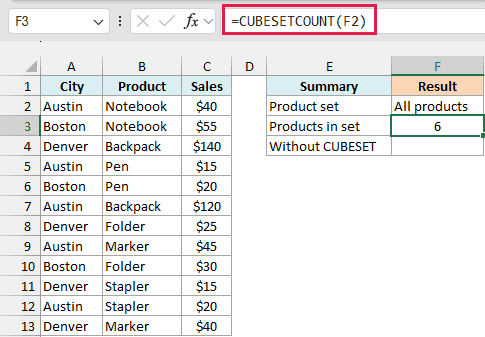
The result is 6. The table has 12 order rows, but only six different products, and the set holds each product once.
While Excel gets the data, a cube cell can briefly show #GETTING_DATA…. Give it a moment before you treat it as an error.
Important: If you write [Orders].[Product].Members, the set also includes an All member that stands for every product, so the count comes out as 7. Use [Orders].[Product].[Product].Members to count only the products.
Next, here is what happens when you skip CUBESET and type the set expression inside CUBESETCOUNT. Enter this formula in F4:
=CUBESETCOUNT("[Orders].[Product].[Product].Members")
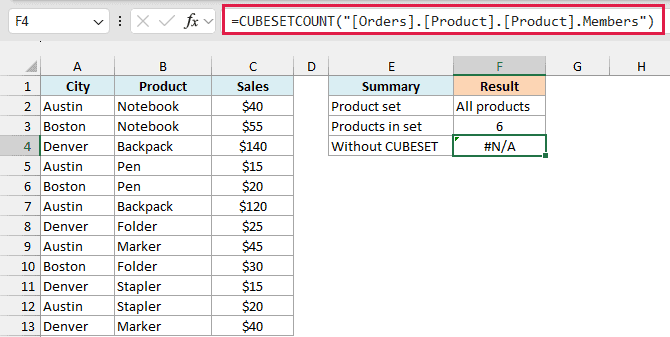
It returns #N/A. CUBESETCOUNT counts a set that CUBESET has already built, so it can’t work out a set from text.
A mistyped connection name inside the CUBESET also returns #N/A in the tested build, not #NAME?, so check the first argument first. Pointing CUBESETCOUNT at a cell with a CUBEMEMBER formula returns #VALUE!, because CUBEMEMBER gives back one member, not a set.
Example 2: Count a Set You Pick Yourself
Sometimes you don’t want every item, only a few you’ve chosen.
Below I have two product selections, and I want the number of items in each one in column B.
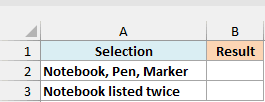
This time there is no separate set cell. Enter this formula in B2, with the CUBESET formula placed inside CUBESETCOUNT:
=CUBESETCOUNT(CUBESET("ThisWorkbookDataModel","{[Orders].[Product].&[Notebook],[Orders].[Product].&[Pen],[Orders].[Product].&[Marker]}"))

The result is 3. The curly braces build a set from the three members listed inside them.
The & in .&[Notebook] tells Excel to find the product named Notebook by its exact value.
We left out the caption because nothing displays this set, so CUBESET doesn’t need one.
Important: A single misspelled member, such as &[Markr] instead of &[Marker], makes the whole count return #N/A instead of 3. Check each name against the Product column.
Now here is the same formula with Notebook listed twice. Enter it in B3:
=CUBESETCOUNT(CUBESET("ThisWorkbookDataModel","{[Orders].[Product].&[Notebook],[Orders].[Product].&[Notebook]}"))
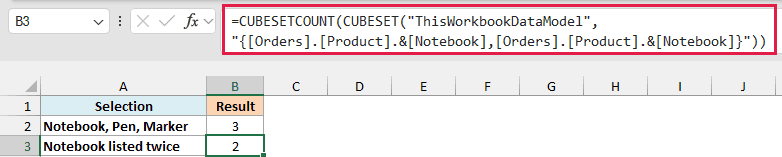
The result is 2. CUBESETCOUNT counts the items in the set, not the different products, so a member you list twice counts twice.
Example 3: Count the Items That Pass a Condition
Next, let’s count only the products that pass a sales test.
Below are four minimum sales amounts in column A, and I want to count how many products sold more than each one in column B.
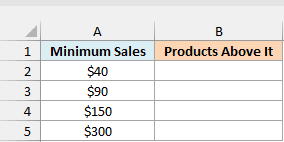
Enter this formula in B2 and copy it down to B5:
=CUBESETCOUNT(CUBESET("ThisWorkbookDataModel","FILTER([Orders].[Product].[Product].Members,[Measures].[Total Sales]>"&A2&")"))
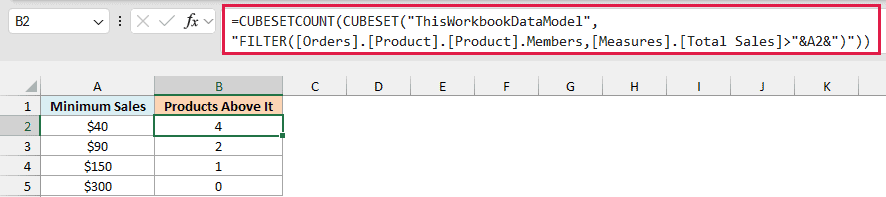
The results are 4, 2, 1, and 0. Four products have total sales above $40: Notebook ($95), Backpack ($260), Marker ($85), and Folder ($55).
This FILTER is an MDX function, written inside the text of the set expression, so it isn’t the Excel FILTER function. It keeps only the products whose Total Sales measure passes the test.
The &A2& joins the amount in column A into that text. Change A2 to 100 and B2 drops to 1, because only Backpack is above $100.
The last row returns 0, not an error. Nothing sold above $300, so the set is empty, and an empty set has a count of zero.
CUBESETCOUNT returns a single number, so it doesn’t spill. Copy the formula down for the other rows.
Example 4: Count the Items for Each Category
Now let’s count the products that each city sold.
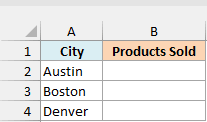
Below are three cities in column A, and I want the number of different products each one sold in column B.
Enter this formula in B2 and copy it down to B4:
=CUBESETCOUNT(CUBESET("ThisWorkbookDataModel","EXISTS([Orders].[Product].[Product].Members,[Orders].[City].&["&A2&"])"))
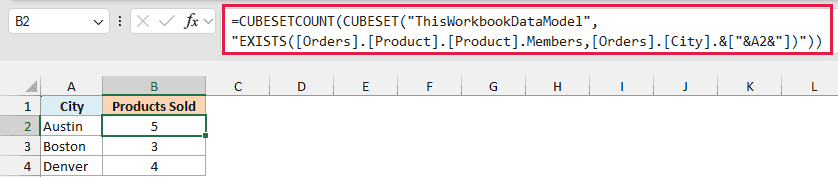
The results are 5 for Austin, 3 for Boston, and 4 for Denver. Each city sold a different mix of products, and the formula counts that mix.
EXISTS is another MDX function. It keeps the products that appear in the orders for the city named in its second argument.
The city in A2 is placed inside [Orders].[City].&[ ], so each row builds its own set and counts it.
Example 5: Use the Count to List the Items
Finally, let’s use the count to list the items in a set.
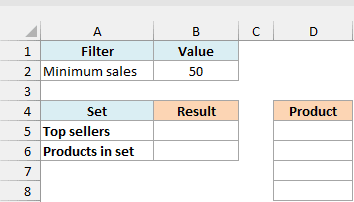
Below is a minimum sales amount in B2, and I want the products that beat it listed in column D, best seller first.
First, enter this CUBESET formula in B5 to define the set:
=CUBESET("ThisWorkbookDataModel","FILTER([Orders].[Product].[Product].Members,[Measures].[Total Sales]>"&B2&")","Top sellers",2,"[Measures].[Total Sales]")
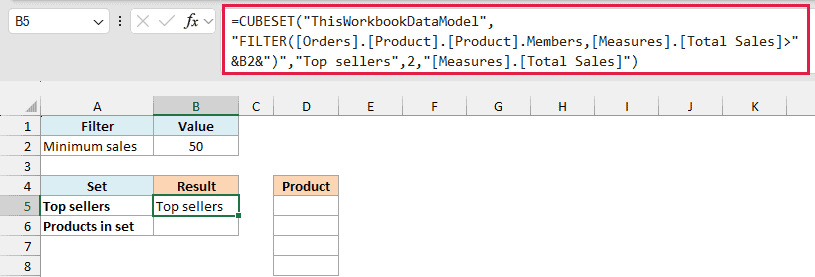
The fourth argument, 2, sorts the set from highest to lowest. The fifth argument names the measure to sort by, which here is Total Sales.
Now count the set in B6:
=CUBESETCOUNT(B5)
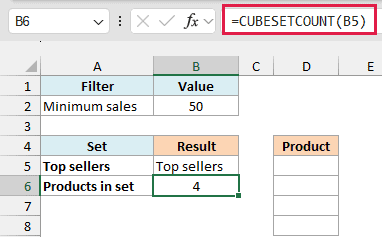
Four products beat $50, so the count is 4. Now enter this formula in D5 to list them:
=IF(B6=0,"No products",CUBERANKEDMEMBER("ThisWorkbookDataModel",B5,SEQUENCE(B6)))
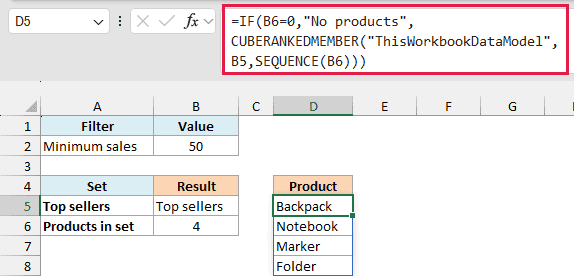
The list spills down from D5: Backpack, Notebook, Marker, and Folder. The SEQUENCE function turns the count into the ranks 1 to 4, and the CUBERANKEDMEMBER function returns the item at each rank.
Because the count sets how many ranks SEQUENCE creates, the list resizes with the set. Change B2 to 90 and only Backpack and Notebook are listed.
Important: The IF check is there because a count of 0 would make SEQUENCE return #CALC!. With 500 in B2, the formula shows No products instead.
The SEQUENCE function is only in Excel 365 and Excel 2021 or later. If you are using Excel 2019 or earlier, enter the below formula in cell D5 and then copy it down to D8:
=CUBERANKEDMEMBER("ThisWorkbookDataModel",$B$5,ROWS(D$5:D5))
The ROWS function counts rows, so ROWS(D$5:D5) gives 1 in D5, 2 in D6, and so on as you copy down. Those are the same ranks that SEQUENCE created above.
This version doesn’t use the count, so copy it down only as many rows as the count in B6 shows.
So these are the ways you can use CUBESETCOUNT to count all the items in a set, a few you pick, or only the ones that pass a test.
Pair it with CUBESET to define the set, and with CUBERANKEDMEMBER when you need the items themselves.
Other Excel Articles You May Also Like:
