

The LCM function in Excel finds the least common multiple of a set of numbers. For positive whole-number inputs, that’s the smallest positive whole number you can divide by every input without a remainder.
It’s useful when you need quantities or repeating intervals to line up, such as buying equal quantities from different pack sizes. You can give LCM a range of numbers, and it combines them into one answer.
In this tutorial, I’ll show you how to use it for matching pack quantities, recurring activities, fraction denominators, and a calculation limited to one group.
Follow along with the example file
LCM Function Examples.xlsx
LCM Function Syntax
Here is the syntax of the LCM function:
=LCM(number1, [number2], ...)
- number1 is required. It can be a number, a cell reference, or a range containing the numbers you want to use.
- number2, … are optional additional numbers or references. You can supply up to 255 arguments in total.
A range counts as one argument, so you don’t need a separate argument for every cell. If you supply just one positive whole number, LCM returns that number.
If an input has a decimal part, LCM drops it before calculating. For example, inputs of 6.9 and 8.2 are treated as 6 and 8, giving 24, so this function isn’t suitable for preserving fractional measurements.
The LCM function is available in Excel 365, 2024, 2021, 2019, and 2016, including the supported Mac versions.
When to Use the LCM Function
Use the LCM function when you need to:
- Buy equal quantities of items sold in different pack sizes.
- Find when activities with different intervals next coincide, provided they start together.
- Find a common denominator for fractions.
- Calculate a matching quantity using only the items in a selected group.
Let’s go through these examples one at a time. The downloadable workbook has a separate sheet for each one.
Example 1: Match Two Pack Quantities
Let’s start with two items sold in different pack sizes.
Below are the pack sizes for paper cups and paper plates, and we want the smallest matching quantity in cell B5.
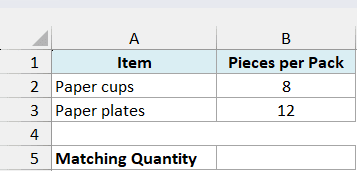
Enter this formula in cell B5:
=LCM(B2,B3)
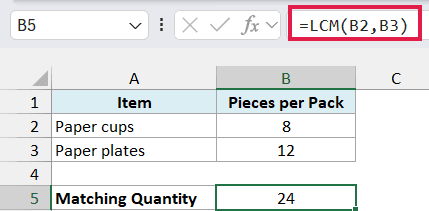
The formula returns 24 because 24 is the smallest positive number divisible by both 8 and 12. You would buy three packs of cups and two packs of plates to get 24 of each.
The result is a quantity of individual items, not the number of packs. Buying 24 packs of each would give you different quantities because the pack sizes differ.
If you get #NUM!, check whether a pack size is negative. LCM requires nonnegative inputs, and it can also return this error when the calculated multiple is too large for Excel to handle.
A value such as “eight” gives #VALUE! because LCM needs numbers. Enter pack sizes as numbers, with descriptions in a separate column as shown above.
Example 2: Find When Activities Repeat Together
You can also pass a whole range to LCM.
Below are three activities that start on the same day and repeat at different intervals, and we want the days until their next shared occurrence in cell B6.
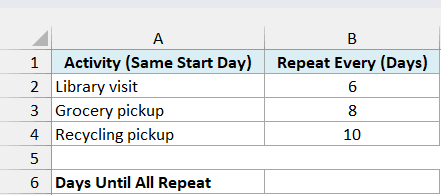
Enter this formula in cell B6:
=LCM(B2:B4)
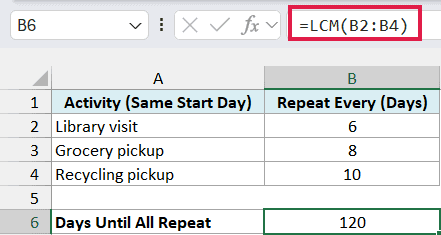
The formula returns 120. After 120 days, the library visit has repeated 20 times, grocery pickup 15 times, and recycling pickup 12 times, so all three fall on the same day again.
This calculation assumes the activities start together. If they begin on different dates, the intervals alone don’t tell you when they next coincide, so you would need to account for those starting dates too.
Although B2:B4 contains three numbers, LCM combines them into one answer. It doesn’t return a separate result for each row.
Important: A zero or a blank cell in the referenced range makes LCM return 0. If you extend this example’s range to include the blank cell B5, you get 0 instead of 120, so include only the filled interval cells.
Example 3: Find a Common Denominator
Before you add fractions, you may need a denominator they can all share. LCM can find the smallest one for the denominators you supply.
Below are three fractions with their denominators listed separately, and we want their least common denominator in cell B6.
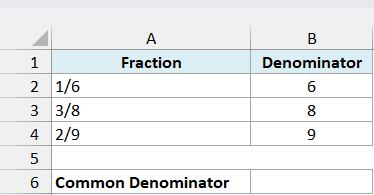
Enter this formula in cell B6:
=LCM(B2:B4)
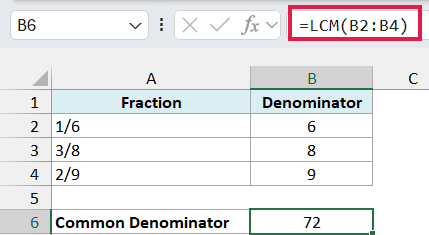
The formula returns 72, the smallest positive whole number divisible by 6, 8, and 9. That gives all three fractions a denominator they can share.
This formula uses the denominator numbers in column B. It doesn’t read the fraction text in column A, convert the fractions, or add them together.
In the example file, the fractions in column A are stored as text so Excel doesn’t interpret an entry such as 1/6 as a date. If you’re typing similar labels into a new sheet, start with an apostrophe, such as ‘1/6.
Example 4: Calculate LCM for One Group
When a list contains more than one group, you may want to calculate the LCM using only the rows that belong to a particular group.
Below are supply pack sizes for Art and Writing groups, and we want cell B11 to show the smallest matching quantity for the group selected in F1.
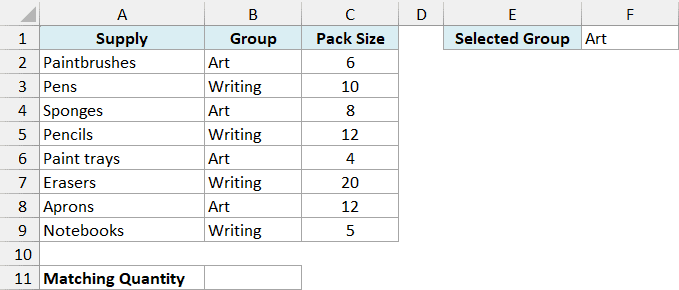
Enter this formula in cell B11:
=LCM(FILTER(C2:C9,B2:B9=F1))
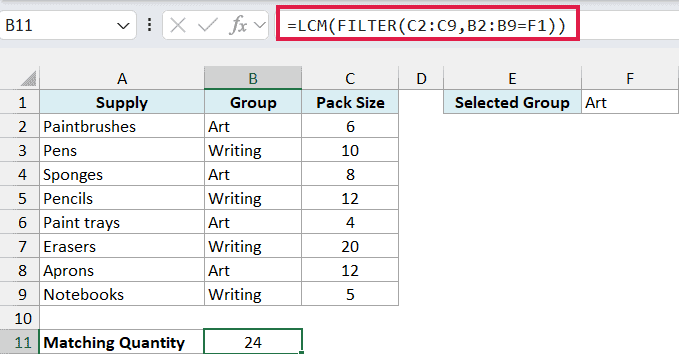
With Art in F1, the formula returns 24. This is the smallest quantity you can buy of each Art supply using whole packs.
How this formula works:
B2:B9=F1checks each row’s group against the selection in F1.- The FILTER function returns only the matching pack sizes from C2:C9. For Art, these are 6, 8, 4, and 12.
- The LCM function calculates the least common multiple of those four values and returns 24.
The matching values are passed directly from the FILTER function to LCM. You don’t need to put them in a separate range first, and the final result still occupies just one cell.
This example requires Excel 365, 2024, or 2021 because it uses the FILTER function. The first three examples work in the older Excel versions listed above.
If F1 contains a group that isn’t in the list, the FILTER function has no matching rows and the formula returns #CALC!. Check the group name in F1 against column B before calculating.
So these are four ways to use the LCM function, from two pack sizes to a group selected from a larger list. I hope you found this tutorial helpful.
Other Excel Articles You May Also Like:
