

This is the 100th blog post from Trump Excel. I have loved every bit of this journey, and I hope to continue to contribute and share all that I learn about Excel Spreadsheets.
If you wonder what was my first post, here it is – Trump Excel’s First Post.
Now coming back to cool Excel stuff, in this post I am sharing an amazing Excel Template that can help you manage your daily/weekly tasks with ease (and its fun to use) – TASK MATRIX
Before you jump away and download it, here is some background to this template.
Have you heard of 7 Habits of Highly Effective People? It is a book by Stephen R Covey. If you haven’t read it, you should definitely go and get a copy today.
In this book, Stephen talks about a time management technique (the Eisenhower Decision Matrix), which suggests dividing your tasks into 4 categories:
- Important and Urgent
- Important and Not Urgent
- Not Important and Urgent
- Neither Important Nor Urgent
The idea is to focus on 1st category followed by 2nd, 3rd and 4th.
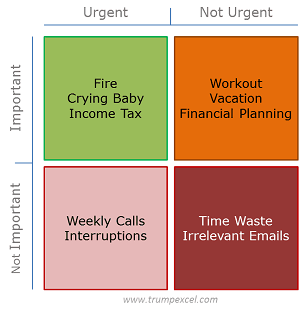
We all create To Do Lists, but if we have this matrix right in front of us, our productivity could take a huge leap. If this looks like a lot of work, don’t worry. Here is the Excel Template that will do it for you. All you need to do is create a simple To Do List (the same way you create every morning) and just mention if it is important and/or urgent.
Download the TASK MATRIX Excel Template

Key Highlights of the Task Matrix Template
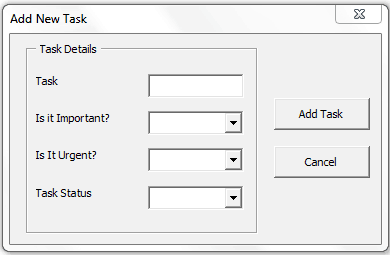
- Adding an activity/Task (It automatically gets populated in the relevant quadrant)
- You can Add Task by using the button on the tab TASK MATRIX. It gives a pop-up form where you can fill the details. Alternatively, you can also add a task by typing it directly in the To Do List Tab, and assign the Importance and Urgency level.
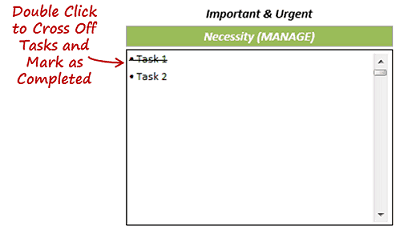
- Cross off a completed activity by double clicking on it
- When an activity/task has been completed, you can cross it off by double-clicking on it (in the tab TASK MATRIX)
- Remove all the completed activities with a single click
- At the end of day/week, you can remove all the completed activities by simply clicking on the Remove Completed Task button in the TASK MATRIX tab

Here is a short Video on how to use this template effectively:
I hope this Excel Template help you become more productive and save time. I would love to hear your feedback and any improvements that can be made to this template. Also, if you find this useful, do share it with your colleagues and friends and help them become more productive.
UPDATE: If you are looking to add more tasks, here is the updated template that will let you add 50 tasks per category and a total of up to 200 tasks. Click here to download.
More Productivity Excel Templates:
- Download To Do List Templates in Excel.
- Calendar Integrated with a To-do List.
- Employee Timesheet Calculator.
Other Excel Resources:

When I add my second task my previous task gets the position of the new task and the new tasks title doesn’t show up anywhere. What am I doing wrong? I really would like it to work.
Thanks
Hi Sumit Bansal, I’ve downloaded your excel template (task matrix) and it is beautiful!!! Beautifully organized, and your excel mastery is certainly shown. I appreciate you sharing your talents, your knowledge, your time creating this task matrix template and then sharing it with the world to help thousands of people who don’t have such excel mastery. This template is what I’ve been looking for and I have tried it and it just works. A thousand thank you’s for helping improving my to do’s. I’ve also read all the comments and what people have suggested as new features. The features requested will take your template to the next level.
You are a helpful and kind human being. Thank you again.
I am unable to download this template – can you email it to me. Seems great.
Hi. I’m unable to download the “Task Matrix (To Do List) – Excel Template”,.
Can you please mail me a link of it. Thanks in advance!
How do I unprotect the Task Matrix tab in the Excel download?
Hi yes that a great ideas you created !
I am super love you creatons. Kindly help me to provide one more things that last year’s leave balance ?author I know where should I add in ?
May I know where should I add in for last year’s leave balance?
Hi All,
This was such a useful guide and i enjoyed using it . But one doubt, i added one more column in the to do list page but while performing the “remove completed task” action only cells up to “Status” is getting deleted and the new column content remains the same. How to resolve this issue?
Regards
Sunil
Hello Sumit,
I’m unable to download the “Task Prioritization Matrix (To Do List) – Excel Template”, Would you kind be able to email me this? This is exactly what I’ve been looking for get started on my internship project. I would greatly appreciate if you could either fix the link or email me the spreadsheet. Thanks in advance!
Hello Sumit,
I’m unable to download the “Task Prioritization Matrix (To Do List) – Excel Template”, Would you kind be able to email me this? This is exactly what I’ve been looking for get started on my internship project. I would greatly appreciate if you could either fix the link or email me the spreadsheet. Thanks in advance!
I was unable to download your TASK MATRIX Excel Template. Is it no longer available?
i cant download the template (the matrix one)
The excel link for the eisenhower matrix does not seem to work?