
You tried to sort your data, or dragged a formula down a column, and Excel stopped you with this message.
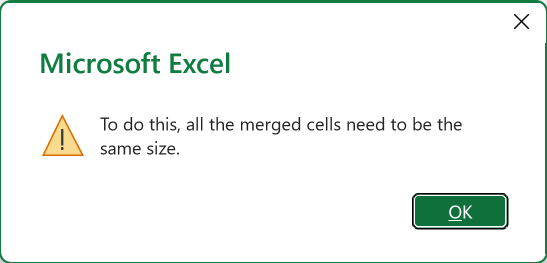
The cause is merged cells sitting in the rows you’re working with. Excel can’t move those rows around independently, so it refuses to run at all.
Despite what the message says, you don’t fix this by making the merged cells the same size. You fix it by getting rid of them, and that takes about ten seconds.
What Causes the “All Merged Cells Need To Be The Same Size” Error
Sorting works by picking up whole rows and putting them back in a new order. Every row has to be free to move on its own.
A merged cell breaks that. It glues several cells into one block, and often spans several rows, so those rows can no longer move separately.
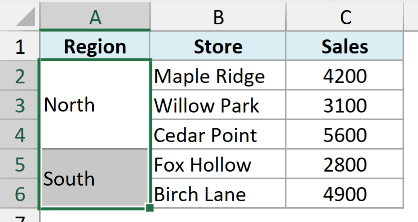
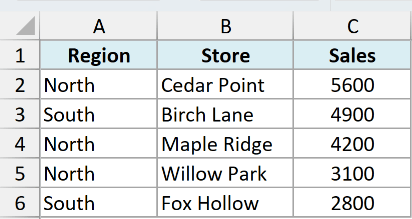
Here’s the sheet I’ll use through this article. The Region column is merged, so “North” spans three rows and “South” spans two.
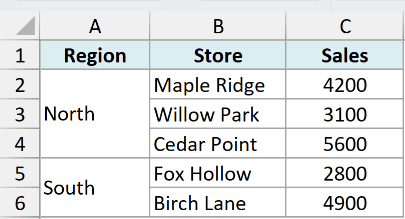
Sort that by Sales and Excel stops. The Store and Sales columns are perfectly normal, but the merges in column A are enough on their own.
Merges sitting above your column headers don’t count, and that catches a lot of people out.
A merged report title across the top is fine, and so is a merged group heading sitting over a full row of column headers. Excel treats those rows as headers and leaves them out of the sort.
So if you have a merged title across the top, leave it alone. It isn’t what’s stopping you.
A merge inside the header row itself is different. If a column header is merged across two columns, or merged down into a second header row, the A to Z and Z to A buttons won’t sort, so unmerge that header too.
The same thing happens if you uncheck “My data has headers” in the Sort dialog. That pulls the merged title or heading row into the sort along with everything else.
Merges cause this whether they run down or across. A label merged across two columns inside a single data row stops the sort just as reliably as a three row merge does.
When You’ll Run Into This Error
There are three places this message shows up. Sorting is the common one, but it isn’t the only one.
Sorting. Select the table, go to the Data tab, and sort by Sales from largest to smallest.
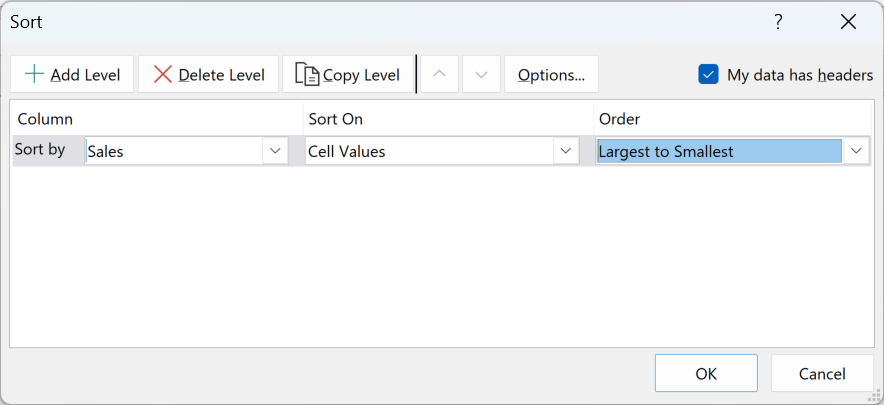
Click OK and you get the message instead of a sorted table.
This is also why people blame filtering. Filtering itself runs fine on merged data, but Sort A to Z inside the filter dropdown is still a sort, so it hits the same wall.
Dragging a formula down with the fill handle. This one catches people who aren’t sorting anything at all.
Say your sheet has a Target column, and two of the stores share a single target, so someone merged those two cells at some point.
You decide to set next year’s targets at ten percent above this year’s sales, so you type =C2*1.1 in the first cell and drag the fill handle down over those merged cells.
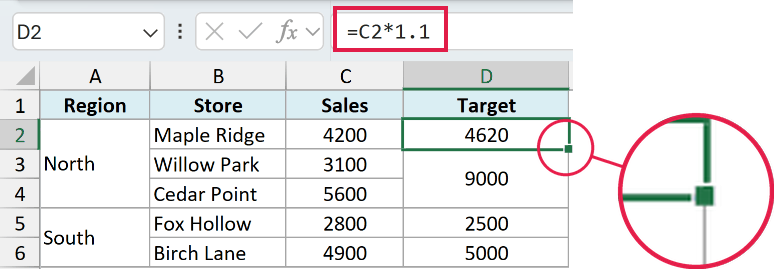
You get the same message. Excel won’t fill the column while a merged cell is in the way.
Remove Duplicates. Same story again. It’s another operation that works on whole rows, so any merge inside the range stops it.
All three have the same fix. Get the merged cells out of your data.
Method 1: Find the Merged Cells Yourself and Unmerge Them
If you can already see the merged cells, this is the fastest route. On a small table it’s two clicks and you’re done.
Merged cells are usually easy to spot. They’re wider or taller than everything around them, with the text sitting centered across the block.
Here are the steps to unmerge them:
- Select the cells that are merged. Here that’s the Region column, A2 to A6.
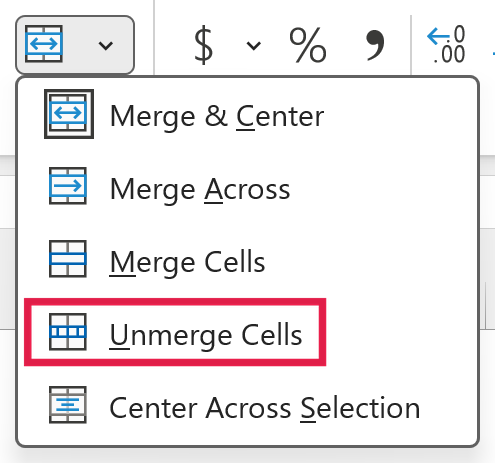
- On the Home tab, click the small arrow next to Merge & Center, then choose Unmerge Cells.
The merges are gone and every row can move on its own again.
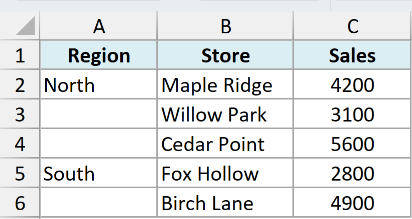
Notice what happened to the labels though. “North” is sitting in one cell with two blanks under it, and that will scramble your data the moment you sort.
There’s a section below on filling those in.
Pro Tip: To check whether a cell is merged, click it and look at the Merge & Center button on the Home tab. If the button appears highlighted, that cell is merged.
Method 2: Find Every Merged Cell with Find and Replace
On a big sheet you often can’t see the merged cells at all. Excel can hunt them down for you by searching for the formatting instead of the content.
Here are the steps to find every merged cell:
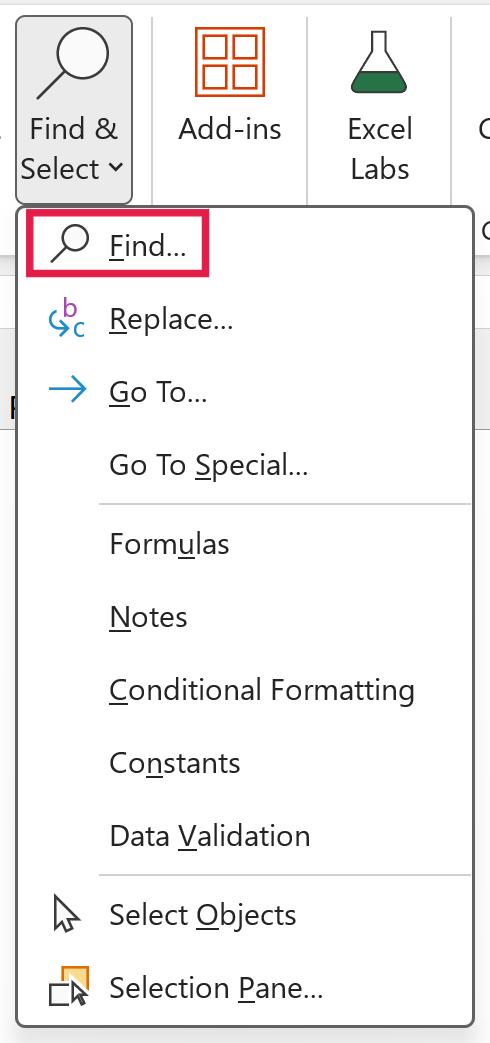
- On the Home tab, click Find & Select, then choose Find (or just press Ctrl + F).
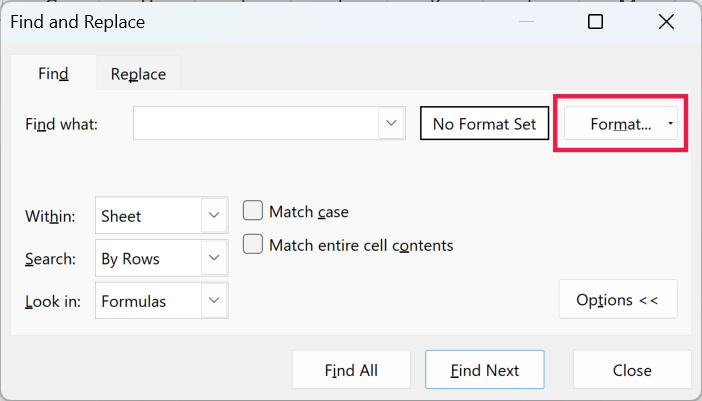
- Click Options to expand the dialog, then click the Format button.
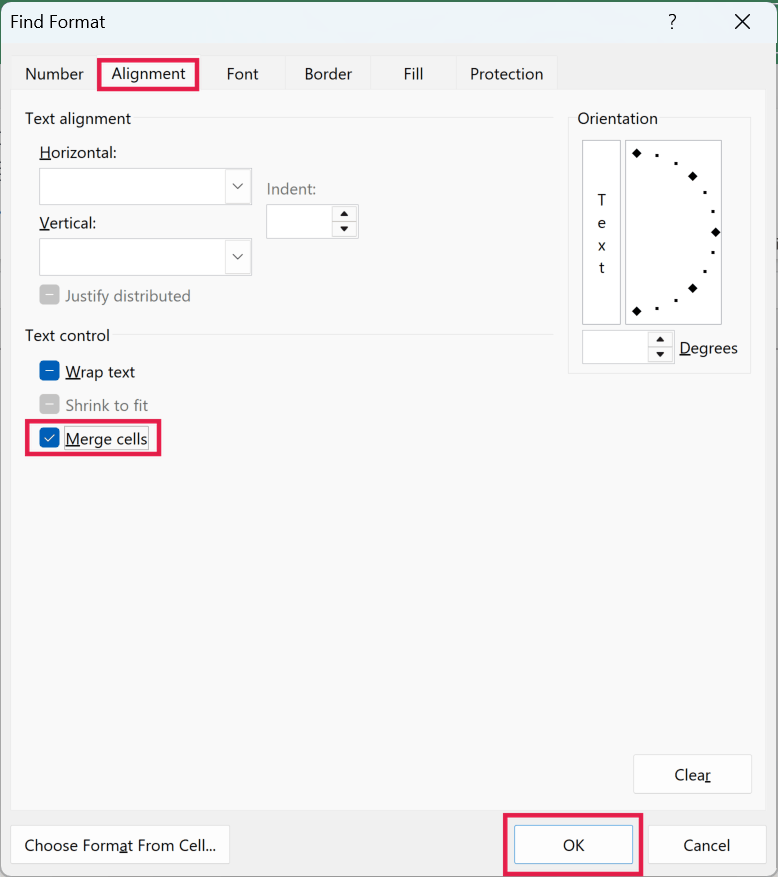
- Go to the Alignment tab, tick the Merge cells checkbox, and click OK.
- Leave the Find what box empty and click Find All.
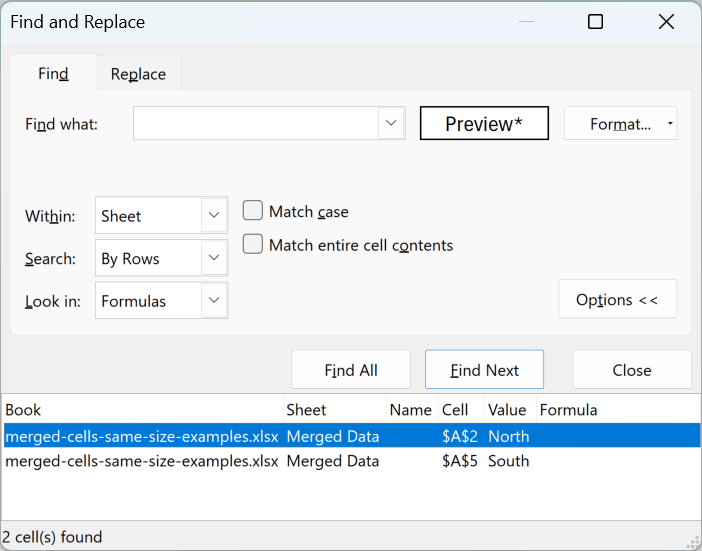
Excel lists every merged cell on the sheet. Click any result to jump straight to it, or press Ctrl + A inside that list to select all of them at once.
With them selected, go to Home, click the arrow next to Merge & Center, and choose Unmerge Cells. Every merge on the sheet goes in one shot.
This also unmerges any merged title above your headers. If you want that centered look back, use Center Across Selection on it (covered below).
One thing to remember. Excel hangs on to those format settings for the rest of your session, so if your next search mysteriously returns nothing, open Format again and clear it.
I have a fuller walkthrough of this trick in my guide on how to find merged cells.
Method 3: Unmerge the Entire Worksheet at Once
When you don’t care about any merge anywhere on the sheet, skip the hunting and flatten the lot.
Here are the steps:
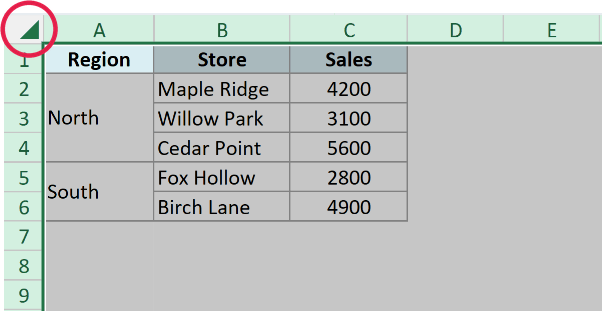
- Click the Select All button, the small triangle where the row and column headers meet.
- On the Home tab, click the arrow next to Merge & Center and choose Unmerge Cells.
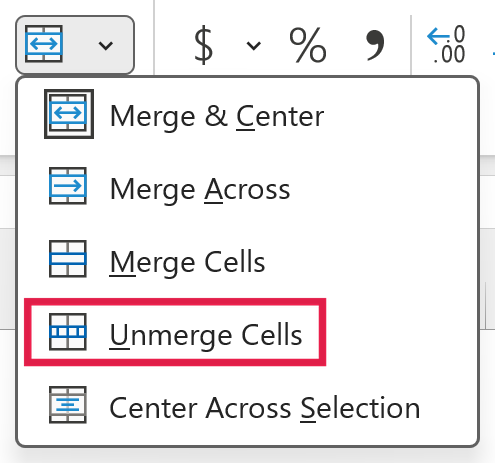
Be a little careful with this one. It unmerges your report titles and any merged layout elsewhere on the sheet, not just the ones causing trouble.
Pro Tip: Ctrl + A does the same thing, but pressed inside a block of data it only selects that block. Press it a second time to grab the whole sheet.
Fill In the Blank Cells That Unmerging Leaves Behind
This is the step most guides skip, and it’s the one that quietly ruins your data.
When you unmerge a block, the value stays in the top cell and everything below it goes blank.
Sort now and only the top row of each block keeps its label. The other rows move with an empty Region cell, and you can’t tell which region they came from.
So fill the blanks before you sort anything. Here are the steps:
- Select the column that had the merges, then go to Home, click Find & Select, and choose Go To Special.
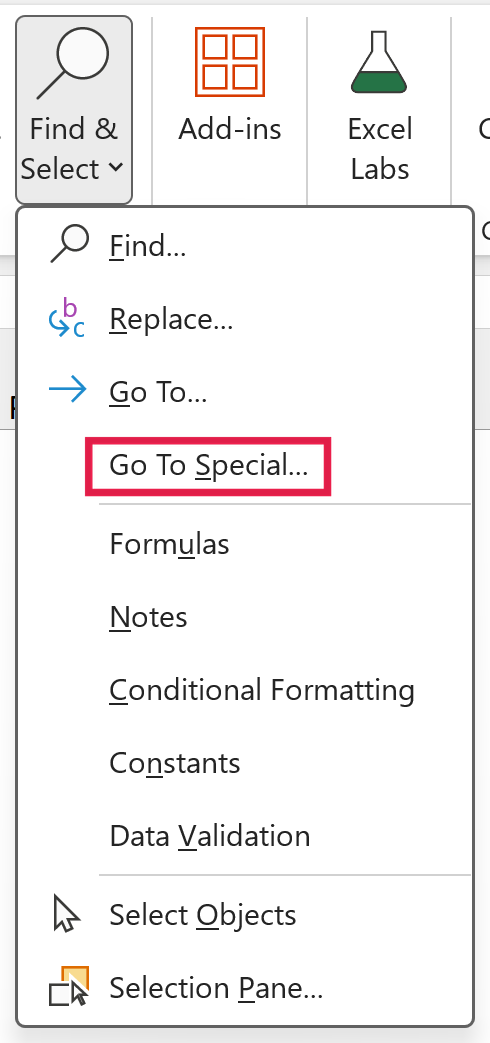
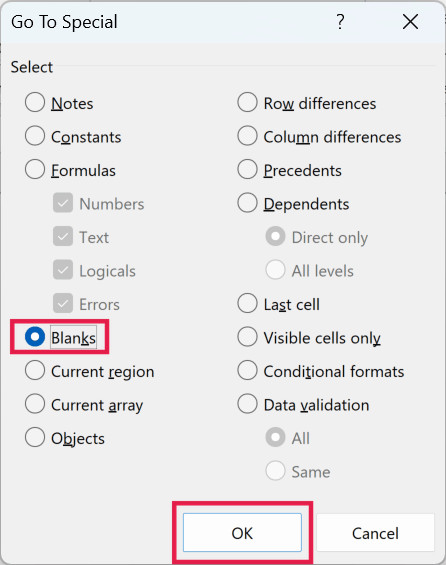
- Select Blanks and click OK. Every empty cell in that column is now selected.
- Type an equals sign, press the Up arrow key, then press Ctrl + Enter.
Every blank now pulls the value from the cell above it, so each row carries its own region name.
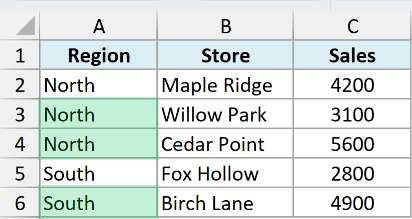
There’s a catch here that will bite you if you miss it. Those filled cells hold formulas, not text, and each one points at the cell directly above it.
Sort the table and every one of those references follows the row it lands on. The labels reshuffle into nonsense.
So convert them to values first. Select the column, press Ctrl + C, then Ctrl + Alt + V and choose Values.
With that done, run your sort. It goes through without a word, and every row keeps the region it started with.
Use Center Across Selection Instead of Merging Across Columns
A lot of merged cells only exist because someone wanted text centered over a few columns. If that’s your case, you can get the same look without the merge.
Center Across Selection spreads the text visually while leaving every cell separate underneath. Excel sees an ordinary grid, so nothing you do later breaks.
Here are the steps:
- Put the text in the leftmost cell, then select it along with the cells you want it centered across.
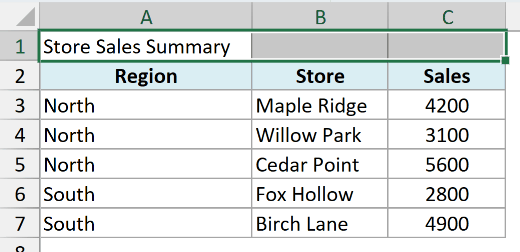
- Press Ctrl + 1 to open the Format Cells dialog, then go to the Alignment tab.
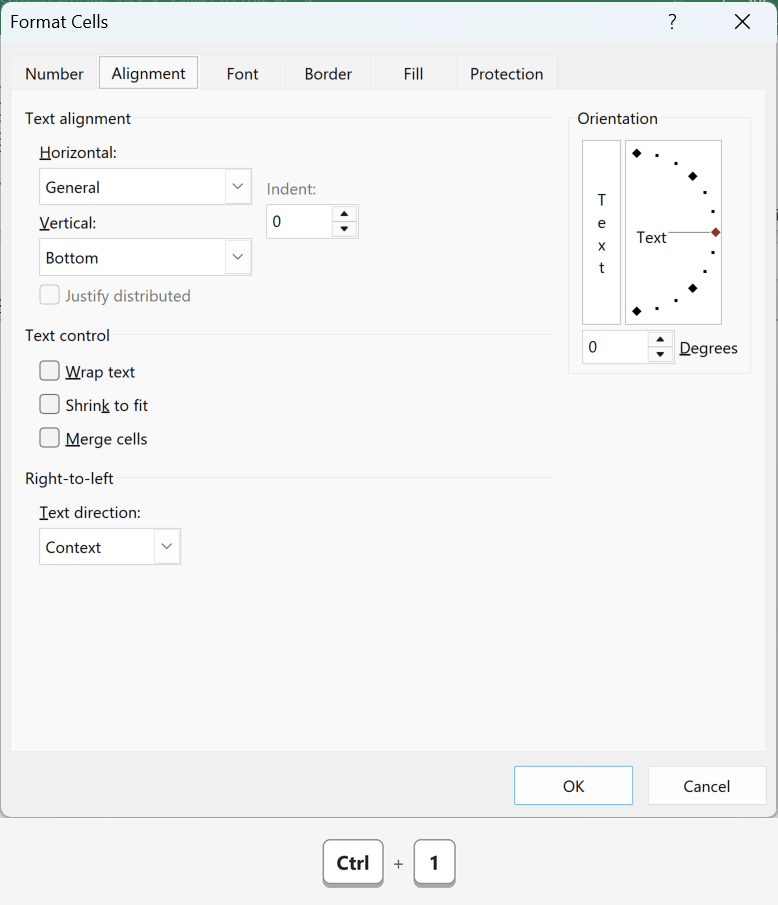
- Open the Horizontal dropdown, choose Center Across Selection, and click OK.
The text looks centered across all the columns, but each cell is still its own cell.
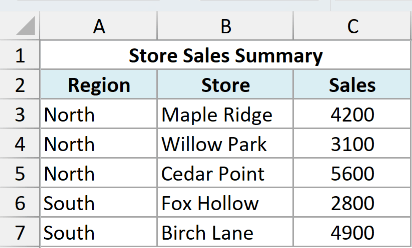
Worth being clear about the limits though. This works across columns only, never down rows.
For a label like our Region column that needs to span three rows, there’s no equivalent. The honest answer there is to repeat the label on every row, which is exactly what the fill trick above gives you.
If You Really Need the Merged Look, Merge Last
Sometimes the merged layout genuinely matters, usually for something you’re printing where a category label should span its rows.
In that case, just change the order of operations. Unmerge, fill the blanks, sort the data, then merge once the order is final.
Re-merging brings the same restriction straight back, so leave it until the end. If there’s any chance you’ll sort again later, don’t merge at all.
Still Getting the Error When You Can’t See Any Merged Cells
This one drives people up the wall. You’ve looked, nothing appears merged, and Excel keeps refusing.
Almost always the merge is real, just not where you’re looking:
- Excel is sorting more than you selected. Click one cell and hit sort, and Excel grabs the whole surrounding block of data. Merges further down or off to the right get pulled in with it.
- A label merged across two columns inside one data row. These are genuinely hard to see, because nothing about them looks unusual at a glance.
- A merged note or total row at the bottom. A line like “Figures exclude returns” merged across the row under your data touches the table, so Excel picks it up as part of the block.
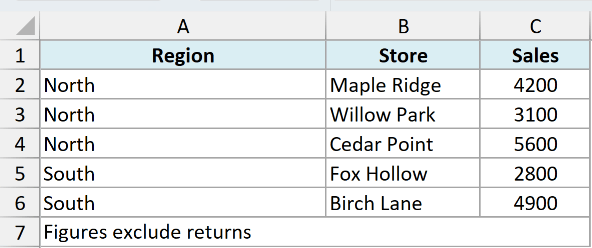
The reliable answer is Method 2. Searching by format finds merged cells wherever they’re hiding, including the ones you’d never spot by eye.
And remember the flip side from earlier. If the only merged thing on your sheet is a title or a group heading above your column headers, that isn’t your problem.
Keep looking inside the data, and in the header row itself.
Things to Keep in Mind
- A merged title or group heading above your column headers doesn’t break sorting. Merges inside the data rows break it, and so can a merge in the header row itself.
- Unmerging always leaves blanks behind. Fill them in, and convert them to values, before you sort.
- Excel Tables can’t hold merged cells at all. Press Ctrl + T on merged data and Excel unmerges it for you, leaving the same blanks behind.
- A regular paste over merged cells removes the merge too, so watch for that if the merged layout matters to you.
- For anything you plan to sort or filter, avoid merging inside the data. Center Across Selection covers most of what people merge for anyway.
If you only remember one thing from all this, make it the unmerge and fill step. That clears the error and keeps your data intact when you sort.
I hope you found this article helpful.
Other Excel Articles You May Also Like: