

Excel doesn’t have a built-in function to convert numbers into words.
But there are a couple of reliable ways to do it, and I’ll walk you through both in this article.
Method 1: Using VBA Macro to Create Custom Function (Recommended)
This is the most widely used and reliable method.
To use this method, I will use a VBA code to create a custom function (say NumbertoWords), and then use this function in the worksheet to take the number as an input and give us the number in words.
It works in all Excel versions, and once it’s set up, using it is as simple as typing =NumbertoWords(A2)
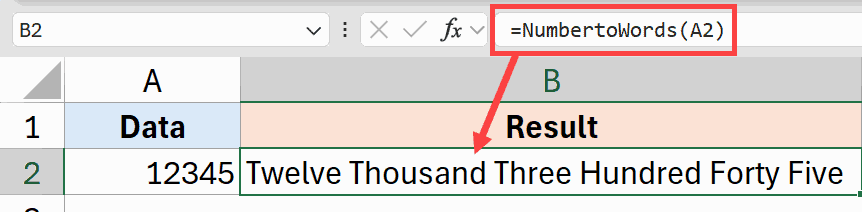
Here are the steps to set up the NumbertoWords macro:
- Open your Excel workbook.
- Press Alt + F11 to open the Visual Basic Editor.
- In the menu, click on the Insert option and then click on Module. This will add a new module.
- Copy and paste the VBA code (provided below) into the Module code window.
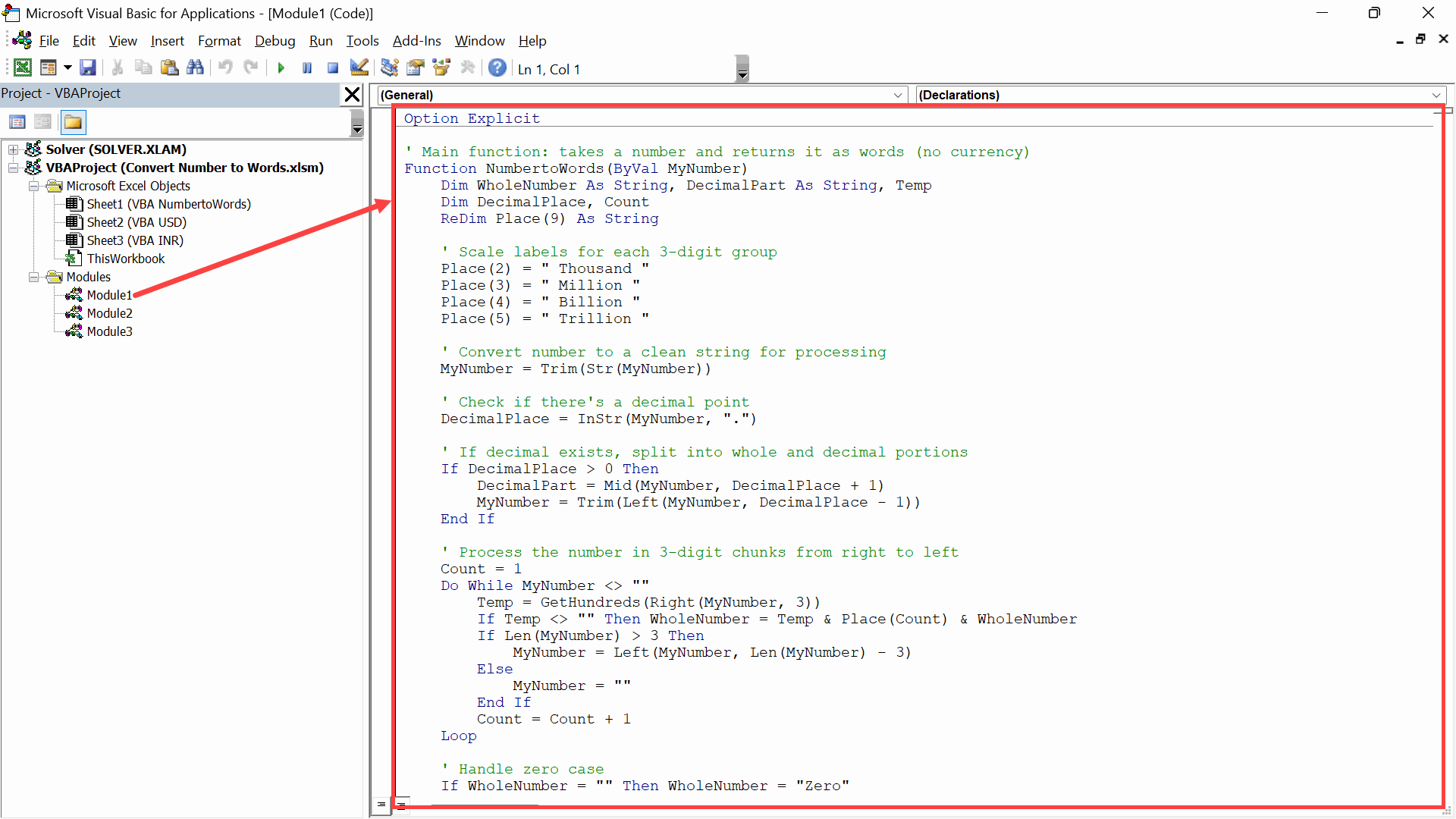
- Close the VBA Editor.
Now I will give you different VBA codes for three scenarios:
- Convert a number to words without any currency
- Convert a number to words for the USD currency
- Convert a number to words for the INR currency
You can also customize these VBA codes for other currencies, such as Euros, Pounds, or Pesos.
VBA code for Number to Words Only
Here is the VBA code to convert a number to words:
Option Explicit

' Main function: takes a number and returns it as words (no currency)
Function NumbertoWords(ByVal MyNumber)
    Dim WholeNumber As String, DecimalPart As String, Temp
    Dim DecimalPlace, Count
    ReDim Place(9) As String

    ' Scale labels for each 3-digit group
    Place(2) = " Thousand "
    Place(3) = " Million "
    Place(4) = " Billion "
    Place(5) = " Trillion "

    ' Convert number to a clean string for processing
    MyNumber = Trim(Str(MyNumber))

    ' Check if there's a decimal point
    DecimalPlace = InStr(MyNumber, ".")

    ' If decimal exists, split into whole and decimal portions
    If DecimalPlace > 0 Then
        DecimalPart = Mid(MyNumber, DecimalPlace + 1)
        MyNumber = Trim(Left(MyNumber, DecimalPlace - 1))
    End If

    ' Process the number in 3-digit chunks from right to left
    Count = 1
    Do While MyNumber <> ""
        Temp = GetHundreds(Right(MyNumber, 3))
        If Temp <> "" Then WholeNumber = Temp & Place(Count) & WholeNumber
        If Len(MyNumber) > 3 Then
            MyNumber = Left(MyNumber, Len(MyNumber) - 3)
        Else
            MyNumber = ""
        End If
        Count = Count + 1
    Loop

    ' Handle zero case
    If WholeNumber = "" Then WholeNumber = "Zero"

    ' If there's a decimal part, read each digit after "Point"
    If DecimalPart <> "" Then
        Dim i As Integer
        WholeNumber = WholeNumber & " Point"
        For i = 1 To Len(DecimalPart)
            WholeNumber = WholeNumber & " " & GetDigit(Mid(DecimalPart, i, 1))
        Next i
    End If

    NumbertoWords = WholeNumber
End Function

' Converts a 3-digit number (0-999) to words
Function GetHundreds(ByVal MyNumber)
    Dim Result As String
    If Val(MyNumber) = 0 Then Exit Function

    ' Pad to exactly 3 digits so positions are consistent
    MyNumber = Right("000" & MyNumber, 3)

    ' First digit = hundreds place
    If Mid(MyNumber, 1, 1) <> "0" Then
        Result = GetDigit(Mid(MyNumber, 1, 1)) & " Hundred "
    End If

    ' Second digit determines if we use teens (10-19) or tens + ones
    If Mid(MyNumber, 2, 1) <> "0" Then
        Result = Result & GetTens(Mid(MyNumber, 2))
    Else
        Result = Result & GetDigit(Mid(MyNumber, 3))
    End If

    GetHundreds = Result
End Function

' Converts a 2-digit number (10-99) to words
Function GetTens(TensText)
    Dim Result As String
    Result = ""

    ' Special case: teens (10-19) have unique names
    If Val(Left(TensText, 1)) = 1 Then
        Select Case Val(TensText)
            Case 10: Result = "Ten"
            Case 11: Result = "Eleven"
            Case 12: Result = "Twelve"
            Case 13: Result = "Thirteen"
            Case 14: Result = "Fourteen"
            Case 15: Result = "Fifteen"
            Case 16: Result = "Sixteen"
            Case 17: Result = "Seventeen"
            Case 18: Result = "Eighteen"
            Case 19: Result = "Nineteen"
        End Select
    Else
        ' For 20-99, combine the tens word with the ones word
        Select Case Val(Left(TensText, 1))
            Case 2: Result = "Twenty "
            Case 3: Result = "Thirty "
            Case 4: Result = "Forty "
            Case 5: Result = "Fifty "
            Case 6: Result = "Sixty "
            Case 7: Result = "Seventy "
            Case 8: Result = "Eighty "
            Case 9: Result = "Ninety "
        End Select
        Result = Result & GetDigit(Right(TensText, 1))
    End If

    GetTens = Result
End Function

' Converts a single digit (1-9) to its word. Returns empty for 0
Function GetDigit(Digit)
    Select Case Val(Digit)
        Case 1: GetDigit = "One"
        Case 2: GetDigit = "Two"
        Case 3: GetDigit = "Three"
        Case 4: GetDigit = "Four"
        Case 5: GetDigit = "Five"
        Case 6: GetDigit = "Six"
        Case 7: GetDigit = "Seven"
        Case 8: GetDigit = "Eight"
        Case 9: GetDigit = "Nine"
        Case Else: GetDigit = ""
    End Select
End FunctionOnce you’ve set up the VBA code, you can use this newly created function (NumbertoWords) like any other regular worksheet function.
VBA code for Numbers to Words for USD Currency
Option Explicit

' Main function: takes a number and returns it as words in currency format
Function NumbertoWordsUSD(ByVal MyNumber)
    Dim Dollars, Cents, Temp
    Dim DecimalPlace, Count
    ReDim Place(9) As String

    ' Scale labels for each 3-digit group
    Place(2) = " Thousand "
    Place(3) = " Million "
    Place(4) = " Billion "
    Place(5) = " Trillion "

    ' Convert number to a clean string for processing
    MyNumber = Trim(Str(MyNumber))

    ' Check if there's a decimal point
    DecimalPlace = InStr(MyNumber, ".")

    ' If decimal exists, split into whole and cents portions
    If DecimalPlace > 0 Then
        Cents = GetTensUSD(Left(Mid(MyNumber, DecimalPlace + 1) & "00", 2))
        MyNumber = Trim(Left(MyNumber, DecimalPlace - 1))
    End If

    ' Process the number in 3-digit chunks from right to left
    Count = 1
    Do While MyNumber <> ""
        Temp = GetHundredsUSD(Right(MyNumber, 3))
        If Temp <> "" Then Dollars = Temp & Place(Count) & Dollars
        If Len(MyNumber) > 3 Then
            MyNumber = Left(MyNumber, Len(MyNumber) - 3)
        Else
            MyNumber = ""
        End If
        Count = Count + 1
    Loop

    ' Handle singular/plural/zero for dollars
    Select Case Dollars
        Case "": Dollars = "No Dollars"
        Case "One": Dollars = "One Dollar"
        Case Else: Dollars = Dollars & " Dollars"
    End Select

    ' Handle singular/plural/zero for cents
    Select Case Cents
        Case "": Cents = " and No Cents"
        Case "One": Cents = " and One Cent"
        Case Else: Cents = " and " & Cents & " Cents"
    End Select

    NumbertoWordsUSD = Dollars & Cents
End Function

' Converts a 3-digit number (0-999) to words
Function GetHundredsUSD(ByVal MyNumber)
    Dim Result As String
    If Val(MyNumber) = 0 Then Exit Function

    ' Pad to exactly 3 digits so positions are consistent
    MyNumber = Right("000" & MyNumber, 3)

    ' First digit = hundreds place
    If Mid(MyNumber, 1, 1) <> "0" Then
        Result = GetDigitUSD(Mid(MyNumber, 1, 1)) & " Hundred "
    End If

    ' Second digit determines if we use teens (10-19) or tens + ones
    If Mid(MyNumber, 2, 1) <> "0" Then
        Result = Result & GetTensUSD(Mid(MyNumber, 2))
    Else
        Result = Result & GetDigitUSD(Mid(MyNumber, 3))
    End If

    GetHundredsUSD = Result
End Function

' Converts a 2-digit number (10-99) to words
Function GetTensUSD(TensText)
    Dim Result As String
    Result = ""

    ' Special case: teens (10-19) have unique names
    If Val(Left(TensText, 1)) = 1 Then
        Select Case Val(TensText)
            Case 10: Result = "Ten"
            Case 11: Result = "Eleven"
            Case 12: Result = "Twelve"
            Case 13: Result = "Thirteen"
            Case 14: Result = "Fourteen"
            Case 15: Result = "Fifteen"
            Case 16: Result = "Sixteen"
            Case 17: Result = "Seventeen"
            Case 18: Result = "Eighteen"
            Case 19: Result = "Nineteen"
        End Select
    Else
        ' For 20-99, combine the tens word with the ones word
        Select Case Val(Left(TensText, 1))
            Case 2: Result = "Twenty "
            Case 3: Result = "Thirty "
            Case 4: Result = "Forty "
            Case 5: Result = "Fifty "
            Case 6: Result = "Sixty "
            Case 7: Result = "Seventy "
            Case 8: Result = "Eighty "
            Case 9: Result = "Ninety "
        End Select
        Result = Result & GetDigitUSD(Right(TensText, 1))
    End If

    GetTensUSD = Result
End Function

' Converts a single digit (1-9) to its word. Returns empty for 0
Function GetDigitUSD(Digit)
    Select Case Val(Digit)
        Case 1: GetDigitUSD = "One"
        Case 2: GetDigitUSD = "Two"
        Case 3: GetDigitUSD = "Three"
        Case 4: GetDigitUSD = "Four"
        Case 5: GetDigitUSD = "Five"
        Case 6: GetDigitUSD = "Six"
        Case 7: GetDigitUSD = "Seven"
        Case 8: GetDigitUSD = "Eight"
        Case 9: GetDigitUSD = "Nine"
        Case Else: GetDigitUSD = ""
    End Select
End FunctionOnce you’ve set up the VBA code, you can use this newly created function (NumbertoWordsUSD) like any other regular worksheet function.
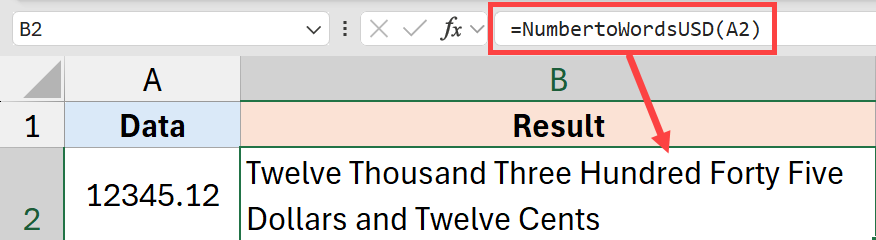
Pro Tip: If you just need to change the currency label (e.g., to Euros and Cents or Pounds and Pence), you don’t need separate code. Just find and replace “Dollars” with “Euros” and “Dollar” with “Euro” in above code.
VBA code for Number to Words for the Indian System
If you want to convert numbers to words for an Indian system (or other similar systems), you can use the VBA code below.
Option Explicit

Function NumberToWordsINR(ByVal MyNumber)
    Dim Rupees As String, Paise As String
    Dim DecimalPlace As Integer

    MyNumber = Trim(Str(MyNumber))
    DecimalPlace = InStr(MyNumber, ".")

    ' Handle Paise (decimal part)
    If DecimalPlace > 0 Then
        Dim PaiseStr As String
        PaiseStr = Left(Mid(MyNumber, DecimalPlace + 1) & "00", 2)
        If Val(PaiseStr) > 0 Then
            Paise = GetTensINR(PaiseStr)
        End If
        MyNumber = Trim(Left(MyNumber, DecimalPlace - 1))
    End If

    Dim NumVal As Double
    NumVal = Val(MyNumber)

    If NumVal = 0 Then
        Rupees = "Zero"
    Else
        Dim Cr As Long, Lk As Long, Th As Long, Hd As Long
        Dim Remainder As Double

        Cr = Int(NumVal / 10000000)
        Remainder = NumVal - (CDbl(Cr) * 10000000)
        Lk = Int(Remainder / 100000)
        Remainder = Remainder - (CDbl(Lk) * 100000)
        Th = Int(Remainder / 1000)
        Hd = Int(Remainder - (CDbl(Th) * 1000))

        Rupees = ""

        ' Crores (split further for large values)
        If Cr > 0 Then
            Dim CrTh As Long, CrRem As Long
            Dim CrText As String
            CrTh = Int(Cr / 1000)
            CrRem = Cr Mod 1000
            CrText = ""
            If CrTh > 0 Then CrText = GetHundredsINR(CStr(CrTh)) & " Thousand "
            If CrRem > 0 Then CrText = CrText & GetHundredsINR(CStr(CrRem))
            Rupees = Trim(CrText) & " Crore "
        End If

        ' Lakhs
        If Lk > 0 Then
            Rupees = Rupees & GetTensINR(Right("00" & CStr(Lk), 2)) & " Lakh "
        End If

        ' Thousands
        If Th > 0 Then
            Rupees = Rupees & GetTensINR(Right("00" & CStr(Th), 2)) & " Thousand "
        End If

        ' Hundreds and below
        If Hd > 0 Then
            Rupees = Rupees & GetHundredsINR(CStr(Hd))
        End If

        Rupees = Trim(Rupees)
    End If

    ' Add Rupees label
    Select Case Rupees
        Case "Zero": Rupees = "Zero Rupees"
        Case "One": Rupees = "One Rupee"
        Case Else: Rupees = Rupees & " Rupees"
    End Select

    ' Add Paise label
    If Paise <> "" Then
        Select Case Paise
            Case "One": Paise = " and One Paisa"
            Case Else: Paise = " and " & Paise & " Paise"
        End Select
    Else
        Paise = ""
    End If

    NumberToWordsINR = Rupees & Paise
End Function

Function GetHundredsINR(ByVal MyNumber)
    Dim Result As String
    If Val(MyNumber) = 0 Then Exit Function
    MyNumber = Right("000" & MyNumber, 3)
    If Mid(MyNumber, 1, 1) <> "0" Then
        Result = GetDigitINR(Mid(MyNumber, 1, 1)) & " Hundred "
    End If
    If Mid(MyNumber, 2, 1) <> "0" Then
        Result = Result & GetTensINR(Mid(MyNumber, 2))
    Else
        Result = Result & GetDigitINR(Mid(MyNumber, 3))
    End If
    GetHundredsINR = Trim(Result)
End Function

Function GetTensINR(TensText)
    Dim Result As String
    Result = ""
    If Val(Left(TensText, 1)) = 1 Then
        Select Case Val(TensText)
            Case 10: Result = "Ten"
            Case 11: Result = "Eleven"
            Case 12: Result = "Twelve"
            Case 13: Result = "Thirteen"
            Case 14: Result = "Fourteen"
            Case 15: Result = "Fifteen"
            Case 16: Result = "Sixteen"
            Case 17: Result = "Seventeen"
            Case 18: Result = "Eighteen"
            Case 19: Result = "Nineteen"
        End Select
    Else
        Select Case Val(Left(TensText, 1))
            Case 2: Result = "Twenty "
            Case 3: Result = "Thirty "
            Case 4: Result = "Forty "
            Case 5: Result = "Fifty "
            Case 6: Result = "Sixty "
            Case 7: Result = "Seventy "
            Case 8: Result = "Eighty "
            Case 9: Result = "Ninety "
        End Select
        Result = Result & GetDigitINR(Right(TensText, 1))
    End If
    GetTensINR = Trim(Result)
End Function

Function GetDigitINR(Digit)
    Select Case Val(Digit)
        Case 1: GetDigitINR = "One"
        Case 2: GetDigitINR = "Two"
        Case 3: GetDigitINR = "Three"
        Case 4: GetDigitINR = "Four"
        Case 5: GetDigitINR = "Five"
        Case 6: GetDigitINR = "Six"
        Case 7: GetDigitINR = "Seven"
        Case 8: GetDigitINR = "Eight"
        Case 9: GetDigitINR = "Nine"
        Case Else: GetDigitINR = ""
    End Select
End FunctionThe above code uses words such as lakhs and crores instead of millions and billions.
Once you’ve set up the VBA code, you can use this newly created function (NumbertoWordsINR) like any other regular worksheet function.
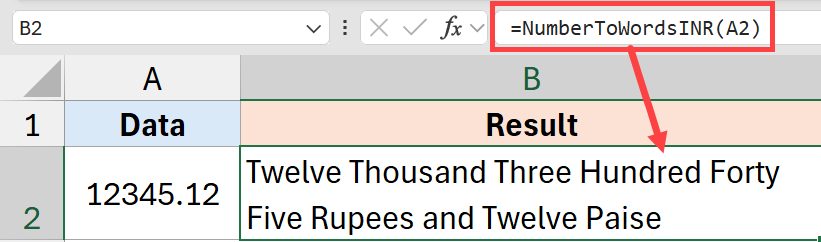
Important: If you want to reuse this function later, you need to save the Excel file as a macro-enabled file with the .xlsm extension. Doing this will preserve the macro, and you can use this function the next time you open the file. If you save the file as a regular .xlsx file, the macro code would be lost.
Method 2: Using a Formula
If, for any reason, you cannot use the VBA code method, there is a formula way to do this (but it’s long and complicated).
Note: Since these formulas use the newly released LET and LAMBDA functions, these would only work in Excel 2024, Excel with Microsoft 365, and Excel on the web.
Formula for Number to Words Only (No Currency)
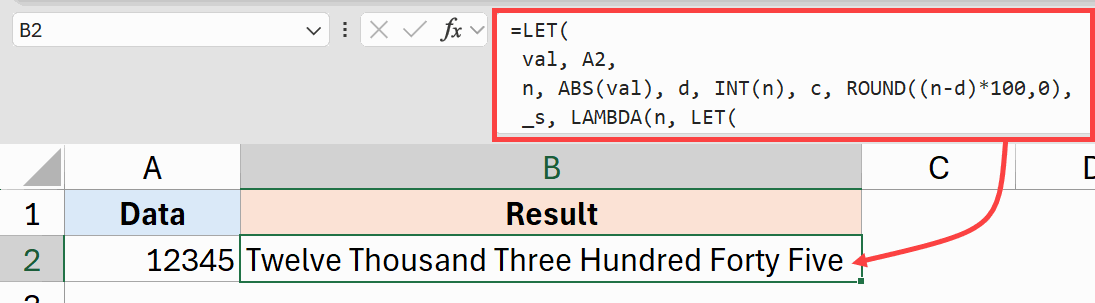
Here is the formula that will convert the number to words irrespective of the currency.
=LET(
 val, A2,
 n, ABS(val), d, INT(n), c, ROUND((n-d)*100,0),
 _s, LAMBDA(n, LET(
 h,INT(n/100), r,MOD(n,100), t,INT(r/10), o,MOD(r,10),
 hT, IF(h>0,CHOOSE(h,"One","Two","Three","Four","Five",
 "Six","Seven","Eight","Nine")&" Hundred",""),
 rT, IF(r=0,"",IF(r<20,
 CHOOSE(r,"One","Two","Three","Four","Five","Six",
 "Seven","Eight","Nine","Ten","Eleven","Twelve",
 "Thirteen","Fourteen","Fifteen","Sixteen",
 "Seventeen","Eighteen","Nineteen"),
 CHOOSE(t-1,"Twenty","Thirty","Forty","Fifty",
 "Sixty","Seventy","Eighty","Ninety")
 &IF(o>0," "&CHOOSE(o,"One","Two","Three","Four",
 "Five","Six","Seven","Eight","Nine"),""))),
 TRIM(hT&" "&rT))),
 tri,INT(d/10^12), bil,INT(MOD(d,10^12)/10^9),
 mil,INT(MOD(d,10^9)/10^6), thou,INT(MOD(d,10^6)/1000),
 ones,INT(MOD(d,1000)),
 txt, TRIM(
 IF(tri>0, _s(tri)&" Trillion ","") &
 IF(bil>0, _s(bil)&" Billion ","") &
 IF(mil>0, _s(mil)&" Million ","") &
 IF(thou>0, _s(thou)&" Thousand ","") &
 IF(ones>0, _s(ones),"")),
 IF(val=0,"Zero",
 IF(val<0,"Negative ","") &
 IF(d=0,"Zero",txt) &
 IF(c>0," Point " & IF(c<10,"Zero ","") & _s(c),""))
)
Formula for Number to Words for Dollar Currency
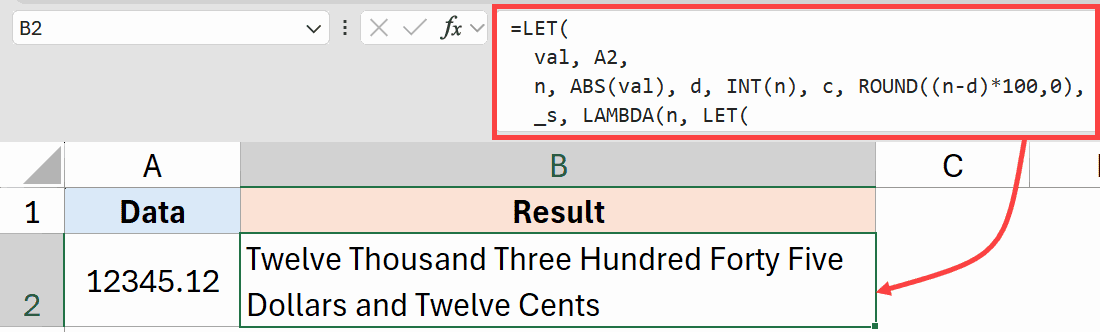
Below is the formula that will convert numbers to words for a dollar amount, so it would automatically put the terms such as dollars and cents in the result.
=LET(
  val, A2,
  n, ABS(val), d, INT(n), c, ROUND((n-d)*100,0),
  _s, LAMBDA(n, LET(
    h,INT(n/100), r,MOD(n,100), t,INT(r/10), o,MOD(r,10),
    hT, IF(h>0,CHOOSE(h,"One","Two","Three","Four","Five",
      "Six","Seven","Eight","Nine")&" Hundred",""),
    rT, IF(r=0,"",IF(r<20,
      CHOOSE(r,"One","Two","Three","Four","Five","Six",
        "Seven","Eight","Nine","Ten","Eleven","Twelve",
        "Thirteen","Fourteen","Fifteen","Sixteen",
        "Seventeen","Eighteen","Nineteen"),
      CHOOSE(t-1,"Twenty","Thirty","Forty","Fifty",
        "Sixty","Seventy","Eighty","Ninety")
      &IF(o>0," "&CHOOSE(o,"One","Two","Three","Four",
        "Five","Six","Seven","Eight","Nine"),""))),
    TRIM(hT&" "&rT))),
  tri,INT(d/10^12), bil,INT(MOD(d,10^12)/10^9),
  mil,INT(MOD(d,10^9)/10^6), thou,INT(MOD(d,10^6)/1000),
  ones,INT(MOD(d,1000)),
  txt, TRIM(
    IF(tri>0, _s(tri)&" Trillion ","") &
    IF(bil>0, _s(bil)&" Billion ","") &
    IF(mil>0, _s(mil)&" Million ","") &
    IF(thou>0, _s(thou)&" Thousand ","") &
    IF(ones>0, _s(ones),"")),
  IF(val=0,"Zero Dollars Only",
    IF(val<0,"Negative ","") &
    IF(d=0,"Zero",txt) &
    IF(d=1," Dollar"," Dollars") &
    IF(c>0," and " & _s(c) & IF(c=1," Cent"," Cents"),
      " Only"))
)
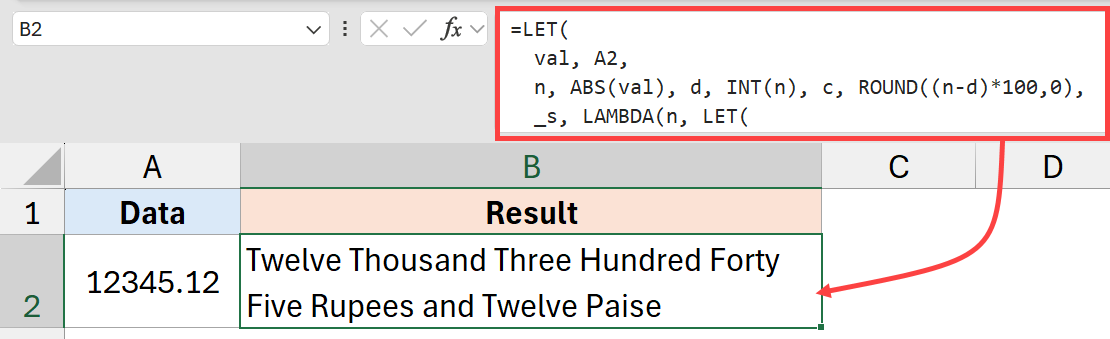
Formula for Number to Words for Rupee Currency
=LET(
  val, A2,
  n, ABS(val), d, INT(n), c, ROUND((n-d)*100,0),
  _s, LAMBDA(n, LET(
    h,INT(n/100), r,MOD(n,100), t,INT(r/10), o,MOD(r,10),
    hT, IF(h>0,CHOOSE(h,"One","Two","Three","Four","Five",
      "Six","Seven","Eight","Nine")&" Hundred",""),
    rT, IF(r=0,"",IF(r<20,
      CHOOSE(r,"One","Two","Three","Four","Five","Six",
        "Seven","Eight","Nine","Ten","Eleven","Twelve",
        "Thirteen","Fourteen","Fifteen","Sixteen",
        "Seventeen","Eighteen","Nineteen"),
      CHOOSE(t-1,"Twenty","Thirty","Forty","Fifty",
        "Sixty","Seventy","Eighty","Ninety")
      &IF(o>0," "&CHOOSE(o,"One","Two","Three","Four",
        "Five","Six","Seven","Eight","Nine"),""))),
    TRIM(hT&" "&rT))),
  cro_total,INT(d/10^7),
  cro_th,INT(cro_total/1000),
  cro_rem,MOD(cro_total,1000),
  lak,INT(MOD(d,10^7)/10^5),
  thou,INT(MOD(d,10^5)/1000),
  ones,INT(MOD(d,1000)),
  txt, TRIM(
    IF(cro_total>0, TRIM(IF(cro_th>0, _s(cro_th)&" Thousand ","") &
      IF(cro_rem>0, _s(cro_rem),"")) & " Crore ","") &
    IF(lak>0, _s(lak)&" Lakh ","") &
    IF(thou>0, _s(thou)&" Thousand ","") &
    IF(ones>0, _s(ones),"")),
  IF(val=0,"Zero Rupees Only",
    IF(val<0,"Negative ","") &
    IF(d=0,"Zero",txt) &
    IF(d=1," Rupee"," Rupees") &
    IF(c>0," and " & _s(c) & IF(c=1," Paisa"," Paise"),
      " Only"))
)
These are really long formulas, so if you want to use them regularly, it would be a good idea to convert them into a LAMBDA and give a name to that function. That way, instead of using this long formula, you can use something like NumbertoWords or NumbertoWordsDollar. Later in the article, I have covered how to convert these formulas into a LAMBDA.
What these formulas can handle:
- Single cell reference change: Currently, the formula references cell A2, but if you want to change that, you can change it in the beginning (where it says val, A2,). If you want to run this formula on a range, you can do that as well. For example, if you want to run it on A2 to A10, you can change it to val,A2:A10,
- Numbers up to Trillions (for non-currency and USD versions) or up to 999 Thousand Crore (for INR version).
- Decimals up to 2 places, rendered as “Point” + words in the plain formula, or as Paise/Cents in the currency formulas
- It can handle negative numbers. Negative numbers are prefixed with “Negative” automatically
- Zero returns “Zero” in plain mode, or “Zero Rupees Only” / “Zero Dollars Only” in currency mode
- Singular and plural currency is handled correctly: “One Dollar” vs “Two Dollars”, “One Rupee” vs “Two Rupees”, “One Cent” vs “Two Cents”, and “One Paisa” vs “Two Paise”
- Teen numbers (11–19) are correctly output as “Eleven”, “Twelve”, etc. instead of “Ten One”, “Ten Two”
- Single-digit decimals like 0.05 correctly show “Zero Five” (plain) or “Five Cents/Paise” (currency), not just “Five”
Limitations of these formulas:
- More than 2 decimal places are ignored: a value like 45.6789 is treated as 45.68 (rounded to 2 decimal places). This is fine for currency but may not suit scientific or accounting scenarios requiring more precision
- No error handling for non-numeric input: if the cell contains text, a blank, or an error like #N/A, the formula will return an error. You’d need to wrap it in an IFERROR or IF(ISNUMBER()) check
- Excel’s 15-digit precision limit: Excel only stores 15 significant digits. Numbers beyond that (e.g., 1,234,567,890,123,456) will have their last digits rounded by Excel itself before the formula even sees them, so the words may not match the original number
- No “and” before the final group: these formulas produce “One Hundred Twenty Three” (American style), not “One Hundred and Twenty Three” (British/Indian style).
- Currency is hardcoded: each formula is built for one specific currency. If you need Euros, Pounds, or another currency, you’ll need to manually change the currency words in the formula
Converting these formulas into a Lambda Named Function
The formulas covered above work great, but they’re long and hard to maintain.
By converting them into named LAMBDAs, you can turn the entire formula into a simple call like =NumbertoWords(A2).
Let me show you how to convert these formulas into a named lambda.
For this example, I am going to use the formula that converts a number or amount to words (no currency)
Step 1: Go to the Formulas tab in the ribbon
Step 2: Click on Defined Names and then click on Name Manager (or press Ctrl + F3 as a shortcut)
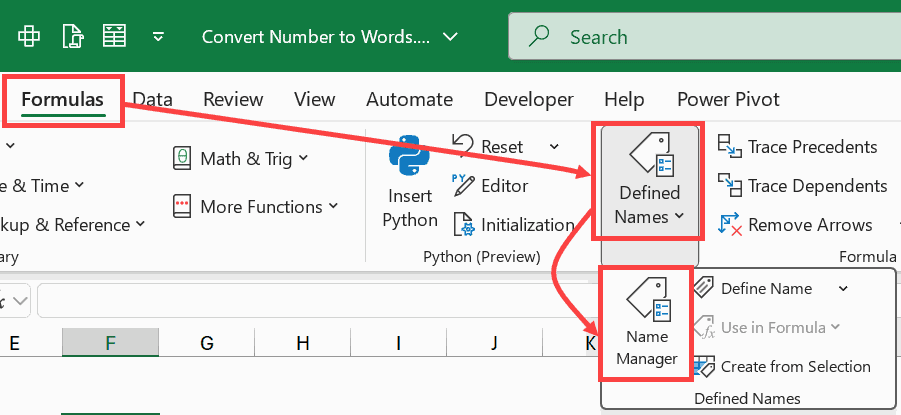
Step 3: In the Name Manager dialog box, click the New button. This will open the New Name dialog box.
Step 4: In the Name field, type your function name: N2W
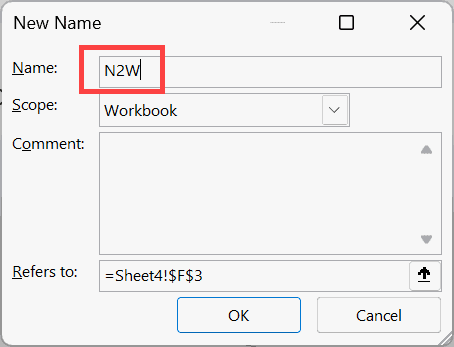
Step 5: Leave the Scope set to Workbook (this makes it available across all sheets)
Step 6: Copy and paste the formula below into the Refers to field:
=LAMBDA(val, LET(
  n, ABS(val), d, INT(n), c, ROUND((n-d)*100,0),
  _s, LAMBDA(n, LET(
    h,INT(n/100), r,MOD(n,100), t,INT(r/10), o,MOD(r,10),
    hT, IF(h>0,CHOOSE(h,"One","Two","Three","Four","Five",
      "Six","Seven","Eight","Nine")&" Hundred",""),
    rT, IF(r=0,"",IF(r<20,
      CHOOSE(r,"One","Two","Three","Four","Five","Six",
        "Seven","Eight","Nine","Ten","Eleven","Twelve",
        "Thirteen","Fourteen","Fifteen","Sixteen",
        "Seventeen","Eighteen","Nineteen"),
      CHOOSE(t-1,"Twenty","Thirty","Forty","Fifty",
        "Sixty","Seventy","Eighty","Ninety")
      &IF(o>0," "&CHOOSE(o,"One","Two","Three","Four",
        "Five","Six","Seven","Eight","Nine"),""))),
    TRIM(hT&" "&rT))),
  tri,INT(d/10^12), bil,INT(MOD(d,10^12)/10^9),
  mil,INT(MOD(d,10^9)/10^6), thou,INT(MOD(d,10^6)/1000),
  ones,INT(MOD(d,1000)),
  txt, TRIM(
    IF(tri>0, _s(tri)&" Trillion ","") &
    IF(bil>0, _s(bil)&" Billion ","") &
    IF(mil>0, _s(mil)&" Million ","") &
    IF(thou>0, _s(thou)&" Thousand ","") &
    IF(ones>0, _s(ones),"")),
  IF(val=0,"Zero",
    IF(val<0,"Negative ","") &
    IF(d=0,"Zero",txt) &
    IF(c>0," Point " & IF(c<10,"Zero ","") & _s(c),""))
))Note: To convert our regular formula into a lambda, I have added =LAMBDA(val, in the beginning, then removed val, A2, from the formula and added a closing )
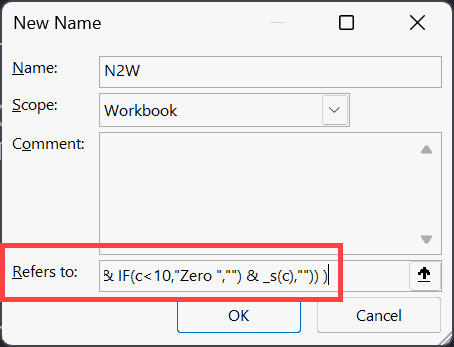
Step 7: Click OK to save
Step 8: Close the Name Manager
Now you can use the formula below just like any other worksheet function:
=N2W(A2)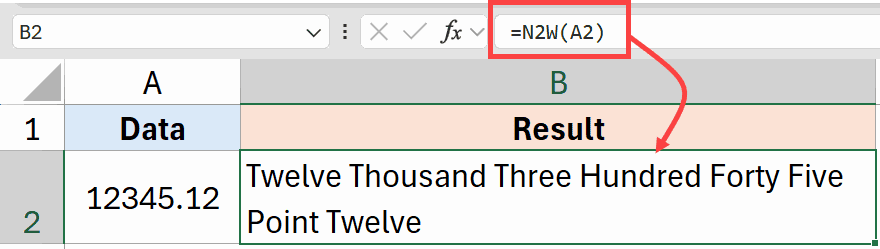
By converting it into a named lambda, you can see that the full formula is now a single, readable function that works across every sheet in the workbook.
You can follow the same steps to convert any of the above formulas into a named LAMBDA.
Name manager has a limitation of 2000 characters, so you need to ensure that the formulas you use to create the LAMBDA are less than 2000 characters.
VBA Macro vs Formula — Which Method Should You Use?
So these are two methods you can use to convert a number to words in Excel.
Using a VBA method is recommended as it is more maintainable and easier to use, but if, for some reason, you cannot use a VBA code, you can try the formula methods.
If you do not want to get into the hassle of setting up a spreadsheet, you can also use this free online number-to-words converter.
I hope you found this article helpful.
Other Excel articles you may also like:



Great Idea! I can see a use for the routine to just work with numbers, not currency. How would this VBA routine look if it could deal with numbers that contained tenths, hundredths, or thousandths (5.1, 23.54, 100.734)?