

If you want to turn a datetime, a serial number, or a piece of text into a clean date value in Power Query, the Date.From function is the one to reach for.
It strips a datetime down to just its date, and it converts numbers and text into real dates too.
In this article, I’ll walk you through Date.From with practical examples: converting a single datetime, a serial number, and a text date, then cleaning up whole columns of timestamps, serials, and messy values.
Date.From Function Syntax
Date.From(value as any, optional culture as nullable text) as nullable date
- value – The date, datetime, datetimezone, number, or text value you want to convert to a date
- culture (optional) – A culture name as text, like
"en-US"or"de-DE", that tells the function which language and region to use when reading a text value
What it returns: A date value. A datetime or datetimezone loses its time part, a number is read as a serial date, and text is parsed into a date. If the input is null, the function returns null instead of an error.
When to Use Date.From
Use this function when you need to:
- Drop the time off a datetime column and keep only the date
- Convert a column of date serial numbers into real dates
- Parse text dates into proper date values
- Read foreign-language text dates by passing a culture
- Clean a messy column where some values convert and some don’t
Example 1: Convert a Datetime to a Date
Let’s start with the most common job for Date.From: taking a full timestamp and keeping only the date.
Create a new blank query (Home > New Source > Blank Query) and type this into the formula bar:
= Date.From(#datetime(2024,4,15,9,30,0))
Result: 4/15/2024

Here, #datetime(2024,4,15,9,30,0) builds April 15, 2024 at 9:30 AM, and Date.From throws away the time and hands back just the date.
One quick note on formatting. That date shows as 4/15/2024 on my US machine, but a UK machine would display the same value as 15/04/2024. The underlying date is identical on both, only the display format changes with your regional settings.
Example 2: Convert a Serial Number to a Date
Here’s another one you’ll run into. Excel and Power Query store dates as serial numbers under the hood, and sometimes you end up with the raw number instead of a date.
Create a new blank query (Home > New Source > Blank Query) and type this into the formula bar:
= Date.From(45306)
Result: 1/15/2024
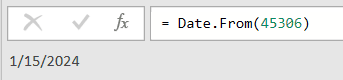
The number 45306 counts the days from Power Query’s base date of December 30, 1899, which lands on January 15, 2024. Date.From reads the number as a serial date and converts it.
Example 3: Convert a Text Date to a Date
This next one comes up all the time when you import data. A date arrives as text, and you need it as a real date so you can sort, filter, or calculate the difference between dates.
Create a new blank query (Home > New Source > Blank Query) and type this into the formula bar:
= Date.From("2024-08-05")
Result: 8/5/2024

Here, Date.From reads the text "2024-08-05" and parses it into the date August 5, 2024. The yyyy-MM-dd layout is unambiguous, so it converts the same way on any machine without needing a culture.
Example 4: Convert a Whole Datetime Column to Dates
Now for a real column instead of single values. This is the most common table job. You have a column of timestamps and you want just the date part in each row.
Suppose you have a Shipments table with a Shipment ID and a Scanned At column, where Scanned At holds a full date and time.
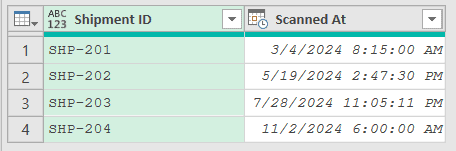
When you load this table, add a Changed Type step that sets Scanned At to a datetime type. Then add a new step (by clicking on the fx icon next to the formula bar) and use this formula:
= Table.TransformColumns(#"Changed Type",{"Scanned At",each Date.From(_),type date})
Result: the Scanned At column now reads 3/4/2024, 5/19/2024, 7/28/2024, and 11/2/2024
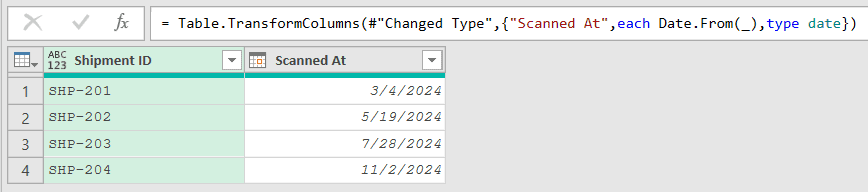
In this formula, Table.TransformColumns walks down the Scanned At column and runs Date.From on each value, where _ stands for the current cell. The type date at the end retypes the column so the times are gone for good.
Example 5: Convert a Column of Serial Numbers
Here’s the column version of Example 2. You’ve imported a table and a date column came through as plain numbers instead of dates.
Suppose you have an Exports table with a Record ID and a Date Serial column, where Date Serial holds numbers like 45306.
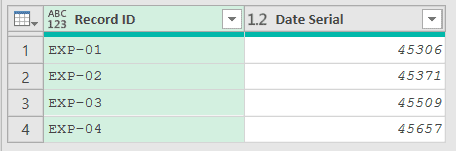
Add a Changed Type step that sets Date Serial to a number type, then add a new step (by clicking on the fx icon next to the formula bar) and use this formula:
= Table.TransformColumns(#"Changed Type",{"Date Serial",each Date.From(_),type date})
Result: the Date Serial column now reads 1/15/2024, 3/20/2024, 8/5/2024, and 12/31/2024
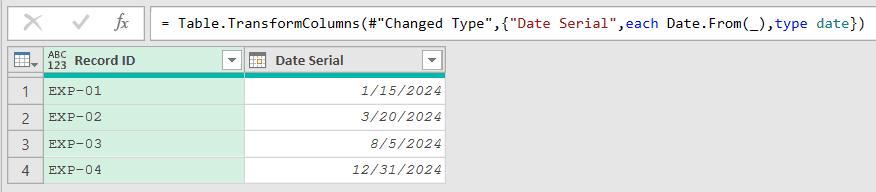
Date.From treats each number as a serial date and converts it, so 45306 becomes January 15, 2024 and 45657 becomes December 31, 2024. The type date step marks the column as dates once the numbers are converted.
Example 6: Convert a Text Date Column
Text dates in a column are just as common as single ones. When your source is a CSV or a copy-paste, the dates often land as text and every row needs converting.
Suppose you have a Members table with a Member and a Joined On column, where Joined On holds text dates in the yyyy-MM-dd format.
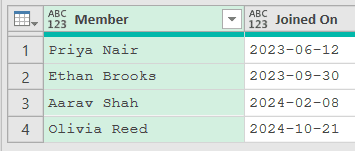
Add a new step (by clicking on the fx icon next to the formula bar) and use this formula:
= Table.TransformColumns(Source,{"Joined On",each Date.From(_),type date})
Result: the Joined On column now reads 6/12/2023, 9/30/2023, 2/8/2024, and 10/21/2024
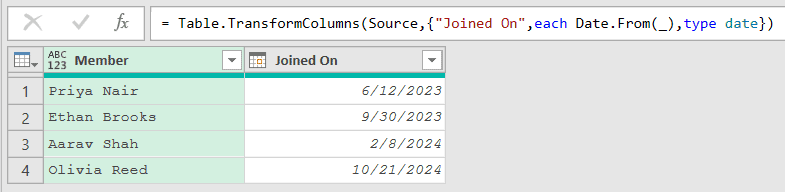
Since the text is already in the unambiguous yyyy-MM-dd layout, Date.From parses each value straight into a date with no culture needed. Notice the step reads from Source, because this table’s text values don’t need a Changed Type step first.
Example 7: Read Foreign-Language Text Dates with a Culture
This is what the culture argument is for. When your text dates use a foreign language, like German month names, Date.From can’t read them with its default culture, so you have to tell it which one to use.
Suppose you have a Bookings table with a Booking Ref and a Booked On column, where Booked On holds German text dates like “20 Januar 2024” and “14 Juli 2024”.
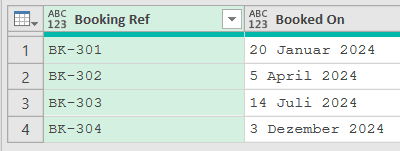
Add a new step (by clicking on the fx icon next to the formula bar) and use this formula:
= Table.TransformColumns(Source,{"Booked On",each Date.From(_,"de-DE"),type date})
Result: the Booked On column now reads 1/20/2024, 4/5/2024, 7/14/2024, and 12/3/2024
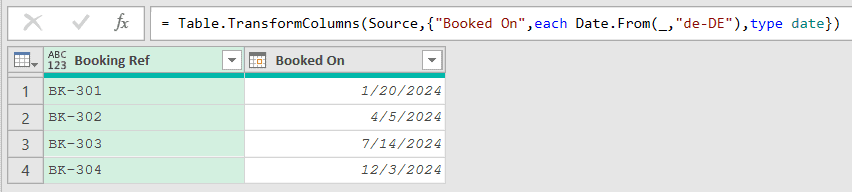
The "de-DE" passed as the second argument tells Date.From to read the values as German, so it recognizes “Januar” as January and “Juli” as July. Without that culture, those month names would throw an error.
Example 8: Handle a Messy Column with try/otherwise
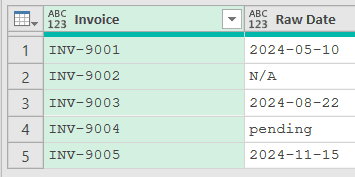
Real-world columns aren’t always clean. Some cells hold good dates and others hold junk like “N/A” or “pending”, and you want the good ones converted without the whole step erroring out.
Suppose you have an Invoices table with an Invoice and a Raw Date column, where Raw Date mixes proper text dates with the odd “N/A” and “pending”.
Add a new step (by clicking on the fx icon next to the formula bar) and use this formula:
= Table.TransformColumns(Source,{"Raw Date",each try Date.From(_) otherwise null,type date})
Result: the Raw Date column now reads 5/10/2024, then null, then 8/22/2024, then null, then 11/15/2024
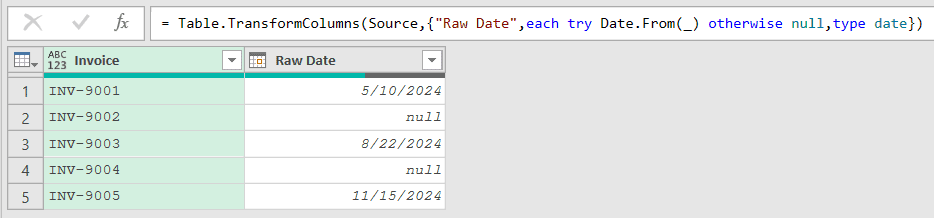
The try Date.From(_) otherwise null runs Date.From on each value, but when a value like “pending” can’t be converted, the try catches the error and drops in a null instead. Your good dates convert and the bad ones become blanks you can deal with later.
Tips & Common Mistakes
- Culture is a text argument, not a record: The second argument is a plain culture name like
"de-DE", passed directly (Date.From(value, "de-DE")). This is different from some other functions that take an options record, so don’t wrap it in[Culture="de-DE"]here or you’ll get an error. - Date.From vs Date.FromText: Date.FromText only accepts text and errors on anything else. Date.From is the more flexible cousin: it takes text, numbers, datetimes, and dates, so it’s the safer pick when a column might hold mixed types.
- Nulls pass straight through: Date.From(null) returns null instead of throwing an error, so blank cells in a column won’t break your step. Only non-null values that can’t be converted cause an error.
- Wrap messy columns in try/otherwise: If a text column has a few unconvertible values,
try Date.From(_) otherwise nullkeeps the step from failing (as in Example 8). It’s the standard way to handle a column you don’t fully trust. - Date.From(DateTime.LocalNow()) gives you today: Feed the current timestamp into Date.From and you get today’s date with no time attached, which is the Power Query equivalent of TODAY in a worksheet.
Related Power Query Functions / Articles:
- Date.Year – Extracts the year from a date value
- Date.MonthName – Returns the month name from a date value
- Duration.Days – Extracts the day component from a duration value
- List.Dates – Generates a list of dates from a start date, count, and step size
