

Excel has a dedicated function to calculate the natural logarithm of a number: the LN function.
While not as common, this is a useful function for many Excel users working with scientific, engineering, statistics, or financial data.
In this article, I will show you how to use the LN function to calculate the natural log value in Excel.
Follow along with the example file
LN Function Examples.xlsx
Excel LN Function – Syntax
Below is the syntax of the LN function in Excel:
=LN(number)
where the number is the argument where you provide the positive number for which you want to calculate the natural log value. This could also be a cell reference that contains the number.
The LN function can only take positive numbers as arguments. If you use zero or a negative number within this function, it returns the #NUM! error.
The natural logarithm is the logarithm to the base of the mathematical constant e (called Euler’s number with an approximate value of 2.71828).
In mathematics, the natural logarithm is the power to which e must be raised to obtain a given positive value. For example, LN(10) is approximately 2.302585, so e raised to that power is approximately 10.
Calculating Natural Log in Excel
Now, let me show you an example of how to use the LN function.
Below, I have a data set where I have some numbers in column A, and I want to calculate their natural log value and get the result in column B:
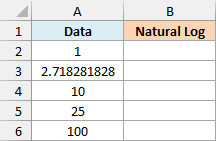
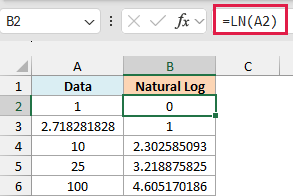
The following formula would do this:
=LN(A2)
Enter this formula in cell B2, and then copy it for all the other cells in the column.
If you have Excel 365 or Excel 2021, you can enter this single formula in cell D2 instead:
=LN(A2:A6)
Here are a couple of interesting things to note:
- The natural log of the number 1 is 0 (as e raised to power 0 would give us 1)
- In cell A3, I have an approximation of e, 2.718281828. Its natural log is very close to 1 and displays as 1 after rounding. The natural log of e itself is exactly 1.
Interesting Fact: The LN function in Excel is the inverse of the EXP function, which takes a number and gives us e raised to the power of that number. So if I use =LN(EXP(10)), it would give me the result as 10.
LN vs LOG vs LOG10 in Excel
These functions calculate logarithms using different bases. LN uses base e, while LOG lets you choose the base.
=LN(100)
This returns 4.605170186, the natural log of 100 using base e.
=LOG(100)
This returns 2. When you leave out the base argument, LOG uses base 10.
=LOG10(100)
This also returns 2. LOG10 always uses base 10.
=LOG(8,2)
This returns 3. The second argument sets the base to 2, and 2 raised to 3 equals 8.
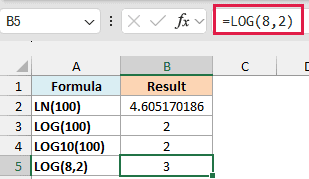
Use LN for natural logs, LOG10 or LOG for base 10, and LOG with a second argument for another base. LN gives the same result as LOG with base e.
Common LN Errors (#NUM! and #VALUE!)
If LN gives you an error, check the value in the cell it refers to. On the “Common Errors” sheet, enter this in C2:
=LN(B2)
This returns #NUM! because B2 contains 0. Copying it down C2:C5 also returns #NUM! for -5 and an empty cell. Excel reads the empty cell as 0.
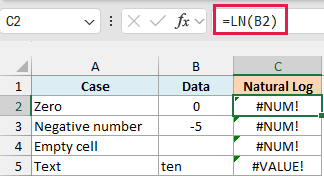
The word “ten” returns #VALUE! because it’s non-numeric text. Excel converts a number stored as text, such as “10”, so it works with LN.
Reverse a Natural Log With EXP
EXP raises e to the power you give it. To get back the original number from its natural log, use EXP on that log.
On the “Reverse With EXP” sheet, A2:A6 contains 2, 0.4, 7.5, 50, and 120. Column B contains their natural logs, using =LN(A2) copied down. Enter this in C2:
=EXP(B2)
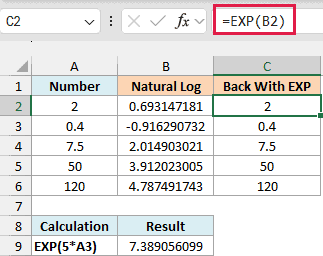
This returns 2. Copy it down C2:C6 to get the original numbers back.
You can also use a calculation as the power. To raise e to five times the value in A3, use:
=EXP(5*A3)
With 0.4 in A3, this returns 7.389056099, which is e squared.
In this article, I showed you how to use the Excel LN function to calculate the natural log of values.
I hope you found this article helpful.
If you have any questions about the Excel LN function or if you have any suggestions for me, do let me know in the comments section.
Other Excel articles you may also like:
