
If you want to check whether a list in Power Query has any values in it or is completely empty, the List.IsEmpty function is the quickest way to do it.
You give it a list, and it hands back true if the list has nothing in it, or false if it holds at least one value.
In this article, I’ll walk you through List.IsEmpty with practical examples: testing a list you type straight into the formula, checking whether a column has any values, and using it with List.Select to see if a filter matched anything at all.
List.IsEmpty Function Syntax
List.IsEmpty(list as list) as logical
- list – The list you want to check for values
What it returns: A logical value. It returns true when the list has no values (length 0), and false when the list has at least one value.
When to Use List.IsEmpty
Use this function when you need to:
- Check whether a list has any values before you use it
- Test if a column contains any data at all
- See whether a filter (with List.Select) matched any rows
- Drive an if statement or a validation message off an empty-or-not check
- Keep or drop table rows based on whether a sub-list came back empty
Example 1: Check if a List Is Empty
Let’s start with the simplest case. You can hand List.IsEmpty an empty list and see what it returns.
Create a new blank query (Home > New Source > Blank Query) and use this formula:
= List.IsEmpty({})
Result: TRUE
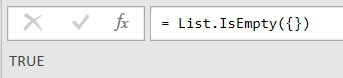
Here, {} is an empty list with nothing inside it. Since there are no values, List.IsEmpty returns true.
Example 2: Check a List That Has Values
Now let’s flip it around and give the function a list that actually holds some items.
Create a new blank query (Home > New Source > Blank Query) and use this formula:
= List.IsEmpty({"Delhi","Austin","Mumbai"})
Result: FALSE

This time the list has three city names in it. Because it holds at least one value, List.IsEmpty returns false.
Example 3: Check if a Column Has Any Values
Here’s a more practical use. You often want to know whether a column in your table actually has any data before you build a step on top of it.
Suppose you have a Cities table with a City and a Region column, and you want to confirm the City column isn’t empty.
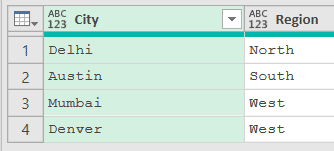
Add a new step (by clicking on the fx icon next to the formula bar) and use this formula:
= List.IsEmpty(Source[City])
Result: FALSE

In this formula, Source[City] pulls the City column out as a list. That list has four city names in it, so List.IsEmpty returns false.
If the City column had no rows, you’d get true instead. That makes this a quick way to guard a step against running on an empty column, much like how List.IsDistinct lets you check a column for duplicates before you rely on it.
Example 4: Check if a Filter Found Any Matches
This is where List.IsEmpty is genuinely useful. You can pair it with List.Select to test whether anything at all matched a condition.
Suppose you have a Scores table with a Name and a Score column, and you want to know whether every student passed. A passing score is 40 or more, so you’re really asking if any score fell below 40.
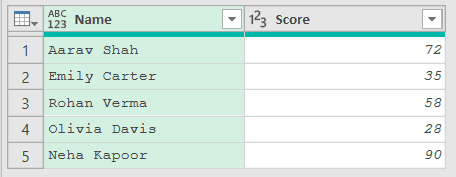
Add a new step (by clicking on the fx icon next to the formula bar) and use this formula:
= List.IsEmpty(List.Select(#"Changed Type"[Score],each _ < 40))
Result: FALSE

Here, #"Changed Type"[Score] pulls the Score column out as a list from the Changed Type step, which Power Query adds when it sets the column data types.
Reading it from the inside out, List.Select keeps only the scores below 40. In this table two students scored under 40, so it hands back a list with those two scores in it.
List.IsEmpty then checks that list, sees it isn’t empty, and returns false. In plain terms, false here means “some failing scores were found,” so not everyone passed.
Example 5: The Same Check on a Different Batch
Let’s run the exact same logic on another table so you can see what happens when the filter finds no matches at all.
Suppose you have a PassedBatch table with a Name and a Score column, and you again want to know whether any score came in below 40.
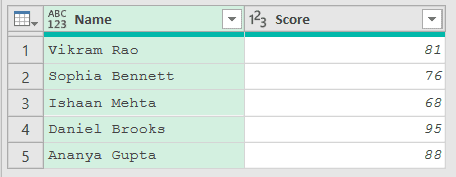
Add a new step (by clicking on the fx icon next to the formula bar) and use this formula:
= List.IsEmpty(List.Select(#"Changed Type"[Score],each _ < 40))
Result: TRUE

Every student in this batch scored 40 or above, so List.Select finds nothing below 40 and returns an empty list. List.IsEmpty then returns true.
So true here confirms there were no failing scores at all. The same formula gives you a clean yes-or-no answer no matter which table you point it at.
Example 6: Turn the Check Into a Readable Message
A true or false is fine for logic, but a plain-English label is easier to read on a report. You can drop List.IsEmpty inside an if statement to return a message instead.
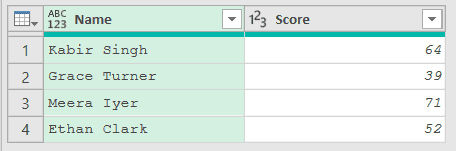
Suppose you have a Batch table with a Name and a Score column, and you want a single message saying whether everyone passed.
Add a new step (by clicking on the fx icon next to the formula bar) and use this formula:
= if List.IsEmpty(List.Select(#"Changed Type"[Score],each _ < 40)) then "All students passed" else "Some students need a retest"
Result: Some students need a retest

This table has a score of 39, which is below 40, so List.Select returns a list with that value in it. Since the list isn’t empty, List.IsEmpty returns false.
The if statement then takes the else branch and returns “Some students need a retest.” If every score had been 40 or higher, you’d see “All students passed” instead.
Example 7: Keep Only Rows Whose List Isn’t Empty
You can also use List.IsEmpty row by row to filter a table. This works well when each row holds a list of items and you only want the rows that contain something you care about.
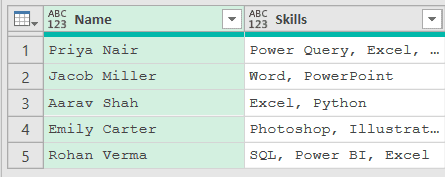
Suppose you have an Applicants table with a Name and a Skills column, where Skills is a comma-separated list. You want to keep only the applicants who have at least one of your target skills: Excel, SQL, or Power Query.
Add a new step (by clicking on the fx icon next to the formula bar) and set up your target skills as a list. Then rename this step to Target (right-click it in Applied Steps and choose Rename), because the next formula refers to it by that name:
= {"Excel","SQL","Power Query"}
Then add another step and use this formula:
= Table.SelectRows(Source,each not List.IsEmpty(List.Select(Text.Split([Skills],", "),each List.Contains(Target,_))))
Result: the three rows for Priya Nair, Aarav Shah, and Rohan Verma

For each row, Text.Split turns the Skills text into a list, and List.Select keeps only the skills that appear in your Target list. The List.Contains check inside it is what decides if a skill is one you want, and List.IsEmpty then checks whether anything matched.
The not flips the result, so a row is kept only when its matched-skills list is not empty. Rows for Jacob Miller and Emily Carter drop out because none of their skills are in the target list.
Tips & Common Mistakes
- List.IsEmpty vs List.Count = 0: You could also test a list with
List.Count(myList) = 0, but List.IsEmpty is clearer because it asks exactly the question you care about. Reach for List.IsEmpty when all you need is the yes-or-no answer. - Pairs well with List.Select: The common pattern is
List.IsEmpty(List.Select(...)), which asks “did anything match this condition?” An empty result means nothing matched, so it’s a clean way to test whether any matches exist. - Wrap it in an if for validation: Because it returns a plain true or false, List.IsEmpty slots straight into an if statement. Use it to return a warning message, a status flag, or a default value when a list comes back empty.
- The input must be a list, not a table: List.IsEmpty expects a list. If you want to check whether a whole table has no rows, use Table.IsEmpty instead, or pull a single column out with
Table[Column]and test that list. - Nulls count as values: A list that holds only nulls is not empty.
List.IsEmpty({null})returns false, so a column full of blank cells still returns false. List.IsEmpty returns true only when the list has no items at all.
Related Power Query Functions / Articles:
- List.Dates – Generates a list of dates from a start date, count, and step size
- Text.StartsWith function
- List.NonNullCount function
- Text.Contains – Guide to Text.Contains in Power Query M.
- Table.SelectRows – Use Table.SelectRows in Power Query M to keep only the rows that meet a condition.
- List.Max – Use List.Max in Power Query M to find the largest value in a list.
- How to Undo in Power Query? – How to undo a step in Power Query.