
If you want to count how many values in a list are actually filled in and skip the blank ones, the List.NonNullCount function is the quickest way to do it. It counts every item in a list except the nulls.
In this article, I’ll walk you through List.NonNullCount with practical examples: counting filled entries in a column, working out how many blanks you have, measuring data completeness, and flagging a column that has gaps.
List.NonNullCount Function Syntax
List.NonNullCount(list as list) as number
- list – The list you want to count the non-null values in
What it returns: A number, the count of items in the list that are not null. Blank (null) items are left out of the count, so a list of five values with two nulls returns 3.
When to Use List.NonNullCount
Use this function when you need to:
- Count how many cells in a column are actually filled in
- Work out how many blanks a column has (paired with List.Count)
- Measure the completeness of a dataset as a percentage
- Flag a column that has missing values
- Count how many questions a person answered across several columns
Example 1: Count the Non-Null Values in a List
Let’s start with the basics. The simplest way to see List.NonNullCount in action is to feed it a plain list that has a few nulls in it.
Create a new blank query (Home > New Source > Blank Query) and use this formula:
= List.NonNullCount({"North","South",null,"East",null})
Result: 3

The list has five items, but two of them are null. List.NonNullCount ignores those two and counts only “North”, “South”, and “East”, so you get 3.
Example 2: Count the Filled Entries in a Column
Here’s the most common use. You have a table with a column that has some blanks in it, and you want to know how many rows are actually filled in.
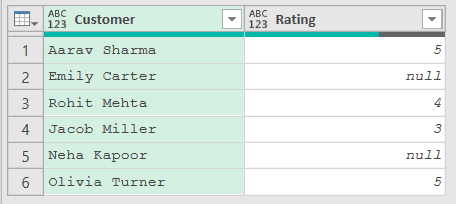
Suppose you have a Feedback table with a Customer column and a Rating column, and a few customers left their rating blank.
Add a new step (by clicking on the fx icon next to the formula bar) and use this formula:
= List.NonNullCount(Source[Rating])
Result: 4

Here, Source[Rating] grabs the Rating column as a list, and List.NonNullCount counts the values that aren’t blank. Two customers left a null, so out of six rows you get 4.
One thing to notice is that a table column is already a list in Power Query. Writing Source[Rating] hands the whole column straight to the function, so you don’t need any extra conversion step.
Example 3: Count How Many Blanks a Column Has
This next one comes up a lot in data cleaning. Instead of the filled values, you want the count of the blanks, which is the exact opposite.
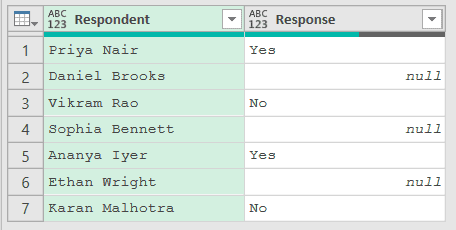
Suppose you have a Survey table with a Respondent column and a Response column, and some respondents never answered.
Add a new step (by clicking on the fx icon next to the formula bar) and use this formula:
= List.Count(Source[Response]) - List.NonNullCount(Source[Response])
Result: 3

The trick here is the difference between two counts. List.Count gives you the total number of rows, and List.NonNullCount gives you just the filled ones.
Subtract one from the other and you’re left with the blanks. There are 7 responses in total and 4 are filled, so 7 minus 4 leaves 3 blanks.
Example 4: Measure a Column’s Completeness as a Percentage
Now let’s turn that idea into something you can report on. A common need is to show how complete a column is as a percentage.
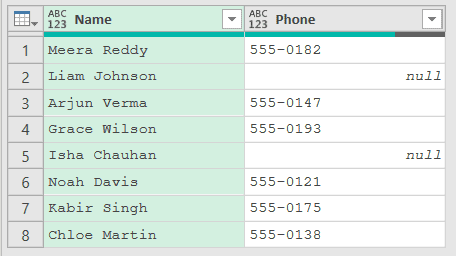
Suppose you have a Contacts table with a Name column and a Phone column, and you want to know what share of contacts have a phone number on file.
Add a new step (by clicking on the fx icon next to the formula bar) and use this formula:
= Number.Round(List.NonNullCount(Source[Phone]) / List.Count(Source[Phone]) * 100,0)
Result: 75

Here, List.NonNullCount counts the filled phone numbers and List.Count counts all the rows. Dividing the filled count by the total and multiplying by 100 turns it into a percentage.
There are 8 contacts and 6 have a phone number, so the completeness works out to 75%. Number.Round just rounds it to a whole number.
Example 5: Build a Completeness Summary for Several Columns
Let’s take that a step further. Instead of checking one column, you want a small summary table that shows the filled count for a few columns at once.
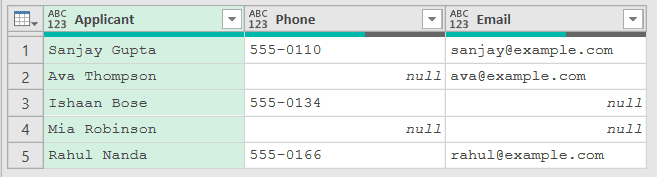
Suppose you have an Applicants table with an Applicant column, a Phone column, and an Email column, and some of the phone and email cells are blank.
Add a new step (by clicking on the fx icon next to the formula bar) and set up the list of columns to check:
= {"Phone","Email"}
Rename this step ColumnsToCheck (right-click it in Applied Steps and choose Rename), since the next formula refers to it by that name. Then add another step and use this formula:
= Table.FromColumns({ColumnsToCheck,List.Transform(ColumnsToCheck,each List.NonNullCount(Table.Column(Source,_)))},{"Column","Filled Count"})
Result: a two-row summary showing Phone with a filled count of 3 and Email with a filled count of 3

Here, List.Transform walks through the list of column names, and Table.Column(Source,_) pulls each named column as a list (the _ stands for the current column name), so List.NonNullCount can count its filled values.
Table.FromColumns then stitches the column names and their counts into a two-column summary. Both Phone and Email have 3 filled cells out of 5.
Example 6: Flag a Column as Complete or Incomplete
This one is handy for quick quality checks. You want a single text label that tells you whether a column is fully filled in or has gaps.
Suppose you have an Inventory table with a Product column and a SKU column, and you want to know at a glance whether every product has a SKU.
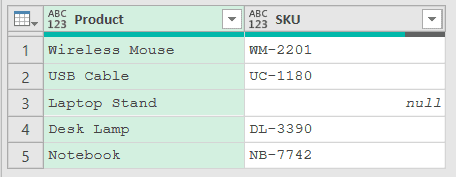
Add a new step (by clicking on the fx icon next to the formula bar) and use this formula:
= if List.NonNullCount(Source[SKU]) = List.Count(Source[SKU]) then "Complete" else "Has Missing Values"
Result: Has Missing Values

The logic compares two counts. If List.NonNullCount equals List.Count, every cell is filled and you get “Complete”.
Here one SKU is blank, so the non-null count is lower than the total count and the label comes back as “Has Missing Values”.
Example 7: Count Answered Questions per Row
Let’s finish with a row-by-row count. You have several columns and you want a new column that says how many of them each row actually filled in.
Suppose you have a Responses table with a Participant column and four question columns (Q1 through Q4), and some participants skipped a few questions.

Add a new step (by clicking on the fx icon next to the formula bar) and use this formula:
= Table.AddColumn(Source,"Answered",each List.NonNullCount({[Q1],[Q2],[Q3],[Q4]}),Int64.Type)
Result: a new Answered column showing 4, 2, 1, 4, and 2

Here, {[Q1],[Q2],[Q3],[Q4]} builds a small list from the four answer cells in each row, and List.NonNullCount counts how many of them aren’t blank.
Table.AddColumn runs that for every row and writes the count into the new Answered column. The two participants who answered everything get 4, and the one who answered only one question gets 1.
Tips & Common Mistakes
- A table column is already a list: You don’t need to convert a column before counting it.
Source[ColumnName]gives you the column as a list, so it drops straight into List.NonNullCount. - List.NonNullCount vs List.Count for blanks: List.Count counts every item including nulls, while List.NonNullCount skips the nulls. Subtract the second from the first when you want the blank count, as in Example 3.
- Null is not the same as an empty string: List.NonNullCount only skips true nulls. A cell holding an empty text string (“”) counts as a filled value, so a column that looks blank but actually has empty strings will count higher than you expect. Other functions such as Text.Combine also skip nulls but not empty strings, so the same caveat applies.
- Combine it with grouping for a per-category count: When you want the filled count broken out by category rather than for the whole column, run List.NonNullCount inside a Table.Group aggregation.
- Great for data-completeness checks: Because it skips nulls, List.NonNullCount is a fast way to audit how filled-in your data is before you build a report on top of it.
Related Power Query Functions / Articles:
- List.Contains – Checks whether a specific value exists in a list
- List.IsDistinct – Checks if every value in a list is unique, returning true or false
- List.Dates – Generates a list of dates from a start date, count, and step size
- Table.ReplaceValue function
- List.IsEmpty
- How to Undo in Power Query? – How to undo a step in Power Query.