
If you want to find one value in a table and swap it for another, the Table.ReplaceValue function is what you’re looking for. It works across the columns you point it at and replaces matching values in a single step.
In this article, I’ll walk you through Table.ReplaceValue with practical examples: fixing a typo, cleaning up email domains, standardizing casing, filling in blanks, and capping values with a condition.
Table.ReplaceValue Function Syntax
Table.ReplaceValue(table as table, oldValue as any, newValue as any, replacer as function, columnsToSearch as list) as table
- table – The table you want to run the replacement on
- oldValue – The value to look for. This can be text, a number, or even null
- newValue – The value to put in place of each match
- replacer – The function that decides how the match happens. Use Replacer.ReplaceValue for a whole-cell match, or Replacer.ReplaceText for a substring match inside text. You can also pass a custom replacer function you write yourself
- columnsToSearch – A list of the column names to search, written in curly braces like
{"Status"}
What it returns: A new table where every match in the listed columns has been replaced. The rest of the table stays exactly as it was.
When to Use Table.ReplaceValue
Use this function when you need to:
- Fix a repeated typo or a wrong entry across a column
- Correct part of a text value, like a misspelled email domain
- Standardize inconsistent casing (gold, GOLD, Gold) into one form
- Replace blanks (nulls) with a placeholder like “Not Provided” or 0
- Cap or adjust values based on a condition
Example 1: Replace a Value in a Single Column
Let’s start with the most common job: fixing a typo that shows up in one column.
Suppose you have an Orders table with an Order ID and a Status column, and the word “Shipped” was misspelled as “Shiped” in a couple of rows. You want to correct every “Shiped” to “Shipped”.
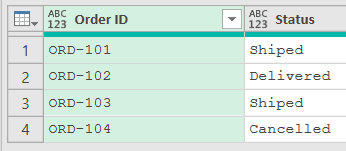
Add a new step (by clicking on the fx icon next to the formula bar) and use this formula:
= Table.ReplaceValue(Source,"Shiped","Shipped",Replacer.ReplaceValue,{"Status"})
Result: the Status column now reads Shipped, Delivered, Shipped, Cancelled
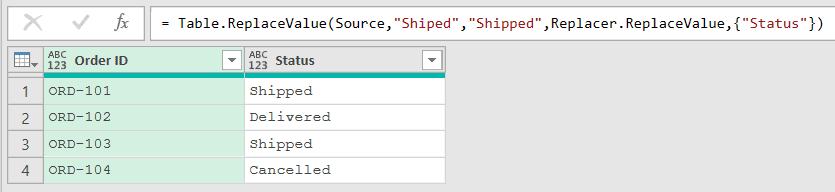
Here, Table.ReplaceValue looks only inside the Status column and swaps each “Shiped” for “Shipped”. The Order ID column is untouched because it isn’t in the columns list.
Replacer.ReplaceValue does a whole-cell match, so the cell has to equal “Shiped” exactly for it to change. That’s fine here since the whole cell is just the status word.
Example 2: Replace Part of a Text Value
Here’s a case where you only want to fix part of what’s in the cell, not the whole thing.
Suppose you have a Contacts table with a Name and an Email column, and a couple of the emails have a typo in the domain: “gmial.com” instead of “gmail.com”. You want to correct just that part and leave the rest of each address alone.
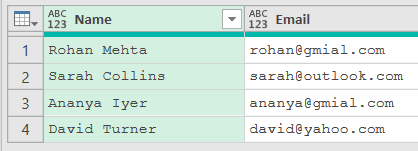
Add a new step (by clicking on the fx icon next to the formula bar) and use this formula:
= Table.ReplaceValue(Source,"gmial.com","gmail.com",Replacer.ReplaceText,{"Email"})
Result: the two gmial.com addresses become rohan@gmail.com and ananya@gmail.com, while the outlook and yahoo addresses stay the same
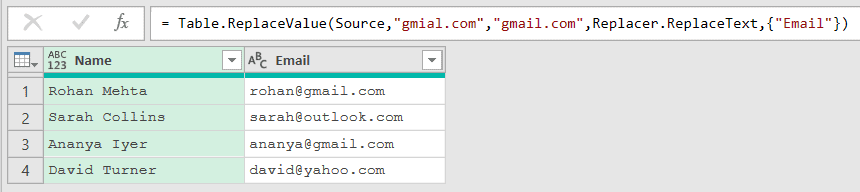
The key here is Replacer.ReplaceText instead of Replacer.ReplaceValue. ReplaceText finds “gmial.com” anywhere inside the cell and replaces just that piece, much like the Text.Replace function, keeping the username in front of the @ intact.
If you had used Replacer.ReplaceValue, nothing would have changed, because no cell equals “gmial.com” on its own. The full value is the whole email address.
Example 3: Chain Two Replacements in One Query
This next one comes up a lot in data cleaning. Sometimes the same value shows up in more than one wrong form, and you want to fix them all.
Suppose you have a Members table with a Member and a Plan column, and the gold plan is written three different ways: “gold”, “GOLD”, and the correct “Gold”. You want them all to read “Gold”.
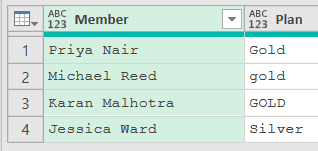
Add a new step (by clicking on the fx icon next to the formula bar) and use this formula:
= Table.ReplaceValue(Source,"gold","Gold",Replacer.ReplaceValue,{"Plan"})
Result: the lowercase “gold” becomes “Gold”, but “GOLD” is still there
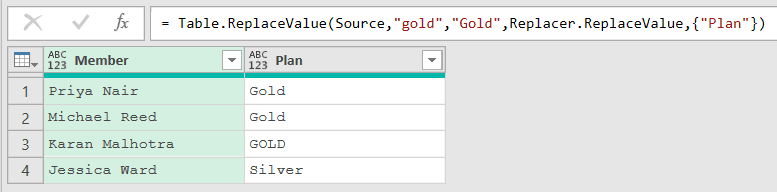
Notice that only the lowercase “gold” changed. A whole-value match is case-sensitive, so “GOLD” didn’t match “gold” and was left alone.
To fix the second form, add another step that runs on the result of the first one. I renamed the first step to Replaced gold, so that’s the name this formula uses.
If your first step still has its default name (like Custom1), use that name in place of #"Replaced gold":
= Table.ReplaceValue(#"Replaced gold","GOLD","Gold",Replacer.ReplaceValue,{"Plan"})
Result: every plan now reads Gold, Gold, Gold, Silver
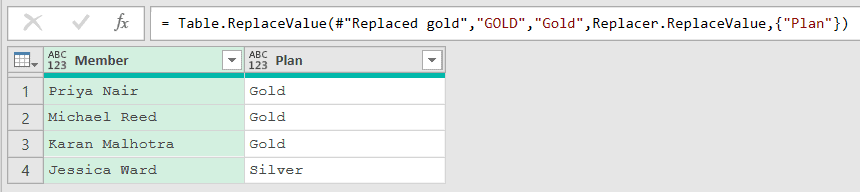
This second step points at #"Replaced gold" (the step before it) instead of Source, so it works on the already-partly-fixed table. Now both “gold” and “GOLD” have landed on the correct “Gold”.
Example 4: Replace a Value Across Multiple Columns
You’re not limited to one column. If the same value can appear in several columns, list them all and Table.ReplaceValue handles them together.
Suppose you have a Shipments table with a Shipment, an Origin, and a Destination column, and “NY” shows up in both the Origin and Destination columns. You want to spell it out as “New York” everywhere it appears.
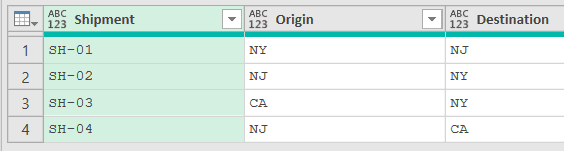
Add a new step (by clicking on the fx icon next to the formula bar) and use this formula:
= Table.ReplaceValue(Source,"NY","New York",Replacer.ReplaceValue,{"Origin","Destination"})
Result: every “NY” in both columns becomes “New York”, while NJ and CA are left as they are
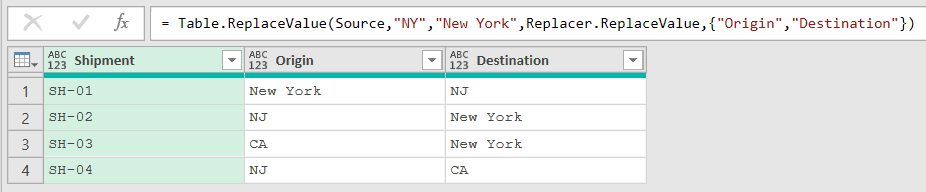
The columnsToSearch argument is a list, so you just add each column name inside the curly braces separated by a comma. Here that’s {"Origin","Destination"}.
The Shipment column isn’t in the list, so even if it contained “NY” it would stay put. Only the columns you name get touched.
Example 5: Replace Blank (Null) Values
Blank cells come up in almost every real dataset, and you’ll often want to fill them with a label instead of leaving them empty.
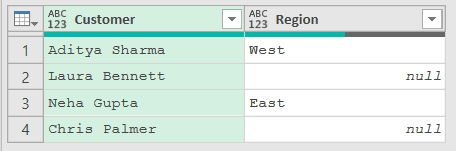
Suppose you have a Feedback table with a Customer and a Region column, and two of the Region cells are blank. You want to replace each blank with “Not Provided”.
Add a new step (by clicking on the fx icon next to the formula bar) and use this formula:
= Table.ReplaceValue(Source,null,"Not Provided",Replacer.ReplaceValue,{"Region"})
Result: the two blank Region cells now read “Not Provided”, while West and East stay the same
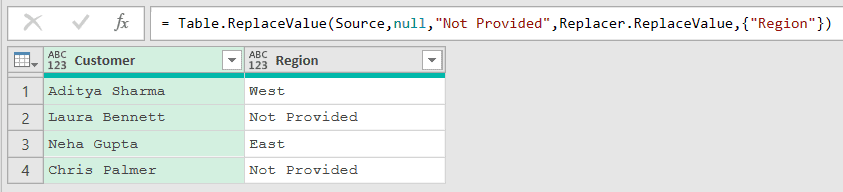
The trick here is passing null as the oldValue. A blank cell in Power Query holds null, so this matches every empty cell in the Region column.
Use Replacer.ReplaceValue for this, not Replacer.ReplaceText. ReplaceText works on text, and null isn’t text, so the whole-value replacer is the right choice for filling blanks.
Example 6: Replace Nulls in Every Column at Once
Building on the last example, sometimes the blanks are scattered across several columns and you want to fill them all in one go without typing out each column name.
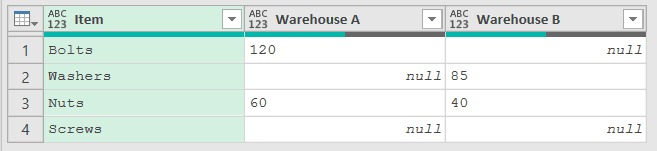
Suppose you have an Inventory table with an Item, a Warehouse A, and a Warehouse B column, and several stock cells are blank. You want every blank to become “0”.
Add a new step (by clicking on the fx icon next to the formula bar) and use this formula:
= Table.ReplaceValue(Source,null,"0",Replacer.ReplaceValue,Table.ColumnNames(Source))
Result: every blank across all three columns becomes “0”, so Bolts reads 120 and 0, Screws reads 0 and 0
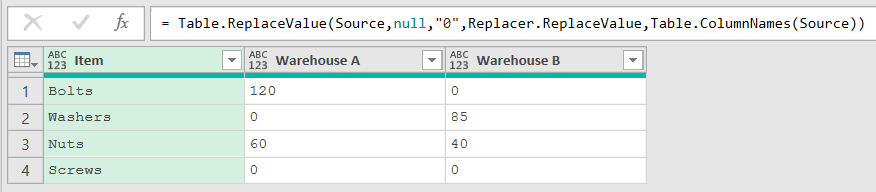
Instead of writing out the column list by hand, Table.ColumnNames(Source) hands back a list of every column name in the table. That list goes straight into the columnsToSearch spot.
This is handy when a table has many columns, or when you don’t know the exact column names ahead of time.
The Item column gets searched too, but it has no blanks, so nothing changes there. A blank in any column, text columns included, would get the same “0”.
Also note that “0” in quotes goes in as text, not as the number 0. If you need numbers you can add up, use 0 without the quotes, or set the Warehouse columns to Whole Number in the next step.
Example 7: Cap Values Using a Condition
Now let’s tackle something more advanced. The oldValue and newValue don’t have to be fixed values.
You can pass a function with each to decide the replacement row by row.
Suppose you have a Payroll table with an Employee and a Bonus column, and you want to cap every bonus at 1000. Anything over 1000 should become 1000, and anything at or below stays as it is.
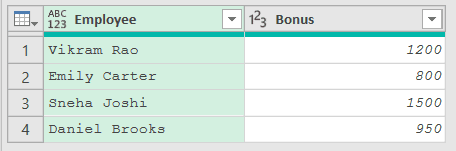
When you load this table, Power Query adds a “Changed Type” step that sets Bonus to a whole number. The new step should build on that typed table, so the formula refers to #"Changed Type" instead of Source.
Add a new step after it (with the fx icon) and use this formula:
= Table.ReplaceValue(#"Changed Type",each [Bonus],each if [Bonus] > 1000 then 1000 else [Bonus],Replacer.ReplaceValue,{"Bonus"})
Result: the 1200 and 1500 bonuses drop to 1000, while 800 and 950 are unchanged

Here the oldValue is each [Bonus], which just means the current bonus in each row. The newValue is each if [Bonus] > 1000 then 1000 else [Bonus], which returns 1000 when the bonus is over the cap and the original value otherwise.
Since the oldValue is each row’s own bonus, every Bonus cell counts as a match. So the newValue expression alone decides whether a cell becomes 1000 or keeps its value.
This is the flexible form of Table.ReplaceValue. Instead of one fixed find-and-replace, each row decides its own result based on the condition you write.
Tips & Common Mistakes
- Replacer.ReplaceValue vs Replacer.ReplaceText: Replacer.ReplaceValue matches the whole cell and swaps it only when the entire value is equal. Replacer.ReplaceText finds your text anywhere inside a cell and replaces just that piece. Use ReplaceText when you’re fixing part of a longer string, like one word in a sentence or a domain in an email.
- Whole-value matching is case-sensitive: With Replacer.ReplaceValue, “gold” and “GOLD” are treated as different values, so a single replacement won’t catch both. This is the same case-sensitive comparison behavior you see elsewhere in Power Query. Run a separate replacement for each casing, or fix the casing first. For example, Table.TransformColumns with Text.Proper turns both gold and GOLD into Gold (and leaves Silver as it is), so you may not need a replacement at all.
- columnsToSearch is always a list: Even for a single column you need the curly braces, like
{"Status"}. Leaving them off causes an error. For every column at once, use Table.ColumnNames(Source) so you don’t have to type each name. - Replace nulls with the value null, not the text “null”: To target blank cells, pass the actual null keyword as the oldValue, not the four letters in quotes.
Table.ReplaceValue(Source,null,"0",...)fills blanks, while searching for"null"would only match cells that literally contain that word.
Related Power Query Functions / Articles:
- Table.RenameColumns – Renames one or more columns in a table
- Table.Combine – Stacks multiple tables into one by appending their rows
- Table.Buffer – Loads a table into memory so it isn’t re-evaluated by later steps
- List.NonNullCount
- Text.PadStart