

The Text.Replace function finds a piece of text inside a text value and swaps every copy of it with something else. You can use it to fix a typo, change a separator, or remove a character by replacing it with nothing.
It’s one of the text functions you’ll keep reaching for when you clean up imported data in Power Query.
In this article, I’ll show you how it works with practical examples, including a few traps to watch out for, like case sensitivity and matches inside other words.
Follow along with the example file
Text.Replace Function Examples.xlsx
Text.Replace Function Syntax
Text.Replace(text as nullable text, old as text, new as text) as nullable text
- text – the text value you want to change.
- old – the text you want to find. Every occurrence of it gets replaced, not just the first one.
- new – the text you want to put in its place. Use an empty text (“”) to remove the old text.
What it returns – the text with every occurrence of the old text replaced with the new text. If the text is null, you get null back instead of an error.
Text.Replace is case-sensitive, so replacing “asap” won’t touch “ASAP” or “Asap”. It also matches the old text anywhere, even inside a longer word.
Examples 5 and 7 show both of these in action, along with how to handle them.
The Text.Replace function is part of the Power Query M language, so it works wherever Power Query does in Excel: Excel 365, 2024, 2021, 2019, and 2016 for Windows, and Excel for Microsoft 365 on Mac.
When to Use the Text.Replace Function
Use this function when you need to:
- Fix a word or phrase that appears in your text, such as an old name or a wrong room number
- Change one separator to another, like dots to dashes in phone numbers
- Remove a character or a prefix by replacing it with nothing
- Expand shorthand, such as “w/” to “with” or “&” to “and”
- Update a year or a version number inside file names
- Fill placeholders in a message template with values from other columns
- Turn line breaks inside a cell into commas
Example 1: Replace a Word or Phrase in a Text
Let’s start with a simple one.
Suppose you have this note, “Move the budget review to Room 4. Room 4 has the projector.”, and the meeting has moved to Room 12.
In Excel, go to Data > Get Data > From Other Sources > Blank Query. In the Power Query Editor that opens, type this formula in the formula bar:
= Text.Replace("Move the budget review to Room 4. Room 4 has the projector.","Room 4","Room 12")
Result: Move the budget review to Room 12. Room 12 has the projector.

Here, “Room 4” is the old text and “Room 12” is the new text. Text.Replace changes both copies of “Room 4” in one go, so you don’t need to do anything extra to replace more than the first one.
Example 2: Change Dots to Dashes in Phone Numbers
Here’s a common clean-up job. You get phone numbers in one format and need them in another.
Below is a Contacts table with phone numbers written with dots, like 555.214.8890, and I want the same numbers with dashes in a new Formatted Phone column.
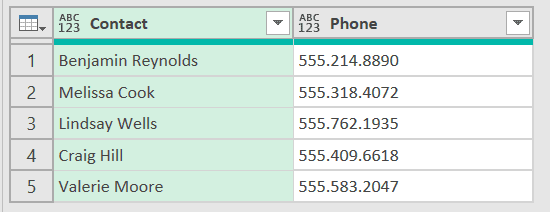
To follow along, select any cell in the Contacts table and go to Data > From Table/Range. This opens the table in the Power Query Editor, where the Source step holds it (if Power Query adds a Changed Type step too, you can delete it).
Add a new step (by clicking on the fx icon next to the formula bar) and use this formula:
= Table.AddColumn(Source,"Formatted Phone",each Text.Replace([Phone],".","-"),type text)
Result: A new Formatted Phone column with 555-214-8890, 555-318-4072, 555-762-1935, 555-409-6618, and 555-583-2047.
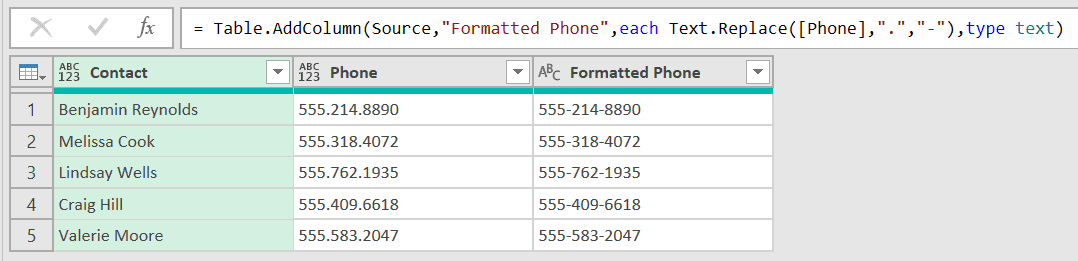
In the above formula, Table.AddColumn adds a new column called Formatted Phone. For each row, Text.Replace takes the Phone value and replaces every dot with a dash.
Here, each tells Power Query to run the formula once for every row, and [Phone] is the value in the Phone column of that row. The last argument, type text, sets the data type of the new column to text.
Example 3: Remove Spaces From Tracking Numbers
To remove something from a text, replace it with an empty text (“”).
Below is a Shipments table with tracking numbers that have spaces in them, like 1Z 4F8 W21 03 5512 7784, and I want the tracking numbers without any spaces in a new Clean Tracking column.
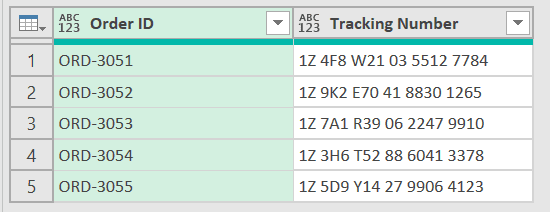
Load the Shipments table into Power Query the same way as in Example 2 (Data > From Table/Range). Then add a new step (by clicking on the fx icon next to the formula bar) and use this formula:
= Table.AddColumn(Source,"Clean Tracking",each Text.Replace([Tracking Number]," ",""),type text)
Result: A new Clean Tracking column with 1Z4F8W210355127784, 1Z9K2E704188301265, 1Z7A1R390622479910, 1Z3H6T528860413378, and 1Z5D9Y142799064123.
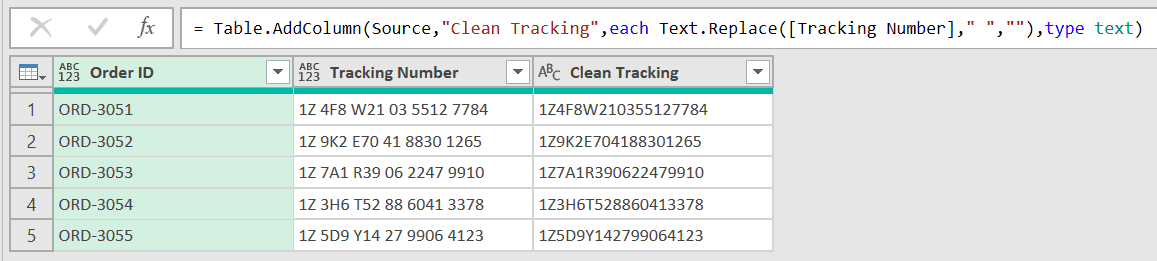
Here, the old text is a single space and the new text is “”, which is an empty text with nothing between the quotes. So every space gets replaced with nothing, and the rest of the characters close up.
This is different from the Text.Trim function, which only removes spaces at the start and end of a text. Text.Replace removes the spaces in the middle too.
Example 4: Make Two Replacements in One Formula
Text.Replace changes one piece of text at a time. When you need two changes, you can put one Text.Replace inside another.
Below is a Products table where the product names use shorthand like “w/” and “&”, and I want a Clean Name column with “with” and “and” spelled out.
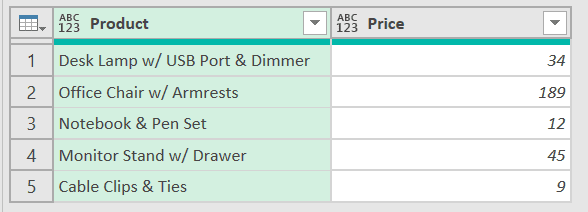
Load the Products table into Power Query the same way as in Example 2 (Data > From Table/Range). Then add a new step (by clicking on the fx icon next to the formula bar) and use this formula:
= Table.AddColumn(Source,"Clean Name",
        each Text.Replace(Text.Replace([Product],"w/","with"),"&","and"),type text)
Result: A new Clean Name column with Desk Lamp with USB Port and Dimmer, Office Chair with Armrests, Notebook and Pen Set, Monitor Stand with Drawer, and Cable Clips and Ties.
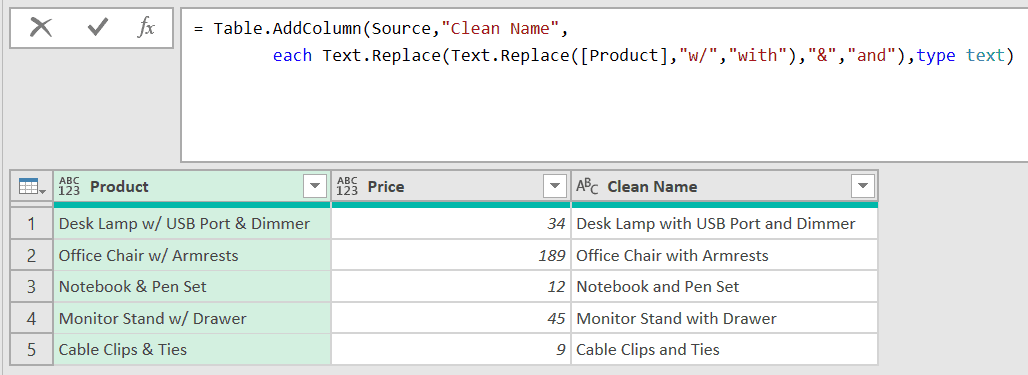
This formula works from the inside out. The inner Text.Replace changes “w/” to “with”, and its result goes to the outer Text.Replace as the text, which then changes “&” to “and”.
Rows with only one of the two, like “Notebook & Pen Set”, work fine too. If Text.Replace doesn’t find the old text, it returns the text unchanged.
Nesting is fine for two or three changes. If you have a long list of replacements, the List.Accumulate function can run them all from a list or a lookup table instead.
Example 5: Text.Replace Is Case-Sensitive
This next one shows what happens when the capital and small letters in your data don’t match.
Below is a Tickets table where the agents typed “ASAP” in different ways (ASAP, asap, and Asap), and I want them all as “ASAP” in a new Clean Note column.
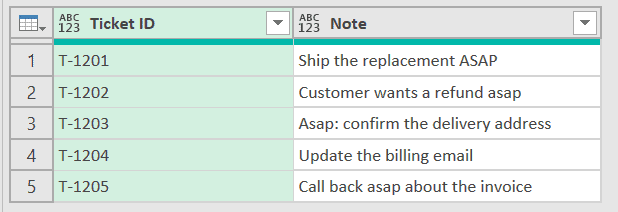
Load the Tickets table into Power Query the same way as in Example 2 (Data > From Table/Range). Then add a new step (by clicking on the fx icon next to the formula bar) and use this formula:
= Table.AddColumn(Source,"Clean Note",each Text.Replace([Note],"asap","ASAP"),type text)
Result: “asap” changes to “ASAP” in T-1202 and T-1205, but T-1203 still says “Asap: confirm the delivery address”.
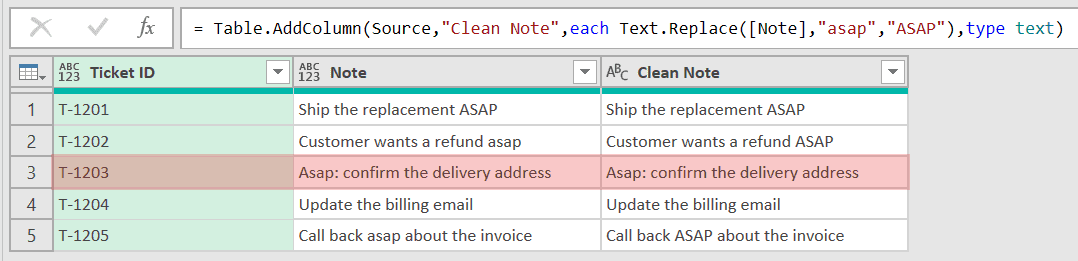
This happens because Text.Replace is case-sensitive. It only replaces the old text when the capital and small letters match exactly, so “asap” matches “asap” but not “Asap”.
To catch the other spelling too, replace the formula in the step you just added with this one, which adds a second Text.Replace for “Asap”:
= Table.AddColumn(Source,"Clean Note",
        each Text.Replace(Text.Replace([Note],"asap","ASAP"),"Asap","ASAP"),type text)
Result: All the notes now use “ASAP”, including “ASAP: confirm the delivery address” for T-1203.
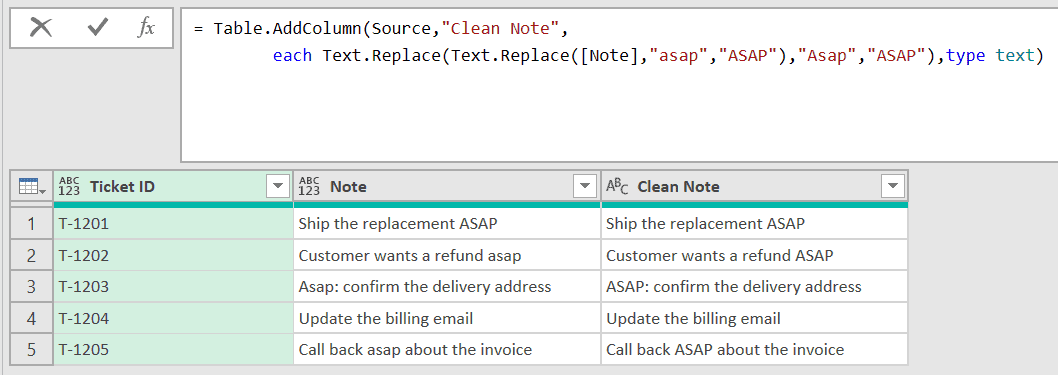
Here, the inner Text.Replace handles “asap” and the outer one handles “Asap”. Rows that already say “ASAP” don’t match either one, so they stay as they are.
You might think of using the Text.Upper function on the note first, but that would turn the whole note into capital letters, not just the word you want to fix. So list each spelling you see in your data instead.
Follow along with the example file
Text.Replace Function Examples.xlsx
Example 6: Fill Placeholders in a Message Template
Text.Replace can also take its new text from another column. This makes it handy for building personalized messages.
Below is a Renewals table with each customer’s first name and plan, and I want a renewal message for each customer in a new Message column.
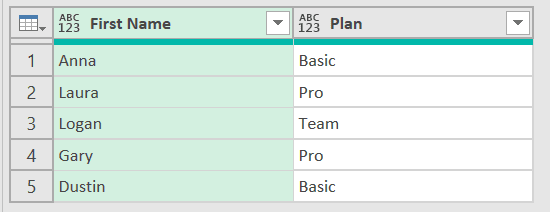
The message template is “Hi {Name}, your {Plan} plan renews next week.”, where {Name} and {Plan} are placeholders that get the values from each row.
Create a new blank query, open the Advanced Editor (Home > Advanced Editor), and use this code:
let
    Source = Excel.CurrentWorkbook(){[Name="Renewals"]}[Content],
    Template = "Hi {Name}, your {Plan} plan renews next week.",
    #"Added Message" = Table.AddColumn(Source,"Message",
        each Text.Replace(Text.Replace(Template,"{Name}",[First Name]),"{Plan}",[Plan]),type text)
in
    #"Added Message"
Result: A new Message column with “Hi Anna, your Basic plan renews next week.”, “Hi Laura, your Pro plan renews next week.”, and so on for each customer.
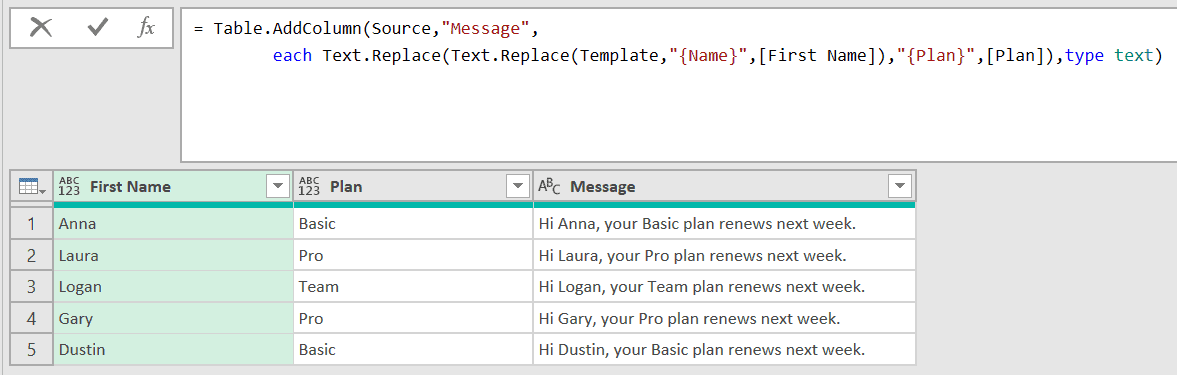
Here, the Source line uses the Excel.CurrentWorkbook function to pull the Renewals table from the current workbook by its name. The Template step stores the message text, so it’s easy to find and edit later.
For each row, the inner Text.Replace puts the first name in place of {Name}. The outer one then puts the plan in place of {Plan}, which gives you the finished message.
The curly brackets around the placeholders are just a convention. They make the placeholders easy to spot, and they’re unlikely to match any normal text in the message by accident.
If a First Name or Plan cell is blank, that row shows an Error, because Text.Replace can’t use null as the new text. So fill or filter out blank cells before this step.
Power Query also has the Text.Format function, which is built for templates like this, with placeholders written as #[Name]. Text.Replace is handy when your template already uses its own placeholder style, since you can swap in any marker text you like.
Example 7: Avoid Replacing Part of a Word
Text.Replace matches the old text anywhere it appears, even in the middle of a longer word. That can give you some odd results.
Below is an Addresses table where some street names are shortened to “St”, and I want the full address with “Street” spelled out in a new Full Address column.
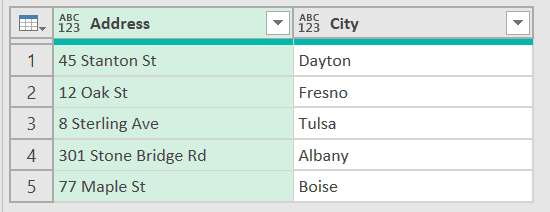
Load the Addresses table into Power Query the same way as in Example 2 (Data > From Table/Range). Then add a new step (by clicking on the fx icon next to the formula bar) and use this formula:
= Table.AddColumn(Source,"Full Address",each Text.Replace([Address]," St"," Street"),type text)
Result: 12 Oak St and 77 Maple St are fixed, but 45 Stanton St becomes “45 Streetanton Street”, 8 Sterling Ave becomes “8 Streeterling Ave”, and 301 Stone Bridge Rd becomes “301 Streetone Bridge Rd”.
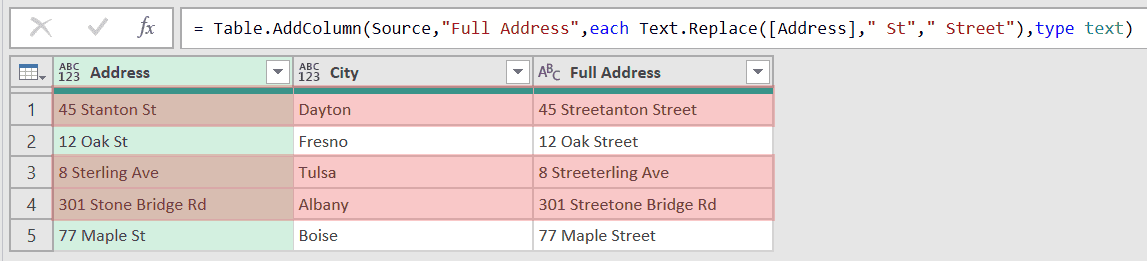
The space before “St” doesn’t help here. Stanton, Sterling, and Stone all start with “St” and have a space before them, so Text.Replace treats them as a match too.
What we want is “St” as a word on its own, with a space on both sides.
The trick is to add a space at the end of each address, replace ” St ” (with a space on both sides), and then trim the extra space.
Replace the formula in the step you just added with this one:
= Table.AddColumn(Source,"Full Address",
        each Text.Trim(Text.Replace([Address] & " "," St "," Street ")),type text)
Result: 45 Stanton Street, 12 Oak Street, 8 Sterling Ave, 301 Stone Bridge Rd, and 77 Maple Street.
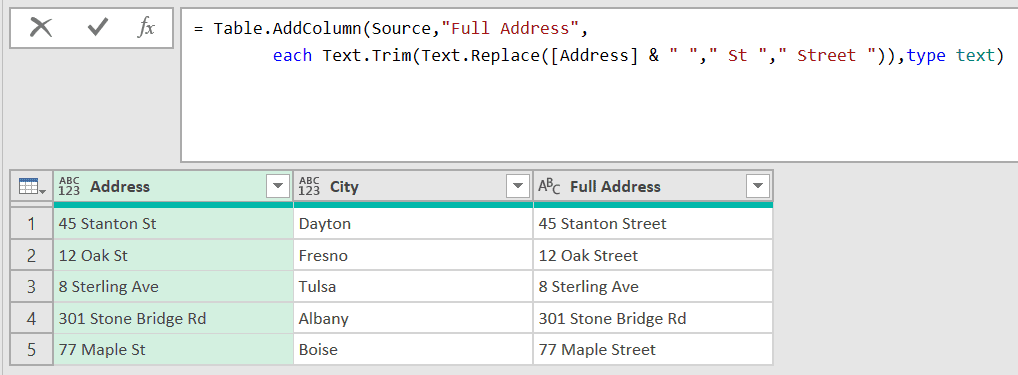
Here, [Address] & ” ” adds a space to the end of the address, so an “St” at the very end also has a space after it.
Then Text.Replace changes ” St ” to ” Street “, and the Text.Trim function removes the extra space from the end.
Since Stanton, Sterling, and Stone don’t have a space right after “St”, they no longer match.
This works when the word you’re replacing is followed by a space or sits at the end of the text. An “St,” with a comma right after it would need its own replacement.
Also, any “St” that stands on its own gets replaced, even when it means Saint. So “12 St Marks Pl” would become “12 Street Marks Pl”, and you’d need to check for addresses like that.
Example 8: Replace Line Breaks With Commas
Sometimes a cell has text on several lines, like an address where someone pressed Alt + Enter between the lines. Text.Replace can turn those line breaks into commas.
Below is a Stores table where each address is on three lines in one cell, and I want each address on a single line, separated by commas, in a new One-Line Address column.
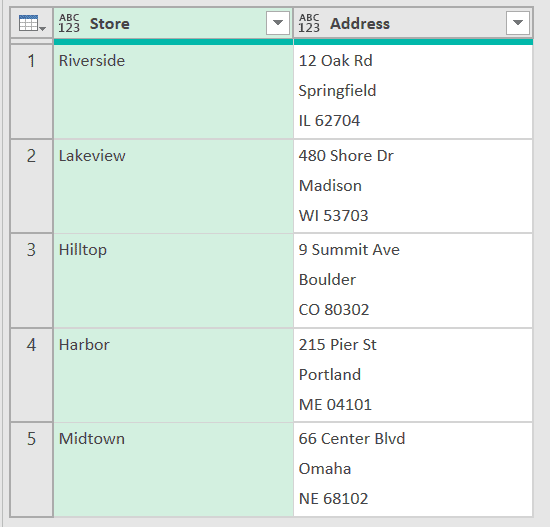
Load the Stores table into Power Query the same way as in Example 2 (Data > From Table/Range). Then add a new step (by clicking on the fx icon next to the formula bar) and use this formula:
= Table.AddColumn(Source,"One-Line Address",each Text.Replace([Address],"#(lf)",", "),type text)
Result: A new One-Line Address column with “12 Oak Rd, Springfield, IL 62704” for Riverside, “480 Shore Dr, Madison, WI 53703” for Lakeview, and so on.
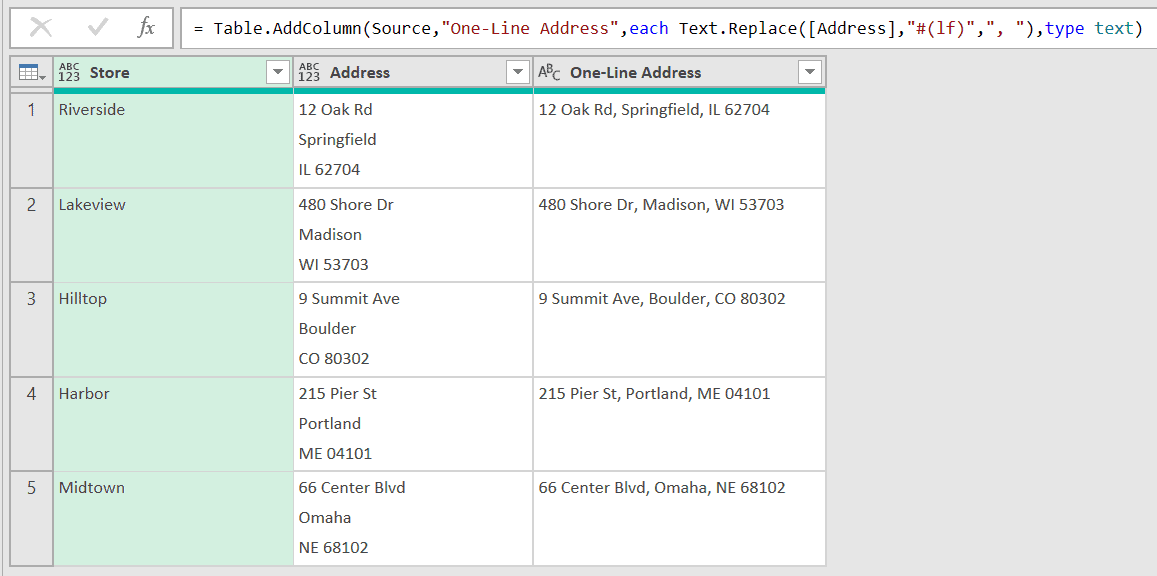
In Power Query M, “#(lf)” stands for a line feed, which is the line break character Excel puts in a cell when you press Alt + Enter. The formula replaces each one with a comma and a space.
Text from other sources can have a carriage return, “#(cr)”, right before each line feed. In that case, use “#(cr)#(lf)” as the old text, because replacing only “#(lf)” leaves a hidden carriage return in the result.
Example 9: Replace Text in an Existing Column
So far, every example added a new column. If you’d rather fix the values in the same column, you can use Text.Replace with the Table.TransformColumns function.
Below is a Files table with file names that include the year 2025, and I want to change it to 2026 right in the File Name column.
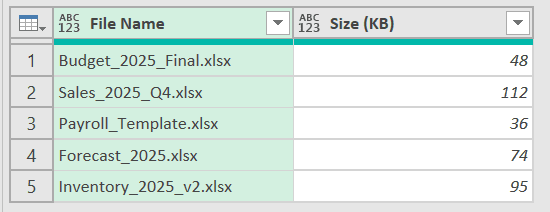
Load the Files table into Power Query the same way as in Example 2 (Data > From Table/Range). Then add a new step (by clicking on the fx icon next to the formula bar) and use this formula:
= Table.TransformColumns(Source,{{"File Name",each Text.Replace(_,"2025","2026"),type text}})
Result: The File Name column now shows Budget_2026_Final.xlsx, Sales_2026_Q4.xlsx, Payroll_Template.xlsx, Forecast_2026.xlsx, and Inventory_2026_v2.xlsx.
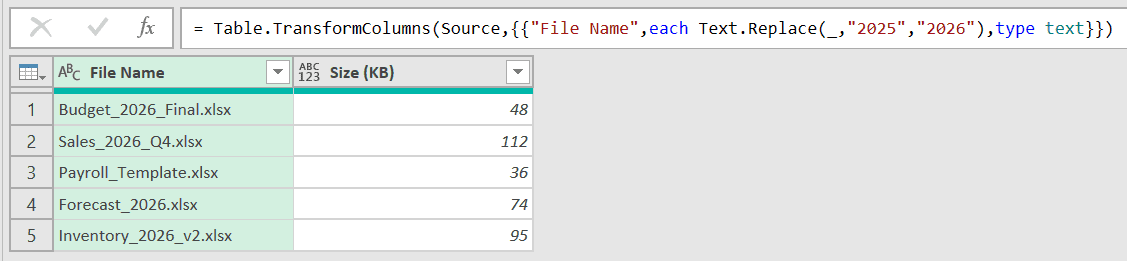
Here, Table.TransformColumns runs the formula on every value in the File Name column and puts the result back in the same column. The _ stands for the current value, since there’s no [Column] to refer to here.
Payroll_Template.xlsx has no “2025” in it, so it stays the same.
You can get the same result without writing a formula. Select the column and go to Transform > Replace Values, and Power Query writes a Table.ReplaceValue step for you.
The Table.TransformColumns version is useful when you want to nest replacements or add other text functions in the same step.
Example 10: When the Column Has Numbers
Text.Replace only works on text. That matters when a column has a mix of text and numbers.
Below is a Parts table where most part numbers have a “PN-” prefix, but two of them came in as plain numbers, and I want the part numbers without the prefix in a new Part Code column.
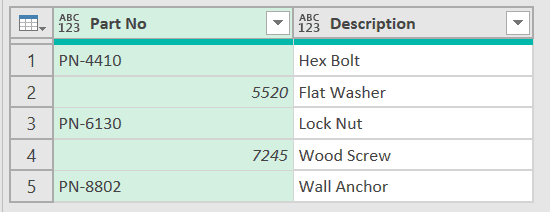
Load the Parts table into Power Query the same way as in Example 2 (Data > From Table/Range).
If you add a step with Text.Replace([Part No],”PN-“,””) here, the text rows work, but the rows with 5520 and 7245 show an Error. The error message says “We cannot convert the value 5520 to type Text.”
To fix it, convert each value to text first. Add a new step (by clicking on the fx icon next to the formula bar) and use this formula:
= Table.AddColumn(Source,"Part Code",each Text.Replace(Text.From([Part No]),"PN-",""),type text)
Result: A new Part Code column with 4410, 5520, 6130, 7245, and 8802.
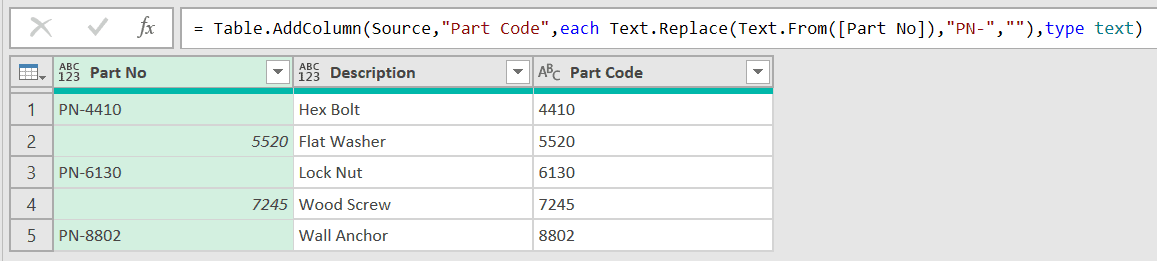
Here, the Text.From function turns each value into text before Text.Replace looks at it. A number like 5520 becomes the text “5520”, which has no “PN-” in it, so it comes through unchanged.
The Part Code values are text, since Text.Replace returns text. If you need them as numbers, wrap the Text.Replace(Text.From([Part No]),”PN-“,””) part in the Number.From function and use Int64.Type instead of type text.
Other Excel Articles You May Also Like:
- Splitter.SplitTextByDelimiter function
- Text.TrimEnd – Use Text.TrimEnd in Power Query M to remove trailing spaces or characters.
- Text.PositionOf – Use Text.PositionOf in Power Query M to find where text appears in a string.
- Text.Split – Use Text.Split in Power Query M to split text into a list.
- Text.AfterDelimiter – Use Text.AfterDelimiter in Power Query M to get text after a delimiter.
- Text.BeforeDelimiter – Use Text.BeforeDelimiter in Power Query M to get text before a delimiter.
- Text.PadStart – Use Text.PadStart in Power Query M to pad text to a fixed length by adding characters to the front.
- Text.BetweenDelimiters – Use Text.BetweenDelimiters in Power Query M to extract text between delimiters.
