

The Splitter.SplitTextByDelimiter function in Power Query tells another function how to cut text, at a comma, a hyphen, a line break, or any other delimiter. You’ll see it most often inside Table.SplitColumn, where it decides where each value gets split.
It also has one trick that the simpler Text.Split function doesn’t, which is that it can skip delimiters inside quotes. Below, I’ll show you how it works, along with the quote settings that can quietly break a split if you don’t know about them.
Follow along with the example file
Splitter.SplitTextByDelimiter Function Examples.xlsx
Splitter.SplitTextByDelimiter Function Syntax
Splitter.SplitTextByDelimiter(delimiter as text, optional quoteStyle as nullable number, optional csvStyle as nullable number) as function
- delimiter – the character or characters to split at, such as
","or" - ". It’s case-sensitive, and it can’t be empty. - quoteStyle (optional) – whether double quotes matter.
QuoteStyle.Csvtreats text inside quotes as one piece, so a comma inside quotes doesn’t split it.QuoteStyle.Nonetreats quotes as ordinary characters. If you leave it out, quotes are respected, same asQuoteStyle.Csv. - csvStyle (optional) – where a quote has to be to start a quoted piece.
CsvStyle.QuoteAlwaystreats a quote anywhere in the text as the start of a quoted piece, andCsvStyle.QuoteAfterDelimiteronly counts a quote that comes right after a delimiter (or at the very start). If you leave it out, it behaves likeCsvStyle.QuoteAlways.
What it returns – a function. That function takes a text value and returns a list of text, one item for each piece.
That last part is what makes this function different from most others, because it doesn’t split anything by itself.
It builds a splitter, and you either hand that splitter to another function (like Table.SplitColumn) or call it on a text value yourself.
The Splitter.SplitTextByDelimiter function is part of the Power Query M language, so you can use it in Power Query in Excel and in Power BI. I’ve tested all the examples below in Excel for Microsoft 365.
When to Use the Splitter.SplitTextByDelimiter Function
Use this function when you need to:
- Split a column into several columns at a delimiter, inside Table.SplitColumn
- Split CSV-style text where some values have commas inside quotes
- Split text that has stray quote marks, like 27″ for a 27-inch monitor
- Put each value from a cell on its own row
- Split a cell at its line breaks
Example 1: Split a Text Value Into a List
Let’s start with the basics, so you can see what this function gives back.
Suppose you have the text “Excel,Word,PowerPoint,Outlook” and you want each app as a separate item.
Create a new blank query (Data > Get Data > From Other Sources > Blank Query) and use this formula:
= Splitter.SplitTextByDelimiter(",")("Excel,Word,PowerPoint,Outlook")
Result: a list with Excel, Word, PowerPoint, and Outlook
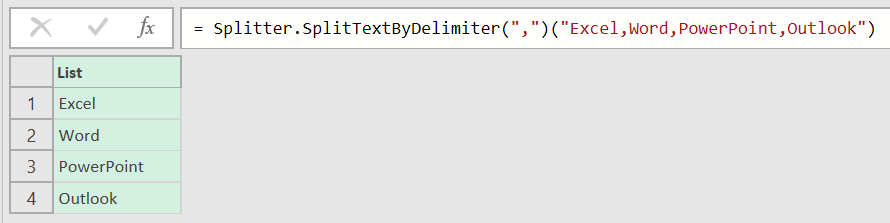
Notice the two sets of parentheses. Splitter.SplitTextByDelimiter(",") creates a splitter that cuts text at every comma, and the second pair of parentheses runs that splitter on the text “Excel,Word,PowerPoint,Outlook”.
The splitter returns the four pieces as a list, which the Power Query Editor shows with one item per row.
In real work, you’ll mostly pass the splitter to another function. Calling it on a text value like this is a quick way to test what it does before you use it on a whole column.
Example 2: Split a Column at a Multi-Character Delimiter
This is where you’ll use this function most often, as the splitter inside Table.SplitColumn.
Below is an Excel table named Sessions with training sessions, where each session is written as topic, level, and format separated by a space, a hyphen, and a space. I want to split the Session column into Topic, Level, and Format columns.
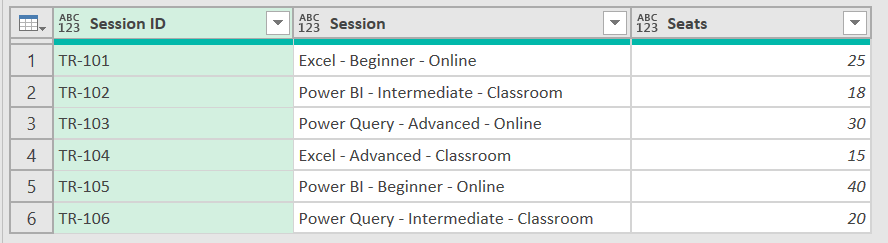
To follow along, select any cell in the table and go to Data > From Table/Range to open it in the Power Query Editor. If Power Query adds a Changed Type step, use #"Changed Type" in place of Source in the formulas below.
Add a new step (by clicking on the fx icon next to the formula bar) and use this formula:
= Table.SplitColumn(Source,"Session",Splitter.SplitTextByDelimiter(" - "),{"Topic","Level","Format"})
Result: the Session column is replaced by Topic, Level, and Format columns, so “Power BI – Intermediate – Classroom” becomes Power BI, Intermediate, and Classroom
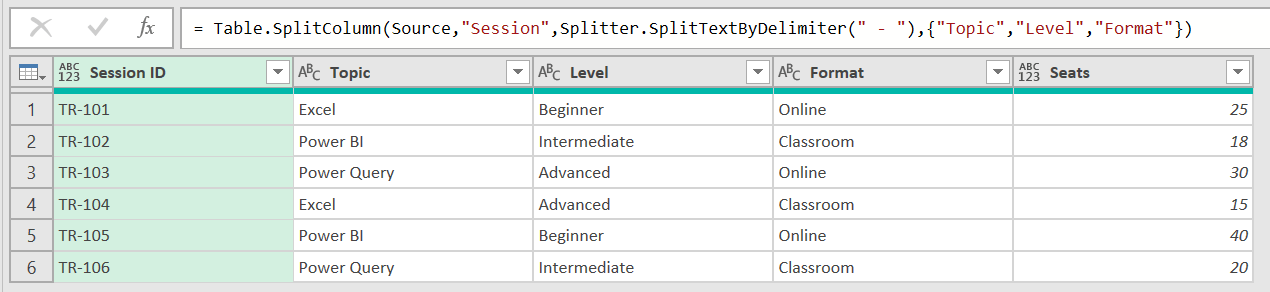
Here, Table.SplitColumn hands every Session value to the splitter, and the splitter cuts it at each ” – “. The list {"Topic","Level","Format"} names the three new columns.
The delimiter is the full three-character sequence, a space, a hyphen, and a space. If you split at a single space instead, “Power BI” and “Power Query” would also get cut in two, and you’d get the wrong pieces in the wrong columns.
Using ” – ” also means none of the new values start or end with a space. If you split at “-” alone, every piece would carry the spaces around the hyphen.
Table.SplitColumn can also split a column by position or by length. For those, you give it a different splitter function, like Splitter.SplitTextByPositions or Splitter.SplitTextByLengths.
Example 3: Keep Commas Inside Quotes Together
This next one shows something the Text.Split function can’t do.
Below is an Excel table named Contacts where each record is a line of CSV text, with the name in double quotes as “Last, First”. I want to split each record into Name, Department, and City columns.
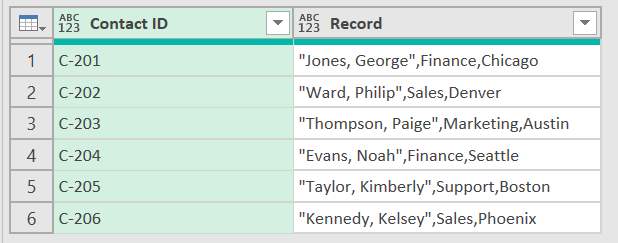
Load the Contacts table into Power Query the same way as in Example 2. Then add a new step and use this formula:
= Table.SplitColumn(Source,"Record",Splitter.SplitTextByDelimiter(","),{"Name","Department","City"})
Result: Name, Department, and City columns, so the first record becomes Jones, George, then Finance, then Chicago
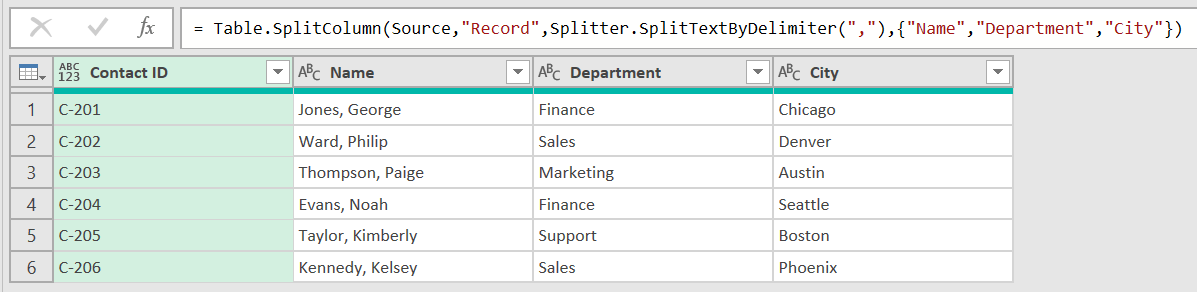
Each record has three commas, but the splitter only splits at two of them. The comma in “Jones, George” sits inside double quotes, so the splitter treats the whole quoted name as one piece.
The quote marks themselves are removed, so the Name column shows Jones, George without them. You didn’t have to set anything for this, because respecting quotes is the default.
The Text.Split function doesn’t do this. It ignores quotes, so it would cut “Jones, George” in two and give you four pieces, with the department and city pushed into the wrong columns.
Example 4: Fix Rows That Don’t Split Because of a Quote Mark
The same quote handling causes trouble when your data has a quote mark that isn’t really a quote.
Below is an Excel table named OrderLines where each order line has a product, a color, and a quantity separated by commas. Some products use a double quote as the inch symbol, like Monitor 27″, and I want the Product, Color, and Qty columns.
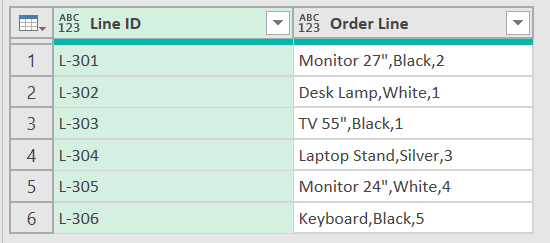
Load the OrderLines table into Power Query the same way as in Example 2. Then add a new step and use the same kind of formula as before:
= Table.SplitColumn(Source,"Order Line",Splitter.SplitTextByDelimiter(","),{"Product","Color","Qty"})
Result: the rows without an inch mark split fine, but the three rows with one (L-301, L-303, and L-305) have the whole line in Product and null in Color and Qty
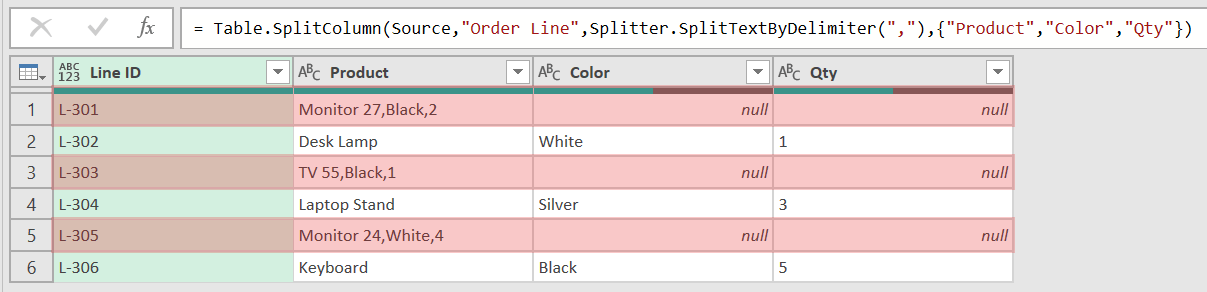
This happens because, by default, the splitter treats a double quote anywhere in the text as the start of a quoted piece. In Monitor 27″,Black,2, the quote after 27 opens a quoted piece that never closes, so the commas after it don’t split anything.
You also lose the inch mark, because the splitter removes the quote it thinks is opening a quoted piece. So L-301 shows Monitor 27,Black,2 in the Product column, and there’s no error to warn you.
To fix this, tell the splitter to treat quotes as ordinary characters. Replace the formula in that step with this one:
= Table.SplitColumn(Source,"Order Line",Splitter.SplitTextByDelimiter(",",QuoteStyle.None),{"Product","Color","Qty"})
Result: every row splits into Product, Color, and Qty, and Monitor 27″ keeps its inch mark
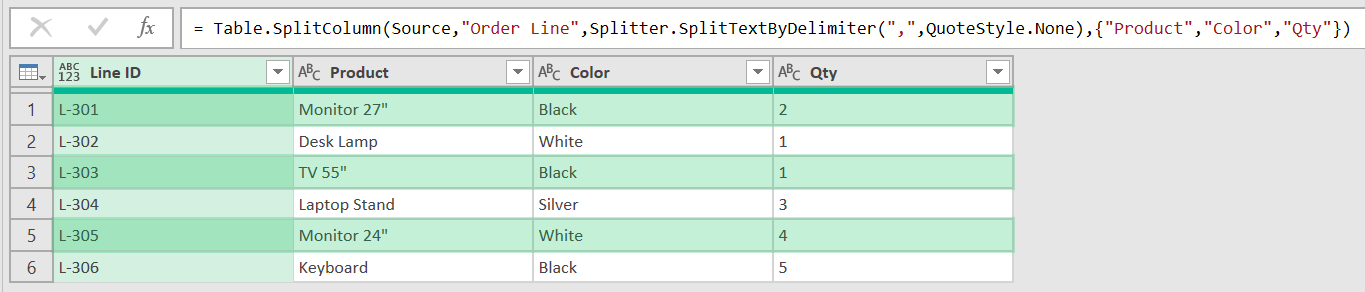
With QuoteStyle.None, a quote mark is just another character, so the splitter cuts at every comma. Monitor 27″,Black,2 becomes Monitor 27″, Black, and 2.
In the example file, the Example 4 sheet feeds two queries, Example 4 – Problem – Stray Quote and Example 4 – Fix – Ignore Quotes, so you can compare both results.
Also note that Qty comes out as text, so change its type if you need numbers.
Important: If any value in your data uses a double quote as a symbol (like inches or seconds), check the split result. With the default quote handling, those rows can end up unsplit, with null in the other columns and no error.
Follow along with the example file
Splitter.SplitTextByDelimiter Function Examples.xlsx
Example 5: Handle Quoted Values and Inch Marks Together
Now let’s take the trickiest case, where some values are properly quoted and others have a stray quote mark.
Below is an Excel table named Orders where each order line has the customer name in quotes (as “Last, First”), then the product, then the quantity. Some products have an inch mark, and I want to split each line into Customer, Product, and Qty columns.
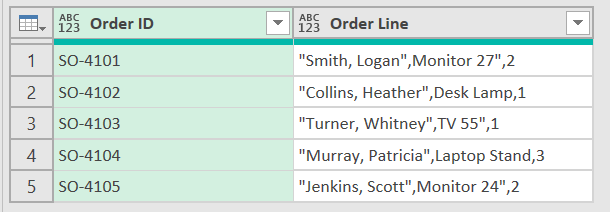
Neither setting from the earlier examples works here. The default quote handling would swallow everything after an inch mark (as in Example 4), and QuoteStyle.None would split the quoted names at their commas.
Load the Orders table into Power Query the same way as in Example 2. Then add a new step and use this formula:
= Table.SplitColumn(Source,"Order Line",Splitter.SplitTextByDelimiter(",",QuoteStyle.Csv,CsvStyle.QuoteAfterDelimiter),{"Customer","Product","Qty"})
Result: Customer, Product, and Qty columns, so the first order becomes Smith, Logan, then Monitor 27″, then 2
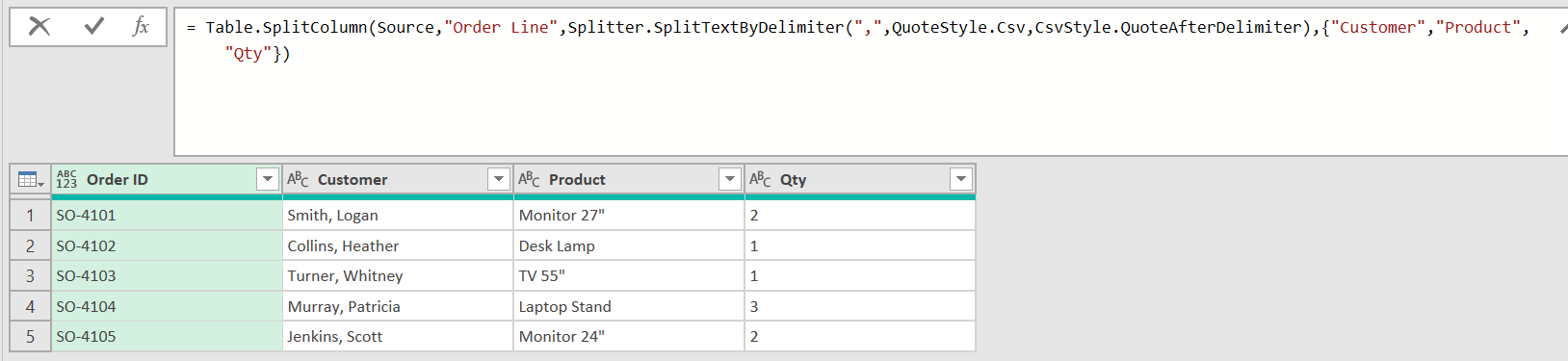
Here, the third argument, CsvStyle.QuoteAfterDelimiter, tells the splitter to treat a quote as the start of a quoted piece only when it comes right at the start of a piece.
That’s true for the quote before Smith, Logan (it’s the first character of the line), so the comma inside the name is kept.
The quote in Monitor 27″ comes in the middle of a piece, after 27, so the splitter treats it as an ordinary character and keeps it. This is the setting to use when your data follows proper CSV rules but also has stray quote marks.
The quote has to come right after the comma, though. In text like a, "b,c", where a space sits between the comma and the quote, this setting treats the quote as an ordinary character and splits inside it.
If every value in your data is separated by a comma and a space, use ", " as the delimiter instead. Then the quote comes right after the delimiter, and the quoted piece stays together.
You need to give QuoteStyle.Csv as the second argument here. If you combine QuoteStyle.None with a CsvStyle, Power Query gives you the error “‘QuoteStyle.None’ and ‘CsvStyle’ can’t be used together.”
Example 6: Split Values Into Rows
Sometimes you don’t want new columns at all. You want each value on its own row.
Below is an Excel table named Products where the Suppliers column lists every supplier of a product, separated by commas. Some supplier names have a comma of their own, so they’re in quotes, and I want one row for each product and supplier.
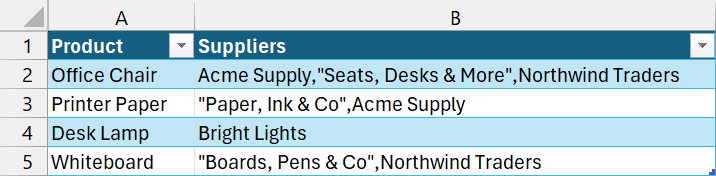
Load the Products table into Power Query the same way as in Example 2. Then add a new step and use this formula, which turns each Suppliers value into a list:
= Table.TransformColumns(Source,{{"Suppliers",Splitter.SplitTextByDelimiter(",")}})
Power Query names this step Custom1, so right-click it in Applied Steps, choose Rename, and name it Split Suppliers. Then add another step and use this formula to put each item from the list on its own row:
= Table.ExpandListColumn(#"Split Suppliers","Suppliers")
Result: eight rows, one for each product and supplier, so Office Chair appears three times: with Acme Supply, then Seats, Desks & More, then Northwind Traders
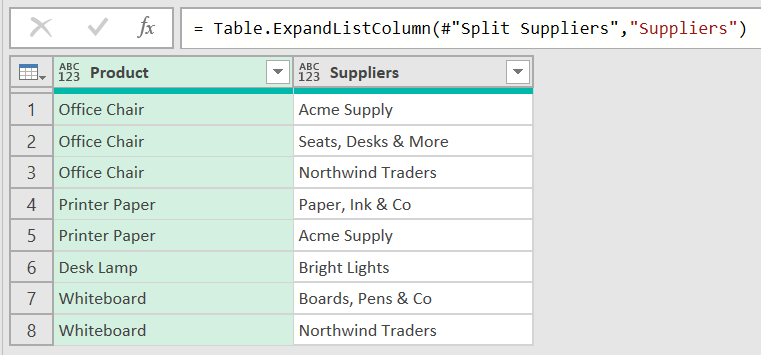
In the first step, the splitter itself is the transformation for the Suppliers column. Table.TransformColumns runs it on every cell, so each cell now holds a list of supplier names instead of one long text value.
You can pass the splitter straight in like this because it’s already a function that takes one text value. With Text.Split, you’d have to wrap it as each Text.Split(_,","), and it would also cut “Seats, Desks & More” into two suppliers.
The second step, Table.ExpandListColumn, then gives every item in each list its own row and repeats the Product value on each one. Desk Lamp has only one supplier, so it stays a single row.
When you use Split Column > By Delimiter from the ribbon and choose Rows under Advanced options, Power Query builds a step much like this one, with Splitter.SplitTextByDelimiter as the splitter.
Example 7: Split a Cell at Its Line Breaks
Here’s one that comes up with addresses and notes, where the values in a cell are on separate lines.
Below is an Excel table named Customers where each address has the street on the first line and the city, state, and ZIP code on the second line, in the same cell. I want the Street and City Line in separate columns.
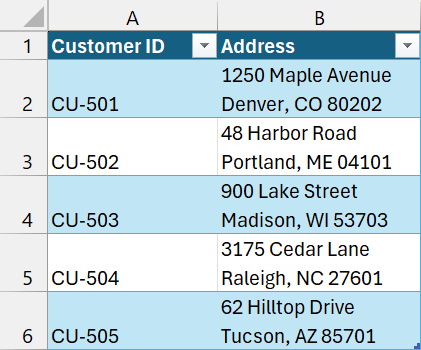
Load the Customers table into Power Query the same way as in Example 2. Then add a new step and use this formula:
= Table.SplitColumn(Source,"Address",Splitter.SplitTextByDelimiter("#(lf)"),{"Street","City Line"})
Result: Street and City Line columns, so CU-501 gets 1250 Maple Avenue and Denver, CO 80202
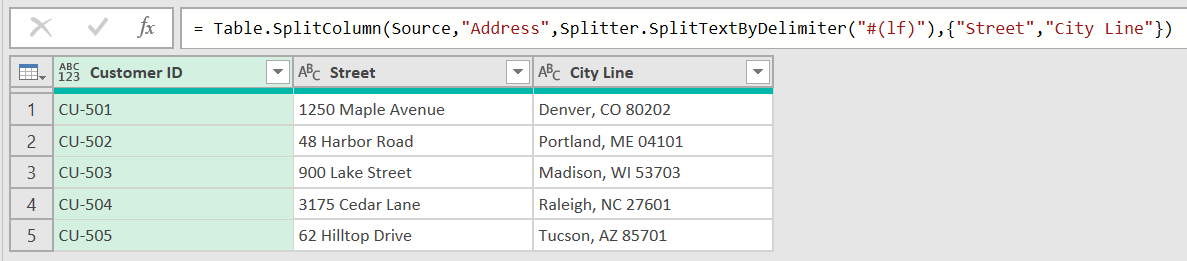
Here, "#(lf)" is how you write a line feed (the line break you get when you press Alt + Enter in an Excel cell) inside M text. The splitter cuts at each one, so each line goes to its own column.
The commas in “Denver, CO 80202” don’t matter here, because the delimiter is the line break, not the comma. You can use "#(tab)" the same way to split at tab characters.
Text that comes from a file or another system may end each line with a carriage return plus a line feed. In that case, split at "#(cr)#(lf)" instead, or a stray carriage return stays at the end of the Street value.
Other Excel Articles You May Also Like:
- Table.FromList Function in Power Query M
- Text.BeforeDelimiter function
- Text.Replace function
- Combiner.CombineTextByDelimiter function
- Csv.Document
- Text.BetweenDelimiters – Use Text.BetweenDelimiters in Power Query M to extract text between delimiters.
- Text.AfterDelimiter – Use Text.AfterDelimiter in Power Query M to get text after a delimiter.
- Table.CombineColumns – Use Table.CombineColumns in Power Query M to merge columns into one.
