

The Combiner.CombineTextByDelimiter function builds a small function that joins a list of text values into one text value, with a delimiter (like a comma or a space) between them. Functions like Table.CombineColumns and Table.ToList use it as the join rule for each row.
In this article, I’ll show you how it works, including a quoting rule that can add double quotes you didn’t ask for.
Follow along with the example file
Combiner.CombineTextByDelimiter Function Examples.xlsx
Combiner.CombineTextByDelimiter Function Syntax
Combiner.CombineTextByDelimiter(delimiter as text, optional quoteStyle as nullable number) as function
- delimiter – the text you want between the values, such as
", "or"-"or"|". - quoteStyle (optional) – tells the function whether to wrap values in double quotes. QuoteStyle.Csv quotes a value that contains the delimiter, a double quote, or a line break, and QuoteStyle.None leaves every value exactly as it is.
If you leave out quoteStyle, you get the Csv behavior.
What it returns – a function, not text. You give that function a list of text values, and it gives you back one combined text value.
That’s why you’ll mostly see it inside other functions, such as Table.CombineColumns and Table.ToList, which call it once for every row.
The Combiner.CombineTextByDelimiter function is part of the Power Query M language, so it works wherever Power Query does in Excel: Excel 365, 2024, 2021, 2019, and 2016 for Windows, and Excel for Microsoft 365 on Mac.
When to Use the Combiner.CombineTextByDelimiter Function
Use this function when you need to:
- Merge two or more columns into one, like First Name and Last Name into Full Name
- Build codes from separate parts, like a department and a year
- Turn each row of a table into one line of text with a delimiter such as a pipe (
|) - Create proper CSV lines where values that contain commas or quotes are quoted
- Reuse the same join rule in several places in a query
Example 1: Combine a List of Text Values
Let’s start with the simplest case, so you can see how the function is called.
Suppose you have three tool names, Excel, Power Query, and Power BI, and you want them in one text value separated by a comma and a space.
In Excel, go to Data > Get Data > From Other Sources > Blank Query. In the Power Query Editor that opens, type this formula in the formula bar:
= Combiner.CombineTextByDelimiter(", ")({"Excel","Power Query","Power BI"})
Result: Excel, Power Query, Power BI

Notice the two pairs of brackets. The first part, Combiner.CombineTextByDelimiter(", "), creates a function that joins things with a comma and a space.
The second pair of brackets then hands that new function the list {"Excel","Power Query","Power BI"}, and it returns the combined text.
If all you ever do is join one list like this, the Text.Combine function is simpler, because it takes the list and the delimiter in one call.
The combiner is the better pick when another function needs a join rule it can run by itself, as in the rest of these examples.
Example 2: Save the Combiner in a Step and Reuse It
Because the combiner is a function, you can store it in a step and use it as many times as you like.
Suppose you sell a few products, and each one has a product code, a color code, and a size, such as TSH, BLU, and L. You want to join each set with a hyphen to get SKUs like TSH-BLU-L.
Create a new blank query (Data > Get Data > From Other Sources > Blank Query). Then go to Home > Advanced Editor, replace the code with the following, and click Done:
let
    JoinWithDash = Combiner.CombineTextByDelimiter("-"),
    SKUs = List.Transform({{"TSH","BLU","L"},{"HOD","GRY","M"},{"CAP","BLK","S"}},JoinWithDash)
in
    SKUs
Result: A list with TSH-BLU-L, HOD-GRY-M, and CAP-BLK-S.

In the JoinWithDash step, the combiner is created once and saved under that name. At this point, JoinWithDash holds a function, not text.
In the SKUs step, the List.Transform function runs JoinWithDash on each of the three inner lists. So {“TSH”,”BLU”,”L”} becomes TSH-BLU-L, and the same for the other two.
If you later want an underscore instead of a hyphen, you change it in one place, and every SKU follows.
Example 3: Merge First and Last Name into a Full Name
This is the use you’ll run into most often.
Below is a Staff table with each person’s first name and last name in separate columns, and I want both names in one Full Name column.
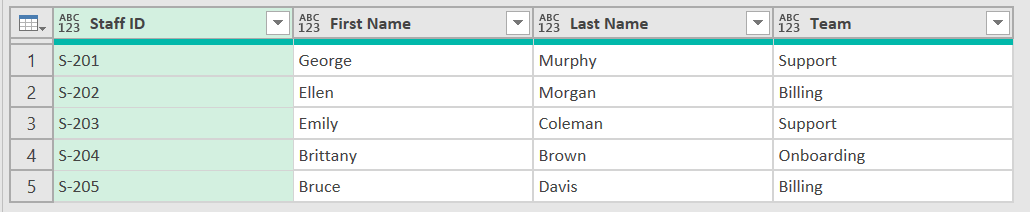
To follow along, select any cell in the Staff table and go to Data > From Table/Range. This opens the table in the Power Query Editor, where the Source step holds it.
If Power Query adds a Changed Type step too, you can delete it, because the formula below works from the Source step and doesn’t need it.
Add a new step (by clicking on the fx icon next to the formula bar) and use this formula:
= Table.CombineColumns(Source,{"First Name","Last Name"},Combiner.CombineTextByDelimiter(" ",QuoteStyle.None),"Full Name")
Result: The First Name and Last Name columns are replaced by one Full Name column with George Murphy, Ellen Morgan, Emily Coleman, Brittany Brown, and Bruce Davis.

Here, the Table.CombineColumns function takes the two name columns, and for each row it hands their values to the combiner as a list, like {“George”,”Murphy”}. The combiner joins them with a space, and the result goes into the new Full Name column.
The QuoteStyle.None part tells the combiner never to add quotes, so every name comes out exactly as typed. Example 6 shows what can go wrong when you leave it out with a space as the delimiter.
Example 4: Combine a Text Column with a Number Column
The combiner only joins text. If one of the columns holds numbers, you get an error in every row.
Below is a Projects table with each project’s department, year, and budget in dollars, and I want a project code like FIN-2026 in a Project Code column that combines the Dept and Year columns.
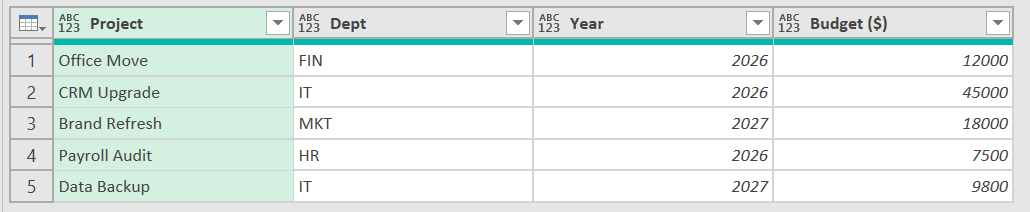
Load the Projects table into Power Query the same way as in Example 3 (Data > From Table/Range).
First, let’s see what happens if you combine the two columns directly. Add a new step (by clicking on the fx icon next to the formula bar) and use this formula:
= Table.CombineColumns(Source,{"Dept","Year"},Combiner.CombineTextByDelimiter("-",QuoteStyle.None),"Project Code")
Result: Every cell in the Project Code column shows Error.

The years come into Power Query as numbers, not text. When you click an Error cell, you see the message “We cannot apply operator & to types Text and Number.”
So you need to change the Year column to text first, and then combine. Go to Home > Advanced Editor, replace the code with the following, and click Done:
let
    Source = Excel.CurrentWorkbook(){[Name="Projects"]}[Content],
    #"Year as Text" = Table.TransformColumnTypes(Source,{{"Year",type text}}),
    #"Merged Columns" = Table.CombineColumns(#"Year as Text",{"Dept","Year"},Combiner.CombineTextByDelimiter("-",QuoteStyle.None),"Project Code")
in
    #"Merged Columns"
Result: The Project Code column now has FIN-2026, IT-2026, MKT-2027, HR-2026, and IT-2027.

In the Year as Text step, the Table.TransformColumnTypes function changes the Year column to the text type, so 2026 becomes the text “2026”. The Merged Columns step then works on that step instead of Source, and every value it gets is text.
In the example file, both versions are there as the Example 4 – Number Error and Example 4 – Convert Year First queries, and both read the same Projects table.
Follow along with the example file
Combiner.CombineTextByDelimiter Function Examples.xlsx
Example 5: Turn Each Row into One Line of Text
The Table.CombineColumns function isn’t the only one that takes a combiner. The Table.ToList function uses one to turn every row of a table into a single text value.
Below is a Shipments table with the ID, city, and status of each shipment, and I want each row as one line with the values separated by a pipe (|), the way many import files expect.
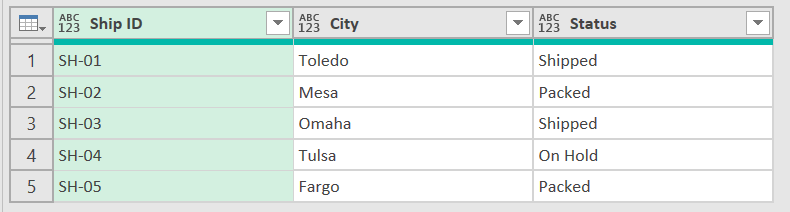
Load the Shipments table into Power Query the same way as in Example 3 (Data > From Table/Range). Then add a new step (by clicking on the fx icon next to the formula bar) and use this formula:
= Table.ToList(Source,Combiner.CombineTextByDelimiter("|"))
Result: A list with SH-01|Toledo|Shipped, SH-02|Mesa|Packed, SH-03|Omaha|Shipped, SH-04|Tulsa|On Hold, and SH-05|Fargo|Packed.
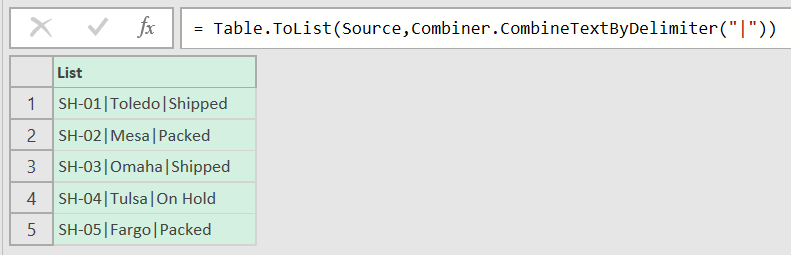
Here, Table.ToList hands each row to the combiner as a list of its values, like {“SH-01″,”Toledo”,”Shipped”}. The combiner joins them with a pipe, and you get one line per row.
I left out the quoteStyle here, so the Csv rule is on. None of these values contains a pipe or a double quote, so nothing gets quoted.
Example 6: Why a Space Delimiter Can Add Quotes
Here’s a quirk to watch for. With the default quote style, a value that contains the delimiter gets wrapped in double quotes.
So when you use a space as the delimiter, any value with a space inside it gets quoted.
Below is a Stores table with the city and state of each store, and I want a Location column with the city and state separated by a space, like Dayton OH.
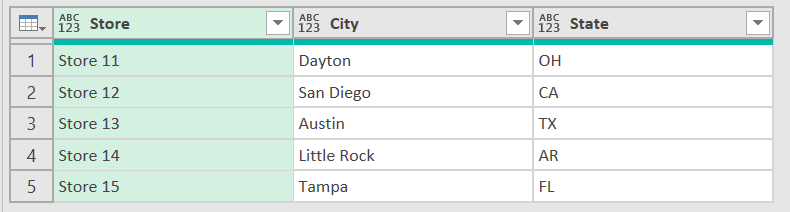
Load the Stores table into Power Query the same way as in Example 3 (Data > From Table/Range). Then add a new step (by clicking on the fx icon next to the formula bar) and combine the two columns without a quote style:
= Table.CombineColumns(Source,{"City","State"},Combiner.CombineTextByDelimiter(" "),"Location")
Result: Dayton OH, “San Diego” CA, Austin TX, “Little Rock” AR, and Tampa FL.
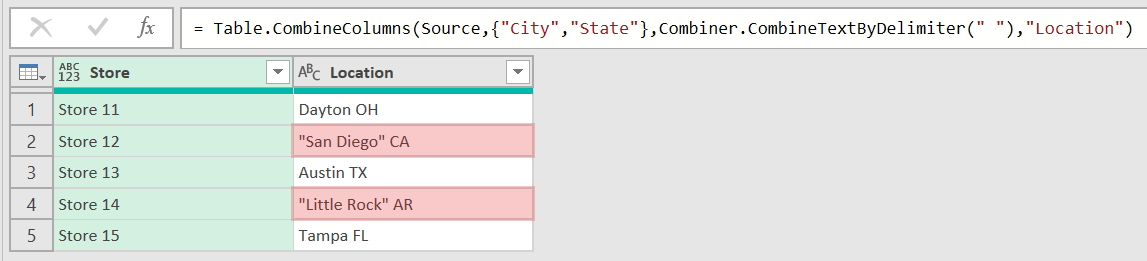
San Diego and Little Rock have a space inside them. Since the space is also the delimiter, the Csv rule wraps those city names in quotes, so a program reading the text could tell where the city ends.
That’s useful for a CSV file, but not for a label people will read. So change the formula in that same step to use QuoteStyle.None:
= Table.CombineColumns(Source,{"City","State"},Combiner.CombineTextByDelimiter(" ",QuoteStyle.None),"Location")
Result: Dayton OH, San Diego CA, Austin TX, Little Rock AR, and Tampa FL.

With QuoteStyle.None, the combiner just puts a space between the values and never adds quotes. In the example file, the two versions are the Example 6 – Space Adds Quotes and Example 6 – QuoteStyle None Fix queries.
The same thing happens with a comma delimiter and a value like “Smith, Jr”. So whenever the result is meant for people rather than for another program, add QuoteStyle.None.
Example 7: Create CSV Lines with QuoteStyle.Csv
Now let’s use the quoting on purpose. When you build CSV text, a value that contains a comma has to be quoted, or the comma would split it into two fields.
Below is a Vendors table with each vendor’s name, city, and payment terms, where some names contain a comma or double quotes, and I want a CSV Line column with each row as one comma-separated line.
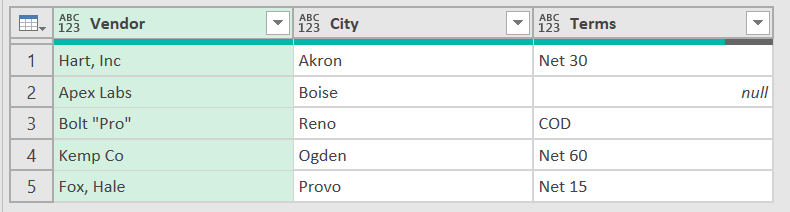
Load the Vendors table into Power Query the same way as in Example 3 (Data > From Table/Range). Then add a new step (by clicking on the fx icon next to the formula bar) and use this formula:
= Table.AddColumn(Source,"CSV Line",each Combiner.CombineTextByDelimiter(",",QuoteStyle.Csv)(Record.ToList(_)),type text)
Result: A new CSV Line column. The first three rows are "Hart, Inc",Akron,Net 30, then Apex Labs,Boise,, and then "Bolt ""Pro""",Reno,COD.

Here, the Table.AddColumn function adds the CSV Line column. For each row, the underscore (_) stands for that row, and the Record.ToList function turns it into a list of its values.
The combiner then joins that list with commas.
The vendor names Hart, Inc and Fox, Hale contain a comma, so they’re wrapped in quotes. Bolt "Pro" already has double quotes, so the combiner wraps the whole name in quotes and doubles the inner ones, which is how CSV files store a quote character.
Apex Labs has no payment terms, and the line still ends with a comma. The combiner keeps an empty spot for a blank cell, so every line has the same three fields.
That’s what you want in a CSV file.
In a label for people, though, the same blank leaves a stray delimiter.
Joined with “, “, the Apex Labs row would end in Boise, with nothing after it. If you’d rather skip blanks there, use the Text.Combine function from Example 1, which leaves out null values.
Other Excel Articles You May Also Like:
- Splitter.SplitTextByDelimiter – Use Splitter.SplitTextByDelimiter in Power Query M to split text.
- List.Combine – Use List.Combine in Power Query M to join lists into one.
- Text.Split – Use Text.Split in Power Query M to split text into a list.
- Table.Combine – Use Table.Combine in Power Query M to stack multiple tables into one by appending rows.
- Table.FromList – Use Table.FromList in Power Query M to turn a list into a table.
- Text.BeforeDelimiter – Use Text.BeforeDelimiter in Power Query M to get text before a delimiter.
- Number.ToText – Use Number.ToText in Power Query M to format numbers as text.
- Text.BetweenDelimiters – Use Text.BetweenDelimiters in Power Query M to extract text between delimiters.
