

The Table.TransformColumnTypes function changes the data type of one or more columns in a table, like turning text into numbers or dates. Every time you click a data type icon in the Power Query Editor, this is the function Power Query writes for you.
Knowing how it works helps when a column won’t convert, when dates come out with the day and month swapped, or when a query breaks because a column went missing. In this article, I’ll show you how to use it with practical examples.
Follow along with the example file
Table.TransformColumnTypes Function Examples.xlsx
Table.TransformColumnTypes Function Syntax
= Table.TransformColumnTypes(table as table, typeTransformations as list, optional culture as any) as table
- table – the table whose column types you want to change. This is usually the previous step, such as
Source. - typeTransformations – a list of
{column name, type}pairs, such as{{"Amount",type number}}. You can change several columns in one go by adding more pairs. If a listed column doesn’t exist in the table, you get an error. - culture (optional) – the regional format used to read the values, such as
"en-US"or"en-GB". You can also give a record here with Culture (the regional format) and MissingField (what to do when a listed column doesn’t exist).
What it returns – the same table, with the listed columns converted to the new types. Columns you don’t list stay as they are.
Here are the type values you’ll use most often, along with the names the Power Query Editor shows for them:
| Type in the Editor | Type value in M |
|---|---|
| Text | type text |
| Decimal Number | type number |
| Whole Number | Int64.Type |
| Fixed Decimal Number | Currency.Type |
| Percentage | Percentage.Type |
| Date | type date |
| Date/Time | type datetime |
| True/False | type logical |
The Table.TransformColumnTypes function works in Power Query in Excel for Microsoft 365, 2024, 2021, 2019, 2016, and Excel for Mac (Microsoft 365), as well as in Power BI.
When to Use the Table.TransformColumnTypes Function
Use this function when you need to:
- Turn numbers or dates that came in as text into real numbers and dates
- Set the right type for several columns in one step
- Read dates and numbers that use a different country’s format, like day/month/year dates or a comma as the decimal separator
- Store percentages or currency amounts with the right type
- Keep a type-change step from breaking when a column is missing from the source
- Convert every column in a table to the same type without typing each column name
Example 1: Change the Type of One Column
Let’s start with the most common use, changing the type of a single column.
Below is an Orders table where the Amount column came in as text, and I want to change it to numbers.
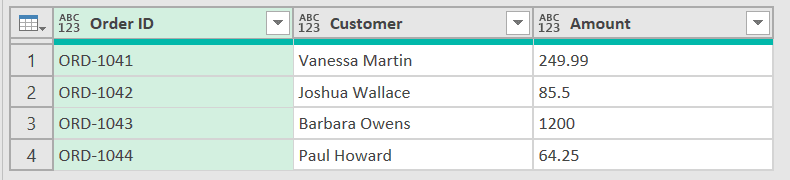
Add a new step (by clicking on the fx icon next to the formula bar) and use this formula:
= Table.TransformColumnTypes(Source,{{"Amount",type number}})
Result: the Amount column becomes a Decimal Number column with 249.99, 85.5, 1200, and 64.25
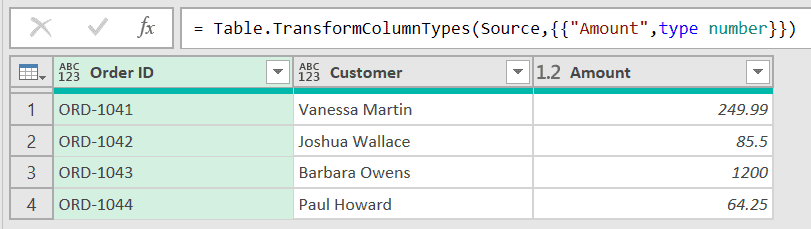
Here, the formula takes the Source table and changes only the Amount column to type number. The Order ID and Customer columns are left untouched because they aren’t in the list.
You can see the change in the column header icon, which switches from ABC123 (any type) to 1.2 (decimal number). The numbers also move to the right side of the column, which is how Power Query shows numbers.
When you load an Excel table into Power Query, it often adds a step called Changed Type on its own. That step uses this same function, so you can click it and edit its formula the same way.
This function only changes the type of a column. If you want to change the values themselves (like making text uppercase or rounding numbers), use the Table.TransformColumns function instead.
Example 2: Change Multiple Column Types at Once
You don’t need a separate step for every column. You can change several columns in a single step.
Below is a gym membership list where the join date, visit count, and auto-renew flag all came in as text, and I want to give each column its proper type.

Add a new step and use this formula:
= Table.TransformColumnTypes(Source,{{"Join Date",type date},{"Visits",Int64.Type},{"Auto Renew",type logical}})
Result: Join Date shows 1/12/2026, 2/3/2026, 2/20/2026, and 3/8/2026 as dates, Visits shows whole numbers, and Auto Renew shows TRUE and FALSE values

Here, the second argument holds three {column name, type} pairs, one for each column. The whole list sits inside an outer pair of curly brackets, which is why you see the double brackets at the start and end.
The dates here are in the year-month-day format (like 2026-01-12), which reads the same in every regional setting. That’s why I didn’t need the culture argument in this example.
The dates you see after the conversion follow your computer’s regional settings. On a UK computer, the same first date shows as 12/01/2026, but it’s still the same date value.
Example 3: Whole Number vs Decimal Number
This next one catches a lot of people off guard, because choosing the wrong number type can quietly change your data.
Below is a timesheet with the hours spent on each task, and some of the hours have decimals, like 7.5 and 8.25.
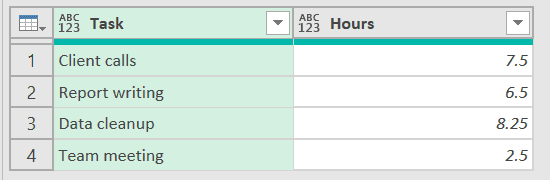
Suppose you change the Hours column to Whole Number. Add a new step and use this formula:
= Table.TransformColumnTypes(Source,{{"Hours",Int64.Type}})
Result: the hours become 8, 6, 8, and 2
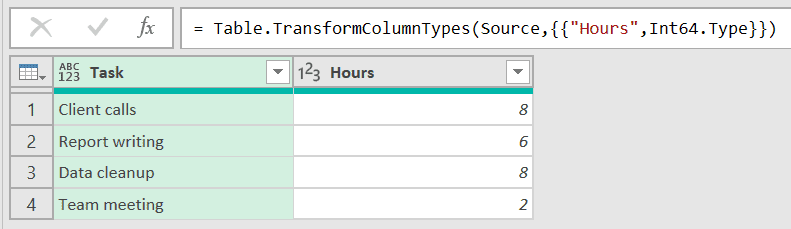
Here, Int64.Type is the Whole Number type, so Power Query rounds every value to a whole number without any warning. You lose the half hours, and the total for these four tasks drops from 24.75 hours to 24.
Also notice that 7.5 became 8 but 6.5 became 6, and 2.5 became 2. That’s because Power Query rounds halves to the nearest even number, so a .5 value doesn’t always go up.
If you want to keep the decimals, use type number (Decimal Number) instead:
= Table.TransformColumnTypes(Source,{{"Hours",type number}})
Result: the hours stay 7.5, 6.5, 8.25, and 2.5
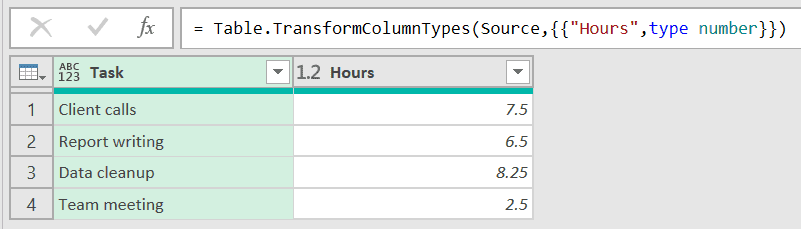
This time the values keep their decimals. Use Int64.Type only for values that should always be whole numbers, like counts or quantities.
Example 4: Currency and Percentage Types
Power Query has two number types that come in handy for money and rates.
Below is a product list with the price of each product and the discount on it, and I want the Price column stored as currency and the Discount column as a percentage.
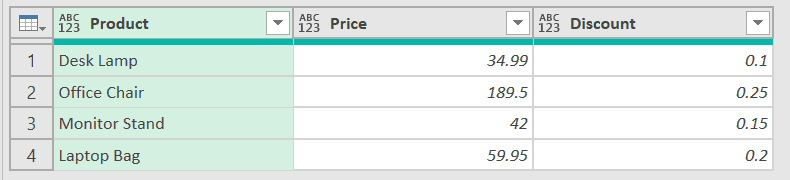
Add a new step and use this formula:
= Table.TransformColumnTypes(Source,{{"Price",Currency.Type},{"Discount",Percentage.Type}})
Result: Price shows 34.99, 189.50, 42.00, and 59.95 as a Fixed Decimal Number column, and Discount shows 10.00%, 25.00%, 15.00%, and 20.00%
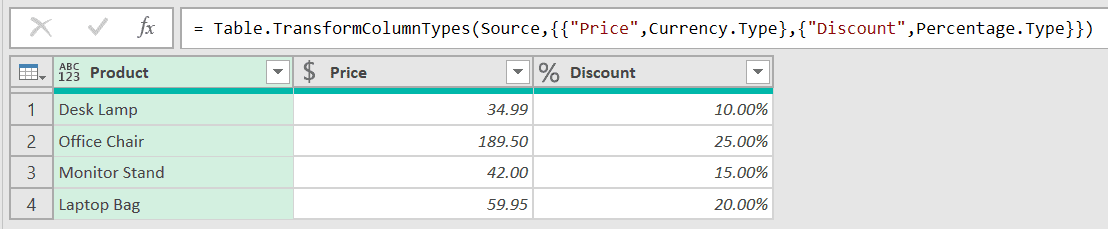
Here, Currency.Type is the Fixed Decimal Number type. It stores numbers with up to four decimal places, which avoids the tiny rounding errors that can creep in when you add up a lot of decimal amounts.
Percentage.Type doesn’t change the values. A discount of 0.1 is still 0.1, and Power Query only shows it as a percentage, so it appears as 10.00%.
Example 5: Same Date Text, Different Culture
This is the example that shows why the culture argument exists.
Below is a list of shipments from a UK warehouse, with ship dates in the day/month/year format, and I want to convert the Ship Date column to real dates.
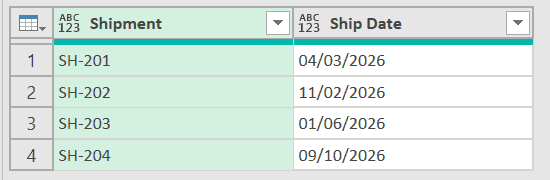
Let’s first convert it using the US format. Add a new step and use this formula:
= Table.TransformColumnTypes(Source,{{"Ship Date",type date}},"en-US")
Result: 4/3/2026 (April 3), 11/2/2026 (November 2), 1/6/2026 (January 6), and 9/10/2026 (September 10)
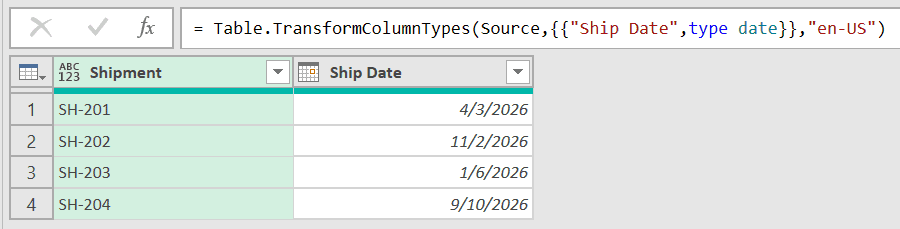
Here, "en-US" tells Power Query to read the text as month/day/year. So 04/03/2026 becomes April 3, when the warehouse actually meant March 4.
There is no error to warn you, because every one of these dates is a valid US date. You simply get the wrong dates.
Now change the culture to UK English:
= Table.TransformColumnTypes(Source,{{"Ship Date",type date}},"en-GB")
Result: 3/4/2026 (March 4), 2/11/2026 (February 11), 6/1/2026 (June 1), and 10/9/2026 (October 9)
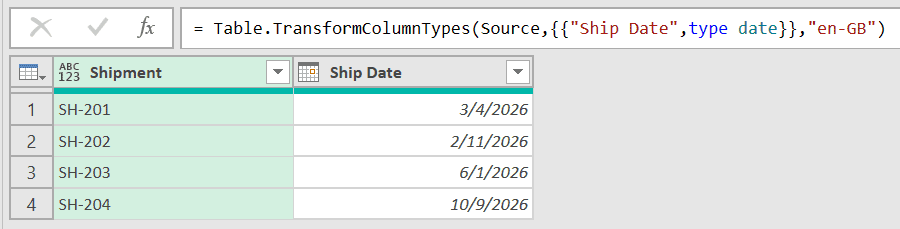
With "en-GB", Power Query reads the text as day/month/year, so every date now matches what the warehouse meant.
If you leave out the culture argument, Power Query uses the workbook’s saved locale. Moving the workbook keeps that setting, but copying the query into a workbook with a different locale can change how ambiguous dates are parsed.
The Date.FromText function takes a culture setting in the same way, which helps when you’re converting a date inside a custom column rather than changing a column’s type.
Important: If the source text uses a different date convention than the workbook’s Power Query locale, pass the source culture as an argument. Otherwise, you can get swapped days and months with no error to warn you.
Example 6: Convert European-Format Numbers
The culture argument works for numbers too, not just dates.
Below is a revenue report from stores in Germany, where the numbers use a period as the thousands separator and a comma for decimals, and I want to convert the Revenue column to numbers.
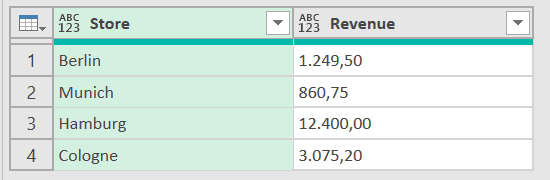
Add a new step and use this formula:
= Table.TransformColumnTypes(Source,{{"Revenue",type number}},"de-DE")
Result: 1249.5, 860.75, 12400, and 3075.2
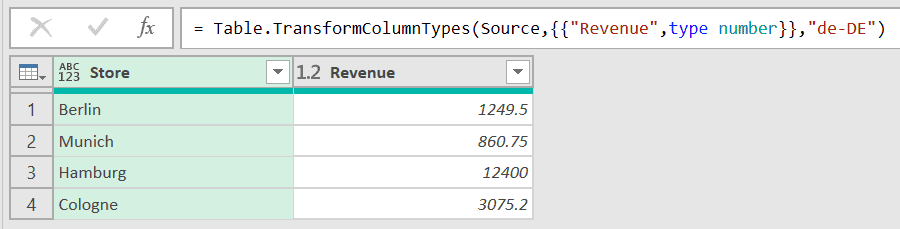
Here, "de-DE" (German) tells Power Query that the comma is the decimal separator and the period separates thousands. So the text 1.249,50 becomes the number 1249.5.
If you used US settings instead, Power Query would read the comma as a thousands separator. That turns 860,75 into 86075, and 1.249,50 shows an Error because it doesn’t look like a US number at all.
Example 7: What Happens When a Value Can’t Be Converted
Real data is rarely perfect, so here’s what happens when some values just can’t be converted.
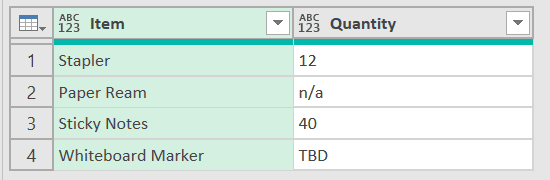
Below is a stock count where most quantities are numbers, but two of them say n/a and TBD, and I want to change the Quantity column to whole numbers.
Add a new step and use this formula:
= Table.TransformColumnTypes(Source,{{"Quantity",Int64.Type}})
Result: 12 and 40 convert to numbers, while the n/a and TBD rows show Error
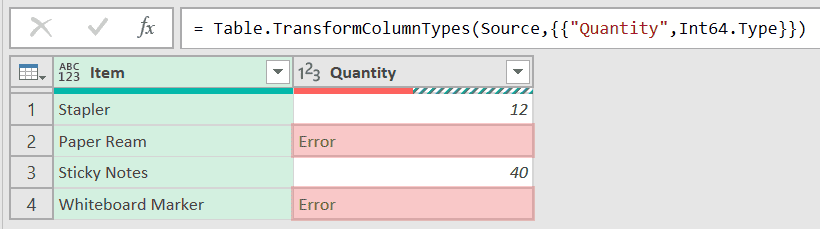
Here, the step itself doesn’t fail. Power Query converts the values it can and puts an Error in each cell it can’t, so the rest of the data still comes through.
When you load this query to an Excel sheet, those Error cells come in as empty cells. That makes them easy to miss, so it’s worth checking the column in the editor before you load it.
To clean them up, right-click the Quantity column header and choose Replace Errors (to put in a value of your choice) or Remove Errors (to drop those rows).
Example 8: Skip a Column That Doesn’t Exist
Here’s a situation that breaks a lot of refreshes.
Below is a monthly sales export with the sales of each rep, and I want one type-change step that converts the Sales and Discount columns to numbers every month (but Discount is missing this month).
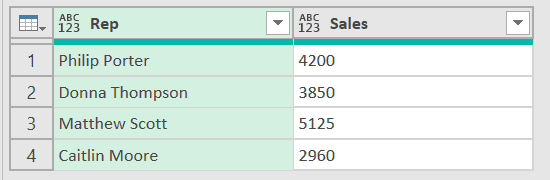
If that step lists the Discount column and the column isn’t there, the whole step fails with the error “The column ‘Discount’ of the table wasn’t found.” To skip missing columns instead, add a record as the third argument:
= Table.TransformColumnTypes(Source,{{"Sales",type number},{"Discount",type number}},[MissingField = MissingField.Ignore])
Result: Sales becomes a number column, and the missing Discount column is skipped without an error

Here, MissingField.Ignore tells Power Query to skip any listed column it can’t find. Sales still gets converted, and next month, when Discount is back, it gets converted too.
If you’d rather always have the Discount column, use MissingField.UseNull instead. It adds the missing column and fills it with null values.
The Changed Type step that Power Query adds on its own lists every column by name. So if a column is later renamed or removed in the source, that step is usually the first one to break.
You can add [MissingField = MissingField.Ignore] as the third argument in that step’s formula too. Just keep in mind that a renamed column is then skipped silently, so the refresh works but that column doesn’t get its new type.
If your version of Excel shows an error for the MissingField record, leave out the record and make sure the listed column names match your data.
Example 9: Change All Columns to Text
Sometimes you want every column in a table to have the same type, without typing out each column name.
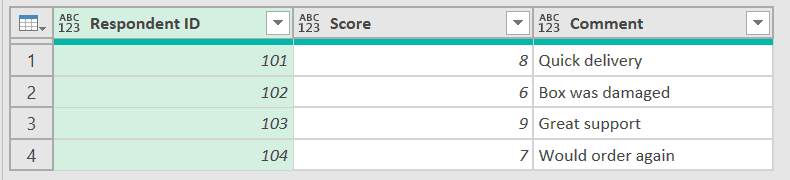
Below is a survey export with a respondent ID, a score, and a comment, and I want every column stored as text.
Add a new step and use this formula:
= Table.TransformColumnTypes(Source,List.Transform(Table.ColumnNames(Source),each {_,type text}))
Result: all three columns become text columns, so the IDs and scores show 101 and 8 as text values

Here, Table.ColumnNames(Source) gets the list of column names, and the List.Transform function turns each name into a {name, type text} pair. The each keyword runs {_,type text} once for every column name, and _ stands for the name being processed, so the first pair becomes {"Respondent ID",type text}.
That list goes into Table.TransformColumnTypes as the second argument, just like a list you’d type by hand.
Because the list is built from the table itself, the step keeps working when columns are added, removed, or renamed in the source. You can swap type text for any other type if you need every column to be a number or a date.
Other Excel Articles You May Also Like:
- Number.ToText function
- Number.From Function in Power Query M
- Date.From – Use Date.From in Power Query M to turn a datetime, serial number, or text into a clean date value.
- Date.ToText – Use Date.ToText in Power Query M to convert dates to text.
- Table.ColumnNames – Use Table.ColumnNames in Power Query M to list a table’s column names.
- Table.ReplaceValue – Use Table.ReplaceValue in Power Query M to find a value and swap it for another.
- Table.AddColumn – Use Table.AddColumn in Power Query M to add a calculated column to a table.
- Csv.Document – Use Csv.Document in Power Query M to read CSV files.
