

The Date.ToText function turns a date into text in the format you choose, like 14-Mar-2026, 2026-03, or Saturday, March 14. You’ll need it when a date has to go inside a label or a sentence, or become a month key or a file-name stamp.
If you leave out the format and culture, Date.ToText uses the short date format for the workbook’s Power Query locale. I’ll show you how to control both so you get the text you expect.
Follow along with the example file
Date.ToText Function Examples.xlsx
Date.ToText Function Syntax
Date.ToText(date as nullable date, optional options as any, optional culture as nullable text) as nullable text
- date – the date you want to convert to text.
- options (optional) – a record with Format (the pattern for the text, such as “dd-MMM-yyyy”) and Culture (the language and region to use, such as “en-US” or “fr-FR”). In older queries, this argument can also be the format text itself (more on that below). If you leave out Format, Date.ToText uses the default short date format of the culture.
- culture (optional) – only there for older queries. Use the Culture field in the options record instead.
What it returns – the date as a text value. If the date is null, you get null back instead of an error.
Date.ToText does the opposite of Date.FromText, which turns text into a date.
You may also see older formulas like Date.ToText(#date(2026,3,14),"yyyy-MM-dd"), where the second argument is the format text itself. With the same Power Query locale, this is equivalent to Date.ToText(#date(2026,3,14),[Format="yyyy-MM-dd"]).
I prefer the record form. With the text form, a culture has to go in the separate third argument, while the record keeps Format and Culture together.
When to Use the Date.ToText Function
Use this function when you need to:
- Show a date in a fixed format, like yyyy-MM-dd or dd-MMM-yyyy, and (with a Culture) get the same text on every computer
- Create a month key (like 2026-03) to group or match sales by month
- Join a date with text, such as “Payment due on May 4, 2026”
- Build readable labels with the day name, like “Friday, April 3”
- Get month and day names in another language
- Add a date stamp to a file name or an ID
Example 1: Convert a Date to Text
Let’s start with the simplest use of the function.
Suppose you have the date March 14, 2026, and you want it as text instead of a date value.
Create a new blank query (Home > New Source > Blank Query) and use this formula:
= Date.ToText(#date(2026,3,14))
Result: 3/14/2026

Here, #date(2026,3,14) creates the date, and Date.ToText converts it to text. The formula uses the short date format for this workbook’s Power Query locale, English (United States).
If you set the workbook’s Power Query locale to English (United Kingdom), the same formula returns 14/03/2026. The date is the same, but the text is different, which is why the next example matters.
Example 2: Get the Same Result on Any Computer (Culture)
Here’s where the Culture option comes in.
Suppose you have the date March 4, 2026, and you want to see what text you get with US settings and with UK settings.
Create a new blank query (Home > New Source > Blank Query) and use this formula:
= Date.ToText(#date(2026,3,4),[Culture="en-US"])
Result: 3/4/2026

The part in square brackets is the options record. Here it has one field, Culture, set to “en-US”.
Now create another blank query and use this formula with the UK culture:
= Date.ToText(#date(2026,3,4),[Culture="en-GB"])
Result: 04/03/2026

It’s the same date in both formulas, March 4, 2026. But the US culture puts the month first (3/4/2026), while the UK culture puts the day first and adds leading zeros (04/03/2026).
Power Query keeps the workbook’s locale when you move the file to another computer. Set Culture in the formula if you want the same text even when you copy the query into a workbook with a different locale.
Example 3: Convert a Date to Text in a Custom Format
Most of the time, you’ll want to pick the exact format yourself.
Suppose you have the date March 14, 2026, and you want it as 14-Mar-2026.
Create a new blank query (Home > New Source > Blank Query) and use this formula:
= Date.ToText(#date(2026,3,14),[Format="dd-MMM-yyyy"])
Result: 14-Mar-2026

Here, the Format field tells Date.ToText how to build the text. “dd” is the day with two digits, “MMM” is the short month name, and “yyyy” is the four-digit year.
The hyphens aren’t format codes, so Date.ToText copies them into the text as they are.
Month and day names come from the culture. To get English names regardless of the workbook’s Power Query locale, put the culture in the same record, like [Format="dd-MMM-yyyy",Culture="en-US"].
These are the format codes you’ll use most with dates (shown for March 4, 2026):
| Code | What it shows | Result |
|---|---|---|
| d | Day without a leading zero | 4 |
| dd | Day with a leading zero | 04 |
| ddd | Short day name | Wed |
| dddd | Full day name | Wednesday |
| M | Month without a leading zero | 3 |
| MM | Month with a leading zero | 03 |
| MMM | Short month name | Mar |
| MMMM | Full month name | March |
| yy | Two-digit year | 26 |
| yyyy | Four-digit year | 2026 |
These codes are pieces of a pattern. A single letter on its own is read as a preset format instead, so [Format="D",Culture="en-US"] gives Saturday, March 14, 2026 for March 14, 2026.
The letters are case-sensitive. In Excel’s TEXT function, “mm” can mean the month, but here “mm” always means minutes.
Important: Always use capital MM for the month. With “dd/mm/yyyy”, the query fails with “We couldn’t use the specified value as a date format because it includes a time component.”
Example 4: Convert a Date Column to Text
In real data, you’ll usually convert a whole column, not a single date.
Below is a Shipments table with the date each order was shipped, and I want the dates in the Ship Date column to show as text like Mar 2, 2026 for a report.
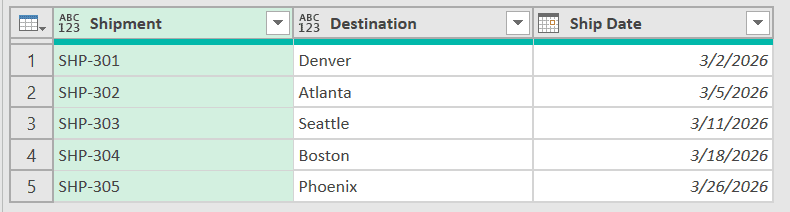
To follow along, select any cell in the Shipments table and go to Data > From Table/Range. Power Query adds a Changed Type step, and Excel dates usually come in there with the Date/Time type.
So click the type icon in the Ship Date header, pick Date, and choose Replace current. Date.ToText only accepts a date, so a Date/Time value gives the error “We cannot convert the value #datetime(…) to type Date.”
Add a new step (by clicking on the fx icon next to the formula bar) and use this formula:
= Table.TransformColumns(#"Changed Type",{{"Ship Date",each Date.ToText(_,[Format="MMM d, yyyy"]),type text}})
Result: The Ship Date column now shows Mar 2, 2026, Mar 5, 2026, Mar 11, 2026, Mar 18, 2026, and Mar 26, 2026 as text.
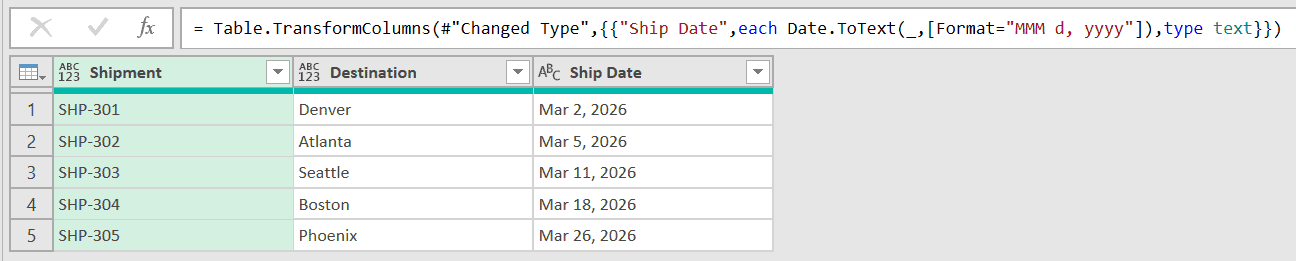
In the above formula, Table.TransformColumns runs Date.ToText on every value in the Ship Date column. The each keyword with _ means “do this for each date in the column”, and type text sets the new column type.
Once the column is text, you can’t use it for date math or date filters anymore. If you still need the real dates, add the text as a new column instead (like the next example does).
Example 5: Create a Month Key (yyyy-MM)
A month key is handy when you want to group sales by month or match them with a monthly target table.
Below is a Sales table with the order date and amount for each order, and I want a month key like 2026-01 for each order in a new Month Key column.
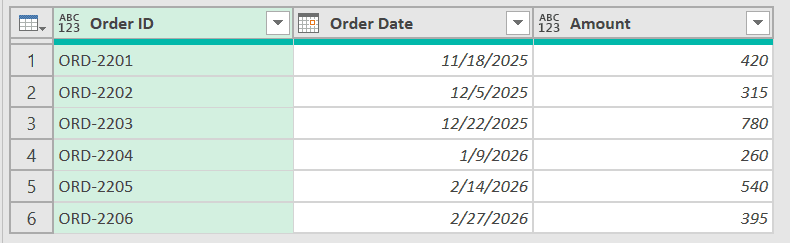
As in Example 4, load the table with Data > From Table/Range, and make sure the Changed Type step sets the Order Date column to the Date type.
Add a new step (by clicking on the fx icon next to the formula bar) and use this formula:
= Table.AddColumn(#"Changed Type","Month Key",each Date.ToText([Order Date],[Format="yyyy-MM"]),type text)
Result: A new Month Key column shows 2025-11, 2025-12, 2025-12, 2026-01, 2026-02, and 2026-02.
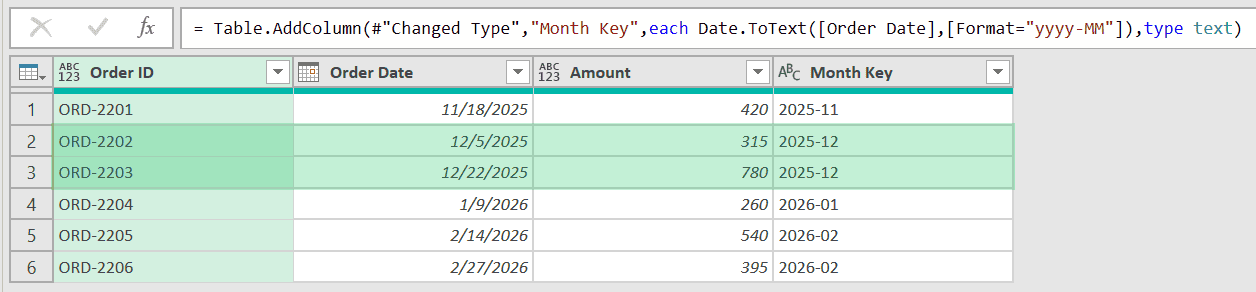
Here, Table.AddColumn adds the Month Key column, and Date.ToText takes each order date and keeps only the year and the two-digit month. Both orders from December 2025 get the same key, so you can group them together.
If another system needs the month first, like 032026, use the format “MMyyyy” instead. These keys don’t sort in date order, though, because 012026 (January 2026) comes before 112025 (November 2025) when sorted as text.
The yyyy-MM format puts the year first, so sorting the keys as text also sorts them by date. To keep the Gregorian year and month across workbook locales, use [Format="yyyy-MM",Culture="en-US"].
If you need the month as a real date instead (for example, to link to a calendar table), use Date.StartOfMonth, which returns the first day of the month as a date.
Example 6: Show the Day Name With the Date
Sometimes a date is easier to read with the day name, like on a schedule or a reminder list.
Below is an Events table with the date of each event, and I want a label like Friday, April 3 in a new Label column.
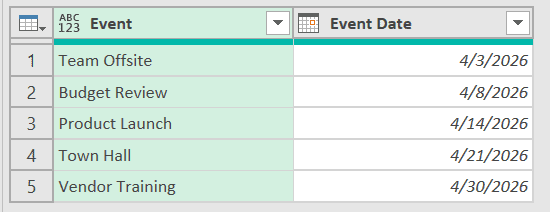
As in Example 4, load the table with Data > From Table/Range, and make sure the Changed Type step sets the Event Date column to the Date type.
Add a new step (by clicking on the fx icon next to the formula bar) and use this formula:
= Table.AddColumn(#"Changed Type","Label",each Date.ToText([Event Date],[Format="dddd, MMMM d"]),type text)
Result: A new Label column shows Friday, April 3, Wednesday, April 8, Tuesday, April 14, Tuesday, April 21, and Thursday, April 30.
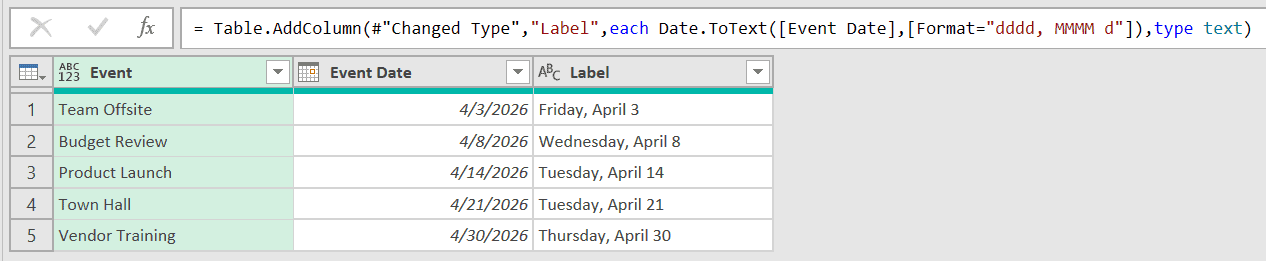
Here, “dddd” gives the full day name, “MMMM” gives the full month name, and “d” gives the day without a leading zero. The comma and the spaces are copied into the text as they are.
If you only need the day name or the month name on its own, Date.DayOfWeekName or Date.MonthName is a simpler choice. Date.ToText is better when you want the day name and the date together in one label.
Example 7: Combine a Date With Text
This next one comes up a lot when you build messages or notes from your data.
Below is an Invoices table with each customer’s payment due date, and I want a reminder like “Payment due on May 4, 2026” in a new Reminder column.
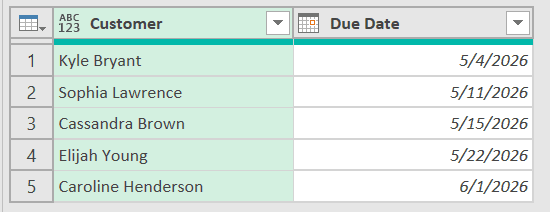
If you join the text and the date directly, like "Payment due on " & [Due Date], you get the error “We cannot apply operator & to types Text and Date.”
That’s because the & operator can’t join text with a date, so the date has to become text first.
As in Example 4, load the table with Data > From Table/Range, and make sure the Changed Type step sets the Due Date column to the Date type.
Add a new step (by clicking on the fx icon next to the formula bar) and use this formula:
= Table.AddColumn(#"Changed Type","Reminder",each "Payment due on " & Date.ToText([Due Date],[Format="MMM d, yyyy"]),type text)
Result: A new Reminder column shows sentences like Payment due on May 4, 2026 and Payment due on Jun 1, 2026.

Here, Date.ToText turns each due date into text like May 4, 2026, and the & operator joins it with “Payment due on “.
The Format keeps the same layout in every reminder. To keep the month name in English on any computer, add Culture=”en-US” to the record.
Example 8: Show Month Names in Another Language
The Culture option also controls the language of month and day names.
Suppose you’re preparing a report for a French team, and you want the date March 14, 2026 written with the French month name.
Create a new blank query (Home > New Source > Blank Query) and use this formula:
= Date.ToText(#date(2026,3,14),[Format="d MMMM yyyy",Culture="fr-FR"])
Result: 14 mars 2026

Here, the Format sets the order (day, full month name, year), and the Culture “fr-FR” gives the French month name, mars. With “de-DE” instead, the same formula returns 14 März 2026.
Day names change language too. For example, “dddd” with the Spanish culture “es-ES” gives sábado for March 14, 2026.
Example 9: Add a Date Stamp to a File Name
The last example is a small one, but I use this pattern a lot when exporting files.
Suppose you want a file name like Sales_20260314.csv, with the date in yyyyMMdd form so the files sort by date in a folder.
Create a new blank query (Home > New Source > Blank Query) and use this formula:
= "Sales_" & Date.ToText(#date(2026,3,14),[Format="yyyyMMdd"]) & ".csv"
Result: Sales_20260314.csv

The yyyyMMdd format gives the year, month, and day with nothing in between. Use [Format="yyyyMMdd",Culture="en-US"] to keep the Gregorian date in the filename even if the workbook locale uses a different calendar.
For today’s date, replace #date(2026,3,14) with Date.From(DateTime.LocalNow()), so the file name changes every day you refresh the query. Date.From keeps only the date part of the current date and time.
Other Excel Articles You May Also Like:
- Text.Format – Use Text.Format in Power Query M to slot values into a text template.
- Date.Month – Use Date.Month in Power Query M to get the month number from a date.
- Number.ToText – Use Number.ToText in Power Query M to format numbers as text.
- DateTime.LocalNow – Use DateTime.LocalNow in Power Query M to get the current date and time.
- Date.EndOfMonth – Use Date.EndOfMonth in Power Query M to get the last day of a month.
- Date.AddMonths – Use Date.AddMonths in Power Query M to add or subtract months.
- Date.DayOfWeek – Use Date.DayOfWeek in Power Query M to get the day number of a date.
- Date.WeekOfYear – Use Date.WeekOfYear in Power Query M to get the week number of a date.
