

The Date.WeekOfYear function tells you which week of the year a date falls in, as a number from 1 to 54. It’s what you use to build weekly reports, label orders by week, or filter data to a single week.
Its week 1 is always the week that contains January 1. That’s different from the ISO 8601 week numbers many companies use, where week 1 is the week with the first Thursday of the year.
In this article, I’ll show you how the function counts weeks, how to control the first day of the week, and how to get an ISO week number when you need one.
Follow along with the example file
Date.WeekOfYear Function Examples.xlsx
Date.WeekOfYear Function Syntax
Date.WeekOfYear(dateTime as any, optional firstDayOfWeek as nullable number) as nullable number
- dateTime – the date, datetime, or datetimezone value you want the week number for.
- firstDayOfWeek (optional) – the day a new week starts on. Use one of Day.Sunday, Day.Monday, Day.Tuesday, Day.Wednesday, Day.Thursday, Day.Friday, or Day.Saturday. If you leave it out, Power Query uses a default that depends on your computer’s culture setting.
What it returns – a whole number from 1 to 54, the week of the year that the date falls in.
Week 1 is always the week that contains January 1, no matter how few days of it fall in the new year. If dateTime is null, you get null back instead of an error.
When to Use the Date.WeekOfYear Function
Use this function when you need to:
- Get the week number of a date
- Start the week on Monday instead of Sunday
- Add a week number column to a table of dates
- Build a year and week label like 2026-W12 that sorts correctly
- Total sales or other values by week
- Keep only the rows from one week
- Compare its week numbers with ISO 8601 week numbers
Example 1: Get the Week Number of a Date
Let’s start with the simplest use of the function.
Suppose you have the date March 18, 2026, and you want to know which week of the year it falls in.
Create a new blank query (in Excel, go to Data > Get Data > From Other Sources > Blank Query) and type this formula in the formula bar:
= Date.WeekOfYear(#date(2026,3,18))
Result: 12

Here, #date(2026,3,18) creates the date March 18, 2026, and Date.WeekOfYear returns 12. So it’s the 12th week of 2026.
I didn’t tell the function which day starts the week, so it used the default for my computer’s culture setting. My computer is set to English (United States), where the week starts on Sunday.
March 18, 2026 is a Wednesday, so it lands in week 12 whether the week starts on Sunday or Monday. For dates near the start of a week, the first day of the week matters, which is what the next example shows.
Example 2: Start the Week on Monday
Many companies count Monday as the first day of the week. With the default Sunday start, a Sunday is the first day of a new week, but with a Monday start, it’s the last day of the old one.
Suppose you want the week number of Sunday, March 15, 2026, with weeks that start on Monday.
Create a new blank query (as in Example 1) and use this formula:
= Date.WeekOfYear(#date(2026,3,15),Day.Monday)
Result: 11

Here, Day.Monday tells the function that each week starts on Monday. So Sunday, March 15 is the last day of week 11.
Without the second argument, the same date returns 12 on my computer, because the Sunday start makes it the first day of week 12. Since the argument is in the formula, you get 11 on any computer, so I recommend always adding it.
Example 3: Add a Week Number Column to a Table
In real data, you’ll usually want the week number for a whole column of dates.
Below is a Tickets table with the date each support ticket was opened, and I want the week number of each ticket in a new Week Number column.
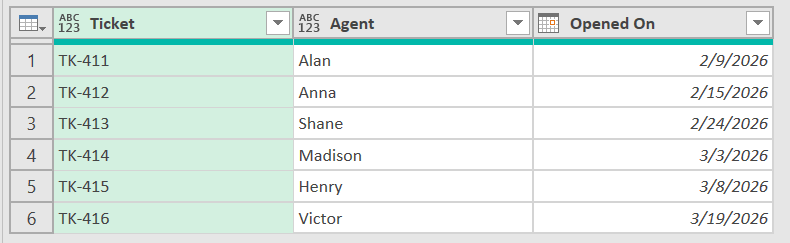
To follow along, select any cell in the Tickets table and go to Data > From Table/Range. Power Query adds a Changed Type step, and Excel dates usually come in there with the Date/Time type.
These dates have no time, so click the type icon in the Opened On header, pick Date, and choose Replace current. Date.WeekOfYear works on Date/Time values too, so this step just keeps the column clean.
If the dates come in as text instead, the function gives the error “The Date value must contain the Date component.” Changing the column type to Date fixes it.
Add a new step (by clicking on the fx icon next to the formula bar) and use this formula:
= Table.AddColumn(#"Changed Type","Week Number",each Date.WeekOfYear([Opened On],Day.Monday),Int64.Type)
Result: A new Week Number column shows 7, 7, 9, 10, 10, and 12.
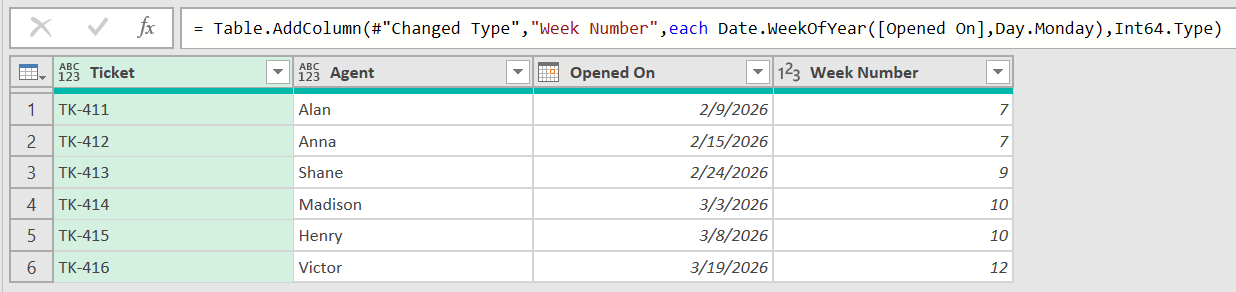
Here, the Table.AddColumn function adds the Week Number column, and the each keyword runs Date.WeekOfYear on every row. [Opened On] picks the date from the same row, and Int64.Type makes the new column a Whole Number column.
Since the formula uses Day.Monday, Anna’s ticket on Sunday, 2/15/2026 stays in week 7 with Alan’s Monday ticket. Henry’s ticket on Sunday, 3/8/2026 also stays in week 10 with Madison’s.
Example 4: See Why Week 1 Can Be Shorter Than 7 Days
If you count 7-day blocks from January 1, you’d expect January 3 to be in week 1. Date.WeekOfYear doesn’t count that way, and this example shows why.
Below is a Signups table with the date each member joined a gym in January 2027, and I want the week number of each signup in a new Week Number column, with weeks that start on Sunday.
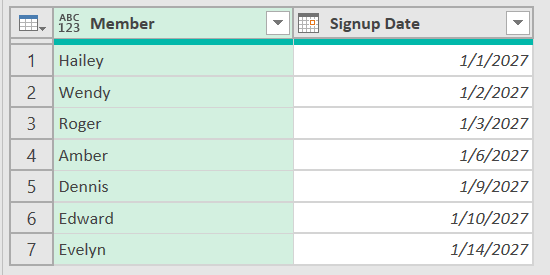
As in Example 3, load the table with Data > From Table/Range, and make sure the Changed Type step sets the Signup Date column to the Date type.
Add a new step (by clicking on the fx icon next to the formula bar) and use this formula:
= Table.AddColumn(#"Changed Type","Week Number",each Date.WeekOfYear([Signup Date],Day.Sunday),Int64.Type)
Result: A new Week Number column shows 1, 1, 2, 2, 2, 3, and 3.
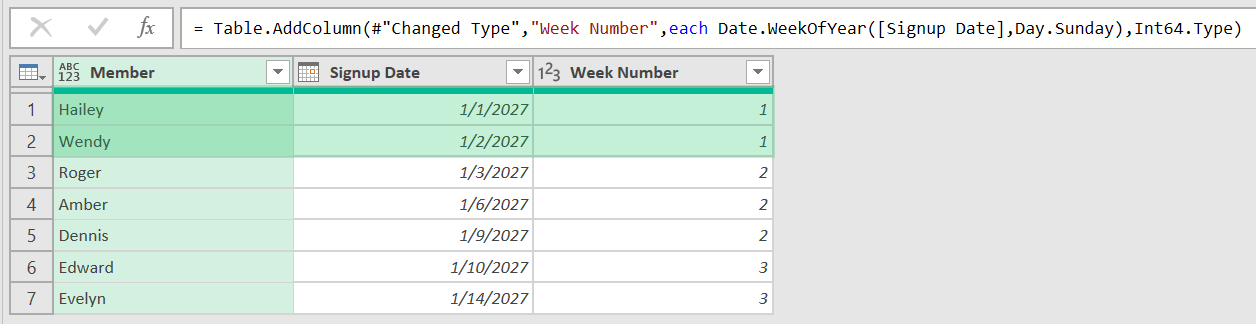
Here, January 1, 2027 is a Friday. Week 1 is the week that contains January 1, so it’s only two days long, Friday 1/1 and Saturday 1/2.
The first Sunday, 1/3/2027, starts week 2. So Roger, who joined on day three of the year, is already in week 2.
With a Sunday start, if January 1 falls on a Saturday, week 1 is a single day. Keep this in mind when you compare weekly totals, because the first and last weeks of a year are often partial weeks.
Example 5: Get Weeks 53 and 54 at the End of the Year
Since week 1 can be a partial week, the end of the year spills over too. A year has 52 weeks and one or two extra days, so the end of December always spills into week 53.
Below is a Bookings table with the arrival date of each guest at a holiday rental around the end of 2028, and I want the week number of each booking in a new Week Number column, with weeks that start on Sunday.
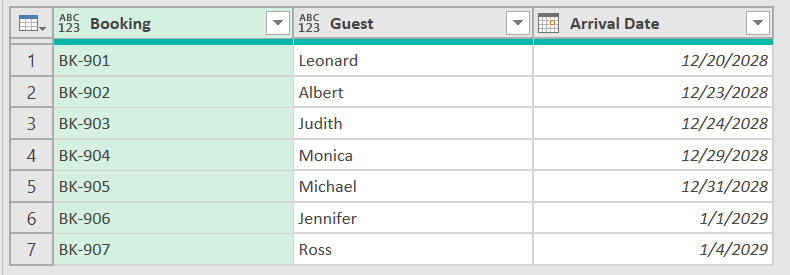
As in Example 3, load the table with Data > From Table/Range, and make sure the Changed Type step sets the Arrival Date column to the Date type.
Add a new step (by clicking on the fx icon next to the formula bar) and use this formula:
= Table.AddColumn(#"Changed Type","Week Number",each Date.WeekOfYear([Arrival Date],Day.Sunday),Int64.Type)
Result: A new Week Number column shows 52, 52, 53, 53, 54, 1, and 1.
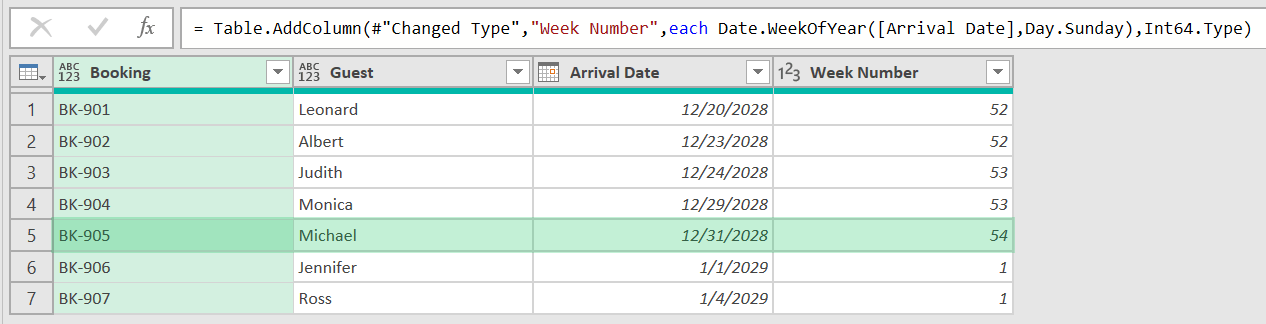
Here, Sunday, 12/24/2028 starts week 53, and Sunday, 12/31/2028 starts week 54. That one-day week 54 is why the function can return numbers up to 54.
With a Sunday start, this only happens in a leap year that begins on a Saturday.
That’s why this example uses 2028, the next such year. With Day.Monday instead, December 31, 2028 would be in week 53.
Back in the Sunday-start Week Number column, the count then starts over. Jennifer’s arrival on 1/1/2029 is in week 1 of 2029, even though it’s in the same Sunday-to-Saturday week as Michael’s.
Follow along with the example file
Date.WeekOfYear Function Examples.xlsx
Example 6: Create a Year and Week Label
A week number alone repeats every year, so week 1 of 2026 and week 1 of 2027 look the same. Adding the year fixes that.
Below is an Orders table with the date of each order from December 2026 to January 2027, and I want a label like 2026-W51 for each order in a new Year Week column.
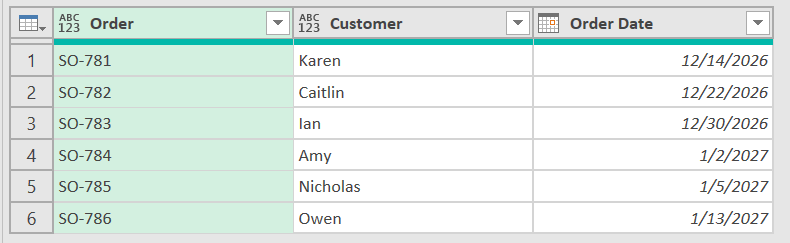
As in Example 3, load the table with Data > From Table/Range, and make sure the Changed Type step sets the Order Date column to the Date type.
Add a new step (by clicking on the fx icon next to the formula bar) and use this formula:
= Table.AddColumn(#"Changed Type","Year Week",each Text.From(Date.Year([Order Date]))&"-W"&Text.PadStart(Text.From(Date.WeekOfYear([Order Date],Day.Monday)),2,"0"),type text)
Result: A new Year Week column shows 2026-W51, 2026-W52, 2026-W53, 2027-W01, 2027-W02, and 2027-W03.
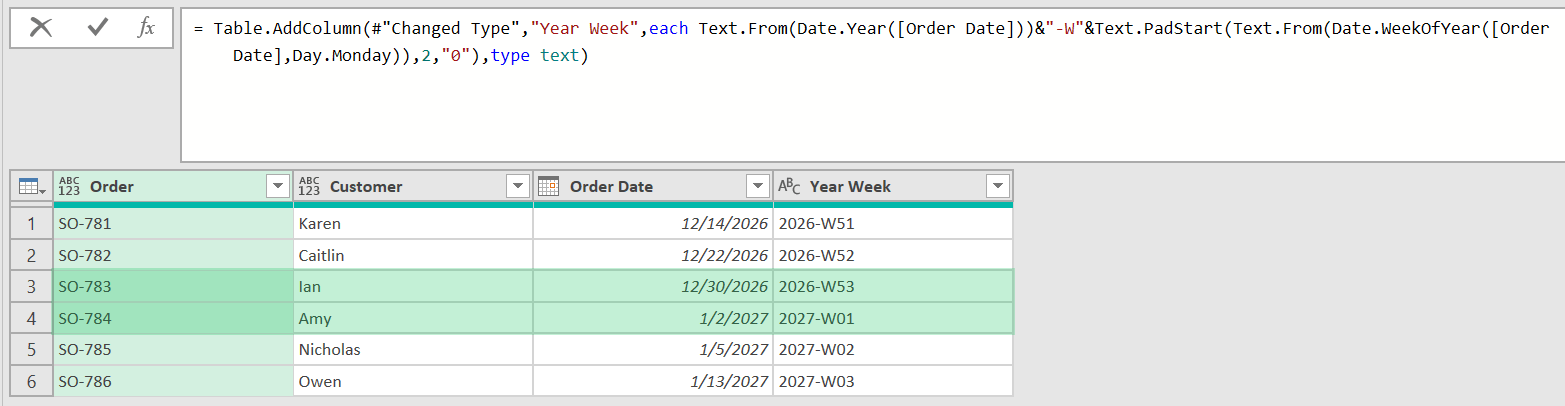
Here, the Date.Year function gets the year and Date.WeekOfYear gets the week number. The Text.From function turns both numbers into text so they can be joined with the & operator.
The Text.PadStart function adds a leading zero to weeks 1 to 9, so week 1 shows as 01. Without it, 2027-W10 would sort before 2027-W2 when you sort the labels as text.
Ian’s order on 12/30/2026 is in 2026-W53 and Amy’s order on 1/2/2027 is in 2027-W01, even though both dates fall in the same Monday-to-Sunday week. That week is split across the two years, so each part gets its own label.
The label looks like an ISO 8601 week, but the numbers aren’t ISO week numbers. Under ISO, Amy’s order is in 2026-W53.
If you need real ISO labels, use the formulas in Example 9.
Example 7: Total Sales by Week
A weekly total is one of the most common reasons to get a week number.
Below is a DailySales table with the sales for each day a small bakery recorded in March 2026, and I want the total sales for each week, with the week number and total in two columns.
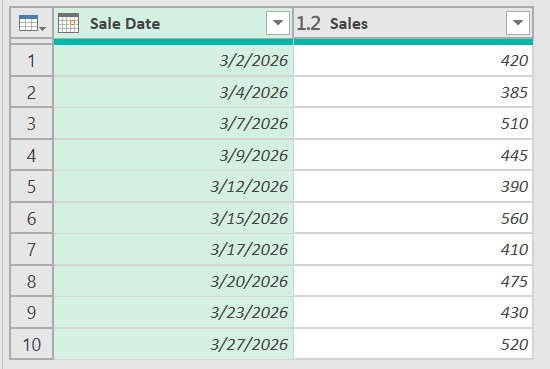
As in Example 3, load the table with Data > From Table/Range, and make sure the Changed Type step sets the Sale Date column to the Date type and the Sales column to a number.
First, add a week number for each day. Add a new step (by clicking on the fx icon next to the formula bar) and use this formula:
= Table.AddColumn(#"Changed Type","Week Number",each Date.WeekOfYear([Sale Date],Day.Monday),Int64.Type)
Power Query names a step added this way Custom1, so right-click it in the Applied Steps pane, choose Rename, and call it Added Week Number. The next formula refers to it by that name.
Next, group the rows by that week number. Add another new step and use this formula:
= Table.Group(#"Added Week Number",{"Week Number"},{{"Total Sales",each List.Sum([Sales]),type number}})
Result: Four rows for weeks 10 to 13, with total sales of 1315, 1395, 885, and 950.

Here, the first step adds a Week Number column, with each week running from Monday to Sunday. The Table.Group function then makes one row for each week number, and List.Sum adds up the Sales of the rows in that week.
So week 10 adds the sales from 3/2, 3/4, and 3/7/2026 to get 1315.
All these dates are in 2026, so the week number alone is enough to group by. If your data covers more than one year, group by the Year Week label from Example 6 instead.
Example 8: Keep Only the Rows From One Week
Sometimes you only need the data from one week, like when you check the hours for a weekly payroll.
Below is a Timesheet table with the hours each employee worked on a date in March 2026, and I want to keep only the rows from week 11, with weeks that start on Monday.
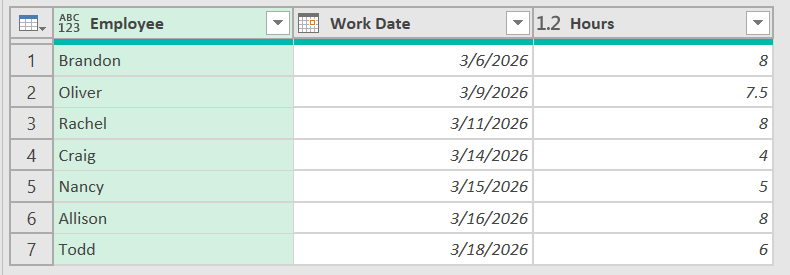
As in Example 3, load the table with Data > From Table/Range, and make sure the Changed Type step sets the Work Date column to the Date type.
Add a new step (by clicking on the fx icon next to the formula bar) and use this formula:
= Table.SelectRows(#"Changed Type",each Date.WeekOfYear([Work Date],Day.Monday)=11)
Result: Four rows remain, for Oliver, Rachel, Craig, and Nancy.
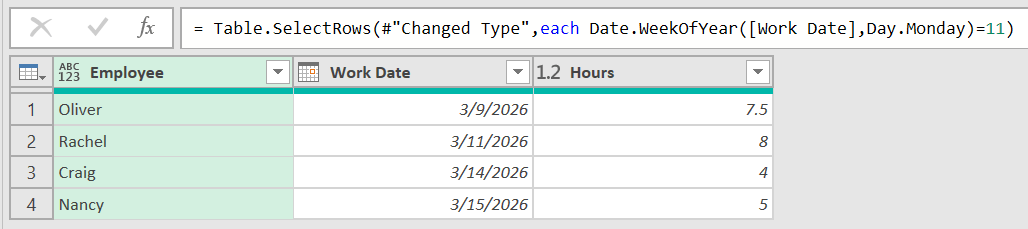
Here, the Table.SelectRows function keeps only the rows where the condition is true. The condition checks if the week number of the work date is 11.
Week 11 runs from Monday, 3/9/2026 to Sunday, 3/15/2026. So Nancy’s Sunday shift stays in, and Allison’s shift on Monday, 3/16/2026 is left out because it starts week 12.
You don’t need a helper column for this, because the week number is worked out inside the condition. To pick a different week, change the 11.
This works because all the dates are in 2026. If your table covers more than one year, week 11 of every year would stay in.
In that case, add a year test to the condition and use this formula instead:
= Table.SelectRows(#"Changed Type",each Date.Year([Work Date])=2026 and Date.WeekOfYear([Work Date],Day.Monday)=11)
Example 9: Get the ISO Week Number
This last example is about ISO week numbers. Many companies, especially in Europe, use ISO 8601 week numbers, where weeks start on Monday and week 1 is the week with the first Thursday of the year.
Date.WeekOfYear doesn’t follow that rule, even with Day.Monday. Its week 1 is the week with January 1, so at the turn of a year the two numbers can differ.
Below is a Shipments table with the date of each shipment around the end of 2026, and I want the Date.WeekOfYear result with a Monday start in a Monday Week column and the ISO week number in an ISO Week column.
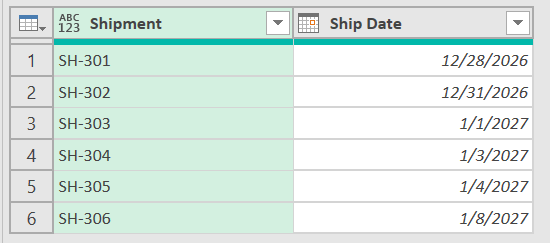
As in Example 3, load the table with Data > From Table/Range, and make sure the Changed Type step sets the Ship Date column to the Date type.
First, add the week number from Date.WeekOfYear. Add a new step (by clicking on the fx icon next to the formula bar) and use this formula:
= Table.AddColumn(#"Changed Type","Monday Week",each Date.WeekOfYear([Ship Date],Day.Monday),Int64.Type)
Rename the step to Added Monday Week (right-click it in the Applied Steps pane and choose Rename), so the next formula can refer to it.
Next, add the ISO week number. Add another new step, rename it Added ISO Week the same way, and use this formula:
= Table.AddColumn(#"Added Monday Week","ISO Week",each Number.IntegerDivide(Date.DayOfYear(Date.AddDays([Ship Date],3-Date.DayOfWeek([Ship Date],Day.Monday)))-1,7)+1,Int64.Type)
Finally, add the ISO year, because an ISO week can belong to the year before or after the date. Add one more new step and use this formula:
= Table.AddColumn(#"Added ISO Week","ISO Year",each Date.Year(Date.AddDays([Ship Date],3-Date.DayOfWeek([Ship Date],Day.Monday))),Int64.Type)
Result: The Monday Week column shows 53, 53, 1, 1, 2, and 2, the ISO Week column shows 53, 53, 53, 53, 1, and 1, and the ISO Year column shows 2026, 2026, 2026, 2026, 2027, and 2027.

Here, the two columns agree in December but not in January.
Date.WeekOfYear starts week 1 on January 1, 2027, a Friday. ISO 8601 keeps January 1 to 3, 2027 in week 53 of 2026, because that week’s Thursday, December 31, is in 2026.
The ISO formula uses that Thursday rule. The Date.DayOfWeek function with Day.Monday gives 0 for Monday up to 6 for Sunday, so 3 minus that number is the gap to the Thursday of the same week, and Date.AddDays moves the date there.
Saying week 1 is the week with the first Thursday is the same as saying every week belongs to the year its Thursday falls in.
So the Thursday of ISO week 1 is always day 1 to 7 of the year, the Thursday of week 2 is day 8 to 14, and so on.
Date.DayOfYear gets that Thursday’s day number in its year. Dividing (day number – 1) by 7 with Number.IntegerDivide and adding 1 turns those blocks of 7 days into the week number.
So Monday, 1/4/2027 starts ISO week 1, while Date.WeekOfYear calls it week 2.
The gap can show up at the end of a year too. Monday, 12/29/2025 is ISO week 1 of 2026, but Date.WeekOfYear puts it in week 53 of 2025.
The ISO Year formula takes the year of the same Thursday.
That’s why the shipments on 1/1 and 1/3/2027 show 2026, the ISO year their week belongs to. Join the ISO Year and ISO Week columns, as in Example 6, to get a true ISO label like 2026-W53.
Other Excel Articles You May Also Like:
- Date.EndOfWeek Function in Power Query M
- Date.StartOfWeek function
- Date.Month – Use Date.Month in Power Query M to get the month number from a date.
- Date.EndOfMonth – Use Date.EndOfMonth in Power Query M to get the last day of a month.
- Date.ToText – Use Date.ToText in Power Query M to convert dates to text.
- DateTime.LocalNow – Use DateTime.LocalNow in Power Query M to get the current date and time.
- Date.AddMonths – Use Date.AddMonths in Power Query M to add or subtract months.
- Date.MonthName – Use Date.MonthName in Power Query M to get the month name from a date.
