

The Date.StartOfWeek function gives you the first day of the week that a date falls in. It’s what you use to group daily data into weeks, label rows with the week they belong to, or pick out all the rows from one week.
In this article, I’ll show you how the function works, how to choose the day your week starts on, and how to use it for weekly totals and week labels.
Follow along with the example file
Date.StartOfWeek Function Examples.xlsx
Date.StartOfWeek Function Syntax
Date.StartOfWeek(dateTime as any, optional firstDayOfWeek as nullable number) as any
- dateTime – the date, datetime, or datetimezone value you want the start of the week for.
- firstDayOfWeek (optional) – the day a new week starts on. Use one of Day.Sunday, Day.Monday, Day.Tuesday, Day.Wednesday, Day.Thursday, Day.Friday, or Day.Saturday. If you leave it out, Power Query picks a default start day. On my computer, set to English (United States), that default is Sunday.
What it returns – the first day of the week that contains dateTime, as the same type you gave it. A date gives you a date, and a datetime gives you a datetime set to midnight (12:00 AM).
If dateTime is null, you get null back instead of an error.
When to Use the Date.StartOfWeek Function
Use this function when you need to:
- Get the first day of the week for a date
- Start the week on Monday (or any other day) instead of Sunday
- Add a Week Start column to a table of dates
- Total sales, hours, or other values by week
- Keep only the rows from one week
- Build a week label like Mar 16 – Mar 22
Example 1: Get the Start of the Week for a Date
Let’s start with the simplest use of the function.
Suppose you have the date March 18, 2026, which is a Wednesday, and you want the date that its week starts on.
Create a new blank query (in Excel, go to Data > Get Data > From Other Sources > Blank Query) and type this formula in the formula bar:
= Date.StartOfWeek(#date(2026,3,18))
Result: 3/15/2026

Here, #date(2026,3,18) creates the date March 18, 2026, and Date.StartOfWeek goes back to the first day of its week. That’s Sunday, March 15, 2026.
How the date is shown depends on your regional settings. You see 3/15/2026 here, while English (United Kingdom) settings show the same date as 15/03/2026.
I didn’t tell the function which day starts the week, so it used the default. On my computer, set to English (United States), the default start day is Sunday.
I’ve only checked this default on a US English setup, and it may differ on other setups. The next example shows how to fix the start day in the formula, so you don’t depend on the default.
Example 2: Start the Week on Monday
Many companies count Monday as the first day of the week. You tell the function that with its second argument.
Suppose you want the start of the week for the same date, March 18, 2026, with weeks that start on Monday.
Create a new blank query (as in Example 1) and use this formula:
= Date.StartOfWeek(#date(2026,3,18),Day.Monday)
Result: 3/16/2026

Here, Day.Monday tells the function that each week starts on Monday. So the week that contains Wednesday, March 18 starts on Monday, March 16, 2026.
Since the start day is in the formula, you get 3/16/2026 without relying on the default. I recommend always adding the second argument, so your query gives the same answer for everyone who refreshes it.
Example 3: Add a Week Start Column to a Table
In real data, you’ll usually want the start of the week for a whole column of dates.
Below is a Returns table with the date each customer returned an item, and I want the Monday that starts each return’s week in a new Week Start column.
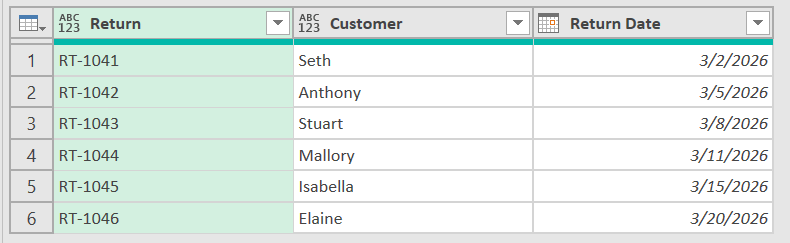
To follow along, select any cell in the Returns table and go to Data > From Table/Range. Power Query adds a Changed Type step, and Excel dates usually come in there with the Date/Time type.
These dates have no time, so click the type icon in the Return Date header, pick Date, and choose Replace current. If you skip this, the Week Start values come out as dates with 12:00 AM after them.
If the dates come in as text instead, the function gives the error “The Date value must contain the Date component.” Changing the column type to Date fixes it.
Add a new step (by clicking on the fx icon next to the formula bar) and use this formula:
= Table.AddColumn(#"Changed Type","Week Start",each Date.StartOfWeek([Return Date],Day.Monday),type date)
Result: A new Week Start column shows 3/2/2026, 3/2/2026, 3/2/2026, 3/9/2026, 3/9/2026, and 3/16/2026.
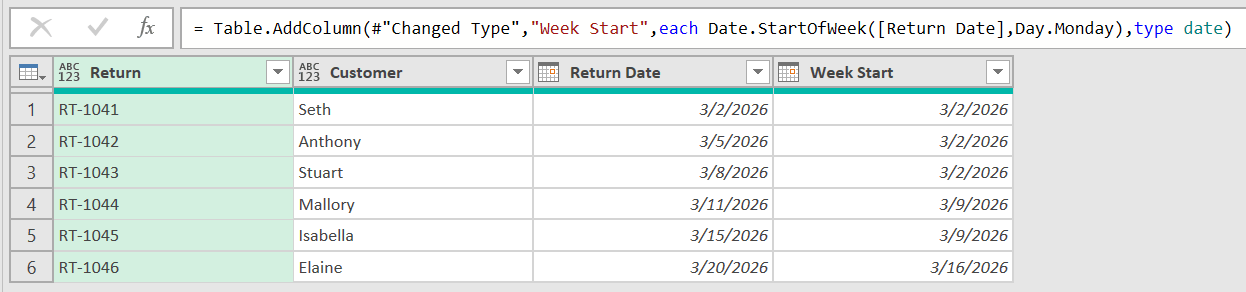
Here, the Table.AddColumn function adds the Week Start column, and the each keyword runs Date.StartOfWeek on every row. [Return Date] picks the date from the same row.
The type date part only labels the new column as a Date column, it doesn’t convert the values. The values come out as plain dates because the Changed Type step already made Return Date a Date column.
Seth’s return on Monday, 3/2/2026 is already the first day of a week, so it returns its own date. Stuart’s return on Sunday, 3/8/2026 goes back to Monday, 3/2/2026, because with a Monday start, Sunday is the last day of the week.
Example 4: Get Week Starts That Cross Into the Previous Year
A week doesn’t stop at the end of a year, so the start of the week for an early January date can be in December.
Below is a Deliveries table with the date of each delivery around New Year 2027, and I want the Monday that starts each delivery’s week in a new Week Start column.
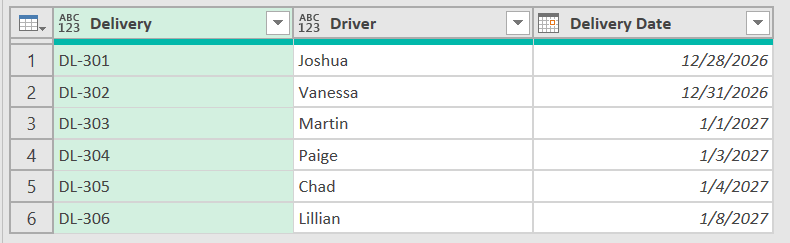
As in Example 3, load the table with Data > From Table/Range, and make sure the Changed Type step sets the Delivery Date column to the Date type.
Add a new step (by clicking on the fx icon next to the formula bar) and use this formula:
= Table.AddColumn(#"Changed Type","Week Start",each Date.StartOfWeek([Delivery Date],Day.Monday),type date)
Result: A new Week Start column shows 12/28/2026 for the first four rows and 1/4/2027 for the last two.
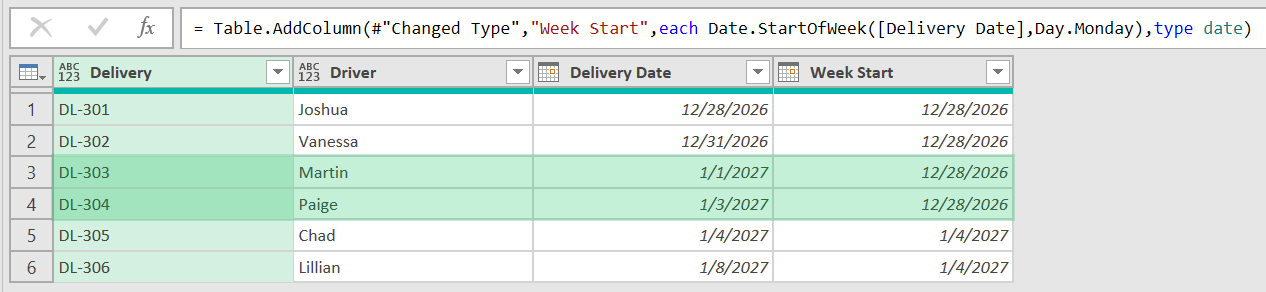
Here, the week of Monday, 12/28/2026 runs to Sunday, 1/3/2027. So Martin’s delivery on 1/1/2027 and Paige’s on 1/3/2027 get a Week Start of 12/28/2026, the same as Joshua’s and Vanessa’s December deliveries.
So all seven days of this week share one Week Start date, even though the week runs across two years.
Just remember that the Week Start can be in a different year from the date itself. Martin’s 1/1/2027 delivery has a 2026 Week Start, so if you need the rows from calendar year 2027, filter on the year of Delivery Date, not of Week Start.
Example 5: Get the Week Start From a Date and Time
Some data has a date and a time in the same column, like call logs or website orders. Date.StartOfWeek works on these values too.
Below is a Calls table with the date and time of each support call, and I want the Monday that starts each call’s week, as a plain date, in a new Week Start column.
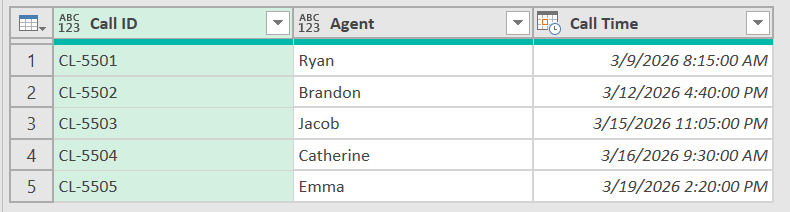
Load the table with Data > From Table/Range. This time, keep the Call Time column as Date/Time in the Changed Type step, because the times are part of the data.
Add a new step (by clicking on the fx icon next to the formula bar) and use this formula:
= Table.AddColumn(#"Changed Type","Week Start",each DateTime.Date(Date.StartOfWeek([Call Time],Day.Monday)),type date)
Result: A new Week Start column shows 3/9/2026 for the first three calls and 3/16/2026 for the last two.

Here, Date.StartOfWeek gets a datetime, so it returns a datetime too. It goes back to Monday and sets the time to midnight, so for Ryan’s call you’d get 3/9/2026 12:00:00 AM.
The DateTime.Date function then drops the time part, and the Week Start column shows just the date. Jacob’s call at 11:05 PM on Sunday, 3/15/2026 still belongs to the week of Monday, 3/9/2026.
Example 6: Total Values by Week
A weekly total is one of the most common reasons to get the start of the week.
Below is an Attendance table with the number of people who came to each class at a yoga studio around New Year 2027, and I want the total attendees for each week, with the week start and total in two columns.
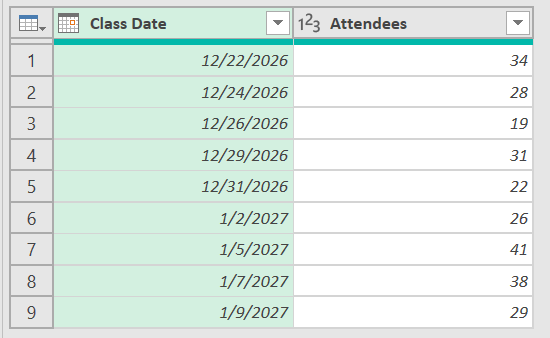
As in Example 3, load the table with Data > From Table/Range, and make sure the Changed Type step sets the Class Date column to the Date type and the Attendees column to Whole Number.
First, add the start of the week for each class. Add a new step (by clicking on the fx icon next to the formula bar) and use this formula:
= Table.AddColumn(#"Changed Type","Week Start",each Date.StartOfWeek([Class Date],Day.Monday),type date)
Power Query names a step added this way Custom1, so right-click it in the Applied Steps pane, choose Rename, and call it Added Week Start. The next formula refers to it by that name.
Next, group the rows by that week start. Add another new step and use this formula:
= Table.Group(#"Added Week Start",{"Week Start"},{{"Total Attendees",each List.Sum([Attendees]),Int64.Type}})
Result: Three rows, for the weeks starting 12/21/2026, 12/28/2026, and 1/4/2027, with 81, 79, and 108 attendees.

Here, the first step adds a Week Start column, with each week running from Monday to Sunday. The Table.Group function then makes one row for each week start, and the List.Sum function adds up the Attendees of the rows in that week.
So the week of 12/28/2026 adds the classes on 12/29, 12/31, and 1/2/2027 to get 79. Because the week start is a full date, that week stays in one row even though it crosses into 2027.
The Table.Group function lists the weeks in the order it first meets them in the data. My classes are already in date order, so the weeks are too, and if yours aren’t, add a sort step on the Week Start column.
Also, a week with no classes at all won’t show up in the result, because there are no rows to group.
Follow along with the example file
Date.StartOfWeek Function Examples.xlsx
Example 7: Start the Week on a Day Other Than Sunday or Monday
Your week doesn’t have to start on Sunday or Monday. You can use any day of the week as the second argument.
Below is a Receipts table with the date of each sale at a grocery store, and I want the start of each sale’s ad week in a new Ad Week Start column. The store’s weekly flyer runs from Wednesday to Tuesday.
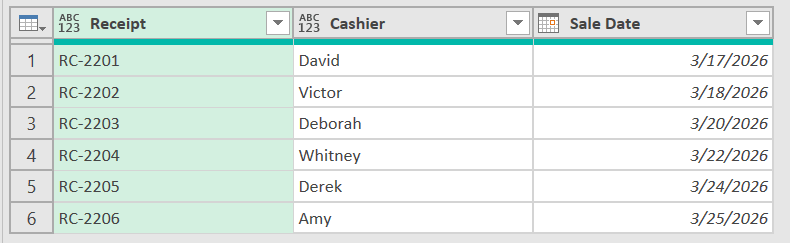
As in Example 3, load the table with Data > From Table/Range, and make sure the Changed Type step sets the Sale Date column to the Date type.
Add a new step (by clicking on the fx icon next to the formula bar) and use this formula:
= Table.AddColumn(#"Changed Type","Ad Week Start",each Date.StartOfWeek([Sale Date],Day.Wednesday),type date)
Result: A new Ad Week Start column shows 3/11/2026, 3/18/2026, 3/18/2026, 3/18/2026, 3/18/2026, and 3/25/2026.
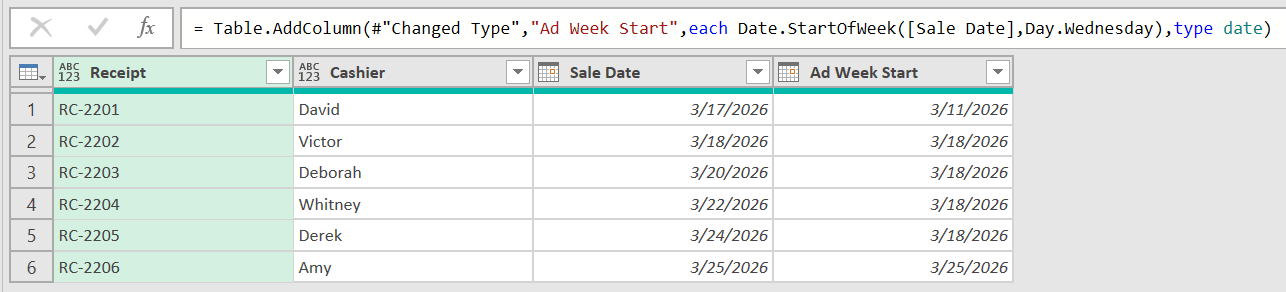
Here, Day.Wednesday tells the function that each week starts on Wednesday. So David’s sale on Tuesday, 3/17/2026 is the last day of the ad week that started on 3/11/2026.
Victor’s sale on Wednesday, 3/18/2026 starts a new ad week. The sales up to Derek’s on Tuesday, 3/24/2026 all belong to it, and Amy’s sale on Wednesday, 3/25/2026 starts the next one.
Example 8: Keep Only the Rows From One Week
Sometimes you only need the rows from one week, like the tasks due in the week of a team meeting.
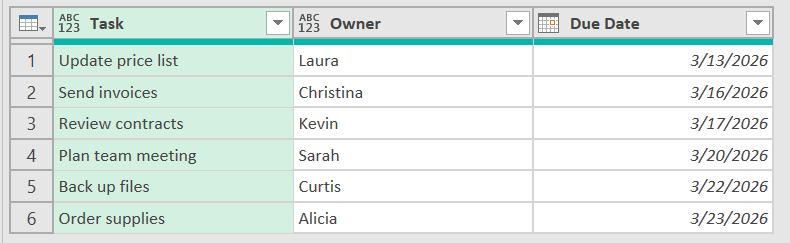
Below is a Tasks table with the due date of each task, and I want to keep only the tasks due in the same Monday-to-Sunday week as March 18, 2026.
As in Example 3, load the table with Data > From Table/Range, and make sure the Changed Type step sets the Due Date column to the Date type.
Add a new step (by clicking on the fx icon next to the formula bar) and use this formula:
= Table.SelectRows(#"Changed Type",each Date.StartOfWeek([Due Date],Day.Monday)=Date.StartOfWeek(#date(2026,3,18),Day.Monday))
Result: Four rows remain, for Christina, Kevin, Sarah, and Curtis.

Here, the Table.SelectRows function keeps only the rows where the condition is true. The condition checks if a task’s week starts on the same Monday as the week of March 18, 2026, which is 3/16/2026.
So the tasks due from Monday, 3/16 to Sunday, 3/22/2026 stay in. Laura’s task on Friday, 3/13 and Alicia’s on Monday, 3/23 are left out, because they’re in the weeks before and after.
To pick a different week, change the date in #date(2026,3,18) to any day in that week. Since the condition compares full dates, it never mixes up the same week in different years.
To always get the current week, you can use the DateTime.LocalNow function to get today’s date. It returns a date and time, and a date never equals a date and time in Power Query, so turn it into a date first with the Date.From function:
= Table.SelectRows(#"Changed Type",each Date.StartOfWeek([Due Date],Day.Monday)=Date.StartOfWeek(Date.From(DateTime.LocalNow()),Day.Monday))
Example 9: Create a Week Range Label
In a report, a label that shows the whole week is often easier to read than a Week Start date.
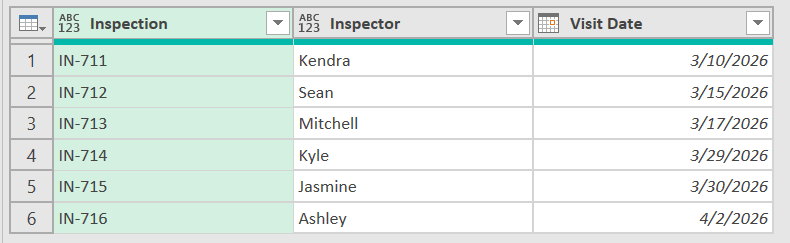
Below is an Inspections table with the date of each site visit, and I want a label like Mar 9 – Mar 15 for the Monday-to-Sunday week of each visit in a new Week column.
As in Example 3, load the table with Data > From Table/Range, and make sure the Changed Type step sets the Visit Date column to the Date type.
Add a new step (by clicking on the fx icon next to the formula bar) and use this formula:
= Table.AddColumn(#"Changed Type","Week",each Date.ToText(Date.StartOfWeek([Visit Date],Day.Monday),[Format="MMM d",Culture="en-US"])&" - "&Date.ToText(Date.EndOfWeek([Visit Date],Day.Monday),[Format="MMM d",Culture="en-US"]),type text)
Result: A new Week column shows Mar 9 – Mar 15, Mar 9 – Mar 15, Mar 16 – Mar 22, Mar 23 – Mar 29, Mar 30 – Apr 5, and Mar 30 – Apr 5.
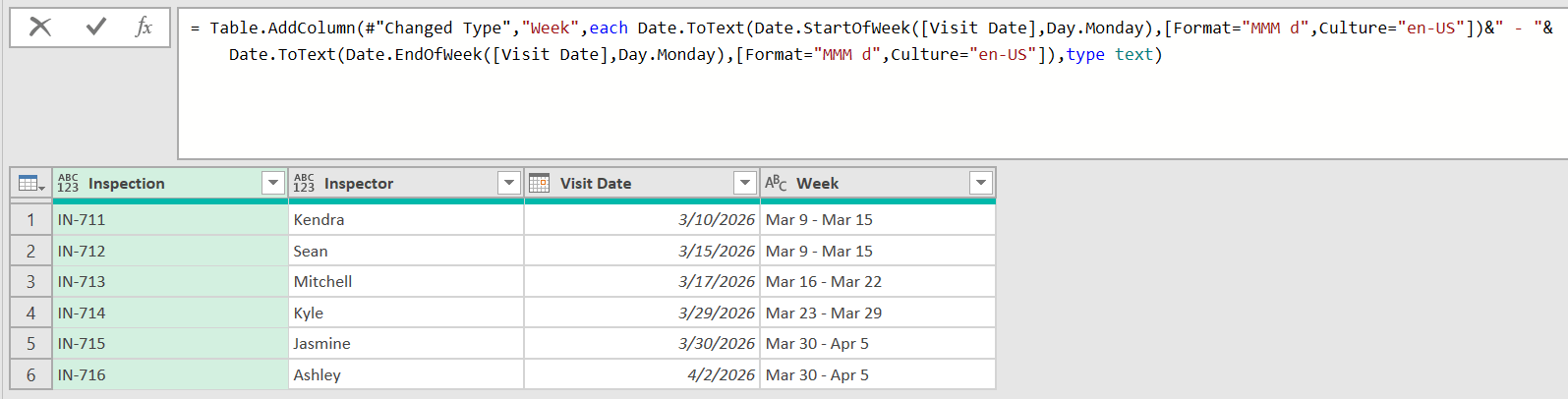
Here, Date.StartOfWeek gets the Monday of each visit’s week, and the Date.EndOfWeek function gets the Sunday of the same week. The Date.EndOfWeek function works the same way as Date.StartOfWeek but goes forward to the last day, so give both the same Day.Monday argument.
The Date.ToText function turns each date into text like Mar 9, and the & operator joins the two with a dash in between.
The Format “MMM d” gives the short month name and the day, and Culture “en-US” keeps the month names in English on any computer.
Kyle’s visit on Sunday, 3/29/2026 is the last day of the Mar 23 – Mar 29 week. Jasmine’s visit on 3/30/2026 starts a week that runs into April, so its label is Mar 30 – Apr 5.
The label is text, so it sorts alphabetically (Apr before Mar) and doesn’t show the year. Keep a Week Start date column next to it for sorting and grouping, and use the label only for display.
Other Excel Articles You May Also Like:
- Date.DayOfWeek Function in Power Query M
- Date.WeekOfYear Function in Power Query M
- Date.AddDays – Use Date.AddDays in Power Query M to add or subtract days from a date.
- Date.EndOfMonth – Use Date.EndOfMonth in Power Query M to get the last day of a month.
- Date.Month – Use Date.Month in Power Query M to get the month number from a date.
- Date.AddMonths – Use Date.AddMonths in Power Query M to add or subtract months.
- Date.Year – Use Date.Year in Power Query M to extract the year from a date.
- Date.MonthName – Use Date.MonthName in Power Query M to get the month name from a date.
