

The Text.BetweenDelimiters function pulls out the part of a text value that sits between two characters you pick, like the word inside a pair of parentheses or an email address inside angle brackets.
You’ll use it a lot when one column holds several pieces of information and you only need one of them.
In this article, I’ll show you how it works, how to pick a later pair of delimiters, and what it returns when a delimiter is missing.
Follow along with the example file
Text.BetweenDelimiters Function Examples.xlsx
Text.BetweenDelimiters Function Syntax
Text.BetweenDelimiters(text as nullable text, startDelimiter as text, endDelimiter as text, optional startIndex as any, optional endIndex as any) as any
- text – the text value you want to extract from.
- startDelimiter – the character (or characters) that marks where the part you want begins.
- endDelimiter – the character (or characters) that marks where it ends. Power Query looks for this only after the start delimiter.
- startIndex (optional) – which occurrence of the start delimiter to use. It counts from 0, so 0 is the first one and 1 is the second. You can also give a list like {1,RelativePosition.FromEnd} to count from the end of the text instead.
- endIndex (optional) – which occurrence of the end delimiter to use relative to the chosen start delimiter. Use 0 for the first end delimiter after it, or pass a list such as
{1, RelativePosition.FromStart}for the second.
What it returns – the text between the two delimiters, without the delimiters themselves.
The delimiters are case-sensitive, so “ID:” won’t match “id:”.
The function also only accepts text, which means pointing it at a number column gives you a “We cannot convert the value” error. Convert those values with Text.From first.
When to Use the Text.BetweenDelimiters Function
Use this function when you need to:
- Pull a value out of parentheses or brackets, such as a status, a size, or a note
- Extract email addresses from “Name <email>” style contact lists
- Get one part of a code or ID, like the middle segment of a product SKU
- Read a value out of a structured note, such as an order number after “Order ID:”
- Get a folder name or a field from a file path or a log line
- Extract every tag in square brackets from a text
Example 1: Extract Text Between Parentheses
Let’s start with a simple one.
Suppose you have a document name, “Quarterly Budget Review (Draft)”, and you want only the status that’s inside the parentheses.
Create a new blank query (Home > New Source > Blank Query) and use this formula:
= Text.BetweenDelimiters("Quarterly Budget Review (Draft)","(",")")
Result: Draft

Here, “(” is the start delimiter and “)” is the end delimiter. Text.BetweenDelimiters returns everything between them, and the parentheses themselves are not part of the result.
Example 2: Extract Email Addresses From a Contact List
This one comes up a lot when you export contacts from an email app.
Below is a Contacts table where each contact has the person’s name followed by their email address inside angle brackets, and I want only the email address in a new Email column.
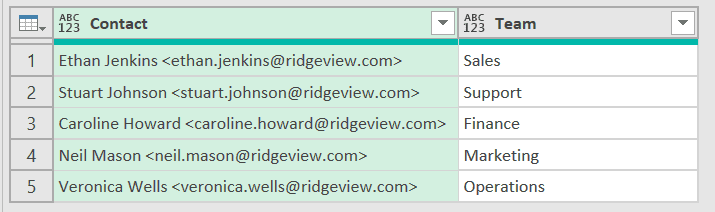
To follow along, select any cell in the Contacts table and go to Data > From Table/Range. This opens the table in the Power Query Editor, where the Source step holds it (if Power Query adds a Changed Type step too, you can delete it).
Add a new step (by clicking on the fx icon next to the formula bar) and use this formula:
= Table.AddColumn(Source,"Email",each Text.BetweenDelimiters([Contact],"<",">"),type text)
Result: A new Email column with ethan.jenkins@ridgeview.com, stuart.johnson@ridgeview.com, caroline.howard@ridgeview.com, neil.mason@ridgeview.com, and veronica.wells@ridgeview.com.
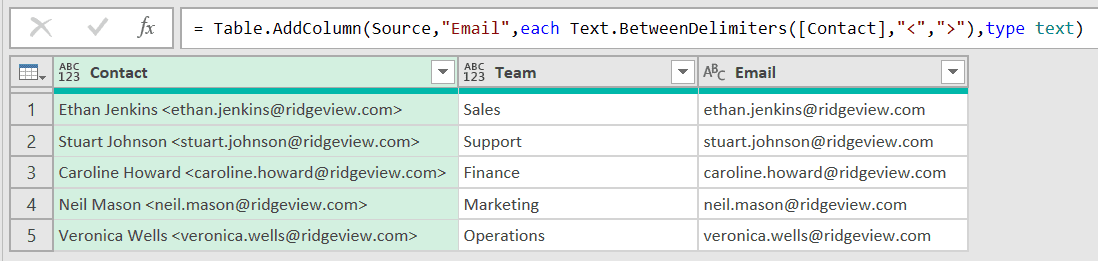
In the above formula, Table.AddColumn adds a new column called Email. For each row, Text.BetweenDelimiters looks at the Contact value and returns the text between “<” and “>”.
Here, each tells Power Query to run the formula once for every row, and [Contact] is the value in the Contact column of that row. The last argument, type text, sets the data type of the new column to text.
Example 3: Get the Domain Name From Email Addresses
The end delimiter is only searched for after the start delimiter, and that’s what makes this one work.
Below is a Signups table with each person’s name and email address, and I want the domain name (like brightlane or gmail) in a new Domain Name column.
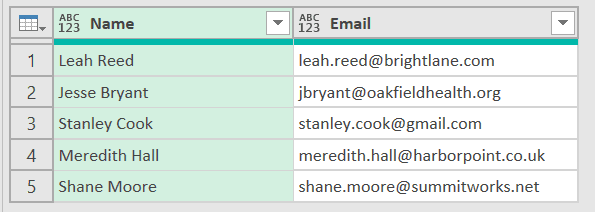
Add a new step (by clicking on the fx icon next to the formula bar) and use this formula:
= Table.AddColumn(Source,"Domain Name",each Text.BetweenDelimiters([Email],"@","."),type text)
Result: A new Domain Name column with brightlane, oakfieldhealth, gmail, harborpoint, and summitworks.
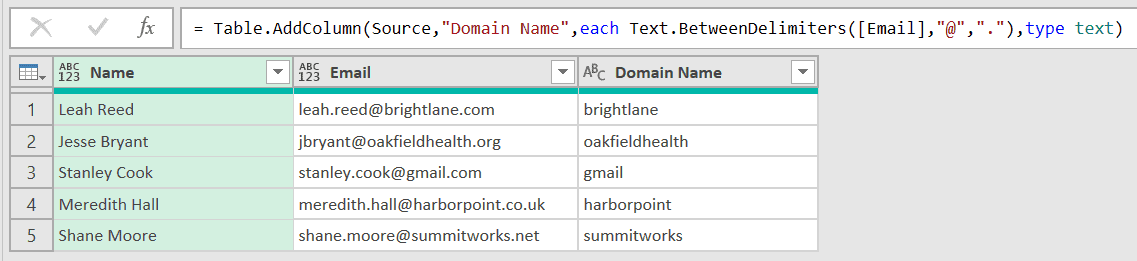
Look at “leah.reed@brightlane.com”. It has a dot before the @ sign, but that dot is ignored, because Power Query starts looking for the end delimiter only after it finds the “@”.
So the result is the text between the @ sign and the first dot after it. For “meredith.hall@harborpoint.co.uk”, that’s harborpoint, and the “.co.uk” part is left out.
If you want the full domain with the extension (like harborpoint.co.uk), you don’t need an end delimiter at all. Use Text.AfterDelimiter([Email],”@”), which returns everything after the @ sign.
Example 4: Extract the Middle Part of a Code
You can use the same character as both the start and the end delimiter.
Below is an Inventory table with product SKUs like SH-RED-42, where the middle part is the color code, and I want that color code in a new Color Code column.
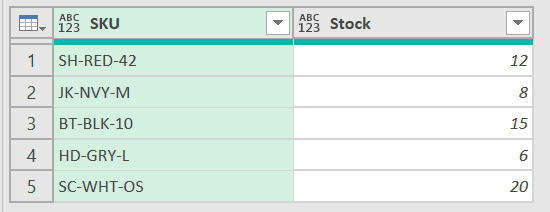
Add a new step (by clicking on the fx icon next to the formula bar) and use this formula:
= Table.AddColumn(Source,"Color Code",each Text.BetweenDelimiters([SKU],"-","-"),type text)
Result: A new Color Code column with RED, NVY, BLK, GRY, and WHT.
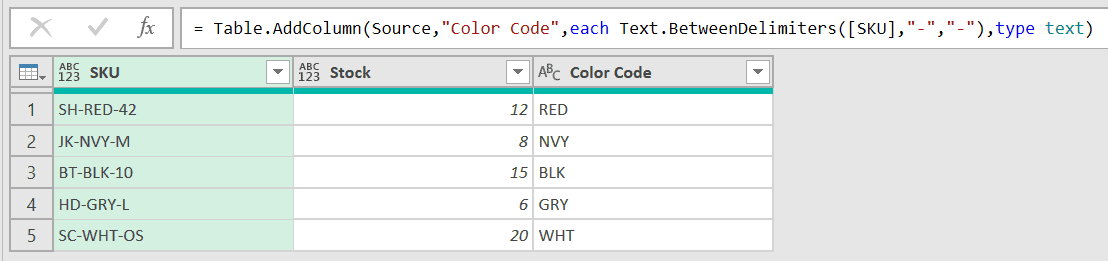
Here, the first hyphen is the start delimiter. Power Query then looks for the next hyphen after it as the end delimiter, so you get the text between the first and second hyphens.
Since the formula looks for the hyphens wherever they are, it doesn’t depend on character positions. So it keeps working even if some SKUs later get a longer prefix or color code.
Example 5: Use Words as Delimiters
Delimiters don’t have to be single characters. You can use a whole word or phrase.
Below is an Orders table where each note has an order ID and a status, like “Order ID: 48213, Status: Shipped”, and I want the order ID as a number in a new Order ID column.
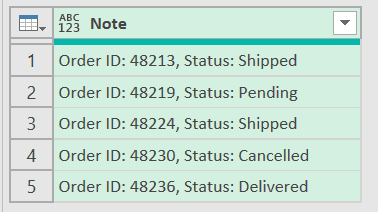
Add a new step (by clicking on the fx icon next to the formula bar) and use this formula:
= Table.AddColumn(Source,"Order ID",each Number.From(Text.BetweenDelimiters([Note],"Order ID: ",",")),Int64.Type)
Result: A new Order ID column with 48213, 48219, 48224, 48230, and 48236.

Here, the start delimiter is “Order ID: “, including the space after the colon, so the result doesn’t start with a space. The comma after the number is the end delimiter.
Text.BetweenDelimiters always returns text, so Number.From converts “48213” into the number 48213. Int64.Type then sets the new column as a whole number column.
Since the delimiters are case-sensitive, Text.BetweenDelimiters would find nothing in a note that says “order id:” in lowercase. So make sure the delimiter matches the case used in your data.
Example 6: Extract Text From the Second Pair of Parentheses
So far, every example used the first occurrence of the start delimiter. The fourth argument lets you pick a later one.
Below is a Courses table where each course name has the level and the duration in two separate pairs of parentheses, and I want the duration in a new Duration column.
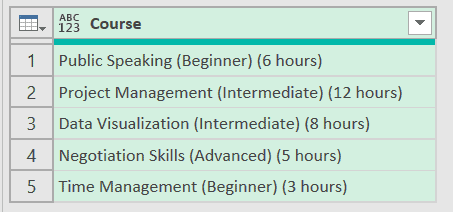
If you use Text.BetweenDelimiters([Course],”(“,”)”) here, you get the level (Beginner, Intermediate, and so on), because that’s the first pair of parentheses.
To get the second pair, add a new step (by clicking on the fx icon next to the formula bar) and use this formula:
= Table.AddColumn(Source,"Duration",each Text.BetweenDelimiters([Course],"(",")",1),type text)
Result: A new Duration column with 6 hours, 12 hours, 8 hours, 5 hours, and 3 hours.
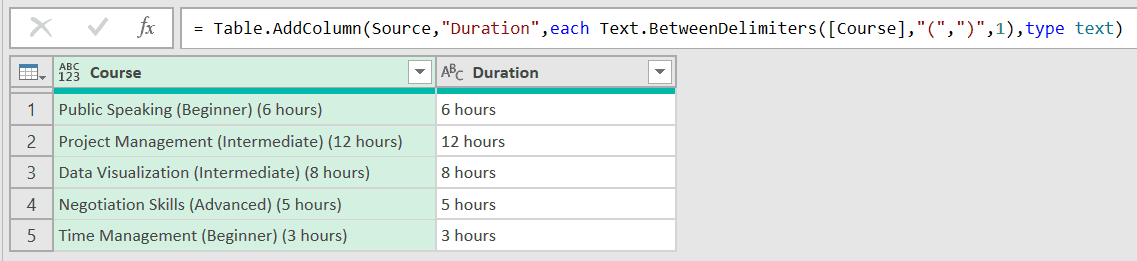
The 1 in the fourth argument tells Power Query to use the second “(” in the text. The count starts at 0, so 0 is the first occurrence (the default) and 1 is the second.
If you ask for an occurrence that doesn’t exist, say 3 when there are only two pairs, you get an empty value instead of an error.
Example 7: Get the Last Folder From File Paths
Sometimes the part you want is near the end of the text, and the number of delimiters before it changes from row to row.
Below is a Files table with full file paths of different depths, and I want the name of the folder that holds each file in a new Folder column.
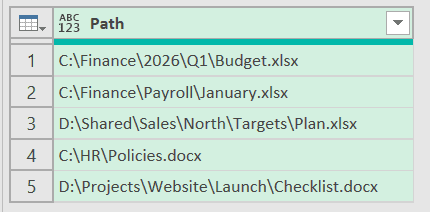
Counting from the start won’t work here, because the folder name starts after the second backslash in one path and after the fourth in another. But it’s always between the last two backslashes.
Add a new step (by clicking on the fx icon next to the formula bar) and use this formula:
= Table.AddColumn(Source,"Folder",each Text.BetweenDelimiters([Path],"\","\",{1,RelativePosition.FromEnd}),type text)
Result: A new Folder column with Q1, Payroll, Targets, HR, and Launch.

Here, {1,RelativePosition.FromEnd} tells Power Query to count the backslashes from the end of the text. 0 would be the last backslash and 1 is the second-to-last one, which is where the folder name starts.
Since there’s no endIndex, the end delimiter is the first backslash after that one. So you get the text between the last two backslashes, no matter how deep the path is.
Example 8: Pick Different Fields From a Log Line
This example shows how the two index arguments change the result for the same text.
Suppose you have this log line, where the fields are separated by ” | “: “2026-11-23 09:15 | ERROR | Payment failed | Checkout API”. Create a new blank query (Home > New Source > Blank Query) and use this formula:
= Text.BetweenDelimiters("2026-11-23 09:15 | ERROR | Payment failed | Checkout API"," | "," | ")
Result: ERROR

With no index arguments, you get the text between the first ” | ” and the next one, which is the log level.
To get the message instead, set the startIndex to 1 so it starts from the second ” | “:
= Text.BetweenDelimiters("2026-11-23 09:15 | ERROR | Payment failed | Checkout API"," | "," | ",1)
Result: Payment failed

And if you want both the level and the message together, keep the startIndex at 0 and set the endIndex to 1:
= Text.BetweenDelimiters("2026-11-23 09:15 | ERROR | Payment failed | Checkout API"," | "," | ",0,1)
Result: ERROR | Payment failed

The endIndex counts end delimiters from the start delimiter you picked. So 1 skips the first ” | ” after it and stops at the second one, which keeps one ” | ” inside the result.
Example 9: When a Delimiter Is Missing
Not every row will have the delimiters you’re looking for, and it helps to know what you get back.
Below is an Equipment table where some items have a status in parentheses (like Loaner or Repair) and some don’t, and I want the status in a new Status column.
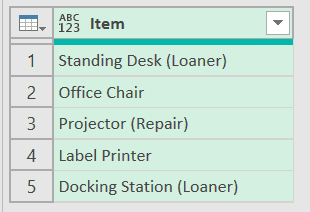
Add a new step (by clicking on the fx icon next to the formula bar) and use this formula:
= Table.AddColumn(Source,"Status",each Text.BetweenDelimiters([Item],"(",")"),type text)
Result: Loaner, Repair, and Loaner for the items with parentheses, and an empty value for Office Chair and Label Printer.
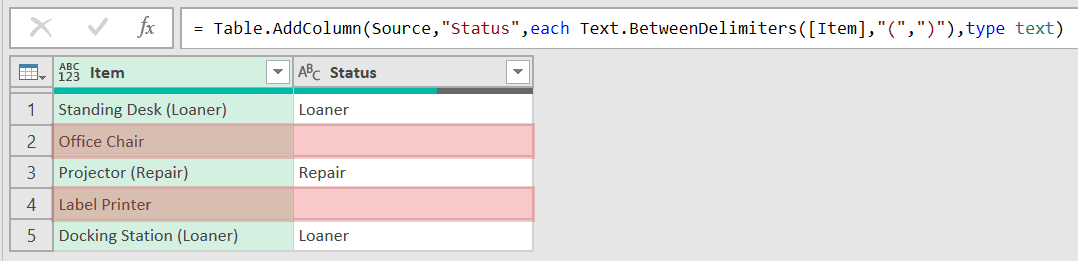
When the start delimiter isn’t in the text, Text.BetweenDelimiters doesn’t give an error. It returns an empty text (“”), which looks like a blank cell in the preview.
That’s easy to miss, and an empty text is not the same as null. A filter on null or a List.NonNullCount won’t treat these rows as missing.
A missing end delimiter works differently from a missing start delimiter. If the “(” is there but the “)” is missing (like “Projector (Repair”), you get everything after the “(“, so that row would show “Repair”.
If you’d rather get null for the rows without parentheses, replace the formula in the step you just added with this one:
= Table.AddColumn(Source,"Status",each let status = Text.BetweenDelimiters([Item],"(",")") in if status = "" then null else status,type text)
Result: Loaner, Repair, and Loaner as before, and null for Office Chair and Label Printer.

Here, let status = ... stores the extracted text under the name status, so the formula doesn’t have to run Text.BetweenDelimiters twice. If status is an empty text, the formula returns null, and otherwise it returns the status.
This also handles blank cells in the Item column. A null value gives an empty text, which then becomes null.
It won’t catch a row with a missing “)” though. That row returns “Repair”, not an empty text, so it stays as it is.
Example 10: Extract All Values Between Brackets
Text.BetweenDelimiters returns one match at a time. But you can combine it with the startIndex to get all of them.
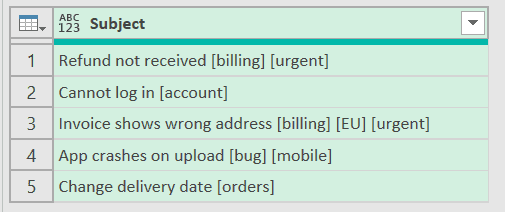
Below is a Tickets table where each subject line has one or more tags in square brackets, and I want all the tags, separated by commas, in a new Tags column.
Add a new step (by clicking on the fx icon next to the formula bar) and use this formula:
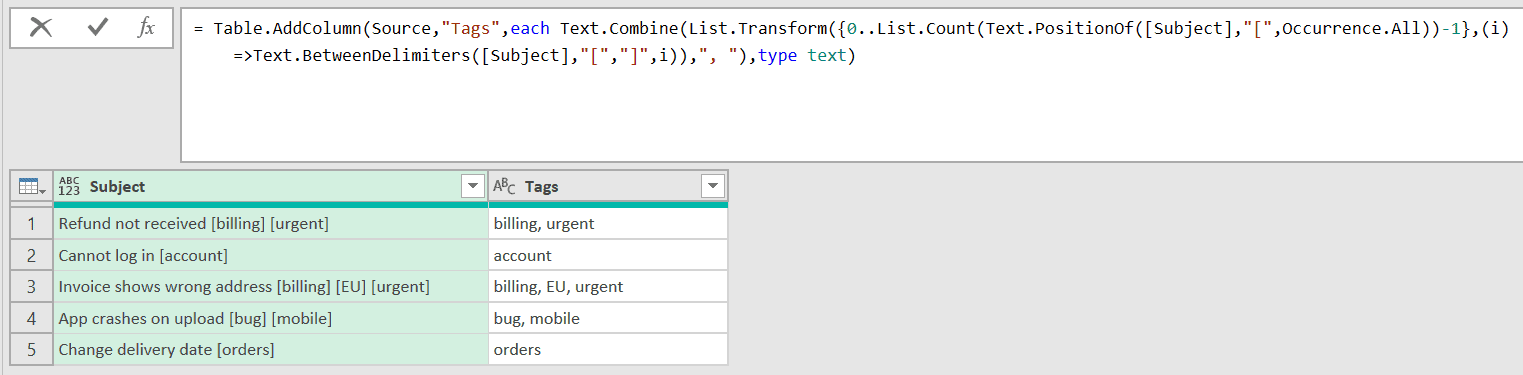
= Table.AddColumn(Source,"Tags",each Text.Combine(List.Transform({0..List.Count(Text.PositionOf([Subject],"[",Occurrence.All))-1},(i)=>Text.BetweenDelimiters([Subject],"[","]",i)),", "),type text)
Result: A new Tags column with “billing, urgent” for the first ticket, “account” for the second, “billing, EU, urgent” for the third, and so on.
This formula works from the inside out. Text.PositionOf with Occurrence.All finds every “[” in the subject, and List.Count counts them, so a subject with three tags gives 3.
{0..List.Count(…)-1} then builds the list of index numbers, like {0,1,2}. List.Transform runs Text.BetweenDelimiters once for each number, using it as the startIndex, so it gets the first tag, then the second, and so on.
The (i)=> part gives a name to each index number, so it doesn’t get mixed up with the each that’s already running on the row.
Finally, Text.Combine joins the tags with a comma and a space.
If a subject has no tags at all, the list of index numbers is empty, and you get an empty value in the Tags column instead of an error.
There’s also a shorter way to get the same tags without Text.BetweenDelimiters:
= Table.AddColumn(Source,"Tags",each Text.Combine(List.Transform(List.Skip(Text.Split([Subject],"[")),each Text.BeforeDelimiter(_,"]")),", "),type text)
Here, Text.Split breaks the subject at every “[“, List.Skip drops the first piece (the text before the first tag), and Text.BeforeDelimiter keeps the part before the “]” in each of the rest.
The inner each here runs once per split piece, and _ stands for that piece. This is fine because, unlike the first formula, the inner step doesn’t need [Subject] from the row.
Both formulas give the same result here, so use whichever one you find easier to read.
Other Excel Articles You May Also Like:
- Text.AfterDelimiter function
- Splitter.SplitTextByDelimiter – Use Splitter.SplitTextByDelimiter in Power Query M to split text.
- Text.Start – Use Text.Start in Power Query M to grab the first few characters from a text value.
- Text.TrimEnd – Use Text.TrimEnd in Power Query M to remove trailing spaces or characters.
- Text.Contains – Guide to Text.Contains in Power Query M.
- Text.Trim – Use Text.Trim in Power Query M to remove spaces from both ends of text.
- Text.StartsWith – Use Text.StartsWith in Power Query M to check whether text begins with a prefix.
- Text.Replace – Use Text.Replace in Power Query M to replace text in a string.
