
If you want to grab the first few characters from the start of a text value in Power Query, the Text.Start function is the quickest way to do it. You tell it how many characters you want, and it hands back that many from the left.
It’s the Power Query equivalent of Excel’s LEFT function. In this article, I’ll walk you through Text.Start with practical examples: pulling a prefix off a single word, adding a prefix column to a table, building usernames and codes, and handling values that are shorter than the count you ask for.
Text.Start Function Syntax
Text.Start(text as nullable text, count as number) as nullable text
- text – The text value you want to pull characters from
- count – The number of characters to return from the start (the left side) of the text
What it returns: A text value containing the first count characters of text. If text is null, the function returns null instead of an error.
When to Use Text.Start
Use this function when you need to:
- Pull a fixed-length prefix off the start of a text value
- Extract a region, category, or area code that always sits at the front of an ID
- Build usernames or short codes from the first few letters of a name
- Trim a longer string down to its first few characters
- Do the same job as Excel’s LEFT function, but inside Power Query
Example 1: Get the First Few Characters of a Word
Let’s start with the basics. The simplest way to see Text.Start in action is to feed it a single text value and a count.
Create a new blank query (Home > New Source > Blank Query) and type this into the formula bar:
= Text.Start("Spreadsheet",6)
Result: Spread

Here, Text.Start takes the word “Spreadsheet” and returns the first 6 characters, which spells “Spread”.
The count is just how many characters you want from the left. Ask for fewer and you get a shorter piece.
Type this into the formula bar:
= Text.Start("Excel",2)
Result: Ex
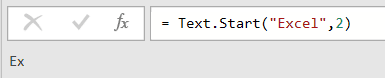
This time the count is 2, so Text.Start returns just the first two characters of “Excel”, giving you “Ex”.
Example 2: Add a Prefix Column From a Column of IDs
Here’s the most common use. You have a table of IDs and you want a separate column that pulls a fixed-length prefix off each one.
Suppose you have an Orders table with an Order ID and a Customer column, and each Order ID starts with a three-letter region code.
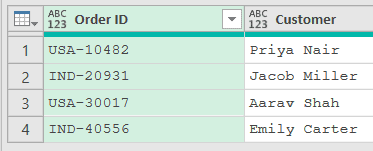
Add a new step (by clicking on the fx icon next to the formula bar) and use this formula:
= Table.AddColumn(Source,"Region Code",each Text.Start([Order ID],3))
Result: a new Region Code column showing USA, IND, USA, and IND
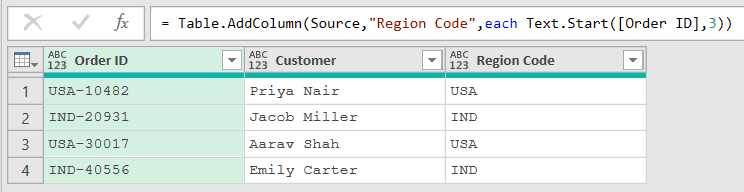
In this formula, Table.AddColumn creates a column named Region Code, and Text.Start([Order ID],3) runs on each row to grab the first three characters of that row’s Order ID.
If you want a different header, just change “Region Code” inside the formula. Table.RenameColumns is the one to use when you need to rename a column that already exists.
Example 3: Pull a Category Code From a SKU
Here’s another common one. Product SKUs often carry a short category prefix at the front, and you want that prefix in its own column.
Suppose you have a Products table with a SKU and a Product column, where the first two letters of each SKU are the category.
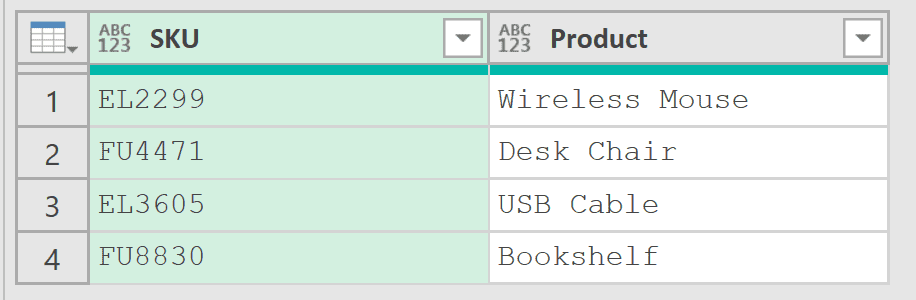
Add a new step (by clicking on the fx icon next to the formula bar) and use this formula:
= Table.AddColumn(Source,"Category",each Text.Start([SKU],2))
Result: a new Category column showing EL, FU, EL, and FU
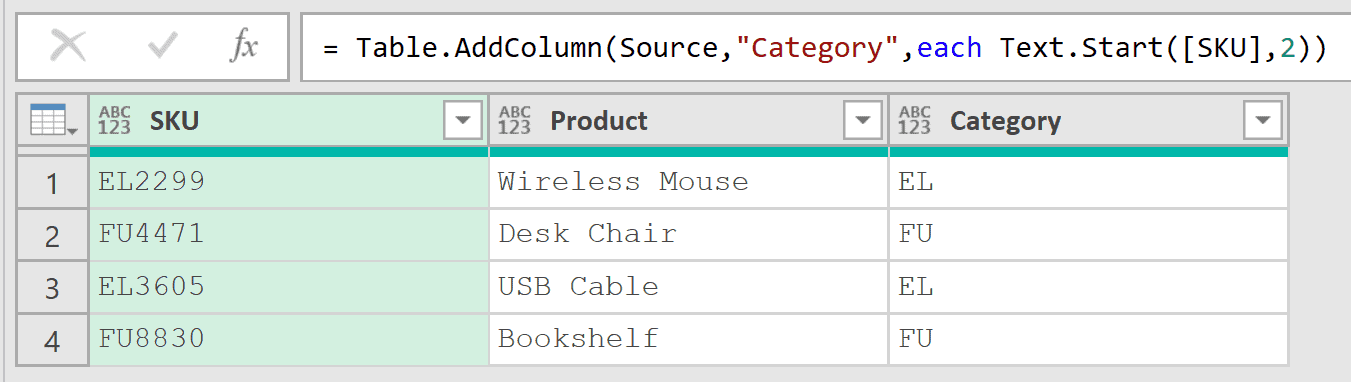
Here, Text.Start([SKU],2) takes the first two characters of each SKU. That gives you a clean category code you can group or filter on later.
If you’d rather change the SKU column in place instead of adding a new one, Table.TransformColumns can run Text.Start directly on the existing column.
Example 4: Make an Uppercase Prefix Code
Now let’s combine Text.Start with another function. Sometimes the source text is lowercase and you want the prefix in uppercase so the codes look consistent.
Suppose you have a Departments table with a Team and a Lead column, and the team names are all lowercase.
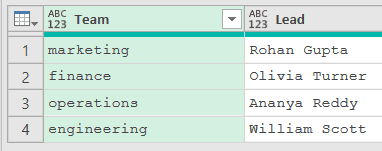
Add a new step (by clicking on the fx icon next to the formula bar) and use this formula:
= Table.AddColumn(Source,"Team Code",each Text.Upper(Text.Start([Team],3)))
Result: a new Team Code column showing MAR, FIN, OPE, and ENG
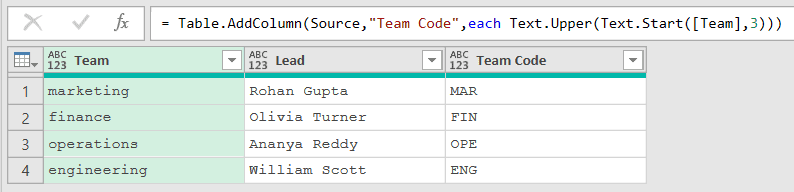
Here, Text.Start([Team],3) grabs the first three letters of each team name, and Text.Upper wraps around it to force the result to uppercase.
Example 5: Build a Username From First and Last Name
This next one comes up a lot when you’re setting up accounts. You want a username made from the first few letters of someone’s first name and last name.
Suppose you have an Employees table with a First Name and a Last Name column.
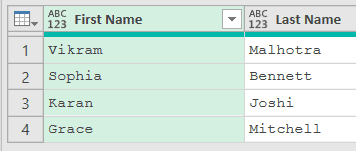
Add a new step (by clicking on the fx icon next to the formula bar) and use this formula:
= Table.AddColumn(Source,"Username",each Text.Lower(Text.Combine({Text.Start([First Name],3),Text.Start([Last Name],4)})))
Result: a new Username column showing vikmalh, sopbenn, karjosh, and gramitc

Here, one Text.Start pulls the first 3 letters of the first name and another pulls the first 4 letters of the last name.
Text.Combine joins those two pieces together, and Text.Lower makes the whole username lowercase.
Example 6: Extract the Area Code From a Phone Number
This one is handy for cleaning up phone data. When numbers are stored in a consistent format, the area code is just the first few characters.
Suppose you have a Contacts table with a Name and a Phone column, where every phone number starts with a three-digit area code.
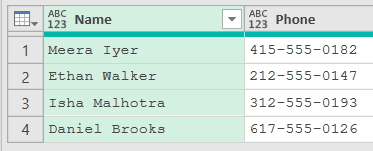
Add a new step (by clicking on the fx icon next to the formula bar) and use this formula:
= Table.AddColumn(Source,"Area Code",each Text.Start([Phone],3))
Result: a new Area Code column showing 415, 212, 312, and 617
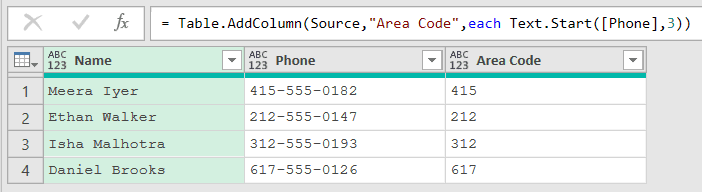
Here, Text.Start([Phone],3) grabs the first three characters of each phone number, which is exactly the area code before the first dash.
Example 7: Handle Values Shorter Than the Count
This one shows an important behavior. What happens when you ask for more characters than the text actually has?
Suppose you have a Codes table with an Item and a Ref column, where the Ref values are different lengths. You want the first four characters of each one.
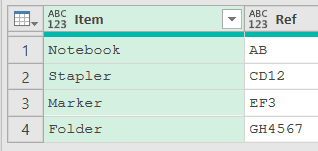
Add a new step (by clicking on the fx icon next to the formula bar) and use this formula:
= Table.AddColumn(Source,"Short Ref",each Text.Start([Ref],4))
Result: a new Short Ref column showing AB, CD12, EF3, and GH45
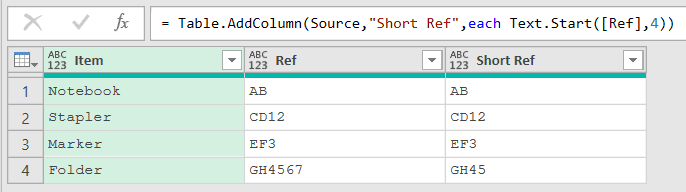
Notice the “AB” row. Its Ref is only two characters long, so asking for the first four just returns the whole thing, “AB”, with no error.
Only “GH4567” was longer than four characters, so it got trimmed down to “GH45”. Text.Start never pads or errors when the text is shorter than the count.
Example 8: Combine Two Prefixes Into One Code
Let’s finish with something more advanced. You can stitch several Text.Start results together to build a single composite code.
Suppose you have an Invoices table with a Client and an Invoice No column, and you want a code that combines the first four letters of the client with the first three digits of the invoice number.
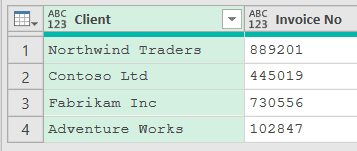
Add a new step (by clicking on the fx icon next to the formula bar) and use this formula:
= Table.AddColumn(Source,"Code",each Text.Upper(Text.Start([Client],4)) & "-" & Text.Start([Invoice No],3))
Result: a new Code column showing NORT-889, CONT-445, FABR-730, and ADVE-102

Here, Text.Upper(Text.Start([Client],4)) takes the first four letters of the client name and uppercases them, and Text.Start([Invoice No],3) takes the first three digits of the invoice number.
The & operator joins those pieces with a dash in between to form the final code.
Tips & Common Mistakes
- A count bigger than the text returns the whole string: If you ask for more characters than the text has, Text.Start just returns the entire value and never throws an error. This is why Example 7’s short “AB” came back untouched. It’s safe to run on a column of mixed-length values.
- Text.Start vs Text.End: Text.Start pulls characters from the left, while Text.End pulls the same count from the right. Use Text.End when the piece you want (like a file extension or a suffix) sits at the end of the string instead of the start.
- Text.Start vs Text.Range for a middle slice: Text.Start always begins at the very first character. If you need characters starting from somewhere in the middle, use Text.Range instead, which lets you pass a starting offset and a length.
- Text.Start vs Text.StartsWith: These sound similar but do different jobs. Text.Start returns a piece of text, while Text.StartsWith returns true or false depending on whether the text begins with a given substring. Reach for Text.StartsWith when you’re filtering rows, not extracting a prefix. If you need to check for a substring anywhere in the value rather than just the start, Text.Contains is the one to use.
Related Power Query Functions / Articles:
- Date.FromText – Converts text values into real dates
- Table.SelectRows
- Text.PadStart function