

The Text.End function gives you the last few characters of a text value. You tell it how many characters you want, and it counts them from the end.
It’s the Power Query version of Excel’s RIGHT function. In this article, I’ll show you how to use it on single values and whole columns, and how to handle numbers, short values, and trailing spaces.
Follow along with the example file
Text.End Function Examples.xlsx
Text.End Function Syntax
Text.End(text as nullable text, count as number) as nullable text
- text – the text you want the last characters from.
- count – how many characters you want from the end. It has to be a whole number that’s 0 or more.
What it returns – the last count characters of the text. If the text is null, you get null back.
If the count is bigger than the length of the text, Text.End returns the whole text instead of an error. Example 7 shows what that looks like.
A negative count gives the error “The ‘count’ argument is out of range.”, and a count with decimals, like 2.5, gives “The number is out of range of a 32 bit integer value.”
The Text.End function is part of the Power Query M language, so it works wherever Power Query does in Excel: Excel 365, 2024, 2021, 2019, and 2016 for Windows, and Excel for Microsoft 365 on Mac.
When to Use the Text.End Function
Use this function when you need to:
- Get the last few digits of a card, account, or ID number
- Mask sensitive numbers so only the last digits show
- Pull out a code or number that always sits at the end of a longer value
- Compare values by their ending, like phone numbers typed in different formats
Example 1: Get the Last Characters of a Text
Let’s start with a simple one.
Suppose you have the support ticket number “TKT-2026-05813” and you want just the running number at the end, 05813.
In Excel, go to Data > Get Data > From Other Sources > Blank Query. In the Power Query Editor that opens, type this formula in the formula bar:
= Text.End("TKT-2026-05813",5)
Result: 05813

Here, the count is 5, so Text.End returns the last five characters of the ticket number.
The result is text, so the leading zero stays. If you need the characters from the start of a text instead, use Text.Start, which works the same way from the other end.
Example 2: Get the Last 4 Digits of a Card Number
Here’s one you’ll see a lot with payment data.
Below is a Payments table with customer card numbers, and I want the last four digits of each card in a new Last 4 column.
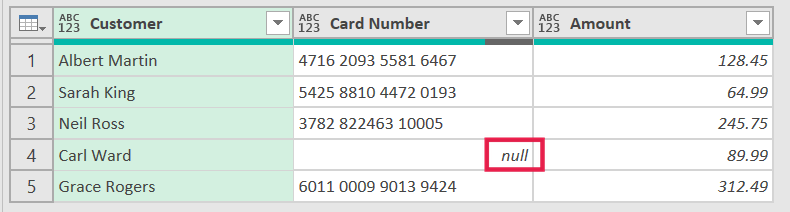
To follow along, select any cell in the Payments table and go to Data > From Table/Range. This opens the table in the Power Query Editor, where the Source step holds it.
If Power Query also adds a Changed Type step, you can delete it, because the formula below builds on Source.
Add a new step (by clicking on the fx icon next to the formula bar) and use this formula:
= Table.AddColumn(Source,"Last 4",each Text.End([Card Number],4),type text)
Result: A new Last 4 column with 6467, 0193, 0005, null, and 9424.
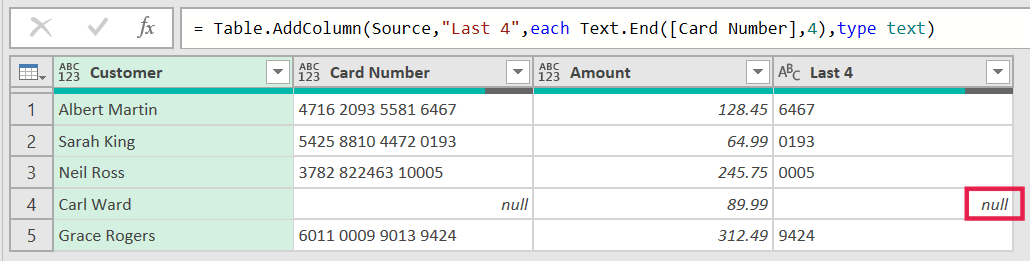
In the above formula, Table.AddColumn adds the Last 4 column, and Text.End takes the last four characters of each card number. The type text part at the end sets the new column’s data type to text.
The card numbers have different lengths and spacing, but that doesn’t matter here. Text.End always counts from the end, so it gets the right four digits from every card.
Carl Ward has no card number, so that cell comes into Power Query as null. Text.End returns null for that row instead of an error, so one blank cell doesn’t break the whole column.
Example 3: Mask Account Numbers
This next one is a common clean-up before you share a file.
Below is a Payroll table with each employee’s bank account number, and I want to hide all but the last four digits in the Account Number column.
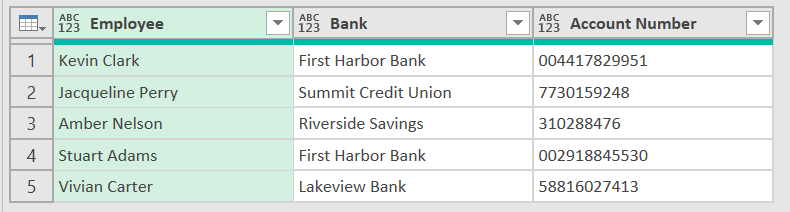
Load the Payroll table into Power Query the same way (select a cell in it and go to Data > From Table/Range). Then add a new step (by clicking on the fx icon next to the formula bar) and use this formula:
= Table.TransformColumns(Source,{{"Account Number",each "****"&Text.End(_,4),type text}})
Result: The Account Number column now shows ****9951, ****9248, ****8476, ****5530, and ****7413.
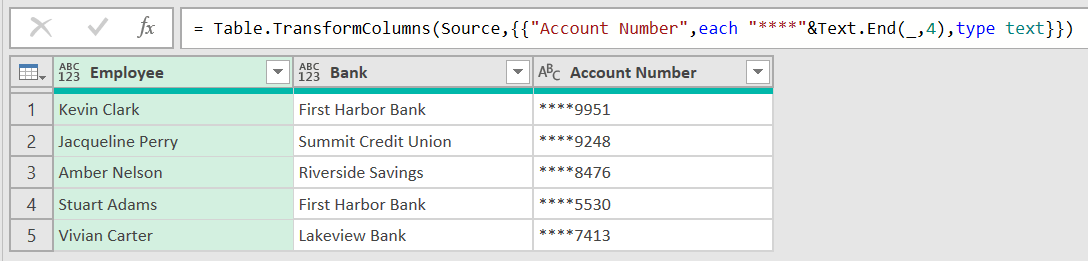
In the above formula, Table.TransformColumns changes the Account Number column in place, so the full numbers don’t stay in the output. The underscore (_) stands for the current value in that column.
For each value, Text.End takes the last four digits, and the & operator puts four asterisks in front of them.
Every masked value gets the same four asterisks, whatever the length of the account number. That’s on purpose, because it also hides how long the real number is.
Note that the account numbers are stored as text in the table, which is why the leading zeros in 004417829951 survive. If they were numbers, Text.End would give an error, which Example 6 covers.
Example 4: Get the Serial Number From a VIN
Sometimes the part you need always sits at the end of a long code.
Below is a Fleet table with the VIN (vehicle identification number) of each company vehicle, and I want the last six characters, which make up the vehicle’s serial number, in a new Serial No column.
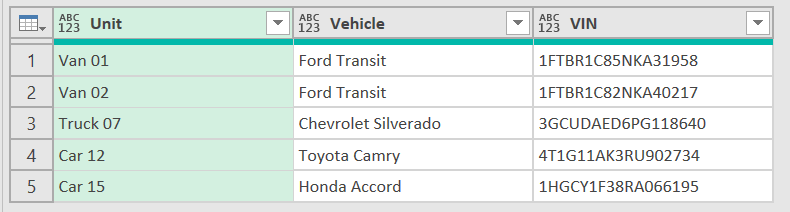
Load the Fleet table into Power Query the same way (select a cell in it and go to Data > From Table/Range). Then add a new step (by clicking on the fx icon next to the formula bar) and use this formula:
= Table.AddColumn(Source,"Serial No",each Text.End([VIN],6),type text)
Result: A new Serial No column with A31958, A40217, 118640, 902734, and 066195.
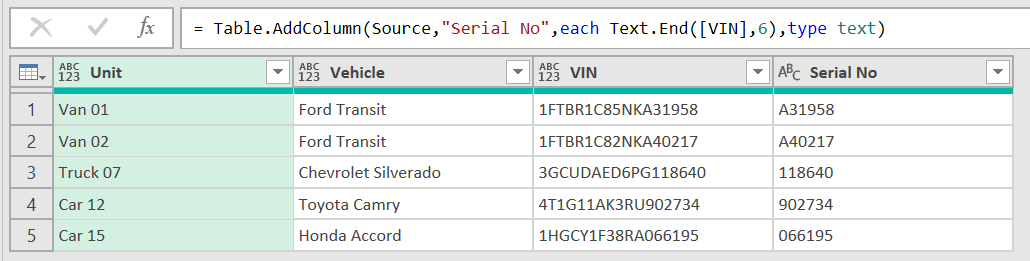
Here, Text.End returns the last six characters of each VIN.
These codes have no hyphens or spaces, so functions that split text at a separator (like Text.AfterDelimiter) can’t help here. But the serial number is always the last six characters, which is exactly what Text.End gets.
The serial numbers stay as text, which keeps the leading zero in 066195 and the letter A in the Ford ones.
Follow along with the example file
Text.End Function Examples.xlsx
Example 5: Get the Year From the End of a Policy Number
Sometimes the text you extract needs to become a number.
Below is a Policies table where every policy number ends with the four-digit year it was issued, and I want that year as a number in a new Year Issued column.
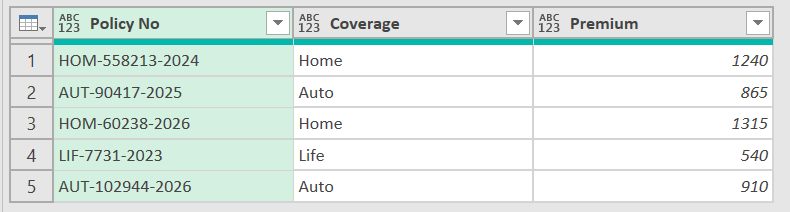
Load the Policies table into Power Query the same way (select a cell in it and go to Data > From Table/Range). Then add a new step (by clicking on the fx icon next to the formula bar) and use this formula:
= Table.AddColumn(Source,"Year Issued",each Number.From(Text.End([Policy No],4)),Int64.Type)
Result: A new Year Issued column with 2024, 2025, 2026, 2023, and 2026.
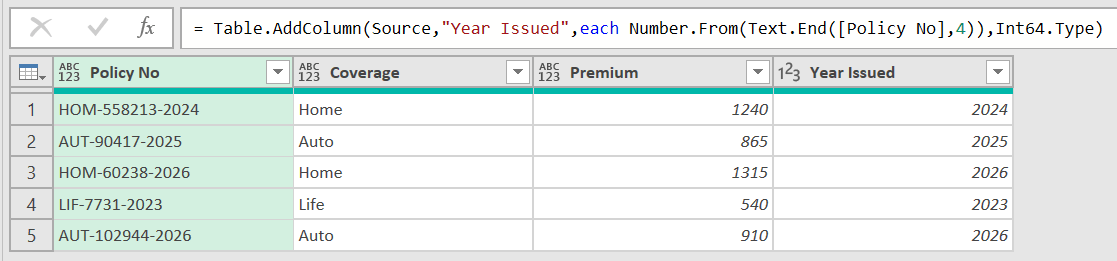
Here, Text.End takes the last four characters of each policy number, like “2024” from “HOM-558213-2024”. The middle part of these policy numbers has a different length on each row, but the year is always the last four characters.
Text.End returns text, so Number.From turns “2024” into the number 2024. The Int64.Type at the end sets the new column as a whole number, so you can sort, filter, or group by year.
Example 6: Use Text.End on a Number Column
Text.End only works on text, and this example shows what happens when you give it a number.
Below is a Budgets table where the Year column has numbers like 2025 and 2026, and I want fiscal year labels like FY25 in a new FY column.
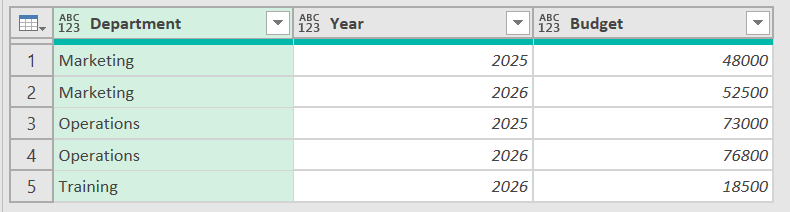
Load the Budgets table into Power Query the same way (select a cell in it and go to Data > From Table/Range). Then add a new step (by clicking on the fx icon next to the formula bar) and use this formula:
= Table.AddColumn(Source,"FY",each "FY"&Text.End([Year],2),type text)
Result: A new FY column with Error in every row.
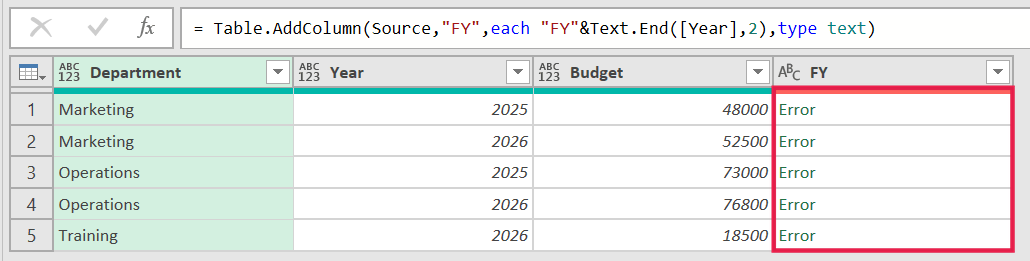
Here, the Year values are numbers, and Text.End can’t take the last characters of a number.
If you click on the empty space next to the word Error in one of those cells, the preview shows the message “We cannot convert the value 2025 to type Text.”
To fix this, turn the number into text first with Text.From. Use this formula instead:
= Table.AddColumn(Source,"FY",each "FY"&Text.End(Text.From([Year]),2),type text)
Result: A new FY column with FY25, FY26, FY25, FY26, and FY26.
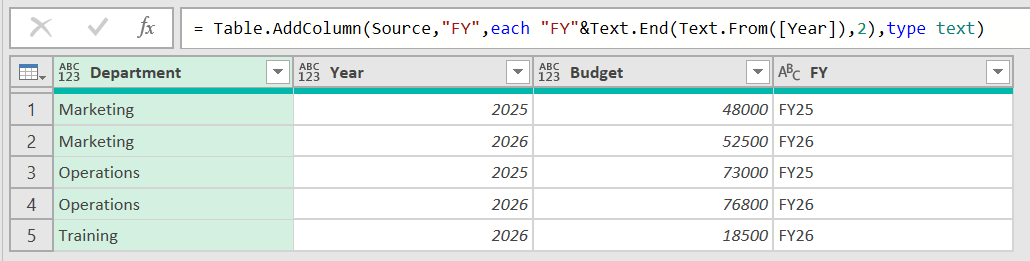
In the above formula, Text.From turns 2025 into the text “2025”, Text.End takes its last two characters, “25”, and the & operator adds “FY” in front.
You might think of getting the last two digits with math instead, using the remainder after dividing by 100. That works for 2026, but for a year like 2005 it gives 5 instead of 05, while Text.End keeps both digits.
Example 7: Match Phone Numbers Typed in Different Formats
This one shows how Text.End helps when the same value is typed in different ways.
Below is a Contacts table with phone numbers typed in different formats, some with the country code 1 in front, and I want a Phone Key column with the same 10 digits for numbers that match.
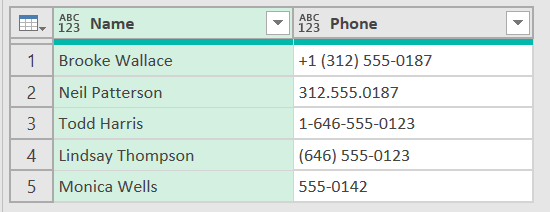
Load the Contacts table into Power Query the same way (select a cell in it and go to Data > From Table/Range). Then add a new step (by clicking on the fx icon next to the formula bar) and use this formula:
= Table.AddColumn(Source,"Phone Key",each Text.End(Text.Select([Phone],{"0".."9"}),10),type text)
Result: A new Phone Key column with 3125550187, 3125550187, 6465550123, 6465550123, and 5550142.
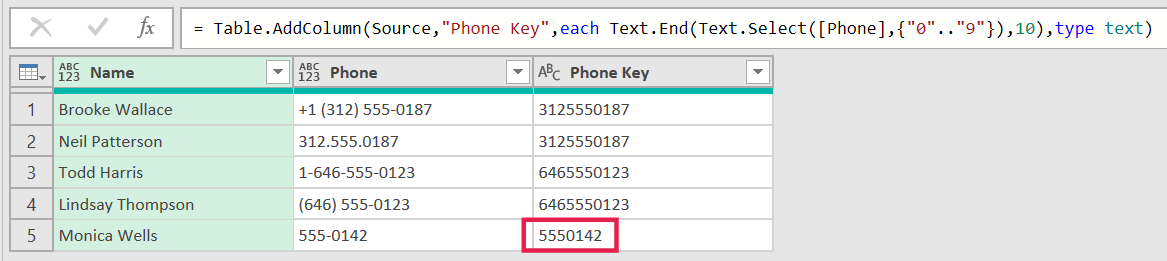
In the above formula, Text.Select keeps only the digits 0 to 9, so “+1 (312) 555-0187” becomes “13125550187”. Then Text.End takes the last 10 digits, which drops the country code.
So Brooke Wallace’s and Neil Patterson’s numbers both become 3125550187, even though they were typed differently. You can now use the Phone Key column to find duplicates or merge with another table.
Removing the separators first matters, because Text.End counts every character. On “1-646-555-0123”, Text.End alone would return “6-555-0123”, with the hyphens taking up space.
Monica Wells has only seven digits, which is fewer than the 10 the formula asks for. Text.End doesn’t give an error here, so it returns all seven digits and the column finishes with no Error rows.
That short key won’t match a full 10-digit version of the same number, though. So it’s worth spotting keys shorter than 10 digits and fixing those numbers at the source.
Example 8: Watch Out for Trailing Spaces
This last one is a problem you’ll hit with data pasted from emails or other systems.
Below is a Flights table with each flight’s route, where some routes have extra spaces at the end that you can’t see, and I want the three-letter destination airport in a new Destination column.
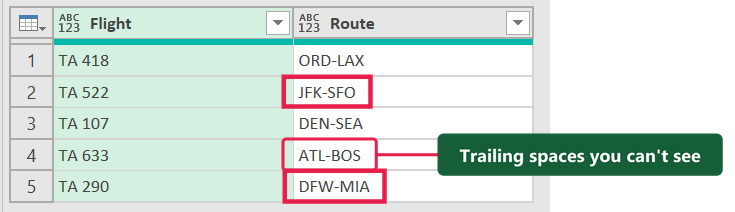
Load the Flights table into Power Query the same way (select a cell in it and go to Data > From Table/Range). Then add a new step (by clicking on the fx icon next to the formula bar) and use this formula:
= Table.AddColumn(Source,"Destination",each Text.End([Route],3),type text)
Result: A new Destination column with LAX, FO, SEA, S, and IA.
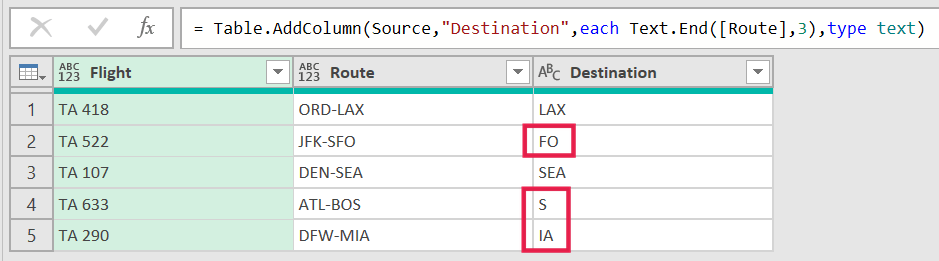
Only two of the five rows got the right airport. The routes for TA 522, TA 633, and TA 290 have trailing spaces, and Text.End counts spaces as characters.
So for “JFK-SFO ” with one trailing space, the last three characters are “FO” plus that space.
“ATL-BOS ” has two trailing spaces, so you get just “S” followed by two spaces. Power Query gives no error here, so wrong results like these are easy to miss.
To fix this, remove the trailing spaces with Text.TrimEnd before Text.End counts the characters. Use this formula instead:
= Table.AddColumn(Source,"Destination",each Text.End(Text.TrimEnd([Route]),3),type text)
Result: A new Destination column with LAX, SFO, SEA, BOS, and MIA.
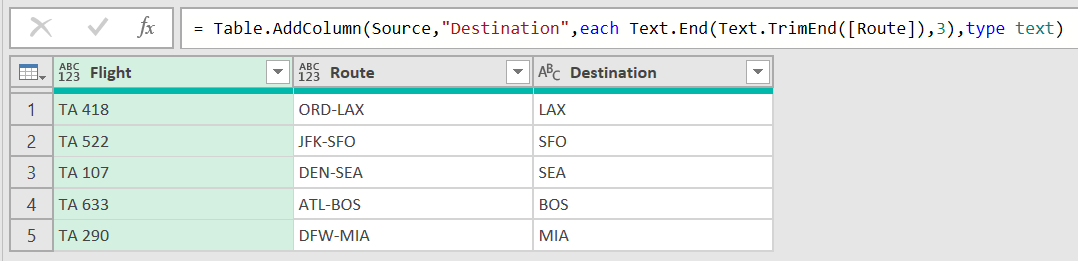
Here, Text.TrimEnd removes the spaces at the end of each route first, so Text.End gets the real last three letters.
If your text comes from a source you don’t control, it’s a good habit to trim it before using Text.End on it.
Other Excel Articles You May Also Like:
- Text.EndsWith Function in Power Query M
- Text.Range – Use Text.Range in Power Query M to extract part of a text value.
- Text.Middle – Use Text.Middle in Power Query M to extract characters from the middle of text.
- Text.Length – Use Text.Length in Power Query M to count characters in text.
- Text.BeforeDelimiter – Use Text.BeforeDelimiter in Power Query M to get text before a delimiter.
- Text.BetweenDelimiters – Use Text.BetweenDelimiters in Power Query M to extract text between delimiters.
- Text.PadStart – Use Text.PadStart in Power Query M to pad text to a fixed length by adding characters to the front.
- Text.TrimStart – Use Text.TrimStart in Power Query M to remove leading characters.
