

The Text.Length function counts the characters in a text value, and that count includes every space. It’s the Power Query version of the LEN function in Excel.
In this article, I’ll show you how Text.Length works and the practical jobs where a character count helps, from spotting hidden spaces to checking code lengths and shortening long text.
Follow along with the example file
Text.Length Function Examples.xlsx
Text.Length Function Syntax
Text.Length(text as nullable text) as nullable number
- text – the text value whose characters you want to count.
What it returns – a whole number, which is the number of characters in the text. Spaces, punctuation, and line breaks all count as characters, and an empty text (“”) returns 0.
If the input is null (an empty cell), Text.Length returns null instead of an error. A number or a date does give an error, so convert it to text first (Example 9 shows how).
The Text.Length function is part of the core Power Query M library, so you can use it in Power Query in Excel and in Power BI.
When to Use the Text.Length Function
Use this function when you need to:
- Add a column that shows how long each text value is
- Find values with extra spaces at the start or end
- Check that codes, IDs, or ZIP codes have the right number of characters
- Filter rows where the text is longer (or shorter) than a limit
- Shorten long text and add “…” at the end
- Remove a fixed number of characters from the end of a value
- Count how many times a character appears in the text
Example 1: Count the Characters in a Text
Let’s start with the simplest use.
Suppose you want to know how many characters are in the report title “Quarterly Sales Report”.
In Excel, go to Data > Get Data > From Other Sources > Blank Query. In the Power Query Editor that opens, type this formula in the formula bar:
= Text.Length("Quarterly Sales Report")
Result: 22

Here, the three words have 20 letters between them (9 + 5 + 6), and the two spaces between the words bring the total to 22.
So Text.Length counts every character, including the spaces you can’t see.
Example 2: Add a Column With the Length of Each Value
In real work, you’ll usually count characters for a whole column, not a single value.
Below is an Excel Table named Tickets with help desk tickets and their subject lines, and I want to add a column that shows the length of each subject.
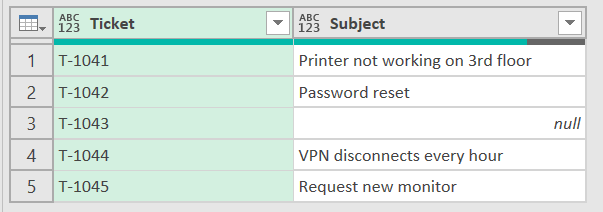
To follow along, select any cell in the Tickets table and go to Data > From Table/Range. This opens the table in the Power Query Editor, where the Source step holds it (if Power Query adds a Changed Type step too, you can delete it).
Now add a new step (by clicking on the fx icon next to the formula bar) and use this formula:
= Table.AddColumn(Source,"Subject Length",each Text.Length([Subject]),Int64.Type)
Result: A new Subject Length column shows 32, 14, null, 26, and 19.
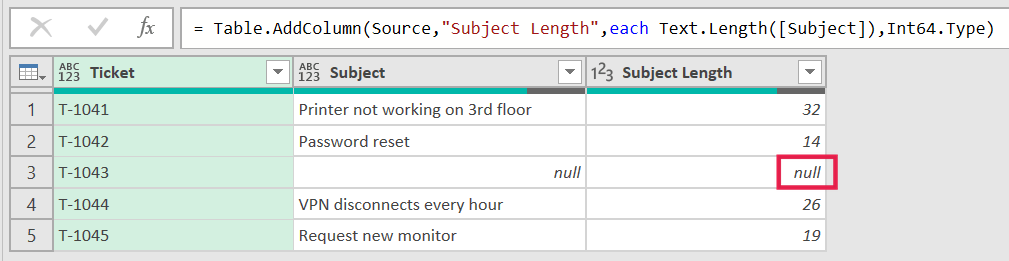
Here, Table.AddColumn runs Text.Length on the Subject of every row. The last argument, Int64.Type, sets the new column’s type to whole number.
Ticket T-1043 has no subject, so its cell comes into Power Query as null. Text.Length returns null for it instead of an error, which means one empty cell won’t break the whole column.
If you’d rather see 0 for an empty subject, use Text.Length([Subject]) ?? 0, since the ?? operator swaps a null for the value after it.
Example 3: Find Values With Extra Spaces
Extra spaces at the start or end of a value are invisible, but they’re one of the most common reasons a lookup or merge fails to match.
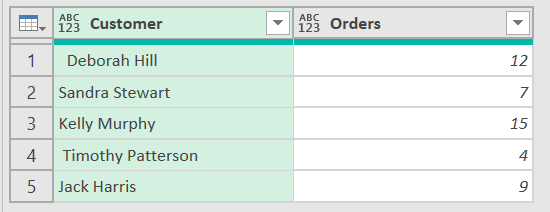
Below is an Excel Table named Customers with customer names and their order counts, where some names have extra spaces, and I want to count those extra spaces in a new Extra Spaces column.
Load the table into the Power Query Editor (as in Example 2), then add a new step (by clicking on the fx icon next to the formula bar) and use this formula:
= Table.AddColumn(Source,"Extra Spaces",each Text.Length([Customer]) - Text.Length(Text.Trim([Customer])),Int64.Type)
Result: The Extra Spaces column shows 2, 3, 0, 2, and 0.

Here, Text.Trim removes the spaces from both ends of the name, so the formula takes the length after trimming away from the length before. Whatever is left over is the number of extra spaces.
Kelly Murphy and Jack Harris show 0, so they’re clean. Sandra Stewart shows 3 because it has three spaces at the end, and Timothy Patterson shows 2 because it has one space on each side.
Text.Trim doesn’t touch the spaces between words, so a double space inside a name won’t show up here. If Kelly Murphy had two spaces between the first and last name, it would still show 0.
Example 4: Check That Codes Have the Right Length
Many codes have a fixed length, so a code with too many or too few characters is usually a typo.
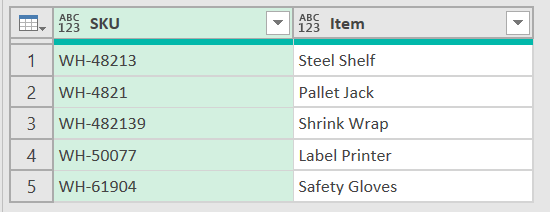
Below is an Excel Table named Inventory with warehouse SKUs and item names, where every SKU should be exactly 8 characters (like WH-48213), and I want a new Status column to flag any SKU that isn’t 8 characters long.
Load the table into the Power Query Editor (as in Example 2), then add a new step (by clicking on the fx icon next to the formula bar) and use this formula:
= Table.AddColumn(Source,"Status",each if Text.Length([SKU]) = 8 then "OK" else "Check",type text)
Result: The Status column shows OK, Check, Check, Check, and OK.
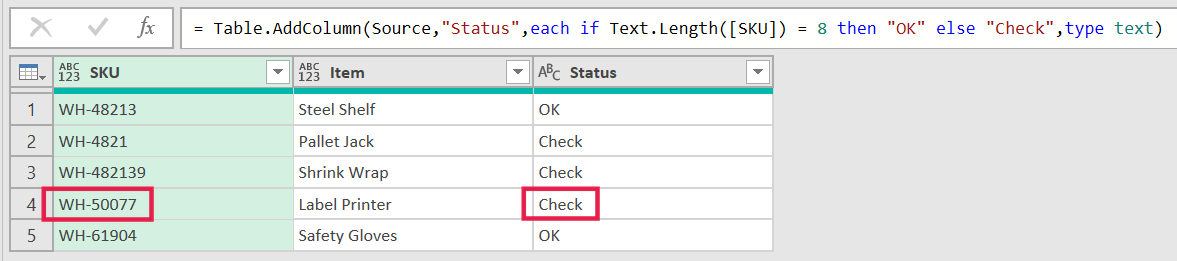
Here, the if statement compares each SKU’s length with 8. WH-4821 has 7 characters (one digit missing) and WH-482139 has 9 (one digit too many), so both get flagged.
WH-50077 looks fine, but it’s flagged too. It has a space at the end, which makes it 9 characters long, and a trailing space like that is exactly what you’d miss by just looking at the data.
Follow along with the example file
Text.Length Function Examples.xlsx
Example 5: Filter Rows by Text Length
You can also use Text.Length to keep only the rows where the text is longer or shorter than a limit.
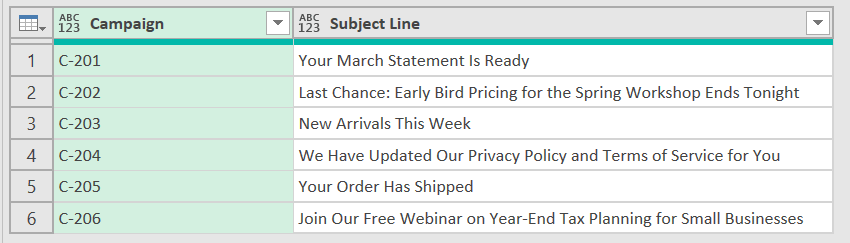
Below is an Excel Table named Emails with email campaigns and their subject lines, and I want to keep only the subject lines longer than 60 characters, because many inboxes cut off a long subject line.
Load the table into the Power Query Editor (as in Example 2), then add a new step (by clicking on the fx icon next to the formula bar) and use this formula:
= Table.SelectRows(Source,each Text.Length([Subject Line]) > 60)
Result: Three rows are left, C-202, C-204, and C-206.
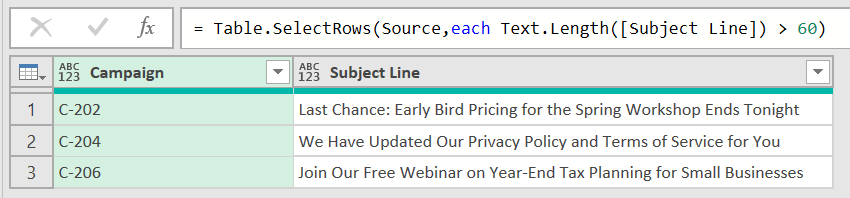
Here, Table.SelectRows checks the condition for each row and keeps only the rows where it’s true. The three subject lines left are 68, 63, and 67 characters long.
To get the opposite list (the subject lines that fit), change > 60 to <= 60.
Example 6: Shorten Long Text and Add “…”
Long text can make a report or a dashboard look cluttered, so it’s common to cut it to a fixed length and add “…” to show there’s more.
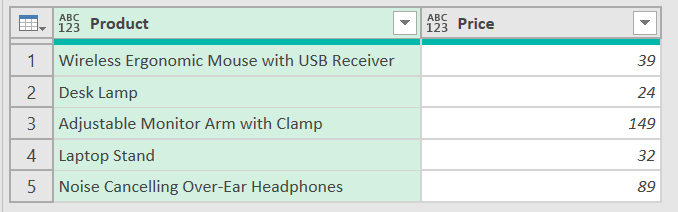
Below is an Excel Table named Products with product names and prices, and I want a new Short Name column that keeps only the first 20 characters of each name.
Load the table into the Power Query Editor (as in Example 2), then add a new step (by clicking on the fx icon next to the formula bar) and use this formula:
= Table.AddColumn(Source,"Short Name",each
        if Text.Length([Product]) > 20
        then Text.Start([Product],20) & "..."
        else [Product],type text)
Result: The Short Name column shows Wireless Ergonomic M…, Desk Lamp, Adjustable Monitor A…, Laptop Stand, and Noise Cancelling Ove…
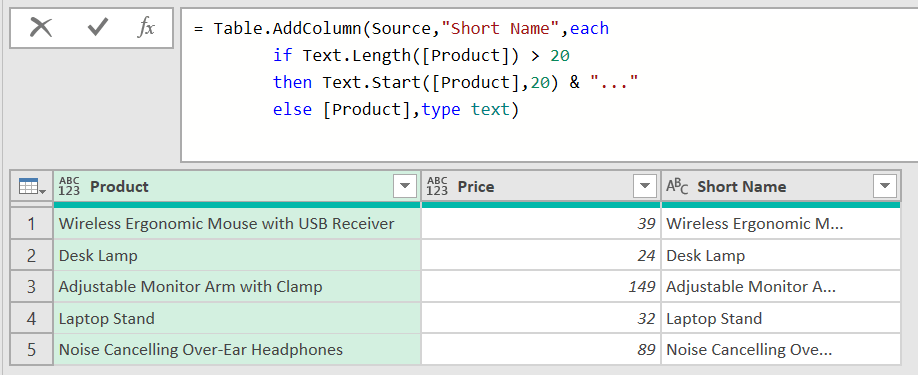
Here, Text.Length checks whether the name is longer than 20 characters. If it is, Text.Start keeps the first 20 characters and the & operator adds “…” to the end.
Desk Lamp and Laptop Stand are shorter than 20 characters, so they stay as they are and don’t get the dots.
You only need Text.Length here because of the dots. Text.Start on its own doesn’t mind short text (Text.Start("Desk Lamp",20) simply returns “Desk Lamp”), but without the check, every name would end with “…” even when nothing was cut.
Example 7: Remove the Last Few Characters
Sometimes the part you want to remove has a fixed length but sits at the end of values that have different lengths.
Below is an Excel Table named Parts with part codes and quantities, where the last two digits of every code are a revision number, and I want the code without the revision in a new Base Part column.
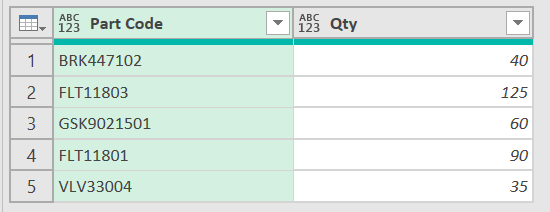
Load the table into the Power Query Editor (as in Example 2), then add a new step (by clicking on the fx icon next to the formula bar) and use this formula:
= Table.AddColumn(Source,"Base Part",each Text.Start([Part Code],Text.Length([Part Code]) - 2),type text)
Result: The Base Part column shows BRK4471, FLT118, GSK90215, FLT118, and VLV330.
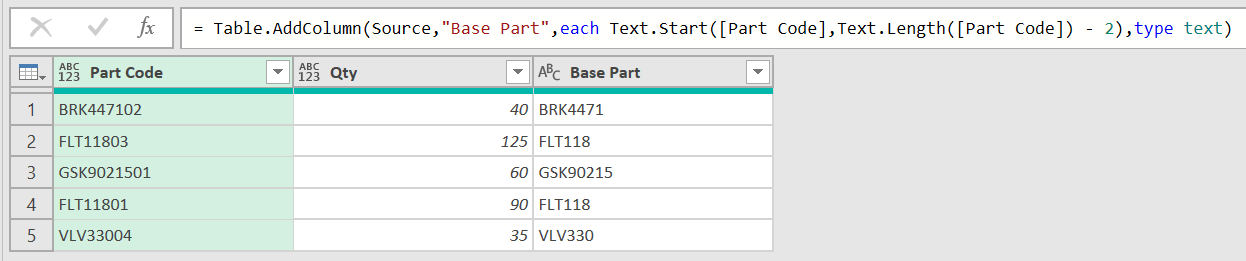
Here, Text.Length gets the total length of each code, and subtracting 2 gives the number of characters to keep. For BRK447102, that’s 9 – 2 = 7, so Text.Start returns the first 7 characters, BRK4471.
Because the count is worked out for each row, the formula handles codes of any length, like GSK9021501 (10 characters) and VLV33004 (8 characters).
The two FLT codes differ only in their revision digits, so both end up with the same base part, FLT118. That makes it easy to group the revisions of a part together.
Important: If a code has fewer than 2 characters, the count becomes negative and you get the error “The ‘count’ argument is out of range.” If your data can have codes that short, use if Text.Length([Part Code]) > 2 then Text.Start([Part Code],Text.Length([Part Code]) - 2) else [Part Code] instead.
Example 8: Count How Many Times a Character Appears
You can count how often a character shows up by combining Text.Length with Text.Remove.
Below is an Excel Table named Posts with social media posts, and I want to count the hashtags in each post in a new Hashtags column.
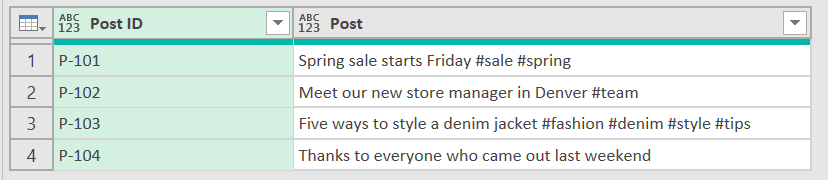
Load the table into the Power Query Editor (as in Example 2), then add a new step (by clicking on the fx icon next to the formula bar) and use this formula:
= Table.AddColumn(Source,"Hashtags",each Text.Length([Post]) - Text.Length(Text.Remove([Post],"#")),Int64.Type)
Result: The Hashtags column shows 2, 1, 4, and 0.

Here, Text.Remove deletes every # from the post, so the text gets shorter by one character for each hashtag. Taking the shorter length away from the original length gives the number of # signs.
The last post has no # at all, so both lengths are the same and the count is 0.
This works for any single character. Swap “#” for “,” to count commas, or for “@” to count mentions.
Example 9: Count the Digits in a Number
Text.Length only works on text, which catches people out when a column holds numbers.
Below is an Excel Table named Stores with store cities and their ZIP codes, where Excel has dropped the leading zero from some ZIP codes because they’re stored as numbers, and I want to count the digits in each ZIP code in a new Digits column.
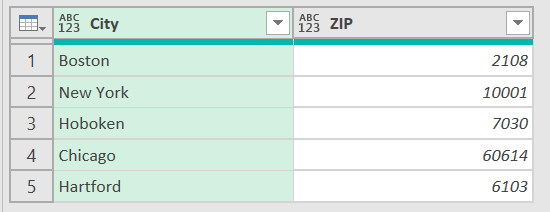
If you try Text.Length([ZIP]) here, every cell in the new column shows an error. For Boston, the message reads “We cannot convert the value 2108 to type Text.”
That’s because the ZIP values are numbers, and Text.Length doesn’t convert them for you.
So convert the number to text first. Load the table into the Power Query Editor (as in Example 2), then add a new step (by clicking on the fx icon next to the formula bar) and use this formula:
= Table.AddColumn(Source,"Digits",each Text.Length(Text.From([ZIP])),Int64.Type)
Result: The Digits column shows 4, 5, 4, 5, and 4.
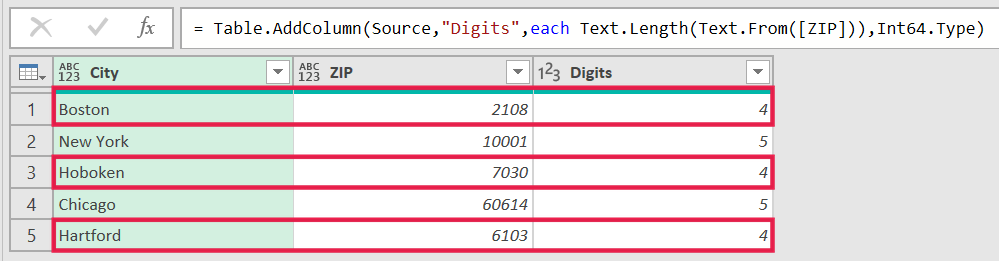
Here, Text.From turns each ZIP code into text, and then Text.Length counts its characters. Boston, Hoboken, and Hartford show 4, which tells you their ZIP codes have lost the leading zero.
To put the zero back, use Text.PadStart. For example, Text.PadStart(Text.From(2108),5,"0") returns “02108”.
Other Excel Articles You May Also Like:
- Text.EndsWith function
- Text.Range Function in Power Query M
- Text.Middle function
- Text.End – Use Text.End in Power Query M to get the last characters of text.
- Text.TrimStart – Use Text.TrimStart in Power Query M to remove leading characters.
- Text.TrimEnd – Use Text.TrimEnd in Power Query M to remove trailing spaces or characters.
- Text.Clean – Use Text.Clean in Power Query M to remove hidden control characters.
- Text.PositionOf – Use Text.PositionOf in Power Query M to find where text appears in a string.
