

The Text.Clean function removes control characters from a text value. These are the characters you usually can’t see, like line breaks, tabs, and the odd codes that old systems leave in exported data.
In this article, I’ll show you how Text.Clean works, what it removes (and what it doesn’t), and how to use it with Text.Trim to clean a whole table.
Follow along with the example file
Text.Clean Function Examples.xlsx
Text.Clean Function Syntax
Text.Clean(text as nullable text) as nullable text
- text – the text value you want to remove the control characters from.
What it returns – the same text with all the control characters removed. If the text is null, you get null back.
Control characters are the first 32 characters of the character set (such as the tab, line feed, and carriage return), the delete character, and the 32 characters after it.
Text.Clean removes them wherever they are, at the start, in the middle, or at the end of the text.
It doesn’t remove spaces. That includes regular spaces, non-breaking spaces, and zero-width spaces (Example 5 shows how to deal with those).
Text.Clean only accepts text. If you give it a number, like Text.Clean(1250), you get the error “We cannot convert the value 1250 to type Text.”
The Text.Clean function is part of the Power Query M language, so it works wherever Power Query does in Excel: Excel 365, 2024, 2021, 2019, and 2016 for Windows, and Excel for Microsoft 365 on Mac.
When to Use the Text.Clean Function
Use this function when you need to:
- Remove line breaks that were added inside cells with Alt + Enter
- Clean up hidden characters in data exported from another system or copied from a PDF
- Fix lookups and merges that fail because of characters you can’t see
- Find the rows that have hidden characters in them
- Clean every text column in a table, together with Text.Trim
Example 1: Remove Hidden Control Characters From a Text
Let’s start with a simple example.
Suppose you exported an account code from an old system, and it came with two hidden control characters, one before the code and one after it. In Power Query, you can write them as #(0002) and #(0003).
In Excel, go to Data > Get Data > From Other Sources > Blank Query. In the Power Query Editor that opens, type this formula in the formula bar:
= Text.Clean("#(0002)ACC-7781#(0003)")
Result: ACC-7781

Here, Text.Clean removes both control characters and keeps the code exactly as it is.
Note that Text.Trim wouldn’t help here. It removes whitespace from the ends, but these two characters aren’t whitespace, so Text.Trim leaves them in place and the code still won’t match “ACC-7781”.
The CLEAN function in Excel would also clean this code. One difference is the delete character (character 127), which Text.Clean removes and the CLEAN function keeps.
Example 2: Clean a Column of Part Numbers
In real data, you’ll usually clean a whole column instead of a single value.
Below is a Parts table where some part numbers were copied from a PDF and got split over two lines in the cell, and I want each part number back on one line in the Part Number column.
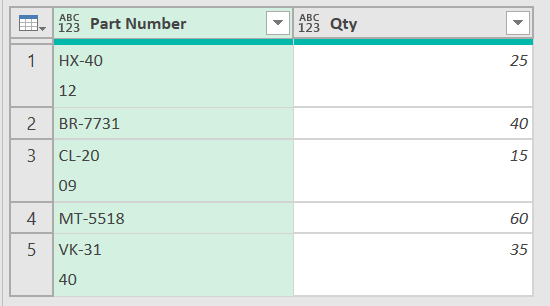
To follow along, select any cell in the Parts table and go to Data > From Table/Range. This opens the table in the Power Query Editor, where the Source step holds it.
If Power Query adds a Changed Type step too, you can delete it, because the formula below works from the Source step and doesn’t need it.
Add a new step (by clicking on the fx icon next to the formula bar) and use this formula:
= Table.TransformColumns(Source,{{"Part Number",Text.Clean,type text}})
Result: The Part Number column now shows HX-4012, BR-7731, CL-2009, MT-5518, and VK-3140, each on one line.
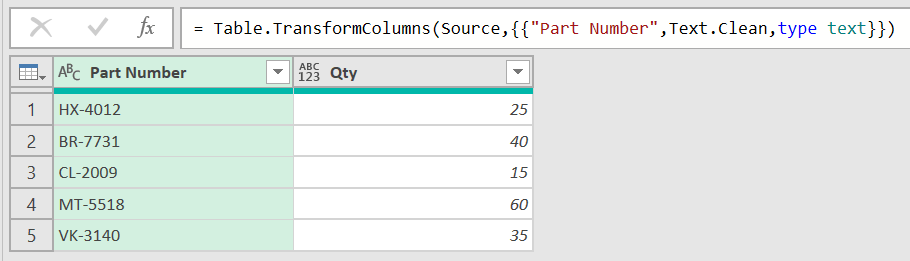
In the above formula, Table.TransformColumns runs Text.Clean on every value in the Part Number column and sets the column type to text. The Qty column isn’t listed, so it stays as it is.
The line break between “HX-40” and “12” in the cell is a control character, so Text.Clean removes it, and the two parts join into HX-4012. The part numbers that were already on one line don’t change.
You don’t have to type this formula yourself. Select the column and go to Transform > Format > Clean, and Power Query writes the same kind of Table.TransformColumns step for you.
Example 3: Line Breaks Between Words Get Joined
This next one is easy to miss, because removing a line break is not the same as replacing it with a space.
Below is a Deliveries table where some delivery notes have two instructions on separate lines in the same cell, and I want each note on a single line in the Delivery Note column.
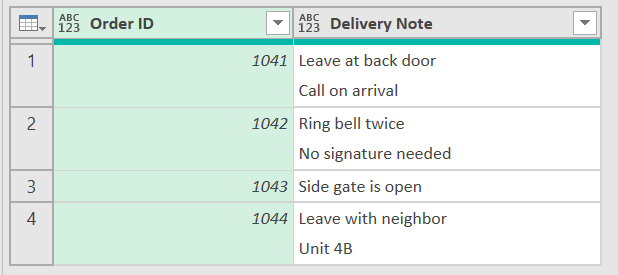
Load the Deliveries table into Power Query the same way as in Example 2 (Data > From Table/Range). If you clean the column directly, the formula looks like this:
= Table.TransformColumns(Source,{{"Delivery Note",Text.Clean,type text}})
Result: The Delivery Note column shows Leave at back doorCall on arrival, Ring bell twiceNo signature needed, Side gate is open, and Leave with neighborUnit 4B.
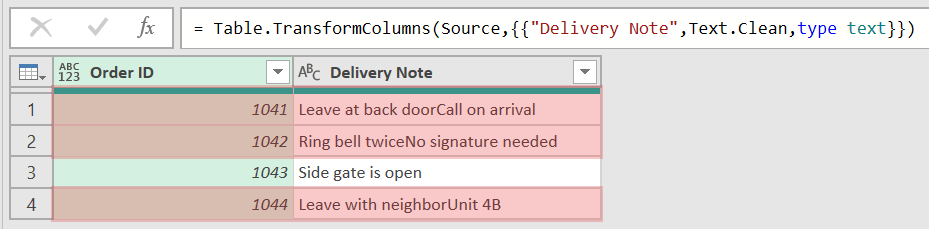
The line breaks are gone, but so is the gap between the two instructions. Text.Clean only removes characters and never puts anything in their place, so “door” and “Call” end up stuck together.
To keep the instructions apart, replace the line break with a separator first, and then clean what’s left. Here is the formula that does this:
= Table.TransformColumns(Source,{{"Delivery Note",each Text.Clean(Text.Replace(_,"#(lf)",". ")),type text}})
Result: The Delivery Note column now shows Leave at back door. Call on arrival, Ring bell twice. No signature needed, Side gate is open, and Leave with neighbor. Unit 4B.

Here, each tells Power Query to run the formula on every value in the column, and _ stands for that value (one delivery note). Text.Replace swaps every line feed, #(lf), for a period and a space.
You still need Text.Clean here because of the note for order 1042. It came from a web form, and its line break is two characters, a carriage return, #(cr), followed by a line feed.
Text.Replace only replaces the line feed, so the carriage return stays behind and you can’t see it. Text.Clean then removes it, along with any other control characters in the notes.
Example 4: Use Text.Clean With Text.Trim (Order Matters)
Text.Clean doesn’t touch spaces, so in most cleanup jobs you’ll use it together with Text.Trim. But the order in which you use them changes the result.
Suppose you have a customer name, ” Abigail Walker “, that came out of an old system with a space at each end and a hidden end-of-file character, #(001A), after the trailing space.
Since spaces are invisible in the preview, I’ll wrap each formula in Text.Length to count the characters. Abigail Walker has 14 characters.
First, here’s what you get when you trim first and then clean. Create a new blank query (Data > Get Data > From Other Sources > Blank Query) and use this formula:
= Text.Length(Text.Clean(Text.Trim(" Abigail Walker #(001A)")))
Result: 15

That’s one character too many. Text.Trim removes the space at the start, but at the end it stops at #(001A), because that character isn’t whitespace.
Text.Clean then removes #(001A), but by now Text.Trim has already run, so the space before it stays in the name.
Now swap the order, so Text.Clean runs first:
= Text.Length(Text.Trim(Text.Clean(" Abigail Walker #(001A)")))
Result: 14

This time, Text.Clean removes #(001A) first, so the trailing space is now at the very end, and Text.Trim removes it along with the leading space. In your own query, you’d use Text.Trim(Text.Clean(…)) without the Text.Length part.
Pro Tip: When you use both functions, always put Text.Clean on the inside, as in Text.Trim(Text.Clean(…)). In the menus, that means Transform > Format > Clean first, then Transform > Format > Trim.
Follow along with the example file
Text.Clean Function Examples.xlsx
Example 5: Text.Clean Doesn’t Remove Non-Breaking or Zero-Width Spaces
When you copy data from a web page, you can get two kinds of invisible characters that Text.Clean leaves alone.
Suppose you have the city name Austin with a zero-width space, #(200B), before it and a non-breaking space, #(00A0), after it. That’s 8 characters, even though you only see 6 letters.
Create a new blank query (Data > Get Data > From Other Sources > Blank Query) and use this formula:
= Text.Length(Text.Clean("#(200B)Austin#(00A0)"))
Result: 8

Nothing was removed, because neither of these is a control character. So if a lookup still fails after Text.Clean, these two are worth checking.
Here is the formula that removes both of them:
= Text.Length(Text.Trim(Text.Replace("#(200B)Austin#(00A0)","#(200B)","")))
Result: 6

Here, Text.Replace removes the zero-width space by replacing it with empty text (“”). Text.Trim then removes the non-breaking space, because Text.Trim treats it as whitespace (the TRIM function in Excel doesn’t).
Text.Length confirms that only the 6 letters of Austin are left. In your own query, you’d leave out the Text.Length part.
Text.Trim only removes a non-breaking space at the ends, though. If one sits between two words, replace it with a regular space instead.
In a column step like the one in Example 3, that’s each Text.Replace(_,"#(00A0)"," "), where _ is the value in each cell.
Example 6: Find the Rows That Have Hidden Characters
Sometimes you don’t want to change the data right away, you just want to know which rows have a problem.
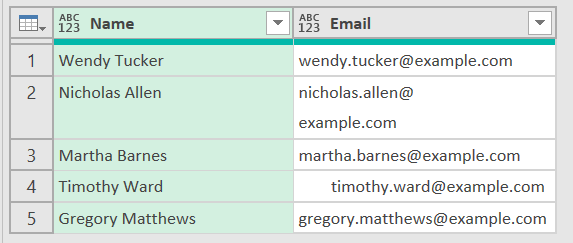
Below is a Signups table with names and email addresses, where a few emails have a hidden tab or line break in them, and I want a new Has Hidden Characters column that shows TRUE for those rows.
Load the Signups table into Power Query the same way as in Example 2 (Data > From Table/Range). Then add a new step (by clicking on the fx icon next to the formula bar) and use this formula:
= Table.AddColumn(Source,"Has Hidden Characters",each [Email] <> Text.Clean([Email]),type logical)
Result: A new Has Hidden Characters column with TRUE for Nicholas Allen and Timothy Ward, and FALSE for the other three rows.
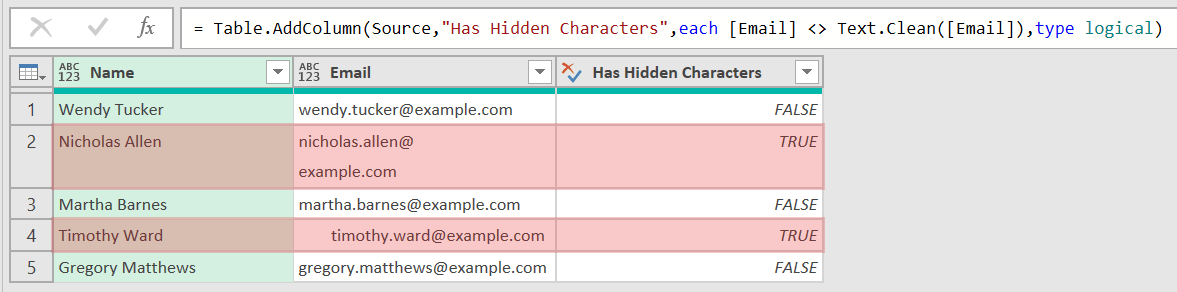
In the above formula, Table.AddColumn adds the new column. For each row, it compares the email with the cleaned version of the same email.
If they’re different, Text.Clean must have removed something, so the row gets TRUE. Nicholas Allen’s email has a line break in the middle, right after the @, and Timothy Ward’s email starts with a tab, which only shows up as a small indent in the preview.
Text.Trim would only catch the tab, because it only looks at the two ends of the text. Text.Clean checks the whole value, so it catches both.
You can then filter this column to TRUE to look at just those rows before you clean them.
Note that this only flags control characters. Extra spaces at the ends, and the two invisible characters from Example 5, don’t change under Text.Clean, so those rows still show FALSE.
Example 7: Clean and Trim Every Text Column at Once
When a whole table came in messy, cleaning one column at a time gets tedious.
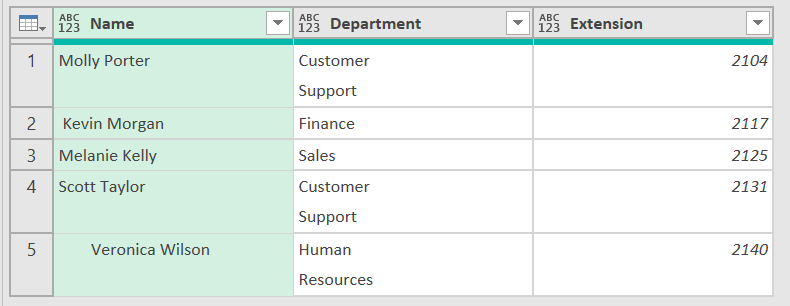
Below is a Staff table where the Name and Department columns have stray line breaks, tabs, and spaces, and the Extension column has numbers. I want to clean every text value in the table in one step.
Load the Staff table into Power Query the same way as in Example 2 (Data > From Table/Range). Then add a new step (by clicking on the fx icon next to the formula bar) and use this formula:
= Table.TransformColumns(Source,{},each if _ is text then Text.Trim(Text.Clean(_)) else _)
Result: The Name and Department columns are cleaned (Molly Porter, Customer Support, Kevin Morgan, Finance, and so on), and the Extension values stay the same.
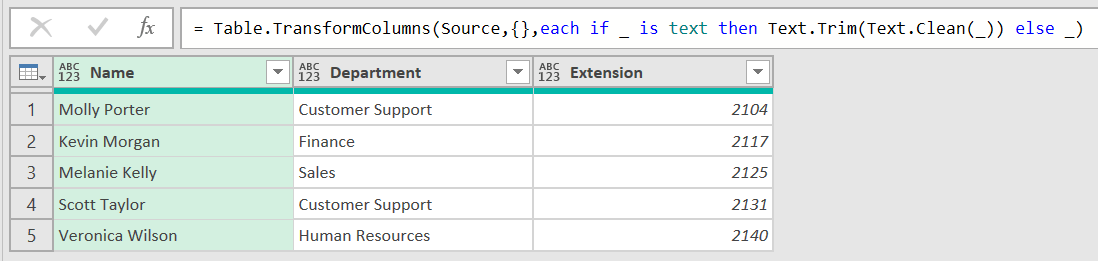
Here, the empty list {} means no column gets its own transformation. The third argument is the default transformation, so Table.TransformColumns runs it on every column in the table.
In the source table, “Customer Support” has a line break in it. Someone typed a space after “Customer” and then pressed Alt + Enter.
Text.Clean removes the line break, and the space that was already there keeps the two words apart. If your cells don’t have a space before the break, use the Text.Replace fix from Example 3 instead.
The check if _ is text is what keeps this safe. Text.Clean only accepts text, so running it on the Extension numbers would give an error in every cell, and the check passes those numbers through unchanged.
This step doesn’t set any column types, so if you need them, add a Changed Type step after this one.
Other Excel Articles You May Also Like:
- Text.Remove Function in Power Query M
- Text.TrimEnd – Use Text.TrimEnd in Power Query M to remove trailing spaces or characters.
- Text.TrimStart – Use Text.TrimStart in Power Query M to remove leading characters.
- Text.Length – Use Text.Length in Power Query M to count characters in text.
- Text.Split – Use Text.Split in Power Query M to split text into a list.
- Splitter.SplitTextByDelimiter – Use Splitter.SplitTextByDelimiter in Power Query M to split text.
- Text.End – Use Text.End in Power Query M to get the last characters of text.
- Text.BeforeDelimiter – Use Text.BeforeDelimiter in Power Query M to get text before a delimiter.
