

The Text.Proper function capitalizes the first letter of every word in a text value and makes all the other letters lowercase. It’s the Power Query version of the PROPER function in Excel.
It’s handy for cleaning up names, job titles, and other text that was typed in all caps or in random case. In this article, I’ll show you how it works, where it gets things wrong (like Men’S), and how to fix that.
Follow along with the example file
Text.Proper Function Examples.xlsx
Text.Proper Function Syntax
Text.Proper(text as nullable text, optional culture as nullable text) as nullable text
- text – the text value you want to convert to proper case.
- culture (optional) – a culture code such as “en-US” or “tr-TR” that tells Power Query which language’s rules to follow. You can usually leave it out. It matters only for a few languages, like Turkish (see Example 8).
What it returns – the same text with the first letter of each word in uppercase and every other letter in lowercase. So “tROY hOWARD” becomes “Troy Howard”.
If the text is null, you get null back. If the value is a number or a date instead of text, you get an error, because Text.Proper only accepts text.
Before you use it, know that Text.Proper treats any character that isn’t a letter as the end of a word. So the letter after a space, a hyphen, an apostrophe, or a digit gets capitalized (Example 5 shows this with underscores, and Example 6 shows how to fix it for apostrophes and numbers).
The Text.Proper function is part of the Power Query M language, so it works in Power Query in Excel and in Power BI.
When to Use the Text.Proper Function
Use this function when you need to:
- Clean up customer or employee names typed in all caps or all lowercase
- Make job titles, departments, or city names follow one consistent style
- Build a full name from separate first name and last name columns
- Turn database-style headers like customer_name into readable ones like Customer Name
- Standardize product names before you build a report
Example 1: Convert a Text Value to Proper Case
Let’s start with a simple one.
Suppose you have the text “monthly SALES report – north region” and you want each word to start with a capital letter.
In Excel, go to Data > Get Data > From Other Sources > Blank Query. In the Power Query Editor that opens, type this formula in the formula bar:
= Text.Proper("monthly SALES report - north region")
Result: Monthly Sales Report – North Region

Here, Text.Proper capitalizes the first letter of each word, and it also lowercases the rest of each word. That’s why SALES, which was all capitals, becomes Sales.
The spaces and the hyphen stay exactly where they were.
Example 2: Convert a Column of Names to Proper Case
This is the use you’ll probably need most often.
Below is a Customers table with each customer’s ID and name, where the names were typed in all kinds of case, and I want every name in the Customer Name column in proper case.
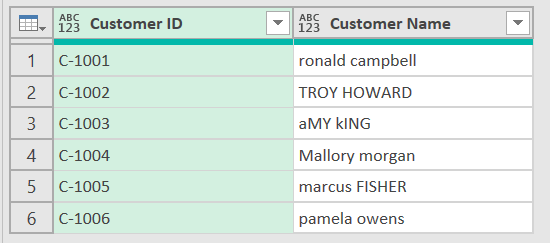
To follow along, select any cell in the Customers table and go to Data > From Table/Range. This opens the table in the Power Query Editor, where the Source step holds it.
If Power Query adds a Changed Type step too, you can delete it, because the formula below works from the Source step and doesn’t need it.
Add a new step (by clicking on the fx icon next to the formula bar) and use this formula:
= Table.TransformColumns(Source,{{"Customer Name",Text.Proper,type text}})
Result: Every name in the Customer Name column is now in proper case, like Ronald Campbell, Troy Howard, and Amy King.
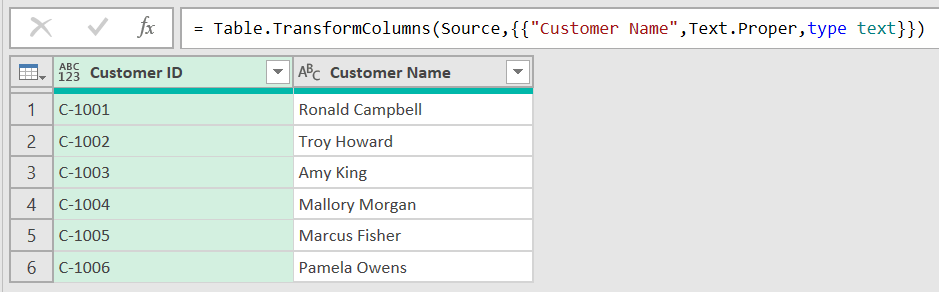
Here, Table.TransformColumns changes the values in the Customer Name column itself, instead of adding a new column. The last part, type text, keeps the column’s data type as text.
Notice that Text.Proper is written without brackets or arguments here. You’re handing the whole function to Table.TransformColumns, and it runs Text.Proper on every name in the column.
Names like “aMY kING”, where someone typed with Caps Lock on, come out right too. Text.Proper doesn’t care what case the letters were in before.
Example 3: Convert Multiple Columns to Proper Case
You don’t need a separate step for each column you want to change.
Below is a Staff table with each employee’s job title and department, where the titles and departments were typed in mixed case, and I want both the Job Title and the Department columns in proper case.
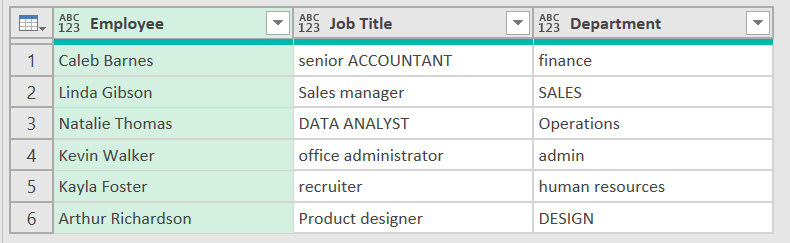
Load the Staff table into Power Query the same way as in Example 2 (Data > From Table/Range). Then add a new step (by clicking on the fx icon next to the formula bar) and use this formula:
= Table.TransformColumns(Source,{{"Job Title",Text.Proper,type text},{"Department",Text.Proper,type text}})
Result: The Job Title column now has Senior Accountant, Sales Manager, Data Analyst, and so on, and the Department column has Finance, Sales, Operations, Admin, Human Resources, and Design.
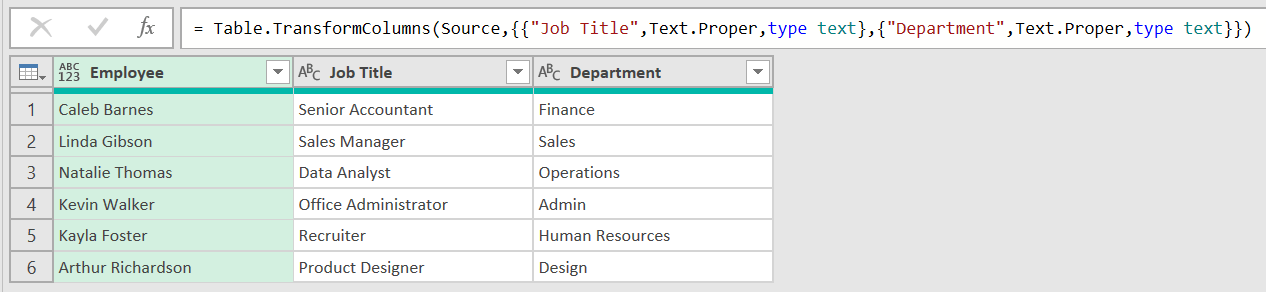
Here, Table.TransformColumns gets a list with one set of curly brackets for each column. Each set has the column name, the function to run on it, and the data type.
The Employee column isn’t in the list, so Power Query leaves it as it is.
Example 4: Combine First and Last Names Into a Full Name
Text.Proper is often one part of a bigger formula. Here, it works together with the Text.Trim function.
Below is a Signups table with first and last names from a web form, where people typed in random case and some added extra spaces, and I want a clean full name in a new Full Name column.
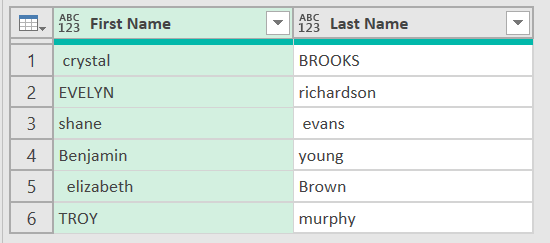
Load the Signups table into Power Query the same way as in Example 2 (Data > From Table/Range). Then add a new step (by clicking on the fx icon next to the formula bar) and use this formula:
= Table.AddColumn(Source,"Full Name",each Text.Proper(Text.Trim([First Name])&" "&Text.Trim([Last Name])),type text)
Result: A new Full Name column with Crystal Brooks, Evelyn Richardson, Shane Evans, Benjamin Young, Elizabeth Brown, and Troy Murphy.
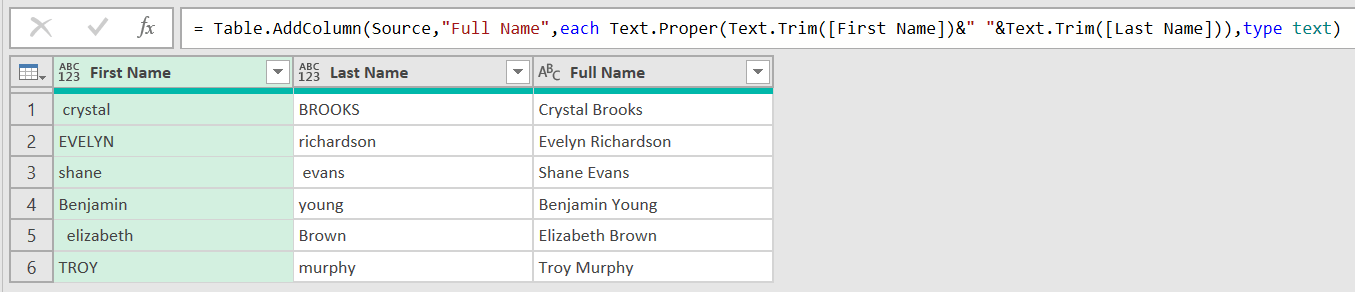
In the above formula, Table.AddColumn adds a new column called Full Name. For each row, Text.Trim removes the spaces at the start and end of the first and last name.
Then the & operator joins the two names with a space in between, and Text.Proper capitalizes the result.
You need Text.Trim here because Text.Proper doesn’t remove any spaces. Without it, ” crystal” would become ” Crystal Brooks”, with a space at the front that’s hard to spot.
Follow along with the example file
Text.Proper Function Examples.xlsx
Example 5: Turn Database Headers Into Readable Column Names
Sometimes it’s the column names you want to fix, not the values. Data exported from a database often has headers like customer_name, with underscores instead of spaces.
Below is an Orders table with headers like order_no and TOTAL_AMOUNT, and I want every column header to be in proper case with spaces instead of underscores.

Load the Orders table into Power Query the same way as in Example 2 (Data > From Table/Range). Then add a new step (by clicking on the fx icon next to the formula bar) and use this formula:
= Table.TransformColumnNames(Source,each Text.Proper(Text.Replace(_,"_"," ")))
Result: The headers are now Order No, Customer Name, Ship City, and Total Amount. The data in the rows doesn’t change.
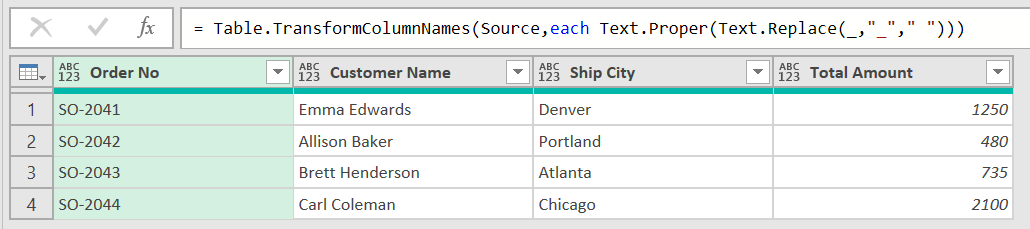
Here, the Table.TransformColumnNames function runs the formula on every column name of the table. The bare _ (the one not in quotes) stands for each column name.
For each name, Text.Replace looks for the underscore character (the “_” in quotes) and replaces it with a space (” “). So customer_name becomes customer name, and then Text.Proper capitalizes each word.
The order matters. If you ran Text.Proper on customer_name directly, you’d get Customer_Name, because the underscore counts as a word break, and the underscore would still be there.
Example 6: Fix Words Like Men’S and 2Nd
This is the one problem you’ll run into the most with Text.Proper.
Below is a Catalog table with product names and prices, where some product names have an apostrophe (men’s) or a number (2nd), and I want each product name in the Product column to start every word with a capital letter.
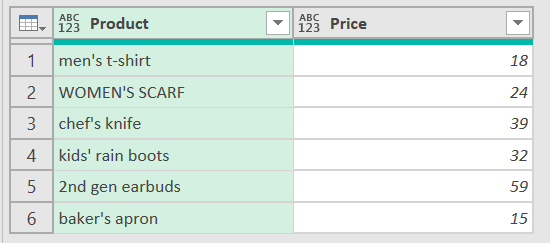
Load the Catalog table into Power Query the same way as in Example 2 (Data > From Table/Range). First, let’s see what happens if you use Text.Proper directly, with the same formula as in Example 2:
= Table.TransformColumns(Source,{{"Product",Text.Proper,type text}})
Result: The Product column now has Men’S T-Shirt, Women’S Scarf, Chef’S Knife, Kids’ Rain Boots, 2Nd Gen Earbuds, and Baker’S Apron.
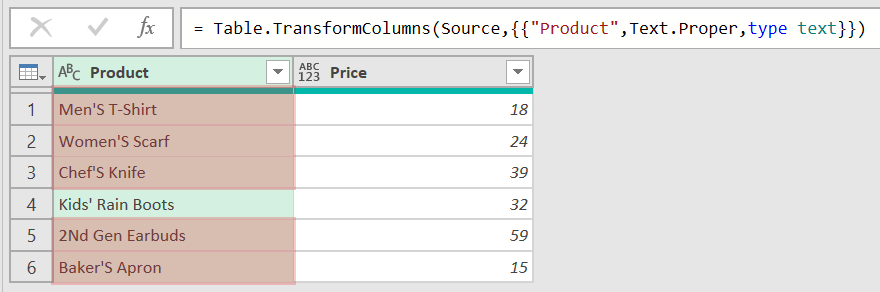
Text.Proper treats the apostrophe as the end of a word. So the s after it counts as a new word and becomes a capital S.
The same thing happens after a digit, so 2nd turns into 2Nd.
Kids’ Rain Boots looks fine only because no letter comes right after the apostrophe there.
To capitalize only the letters that come after a space, use this formula instead of the one above:
= Table.TransformColumns(Source,{{"Product",each Text.Combine(List.Transform(Text.Split(_," "),each Text.Upper(Text.Start(_,1))&Text.Lower(Text.Middle(_,1)))," "),type text}})
Result: The Product column now has Men’s T-shirt, Women’s Scarf, Chef’s Knife, Kids’ Rain Boots, 2nd Gen Earbuds, and Baker’s Apron.
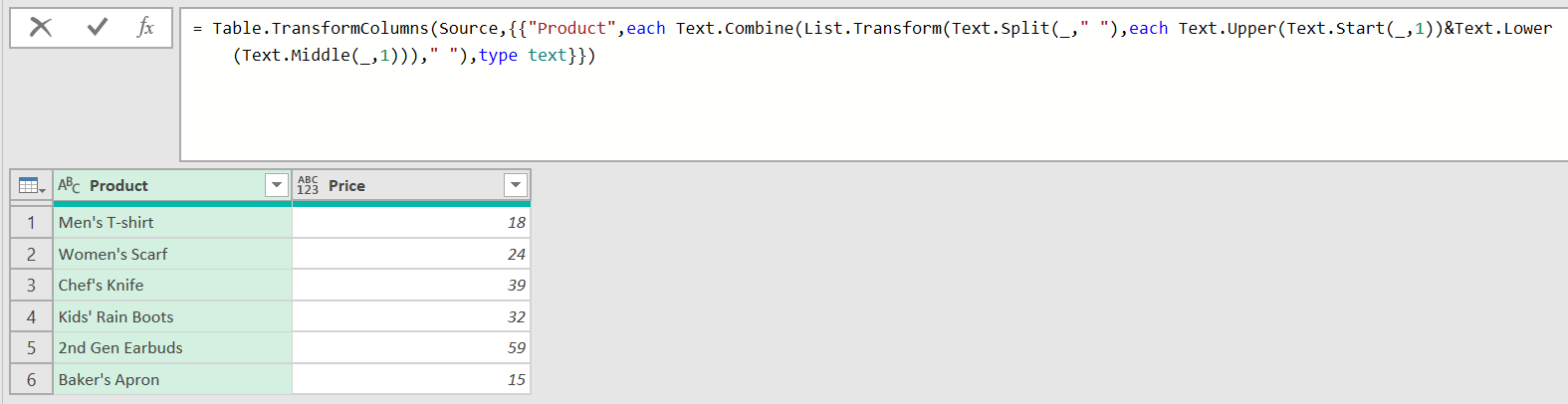
Here, Text.Split breaks each product name into a list of words wherever there’s a space. In Text.Split(_,” “), the _ is the whole product name.
Then List.Transform works on one word at a time. Inside the second each, the _ means the single word it’s working on, not the whole product name.
For each word, Text.Start takes the first character and Text.Upper makes it a capital. Text.Middle takes the rest of the word and Text.Lower makes it lowercase.
Finally, Text.Combine joins the words back together with a space between them.
Notice that T-Shirt became T-shirt. This formula lowercases everything after the first letter of a word, so the letter after a hyphen or an apostrophe always stays lowercase.
Important: Don’t use this formula on people’s names. It turns O’Brien and Mary-Jane into O’brien and Mary-jane, while plain Text.Proper gets both right.
In the example file, both versions are there as the Example 6 – Apostrophe Problem and Example 6 – Capitalize After Spaces queries, and both read the same Catalog table.
Example 7: Keep Acronyms Like USB in Capitals
Text.Proper also lowercases acronyms. So USB turns into Usb, and HDMI turns into Hdmi.
Below is an Electronics table with item names and stock counts, where some item names have acronyms like usb and HDMI, and I want each item name in proper case, with the acronyms in capitals, in the Item column.
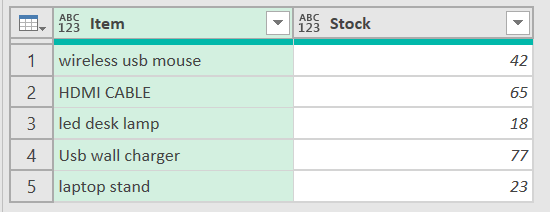
Load the Electronics table into Power Query the same way as in Example 2 (Data > From Table/Range). Then add a new step (by clicking on the fx icon next to the formula bar) and use this formula:
= Table.TransformColumns(Source,{{"Item",each Text.Combine(List.Transform(Text.Split(_," "),each if List.Contains({"USB","HDMI","LED"},Text.Upper(_)) then Text.Upper(_) else Text.Proper(_))," "),type text}})
Result: The Item column now has Wireless USB Mouse, HDMI Cable, LED Desk Lamp, USB Wall Charger, and Laptop Stand.
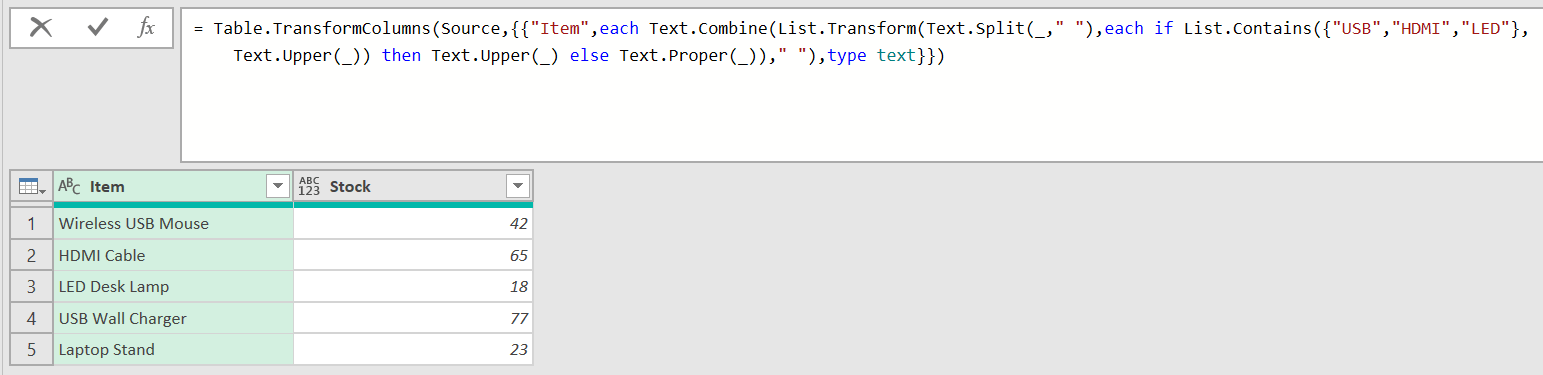
Just like in Example 6, Text.Split breaks each item name into words, and Text.Combine joins them back with spaces at the end.
For each word, List.Contains checks whether its uppercase version is in the list {“USB”,”HDMI”,”LED”}. If it is, the word goes in capitals, and if not, Text.Proper handles it as usual.
The check works on whole words, so a word like “ledger” isn’t affected, because it isn’t exactly LED. If your data has other acronyms, add them to the list in the formula.
Because it splits only on spaces, an acronym joined to something else isn’t matched. For example, usb-c would still come out as Usb-C.
Example 8: Use the Culture Argument for Turkish Text
Most of the time, you can leave out the culture argument. But a few languages have their own capitalization rules, and Turkish is the classic example.
Turkish has two different letter i’s. The dotted i becomes a dotted capital İ, and the dotless ı becomes a plain capital I.
Below is a TurkishCities table with a few Turkish city names in lowercase and their region, and I want each city name in proper case using English rules in an en-US column and Turkish rules in a tr-TR column.
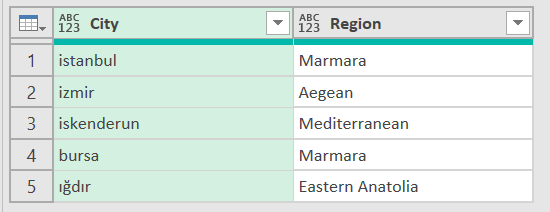
Load the TurkishCities table into Power Query the same way as in Example 2 (Data > From Table/Range). Then go to Home > Advanced Editor, replace the code with the following, and click Done:
let
    Source = Excel.CurrentWorkbook(){[Name="TurkishCities"]}[Content],
    #"Added en-US" = Table.AddColumn(Source,"en-US",each Text.Proper([City],"en-US"),type text),
    #"Added tr-TR" = Table.AddColumn(#"Added en-US","tr-TR",each Text.Proper([City],"tr-TR"),type text)
in
    #"Added tr-TR"
Result: The en-US column has Istanbul, Izmir, Iskenderun, Bursa, and Iğdır. The tr-TR column has İstanbul, İzmir, İskenderun, Bursa, and Iğdır.
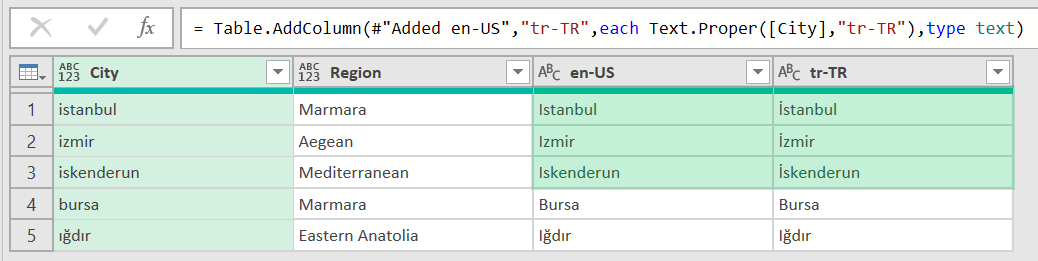
Here, the Added en-US step capitalizes each city name with English rules, and the Added tr-TR step does the same with Turkish rules.
The two columns differ only for the cities that start with a dotted i. With English rules, istanbul becomes Istanbul, but in Turkish the correct spelling is İstanbul, which is what “tr-TR” gives you.
Bursa is the same in both columns because it doesn’t start with an i. ığdır starts with a dotless ı, which becomes a plain I either way.
When I left out the culture argument on my English setup, istanbul became Istanbul. So if you work with Turkish text, pass “tr-TR” to get the correct spelling.
The culture has to be one Power Query knows, or you get the error “The specified culture is not supported.”
Other Excel Articles You May Also Like:
- Table.ReplaceValue – Use Table.ReplaceValue in Power Query M to find a value and swap it for another.
- Table.RenameColumns – Guide to Table.RenameColumns in Power Query M.
- Text.Remove – Use Text.Remove in Power Query M to strip characters from text.
- Table.PromoteHeaders – Use Table.PromoteHeaders in Power Query M to make the first row your headers.
- Text.Trim – Use Text.Trim in Power Query M to remove spaces from both ends of text.
- Table.CombineColumns – Use Table.CombineColumns in Power Query M to merge columns into one.
- Text.Clean – Use Text.Clean in Power Query M to remove hidden control characters.
- Combiner.CombineTextByDelimiter – Use Combiner.CombineTextByDelimiter in Power Query M to join text.
