

If you have a list of names or text typed in all caps, all lowercase, or a messy mix of both, the PROPER function can clean it up fast.
It capitalizes the first letter of every word and turns the rest into lowercase, so the whole list looks consistent in one step.
In Excel 365, you can also feed PROPER a range and the results spill into the cells below. In this article, I’ll show you how to use PROPER with a few practical examples.
Follow along with the example file
PROPER Function Examples.xlsx
PROPER Function Syntax
Here is the syntax of the PROPER function:
=PROPER(text)
- text – The text you want to capitalize. This can be text in quotes, a reference to a cell, or a formula that returns text.
When to Use the PROPER Function
Use the PROPER function when you need to:
- Clean up a list of names that were typed in all caps or all lowercase
- Standardize city, state, or address text pulled in from another system
- Format a column of titles or labels so every word starts with a capital letter
Let me show you a few practical examples of how PROPER works.
Example 1: Convert a Messy Name List to Proper Case
Let’s start with a simple example.
Below is a dataset with a list of employee names in column A. Some are in all caps, some in all lowercase, and some are a mix, which is exactly what you get when names come from different people or systems.
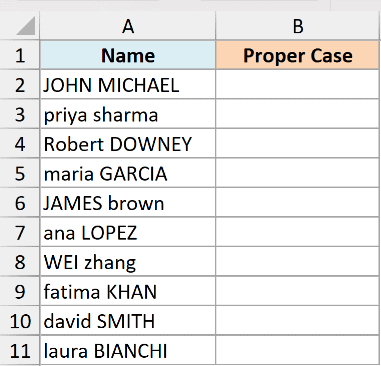
I want to turn this whole column into clean, properly capitalized names in one go.
Here is the formula:
=PROPER(A2:A11)
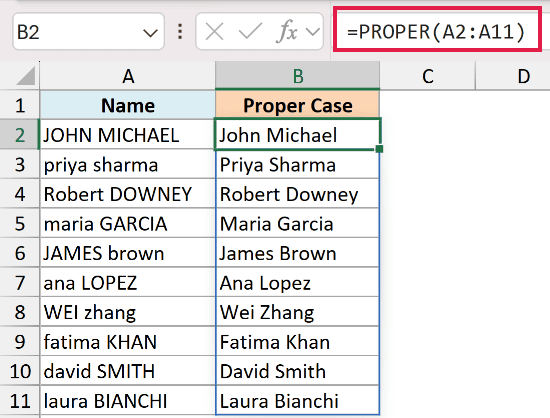
Since I gave PROPER the entire range A2:A11, the results spill down the column automatically. There is no need to write the formula once and drag it down.
Each name now starts with a capital letter and the rest of the letters are lowercase, so “JOHN MICHAEL” becomes “John Michael” and “priya sharma” becomes “Priya Sharma”.
Pro Tip: If you are on Excel 2019 or earlier, the spilling form will not work. Type =PROPER(A2) in the first cell instead and copy it down the column.
Example 2: Format Addresses and City Names Consistently
Here’s another common scenario.
Below is a dataset with street addresses and city names in column A, entered in an inconsistent mix of cases.
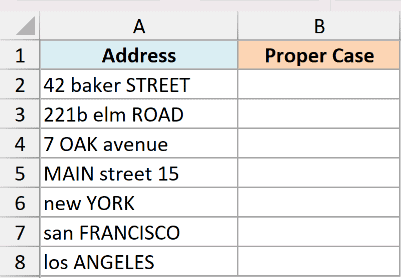
I want every address and city to read cleanly, with each word capitalized.
Here is the formula:
=PROPER(A2:A8)
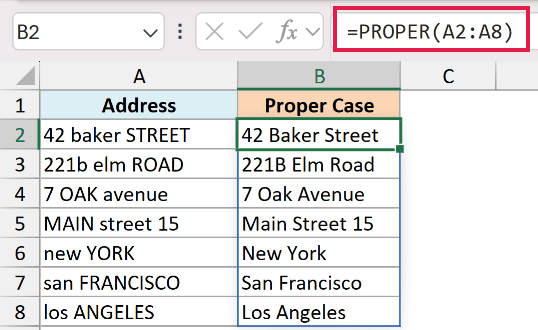
The formula spills the cleaned-up text down the column. “42 baker STREET” becomes “42 Baker Street” and “los ANGELES” becomes “Los Angeles”.
Notice that “221b elm ROAD” comes out as “221B Elm Road”. PROPER capitalizes the letter after the number because a digit is not a letter, which is handy for house and unit numbers like this.
Example 3: Capitalize Text and Remove Extra Spaces (PROPER + TRIM)
Now let’s look at something you run into with imported data.
Below is a dataset of names in column A that carry the case problem plus extra spaces, some at the start, some at the end, and some doubled up between words.
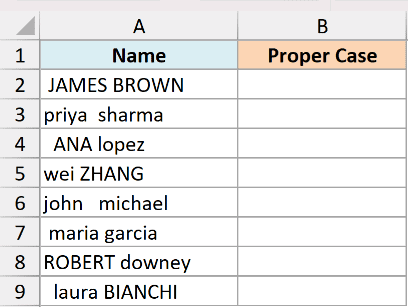
First, let me show you what PROPER does on its own here.
=PROPER(A2:A9)
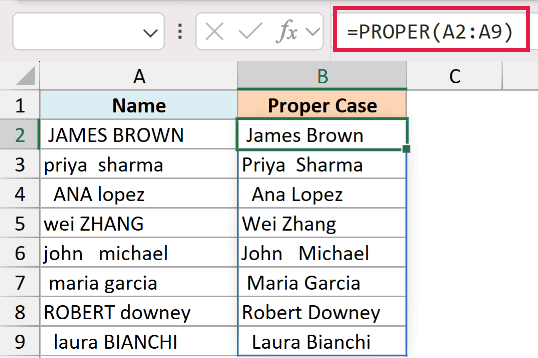
The capitalization is fixed, but the extra spaces are still there. PROPER only changes letter case, so it leaves every space exactly where it was.
To fix both problems at once, I want to remove the extra spaces before capitalizing.
=PROPER(TRIM(A2:A9))
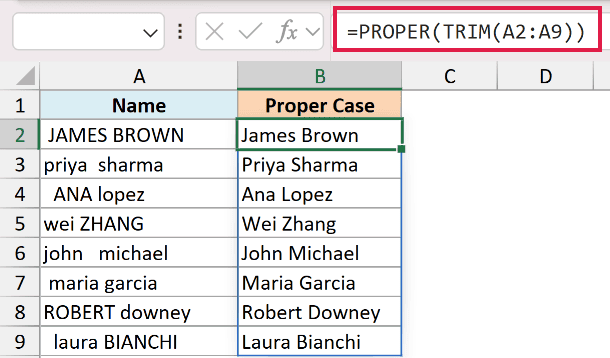
Here, TRIM runs first on the inside. It strips the leading and trailing spaces and collapses any double spaces down to one. PROPER then capitalizes the cleaned text, so ” JAMES BROWN ” comes out as “James Brown”.
Example 4: Combine and Capitalize First and Last Names
Here’s a practical one for name lists split across two columns.
Below is a dataset with first names in column A and last names in column B, both entered in a messy mix of cases.
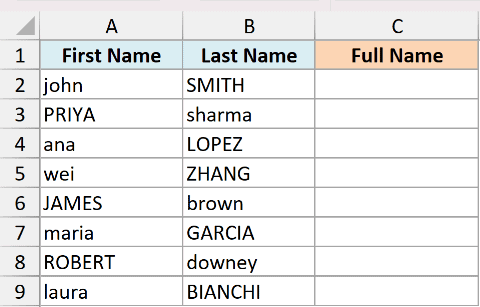
I want to join each first and last name into a single full name that is properly capitalized.
Here is the formula:
=PROPER(A2:A9&" "&B2:B9)
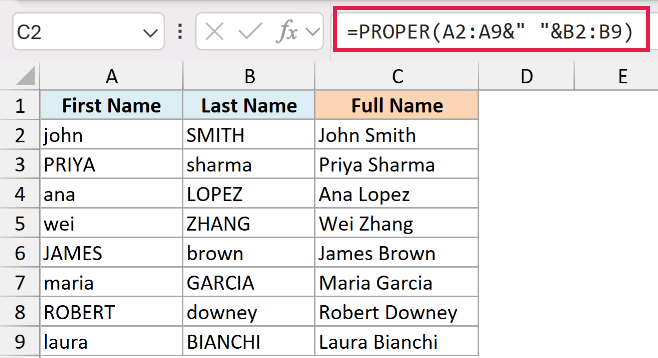
The ampersand joins the first name, a space, and the last name into one string. Because I passed whole ranges, the formula spills a full list of joined names down the column.
PROPER wraps the joined text and capitalizes it, so “john” and “SMITH” become “John Smith” in a single cell.
Example 5: When PROPER Capitalizes the Wrong Letters
This last example is the one to remember, because PROPER is not always right.
Below is a small dataset in column A with a surname, an Irish-style name, a business name, and two acronyms.
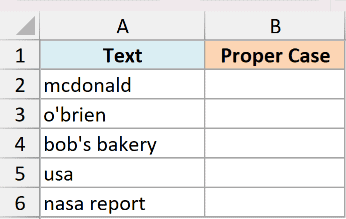
Let me run PROPER on it and see what happens.
=PROPER(A2:A6)
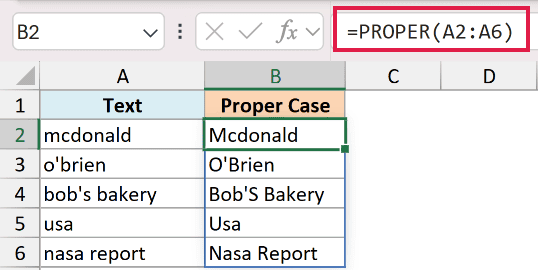
Some of these are wrong. PROPER works by capitalizing the first letter after any non-letter character and lowercasing everything else, and that simple rule breaks down here:
- “mcdonald” becomes “Mcdonald” instead of “McDonald”, because PROPER has no idea the second capital belongs there.
- “bob’s bakery” becomes “Bob’S Bakery”, because the letter after the apostrophe gets capitalized.
- “usa” becomes “Usa” and “nasa report” becomes “Nasa Report”, because PROPER treats acronyms like ordinary words.
- “o’brien” actually comes out right as “O’Brien”, since here the capital after the apostrophe is what you want.
For the possessive apostrophe case, you can patch the result with the SUBSTITUTE function.
=SUBSTITUTE(PROPER(A4),"'S ","'s ")
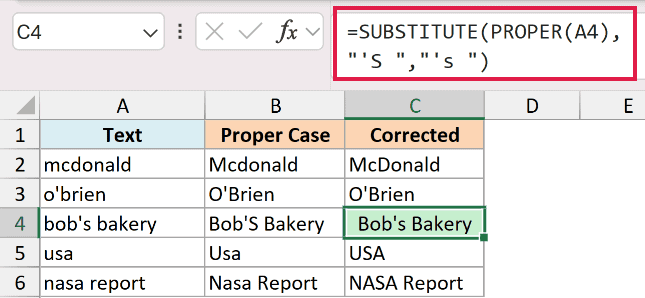
This swaps the wrongly capitalized “‘S ” back to “‘s “, so “Bob’S Bakery” becomes “Bob’s Bakery”. For Mc and Mac surnames and for acronyms, there is no clean formula fix, so fix those cells by hand or leave PROPER out of them.
Tips & Common Mistakes
- PROPER mis-capitalizes names like McDonald and MacArthur, and it capitalizes the letter right after an apostrophe, so “bob’s” turns into “Bob’S”. Fix these odd cells by hand or with SUBSTITUTE.
- It also breaks acronyms. “USA” becomes “Usa” and “NASA” becomes “Nasa”. If a column has acronyms, PROPER is the wrong tool for those entries.
- PROPER does not remove extra spaces. Wrap it around the TRIM function, like =PROPER(TRIM(A2)), when your data comes from an import or a copy-paste.
- Once the names look right, copy the PROPER results and paste them back as values (Paste Special > Values). Then you can delete the original column without breaking anything.
- PROPER changes the case of letters only. Numbers, punctuation, and symbols are left exactly as they are.
- If you see the formula instead of the result, such as
=PROPER(A2), the cell may have been formatted as Text before you typed the formula. Change it to General, then select the cell, press F2, and press Enter. - If you want all caps instead of title case, use the UPPER function. For all lowercase, use the LOWER function.
The PROPER function is the quickest way to turn a messy list of text into clean, title-cased entries. It works great for names, cities, and addresses, as long as you keep an eye on acronyms and surnames like McDonald.
When your data has extra spaces, pair PROPER with TRIM, and when you are done, paste the results back as values to lock them in.
Other Excel Articles You May Also Like:
