
If you want to change the case of text in Excel, you may go looking for a one-click button like the one in Word. Excel does not have one.
That is nothing to worry about. Excel gives you a few easy ways to switch text to all caps, lowercase, or proper case, and I’ll cover formulas, Flash Fill, and a short macro below.
Is There an All Caps Shortcut in Excel?
A quick answer first, since this is the most common question. There is no built-in keyboard shortcut in Excel that changes selected text to all caps, the way Shift + F3 does in Word.
Excel has a long list of handy keyboard shortcuts, but a change-case one is not among them. Instead, Excel handles case with functions.
So the fastest routes are the UPPER function or Flash Fill, both of which I cover below. If you’d rather change the text right in its own cells, the macro at the end of this article does that.
Convert Text to UPPERCASE With the UPPER Function
Let’s start with the simplest case, turning text into all capital letters.
The UPPER function takes any text and returns it in uppercase. Let me show you how it works.
Below I have a list of customer names in column A, entered in a mix of cases, and I want the all-caps version in column B.
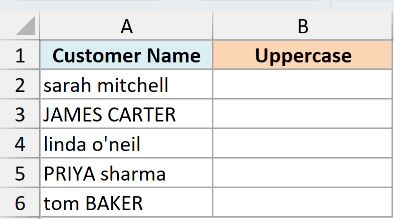
Here is the formula:
=UPPER(A2:A6)
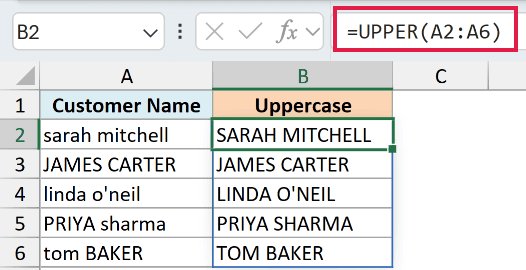
How does this formula work?
I entered the formula once in cell B2 and pointed it at the whole range A2:A6. In Excel 365 (and Excel 2021 or later), it spills down the column on its own and fills B2:B6 with the uppercase names.
UPPER simply turns every letter into a capital, so “sarah mitchell” becomes “SARAH MITCHELL”. Numbers, spaces, and symbols are left exactly as they are.
If you’re using Excel 2019 or earlier, enter the below formula in cell B2 and then copy it down to B6:
=UPPER(A2)
Convert Text to Lowercase With the LOWER Function
Here’s the opposite, turning everything into small letters. The LOWER function converts all the letters in a piece of text to lowercase.
I have the same customer names in column A, and this time I want them all in lowercase in column B.
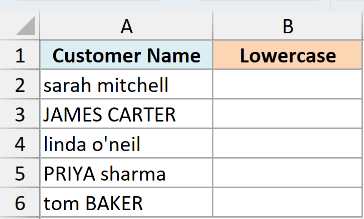
Here is the formula:
=LOWER(A2:A6)
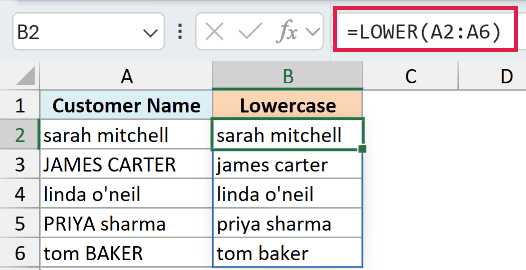
How does this formula work?
LOWER does the same thing as UPPER but in reverse, making every letter small. So “JAMES CARTER” becomes “james carter”, and the spaces and any numbers stay untouched.
Just like before, I entered it in cell B2, and it spills down to B6 in Excel 365 and Excel 2021 or later.
If you’re using Excel 2019 or earlier, enter the below formula in cell B2 and then copy it down to B6:
=LOWER(A2)
Convert Text to Proper Case With the PROPER Function
Now let’s get to the one most people actually want, proper case, where the first letter of each word is capitalized. The PROPER function does exactly that.
Again I have the customer names in column A, and I want each name in proper case, like “Sarah Mitchell”, in column B.
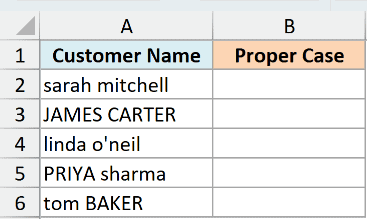
Here is the formula:
=PROPER(A2:A6)
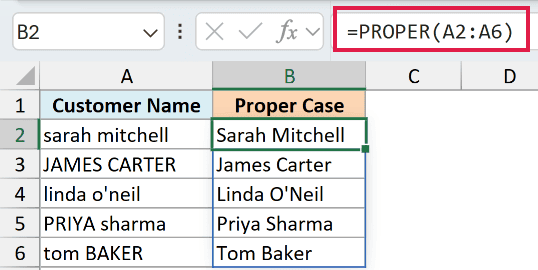
How does this formula work?
Like the other two, it goes in cell B2 and spills down to B6 in Excel 365 and Excel 2021 or later. PROPER capitalizes the first letter of every word and makes the rest lowercase, so “JAMES CARTER” becomes “James Carter”.
PROPER also capitalizes any letter that comes right after a non-letter character. That’s how “linda o’neil” becomes “Linda O’Neil”, but it also turns “3rd” into “3Rd” and “it’s” into “It’S”.
It also has no way of knowing that “mcdonald” should be “McDonald”, so you get “Mcdonald”. Those you fix by hand.
If you’re using Excel 2019 or earlier, enter the below formula in cell B2 and then copy it down to B6:
=PROPER(A2)
Pro Tip: To keep only the proper-case text and drop the formula, copy column B and use Paste Special > Values over the same cells. Then you can delete the original column.
Change Case Without a Formula Using Flash Fill
If you’d rather not use a formula at all, Flash Fill can change case by example. You show Excel one result and it works out the pattern for the rest.
Below I have the customer names in column A, and I want the proper-case version in column B, without a formula.
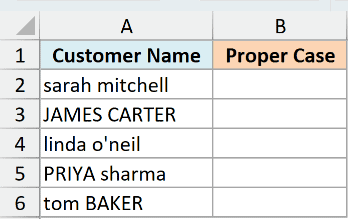
Here are the steps to change case with Flash Fill:
- In cell B2, type the first name the way you want it, in proper case (for example, type Sarah Mitchell).
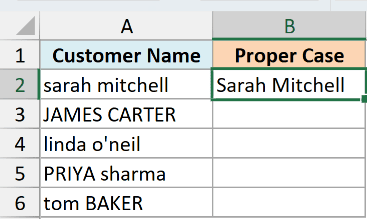
- Press Ctrl + E (Control + E on a Mac), or go to Data > Flash Fill in the ribbon.
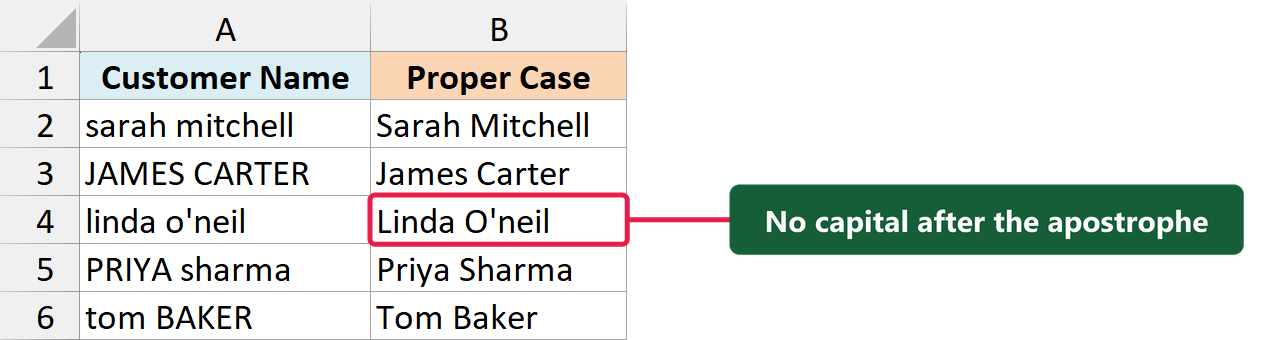
Excel reads your example and fills B3:B6 with the same proper-case pattern. If it doesn’t get it right away, type the second name in B3 as well and press Ctrl + E again.
Unlike PROPER, Flash Fill doesn’t capitalize the letter after an apostrophe, so “linda o’neil” comes out as “Linda O’neil”. Fix that one by hand if you need it.
Keep in mind that Flash Fill gives you a static result. It won’t update if you change the names in column A, and it can occasionally misread a pattern, so give the output a quick look.
Change Case in Place Using a VBA Macro
If you want to change the case right inside the original cells, with no helper column, a short macro is the way to go.
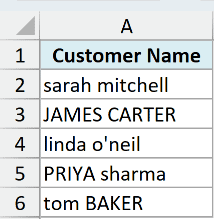
Below I have the customer names in column A, and I want to convert them to uppercase in place, replacing what’s already there.
Here is the VBA code:
Sub ConvertToUpperCase()
    Dim cell As Range
    For Each cell In Selection
        cell.Value = UCase(cell.Value)
    Next cell
End SubHere are the steps to use this macro:
- Select the cells you want to change (for example, A2:A6).
- Press Alt + F11 to open the VBA editor.
- Go to Insert > Module and paste the code above into the module.
- Press F5 to run the macro, then close the editor.
The macro loops through every cell in your selection and rewrites its value in uppercase using VBA’s UCase function. Because it changes the cells directly, there’s no extra column to clean up afterward.
To get lowercase instead, replace UCase with LCase. For proper case, replace UCase(cell.Value) with StrConv(cell.Value, vbProperCase).
One caution: a macro can’t be undone with Ctrl + Z. Run it on a copy of your data the first time, or make sure you have a backup.
Things to Keep in Mind
- UPPER, LOWER, and PROPER put the result in a new column. To keep only the converted text, copy the results and use Paste Special > Values over the same cells, then delete the original column.
- PROPER capitalizes any letter that follows a non-letter character, so “3rd” becomes “3Rd”. It also turns “mcdonald” into “Mcdonald”. Entries like these need a manual fix.
- Formulas update automatically when the source text changes. Flash Fill and the macro give static results that don’t update on their own.
- Changing case only affects letters. Numbers, spaces, and symbols stay exactly as they were.
That covers the main ways to change the case of text in Excel, from the UPPER, LOWER, and PROPER functions to Flash Fill and a quick macro. Pick whichever one fits how you like to work.
I hope you found this article helpful.
Other Excel Articles You May Also Like: