

The Number.Round function in Power Query rounds a number to the number of decimal places you want. It works a lot like the ROUND function in Excel, with one difference that catches people out.
When a number sits exactly halfway, like 2.5, Number.Round rounds it to the nearest even number by default, so 2.5 becomes 2, not 3.
This article shows how that works and how to get the regular “round half up” result when you need it.
Follow along with the example file
Number.Round Function Examples.xlsx
Number.Round Function Syntax
Number.Round(number as nullable number, optional digits as nullable number, optional roundingMode as nullable number) as nullable number
- number – the number you want to round. If it’s null, Number.Round returns null.
- digits (optional) – how many decimal places to round to. Leave it out to round to a whole number. Use a negative number to round to tens, hundreds, or thousands (Example 6).
- roundingMode (optional) – what to do when the number is exactly halfway between two rounded values. Leave it out for
RoundingMode.ToEven(round to the nearest even number), or useRoundingMode.Up,RoundingMode.Down,RoundingMode.AwayFromZero, orRoundingMode.TowardZero.
What it returns: The rounded number, or null if the number is null.
The Number.Round function is part of the Power Query M language, so it works wherever Power Query does in Excel: Excel 365, 2024, 2021, 2019, and 2016 for Windows, and Excel for Microsoft 365 on Mac.
When to Use the Number.Round Function
Use this function when you need to:
- Round calculated values, like prices or totals, to two decimal places
- Tidy up a column of measurements that has too many decimals
- Round halves up the way Excel’s ROUND function does
- Round big numbers to the nearest hundred or thousand
- Round to the nearest 15 minutes, 5 units, or any other step
Example 1: Round a Number to the Nearest Whole Number
Let’s start with the simplest use. Suppose the average delivery time for last month works out to 48.73 hours, and you want it as a whole number.
In Excel, go to Data > Get Data > From Other Sources > Blank Query. In the Power Query Editor that opens, type this formula in the formula bar:
= Number.Round(48.73)
Result: 49
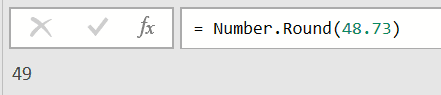
Here, Number.Round gets only the number, so it rounds to zero decimal places. 48.73 is closer to 49 than to 48, so you get 49.
In the example file, Examples 1, 3, 8, and 9 type their numbers right into the query, so they don’t have a sheet. You can open them from Data > Queries & Connections.
Example 2: Round a Calculated Value to Two Decimal Places
Here’s the use you’ll probably reach for most. Below is a table named OrderLines with the quantity, unit price, and discount rate for each product, and I want a Line Total column rounded to cents.
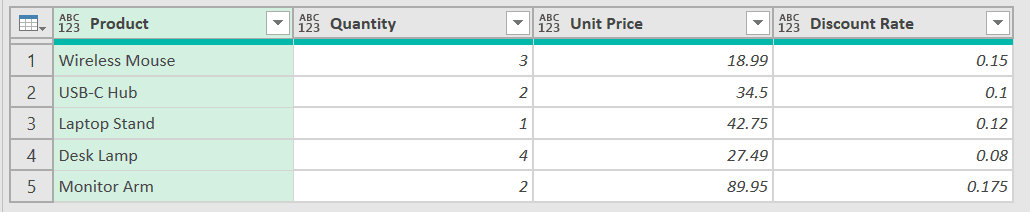
In the code below, the Source line uses the Excel.CurrentWorkbook function to pull the OrderLines table into Power Query by its name.
If you try this on your own data, format it as a table (Ctrl + T) and put your table’s name in place of “OrderLines”.
Create a new blank query (as in Example 1), open the Advanced Editor (Home > Advanced Editor), and use this code:
let
    Source = Excel.CurrentWorkbook(){[Name="OrderLines"]}[Content],
    #"Added Line Total" = Table.AddColumn(Source,"Line Total",each Number.Round([Quantity]*[Unit Price]*(1-[Discount Rate]),2),type number)
in
    #"Added Line Total"
Result: A new Line Total column (48.42, 62.1, 37.62, 101.16, and 148.42)

Here, the Table.AddColumn function adds a Line Total column and multiplies the quantity by the unit price and by (1 minus the discount rate) for each row. Number.Round then rounds that result to 2 decimal places.
For the Wireless Mouse, 3 x 18.99 x 0.85 is 48.4245, which rounds to 48.42. Without Number.Round, the column would keep all four decimals.
Power Query hides trailing zeros, so 62.10 shows as 62.1. The value is still rounded to two decimals, and you can format the column as currency once it’s loaded to Excel.
Example 3: Why 2.5 Rounds to 2 (Banker’s Rounding)
Here’s where Number.Round differs from Excel. Suppose you round 0.5, 1.5, 2.5, 3.5, and 4.5 to whole numbers, which the ROUND function in Excel turns into 1, 2, 3, 4, and 5.
Create a new blank query and type this formula in the formula bar:
= List.Transform({0.5,1.5,2.5,3.5,4.5},each Number.Round(_))
Result: A list with 0, 2, 2, 4, and 4
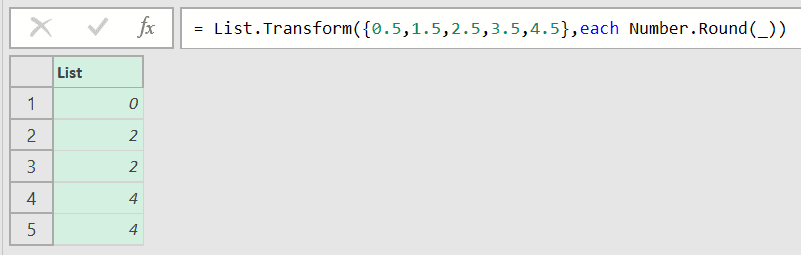
Here, the List.Transform function runs Number.Round on each number in the list. The underscore (_) stands for the current number.
Each of these numbers sits exactly halfway between two whole numbers, so Number.Round picks the even one. That’s why 2.5 goes down to 2 and 3.5 goes up to 4.
This is called banker’s rounding, and it’s the default (RoundingMode.ToEven).
The reason is fairness over many numbers. When you round lots of halves, always going up pushes your totals up a little each time.
Going to the even number sends about half of them down and half up, so the totals stay closer to the real ones.
It only matters for exact halves. A number like 2.51 is closer to 3, so it becomes 3 whatever the rounding mode.
Example 4: Round Halves Up Like Excel’s ROUND Function
Now let’s get the result most people expect. Below is a table named Invoices with amounts that have a third decimal place, and I want an Amount Due column rounded to cents, with halves rounded up like the ROUND function in Excel.
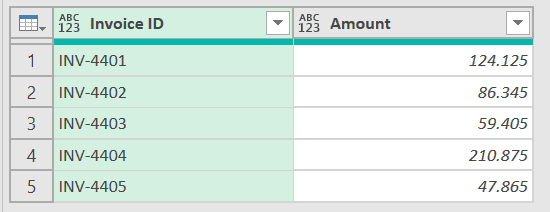
Create a new blank query, open the Advanced Editor, and use this code:
let
    Source = Excel.CurrentWorkbook(){[Name="Invoices"]}[Content],
    #"Added Amount Due" = Table.AddColumn(Source,"Amount Due",each Number.Round([Amount],2,RoundingMode.AwayFromZero),type number)
in
    #"Added Amount Due"
Result: A new Amount Due column (124.13, 86.35, 59.41, 210.88, and 47.87)
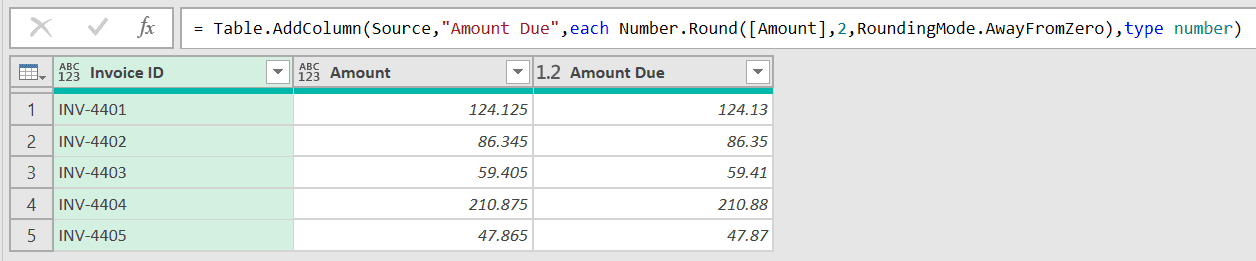
Here, the third argument, RoundingMode.AwayFromZero, tells Number.Round to round an exact half away from zero. So 124.125 becomes 124.13, the same as =ROUND(124.125,2) in Excel.
With the default, the same amounts would give 124.12, 86.34, 59.4, 210.88, and 47.86. Every amount here ends in a 5, and four of them have an even digit before it, so those four would round down.
Important: If your Power Query totals are a cent off from the same numbers rounded in Excel, this is usually why. Add RoundingMode.AwayFromZero to make Number.Round match Excel’s ROUND function.
You may also see the rounding mode written as a number, such as Number.Round([Amount],2,2). The numbers are 0 for Up, 1 for Down, 2 for AwayFromZero, 3 for TowardZero, and 4 for ToEven, but the names are much easier to read.
Example 5: Round an Existing Column in Place
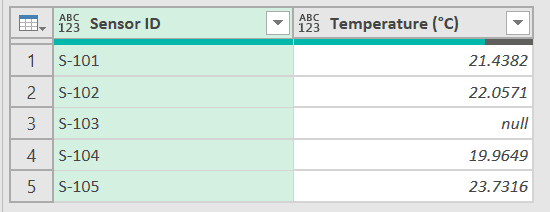
Sometimes you don’t want a new column, you just want to clean up the one you have. Below is a table named SensorReadings with temperature readings that have four decimals, and I want the Temperature (°C) column itself rounded to one decimal place.
Create a new blank query, open the Advanced Editor, and use this code:
let
    Source = Excel.CurrentWorkbook(){[Name="SensorReadings"]}[Content],
    #"Rounded Temperature" = Table.TransformColumns(Source,{{"Temperature (°C)",each Number.Round(_,1),type number}})
in
    #"Rounded Temperature"
Result: The Temperature (°C) column now shows 21.4, 22.1, null, 20, and 23.7
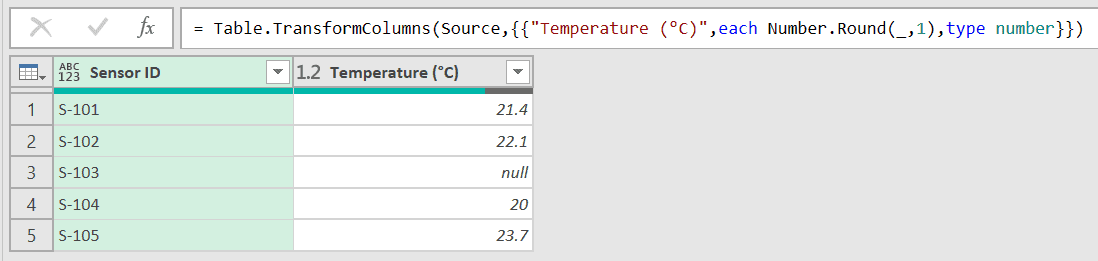
Here, the Table.TransformColumns function replaces each value in the Temperature (°C) column with the result of the formula after each. The underscore is the current value, so Number.Round(_,1) rounds it to one decimal place.
Sensor S-103 has no reading, so its cell comes into Power Query as null. Number.Round returns null for a null, so the blank stays blank and you don’t get an error.
S-104’s reading of 19.9649 rounds to 20.0, which Power Query shows as 20.
To round more than one column in the same step, add another {column name, function, type} item to the outer list. For example, if your own table also had a Humidity column, the list would be {{"Temperature (°C)",each Number.Round(_,1),type number},{"Humidity",each Number.Round(_,0),type number}}.
Important: Number.Round can’t round a number stored as text. A text value like “21.4382” gives the error We cannot convert the value “21.4382” to type Number, so change the column to a number type first, or wrap the value in the Number.From function.
Follow along with the example file
Number.Round Function Examples.xlsx
Example 6: Round to the Nearest Thousand (Negative Digits)
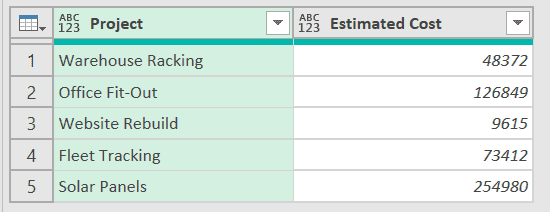
You can also round to the left of the decimal point. Below is a table named ProjectCosts with the estimated cost of each project, and I want a Rounded Cost column with each cost rounded to the nearest thousand.
Create a new blank query, open the Advanced Editor, and use this code:
let
    Source = Excel.CurrentWorkbook(){[Name="ProjectCosts"]}[Content],
    #"Added Rounded Cost" = Table.AddColumn(Source,"Rounded Cost",each Number.Round([Estimated Cost],-3),type number)
in
    #"Added Rounded Cost"
Result: A new Rounded Cost column (48000, 127000, 10000, 73000, and 255000)
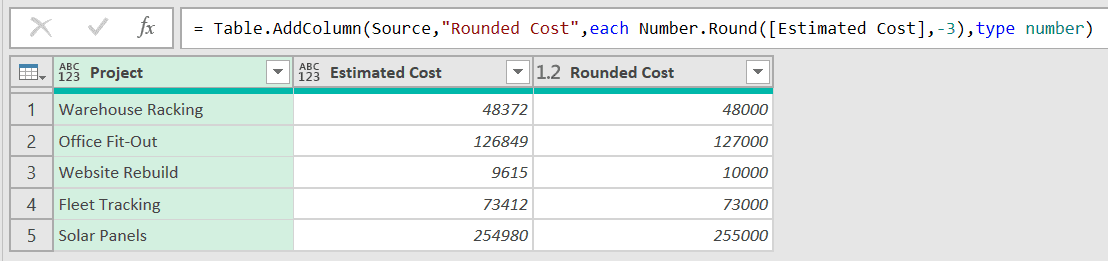
Here, -3 as the second argument tells Number.Round to round three places to the left of the decimal point, which is the thousands. So 48372 becomes 48000, and 126849 becomes 127000.
Use -1 to round to the nearest ten and -2 for the nearest hundred. For example, Number.Round(1234.5678,-2) returns 1200.
Microsoft’s documentation doesn’t mention negative digits, but they count places to the left of the decimal point, the same as in Excel’s ROUND function.
The halfway rule still applies here. With the default, 72500 rounds to 72000 and 73500 rounds to 74000, so add RoundingMode.AwayFromZero if you want every 500 to go up.
Example 7: Round to the Nearest 15 Minutes
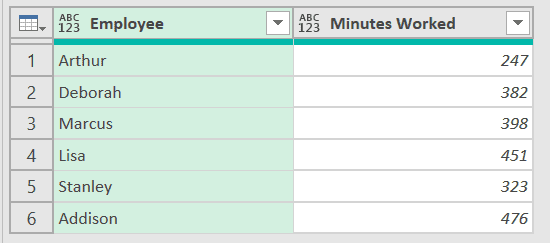
Number.Round can also round to a step, like 15 minutes or 5 units. Below is a table named Timesheet with the minutes each person worked, and I want a Billable Minutes column with the time rounded to the nearest 15 minutes.
Create a new blank query, open the Advanced Editor, and use this code:
let
    Source = Excel.CurrentWorkbook(){[Name="Timesheet"]}[Content],
    #"Added Billable Minutes" = Table.AddColumn(Source,"Billable Minutes",each Number.Round([Minutes Worked]/15)*15,type number)
in
    #"Added Billable Minutes"
Result: A new Billable Minutes column (240, 375, 405, 450, 330, and 480)
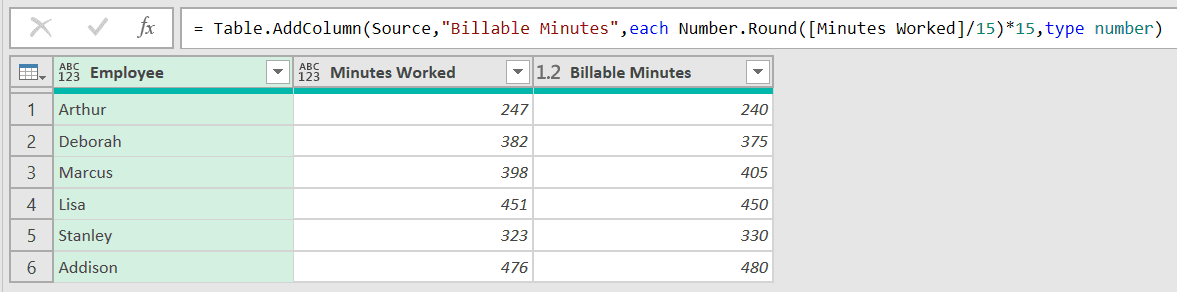
Here, the formula divides the minutes by 15 to get the number of 15-minute blocks, rounds that to a whole number, and multiplies it back by 15. For Arthur, 247 / 15 is 16.47, which rounds to 16 blocks, or 240 minutes.
Marcus worked 398 minutes, which is 26.53 blocks. That rounds up to 27 blocks, so he gets 405 minutes.
To round to a different step, swap 15 for that step in both places.
For example, Number.Round([Price]/5)*5 rounds a price to the nearest 5. This is close to the MROUND function in Excel, except at exact halves.
For a price of 12.5, 12.5/5 is 2.5, an exact half, so the default rounds it to the even number 2 and you get 10. MROUND gives 15 for the same price.
To match MROUND on those halves too, use Number.Round([Price]/5,0,RoundingMode.AwayFromZero)*5.
Example 8: RoundingMode.Up Is Not the Same as Rounding Up
This next one trips people up because of the name. Suppose a courier bills by the 0.1 kg, always rounding up, and a parcel weighs 1.21 kg.
Create a new blank query and type this formula in the formula bar:
= {Number.Round(1.21,1,RoundingMode.Up),Number.RoundUp(1.21,1)}
Result: A list with 1.2 and 1.3

Here, the first item uses RoundingMode.Up and gives 1.2.
That’s because the rounding mode only decides what happens to an exact half, and 1.21 isn’t halfway between 1.2 and 1.3. It’s closer to 1.2, so that’s where it goes.
The second item uses the Number.RoundUp function, which always rounds up. That’s why it gives 1.3, the weight the courier bills.
So use Number.Round when you want the nearest value, and Number.RoundUp (or Number.RoundDown) when the direction must always be the same.
Example 9: Rounding Negative Halves (Up vs AwayFromZero)
The last one is about negative numbers. Suppose you have a temperature change of -2.5 degrees and want to round it to a whole number.
Create a new blank query and type this formula in the formula bar:
= {Number.Round(-2.5,0,RoundingMode.Up),Number.Round(-2.5,0,RoundingMode.AwayFromZero)}
Result: A list with -2 and -3

Here, RoundingMode.Up rounds the half toward the larger number. For a negative number, the larger one is closer to zero, so -2.5 becomes -2.
RoundingMode.AwayFromZero rounds the half away from zero instead, so -2.5 becomes -3. For positive numbers, both modes give the same answer (2.5 becomes 3).
If you want negative numbers to round the same way as Excel’s ROUND function (which turns -2.5 into -3), use RoundingMode.AwayFromZero.
Other Excel Articles You May Also Like:
- Record.Field function
- Number.ToText – Use Number.ToText in Power Query M to format numbers as text.
- List.Sum – Use List.Sum in Power Query M to add up a list of numbers.
