
If you want to check whether a piece of text begins with a certain prefix in Power Query, the Text.StartsWith function is the quickest way to do it. You give it a text value and a prefix, and it hands back true or false.
In this article, I’ll walk you through Text.StartsWith with practical examples: checking a single value, filtering a table by prefix, handling case, matching multiple prefixes, and flagging rows with a new column.
Text.StartsWith Function Syntax
Text.StartsWith(text as nullable text, substring as text, optional comparer as nullable function) as nullable logical
- text – The text value you want to check
- substring – The prefix you’re looking for at the start of the text
- comparer (optional) – A comparer that controls how the match is made, such as Comparer.OrdinalIgnoreCase for a case-insensitive check
What it returns: A logical value, true if the text starts with the substring and false if it doesn’t. If the text input is null, the function returns null.
When to Use the Text.StartsWith Function
Use this function when you need to:
- Check if a value begins with a specific prefix
- Filter a table to keep only rows whose text starts a certain way
- Do a case-insensitive prefix match
- Match rows against more than one prefix at once
- Drop rows that start with an unwanted prefix
- Add a column that flags rows based on how their text begins
Example 1: Check if Text Starts With a Prefix
Let’s start with the basics. The simplest way to see Text.StartsWith in action is to feed it a text value and a prefix.
Create a new blank query (Home > New Source > Blank Query) and type this into the formula bar:
= Text.StartsWith("INV-2045","INV")
Result: TRUE

Here, the text “INV-2045” does begin with “INV”, so the function returns true. Text.StartsWith only looks at the start of the text, so the same letters showing up later in the string wouldn’t count.
Don’t mix this up with Text.Start. Text.Start returns the first few characters of the text, while Text.StartsWith just tells you true or false, so it’s the one to use when you want to test a prefix, not extract it.
If you need to check how a value ends instead of how it begins, use Text.EndsWith. It takes the same arguments and returns true when the text finishes with the substring you pass.
Example 2: Case Sensitivity
Here’s something important to know early. By default, Text.StartsWith cares about upper and lower case.
Create a new blank query and type this into the formula bar:
= Text.StartsWith("INV-2045","inv")
Result: FALSE

Even though “INV-2045” clearly starts with those three letters, the lowercase “inv” doesn’t match the uppercase “INV”. So the function returns false.
If you need the match to ignore case, that’s what the next example covers.
Example 3: Case-Insensitive Check With a Comparer
This next one comes up a lot. You want to match a prefix no matter how it’s capitalized, and that’s exactly what the optional comparer argument is for.
Create a new blank query and type this into the formula bar:
= Text.StartsWith("INV-2045","inv",Comparer.OrdinalIgnoreCase)
Result: TRUE

By adding Comparer.OrdinalIgnoreCase as the third argument, you tell the function to ignore case. Now “inv” matches “INV” and the result is true.
This is the same check that returned false in Example 2, so the comparer is doing all the work.
Example 4: Filter Rows by Prefix
Here’s the most common real use. You have a table and you only want the rows whose text starts with a certain prefix.
Suppose you have an Invoices table with a Reference and a Client column, and you want to keep only the rows where the reference starts with “INV”.
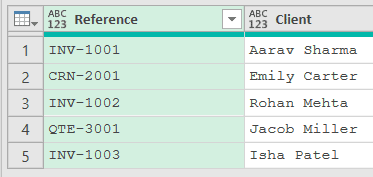
Add a new step (by clicking on the fx icon next to the formula bar) and use this formula:
= Table.SelectRows(Source,each Text.StartsWith([Reference],"INV"))
Result: only the three INV rows remain, INV-1001 (Aarav Sharma), INV-1002 (Rohan Mehta), and INV-1003 (Isha Patel)
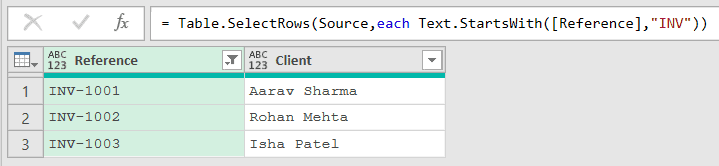
Table.SelectRows goes through the table one row at a time. The each keyword runs the check on the current row, and [Reference] picks up that row’s Reference value.
A row stays only when Text.StartsWith returns true, so the CRN and QTE rows get dropped and only the invoices stay.
If you used Text.Contains here instead, it would also keep a reference like “CRN-INV-2045”, because it finds “INV” anywhere in the text. Text.StartsWith only checks the very beginning, so it’s the right call when the prefix is what matters.
Example 5: Case-Insensitive Filter
Real data is rarely tidy, so your prefixes might show up in mixed case. You can filter on them all at once by adding the comparer inside the filter.
Suppose you have a Products table with a Code and a Product column, and the keyboard codes are entered as “kb”, “KB”, and “Kb”. You want every keyboard, regardless of how the code is capitalized.
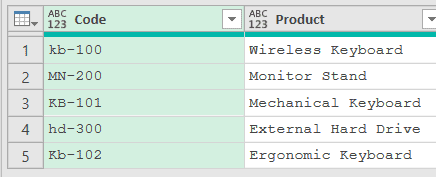
Add a new step (by clicking on the fx icon next to the formula bar) and use this formula:
= Table.SelectRows(Source,each Text.StartsWith([Code],"kb",Comparer.OrdinalIgnoreCase))
Result: all three keyboard rows are kept, kb-100 (Wireless Keyboard), KB-101 (Mechanical Keyboard), and Kb-102 (Ergonomic Keyboard)

Because Comparer.OrdinalIgnoreCase is in play, the different casings of “kb” all match. The MN and HD rows don’t start with those letters, so they’re filtered out.
Example 6: Match Multiple Prefixes
Sometimes one prefix isn’t enough. You want rows that start with any of several prefixes, and you can do that by joining two checks with or.
Suppose you have a Transactions table with a Ref and an Amount column, and you want to keep only deposits and withdrawals, which start with “DEP” and “WDL”.
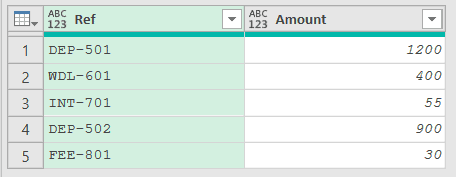
Add a new step (by clicking on the fx icon next to the formula bar) and use this formula:
= Table.SelectRows(Source,each Text.StartsWith([Ref],"DEP") or Text.StartsWith([Ref],"WDL"))
Result: the deposit and withdrawal rows are kept, DEP-501 (1200), WDL-601 (400), and DEP-502 (900)

Each Text.StartsWith checks the Ref against one prefix, and the or keeps a row if either check is true. The INT and FEE rows match neither prefix, so they’re dropped.
Example 7: Exclude Rows by Prefix
You can also flip the logic to remove rows instead of keeping them. Putting not in front of Text.StartsWith keeps everything that does not start with the prefix.
Suppose you have a Files table with a File Name and an Owner column, and you want to drop the temporary files, which all start with “TMP”.
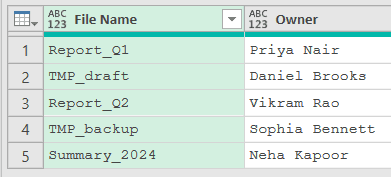
Add a new step (by clicking on the fx icon next to the formula bar) and use this formula:
= Table.SelectRows(Source,each not Text.StartsWith([File Name],"TMP"))
Result: the two TMP files are removed, leaving Report_Q1 (Priya Nair), Report_Q2 (Vikram Rao), and Summary_2024 (Neha Kapoor)
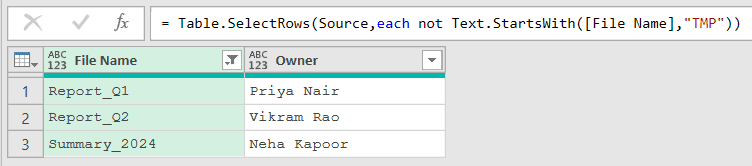
The not reverses each result, so a row is kept only when Text.StartsWith returns false. The two files starting with “TMP” return true, get reversed to false, and drop out.
Example 8: Add a Conditional Flag Column
Filtering isn’t the only use. You can also read the result of Text.StartsWith into a new column that labels each row.
Suppose you have a Requests table with a Reference and a Requester column, and you want a Type column that marks anything starting with “PO-” as a purchase order.
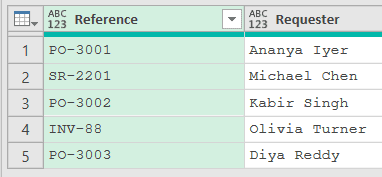
Add a new step (by clicking on the fx icon next to the formula bar) and use this formula:
= Table.AddColumn(Source,"Type",each if Text.StartsWith([Reference],"PO-") then "Purchase Order" else "Other")
Result: a new Type column labeling the three PO- rows as Purchase Order and the SR and INV rows as Other
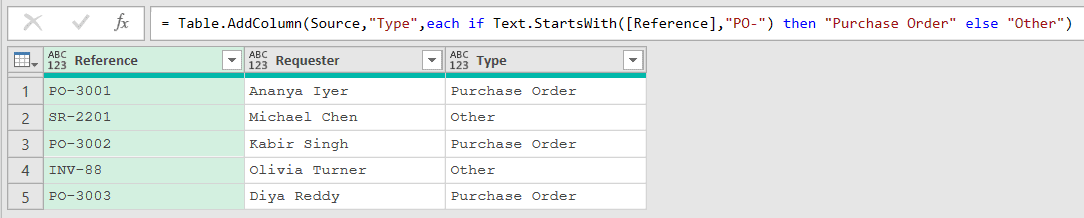
Table.AddColumn creates a column named Type, and the if statement checks each reference. When Text.StartsWith returns true, the row is labeled “Purchase Order”, and every other row gets “Other”.
Related Power Query Functions / Articles:
- Text.Combine – Joins text values from a list into a single string with an optional separator
- Text.PadStart – Use Text.PadStart in Power Query M to pad text to a fixed length by adding characters to the front.
- List.Contains – Use List.Contains in Power Query M to check if a value exists in a list.
- List.Select – Use List.Select in Power Query M to keep only the list items that meet a condition.