
If you want to pad a text value to a fixed length by adding characters to the front of it, the Text.PadStart function is what you’re looking for.
It’s the go-to for things like turning 7 into 007 or lining up codes to the same width.
In this article, I’ll walk you through Text.PadStart with practical examples: padding a single value, adding leading zeros to a whole column, padding with asterisks, and building fixed-width IDs.
Text.PadStart Function Syntax
Text.PadStart(text as nullable text, count as number, optional character as nullable text) as nullable text
- text – The text value you want to pad. It has to be text, so wrap numbers in Text.From first
- count – The total length you want the result to reach
- character – Optional. The single character to pad with. Leave it out and Text.PadStart uses a space
What it returns: A text value padded on the left up to the length you asked for. If the text is already that long or longer, it comes back unchanged.
When to Use the Text.PadStart Function
Use this function when you need to:
- Add leading zeros to numbers stored as codes or IDs
- Line up short codes to a fixed width so they sort and display evenly
- Fill the front of a value with a symbol like an asterisk
- Build fixed-width identifiers like INV-00042
- Standardize messy codes that come in at different lengths
Example 1: Pad a Single Text Value
Let’s start with the basics. The simplest way to see Text.PadStart in action is to feed it a single text value and a target length.
Create a new blank query (Home > New Source > Blank Query) and type this into the formula bar:
= Text.PadStart("Name",10)
Result: " Name" (six spaces, then Name)

Here, the word “Name” is 4 characters long and you asked for a total length of 10. Text.PadStart adds 6 spaces to the front so the whole thing reaches 10 characters.
Since no pad character was given, it uses a space.
You’ll usually want a visible character instead of a space, so pass a third argument to pick one.
Type this into the formula bar:
= Text.PadStart("Name",10,"|")
Result: ||||||Name

Same idea, but now the 6 padding slots hold the pipe character you passed. The original “Name” stays put on the right, and the padding always goes on the left.
If you need the padding on the end instead, Text.PadEnd works the same way but adds the characters to the right.
Also, the pad character has to be exactly one character. Pass something longer, like “ab”, and Power Query returns an error saying the value isn’t a single-character string.
Example 2: Add Leading Zeros to a Column
Here’s the most common use. You have a column of short codes and you want every value padded with zeros so they’re all the same width.
Suppose you have an Employees table with a Name column and an Emp Code column, and you want every code to be 3 digits.
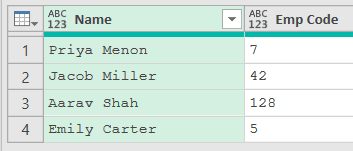
Add a new step (by clicking on the fx icon next to the formula bar) and use this formula:
= Table.AddColumn(Source,"Padded Code",each Text.PadStart([Emp Code],3,"0"))
Result: a new Padded Code column showing 007, 042, 128, and 005
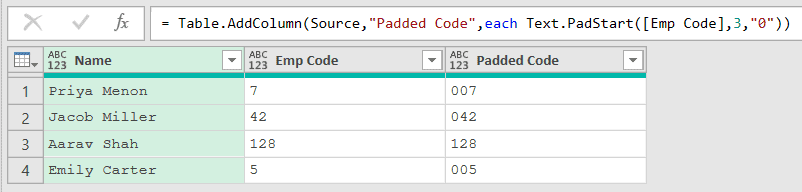
In this formula, Table.AddColumn creates a column named Padded Code, and Text.PadStart runs on each row’s Emp Code to pad it out to 3 characters with zeros.
Notice that 128 was already 3 characters, so it comes back unchanged. Text.PadStart only adds padding when the value is shorter than the length you asked for, and it never cuts a longer value down.
Example 3: Pad Numbers Stored as a Number Type
This one comes up a lot. Your codes are stored as actual numbers, not text, so Text.PadStart would throw an error if you fed them in directly.
Suppose you have a Products table with a Product column and an Item No column that’s a number type, and you want 4-digit SKUs.
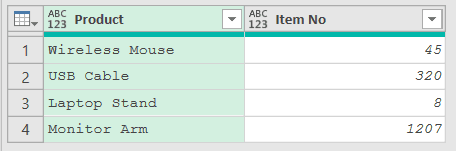
Add a new step with the fx icon and use this formula:
= Table.AddColumn(Source,"SKU",each Text.PadStart(Text.From([Item No]),4,"0"))
Result: a new SKU column showing 0045, 0320, 0008, and 1207
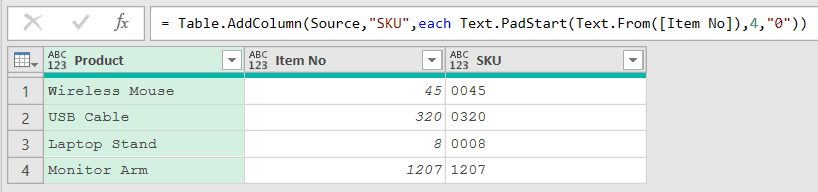
Here, Text.From([Item No]) converts each number to text first, then Text.PadStart pads it to 4 characters. Without the Text.From, the function would error because it only accepts text.
The value 1207 is already 4 digits, so it stays as is. The shorter numbers pick up enough leading zeros to reach 4 characters.
Example 4: Fix a Whole Column In Place
Sometimes you don’t want a new column, you just want to clean up the existing one. Table.TransformColumns lets you pad a column and keep the same column name.
Suppose you have a Contacts table with a Contact column and a Zip column stored as text, and some zip codes lost their leading zeros. You want every zip to be 5 characters.
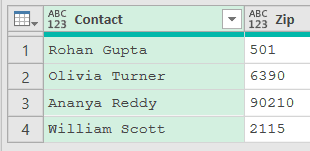
Add a new step with the fx icon and use this formula:
= Table.TransformColumns(Source,{{"Zip",each Text.PadStart(_,5,"0"),type text}})
Result: the Zip column now shows 00501, 06390, 90210, and 02115
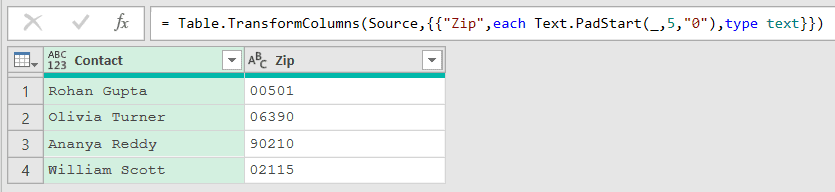
Here, Table.TransformColumns rewrites the Zip column in place instead of adding a new one. The underscore stands for each value in the column, and Text.PadStart pads it to 5 characters with zeros.
The type text at the end keeps the Zip column set to the text data type after the change.
The 90210 value was already 5 digits, so it’s untouched. The others gain leading zeros until they hit 5 characters.
Example 5: Build Fixed-Width IDs with a Prefix
You can combine Text.PadStart with other text to build clean, uniform identifiers. A common one is an invoice number with a fixed-width sequence.
Suppose you have an Orders table with a Customer column and a Seq column, and you want an Invoice ID like INV-00012 for each row.
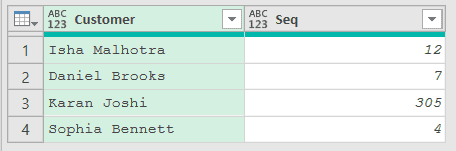
Add a new step with the fx icon and use this formula:
= Table.AddColumn(Source,"Invoice ID",each "INV-" & Text.PadStart(Text.From([Seq]),5,"0"))
Result: an Invoice ID column showing INV-00012, INV-00007, INV-00305, and INV-00004
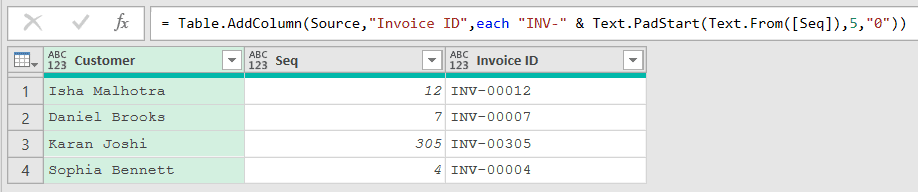
Here, Text.From([Seq]) turns the number into text, Text.PadStart pads it to 5 digits, and the & operator joins the “INV-” prefix onto the front.
Every invoice ID lines up to the same width, which makes them sort correctly and read cleanly in reports.
Example 6: Pad with Asterisks Instead of Zeros
Text.PadStart isn’t only for zeros. You can pad with any single character, like an asterisk, to fill a value out to a fixed width.
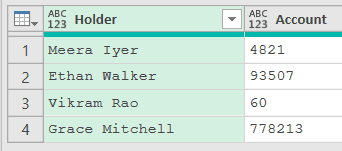
Suppose you have an Accounts table with a Holder column and an Account column, and you want each account padded to a fixed 12-character width with asterisks.
Add a new step with the fx icon and use this formula:
= Table.AddColumn(Source,"Masked Account",each Text.PadStart([Account],12,"*"))
Result: a Masked Account column showing ********4821, *******93507, **********60, and ******778213
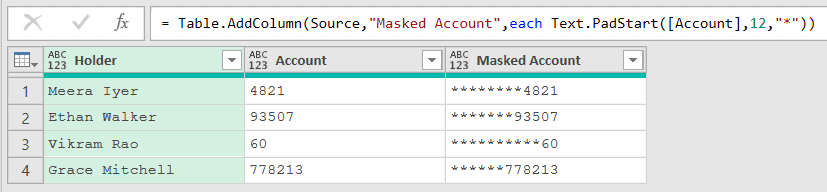
Here, Text.PadStart pads each account to 12 characters using an asterisk. The real digits stay on the right and the front is filled with stars, so every result has the same length.
The column is called Masked Account, but keep in mind this doesn’t hide anything. Every real digit is still there, and the stars only fill the space in front.
To actually mask an account, keep only the last few digits with Text.End before padding, like Text.PadStart(Text.End([Account],4),12,"*"). That turns 93507 into ********3507.
Example 7: Only Pad Short Codes
This last one shows Text.PadStart inside an if condition. It’s the pattern to reach for when short codes and long codes need different handling.
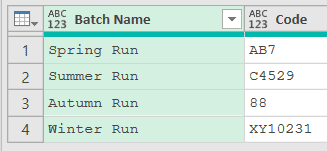
Suppose you have a Batches table with a Batch Name column and a Code column, and you want every code to be at least 6 characters without touching the ones that already are.
Add a new step with the fx icon and use this formula:
= Table.AddColumn(Source,"Standard Code",each if Text.Length([Code]) < 6 then Text.PadStart([Code],6,"0") else [Code])
Result: a Standard Code column showing 000AB7, 0C4529, 000088, and XY10231

Here, Text.Length checks how long each code is. If it’s under 6 characters, Text.PadStart pads it to 6 with zeros.
If it’s already 6 or more, the else branch returns the original code untouched.
XY10231 is 7 characters, so it passes through as is. The shorter codes all get padded up to 6.
You’d get the same result here with plain Text.PadStart([Code],6,"0"), since it already leaves longer codes alone. The if version earns its place when you want the else branch to do something different, like flag the long codes or trim them with Text.End.
Other Excel Articles You May Also Like:
- List.Transform function
- Text.Start function
- Text.Format – Use Text.Format in Power Query M to slot values into a text template.
- Text.StartsWith – Use Text.StartsWith in Power Query M to check whether text begins with a prefix.