

If you want to get the year value from a date in Power Query, the Date.Year function is the quickest way to do it.
It takes any date or datetime value and hands you back just the year as a number.
In this article, I’ll walk you through Date.Year function with practical examples: pulling the year off a single date, filtering and grouping your data by year, and even building a fiscal-year column.
Date.Year Function Syntax
Date.Year(dateTime as any) as nullable number
- dateTime – The date, datetime, or datetimezone value you want to pull the year from
What it returns: A number representing the year, like 2026. If the input is null, the function returns null instead of an error.
When to Use Date.Year
Use this function when you need to:
- Extract the year from a date or timestamp column
- Filter a table down to a single year
- Group or summarize your data by year
- Build a fiscal (financial) year column from a regular date
- Compare each row’s date against the current year
Example 1: Extract the Year from a Date or Date-Time
Let’s start with the basics. The simplest way to see Date.Year in action is to feed it a single date value.
Create a new blank query (Home > New Source > Blank Query) and type this into the formula bar:
= Date.Year(#date(2024,8,15))
Result: 2024

Here, #date(2024,8,15) builds the date August 15, 2024, and Date.Year pulls out just the year part.
The function also works on a full datetime value, not just a plain date. Type this into the formula bar:
= Date.Year(#datetime(2011,12,31,9,15,36))
Result: 2011

Even though this value carries a time (9:15:36 AM), Date.Year ignores it completely and returns only the year.
Example 2: Add a Year Column to a Table
Here’s the most common use. You have a table of dates and you want a separate column that shows just the year for each row.
Suppose you have an Orders table with an Order ID and an Order Date column.
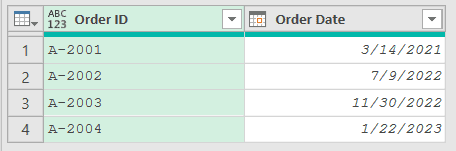
When you load this table into Power Query, it adds a “Changed Type” step that sets Order Date to a date type. Add a new step after it (click the fx icon next to the formula bar) and use this formula:
= Table.AddColumn(#"Changed Type","Year",each Date.Year([Order Date]))
Result: a new Year column showing 2021, 2022, 2022, and 2023
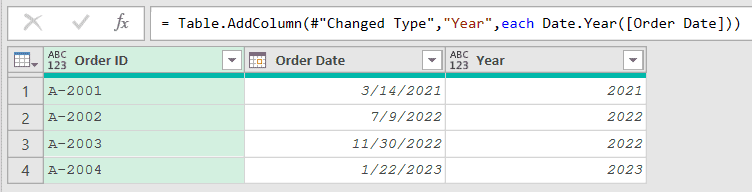
In this formula, Table.AddColumn creates a column named Year, and Date.Year([Order Date]) runs on each row to pull out its year.
One quick note on formatting. The Order Date shows in your regional format (3/14/2021 in the US, 14/03/2021 in the UK), but the year Date.Year returns is the same number on any machine.
Example 3: Filter a Table to a Specific Year
This next one comes up all the time. You have dates spanning several years and you only want the rows from one particular year.
Suppose you have a Sales table with an Invoice and a Sale Date column, and you want to keep just the 2023 sales.
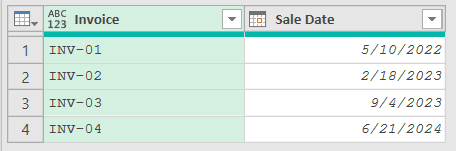
Add a new step with the fx icon and use this formula:
= Table.SelectRows(#"Changed Type",each Date.Year([Sale Date]) = 2023)
Result: only the two 2023 rows remain (INV-02 and INV-03)

Table.SelectRows keeps a row only when the condition is true. Here the condition is Date.Year([Sale Date]) = 2023, so any row whose sale date isn’t in 2023 gets dropped.
Example 4: List the Distinct Years in Your Data
Sometimes you just want to know which years are present in your data before you do anything else.
Suppose you have an Employees table with a Name and a Joining Date column, and you want a clean list of the years people joined.
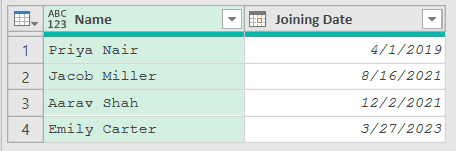
Add a new step with the fx icon and use this formula:
= List.Distinct(List.Transform(#"Changed Type"[Joining Date],each Date.Year(_)))
Result: a list containing 2019, 2021, and 2023

Reading it from the inside out, #"Changed Type"[Joining Date] grabs the Joining Date column as a list. List.Transform runs Date.Year on every value to turn it into a list of years.
List.Distinct then strips out the duplicates. Two people joined in 2021, so 2021 appears only once in the final list.
Example 5: Count Records per Year
Once you can pull out the year, you can summarize your data by it. Let’s count how many records fall in each year.
Suppose you have a Tickets table with a Ticket ID and a Created Date column, and you want the number of tickets created each year.
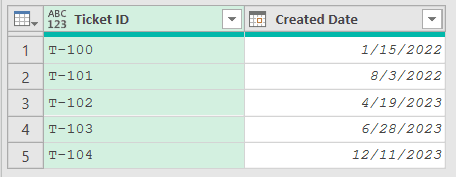
This one uses two steps: first add a Year column, then group on it. Here’s the full query:
let
    Source = Excel.CurrentWorkbook(){[Name="Tickets"]}[Content],
    #"Changed Type" = Table.TransformColumnTypes(Source,{{"Created Date",type date}}),
    #"Added Year" = Table.AddColumn(#"Changed Type","Year",each Date.Year([Created Date])),
    #"Grouped Rows" = Table.Group(#"Added Year",{"Year"},{{"Ticket Count",each Table.RowCount(_),Int64.Type}})
in
    #"Grouped Rows"
Result: a two-row summary, 2022 with 2 tickets and 2023 with 3 tickets

The Added Year step uses Date.Year to tag each ticket with its year. Table.Group then rolls the rows up by that Year column and counts how many tickets sit in each one.
Example 6: Flag Rows as Current Year vs Previous Years
Date.Year is handy for comparisons too, especially against today’s date. A common need is to mark which rows belong to the current year.
Suppose you have a Renewals table with a Member and a Renewal Date column, and you want to label each row as either current year or a previous year.
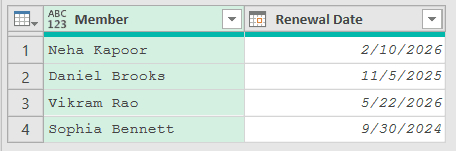
Add a new step with the fx icon and use this formula:
= Table.AddColumn(#"Changed Type","Period",each if Date.Year([Renewal Date]) = Date.Year(DateTime.LocalNow()) then "Current Year" else "Previous Years")
Result: a Period column marking the 2026 renewals as Current Year and the rest as Previous Years

Here, DateTime.LocalNow() gives you today’s date and time, and Date.Year turns it into the current year. Each row’s year is compared against that, so the labels update on their own as the years roll over.
Example 7: Calculate the Financial (Fiscal) Year
Plenty of businesses run on a fiscal year that doesn’t start in January. A common one starts in April, so any date from April onward belongs to that year’s fiscal period, and January through March belongs to the previous one.
Suppose you have an Invoices table with an Invoice No and an Invoice Date column, and your fiscal year starts in April.
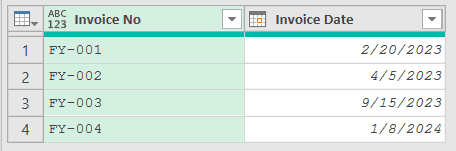
Add a new step with the fx icon and use this formula:
= Table.AddColumn(#"Changed Type","Fiscal Year",each if Date.Month([Invoice Date]) >= 4 then Date.Year([Invoice Date]) else Date.Year([Invoice Date]) - 1)
Result: a Fiscal Year column showing 2022, 2023, 2023, and 2023

The logic checks the month with Date.Month. If the invoice falls in April or later (month 4 and up), the fiscal year is just Date.Year.
If it falls in January to March, the fiscal year is Date.Year minus one, since those months still count toward the prior fiscal period.
Tips & Common Mistakes
- Works on dates, datetimes, and datetimezones: You can pull the year off a plain date or a full timestamp column the exact same way. Date.Year just ignores the time and zone parts and returns the year.
- Nulls come back as null: Date.Year(null) returns null instead of throwing an error, so blank cells in a date column won’t break your step. You can filter or replace those nulls separately if you need to.
- A text column will cause an error: If Date.Year returns an error, your column is probably still text, not a date. Add a Changed Type step (or use the Date.FromText function) to convert it to a date first, and the function will work.
- Date.Year is not Date.StartOfYear: Date.Year gives you only the year as a number. If you want to round a date down to January 1 of its year and keep it as a date, use Date.StartOfYear instead.
All Power Query Functions
Related Power Query Functions / Articles:
- Date.MonthName – Use Date.MonthName in Power Query M to get the month name from a date.
- List.Dates – Use List.Dates in Power Query M to generate a list of dates.
- Duration.Days – Use Duration.Days in Power Query M to extract the day component from a duration value.
- Calculate Date Difference in Power Query – Learn how to calculate date difference in Power Query in days, months, or years, using the ribbon or simple M formulas (with age and working days examples).
- Date.From
