

Power Query doesn’t have a TODAY() function like Excel does. But there’s a formula that works the same way.
In this article, I’ll show you how to use it to get today’s date in Power Query, and then how to use it to calculate how many days have passed since a given date.
Using the DateTime.LocalNow() Formula
Just like the TODAY function in Excel, Power Query has the DateTime.LocalNow() that works the same way.
So if you use this formula, it is going to give you the current date based on your system’s date and time settings.
Let me show you how it works.
Below, I have a dataset where I have the start date in column C, and I want to get the current date in a new column.
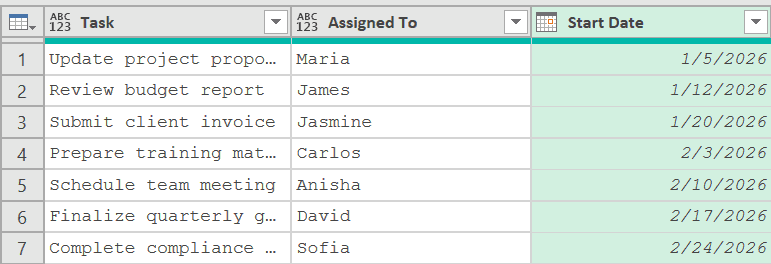
Here’s how to add a Current Date column:
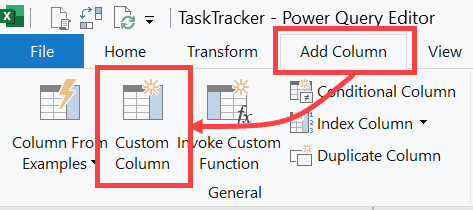
- Go to the Add Column tab and click Custom Column.
- Rename the column to Current Date.
- Enter the formula below in the Custom Column dialog box
= DateTime.Date(DateTime.LocalNow())
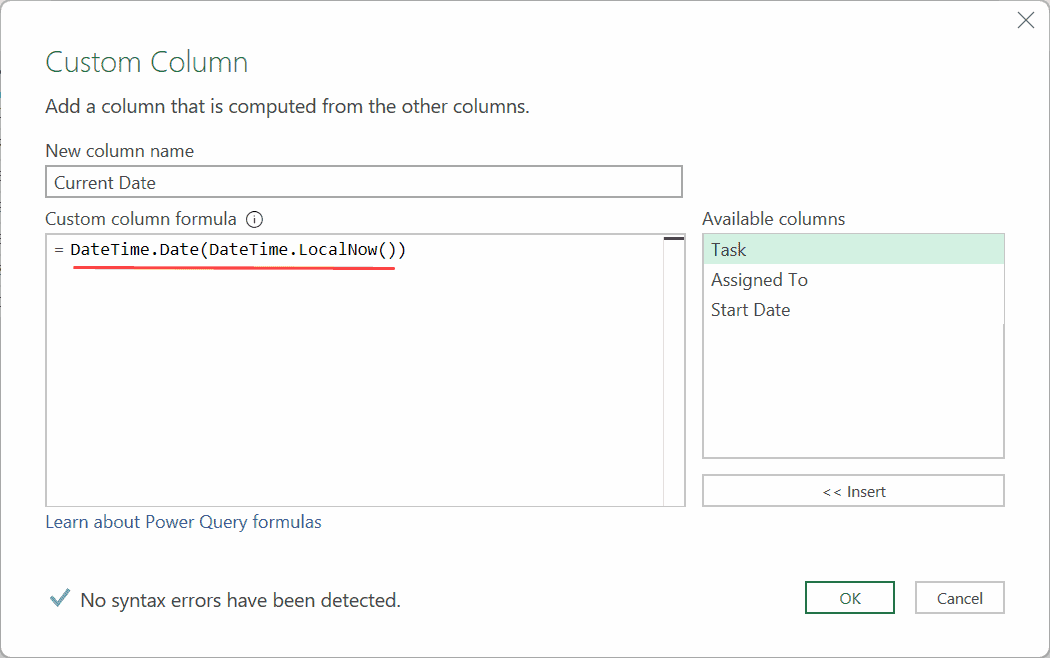
- Click OK:
This will add a new column that will show you the current date (as shown below).
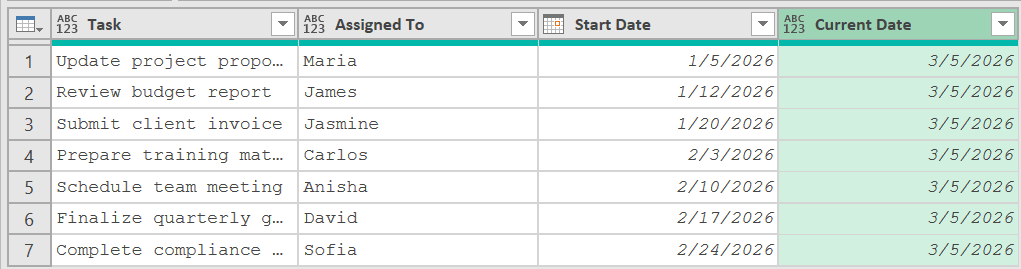
How does the formula work?
DateTime.LocalNow() returns the current date and time from your system. But we just want the date and not the time. I have wrapped this formula within the DateTime.Date
This only gives us the date without the time component.
Note: You can skip using the DateTime.Date() and just use DateTime.LocalNow() on its own. But this will add a column that would have the date as well as the time. So you’d need an extra step to change the column type to Date, which removes the time part.
Calculating Days Elapsed Between Two Dates in Power Query
A common thing people want to do with today’s date is figure out how many days have passed since a certain date.
Let’s see how to do that.
Option 1: Using the Current Date column
Let’s suppose you already have the current date column as shown below.
Here are the steps to get another column that will show the number of days elapsed between the start date and the current date.
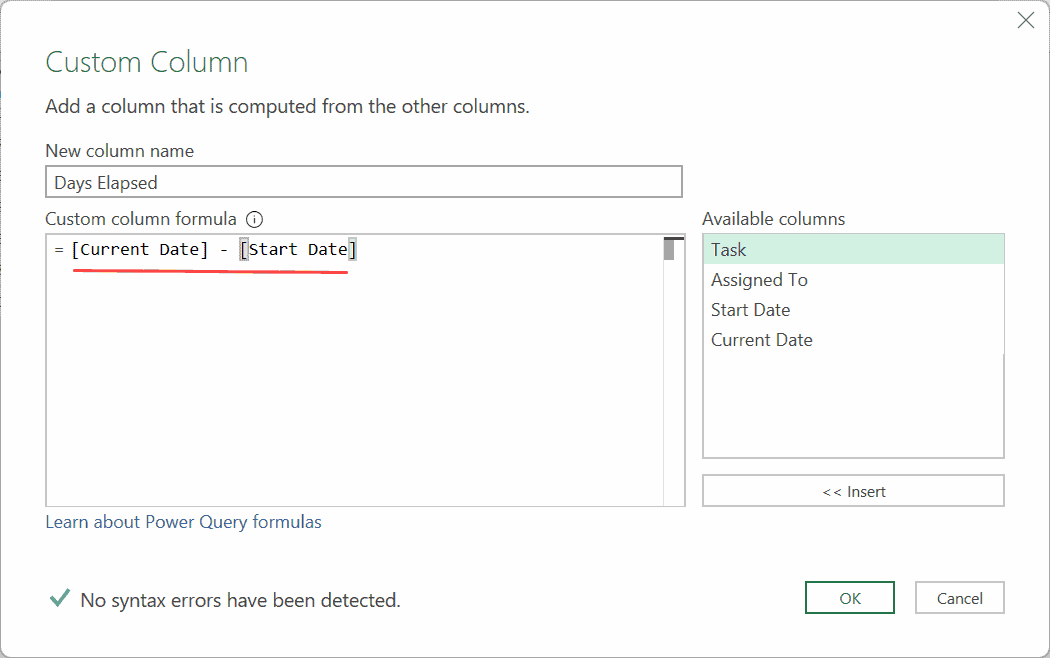
- Go to Add Column and click Custom Column.
- Name the column Days Elapsed.
- Enter this formula and click OK:
= [Current Date] - [Start Date]
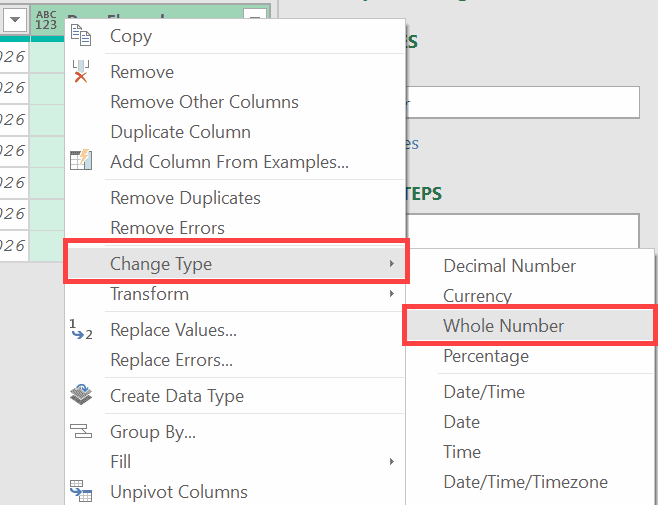
- The result will show as a Duration type. Right-click the column header, go to Change Type, and select Whole Number.
That gives you the number of days between the start date and today.
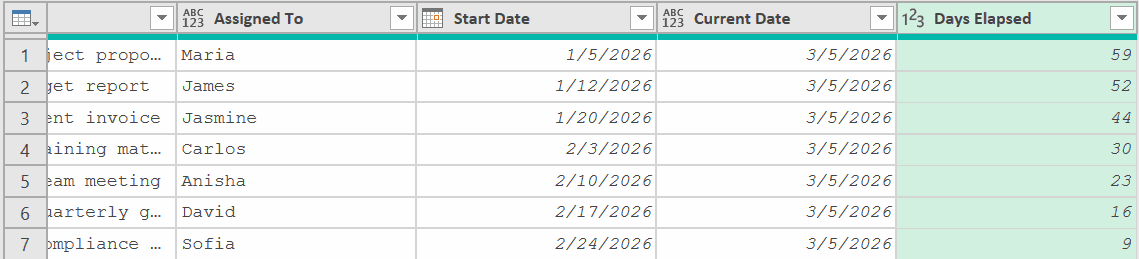
Now, if you do not want to show the current date column, you can remove it.
Option 2: Calculate directly (no Current Date column needed)
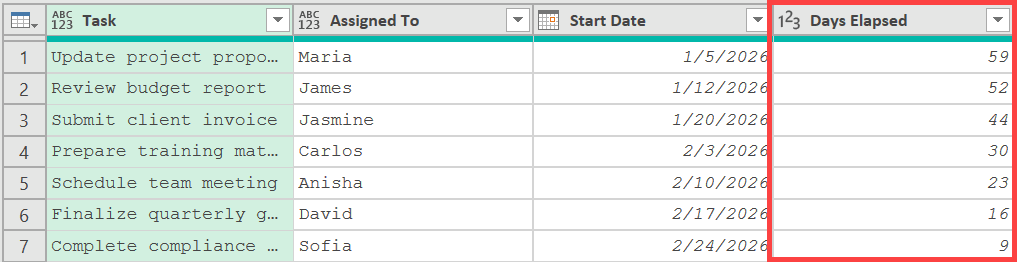
You can also use the full formula in the custom column dialog box that will give you the number of days between the start date and the current date.
This method doesn’t require you to first have a column that has the current date.
Let’s suppose you have a dataset as shown below.
Here are the steps to get the column with the number of days lapsed:
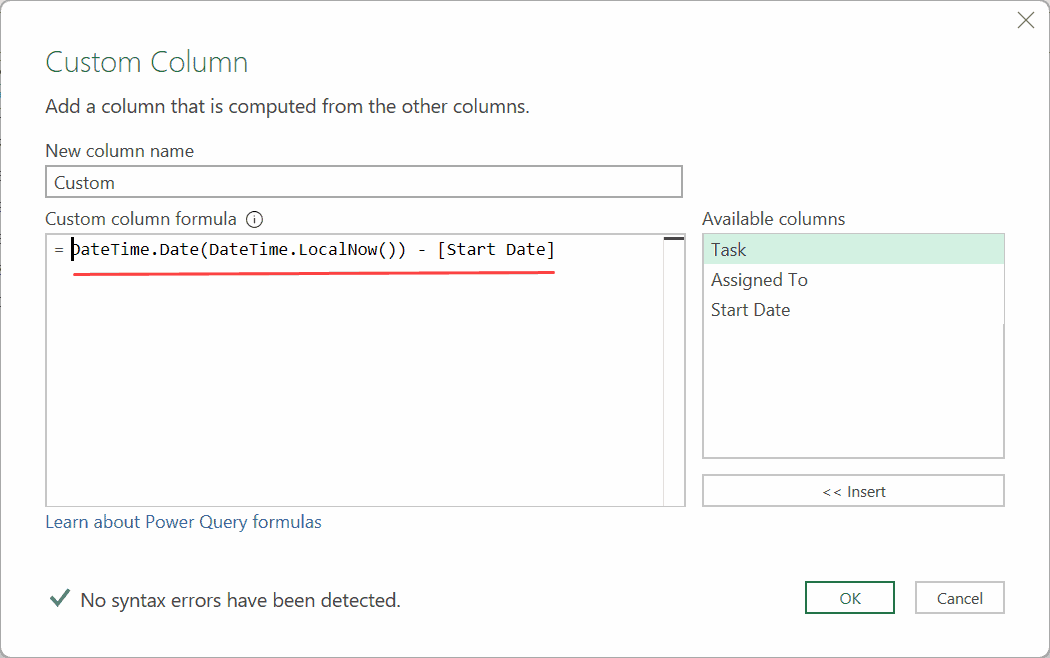
- Go to Add Column and click Custom Column.
- Name the column Days Elapsed.
- Enter this formula and click OK:
= DateTime.Date(DateTime.LocalNow()) - [Start Date]
- Right-click the column header, go to Change Type, and select Whole Number.
Same result, but without the extra column. Use this one if you only need the final number.
Things to Keep in Mind
- Always include the parentheses. If you type DateTime.LocalNow without the (), Power Query returns the function name instead of the date. Think of it like TODAY() in Excel. No arguments, but the parentheses still need to be there.
- Subtracting two dates gives a Duration, not a number. When you subtract dates in Power Query, the result is a Duration type. Change the column type to Whole Number to get an actual day count.
- Convert your source date columns to Date type first. If your Start Date column has both a date and a time in it, convert it to Date before subtracting. Mixed types can give you unexpected results.
In this article, I showed you how to get today’s date in Power Query using a simple built-in function.
I hope you found this article helpful.
Other Power Query articles you may also like:
